

Guides / Wheel and brushes
The stroke wheel
Every part of the wheel in the corner, from the media on its rim to Undo and Tools under your thumb.
The stroke wheel holds everything about your next mark. Media on the rim, values and tools on the ring, colour in the centre, and Undo and Tools in the squared corner.
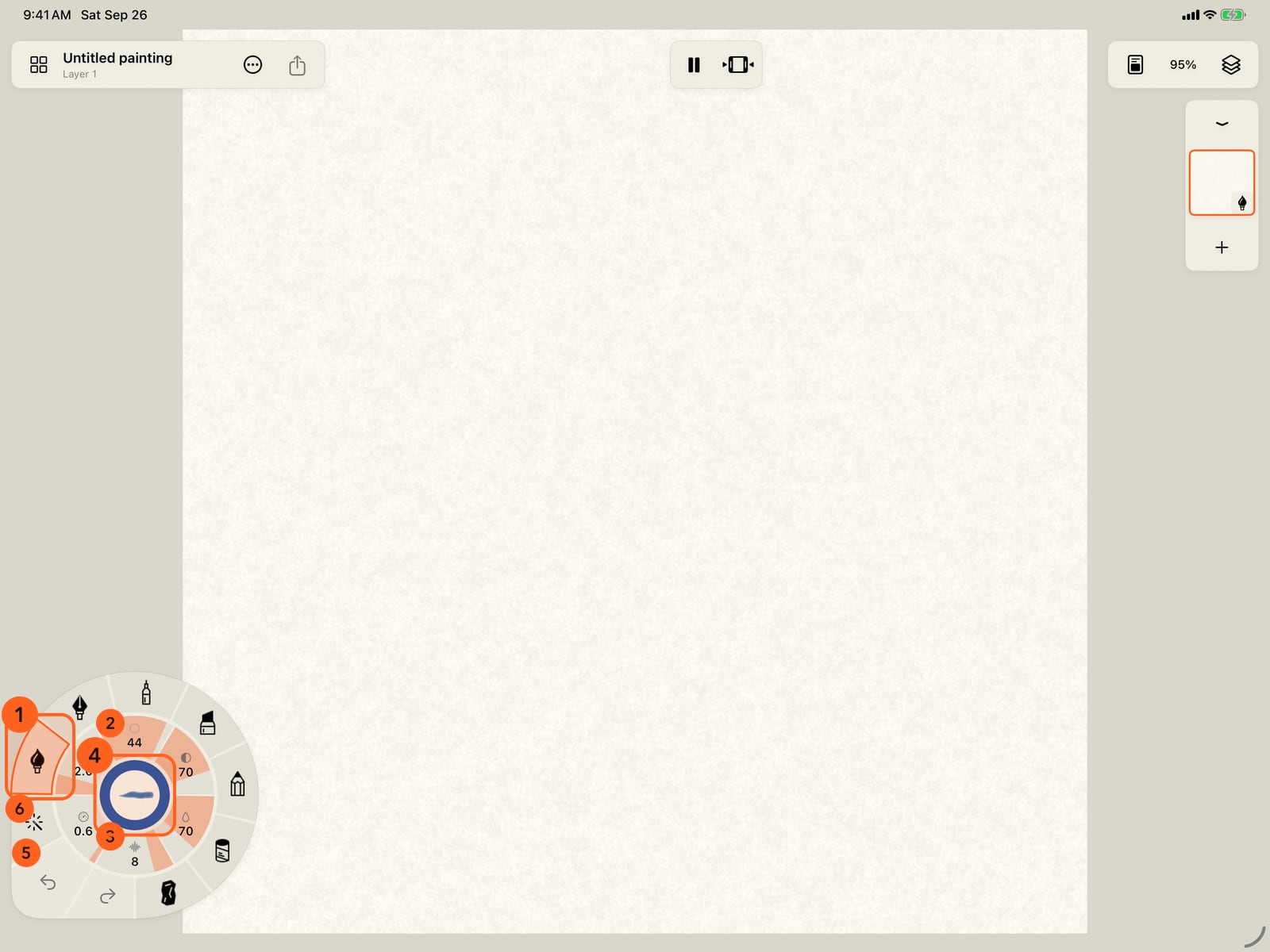
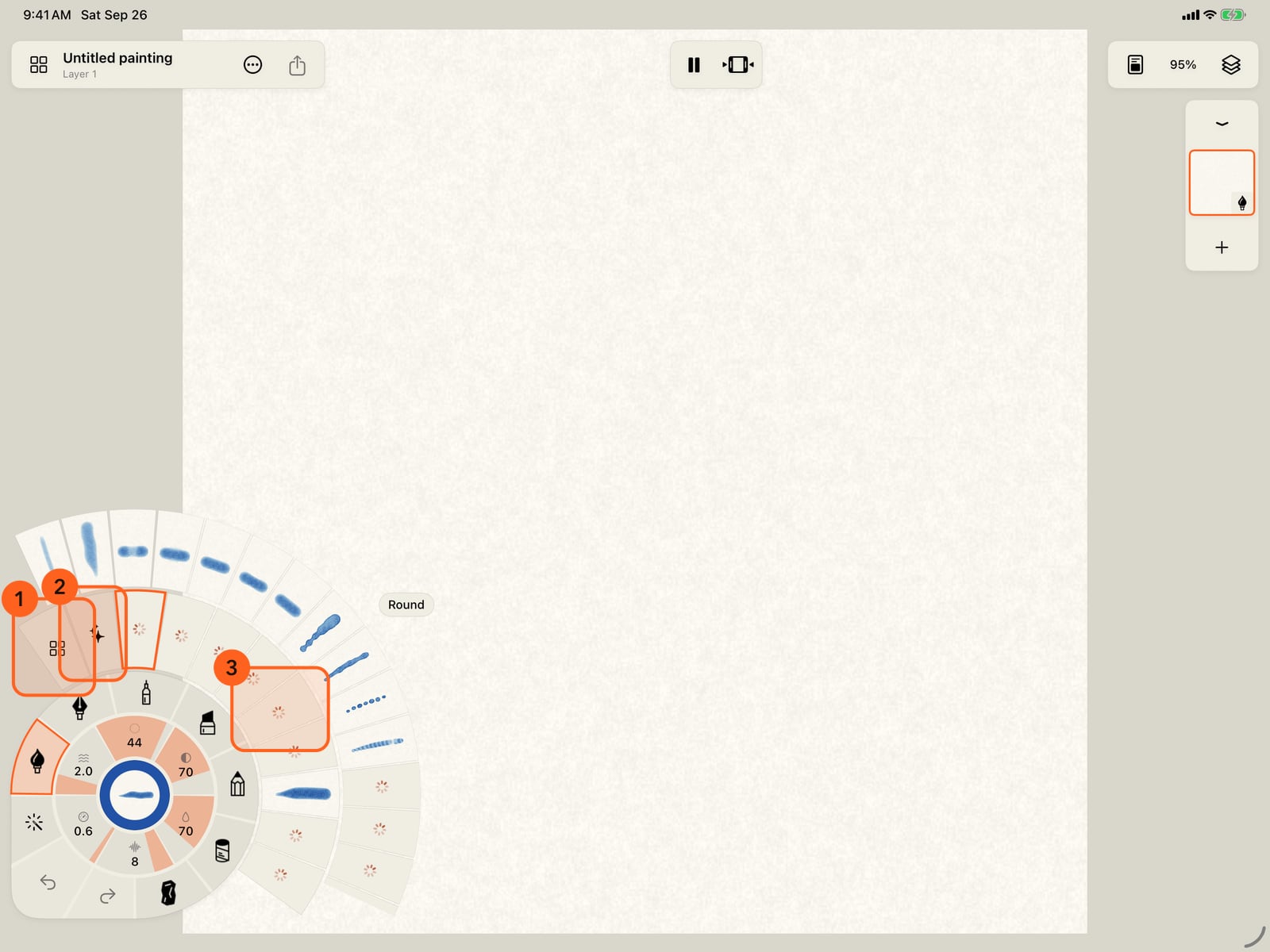
On iPhone the wheel rests folded to its centre. Tap it to unfold it. Media on the rim, values and tools on the ring, colour in the centre, Undo and Tools in the corner.
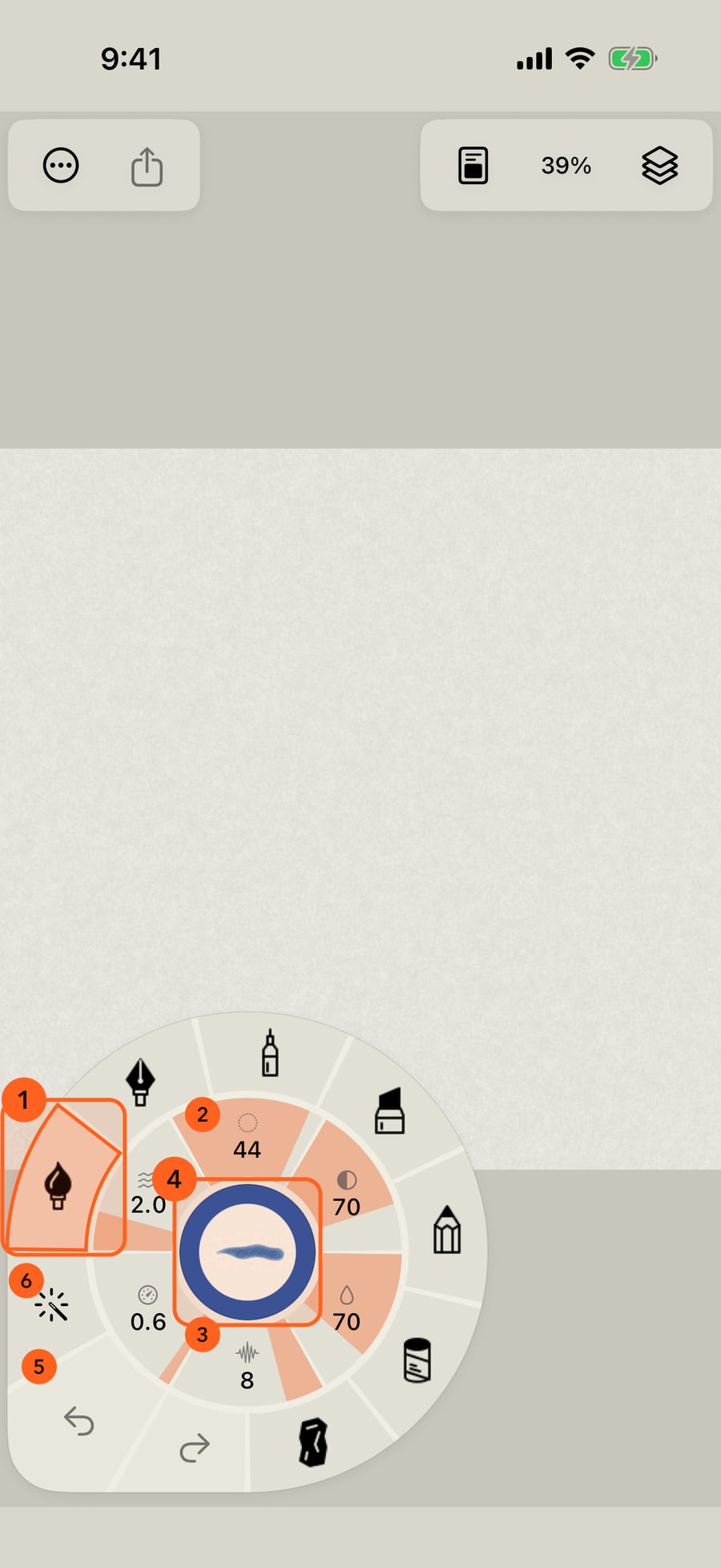
Tap another medium to take up its last brush. Watercolor is already in hand, so tapping it unfolds its brushes, each drawn as the stroke it makes.
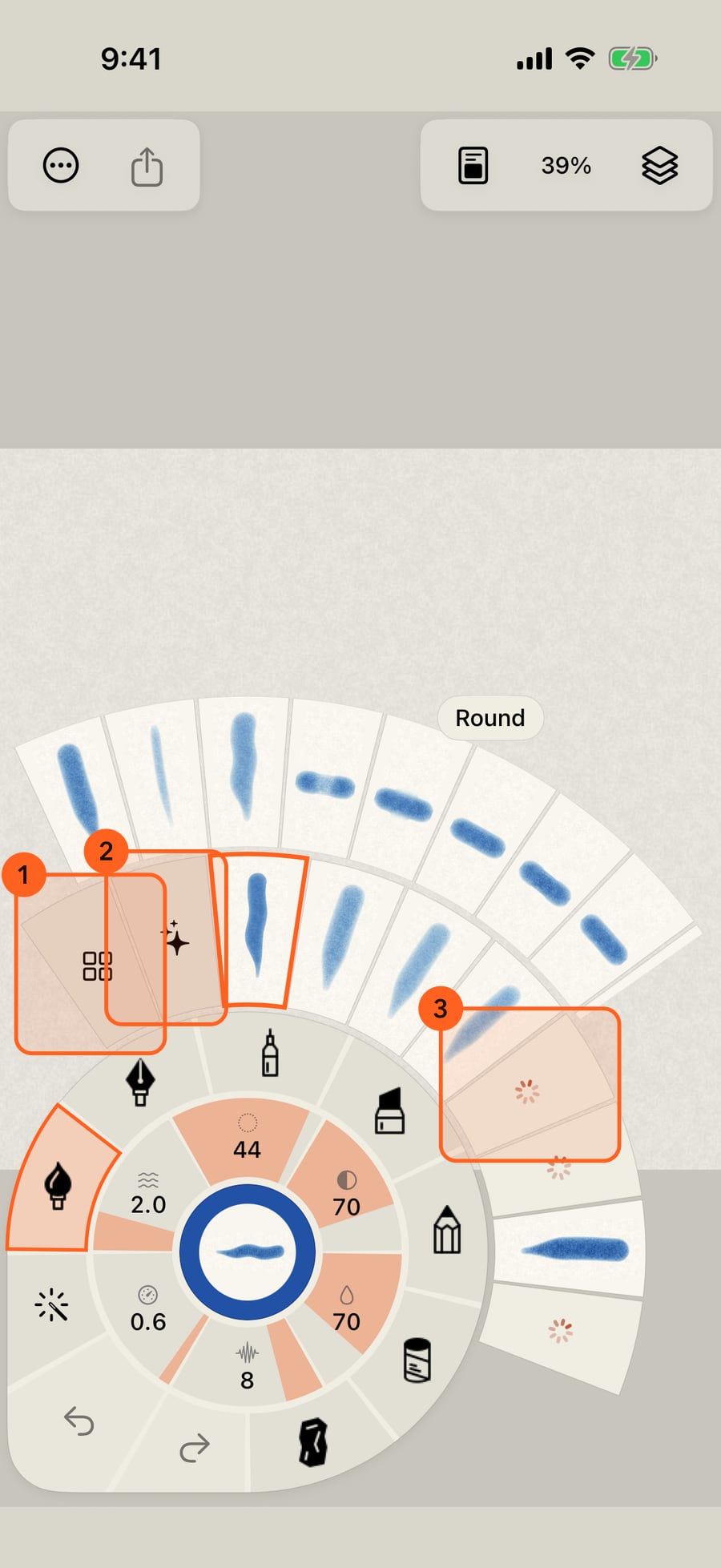
Tap another medium to take up its last brush. Watercolor is already in hand, so tapping it unfolds its brushes, each drawn as the stroke it makes.
Click another medium to take up its last brush. Watercolor is already in hand, so clicking it unfolds its brushes, each drawn as the stroke it makes.
Tap a brush to take it up. The rings stay open so you can try another, and drawing folds them away. Here, Dry Brush.
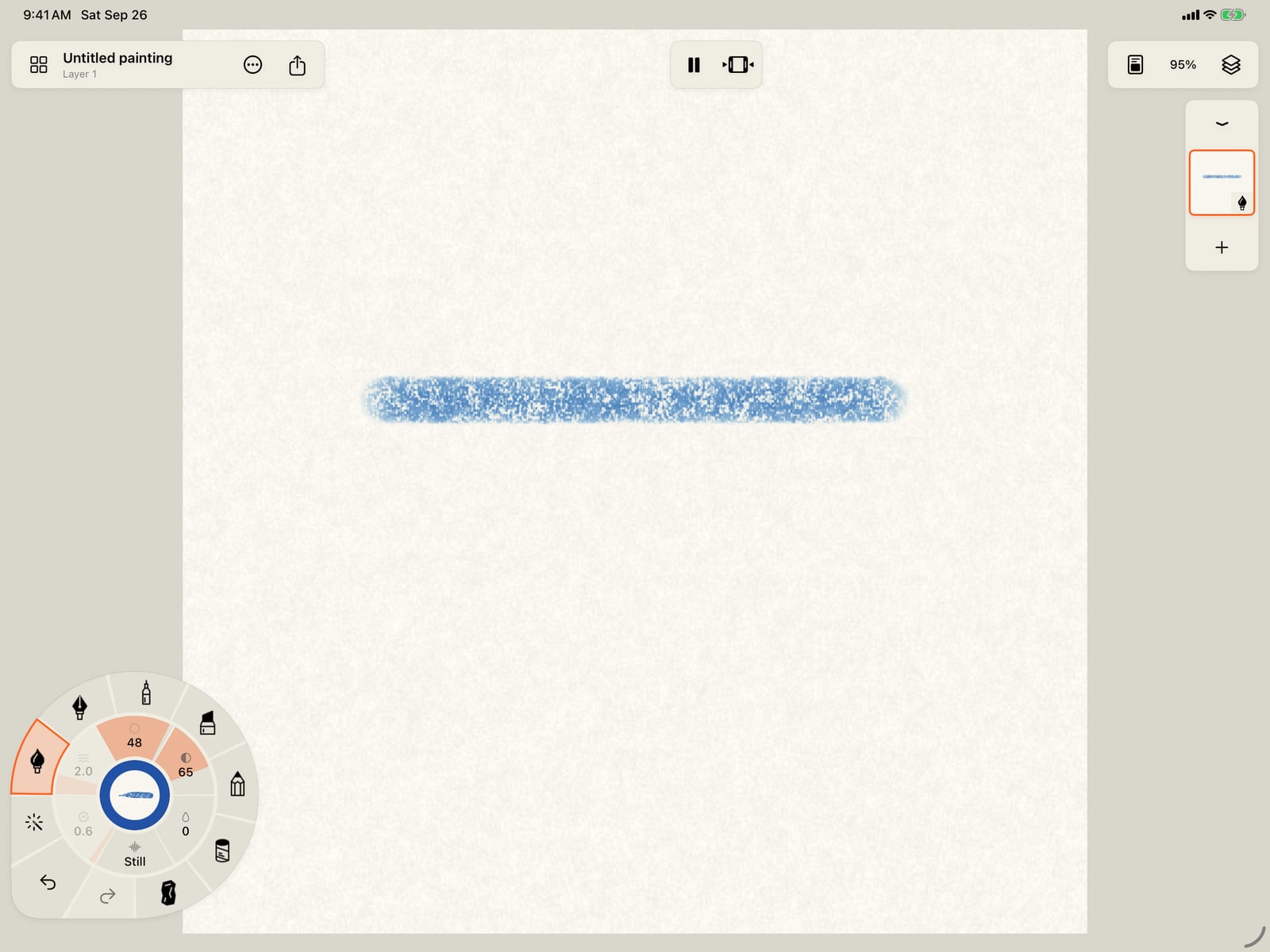
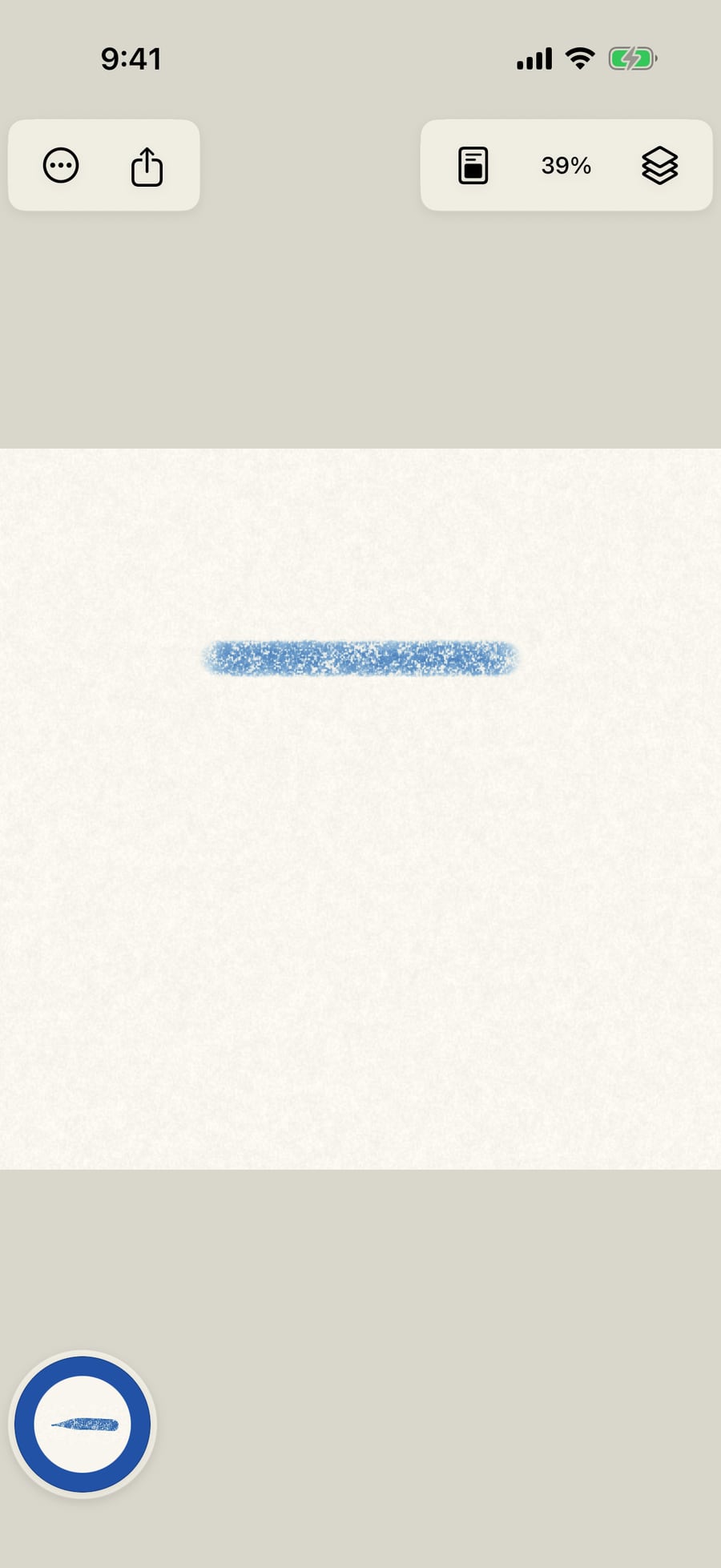
Tap a brush to take it up, then tap the page to fold the wheel, and paint. Here, Dry Brush.
Click a brush to take it up. The rings stay open so you can try another, and drawing folds them away. Here, Dry Brush.
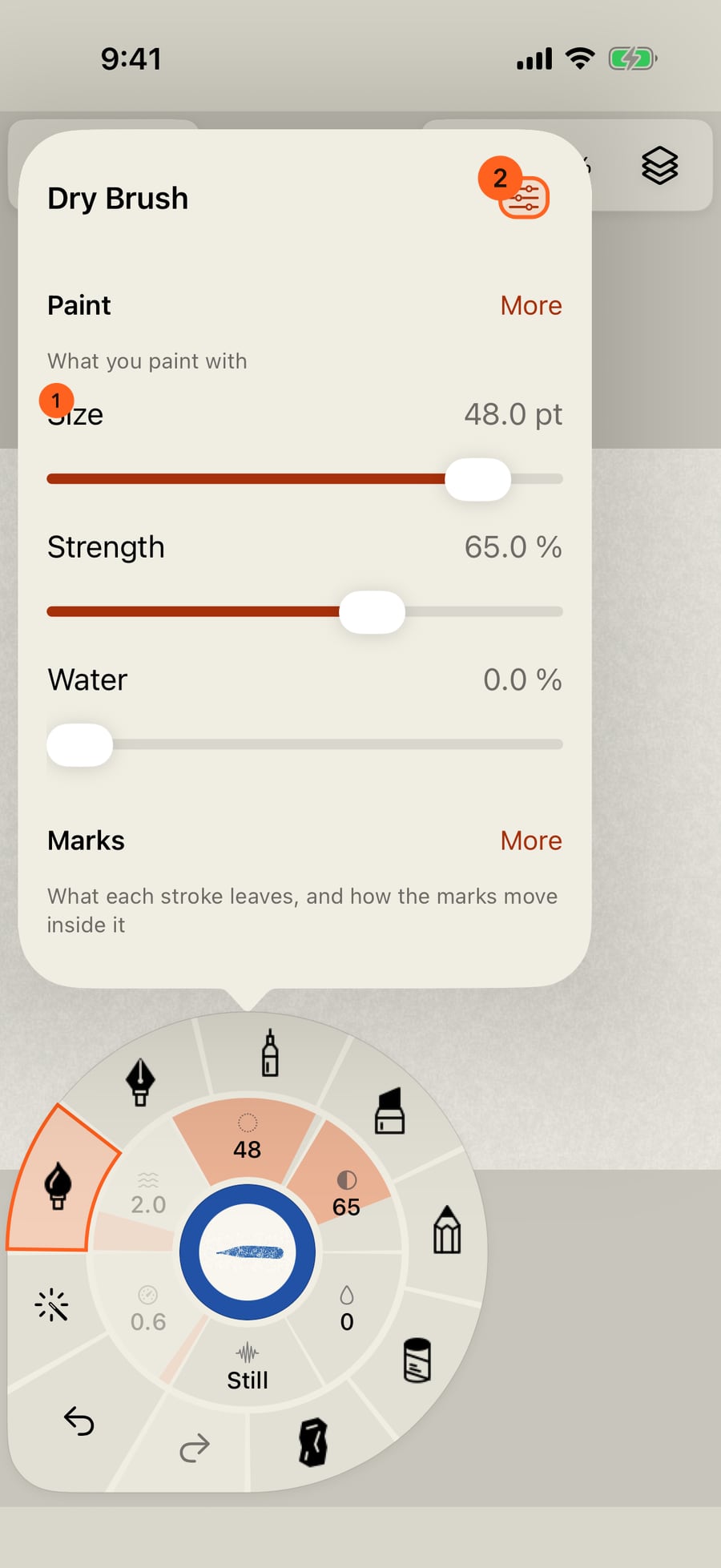
The ring is half paint and half motion. Size, Strength and Water are the paint. Turn one clockwise around the ring for more. Tap one and the brush's settings open, as Paint, Marks and Motion, with a large slider for each.
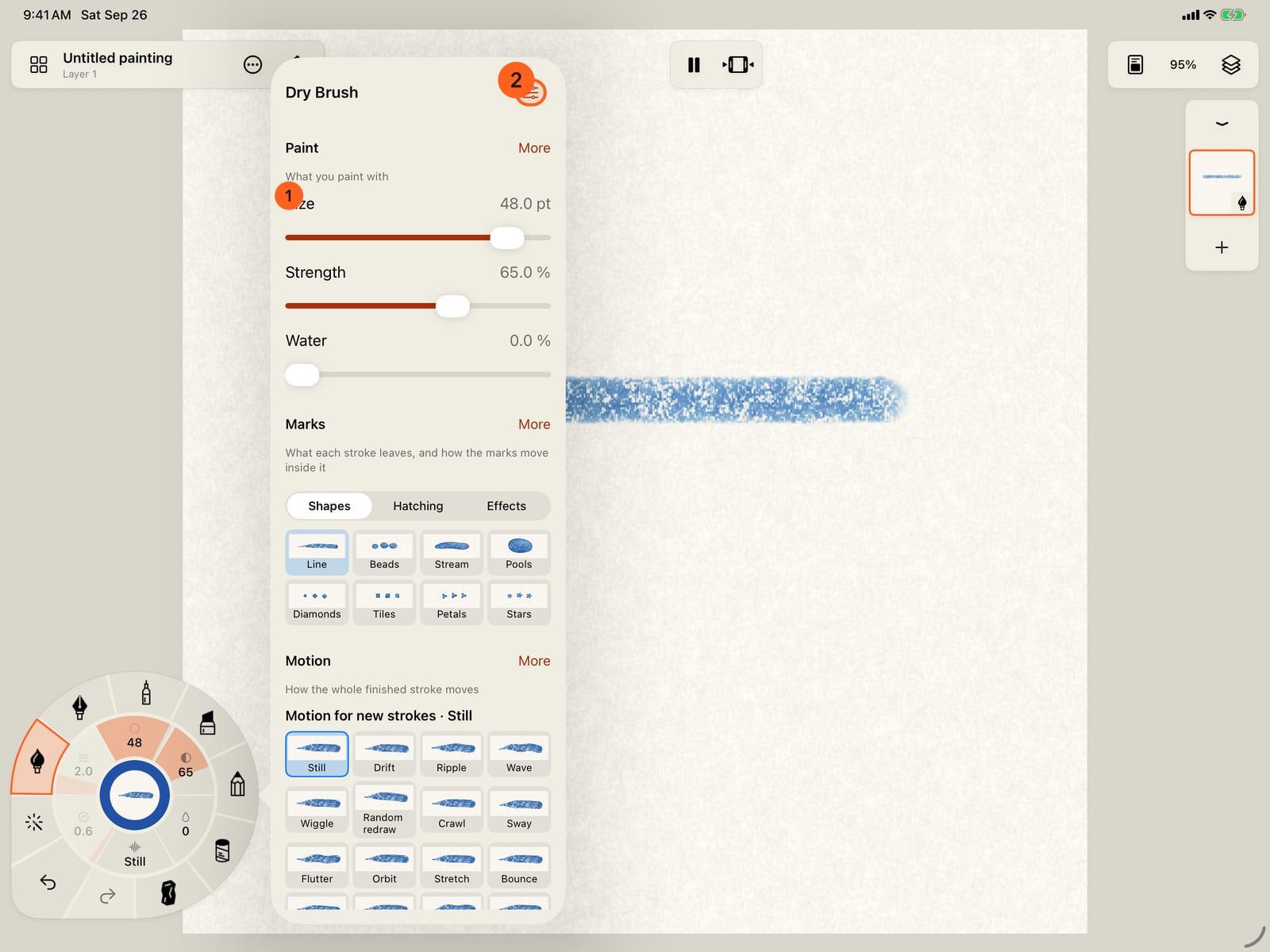
The ring is half paint and half motion. Size, Strength and Water are the paint. Turn one clockwise around the ring for more. Tap one and the brush's settings open, as Paint, Marks and Motion, with a large slider for each.
The ring is half paint and half motion. Size, Strength and Water are the paint. Turn one clockwise around the ring for more. Click one and the brush's settings open, as Paint, Marks and Motion, with a large slider for each.
Tap the page to close the settings, and paint again. The new stroke is the same brush, much larger.
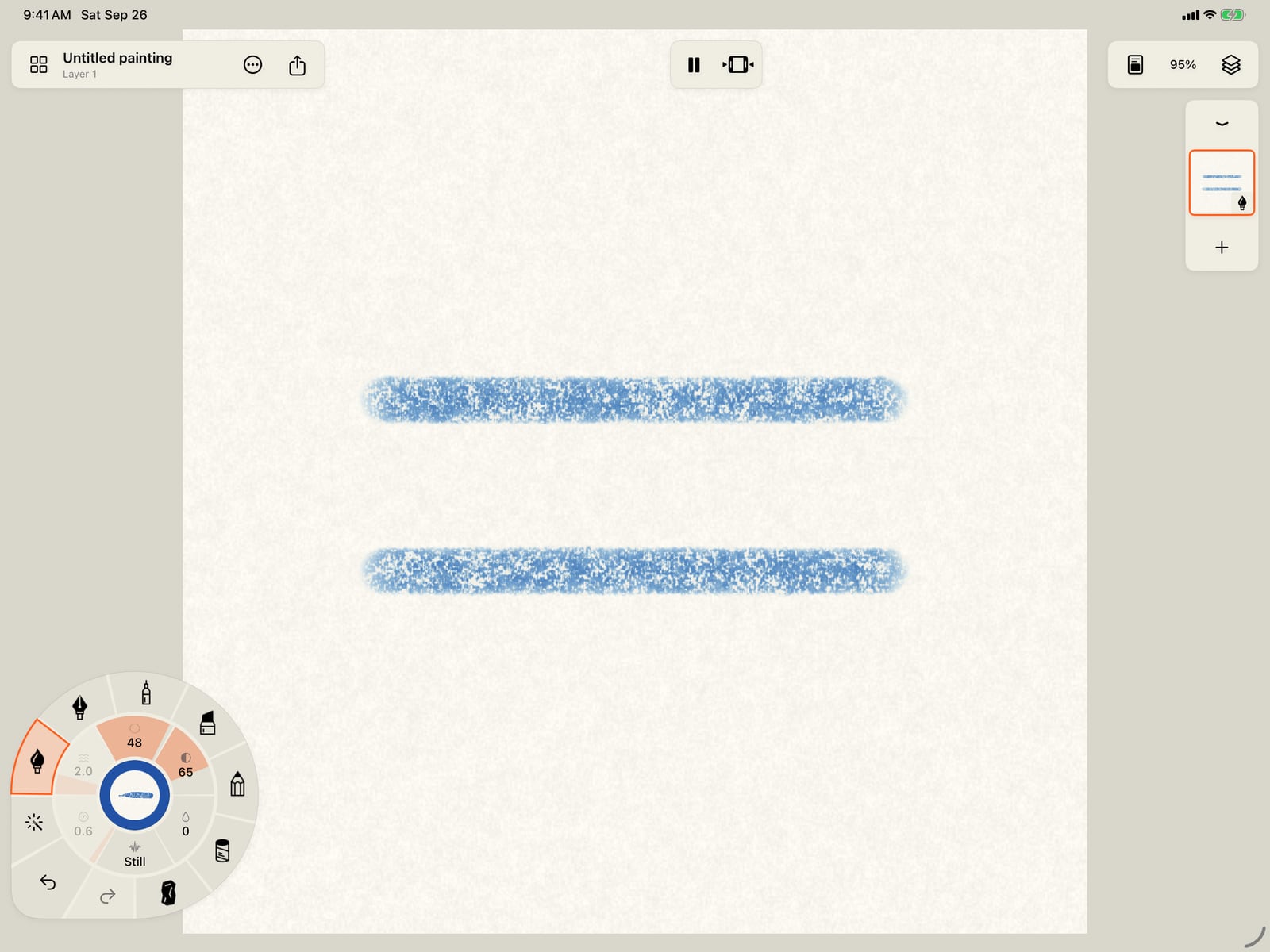
Tap the page twice, to close the settings and fold the wheel, and paint again. The new stroke is the same brush, much larger.
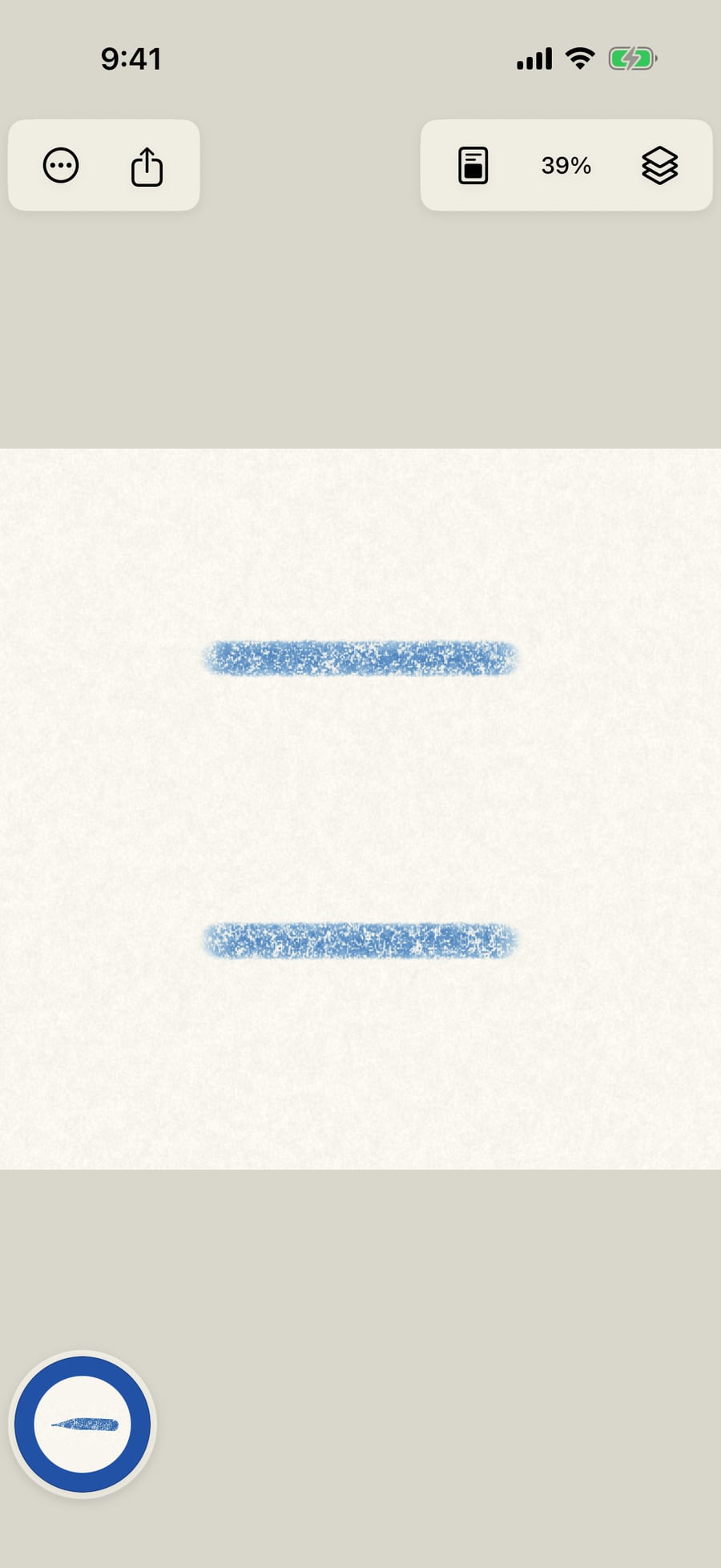
Click the page to close the settings, and paint again. The new stroke is the same brush, much larger.
The other half of the ring is the stroke's Motion. Amount is how far it moves, Speed how fast, and Pattern how many waves fit along it. Turn them the same way, or tap one to choose the motion.
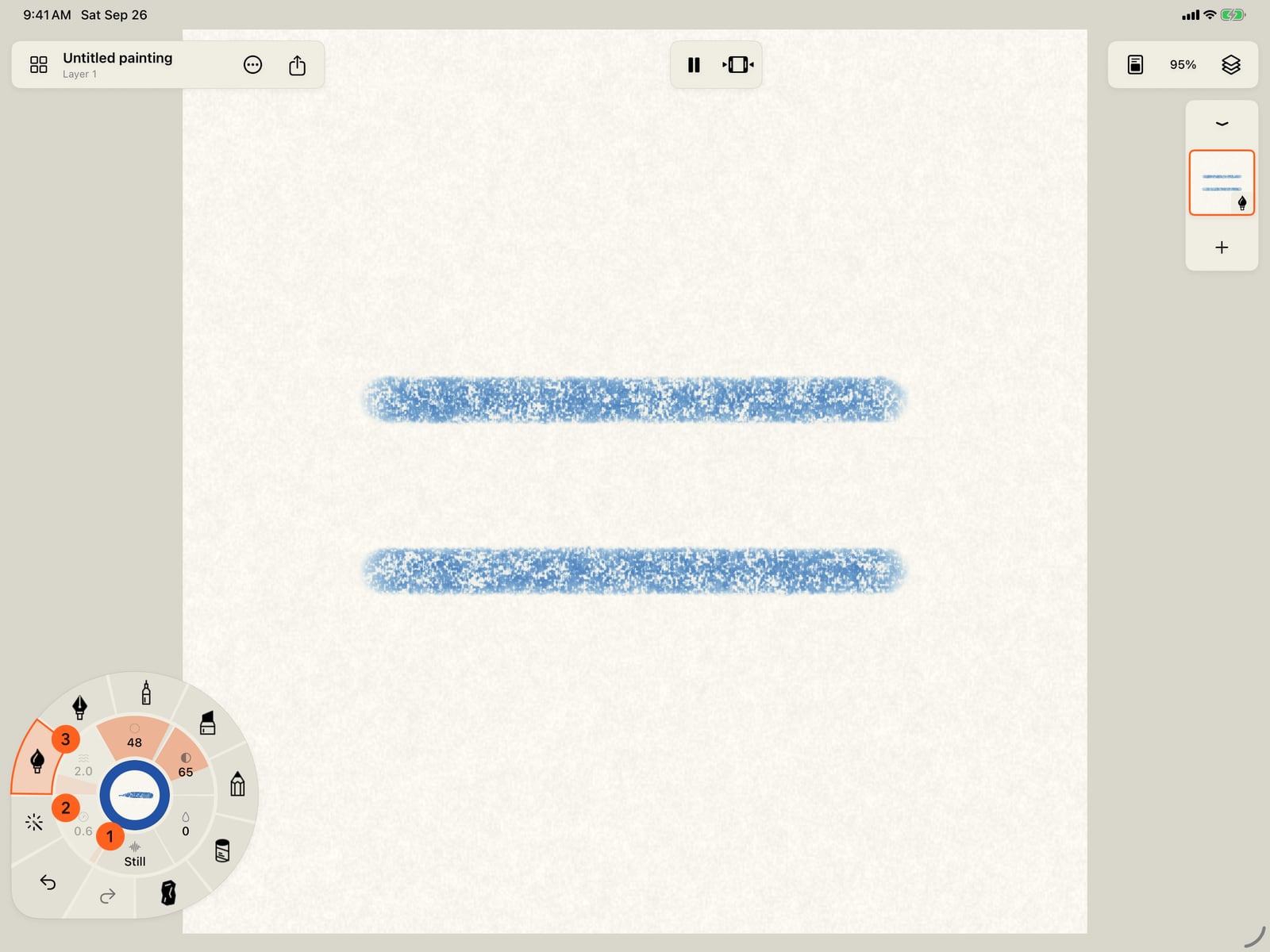
The other half of the ring is the stroke's Motion. Amount is how far it moves, Speed how fast, and Pattern how many waves fit along it. Turn them the same way, or tap one to choose the motion.
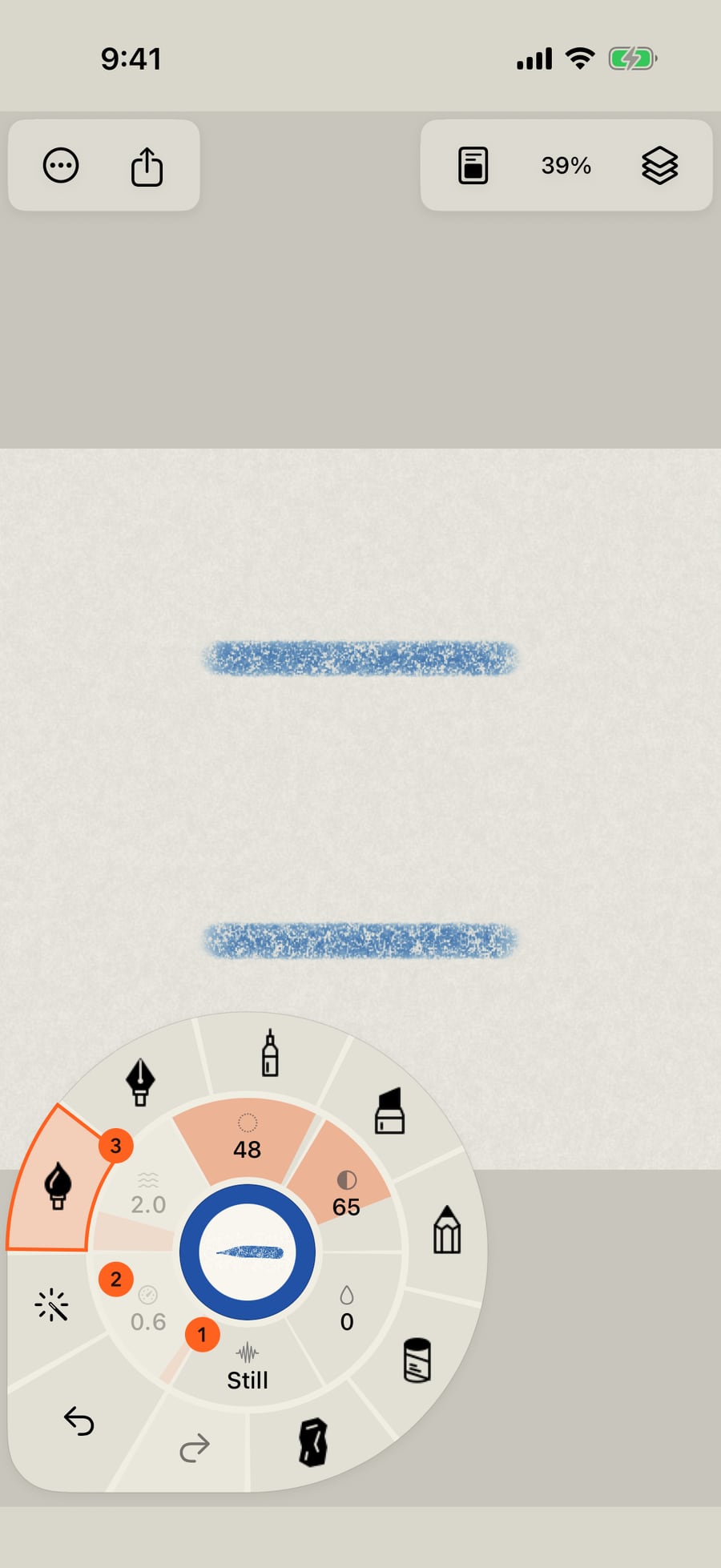
The other half of the ring is the stroke's Motion. Amount is how far it moves, Speed how fast, and Pattern how many waves fit along it. Turn them the same way, or click one to choose the motion.
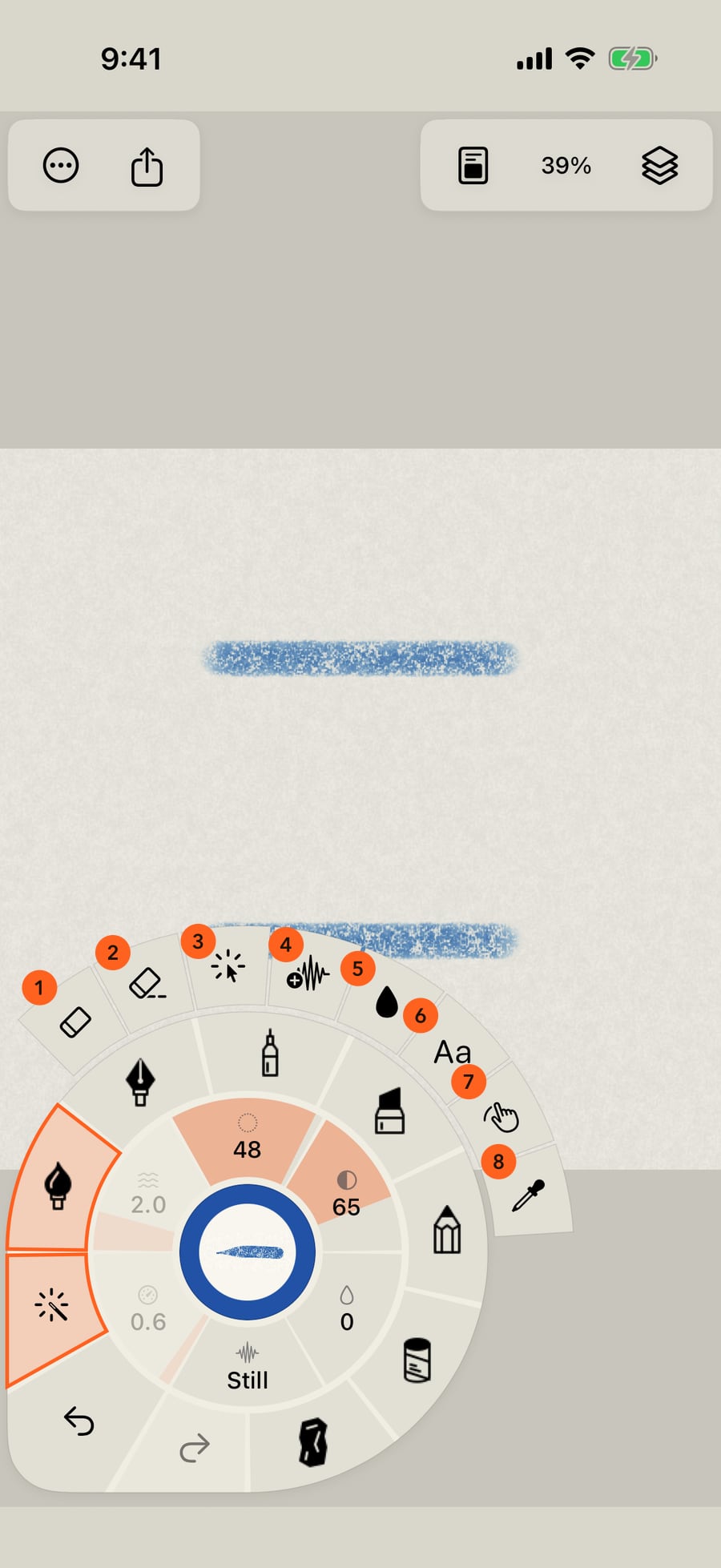
Under your thumb are Undo, Redo and Tools. Tools unfolds the Eraser, Lift paint, Select stroke, Paint motion, Fill an area, Text, the Hand tool and the Eyedropper.
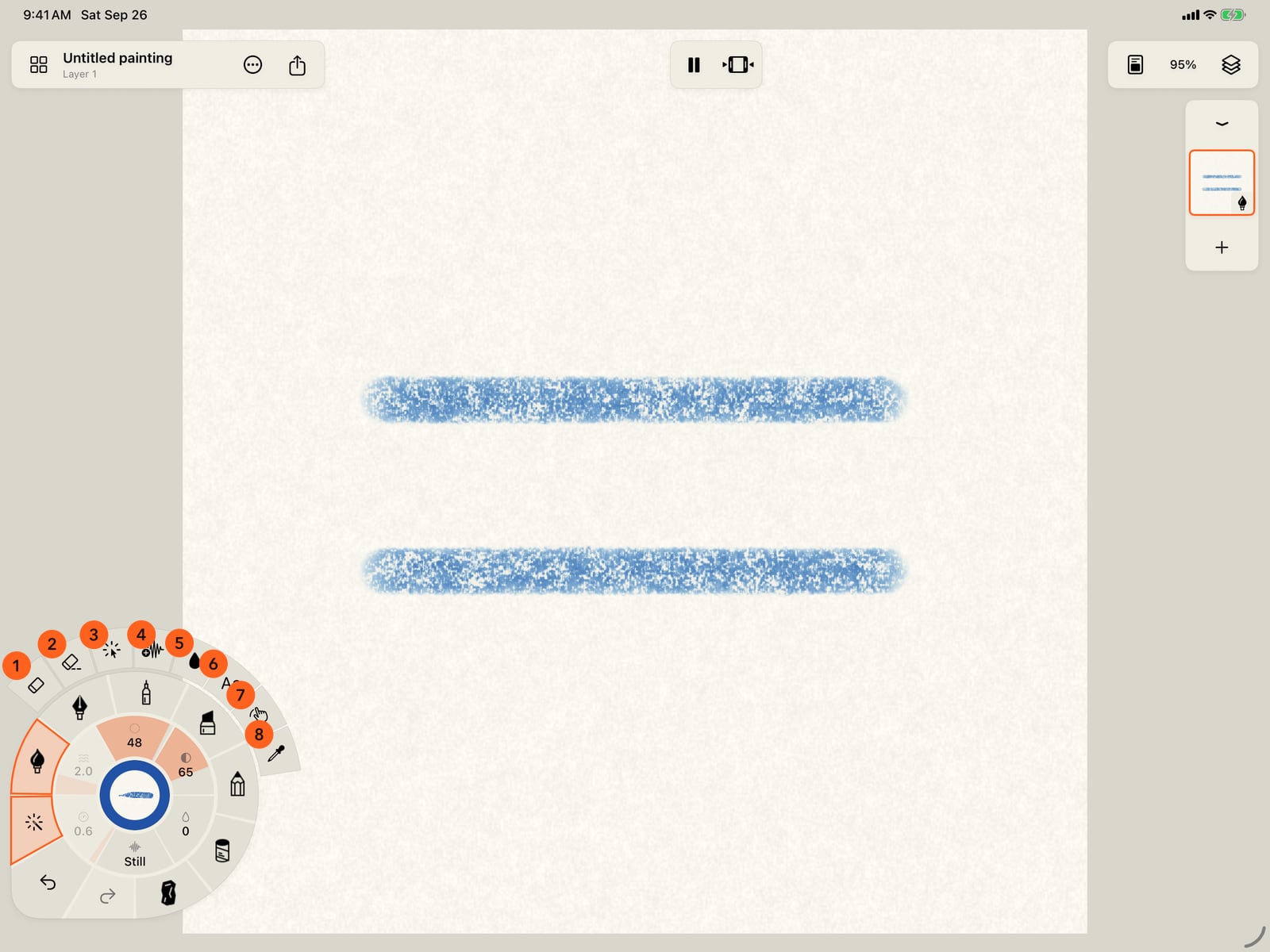
Under your thumb are Undo, Redo and Tools. Tools unfolds the Eraser, Lift paint, Select stroke, Paint motion, Fill an area, Text, the Hand tool and the Eyedropper.
Left-handed? Open Actions, then Settings, and turn on Controls on right. The wheel moves to the right-hand corner and mirrors.
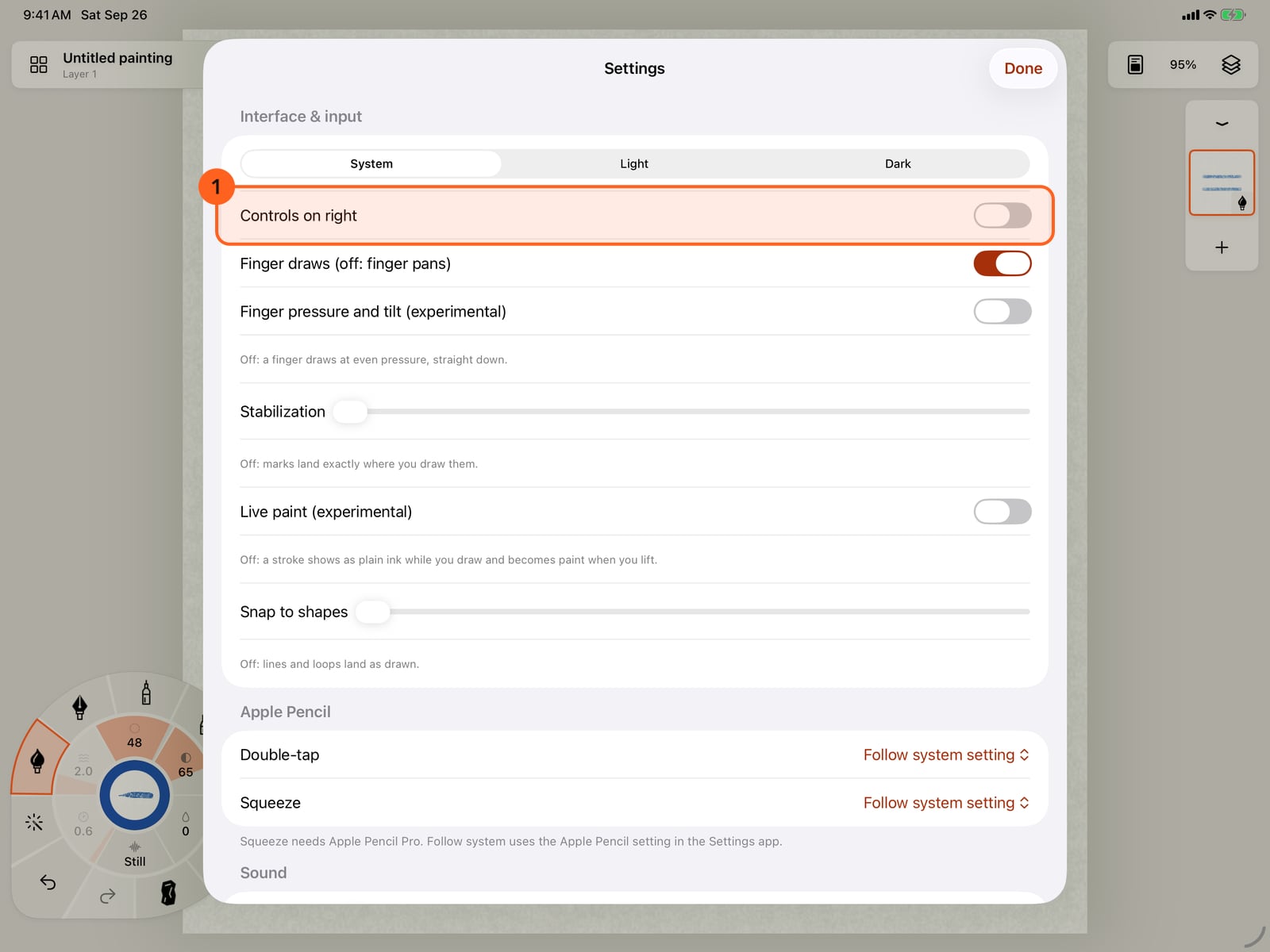
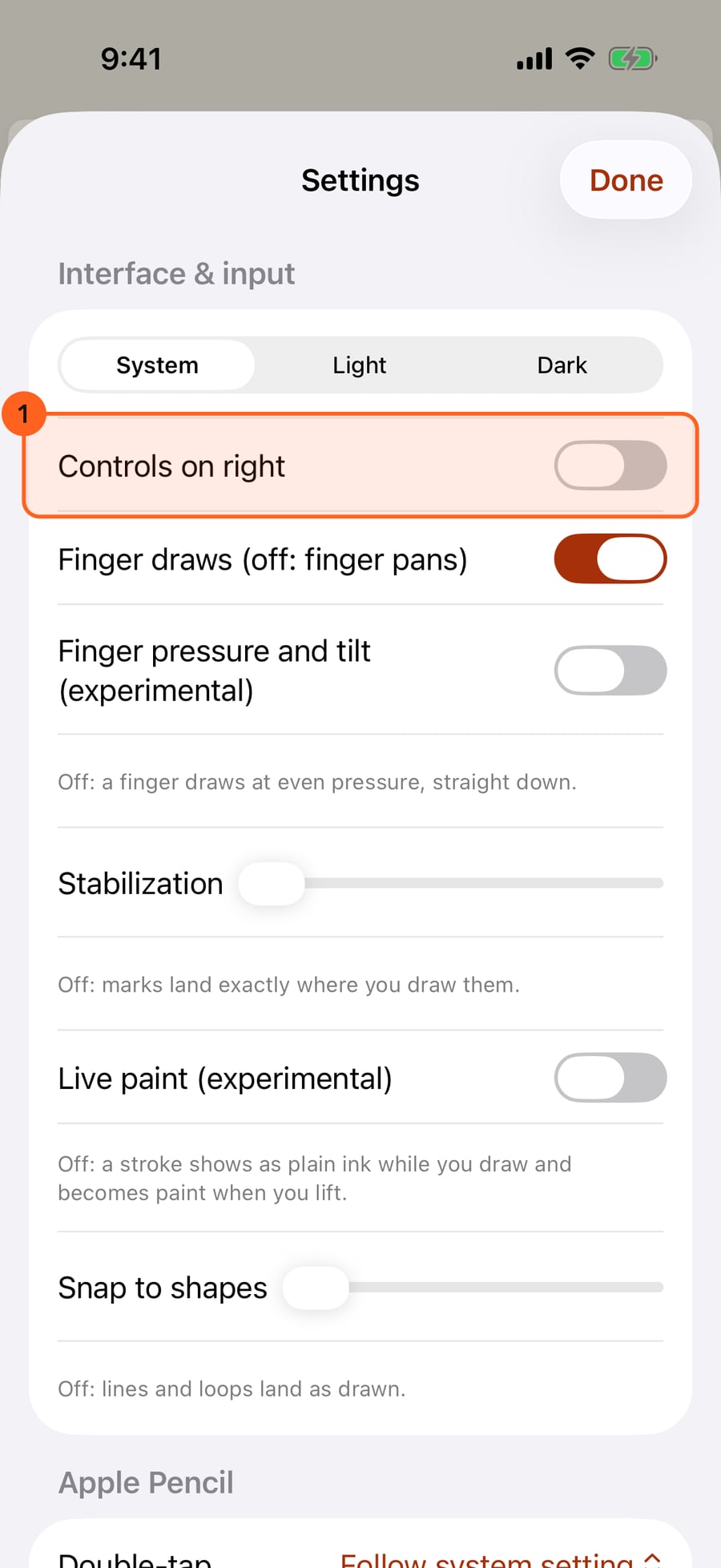
Left-handed? Tap the page to fold the wheel, open Actions, then Settings, and turn on Controls on right. The wheel moves to the right-hand corner and mirrors.
The parts of the wheel
The wheel sits in the corner under your off hand. Everything on it sets your next stroke; to change a mark already on the page, use Tools → Select stroke.
| Part | What it holds |
|---|---|
| Rim 1 | The seven media: Watercolor, Ink, Pen, Marker, Graphite, Pastel and Charcoal. |
| Ring 2 3 | Half Paint, half Motion: Size, Strength and Water for the paint, then Amount, Speed and Pattern for the stroke's motion, all gauges. With an effect in hand, the second half is the effect's own Marks gauges. See How a stroke works. |
| Centre 4 | The stroke in hand, drawn with the current brush and moving as it will, ringed in the current colour. Tap it for colour. |
| Squared corner 5 6 | Undo, Redo and Tools, where your thumb rests. |
Only one set of rings is open at a time: opening colour folds the brushes, and so on. Drawing folds whatever is open, so there is nothing to dismiss.
The rim: media and brushes
- Tap a medium to take up the brush you last used in it. Each medium paints on its own kind of layer: see The seven media.
- Tap the medium in hand and its brushes unfold as two rings of strokes, your favourites and recent brushes first. When there are more than fit, drag along the outer ring to turn it. The brush in hand is named beyond the rings.
- All brushes opens the brush library, with search, collections and every medium.
- Marks unfolds every mark for the brush in hand, in its own medium: Line, then Shapes, Hatching and the effect categories (Fire, Smoke & Steam, Sky, Weather, Water and more), and beyond them the chosen group's marks. Motion goes to the Motion ring, and Brushes back to the brush ring. See Marks and Effects.
A built-in brush is taken up in the colour you are holding; a brush you saved keeps the colour it was saved with. Touch and hold a medium for Use medium, which takes it up without unfolding anything.
The ring: gauges
| Gauge | What it sets | Notes |
|---|---|---|
| Size | The brush's width, in points | Runs over the brush's own range on a curve, so small brushes get as much travel as large ones. While you turn it, the real nib shows on the canvas at the current zoom. |
| Strength | How much pigment a stroke lays: opacity, density or pigment, as the medium calls it | Reads Motion strength while the Motion Brush is in hand. Dims when it doesn't apply. |
| Water | How wet the brush is | Dims on dry media, without moving, so nothing shifts when you change layers. |
To turn a gauge, drag around the ring: clockwise is more, anticlockwise less. Pulling outward from the centre also raises it. The change is relative, so touching a gauge never makes it jump, and your finger can carry on past the wedge; about a third of a turn covers the whole range.
Tap a gauge for the brush's own settings 2: large Size, Strength and Water sliders, the brush's Marks (Line, Shapes, Hatching, and Effects by category) with their settings (for an effect, its three gauges as large sliders), and its motion as moving tiles with Amount and Speed. All settings opens Brush Studio. Every change applies at once.
The ring: the stroke's motion
The ring is half the mark and half its movement: Size, Strength and Water, then three motion gauges.
| Gauge | What it sets | Notes |
|---|---|---|
| Amount | How far your next strokes move, in points | Shared with any combined motions, up to 32 points in all. Reads Still when the brush has no motion. |
| Speed | How fast they move, in cycles a second | Reads Frame rate (frames a second) for Stop motion and Random redraw. |
| Pattern | How many waves fit along the stroke | Reads Detail (how many bends) for Random redraw. Dims for motions that move the whole stroke, like Sway or Bounce. |
Tap any of the three to unfold the Motion ring: Paint motion to animate marks already down, More motion for the full panel, and every motion as a moving stroke, the medium's suggested ones first.
With an effect in hand, the three become the effect's own gauges, named for it: how much, how fast and its character, such as Fuel, Flicker and Sparks for fire. Tapping one then opens the Marks ring. The stroke's motion stays one tap further, on the Marks ring's Motion chip.
The corner: Undo, Redo and Tools
- Undo is the wide diagonal wedge, with Redo above it. Hold either to repeat. A two-finger tap on the page undoes, and a three-finger tap redoes.
- Tools unfolds the tools that act on the painting rather than paint it:
| Tool | What it does |
|---|---|
| Erase whole strokes | The Eraser: removes whole strokes you draw across. The E key turns it on. See Erase and lift paint. |
| Lift paint | Lifts paint from the layer with the medium's own lift tool. Not in Ink. |
| Select stroke | Tap a stroke to edit it, or loop round several to move, scale, recolour or delete them. |
| Paint motion | Brushes motion onto marks already painted. |
| Fill an area | Fills the area you tap. |
| Text | Writes text as single-line strokes in the brush in hand. |
| Hand tool | Moves the page with one finger. The H key turns it on. |
| Eyedropper | Picks a colour from the painting with one tap, without painting. The I key turns it on. See Colour. |
While a tool is on, a banner at the top says so; tap it, or tap the medium in hand, to go back to painting.
A tool that needs paint on the layer (Lift paint, Select stroke, Paint motion) is dimmed until there is some. Choosing a tool sends the wheel back to its corner.
The wheel at your pen
Squeeze Apple Pencil Pro, or double-tap Apple Pencil, and the wheel can come to the pen, beside it on your other-hand side, so your drawing hand doesn't cover it. Squeeze again, choose a tool, or tap Return brush controls to the corner in the Tools ring to send it home. What squeeze and double-tap do is set in Actions → Settings… → Apple Pencil: Brush controls at the pencil, Switch to eraser, Previous brush, Eyedropper, Color panel, Play / pause animation, Nothing, or Follow system setting, which does what the Apple Pencil setting in the Settings app says (its tool palette choice brings the wheel).
On iPhone the wheel rests folded to its centre 4, showing the stroke in hand in its colour, so the page stays clear. Tap it to unfold the whole wheel. While it's unfolded, a tap on the page folds it; after you choose a brush or colour the rings stay open until you do, so tap the page before you paint.
A secondary click on the page brings the wheel to the pointer; click it again, or choose a tool, to send it home. ⌘Z undoes and ⇧⌘Z redoes. H turns on the Hand tool.
Controls on the right
Actions → Settings… → Controls on right 1 moves the wheel to the bottom-right corner and mirrors it, so the squared corner is under your right thumb. Mirrored, the gauges still fill clockwise, so clockwise is still more.
Tip: With the largest accessibility text sizes, the wedges keep their size; touch and hold one to see its name and value large.
Something not behaving as expected?
Visit support or write to [email protected].