

Guides / Wheel and brushes
The brush library
Browse the medium's brushes, every mark and every motion, star your favourites, save and manage your own brushes, and search them all.
Tap the medium in hand, then All brushes. The library opens on the current medium's brushes, each drawn as the stroke it makes.
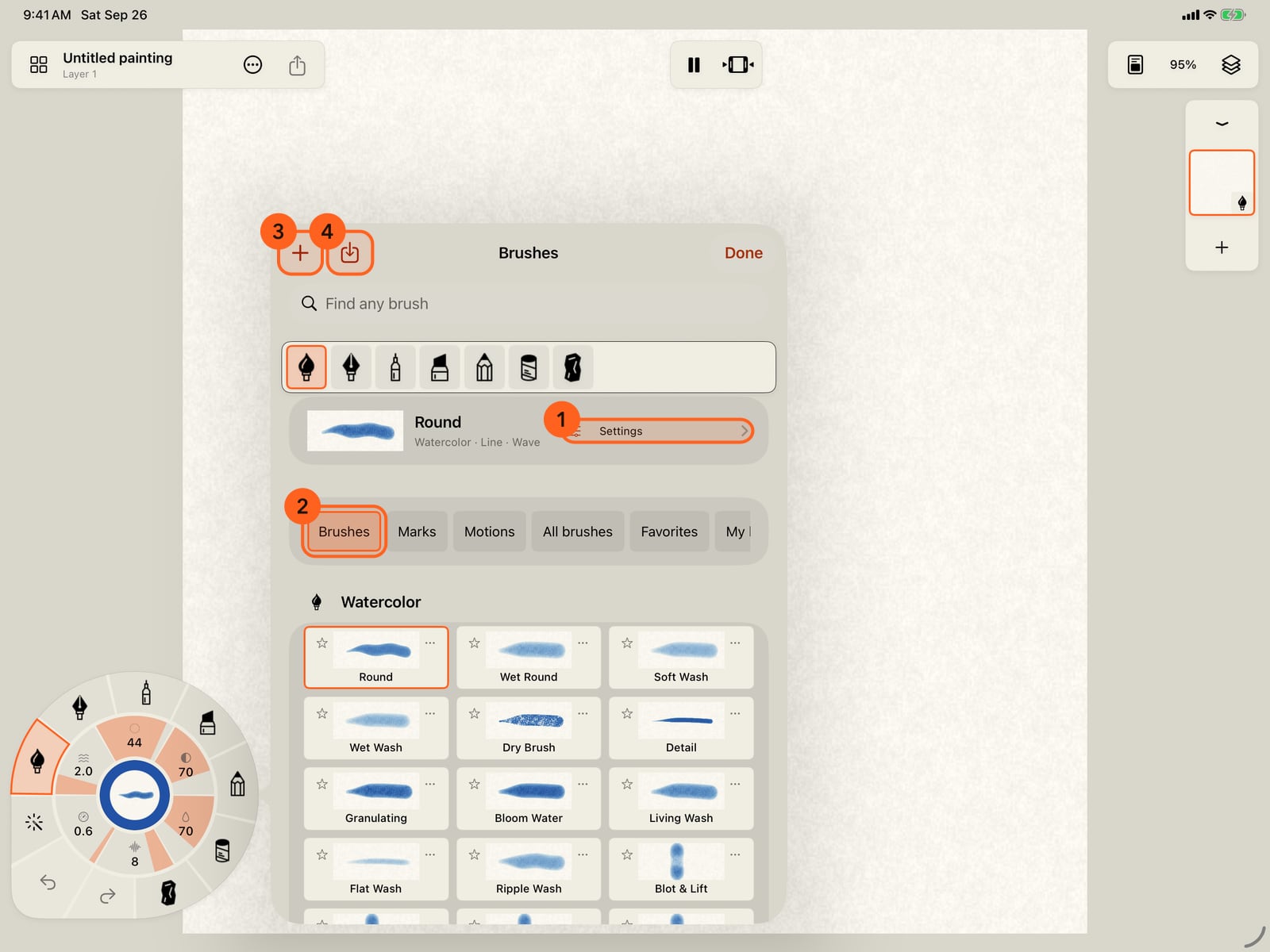
Unfold the wheel, tap the medium in hand, then All brushes. The library opens on the current medium's brushes, each drawn as the stroke it makes.
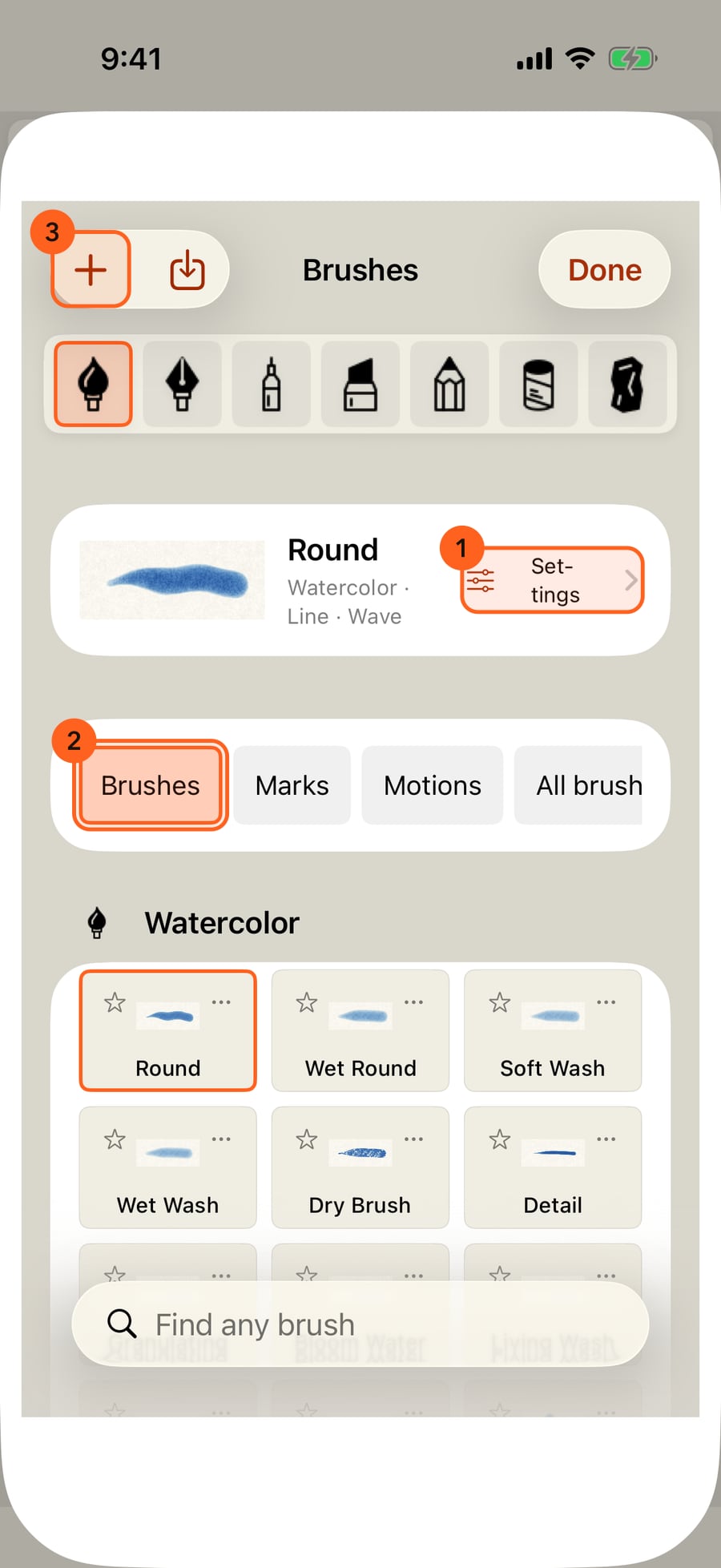
Click the medium in hand, then All brushes. The library opens on the current medium's brushes, each drawn as the stroke it makes.
The collections follow the three parts of a stroke. Brushes holds this medium's brushes; Marks and Motions hold every mark and every motion, to put on the brush in hand. All brushes shows every brush.
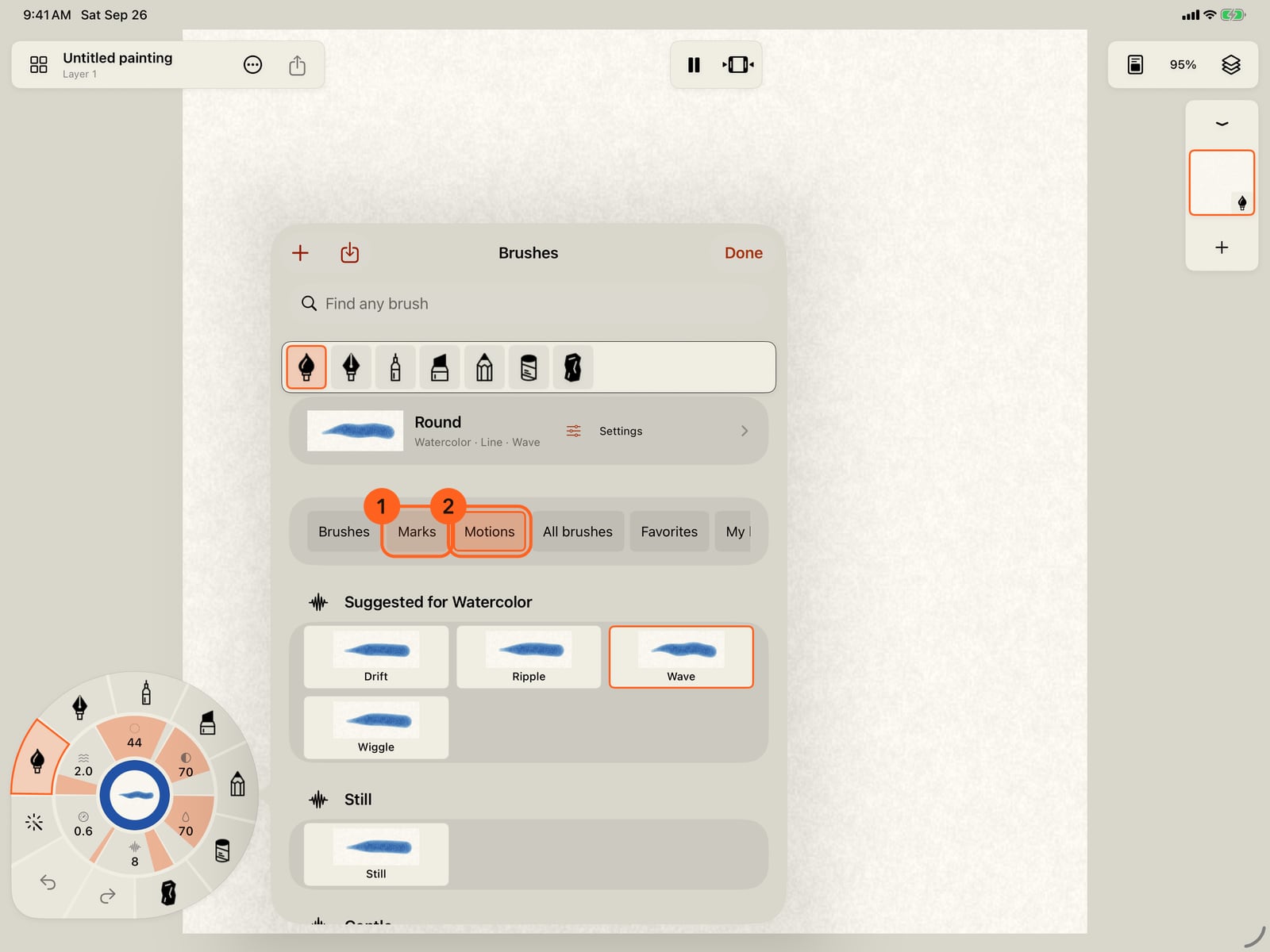
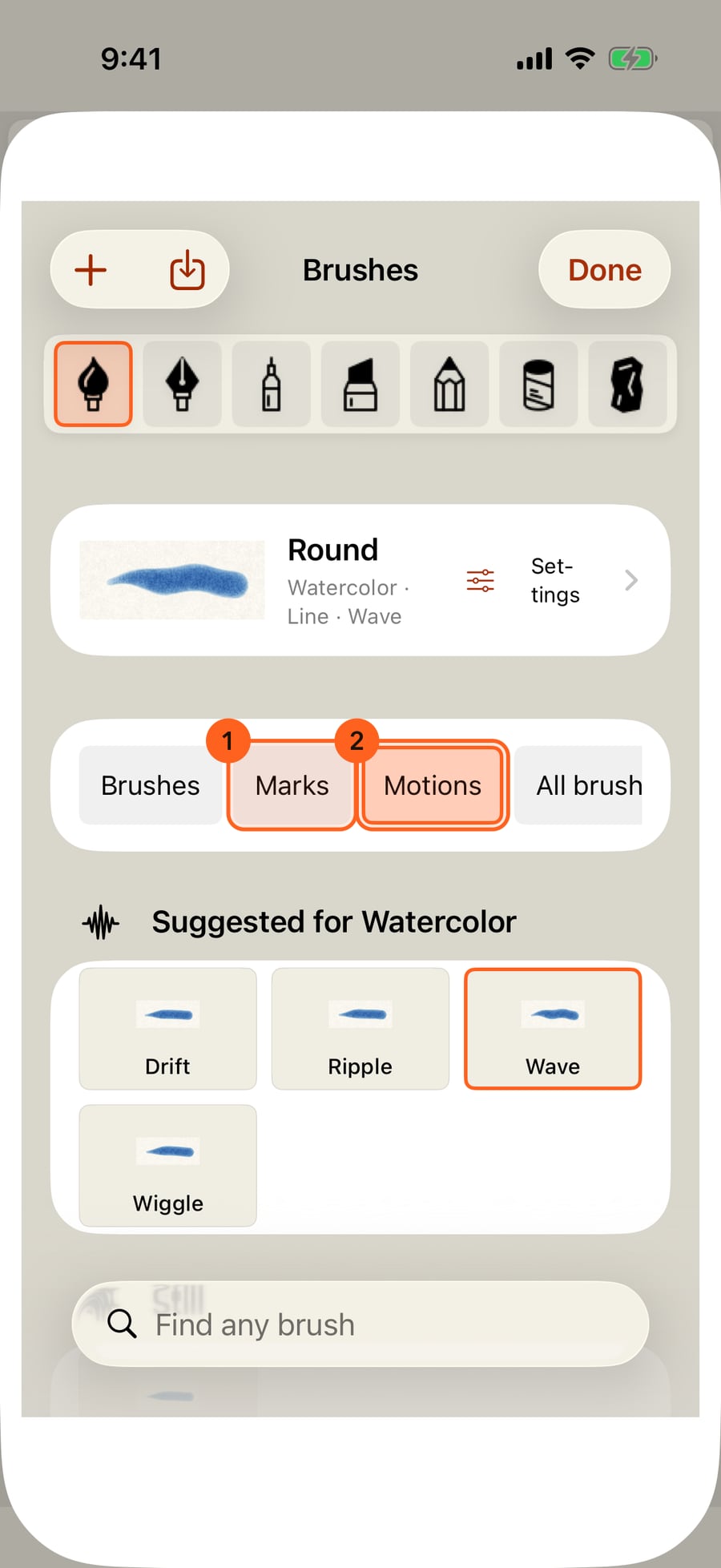
The collections follow the three parts of a stroke. Brushes holds this medium's brushes; Marks and Motions hold every mark and every motion, to put on the brush in hand. All brushes shows every brush.
Tap a brush's star to make it a favourite. Favorites collects them, and they come first when the medium's brushes unfold on the wheel.
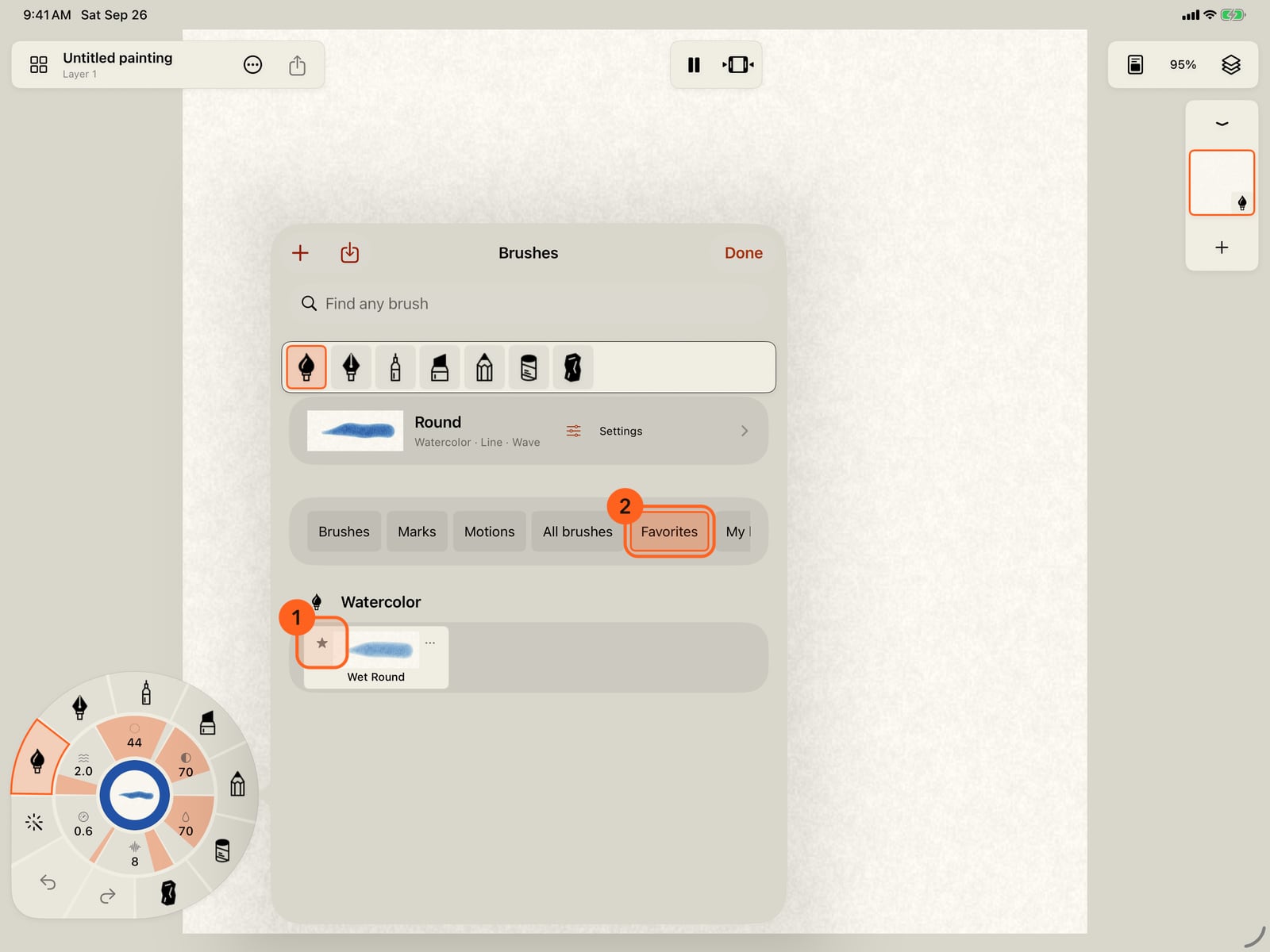
Tap a brush's star to make it a favourite. Favorites collects them, and they come first when the medium's brushes unfold on the wheel.
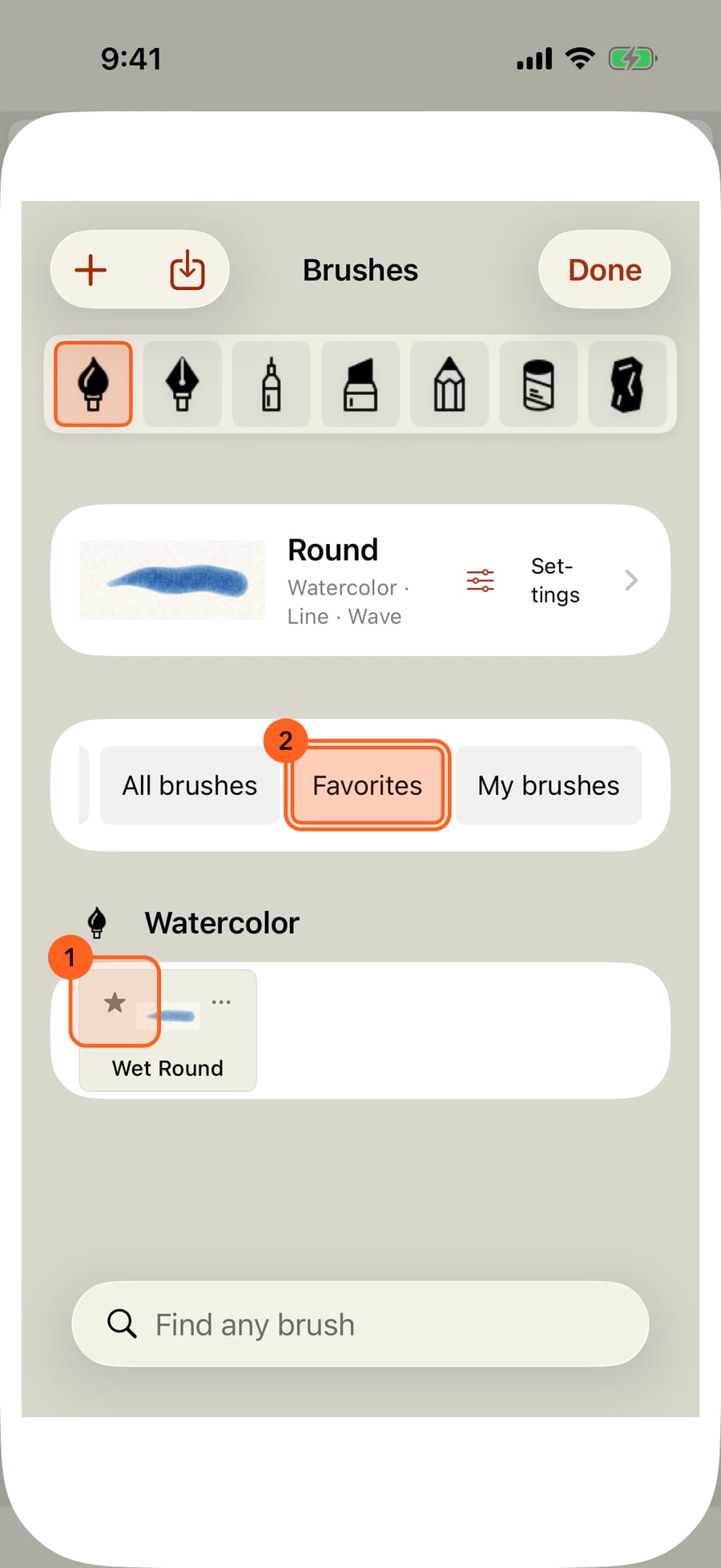
Click a brush's star to make it a favourite. Favorites collects them, and they come first when the medium's brushes unfold on the wheel.
To keep the brush in hand as it is now, tap Save current brush and give it a name.
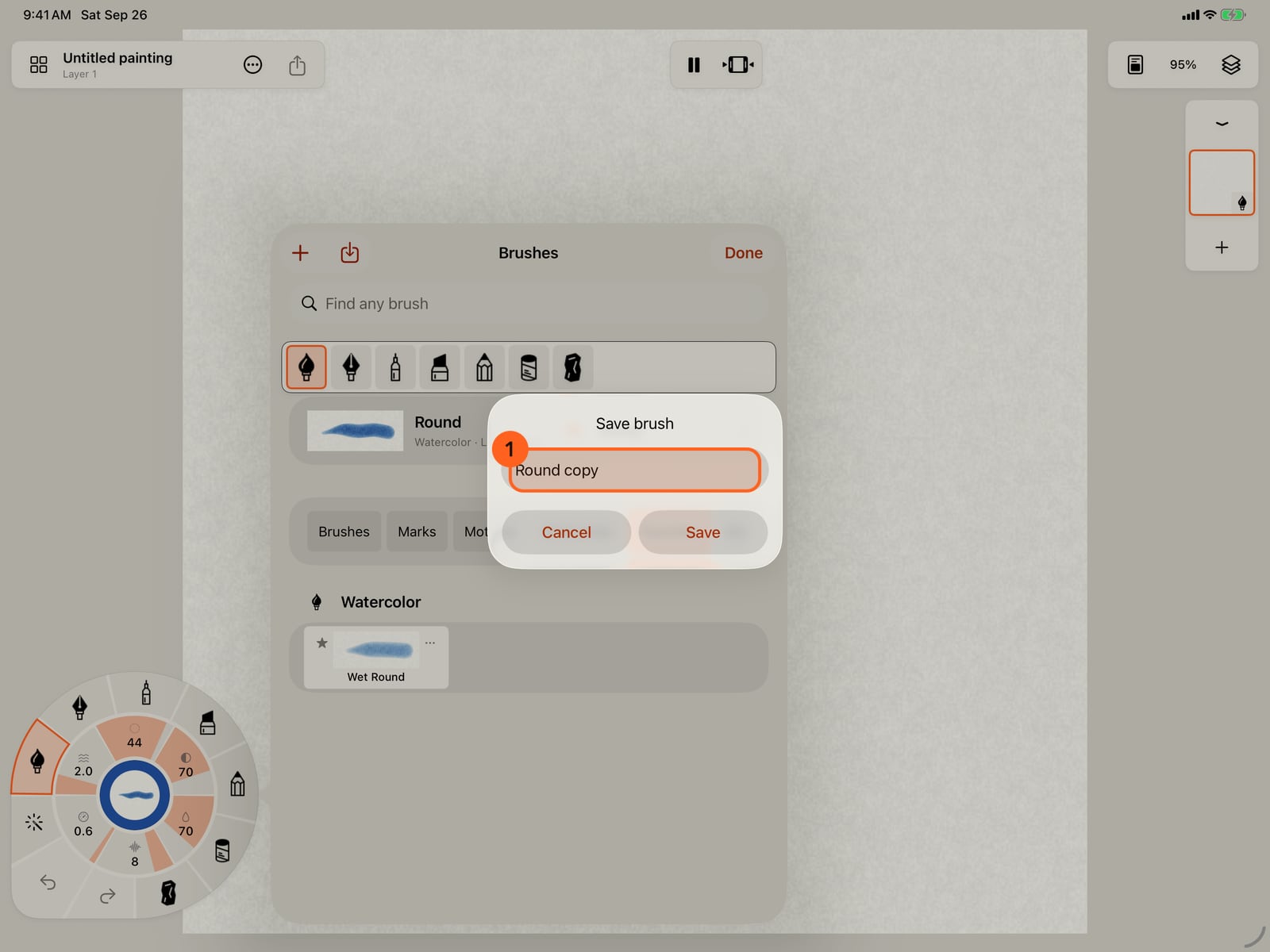
To keep the brush in hand as it is now, tap Save current brush and give it a name.
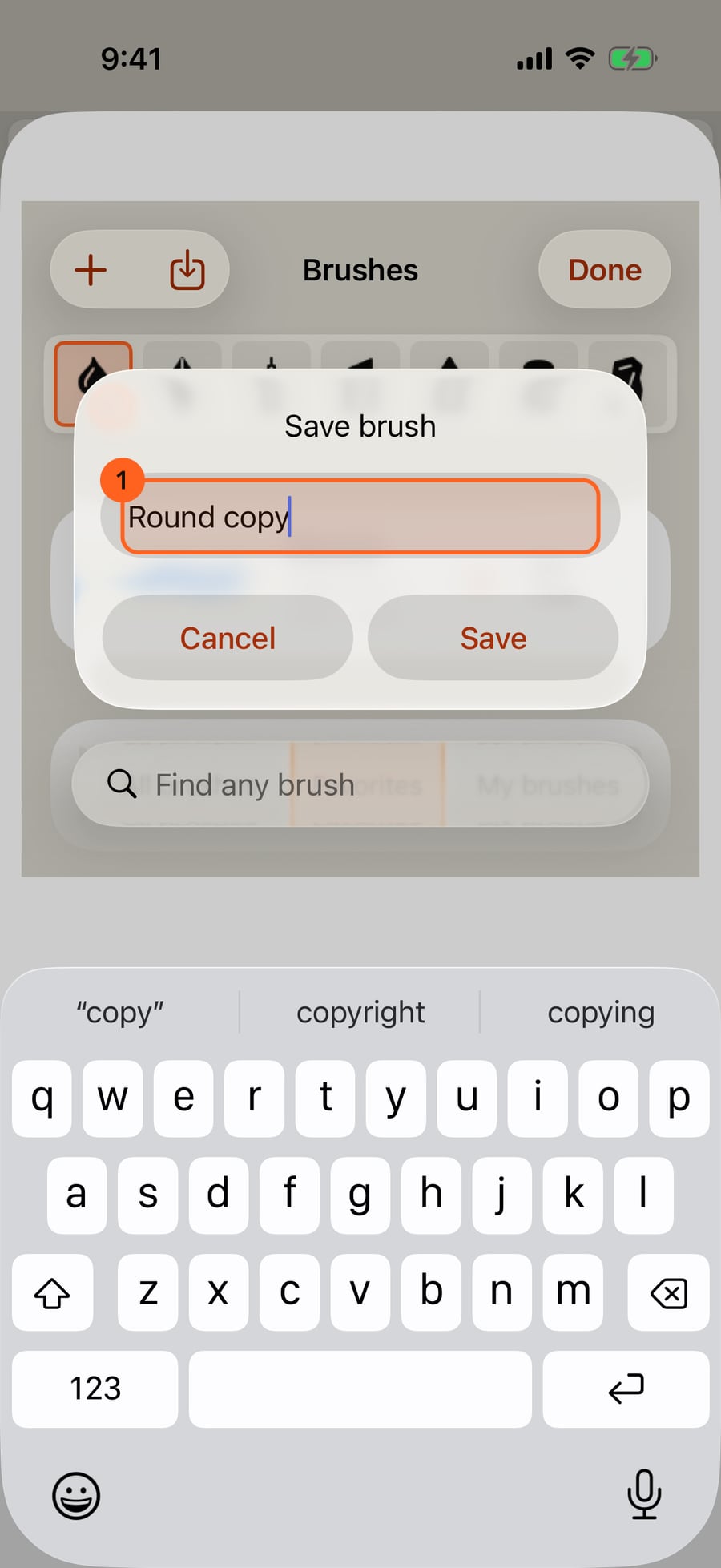
To keep the brush in hand as it is now, click Save current brush and give it a name.
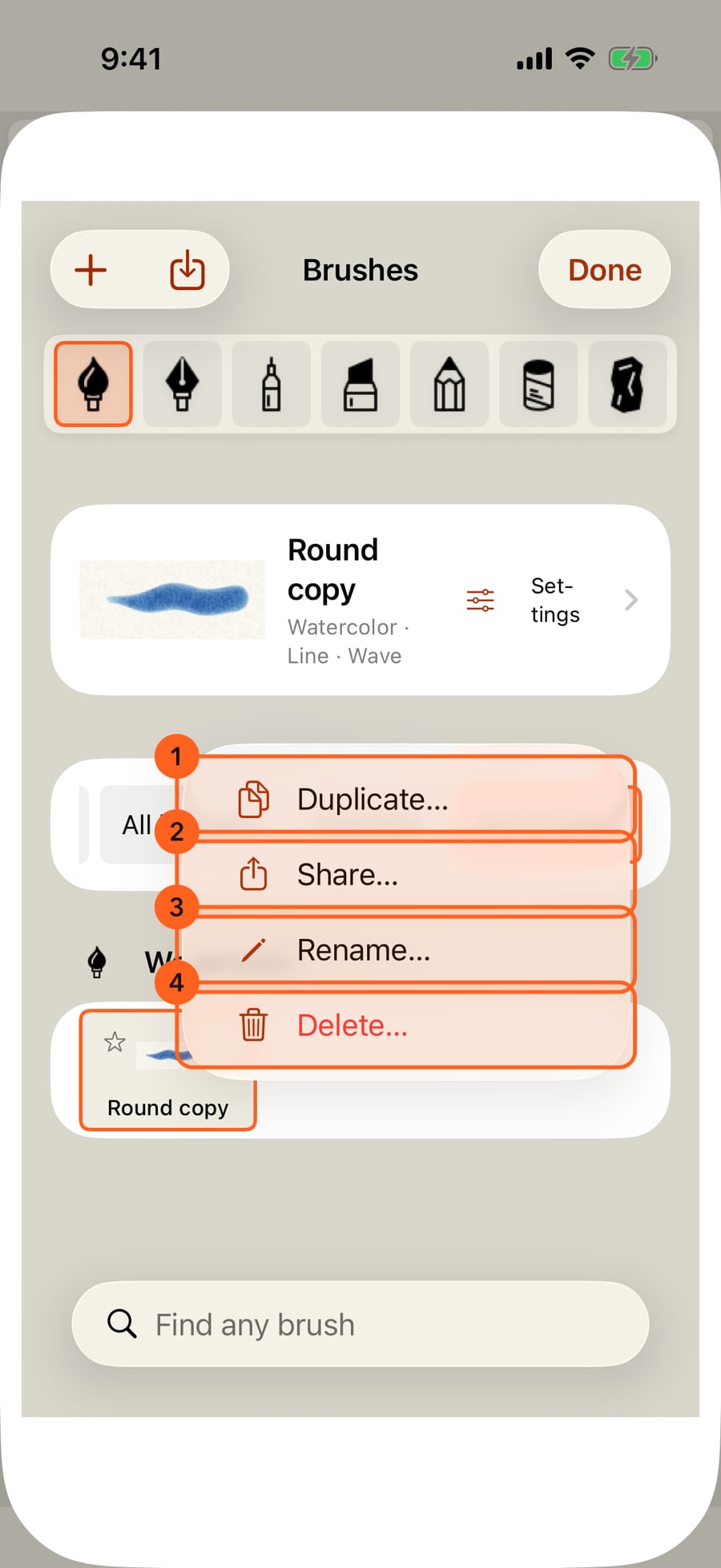
Your saved brush is in My brushes. Each brush's menu offers Duplicate, Share, and for your own brushes, Rename and Delete.
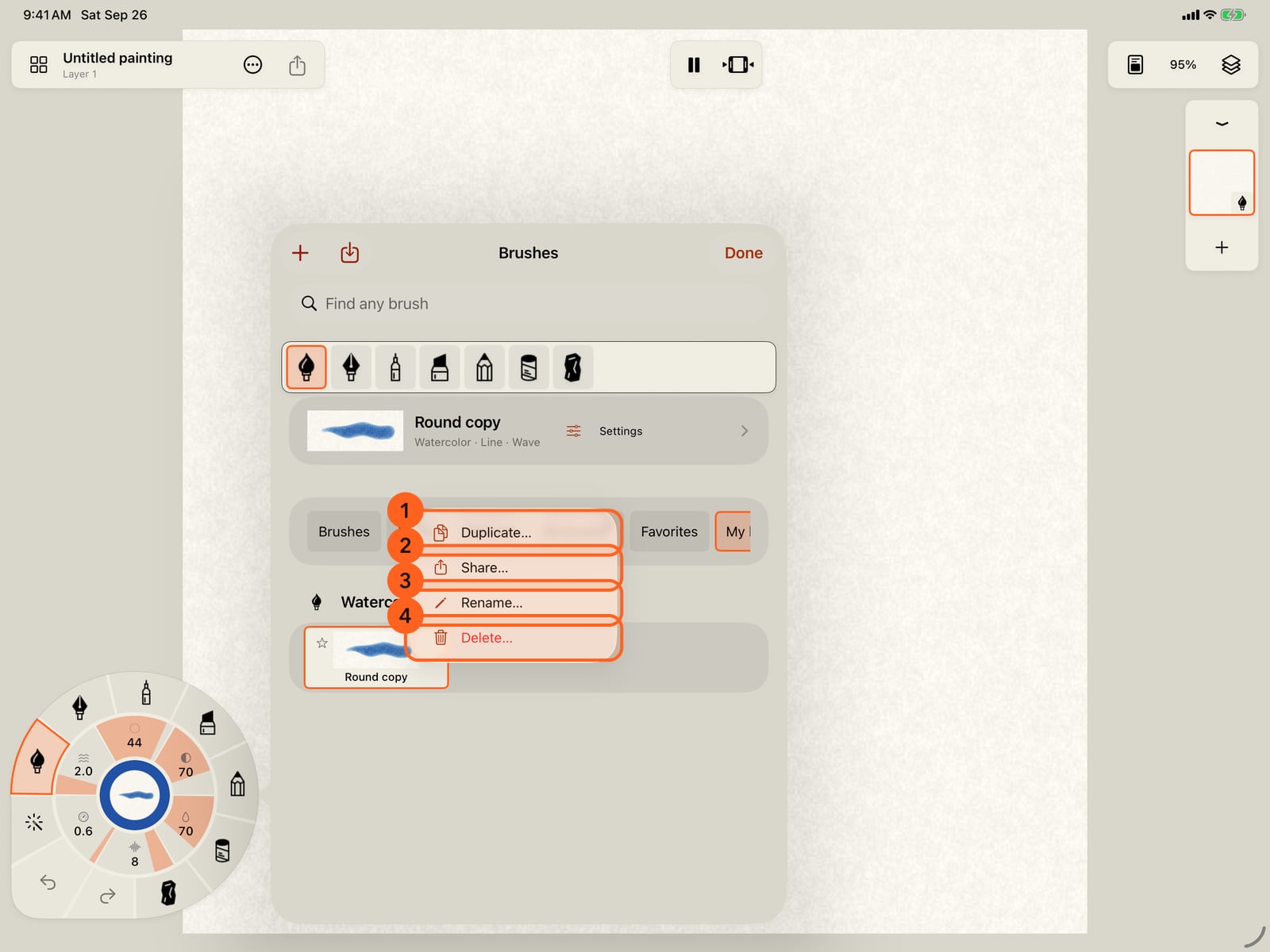
Your saved brush is in My brushes. Each brush's menu offers Duplicate, Share, and for your own brushes, Rename and Delete.
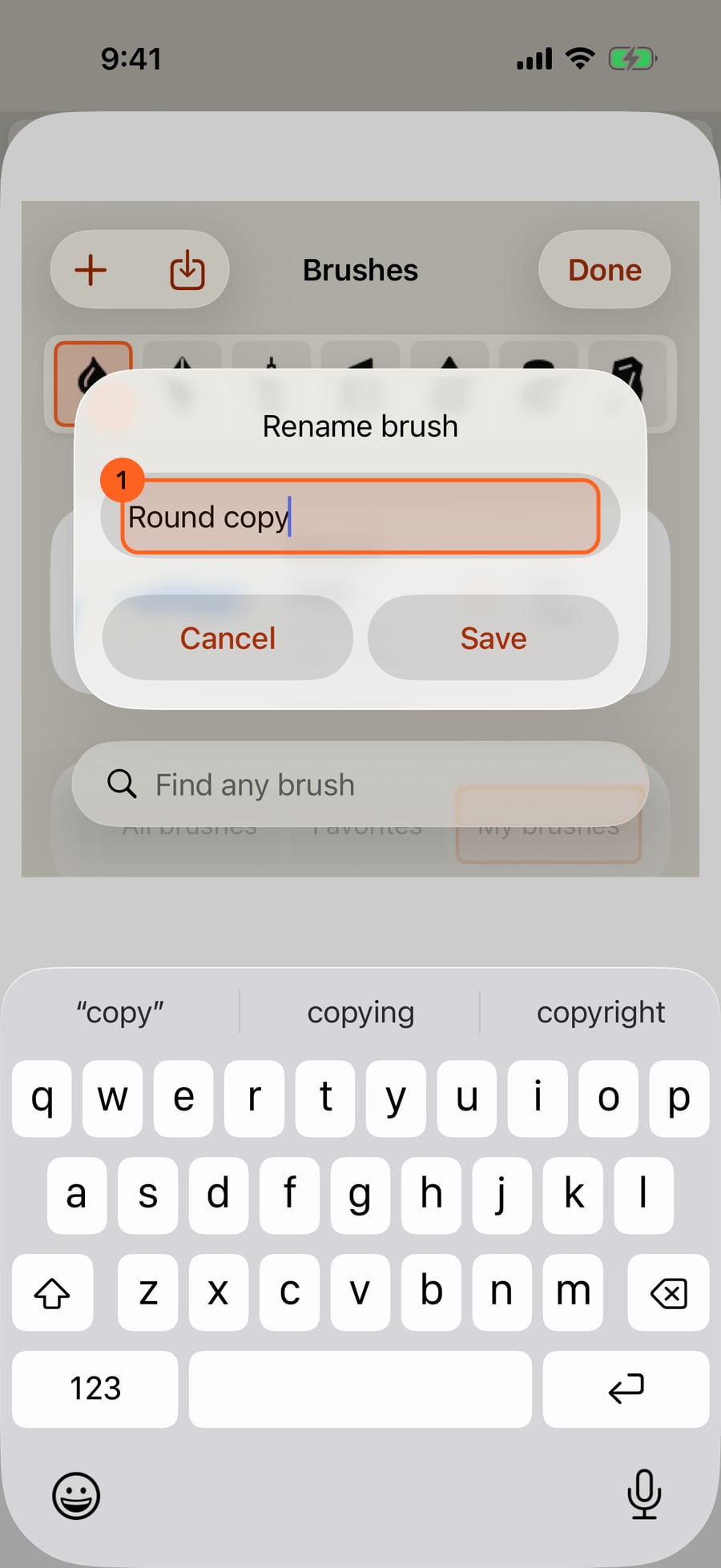
Rename changes a saved brush's name. Strokes already painted with a brush never change, whatever you do to it here.
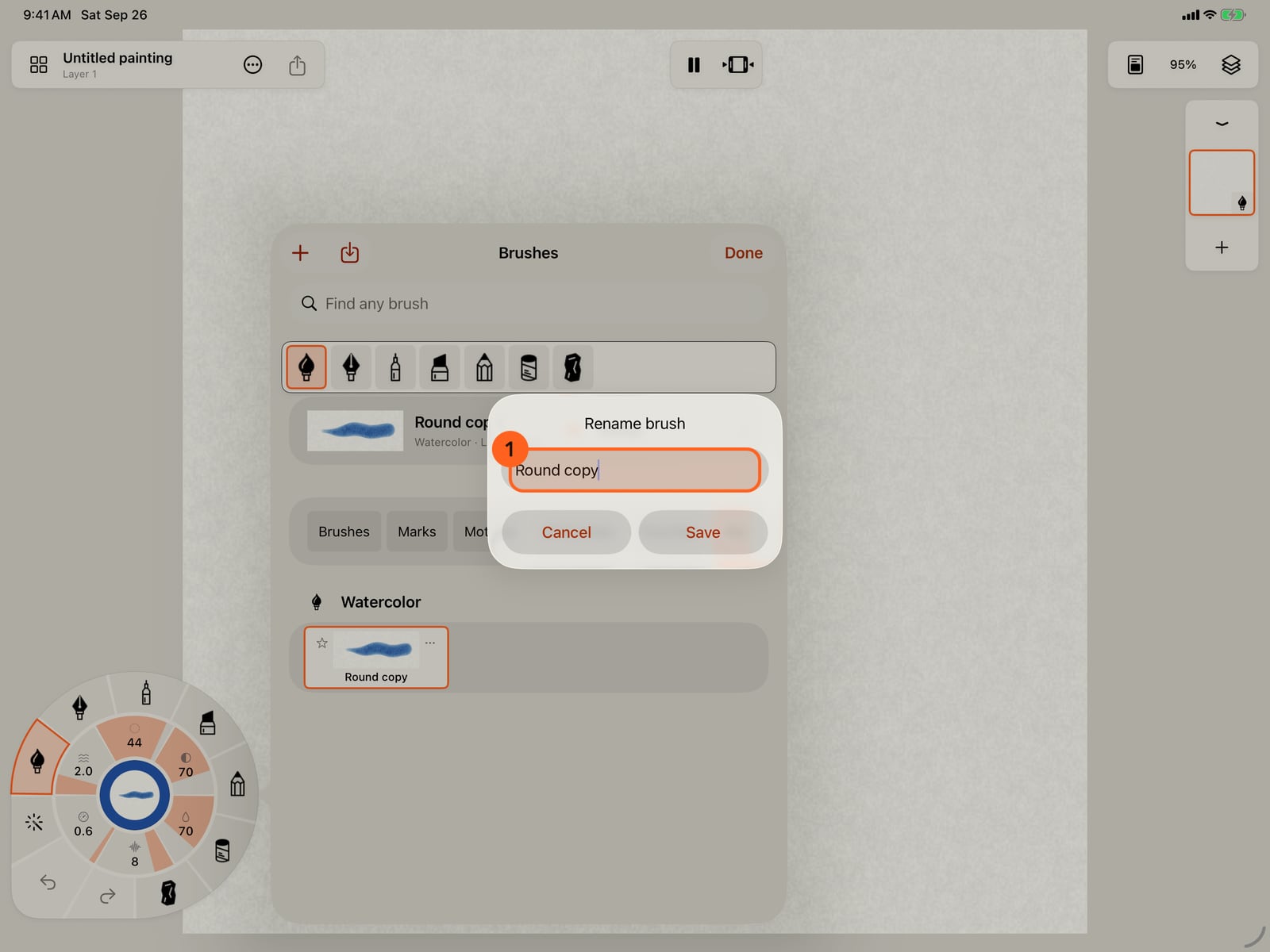
Rename changes a saved brush's name. Strokes already painted with a brush never change, whatever you do to it here.
Search finds any brush by name or medium, whichever collection is open. Tap a brush to take it up.
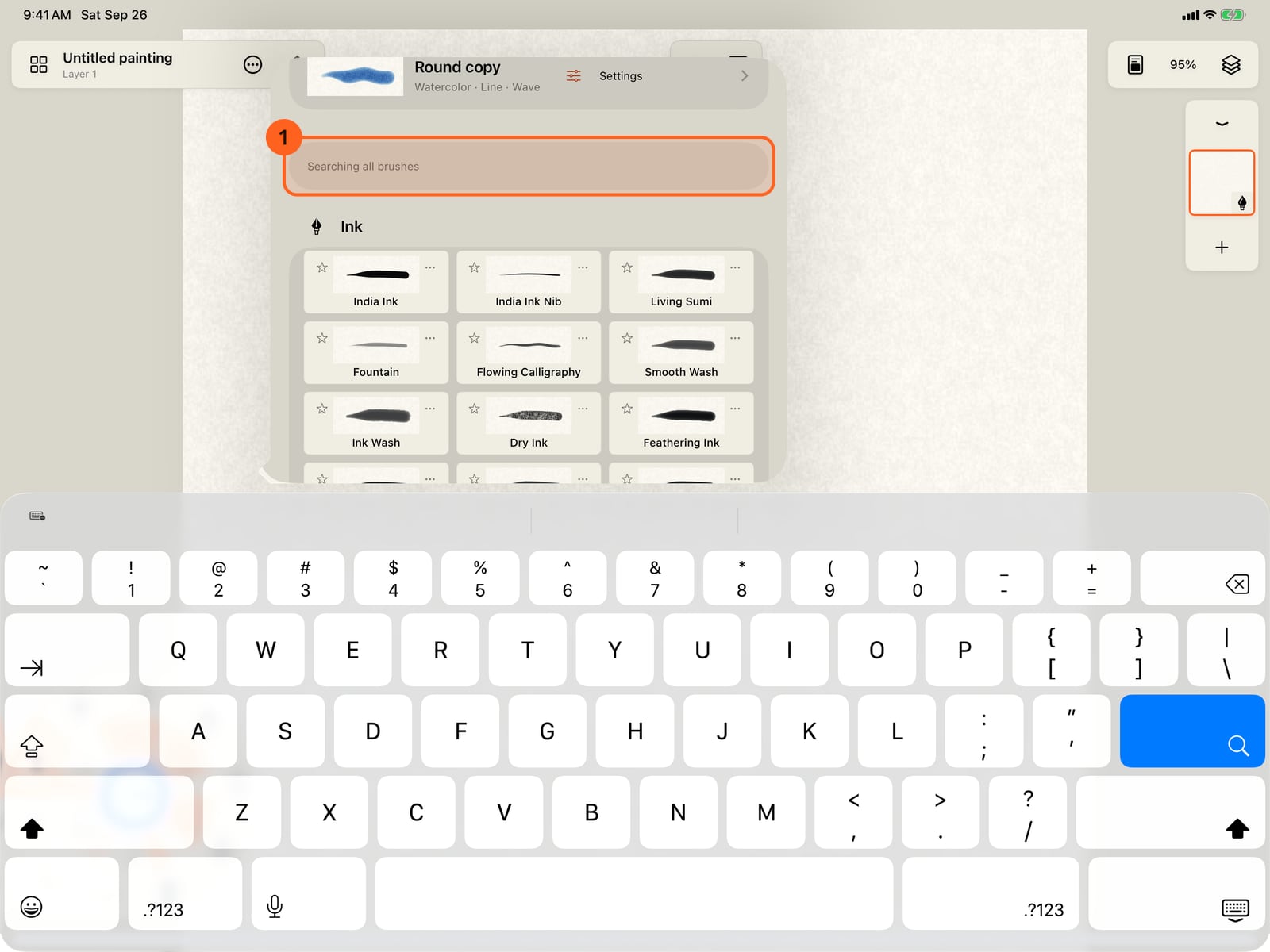
Search finds any brush by name or medium, whichever collection is open. Tap a brush to take it up.
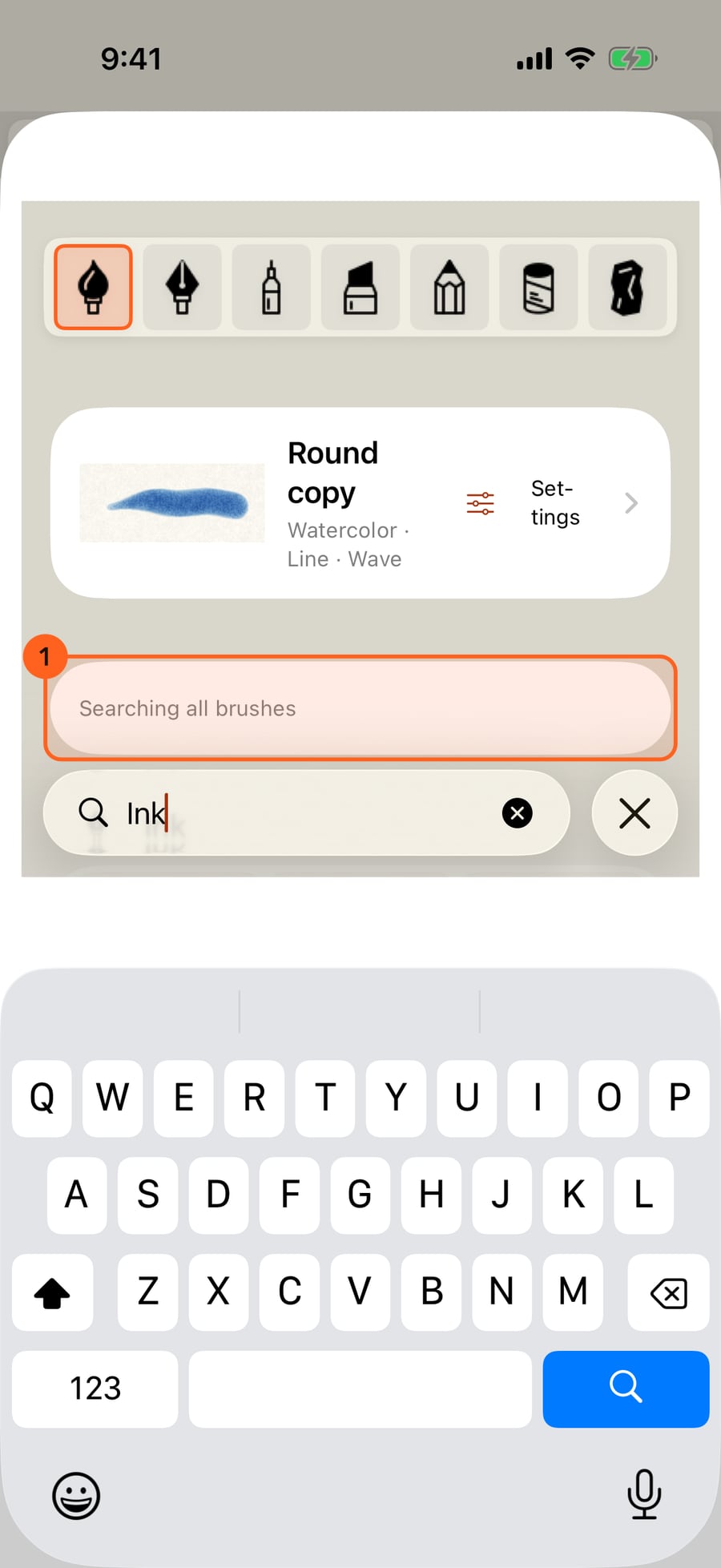
Search finds any brush by name or medium, whichever collection is open. Click a brush to take it up.
Opening the library
Tap the medium in hand on the stroke wheel, then All brushes. At the top is the brush in hand, with its medium, marks and motion, and Settings 1, which opens it in Brush Studio. Below the media row, tap a medium to switch to it and show its brushes.
Tap a brush to take it up; the library closes. A brush of another medium moves you to that medium's layer (see The seven media).
Collections
| Collection | What it shows |
|---|---|
| Brushes 2 | The medium's own brushes and tools. |
| Marks | Every mark: Line, Shapes, Hatching, then the effects by category (Fire, Smoke & Steam, Sky, Weather, Water, Nature, Creatures, Magic, Explosions), with the effect brushes you saved at the end of their category. A tap puts it on the brush in hand, in its medium and colour. See Marks and Effects. |
| Motions | Every motion, the medium's suggestions first, then Still, Gentle, Flowing and Expressive. A tap puts it on the brush in hand. See Add motion. |
| All brushes | Every brush, grouped by medium. |
| Favorites | The brushes you have starred. Tap a star to collect your favorite brushes. |
| My brushes | Brushes you saved, duplicated or imported. |
The wheel's ring of brushes puts your favourites first, then the brushes you used most recently, so the ones you reach for are nearest the hand.
Search
Find any brush searches every brush by name and by medium, whichever collection is open: "Pen" finds every Pen brush, "India" finds India Ink. Clear the search to return to the collections.
Your own brushes
| Control | What it does |
|---|---|
| Save current brush 3 (+) | Saves the brush in hand, with every setting and its colour, under a name you give. It opens in My brushes. |
| ☆ Favorite | Adds the brush to Favorites, or takes it out. |
| ⋯ Manage → Duplicate… | Saves a copy under a new name, to change without losing the original. |
| ⋯ Manage → Share… | Saves the brush as a file, to send or keep. Pro. |
| ⋯ Manage → Rename… | Renames one of your brushes. |
| ⋯ Manage → Delete… | Deletes one of your brushes, after asking. |
| Import brush… 4 | Adds a brush from a file. Pro. |
Rename and Delete appear only on your own brushes; built-in brushes can't be changed, only copied. Deleting a brush leaves the strokes already painted with it unchanged. A copy of a built-in brush remembers where it came from, so Reset to default in Brush Studio still takes it back to the built-in's settings.
Pro: Share… and Import brush… (brush files) are part of Pro; on Free they lead to Free and Pro. Free also sees See what Pro adds at the end of the library. See Brush parameters and files.
On iPhone the library opens as a sheet; swipe it down or tap Done to close it.
Something not behaving as expected?
Visit support or write to [email protected].