

Guides / Motion and animation
Add motion to your strokes
Choose a motion on the wheel's Motion ring, set how much and how fast it moves, and fine-tune it under Advanced motion.
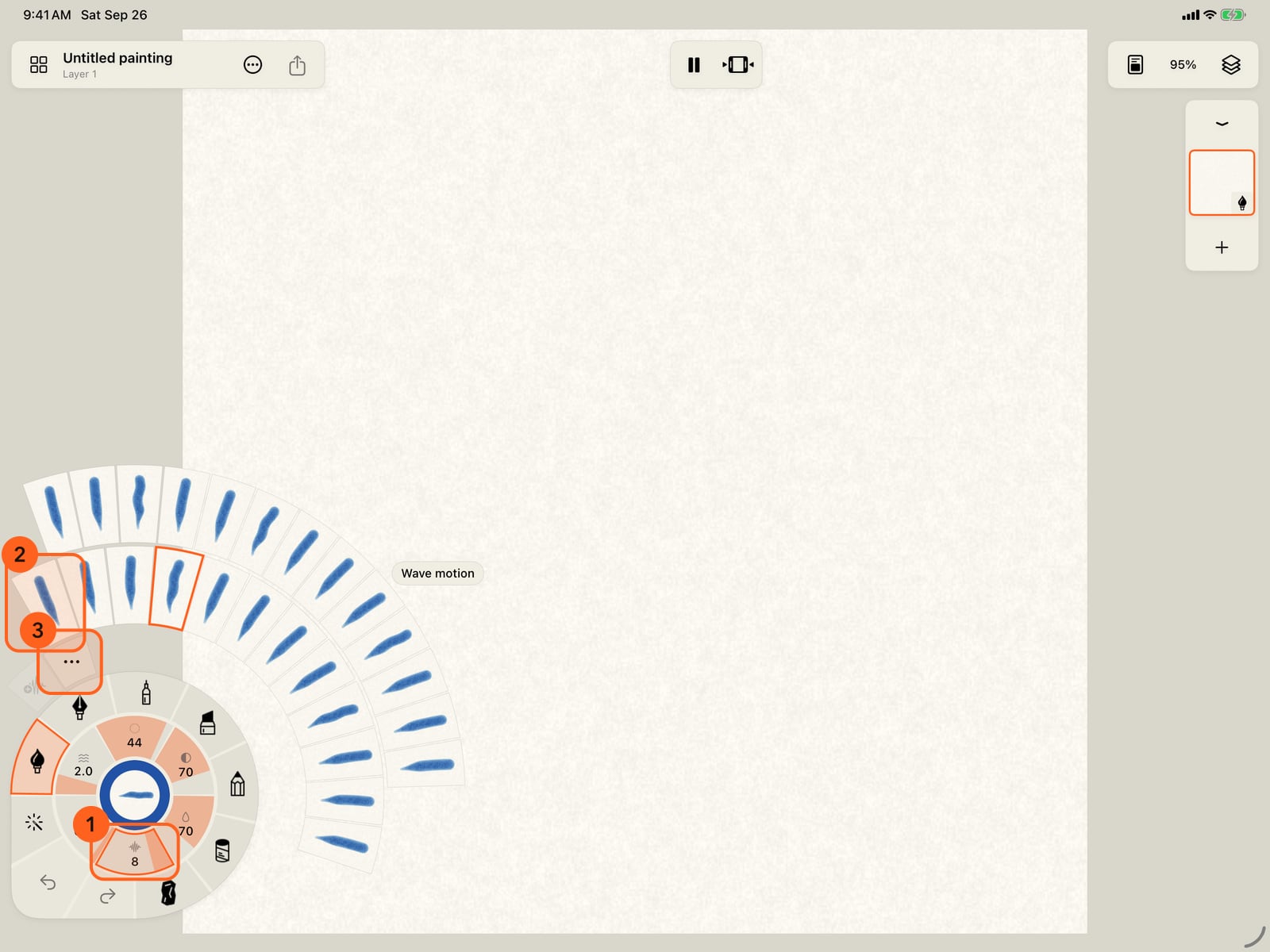
Tap Motion on the stroke wheel. Every motion unfolds around it as a moving stroke.
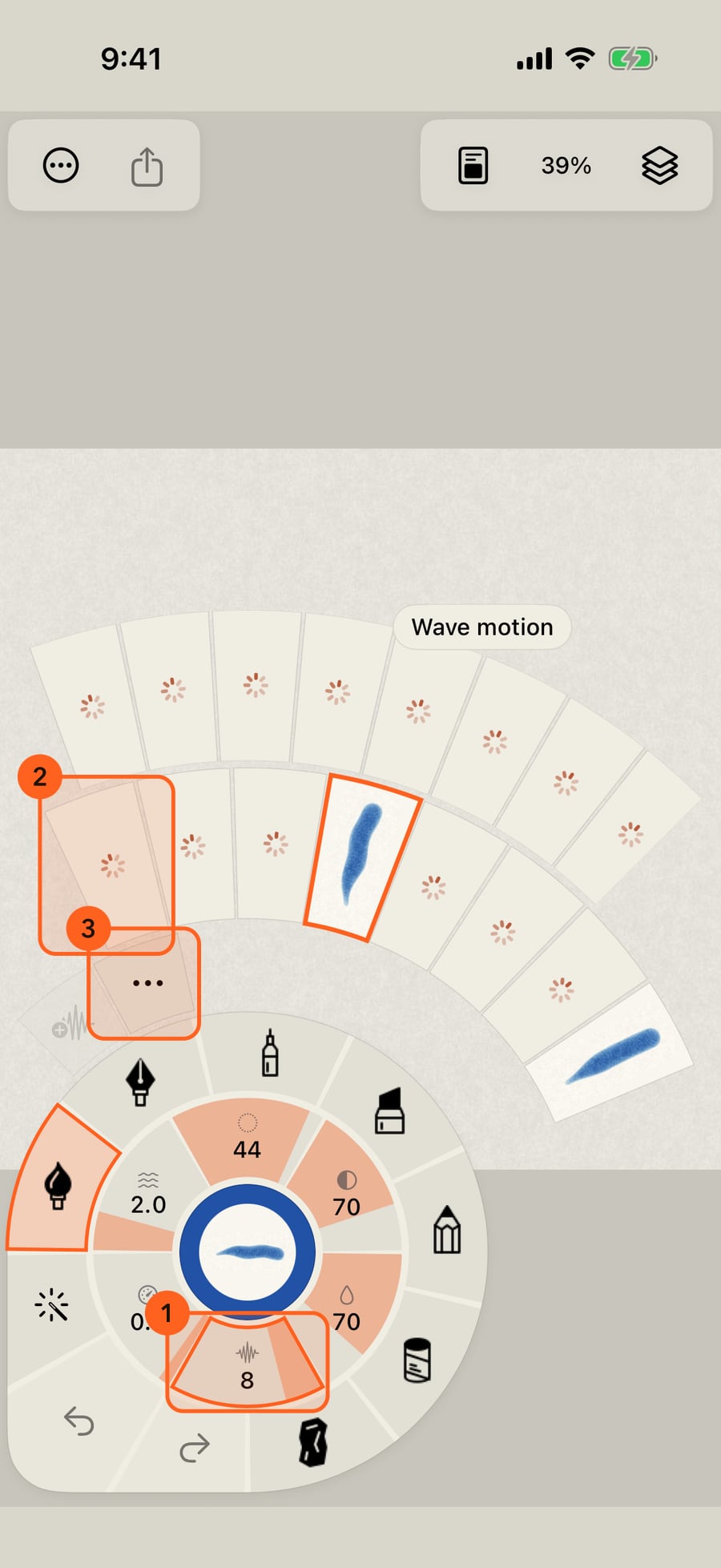
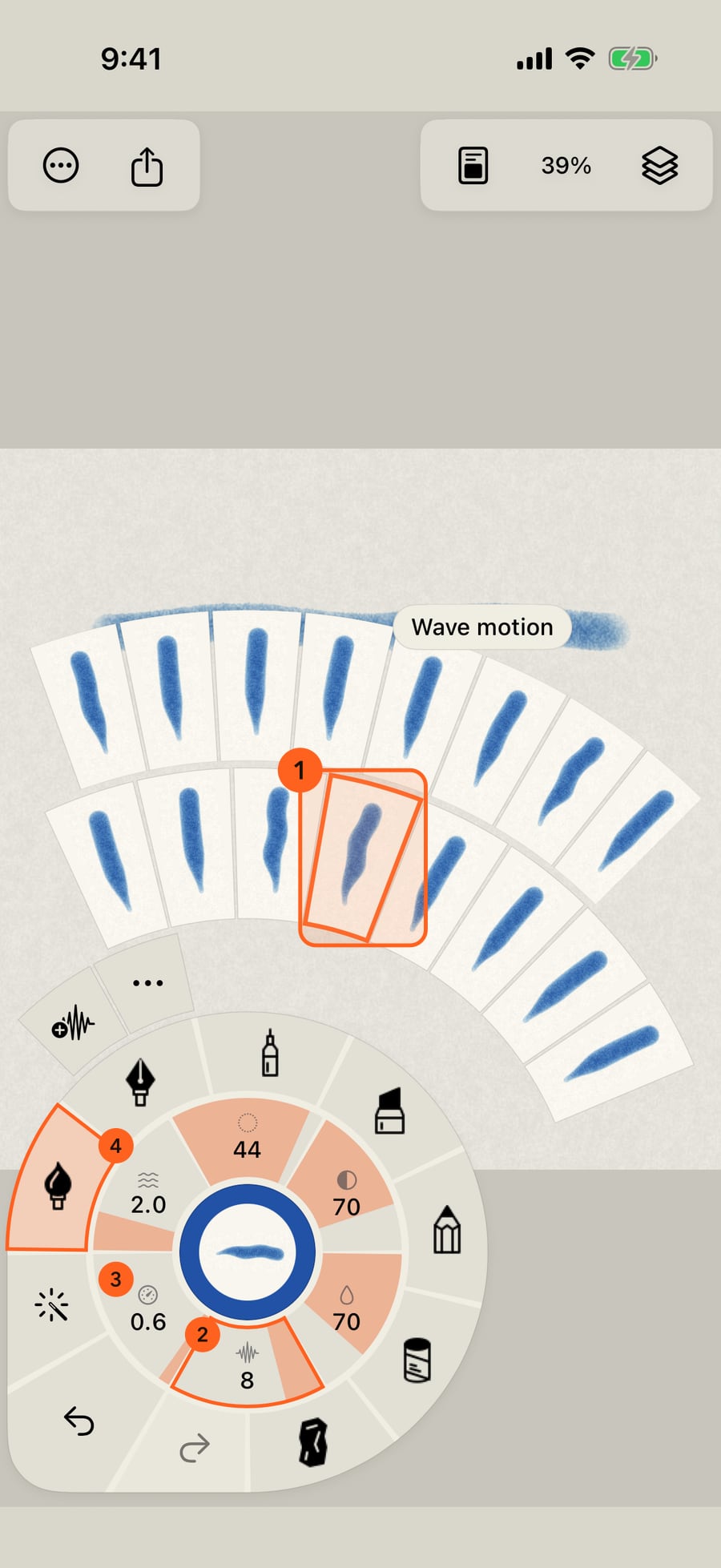
Tap the folded wheel to unfold it, then tap Motion. Every motion unfolds around it as a moving stroke.
Click Motion on the stroke wheel. Every motion unfolds around it as a moving stroke.
Choose Still and paint a stroke. It stays put, so you can compare the moving strokes with it.
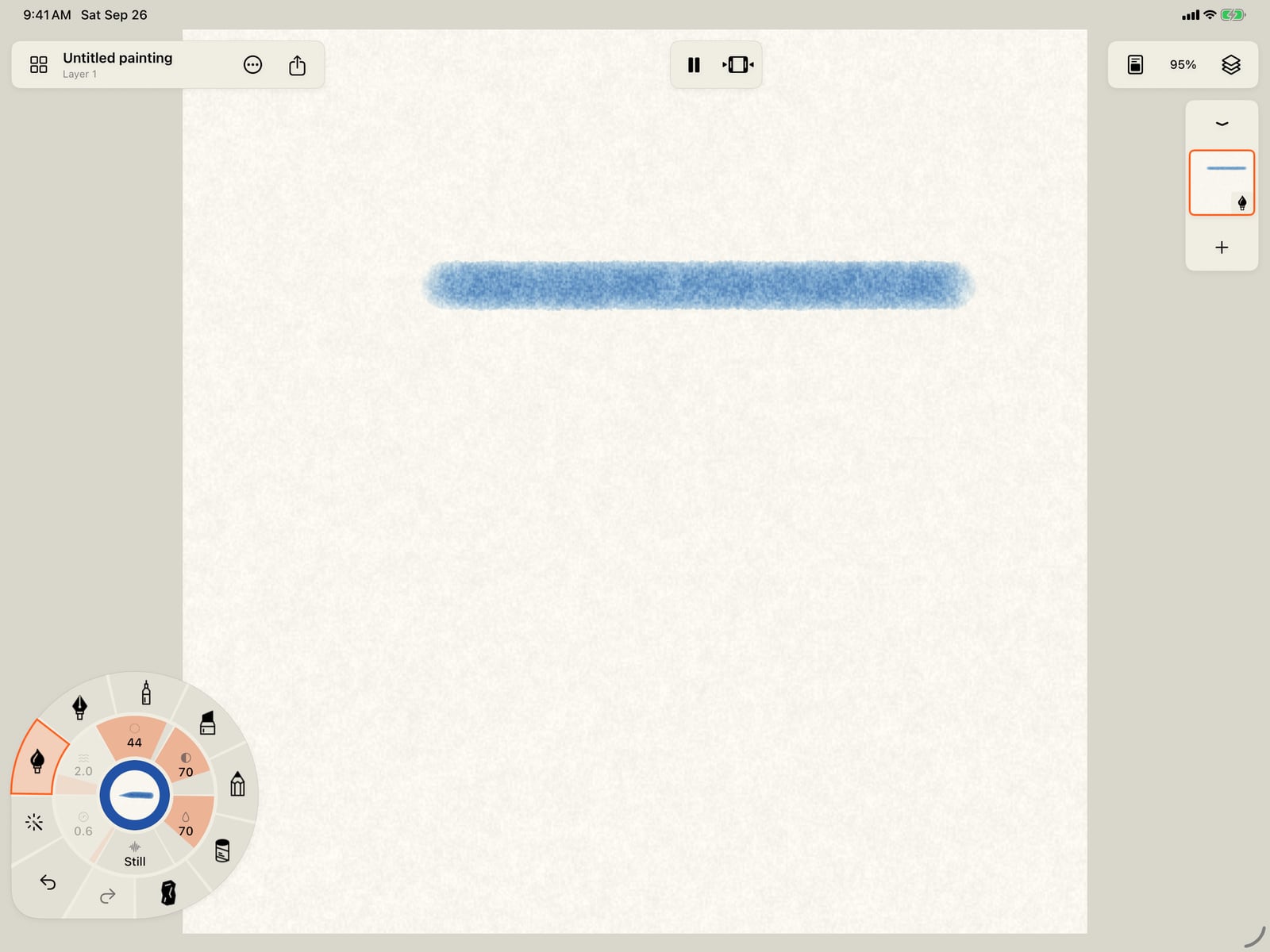
Choose Still, tap the page to fold the wheel, and paint a stroke. It stays put, so you can compare the moving strokes with it.
Open Motion again and choose Wave. Beside Size, Strength and Water, the wheel's own gauges now show its Amount, Speed and Pattern; turn one clockwise for more.
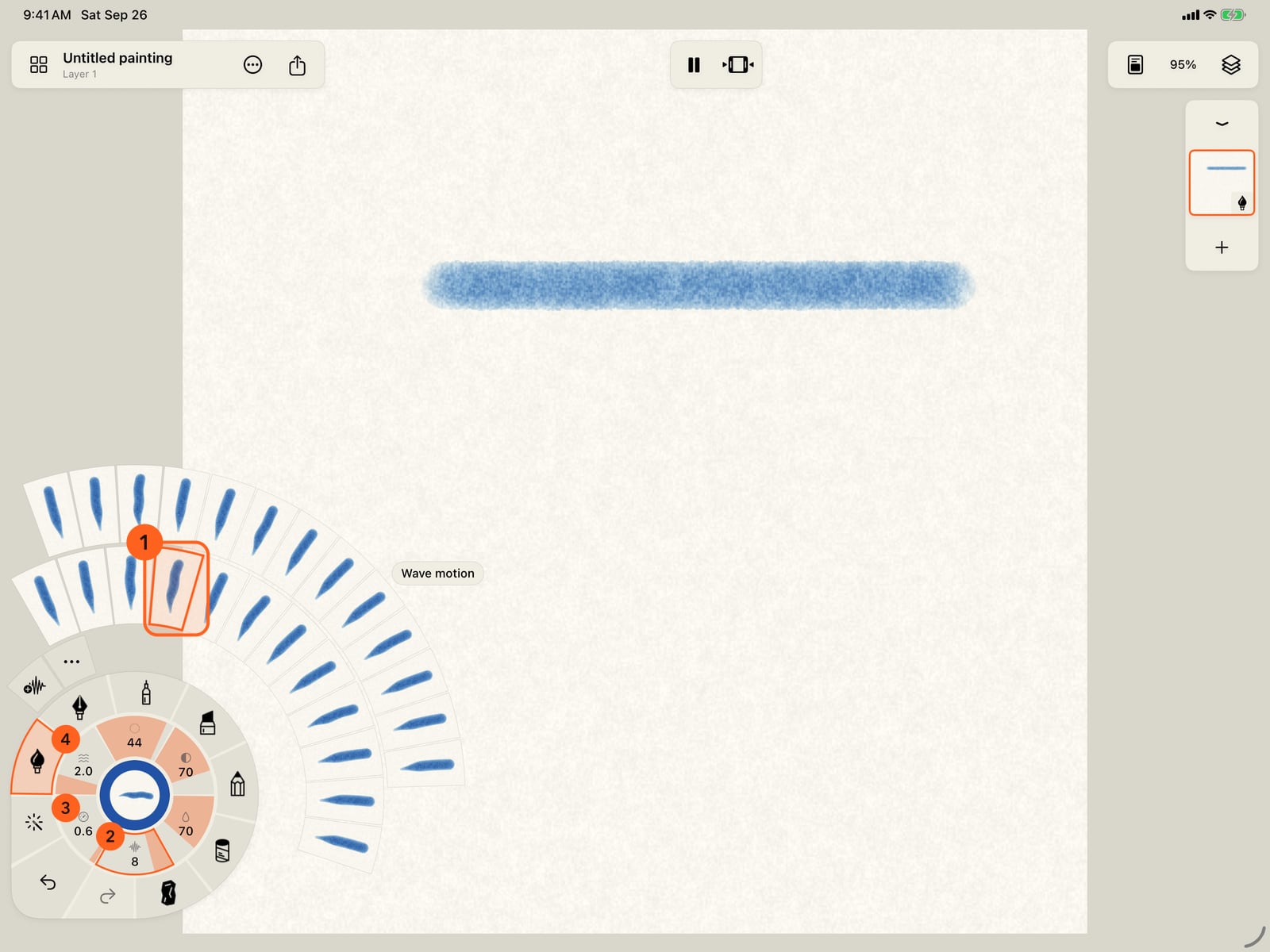
Unfold the wheel, open Motion again and choose Wave. Beside Size, Strength and Water, the wheel's own gauges now show its Amount, Speed and Pattern; turn one clockwise for more.
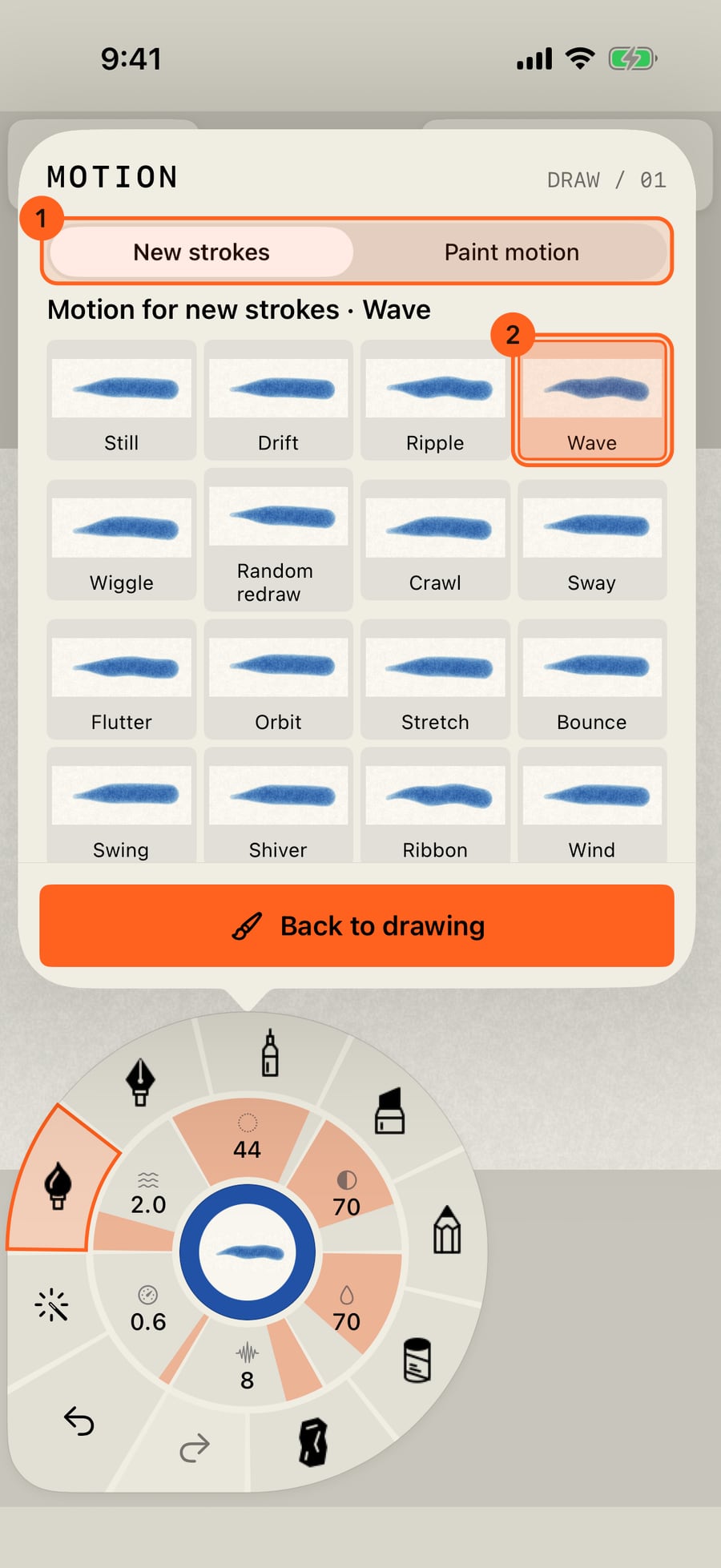
Tap More motion for the full panel. At the top, New strokes gives your next strokes this motion; Paint motion adds it to strokes already on the page.
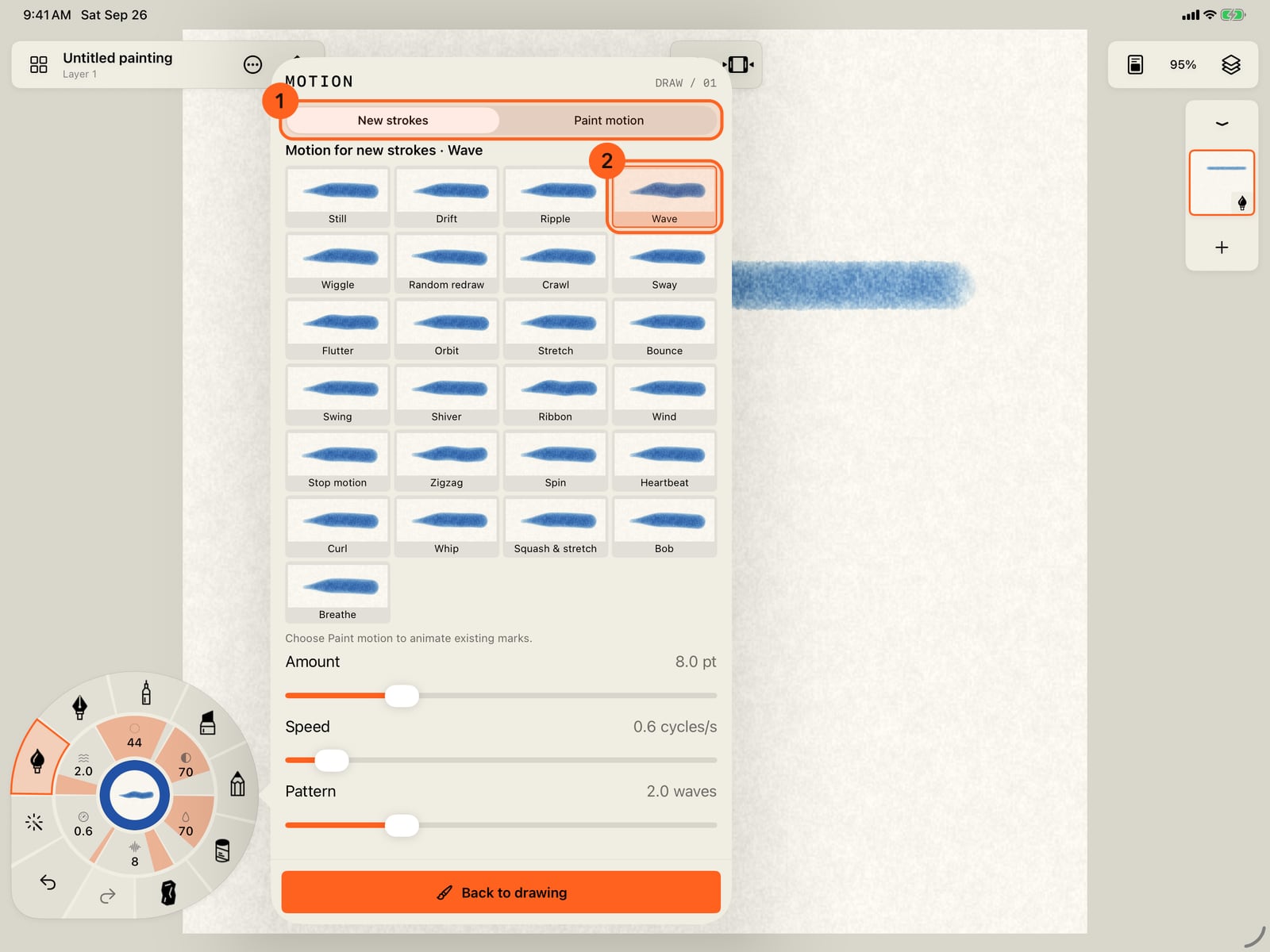
Tap More motion for the full panel. At the top, New strokes gives your next strokes this motion; Paint motion adds it to strokes already on the page.
Click More motion for the full panel. At the top, New strokes gives your next strokes this motion; Paint motion adds it to strokes already on the page.
Below the motions, drag Amount well up so the wave is easy to see. Speed sets how many times a second it moves.
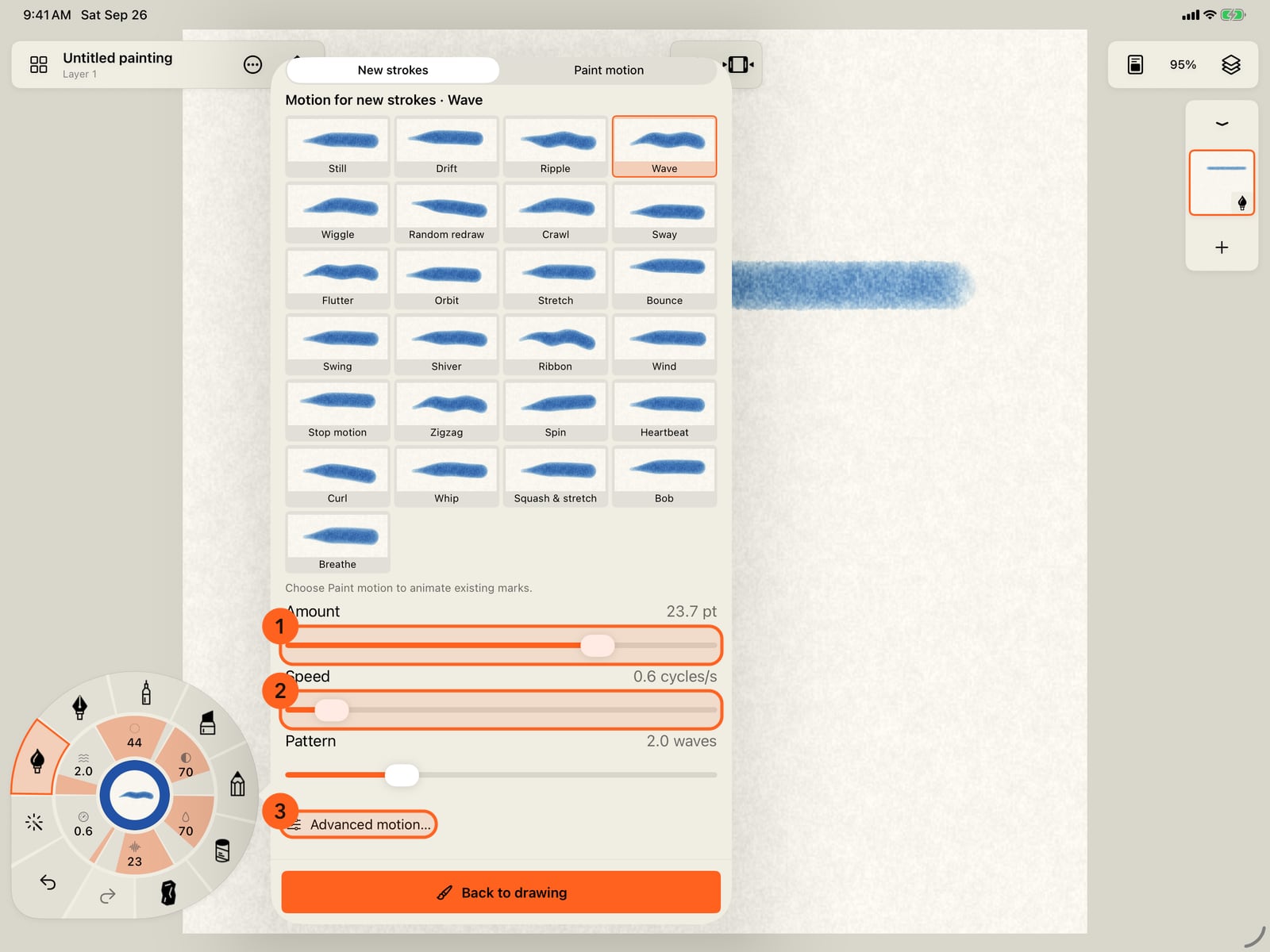
Below the motions, drag Amount well up so the wave is easy to see. Speed sets how many times a second it moves.
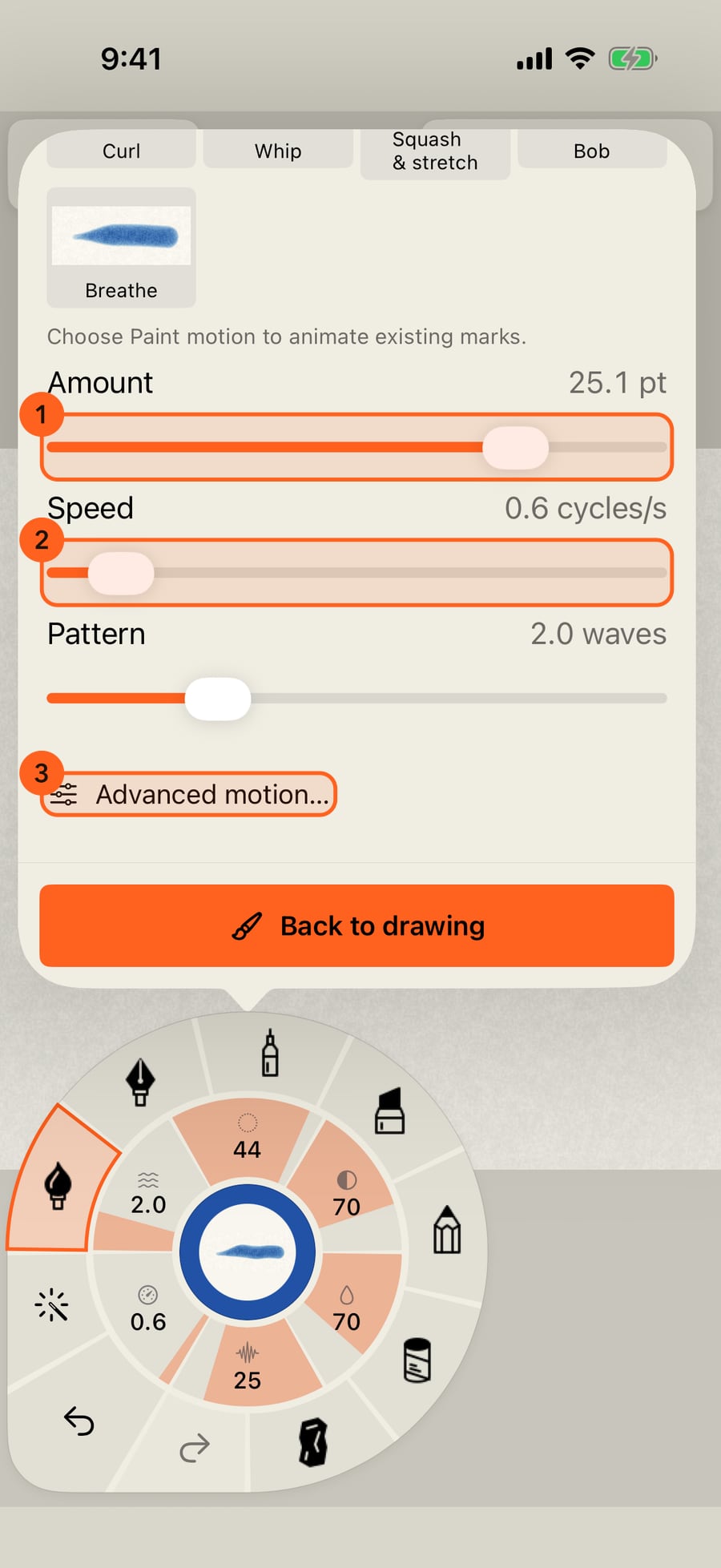
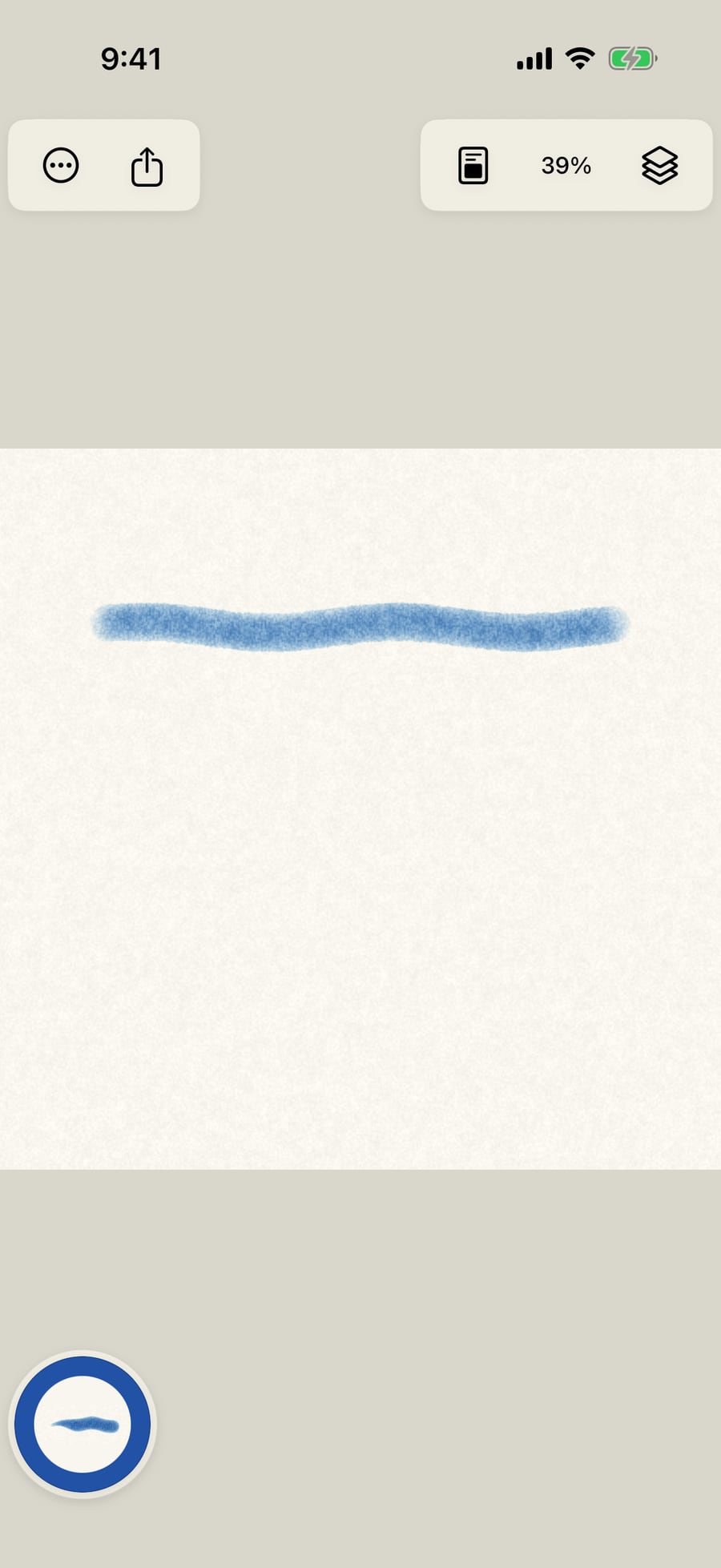
Tap Back to drawing and paint a second stroke. The top one is still; this one ripples along its length.
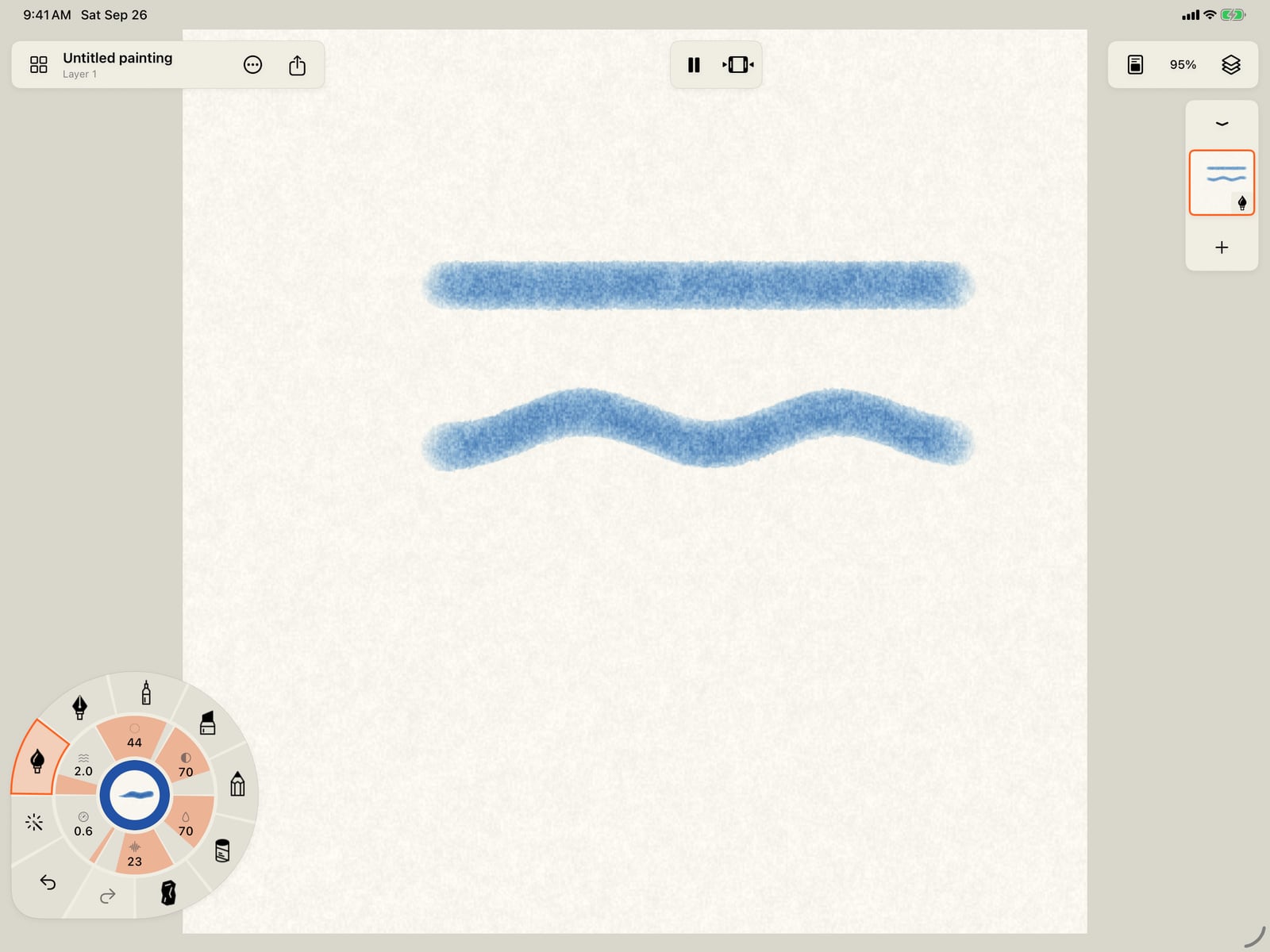
Tap Back to drawing, tap the page to fold the wheel, and paint a second stroke. The top one is still; this one ripples along its length.
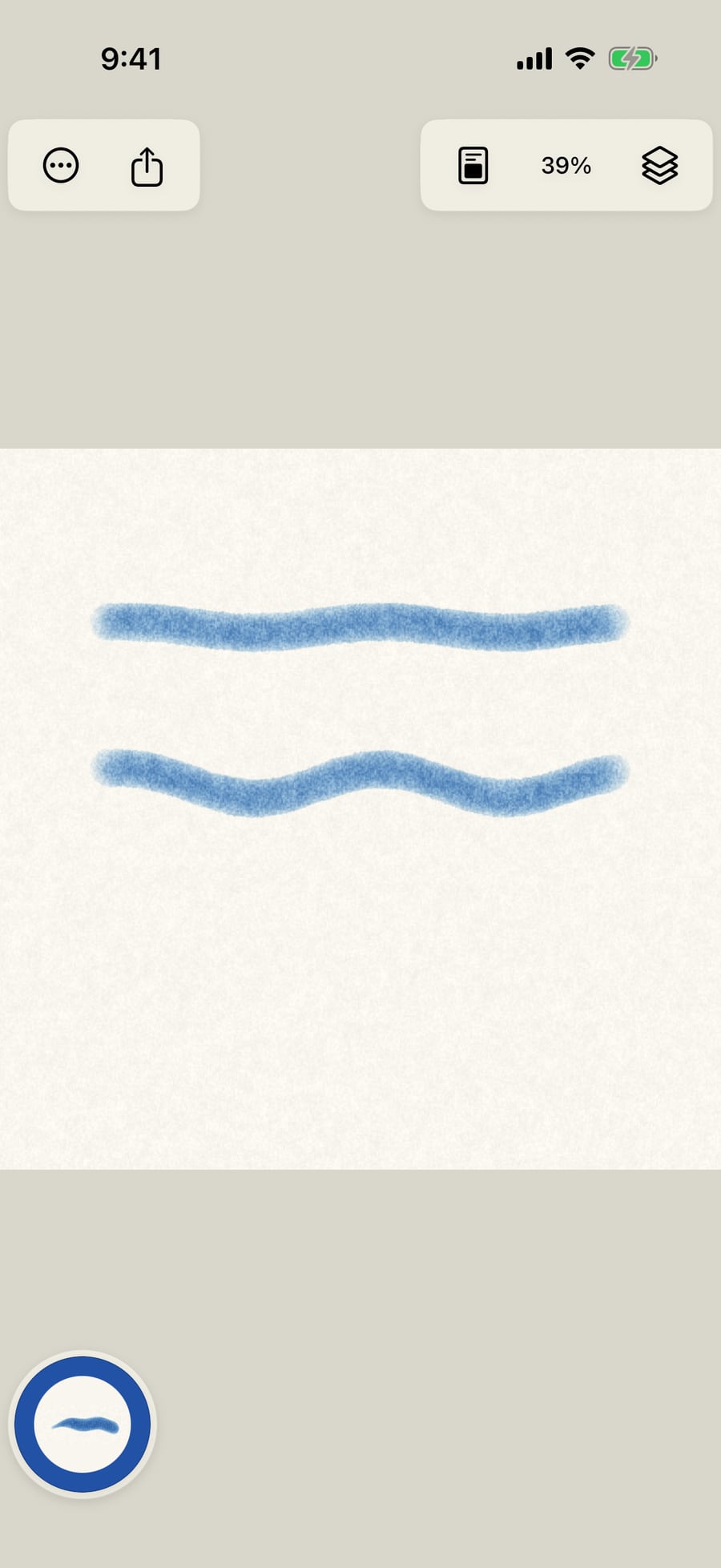
Click Back to drawing and paint a second stroke. The top one is still; this one ripples along its length.
Open Motion, More motion, then Advanced motion, for the brush's Motion page. Under Advanced motion, Phase, Anchors and Move paint fine-tune how it moves.
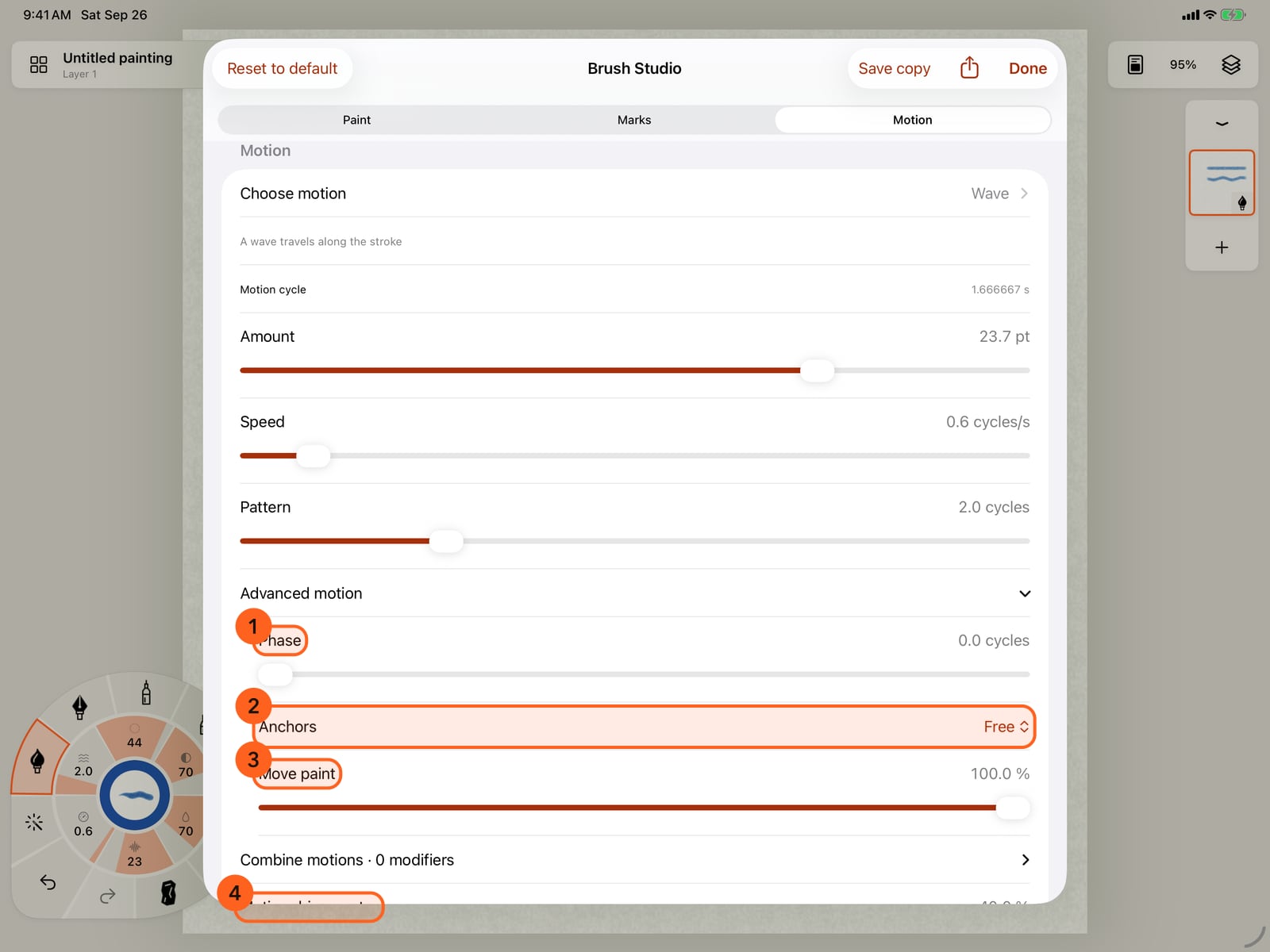
Open Motion, More motion, then Advanced motion, for the brush's Motion page. Under Advanced motion, Phase, Anchors and Move paint fine-tune how it moves.
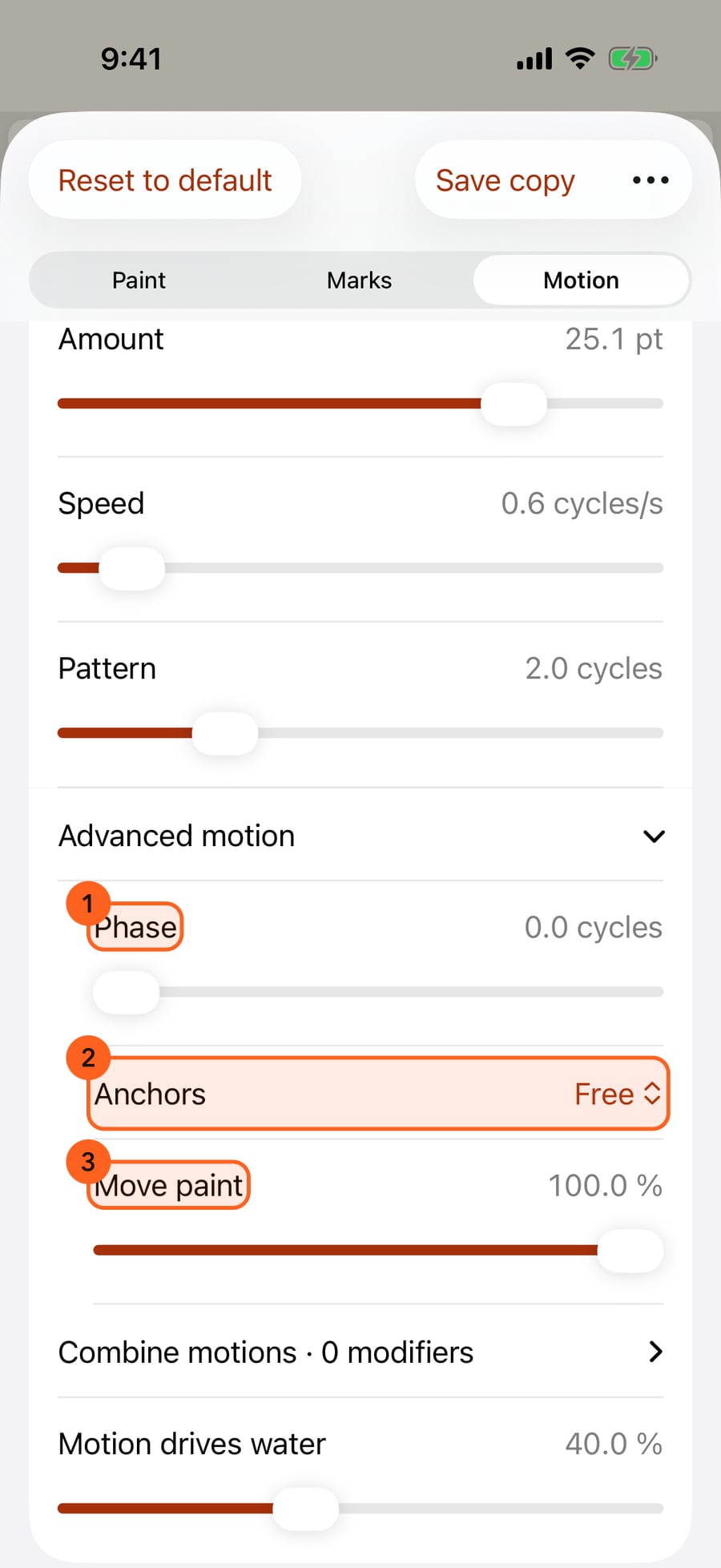
Set Anchors to Start pinned, tap Done and paint a third stroke. Its start stays where you put it while the rest waves.
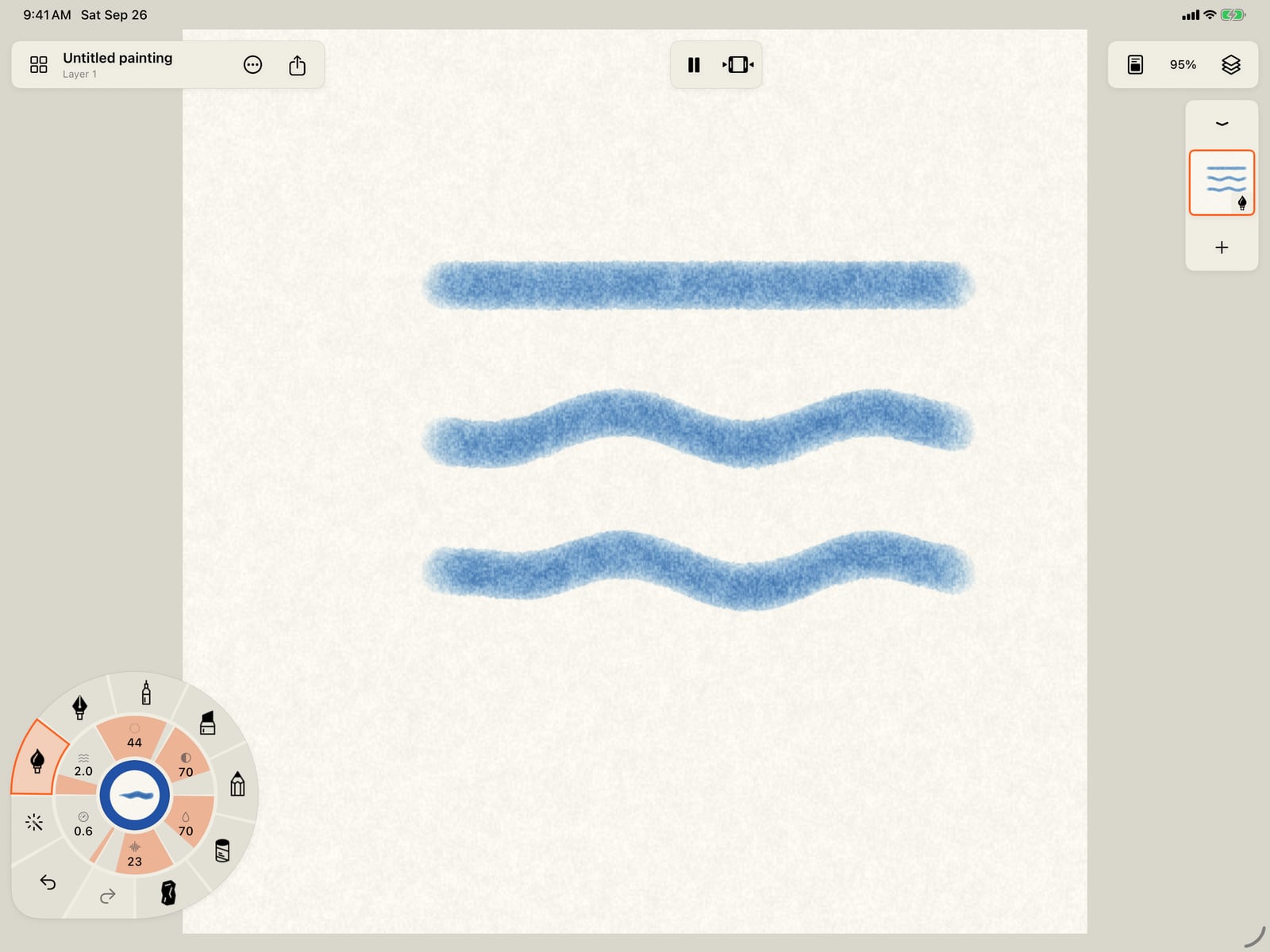
Set Anchors to Start pinned, tap More, then Done, and paint a third stroke. Its start stays where you put it while the rest waves.
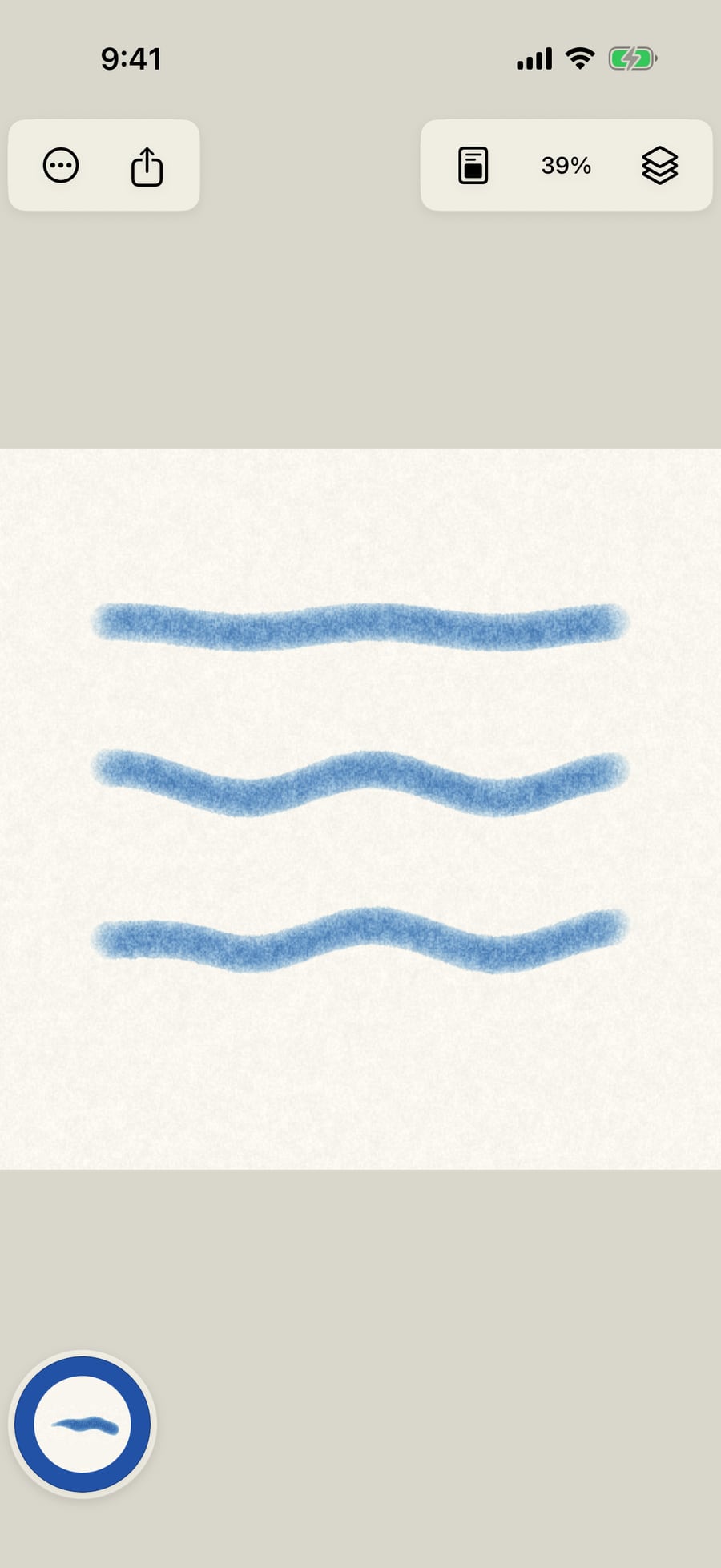
Set Anchors to Start pinned, click Done and paint a third stroke. Its start stays where you put it while the rest waves.
The Motion ring
Tap Motion 1 on the stroke wheel and the motions unfold around it as rays, each one a stroke in your brush and colour, already moving. The medium's suggested motions come first, after Still. Tap one to choose it: it applies to your next strokes at once, and the ring stays open so you can try one after another. Painting folds the ring away.
The motion's settings are gauges on the wheel itself, beside Size, Strength and Water, so you can set them as you paint without opening anything:
| Gauge | What it does |
|---|---|
| Amount | How far the stroke moves, in points (up to 32). Turn clockwise for more. Reads Still when the brush has no motion. |
| Speed | How many cycles a second it moves. Noise-based motions, such as Wiggle and Crawl, count steps a second instead. Reads Frame rate for Stop motion and Random redraw, which hold poses like frames: how many new poses a second. |
| Pattern | How many waves fit along the stroke. Reads Detail for Random redraw: how many small bends each redrawn line has. Dims for motions that move the whole stroke, such as Sway, Orbit or Bounce. |
Tap any of the three to unfold the Motion ring. Its inner ring holds:
| Control | What it does |
|---|---|
| Paint motion | Hands over to the motion brush, to add motion to strokes already painted. See Paint motion onto strokes. It needs paint on the current layer. |
| More motion | Opens the full motion panel. |
The gauges turn like Size: drag around the ring, clockwise for more. With Still there is nothing to set, so they dim.
On iPhone the wheel rests folded. Tap it to unfold it, then tap Motion. While it is unfolded, tap the page to fold it before you paint.
The motions
| Family | Motions |
|---|---|
| Still | Still |
| Gentle | Sway, Orbit, Drift, Bounce, Swing, Wind, Bob, Breathe |
| Flowing | Wave, Ripple, Stretch, Ribbon, Zigzag, Whip, Curl |
| Expressive | Wiggle, Random redraw, Crawl, Flutter, Shiver, Stop motion, Spin, Heartbeat, Squash & stretch |
Wind is shared: every stroke with Wind moves in the same breeze across the page, and their roots stay put.
The motion panel
More motion opens a larger panel beside the wheel:
- New strokes and Paint motion at the top choose where the motion goes: onto the strokes you paint next, or brushed onto strokes already on the page.
- Every motion as a larger moving tile. One tap applies it.
- Amount, Speed (or Frame rate) and Detail as sliders, with their units.
- Advanced motion… opens the brush's Motion page in Brush Studio.
- Back to drawing closes the panel.
Advanced motion
The Motion page in Brush Studio shows Choose motion (every motion, grouped by family, with a description), the motion's Motion cycle (how long before it repeats exactly), Amount, Speed and, for motions that travel along the stroke, Pattern: how many waves fit along it. Open Advanced motion for:
| Control | What it does |
|---|---|
| Phase | Where in its cycle the motion starts, from 0 to 1. Two strokes with different phases move out of step. |
| Anchors | Free, Start pinned, End pinned or Both ends pinned. A pinned end stays where you painted it; the rest of the stroke moves. |
| Move paint | How much the stroke itself follows the motion, from 0 to 100%. At 0 its shape holds still; in wet media its motion can still stir the water around it. |
| Motion drives water | Watercolour and other wet media: how strongly the stroke's movement pushes the water around it. Under Flow. |
Combine motions below adds up to eight motions to one brush: see Combine motions.
Tip: Motion belongs to the brush, so it changes only the strokes you paint next. To change a stroke already on the page, use Tools → Select stroke, or brush motion onto it with Paint motion.
Pro: Every single motion, and every control on this page, is Free. Stacking several motions on one brush is part of Pro.
On the Mac, click Motion on the wheel, or secondary-click the page to bring the wheel to the pointer first.
Something not behaving as expected?
Visit support or write to [email protected].