

Guides / Motion and animation
Paint motion onto strokes
Brush motion onto strokes already on the page, take it away, strengthen or soften it, and freeze strokes or a whole layer in place.
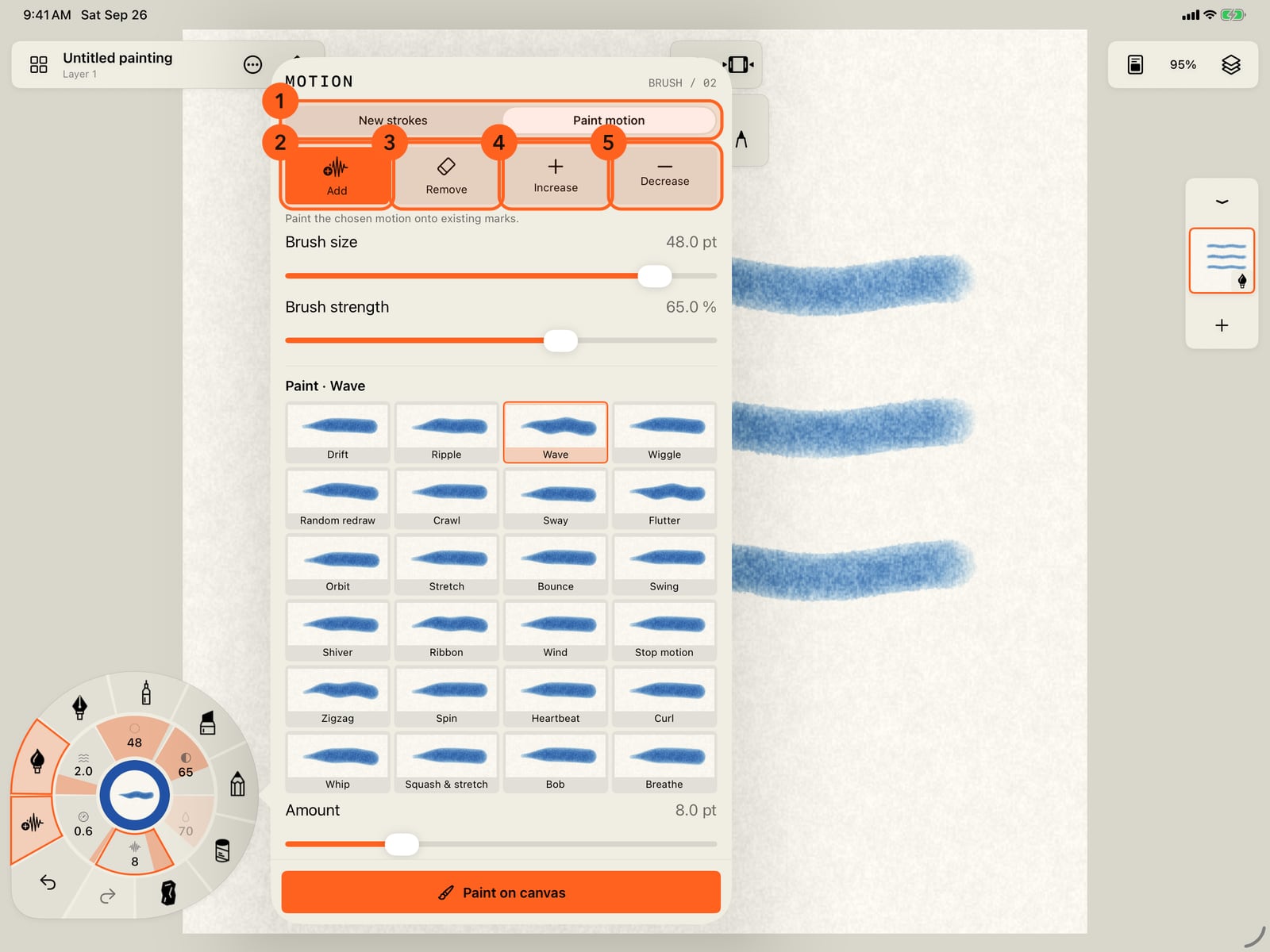
Paint a few strokes first. Choose Still on the Motion ring, so nothing moves yet.
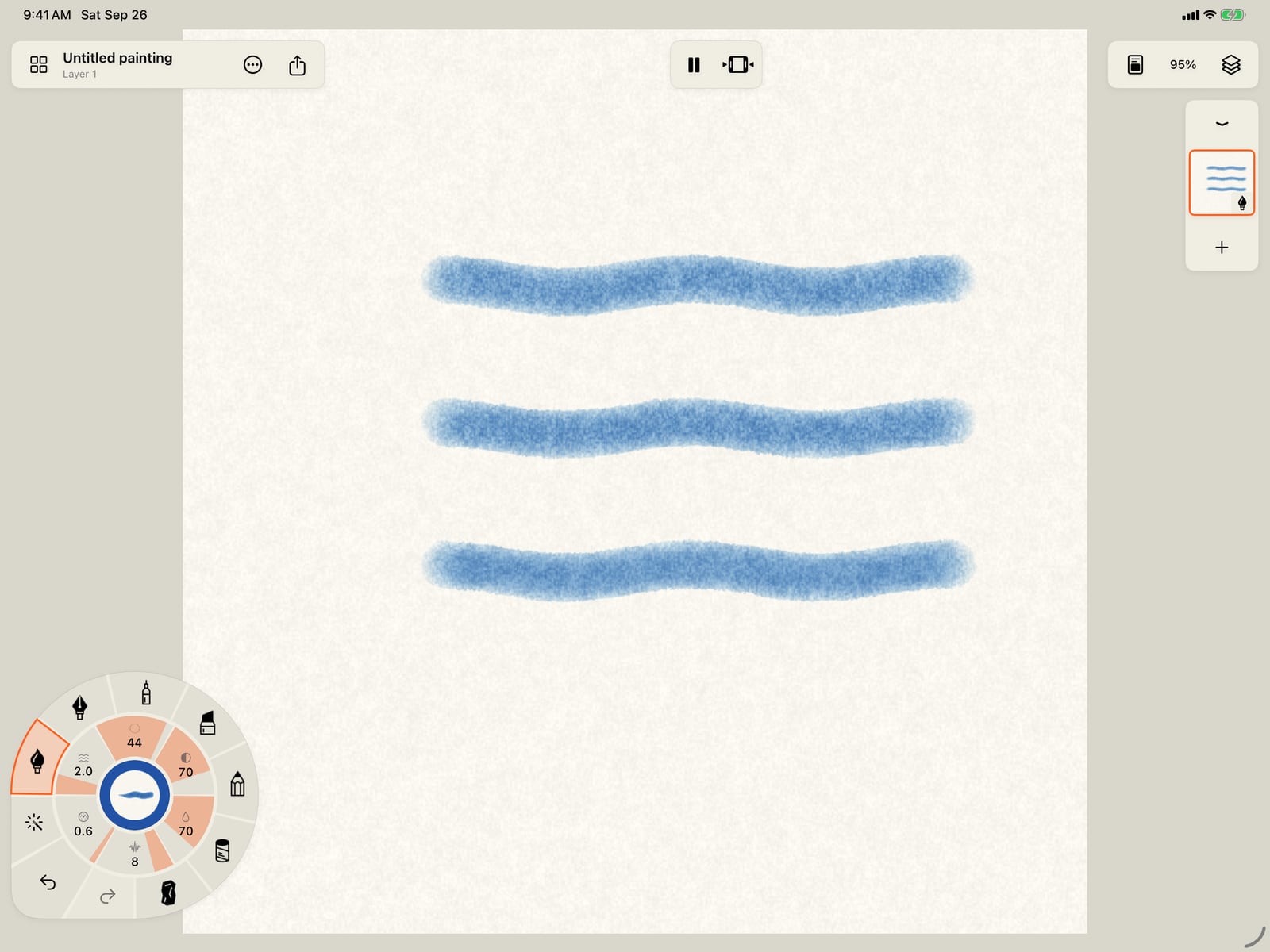
Paint a few strokes first. Unfold the wheel, choose Still on the Motion ring, and tap the page to fold it, so nothing moves yet.
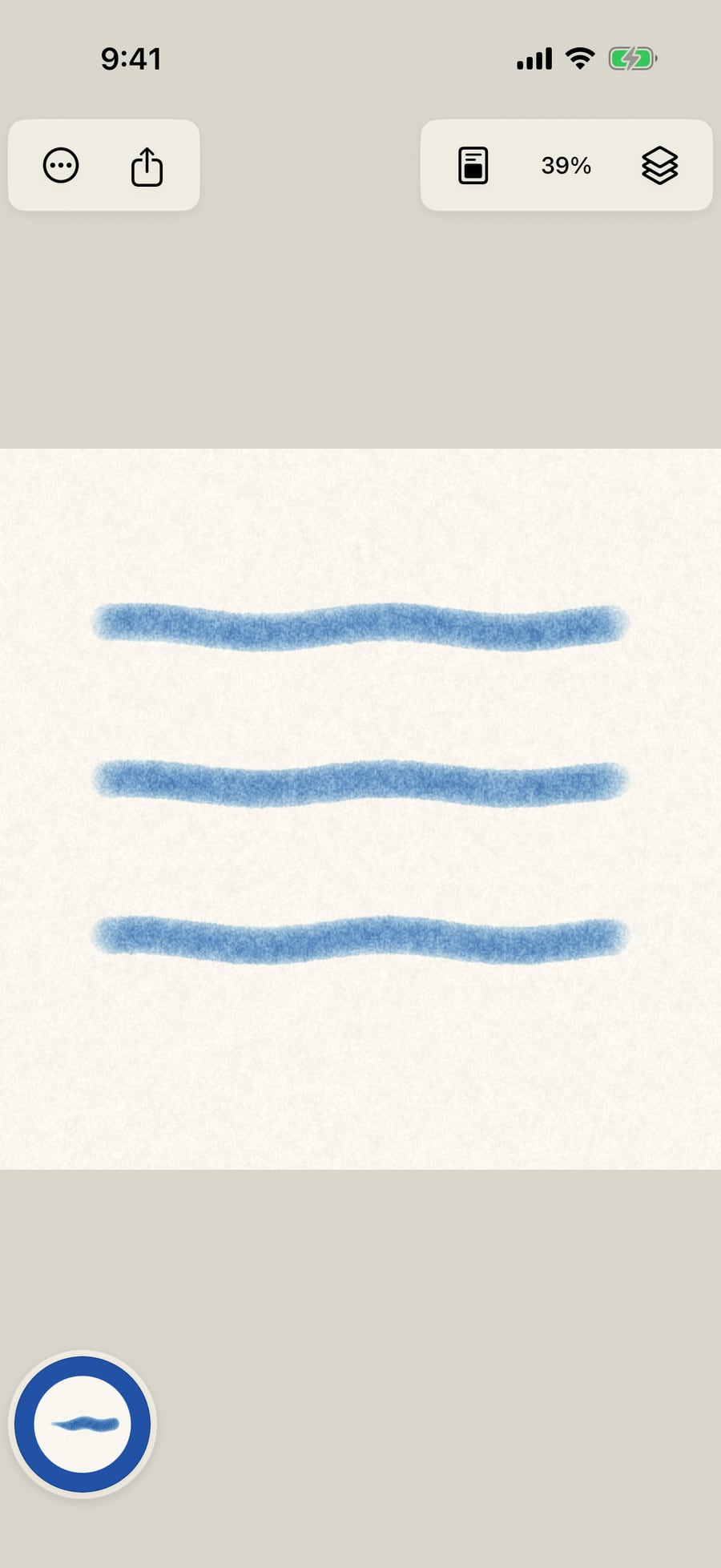
Open Motion, then More motion, and choose Paint motion at the top. The motion brush has four modes, and Add paints the chosen motion onto strokes.
Open Motion, then More motion, and choose Paint motion at the top. The motion brush has four modes, and Add paints the chosen motion onto strokes.
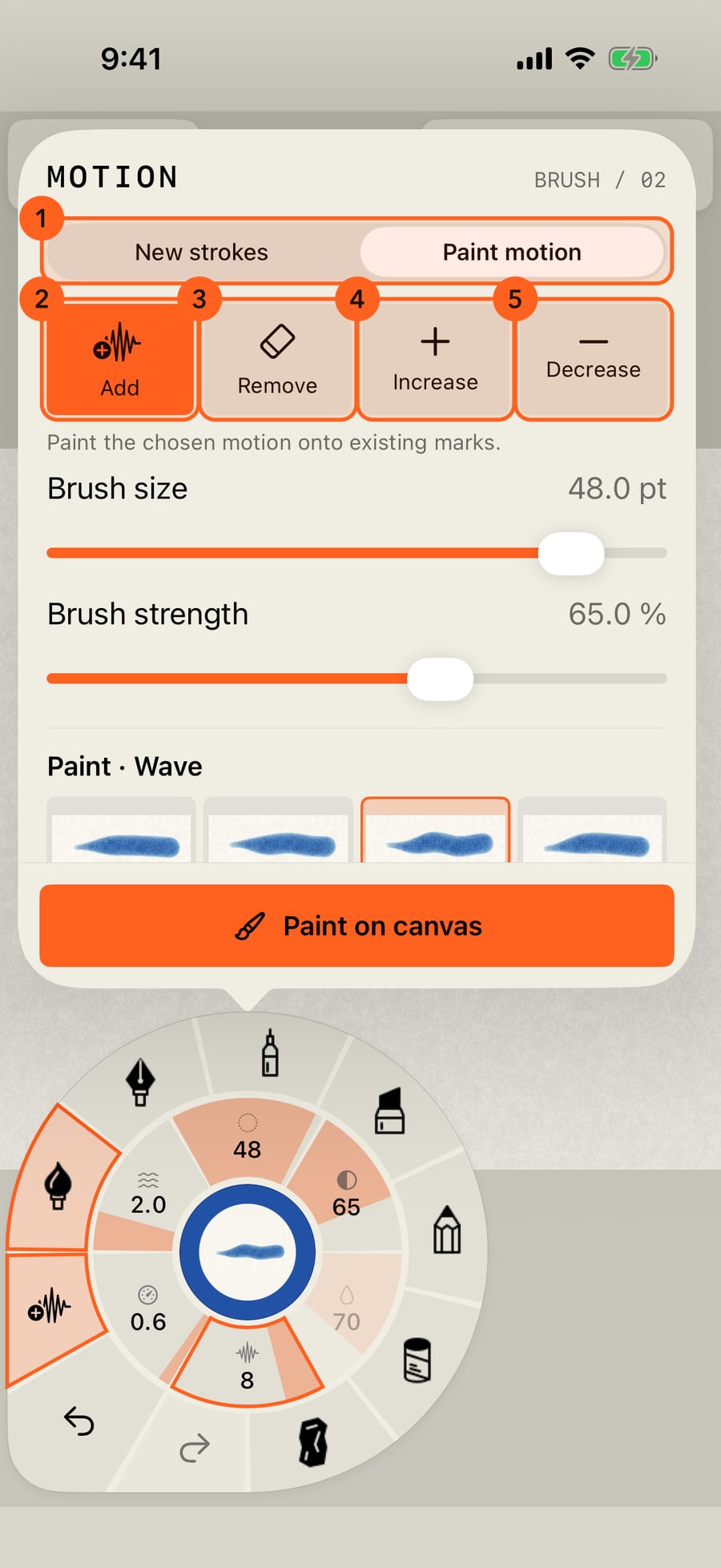
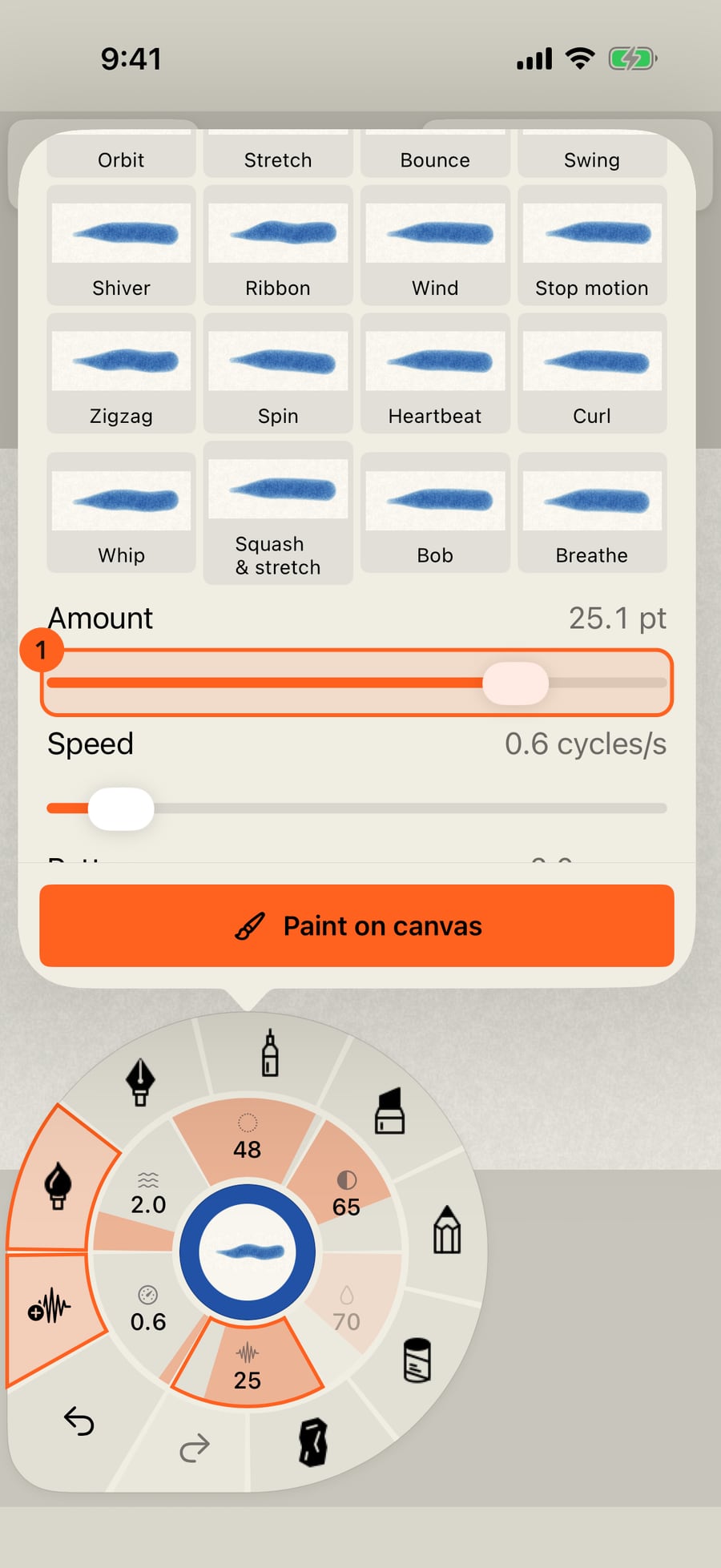
Below the modes, choose the motion to paint and its Amount. Here it is Wave, with a large Amount so it shows clearly.
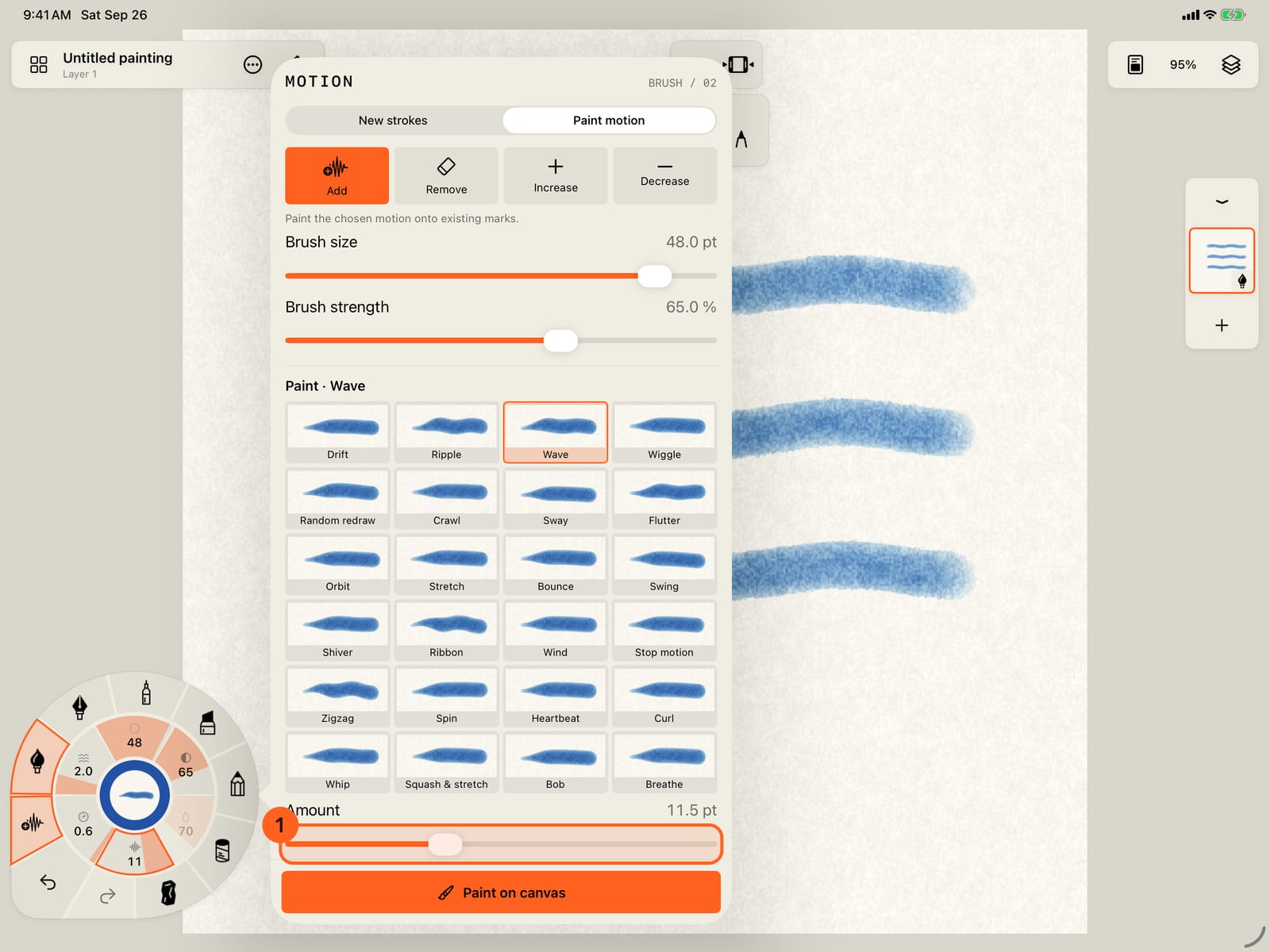
Below the modes, choose the motion to paint and its Amount. Here it is Wave, with a large Amount so it shows clearly.
Tap Paint on canvas and brush along the middle and bottom strokes. They start to wave; the top one, left alone, stays still.
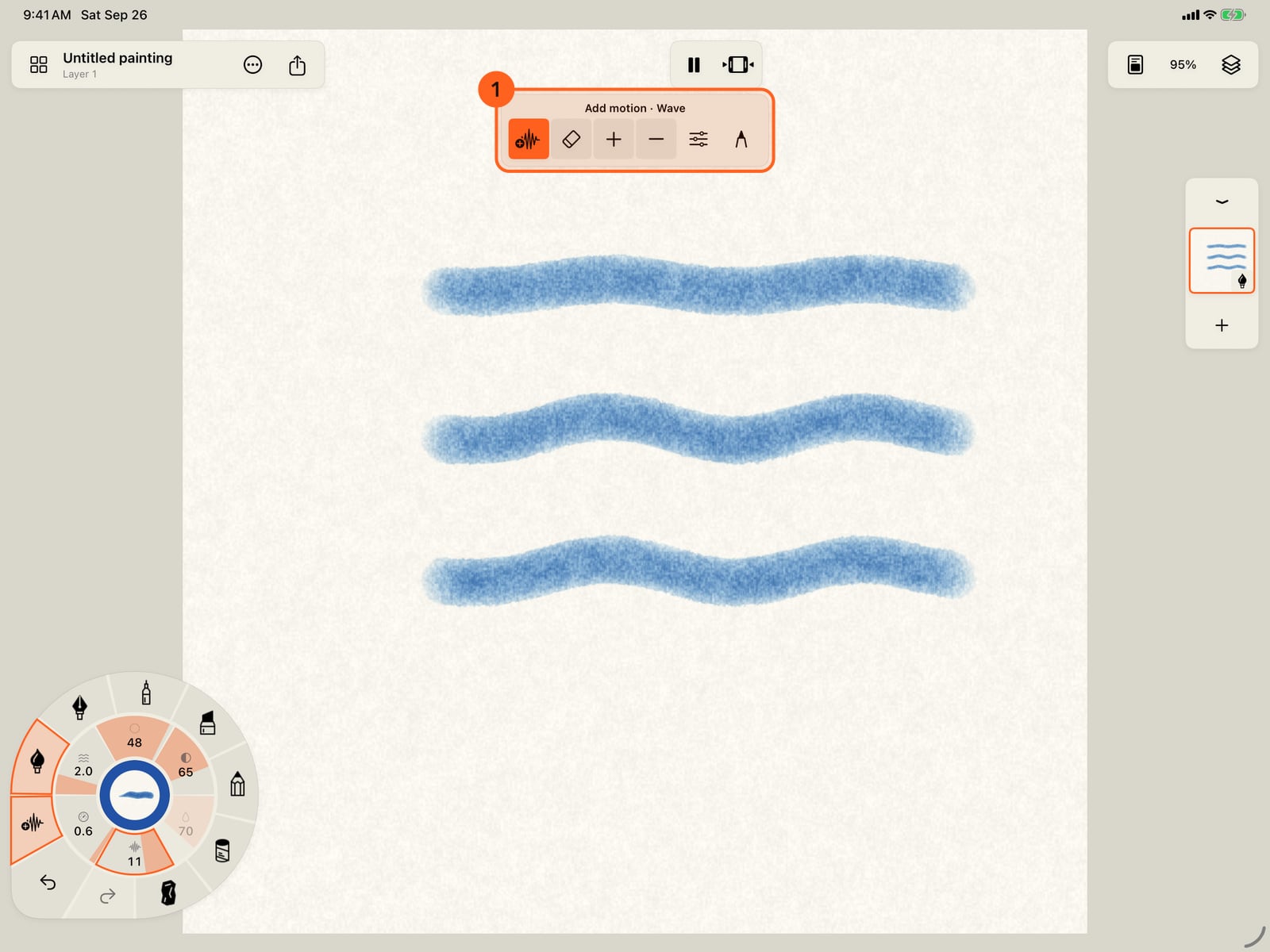
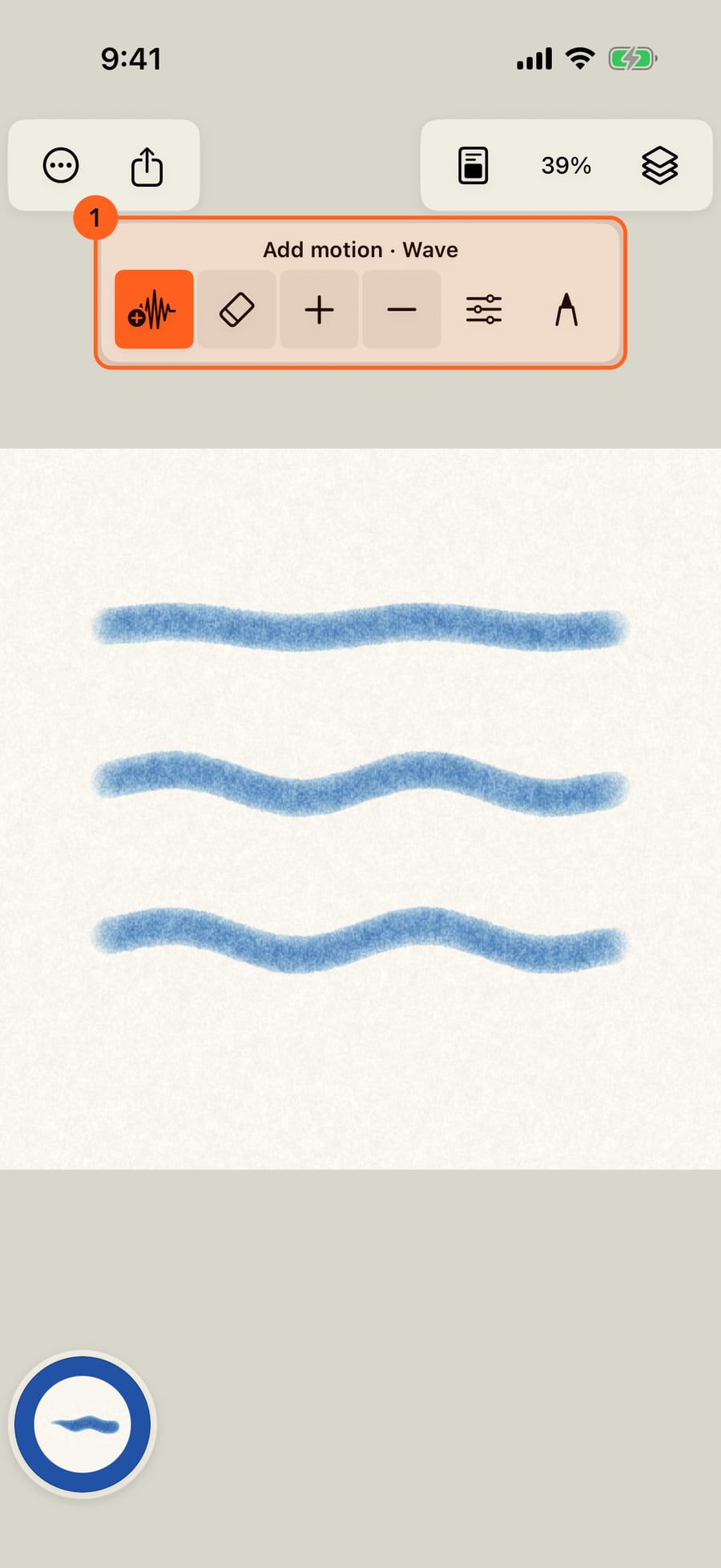
Tap Paint on canvas, tap the page to fold the wheel, and brush along the middle and bottom strokes. They start to wave; the top one, left alone, stays still.
Click Paint on canvas and brush along the middle and bottom strokes. They start to wave; the top one, left alone, stays still.
The bar above the page switches modes. Tap Remove and brush along the bottom stroke, and its motion goes while the paint stays.
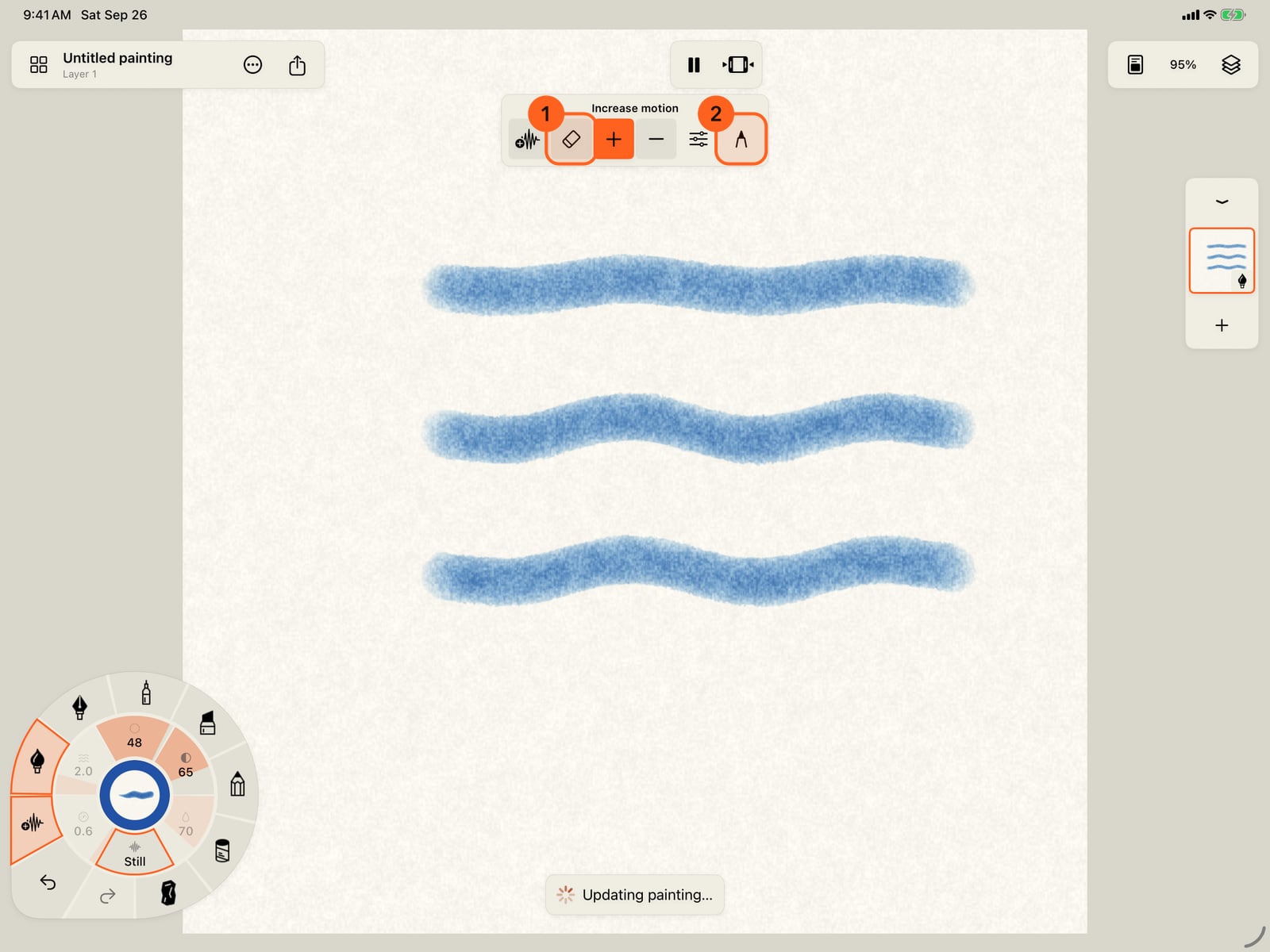
The bar above the page switches modes. Tap Remove and brush along the bottom stroke, and its motion goes while the paint stays.
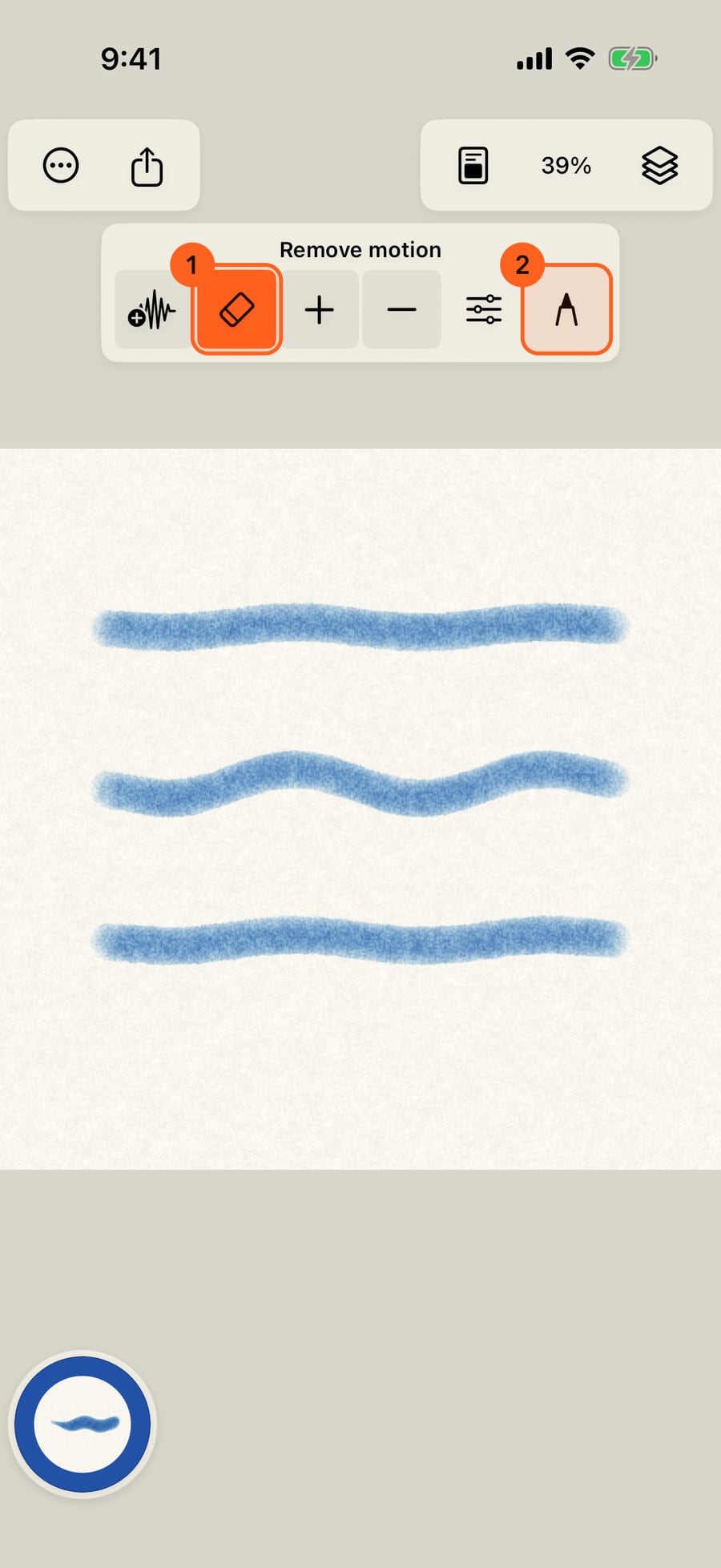
The bar above the page switches modes. Click Remove and brush along the bottom stroke, and its motion goes while the paint stays.
Tap the pencil to return to drawing. To stop a stroke in mid-movement, open your brushes and find the Freeze Tool.
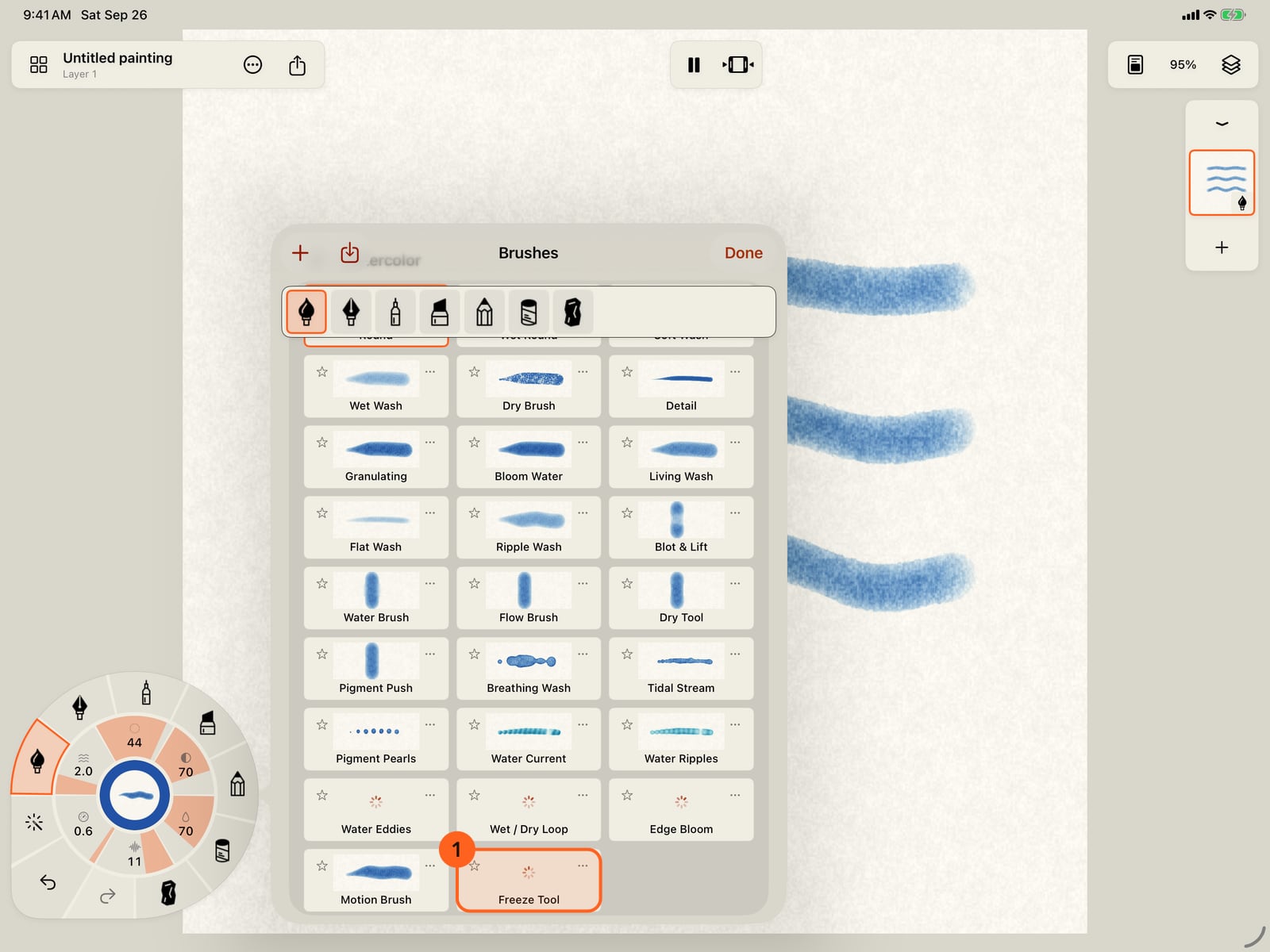
Tap the pencil to return to drawing. To stop a stroke in mid-movement, unfold the wheel, open your brushes and find the Freeze Tool.
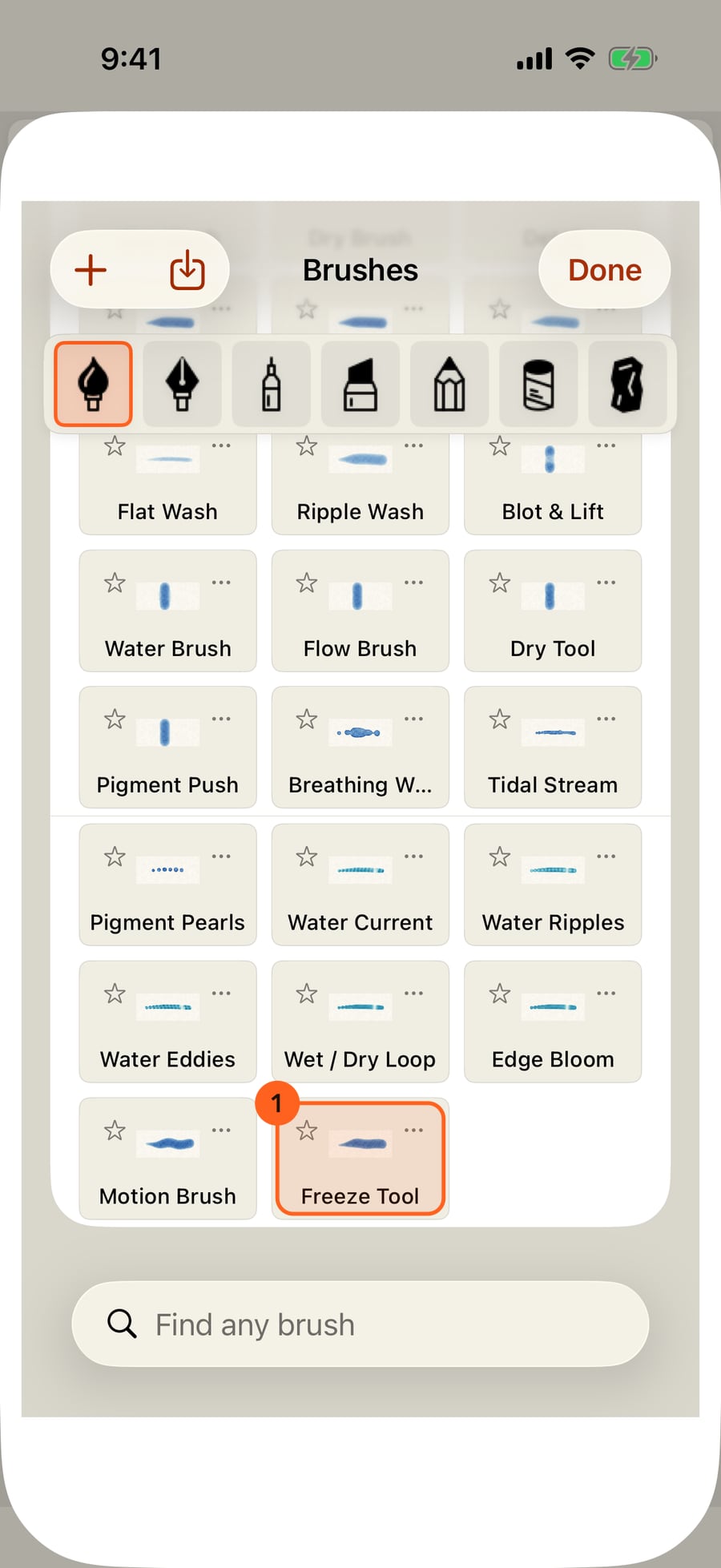
Click the pencil to return to drawing. To stop a stroke in mid-movement, open your brushes and find the Freeze Tool.
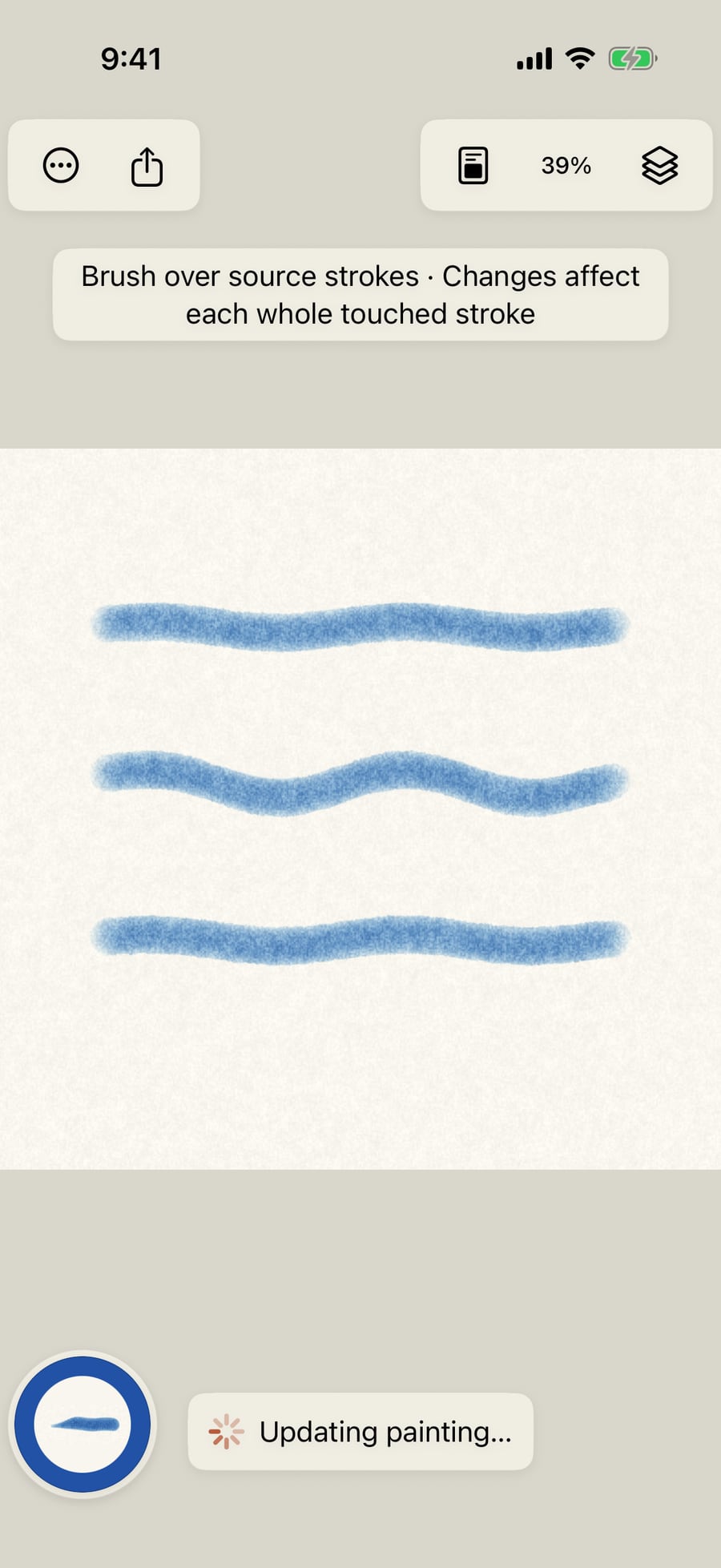
Take it up and brush along the middle stroke. It holds the pose it had at that moment, while the rest of the painting plays on.
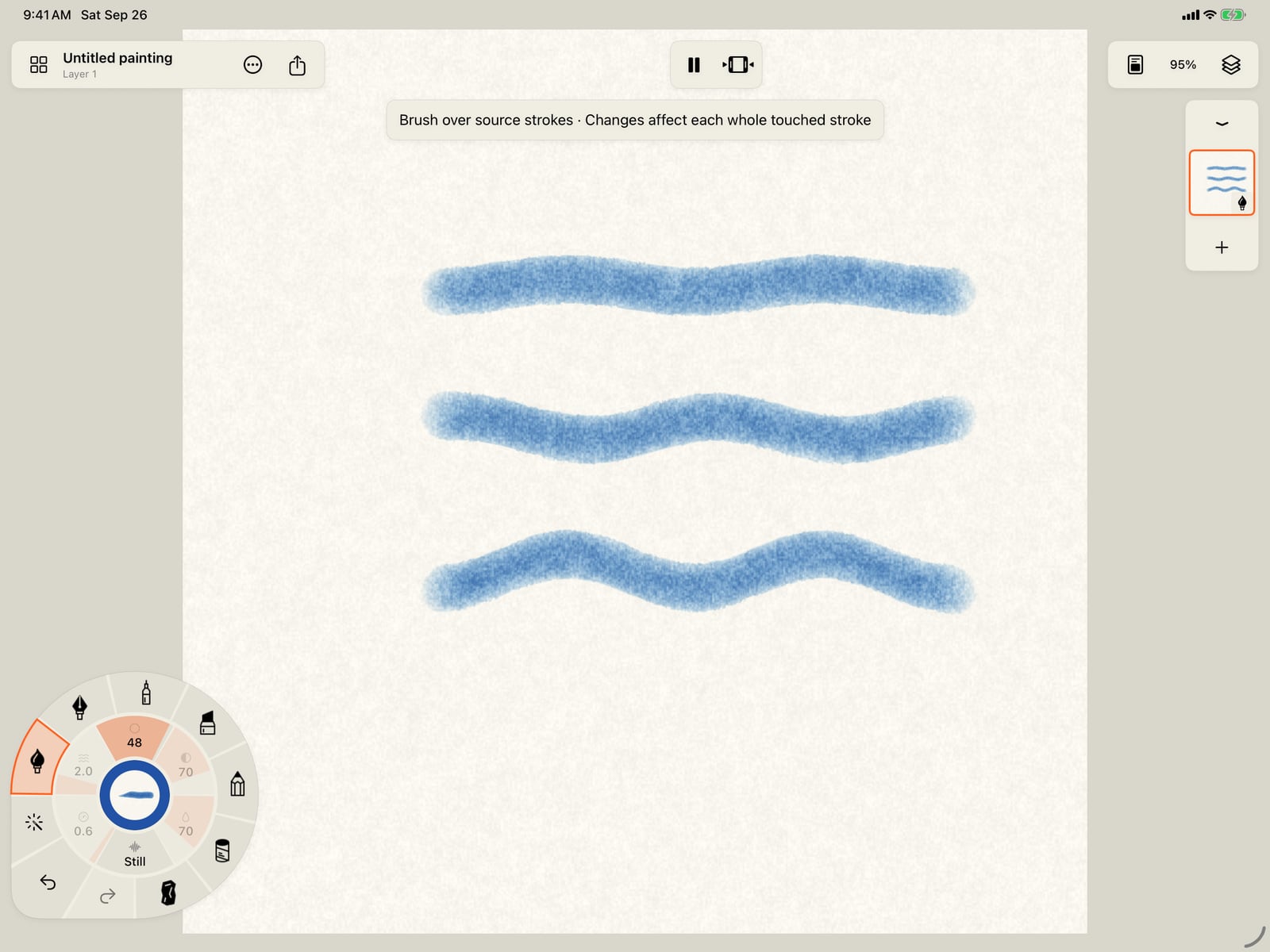
Take it up and brush along the middle stroke. It holds the pose it had at that moment, while the rest of the painting plays on.
To hold a whole layer at once, open Layers, tap the layer's menu, and choose Freeze motion here.
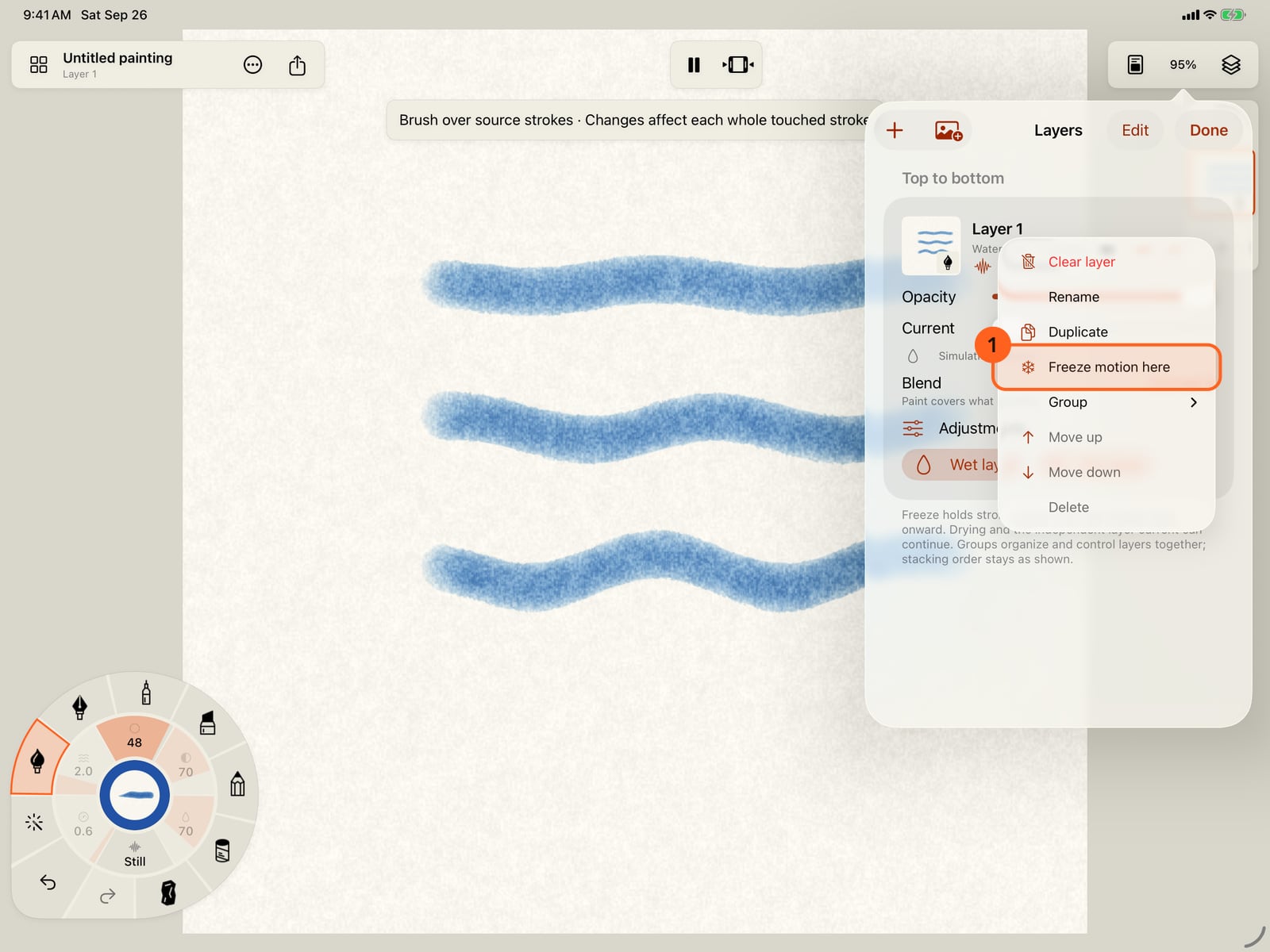
To hold a whole layer at once, open Layers, tap the layer's menu, and choose Freeze motion here.
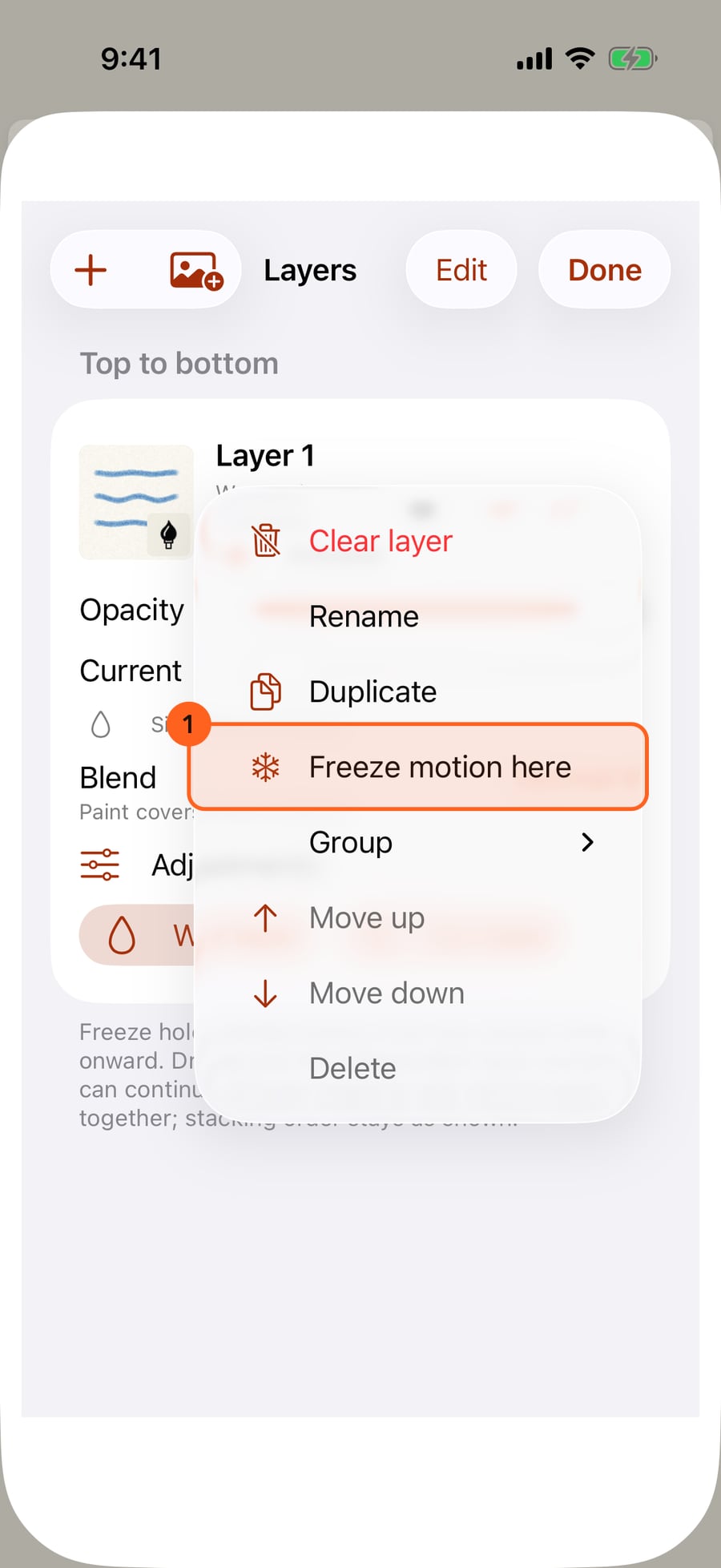
To hold a whole layer at once, open Layers, click the layer's menu, and choose Freeze motion here.
Motion after painting
A brush's motion goes onto the strokes you paint next. Paint motion works the other way round: paint first, then brush motion onto exactly the strokes, or parts of strokes, that should move. It works on the current layer only, with soft edges, and each gesture is one Undo.
There are two ways in:
- Motion on the wheel 1, then Paint motion on its inner ring, straight to the motion brush.
- More motion, then Paint motion at the top of the panel, to set the motion brush up first.
Tools → Paint motion does the same. All of them need paint on the current layer.
The motion brush
| Mode | What your brush does |
|---|---|
| Add | Paints the chosen motion onto existing marks. Choose the motion and its Amount and Speed in the panel. |
| Remove | Erases motion where you brush. The drawing stays. |
| Increase | Makes existing movement stronger where you brush. |
| Decrease | Gently softens existing movement where you brush. |
The panel also sets the motion brush's Brush size and Brush strength: how much each pass changes. While the motion brush is in hand, the wheel's Strength gauge reads Motion strength.
The motion brush bar
While you paint motion, a bar sits above the page 1:
- Add, Remove, Increase and Decrease switch the mode in one tap. The bar's title names the mode and, in Add, the motion.
- Motion brush settings (the sliders symbol) reopens the panel.
- Return to drawing (the pencil) puts the motion brush down and goes back to your brush.
Freeze
The Freeze Tool is a brush in every medium's collection. Brush over strokes and each whole stroke you touch holds its current pose from then on: it stops moving, but it stays in the painting as it was at that moment. Undo brings the movement back. Painting motion onto a frozen stroke with Add sets it moving again.
To freeze a whole layer, open Layers, tap the layer's ⋯ menu and choose Freeze motion here. Every stroke on it holds still from the current time onward; the layer shows Frozen at and the time. Drying and the layer's own water current can continue. Unfreeze motion in the same menu lets it move again.
Tip: Pause first (see Play, pause and the timeline) and scrub to the pose you want, then freeze.
Pro: Painting a single motion is Free. Adding a motion onto a stroke that already moves makes a motion stack, which is part of Pro.
On iPhone, unfold the wheel to reach Motion, and tap the page to fold it before you brush. The motion brush bar sits under the top bar.
On the Mac, drag with the mouse, trackpad or tablet to brush motion on. Undo is ⌘Z.
Something not behaving as expected?
Visit support or write to [email protected].