

Guides / Selecting and drawing aids
Select and change strokes
Tap a stroke to change its paint, or loop several to move, scale, turn, recolour, fill or delete them.
Paint a few strokes first. Then tap Tools in the wheel's corner, where Select stroke waits.
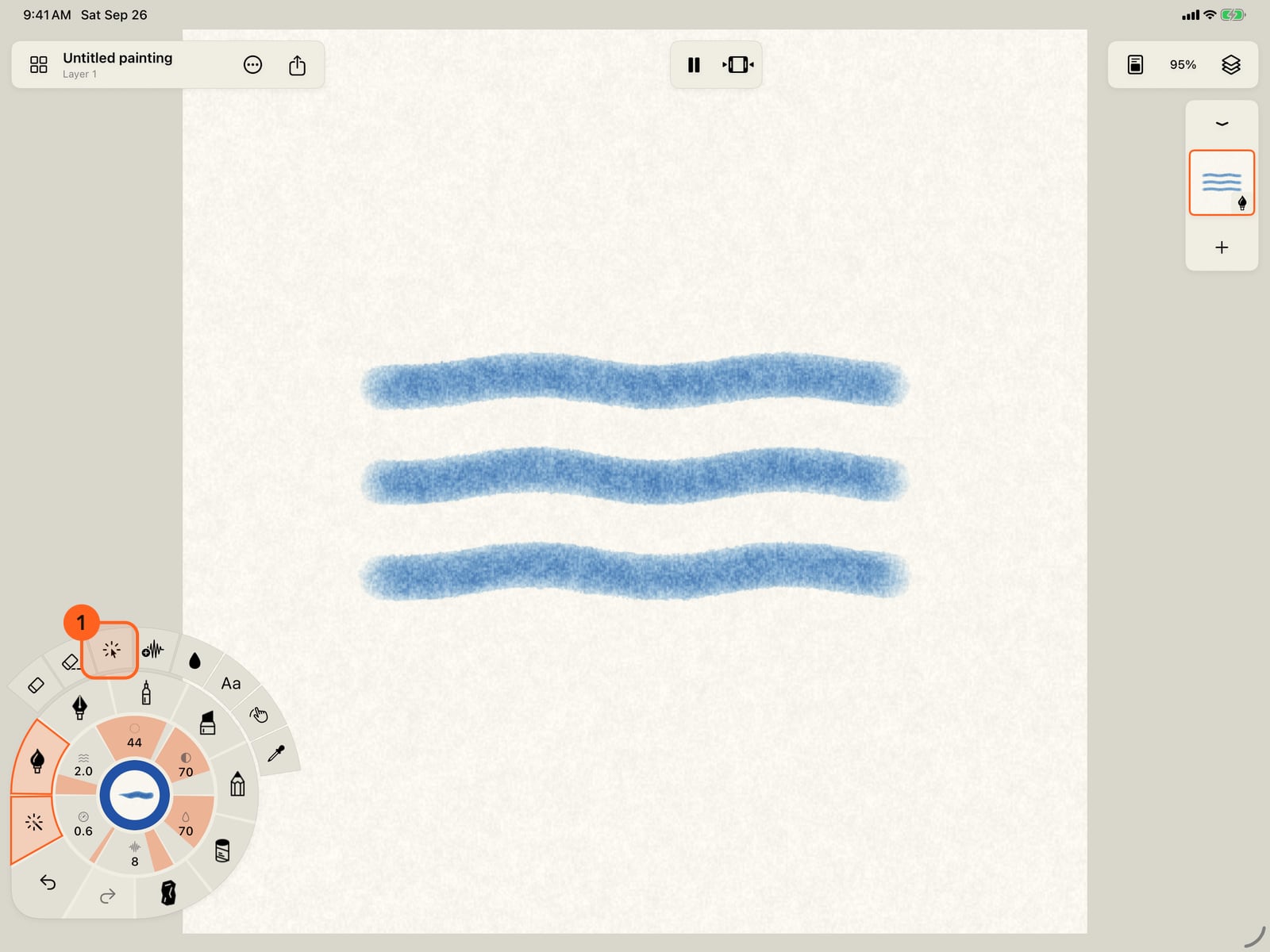
Paint a few strokes first. Then tap the folded wheel, and tap Tools in its corner, where Select stroke waits.
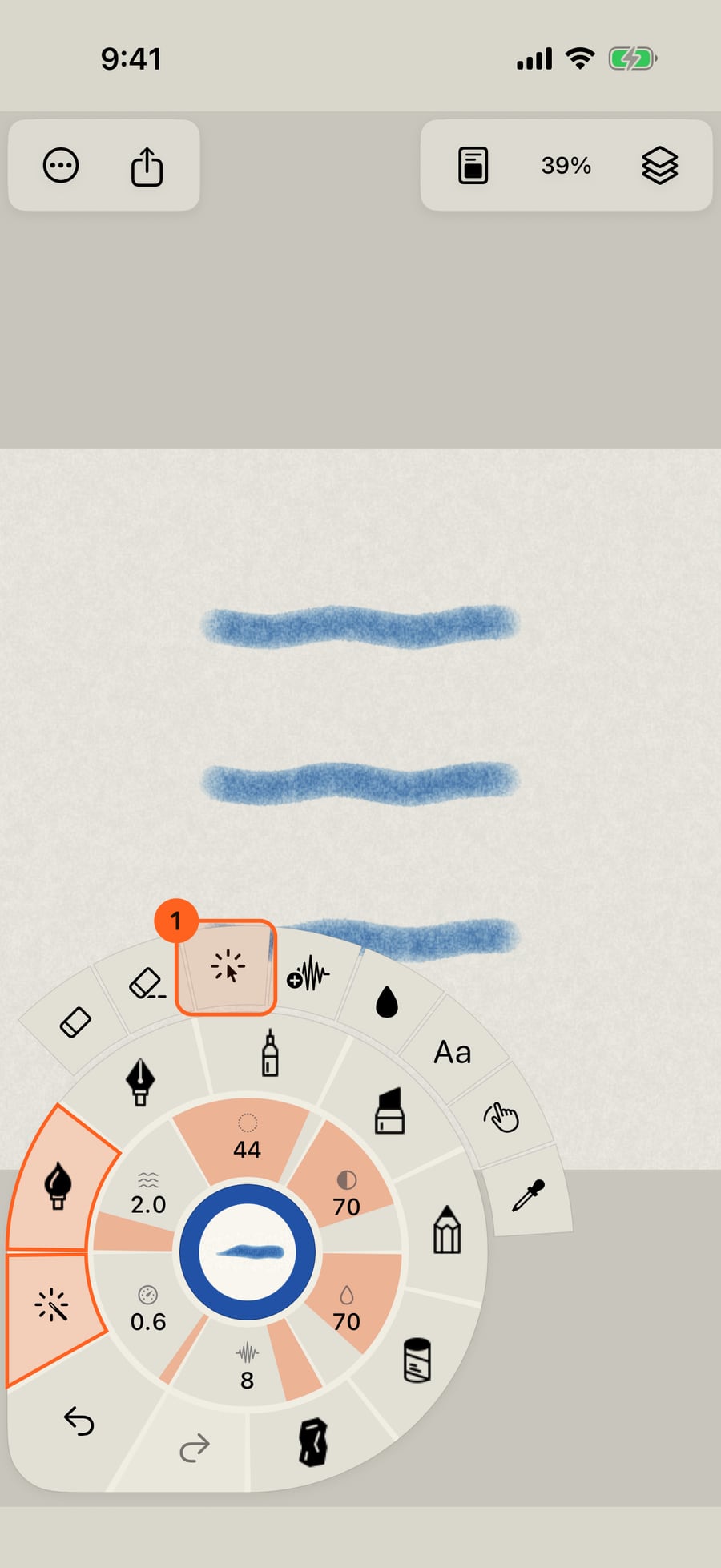
Paint a few strokes first. Then click Tools in the wheel's corner, where Select stroke waits.
Choose Select stroke, then tap one stroke. The Stroke inspector opens on it, and Previous and Next step through the layer's strokes.
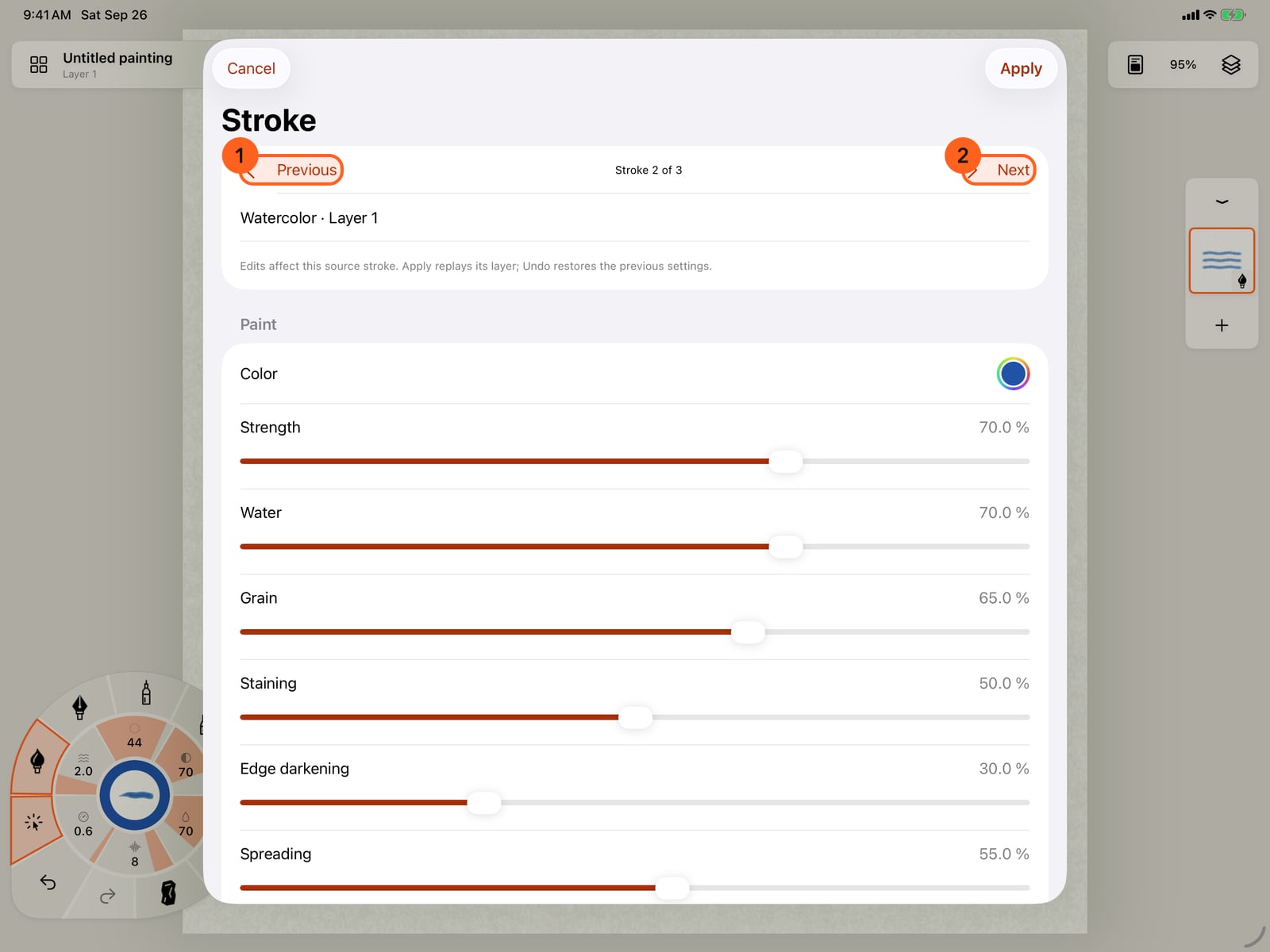
Choose Select stroke, then tap one stroke. The Stroke inspector opens on it, and Previous and Next step through the layer's strokes.
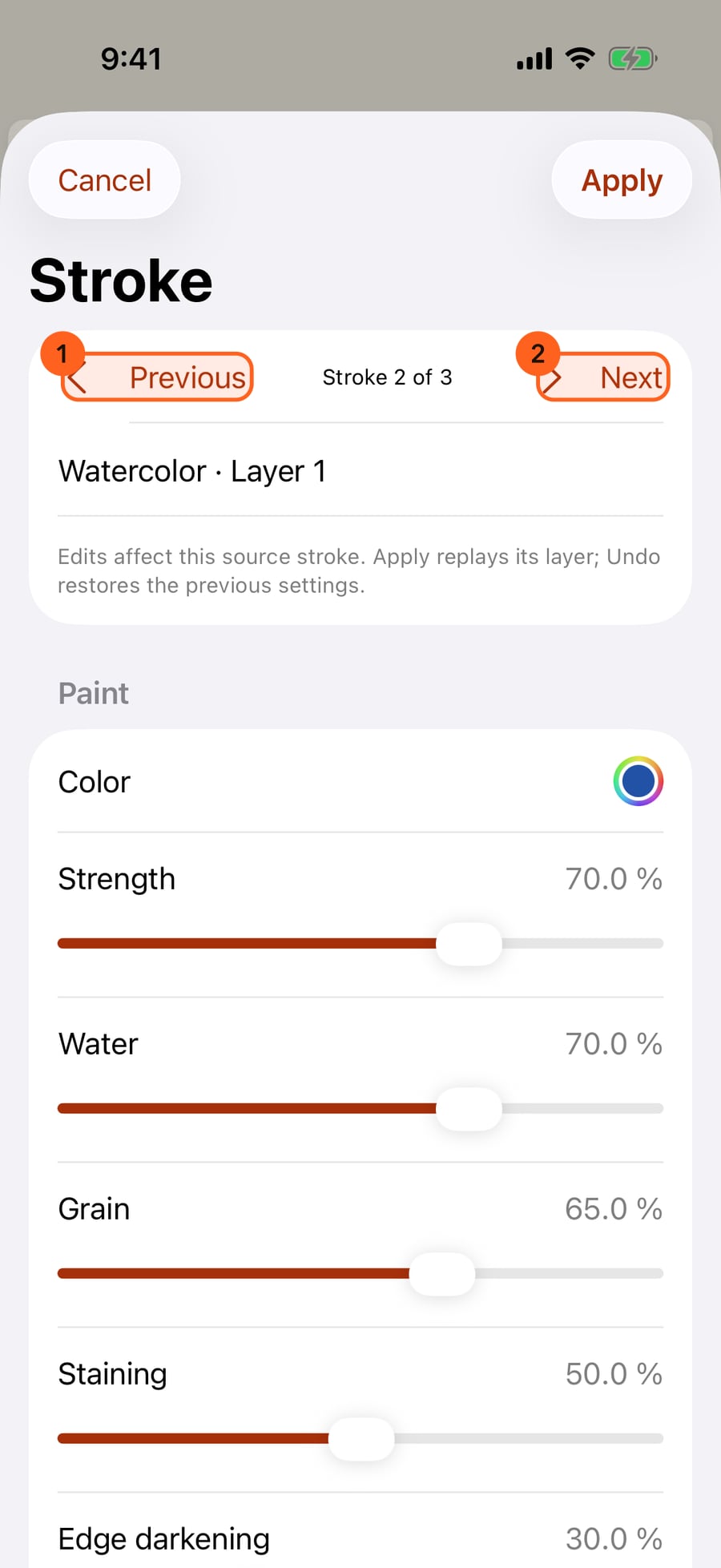
Choose Select stroke, then click one stroke. The Stroke inspector opens on it, and Previous and Next step through the layer's strokes.
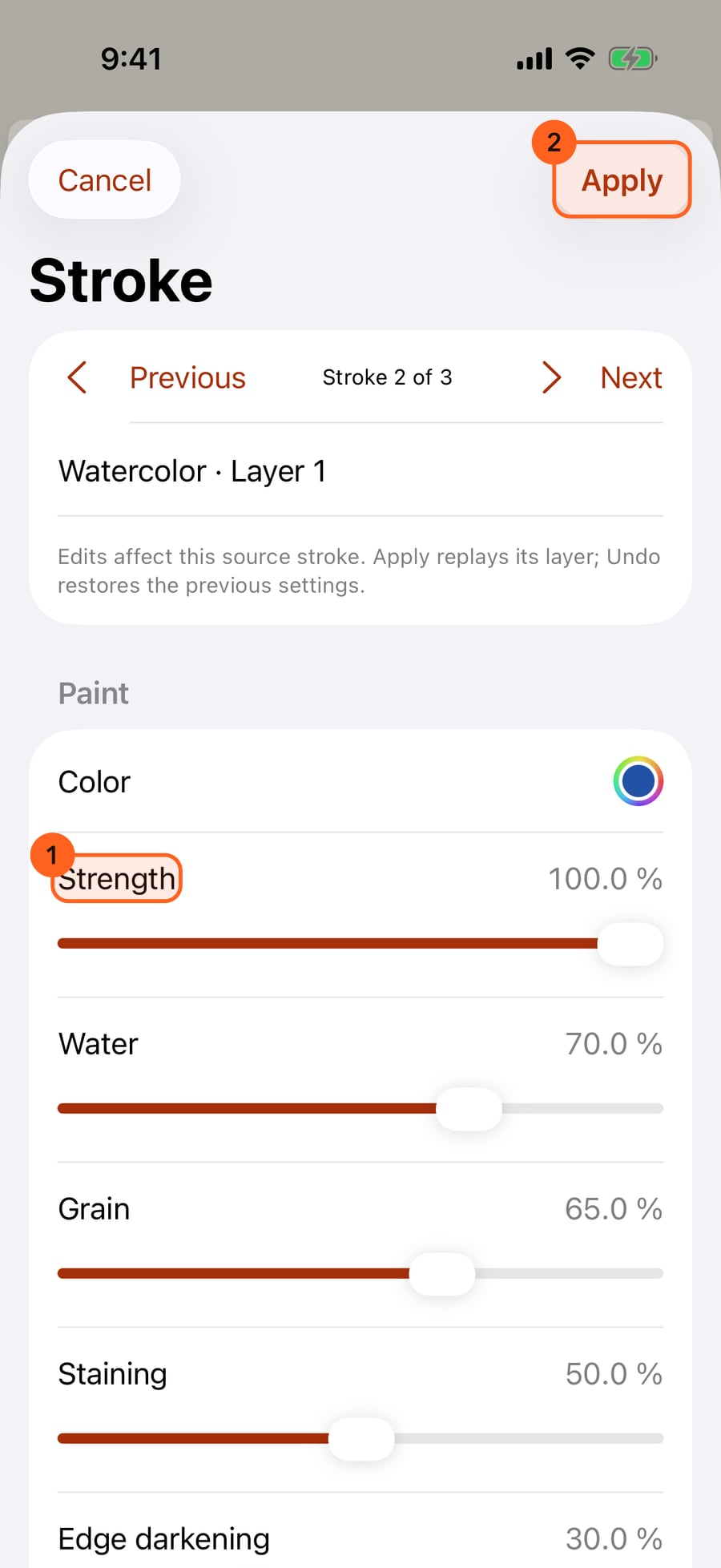
Everything the brush gave this stroke can change here. Turn Strength all the way up for a deeper wash.
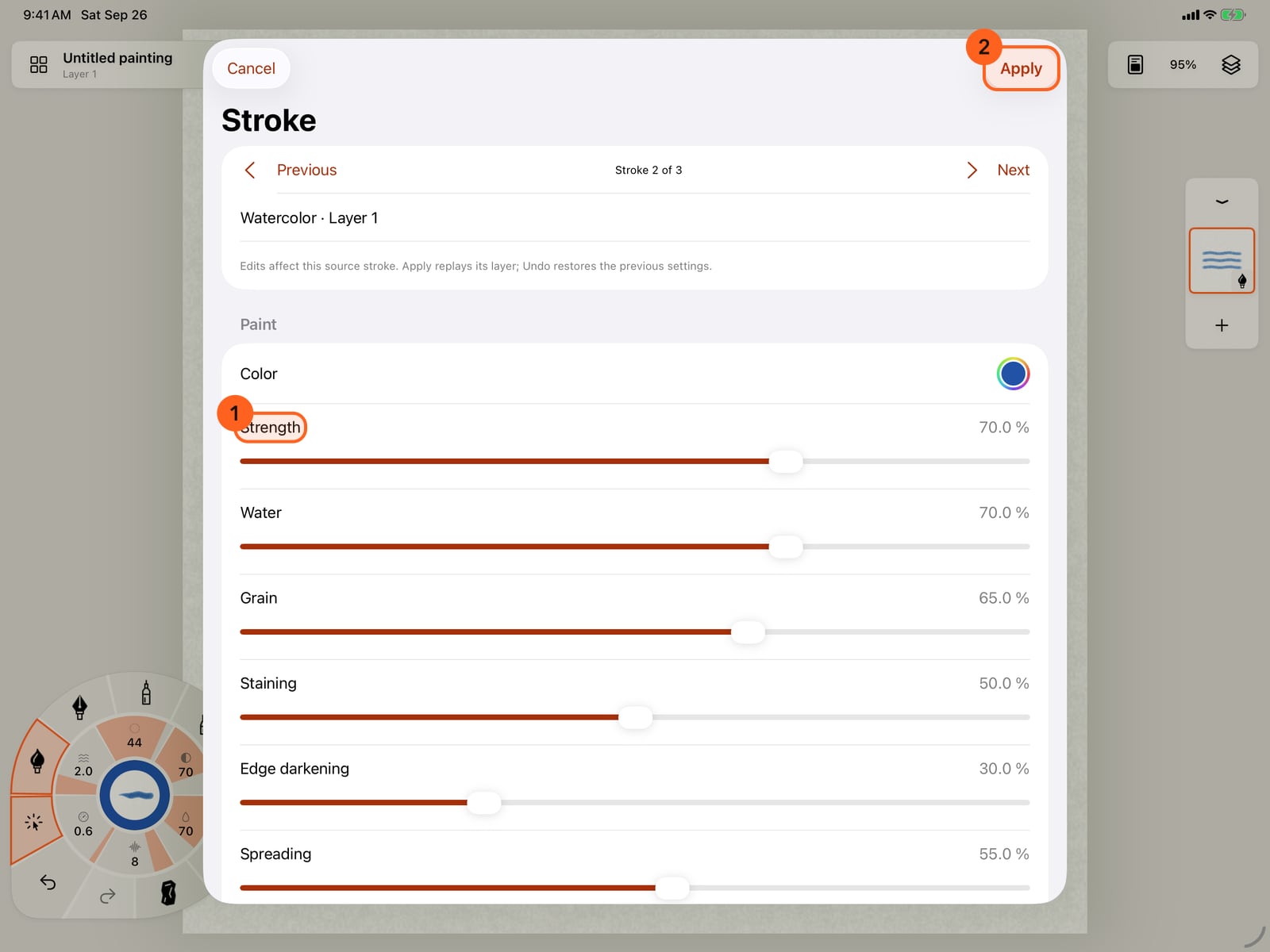
Everything the brush gave this stroke can change here. Turn Strength all the way up for a deeper wash.
Tap Apply. The middle stroke is now darker than the two beside it, which kept their paint. Cancel would have left it as it was.
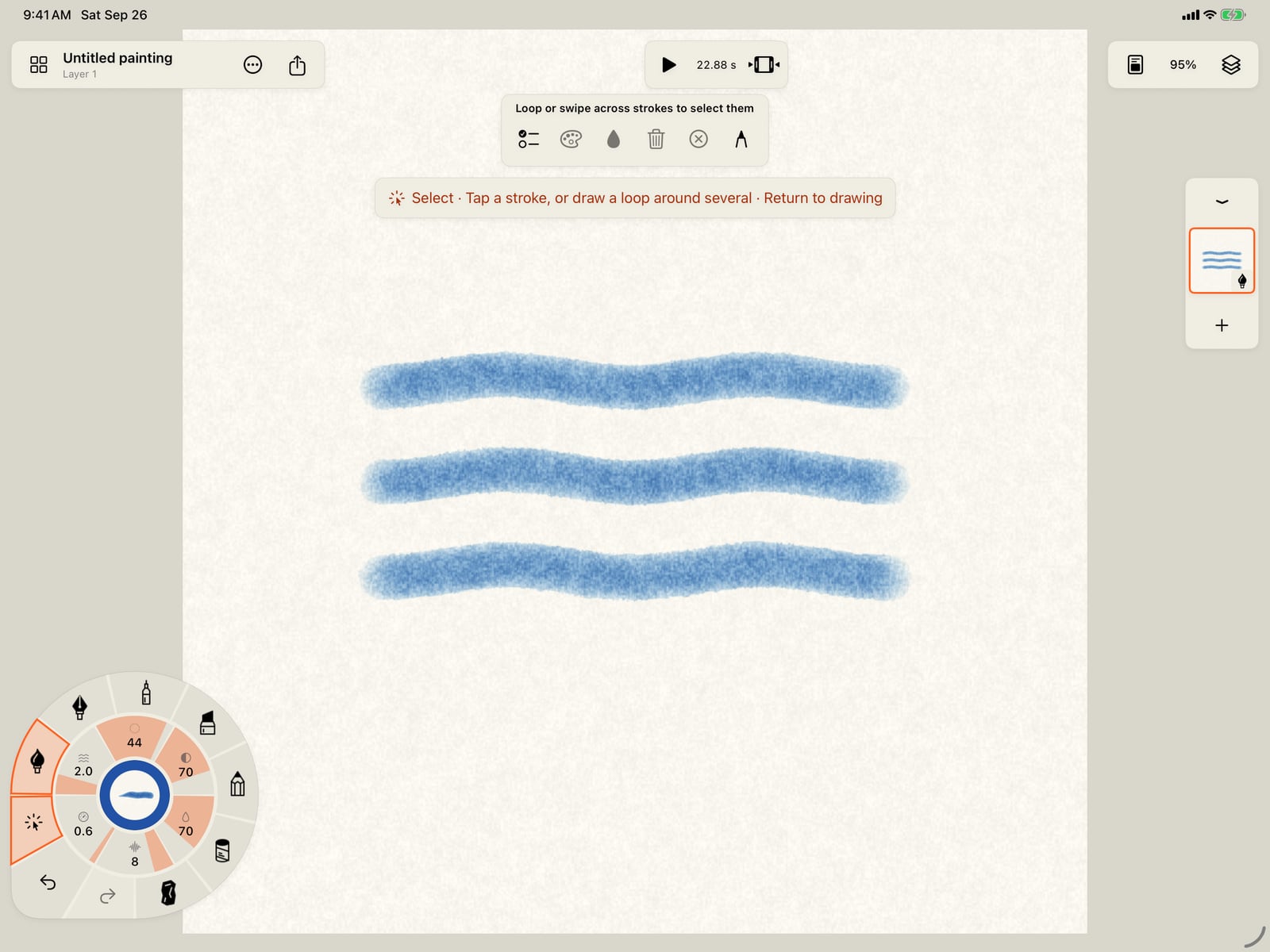
Tap Apply. The middle stroke is now darker than the two beside it, which kept their paint. Cancel would have left it as it was.
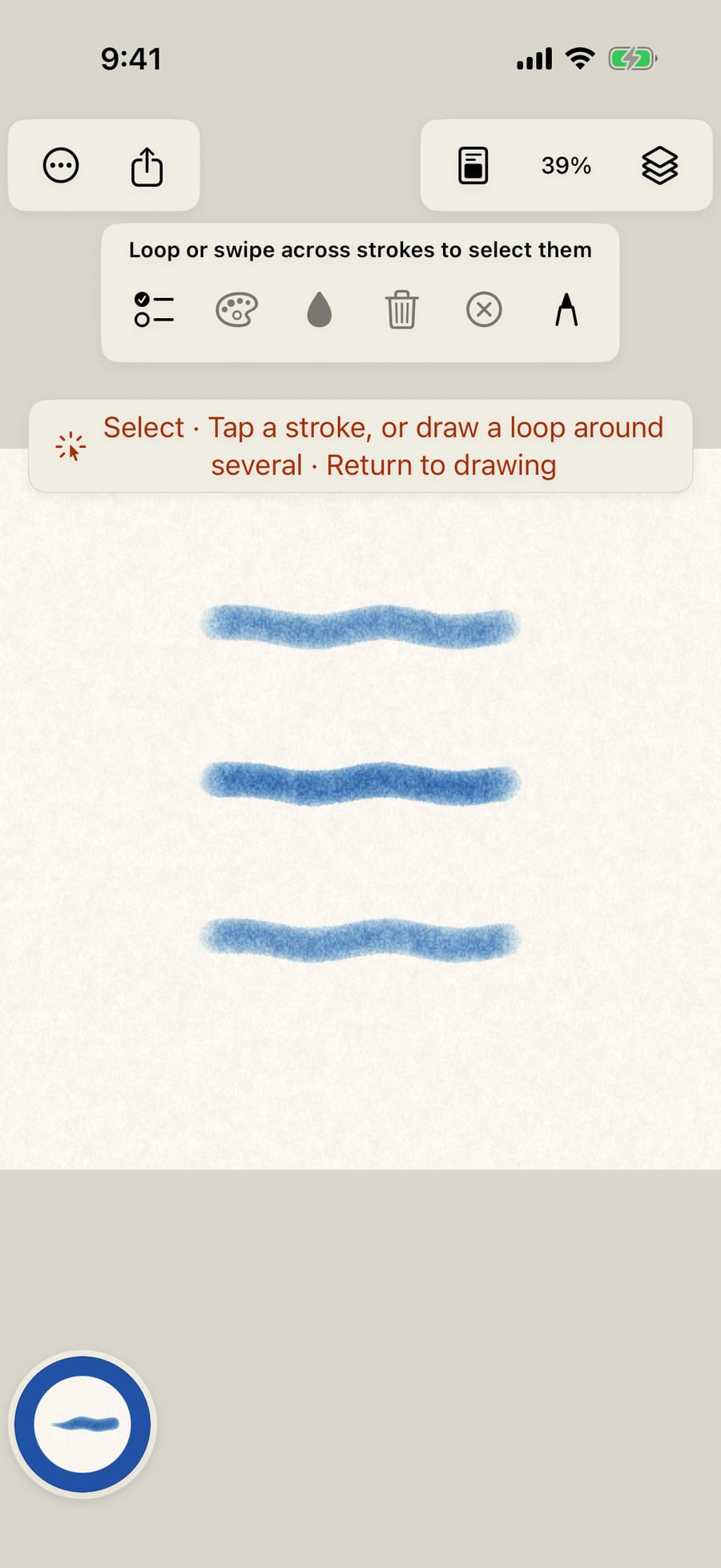
Click Apply. The middle stroke is now darker than the two beside it, which kept their paint. Cancel would have left it as it was.
To take several strokes, draw a loop around them, or simply swipe across them. The selected strokes are outlined, and the bar counts them.
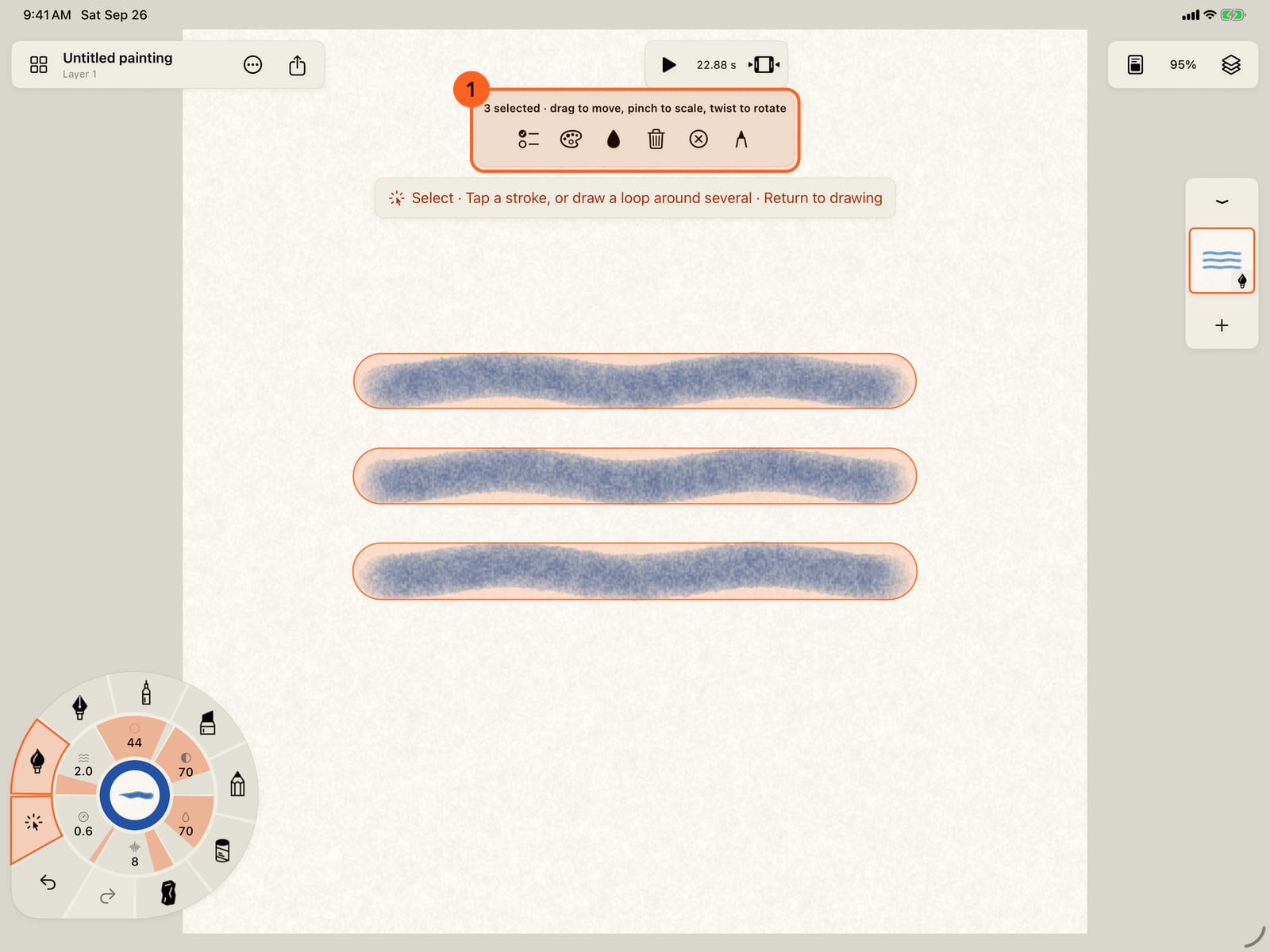
To take several strokes, draw a loop around them, or simply swipe across them. The selected strokes are outlined, and the bar counts them.
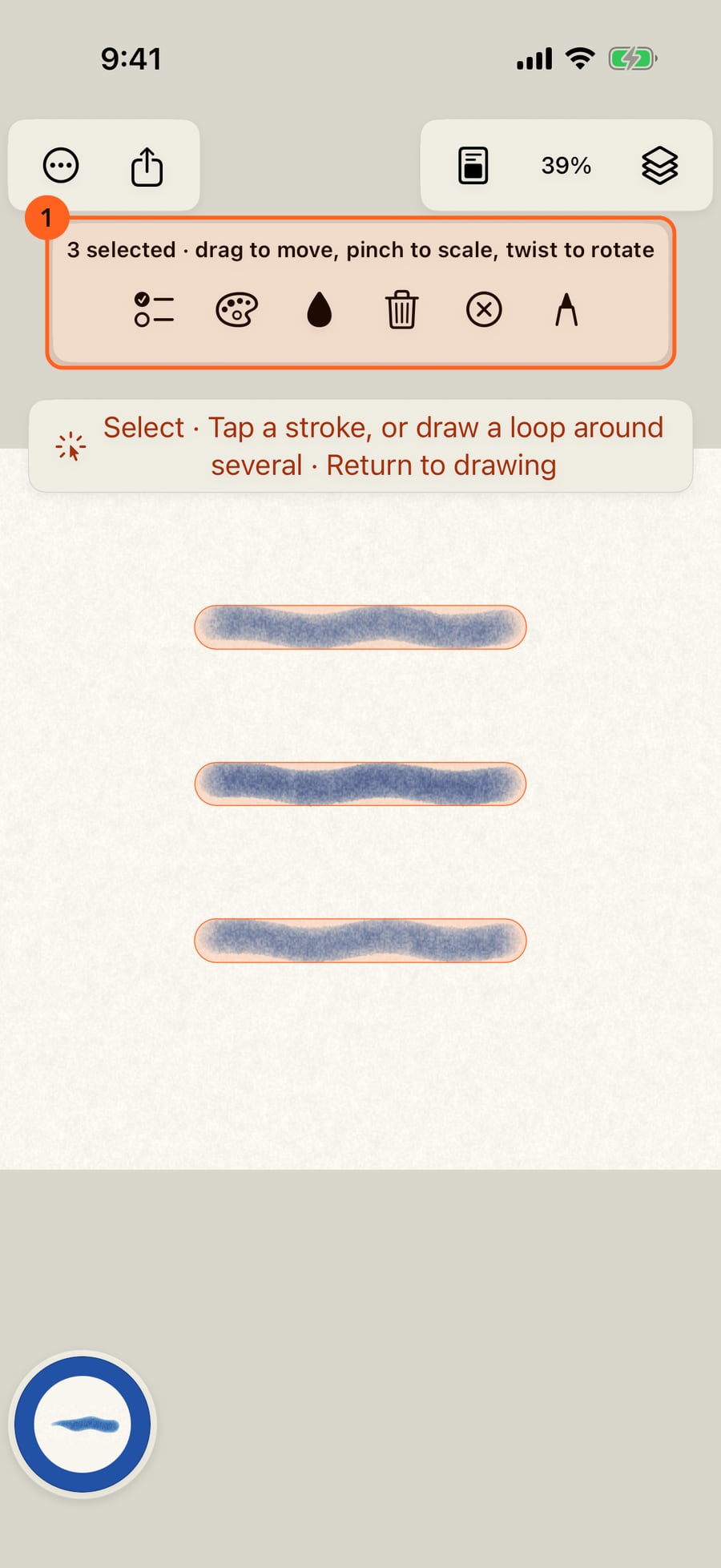
Drag inside the selection to move it, pinch to scale it, and twist to turn it. Each gesture is one step to undo.
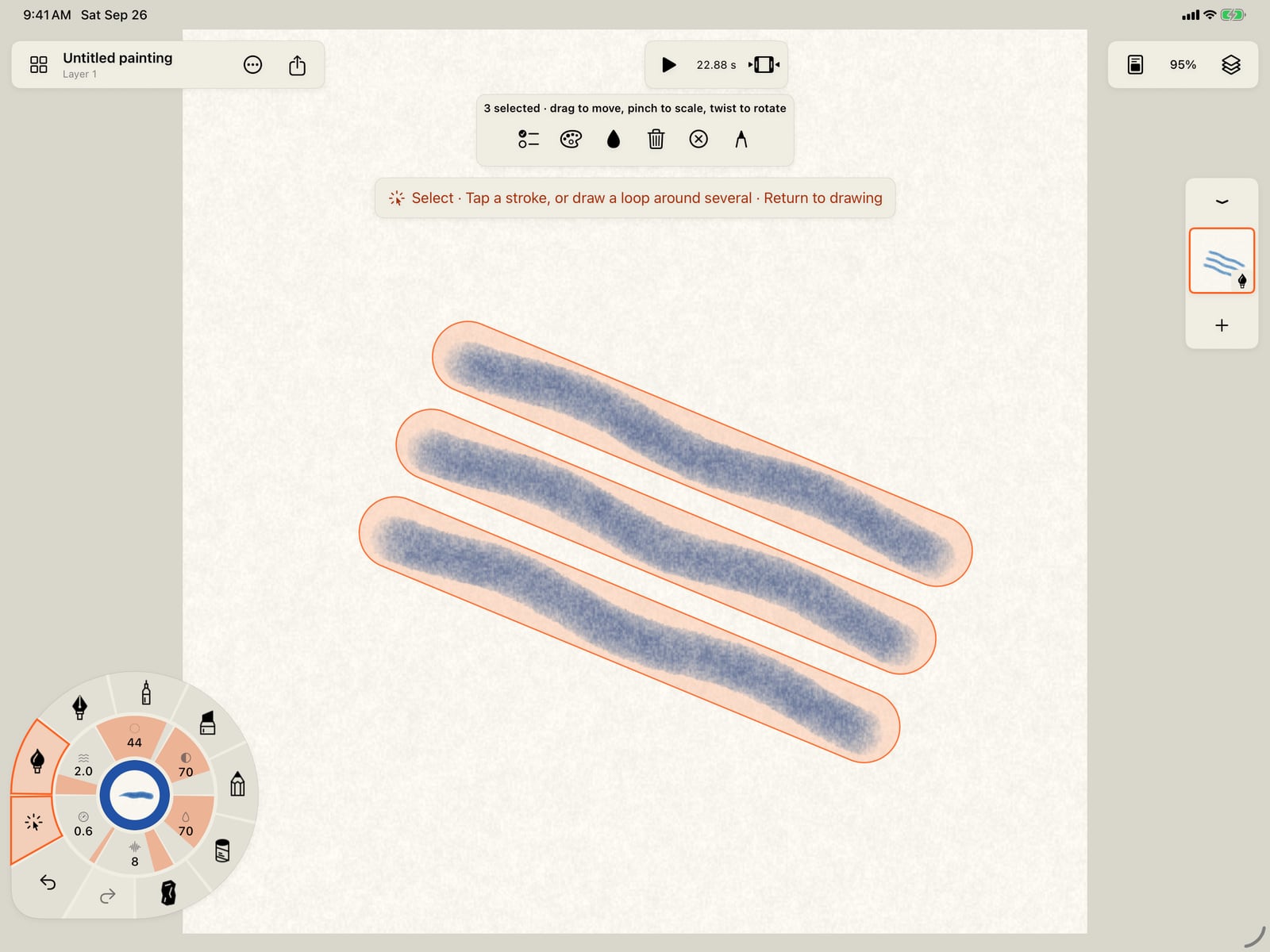
Drag inside the selection to move it, pinch to scale it, and twist to turn it. Each gesture is one step to undo.
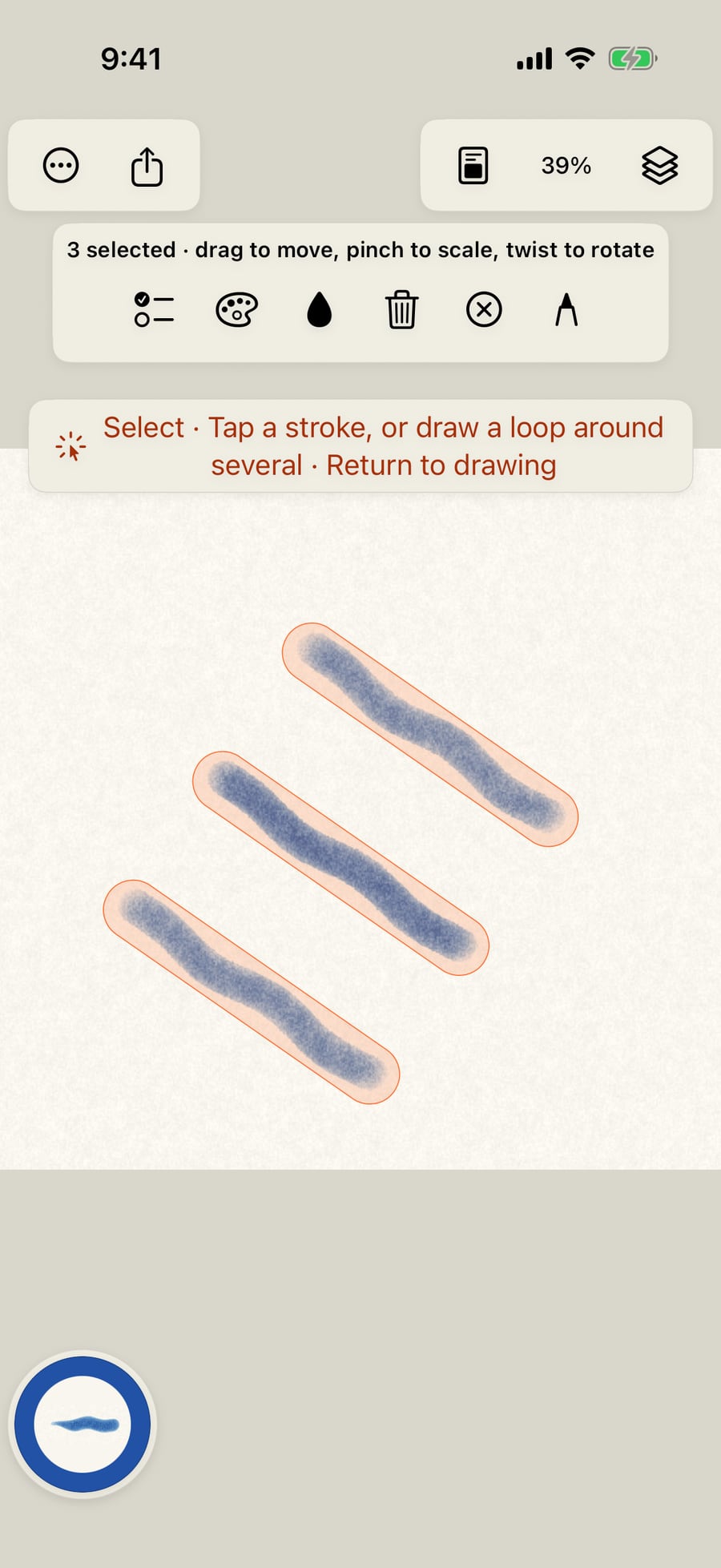
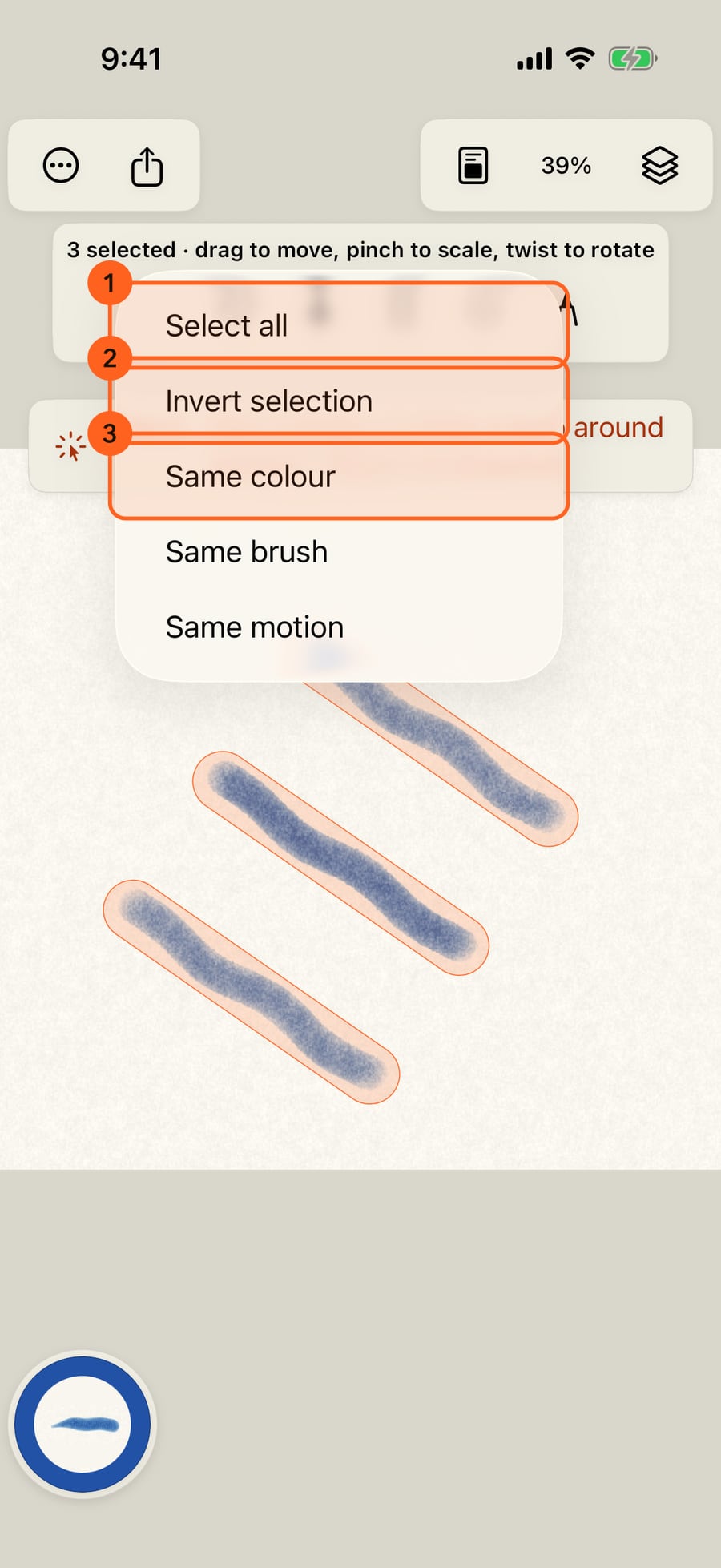
The checklist selects what a loop can't reach. Select all, Invert selection, or everything in the same colour, brush or motion as what's selected.
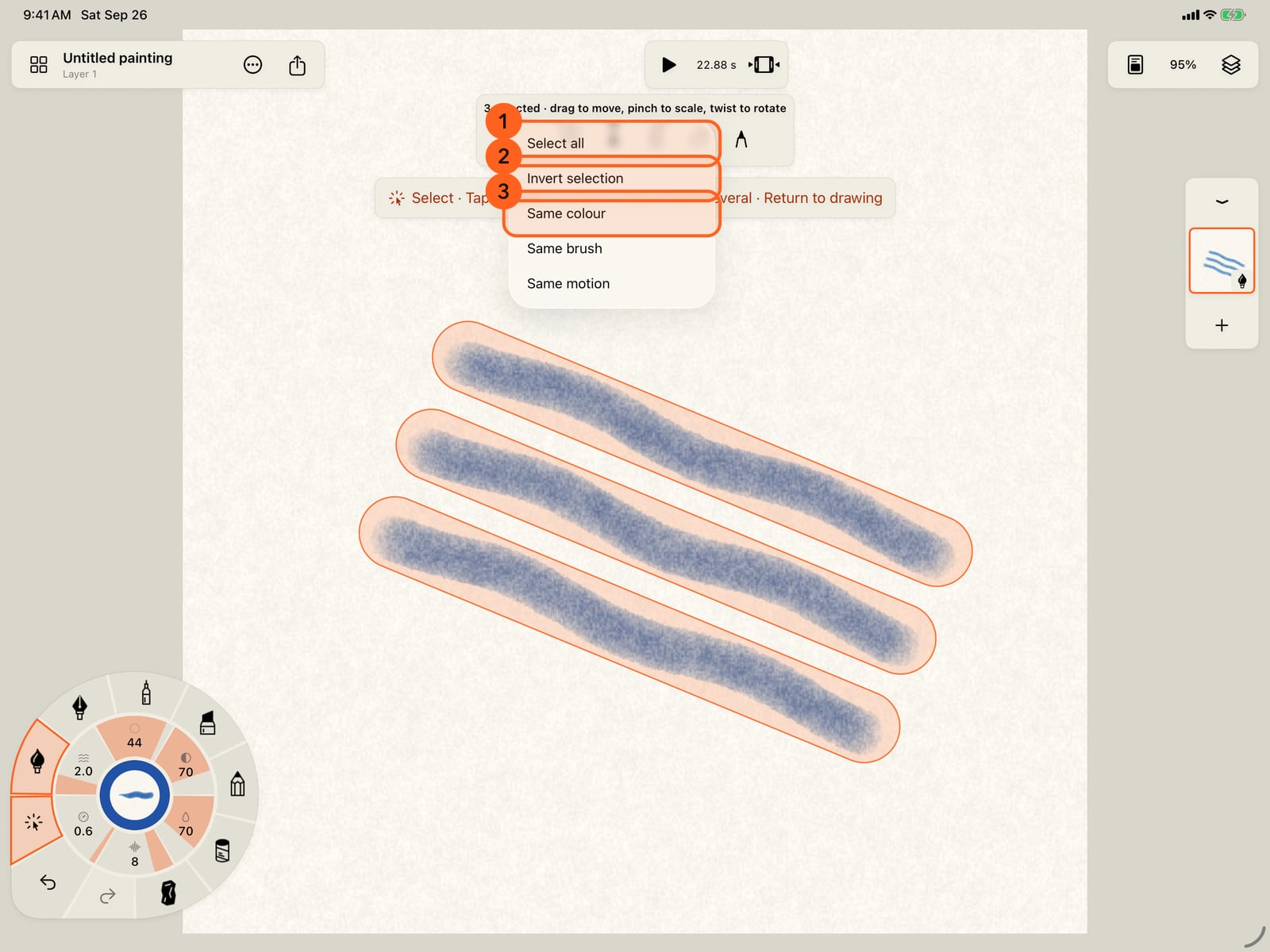
The checklist selects what a loop can't reach. Select all, Invert selection, or everything in the same colour, brush or motion as what's selected.
Choose Select all, pick a new colour on the wheel, and tap the palette button to paint the selection in it. Beside it are Fill inside, Delete, Deselect, and the pencil that returns to drawing.
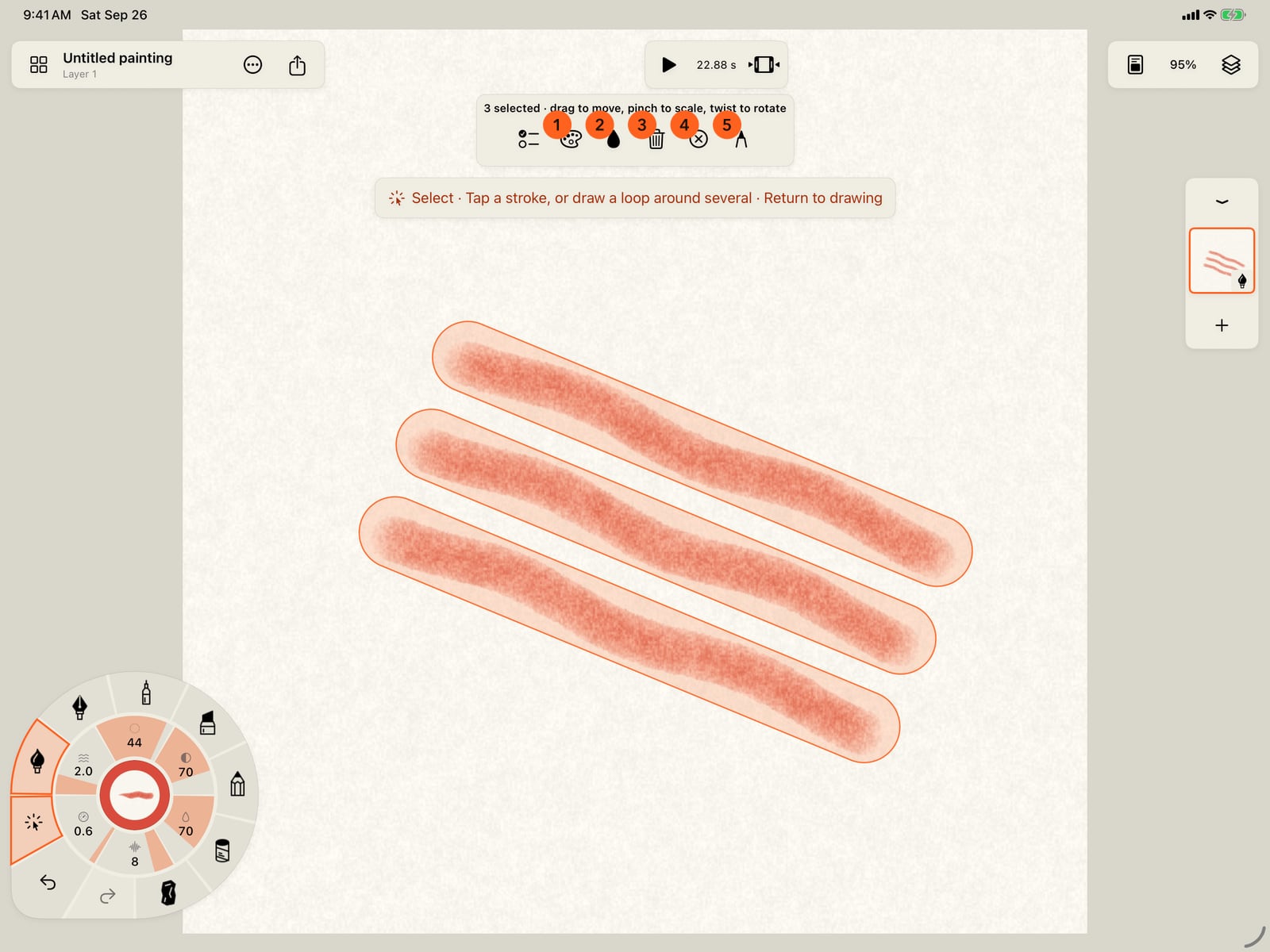
Choose Select all. Unfold the wheel, pick a new colour, and tap the page to fold it. Then tap the palette button to paint the selection in it. Beside it are Fill inside, Delete, Deselect, and the pencil that returns to drawing.
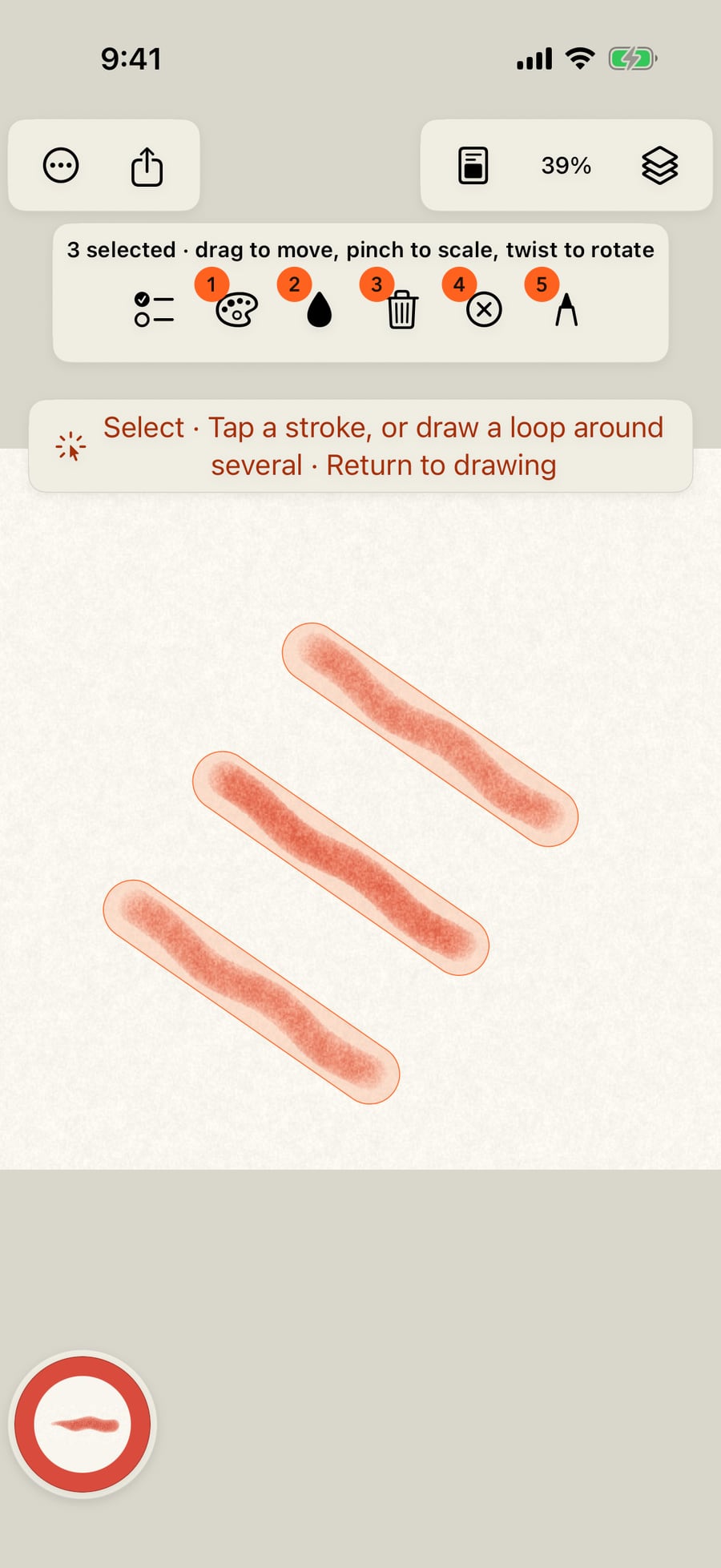
Choose Select all, pick a new colour on the wheel, and click the palette button to paint the selection in it. Beside it are Fill inside, Delete, Deselect, and the pencil that returns to drawing.
Select stroke
Tools → Select stroke turns the pencil into a pointer on the current layer. It works on strokes already on the page, so it's offered once the layer has some. While it's on, the Tools wedge shows its arrow, and the Tools ring offers Resume drawing in its place. Tapping a medium on the wheel also takes you straight back to painting.
- Tap a stroke to open the Stroke inspector on it.
- Draw a loop around strokes to select them. A stroke is taken when most of it lies inside the loop, or when the loop's line crosses it, so a plain swipe across strokes selects them too.
- Selection stays on the current layer. Switch layers in the layer strip to select on another.
The Stroke inspector
The inspector edits the stroke itself, not your brush. Its settings are the brush's own, as they were when you painted the mark.
| Control | What it does |
|---|---|
| Previous, Next 1 2 | Step to the stroke painted before or after this one, in painting order. Stroke 2 of 3 says where you are. |
| Paint | What the stroke was painted with. Color (or Tone for Graphite and Charcoal), Strength, Water, then the medium's own material: Staining, Edge darkening, Spreading and Pencil push for Watercolor and Ink; Grain, Adhesion, Bleed or Glow in the media that have them; and Pressure → strength. The same controls, under the same names, as the brush's Paint in Brush Studio. |
| All parameters | Every value the stroke sends to the renderer, under its raw name, whatever the medium shows. |
| Marks | For strokes painted with marks: which marks, then Shape (mark size, spacing, joining, edge softness), Life (travel and its direction, liveliness, Grow and fade, what moves inside the marks), Pencil and Advanced. Return to rest stills the marks. See Marks. |
| Motion | The stroke's own motion: its type, Amount and Speed, its modifiers, and for wet media Motion drives water. |
| Resume stroke motion | Shown when the stroke was frozen with the Freeze tool. |
| Apply | Keeps the change. The layer replays with it, and one Undo restores the previous settings. |
| Cancel | Closes the inspector and changes nothing. |
A locked layer shows Unlock the layer to edit this stroke. and its controls stay dimmed.
Pro: All parameters and adding motion modifiers need Pro. On Free, All parameters shows its sliders dimmed; the note All parameters are included with Pro. opens Free and Pro over the inspector, as Motion stacks are included with Pro. does. Every other inspector control is Free.
Move, scale and turn
With strokes selected, the bar reads 3 selected · drag to move, pinch to scale, twist to rotate.
- Drag starting on or near the selection to move it. A drag that starts away from it draws a new loop instead.
- Pinch anywhere to scale the selection, and twist to turn it.
- Each gesture is one step for Undo.
On the Mac, click a stroke to inspect it, and drag with the pointer to loop or move. Pinch and rotate on a trackpad to scale and turn the selection.
The selection bar
| Button | What it does |
|---|---|
| Select more (checklist) | Select all, Invert selection, Same colour, Same brush, Same motion. The last three need something selected, and pick every stroke on the layer that matches it. Colours match within a small distance, so a swatch still matches after pressure mixed it. Motion matches by kind: still strokes match still strokes. |
| Color selected strokes 1 | Paints the selection in the colour in hand. Choose the colour on the wheel first. |
| Fill inside selected strokes 2 | Fills what the selected strokes enclose, under them, with the brush in hand. If they don't enclose anything, a notice says so. |
| Delete selected strokes 3 | Removes them. Undo brings them back. |
| Deselect 4 | Lets go of the selection. |
| Return to drawing 5 | The pencil: back to painting with the brush in hand. |
With nothing selected, the bar reads Loop or swipe across strokes to select them, and only Select more and Return to drawing are active.
Tip: The eraser removes whole strokes by touch. Use it for one or two; use Select and Delete for many at once.
Something not behaving as expected?
Visit support or write to [email protected].