

Guides / Marks and effects
Marks
Marks are what each stroke leaves. Turn a stroke into beads, streams, shapes or hatching that travel, breathe and join, and set how they move.
Take up Ink, then tap Size on the wheel for the brush's settings and its Marks. Line is the plain stroke; then come shapes, hatching and effects.
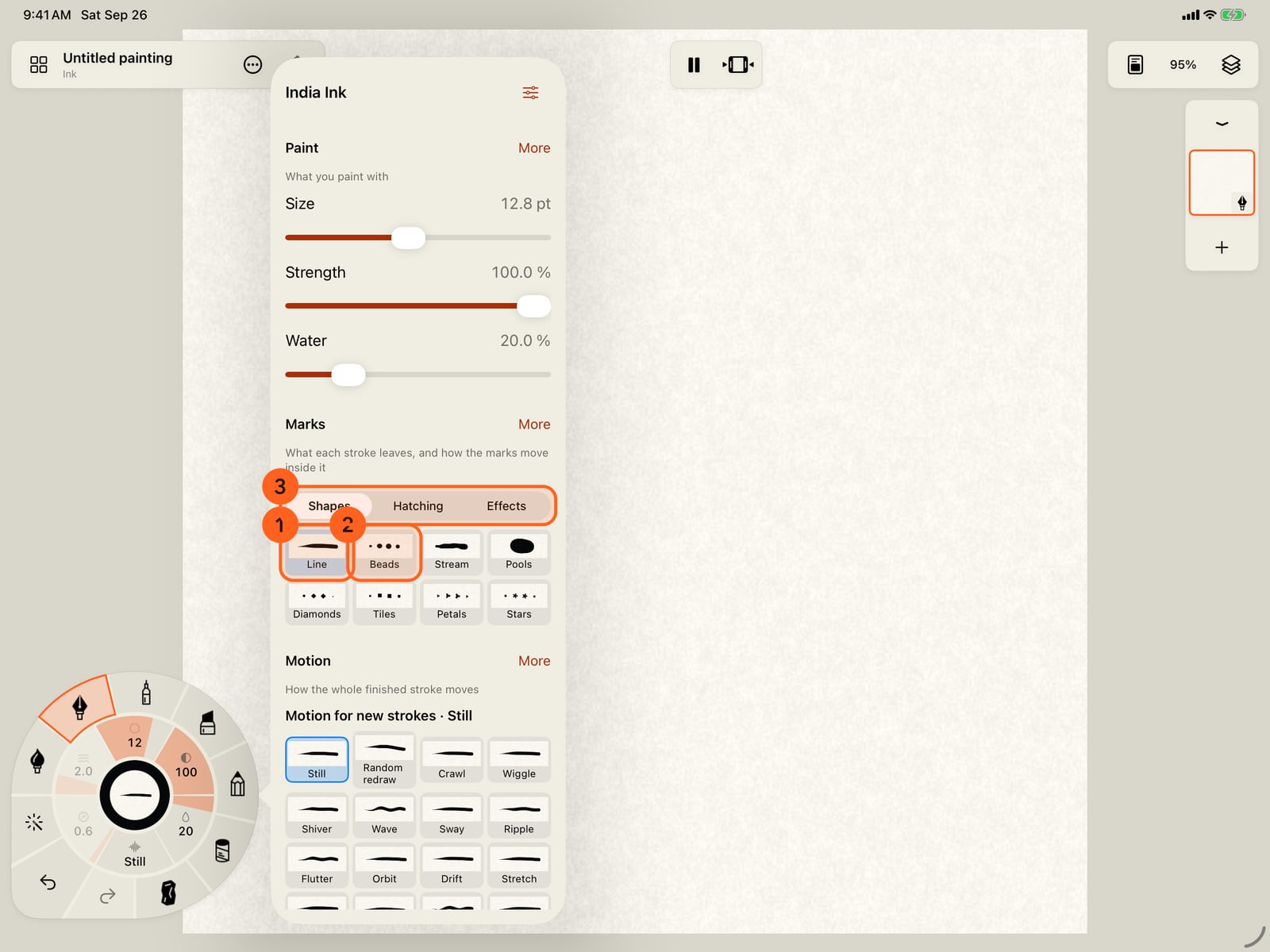
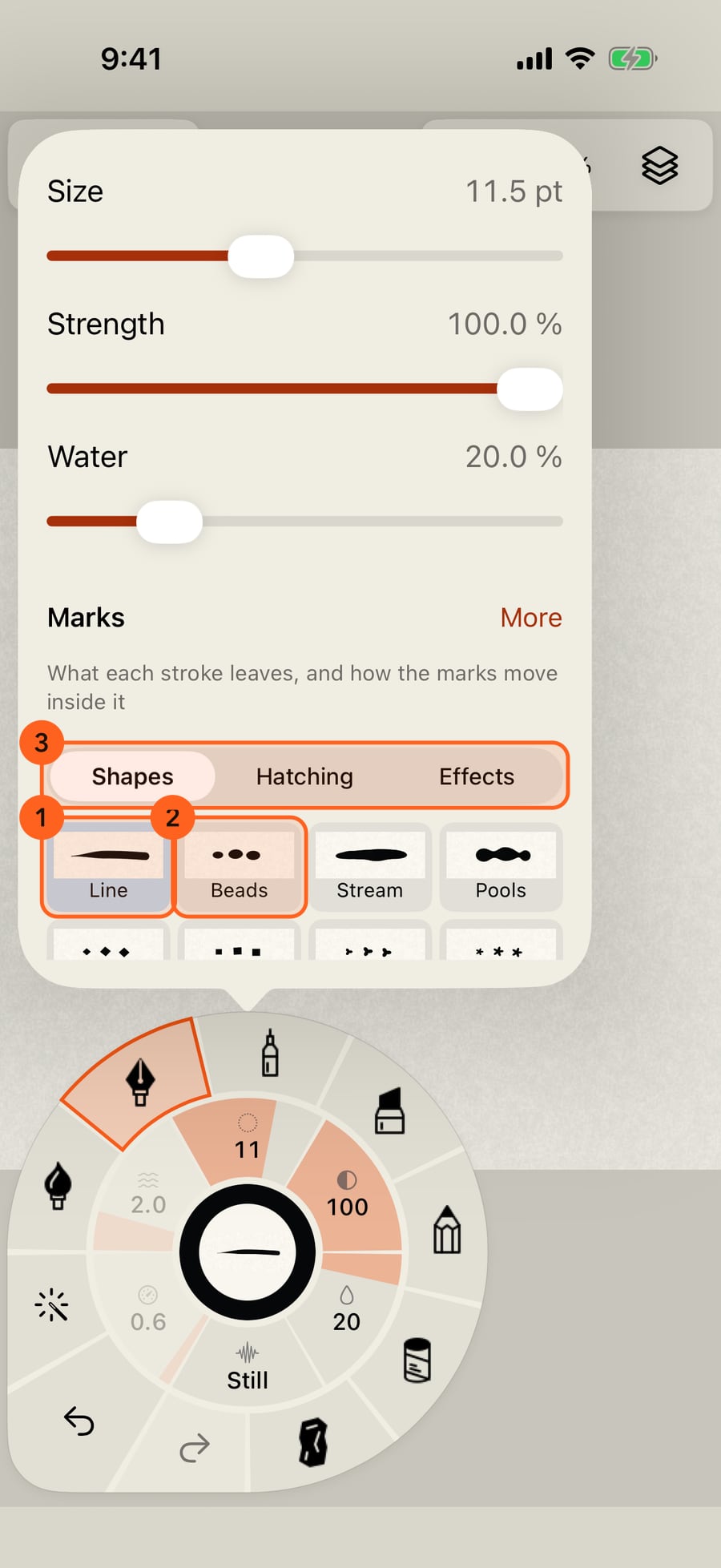
Unfold the wheel, take up Ink, then tap Size for the brush's settings and its Marks. Line is the plain stroke; then come shapes, hatching and effects.
Take up Ink, then click Size on the wheel for the brush's settings and its Marks. Line is the plain stroke; then come shapes, hatching and effects.
With Line chosen, tap the page to close the settings and paint a stroke to compare.
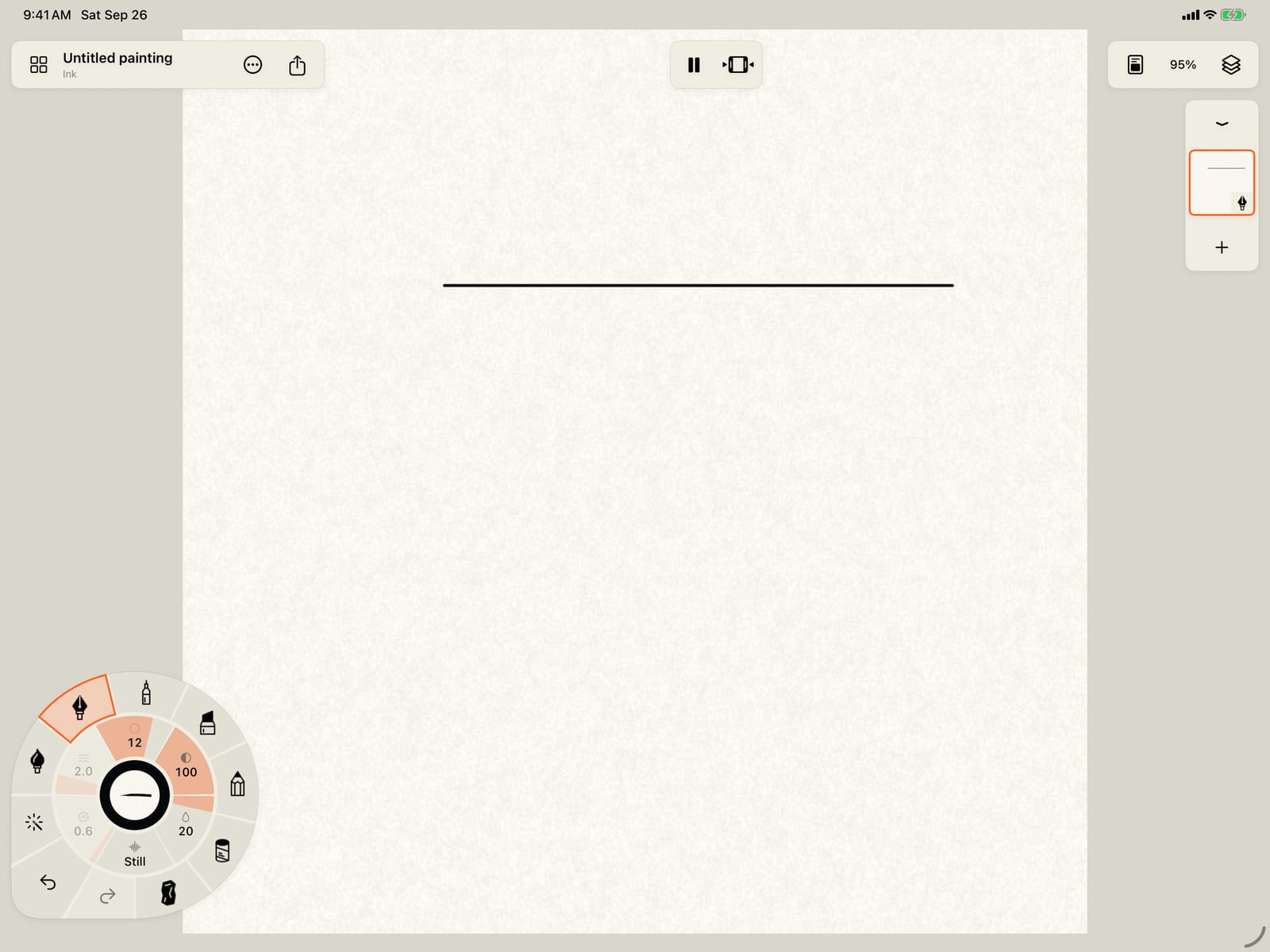
With Line chosen, tap the page twice, to close the settings and fold the wheel, and paint a stroke to compare.
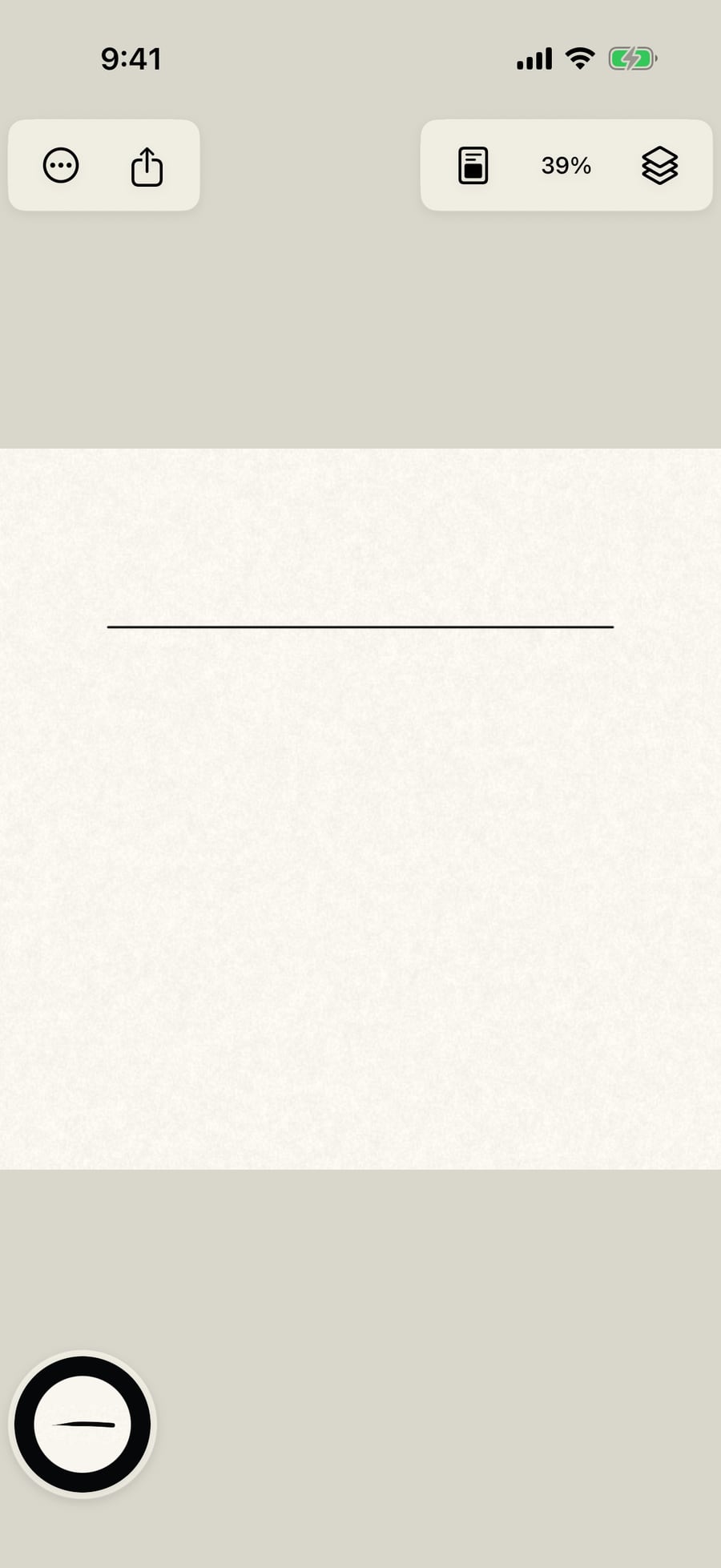
With Line chosen, click the page to close the settings and paint a stroke to compare.
Open the settings again and tap Beads, and its own controls appear. Travel sets how fast the beads run along the stroke, Liveliness how much they breathe and wobble, and Edge softness blurs them.
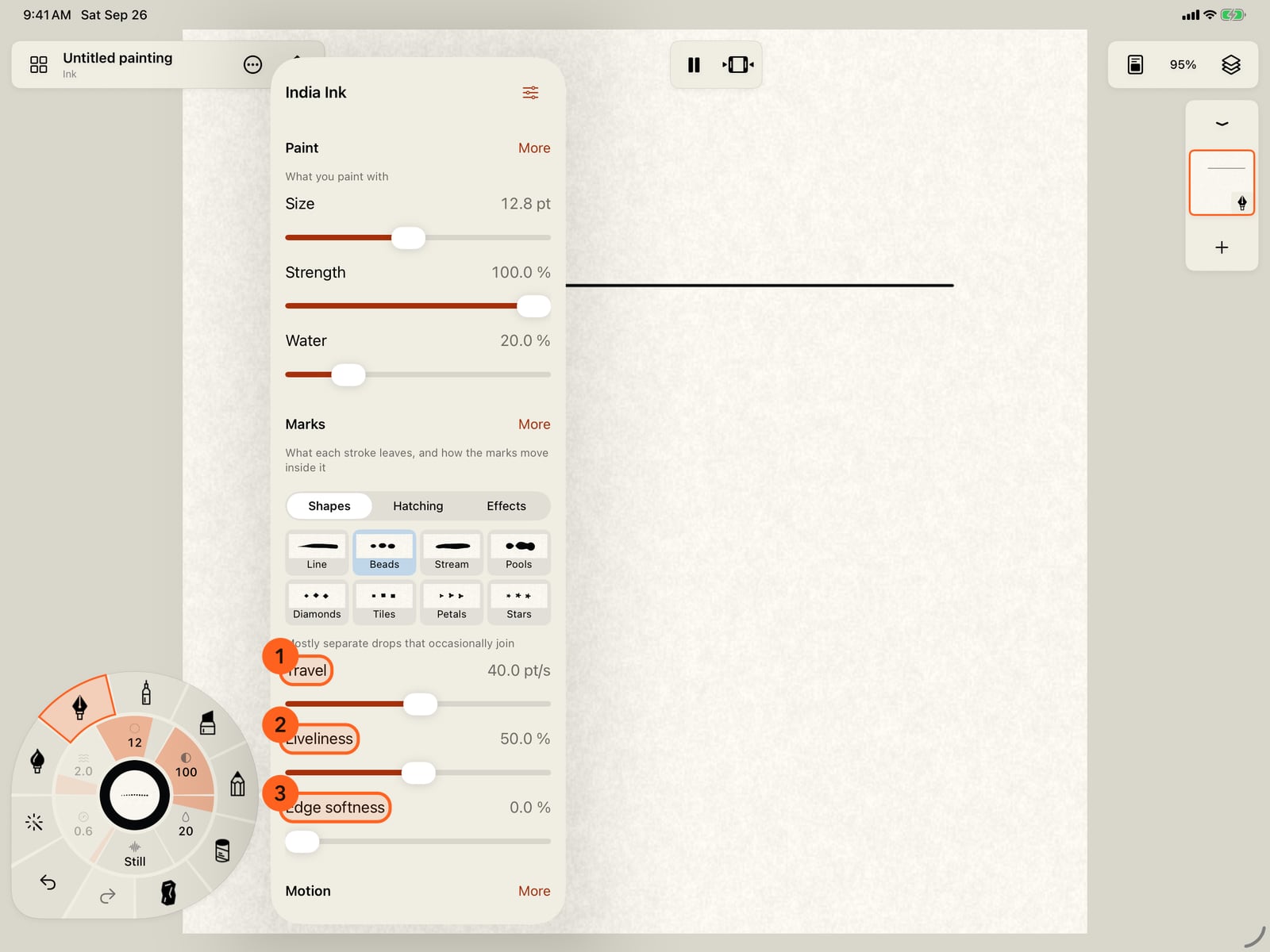
Open the settings again and tap Beads, and its own controls appear. Travel sets how fast the beads run along the stroke, Liveliness how much they breathe and wobble, and Edge softness blurs them.
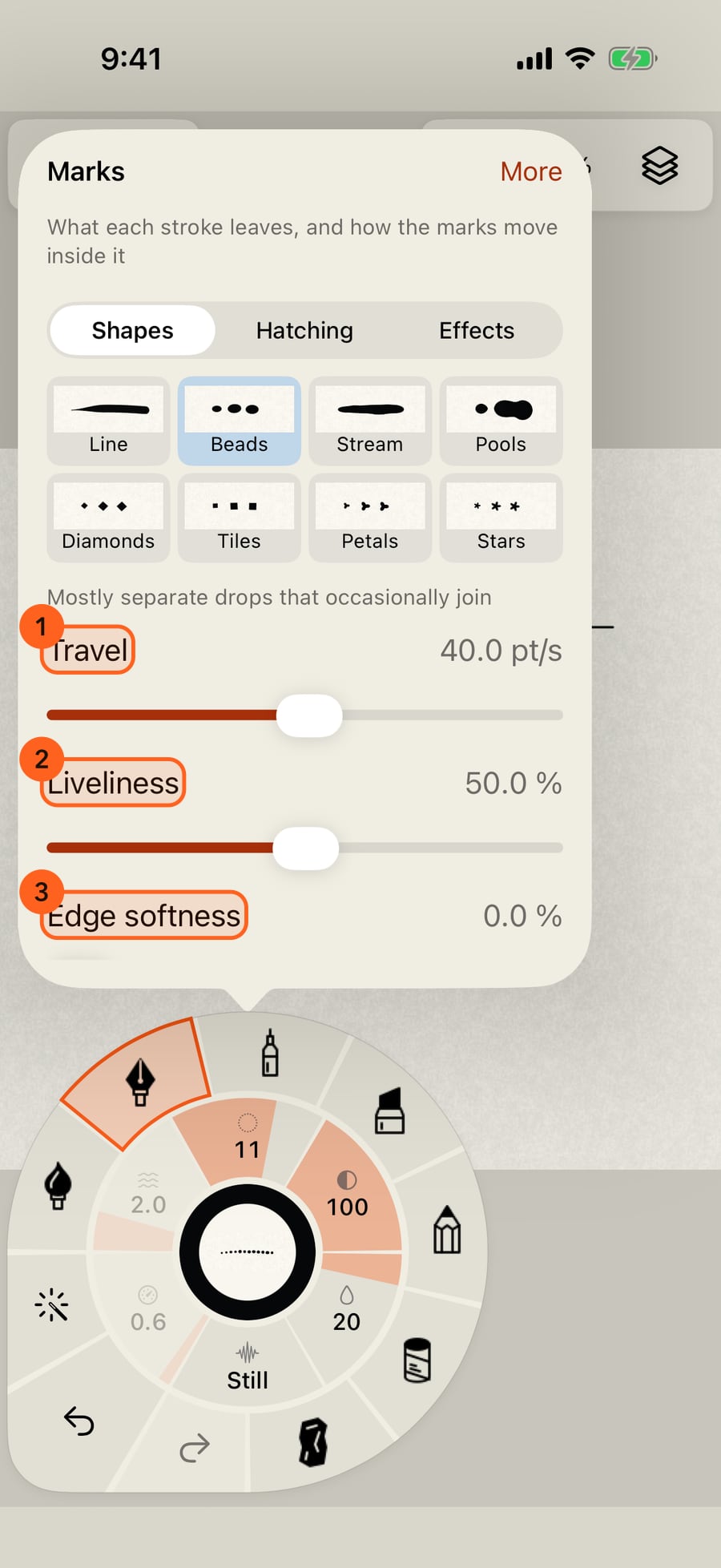
Open the settings again and click Beads, and its own controls appear. Travel sets how fast the beads run along the stroke, Liveliness how much they breathe and wobble, and Edge softness blurs them.
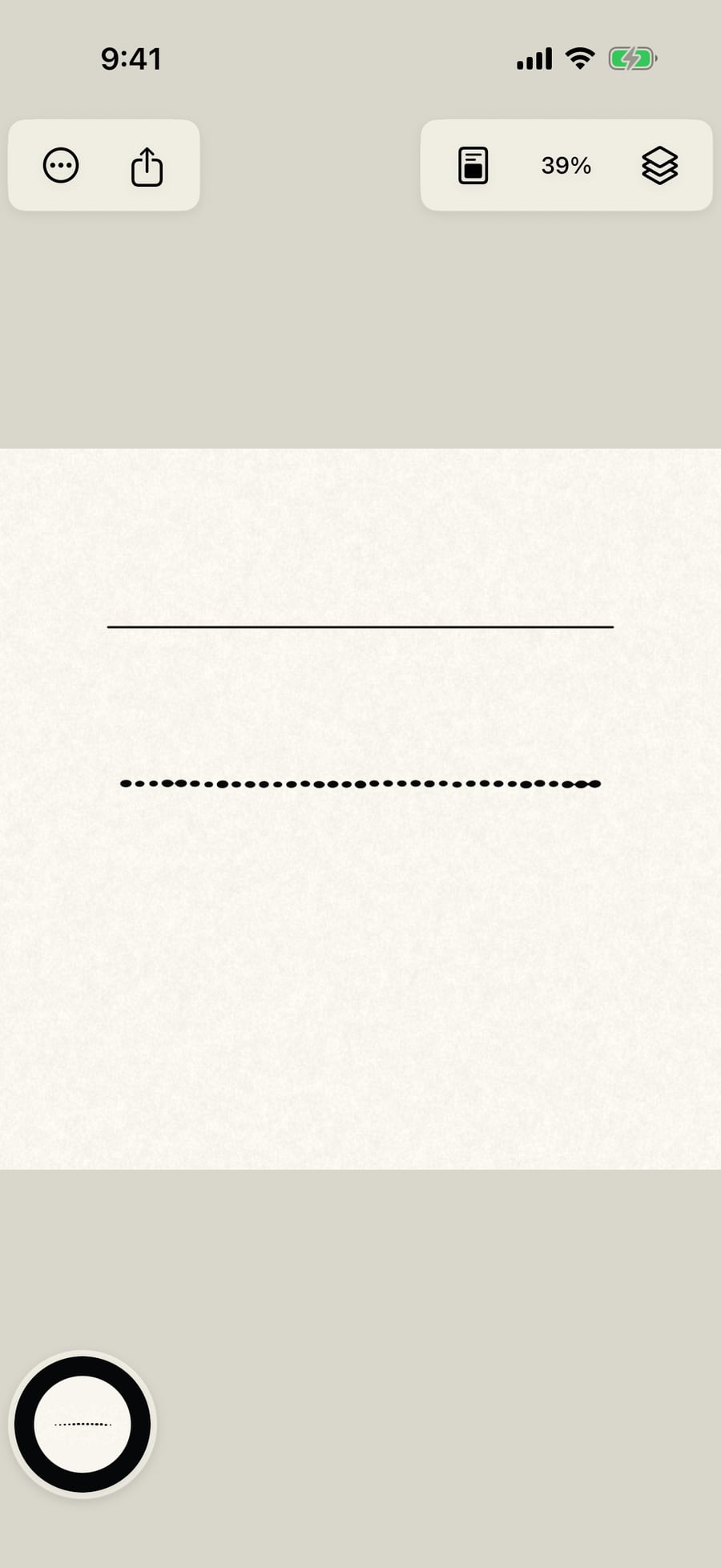
Paint a second stroke below the first. The top one is a single line; the new one is a chain of beads, travelling along it and joining where they touch.
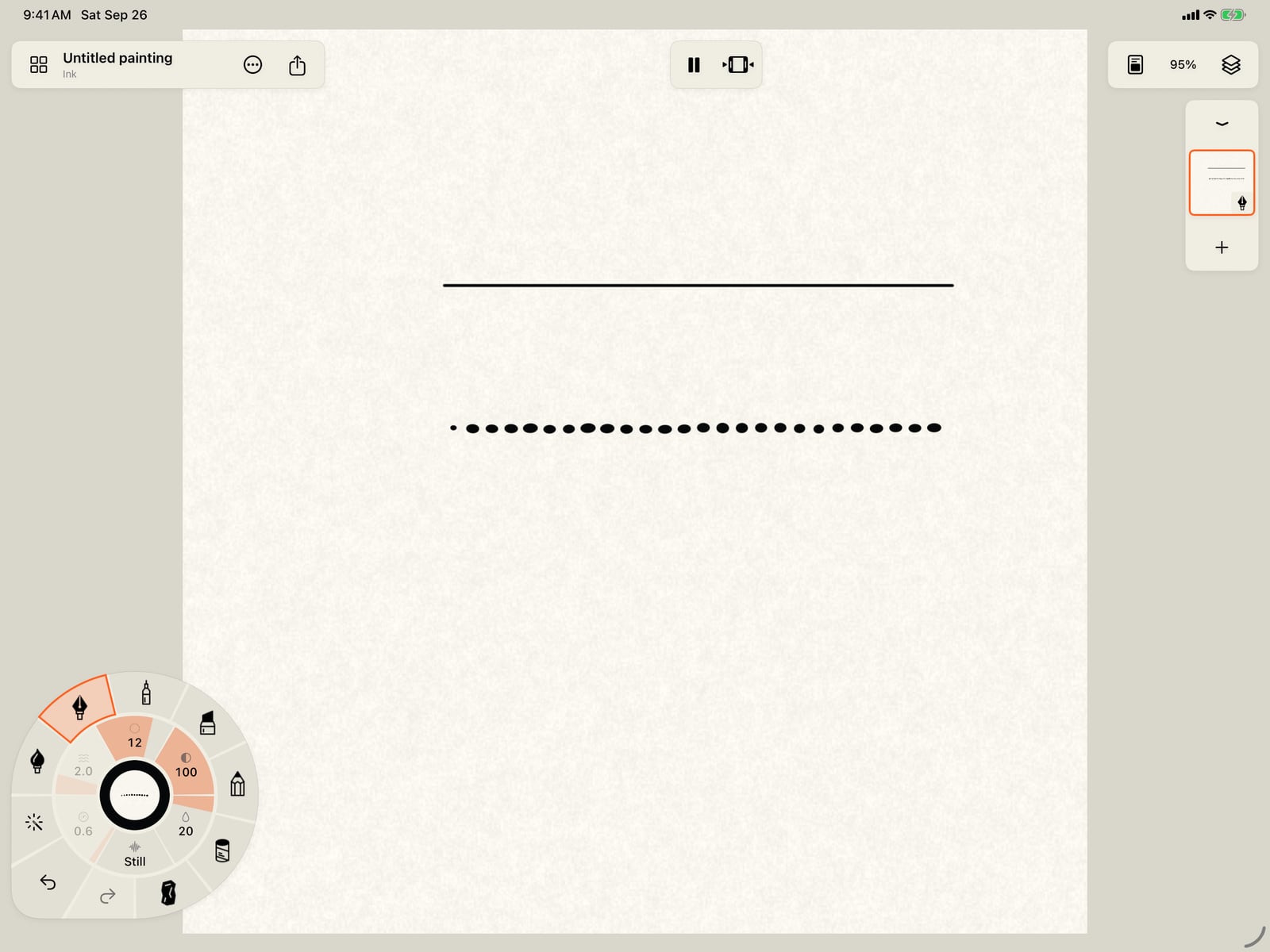
Paint a second stroke below the first. The top one is a single line; the new one is a chain of beads, travelling along it and joining where they touch.
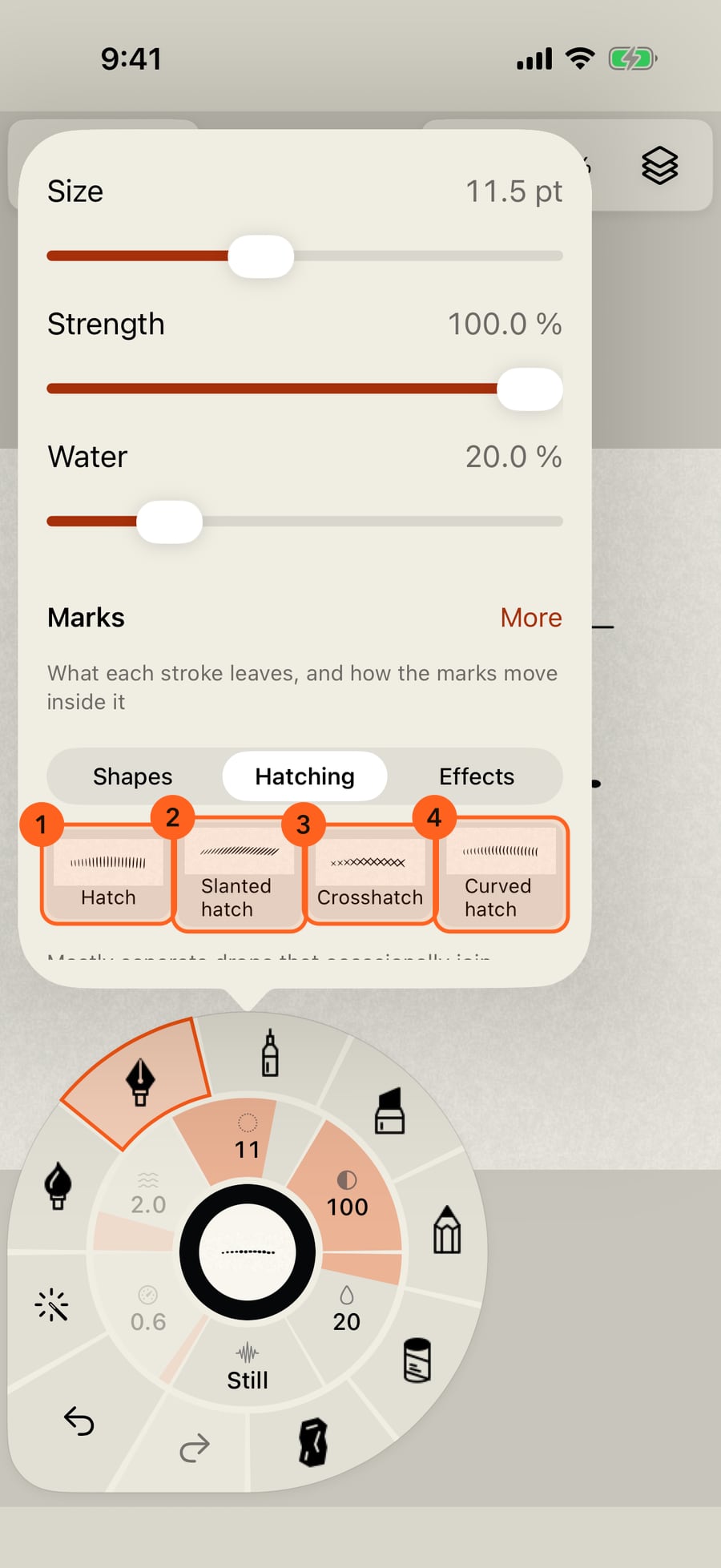
Hatching holds four kinds of line shading. Hatch runs across the stroke, Slanted hatch on a diagonal, Crosshatch in two directions, and Curved hatch follows its bend.
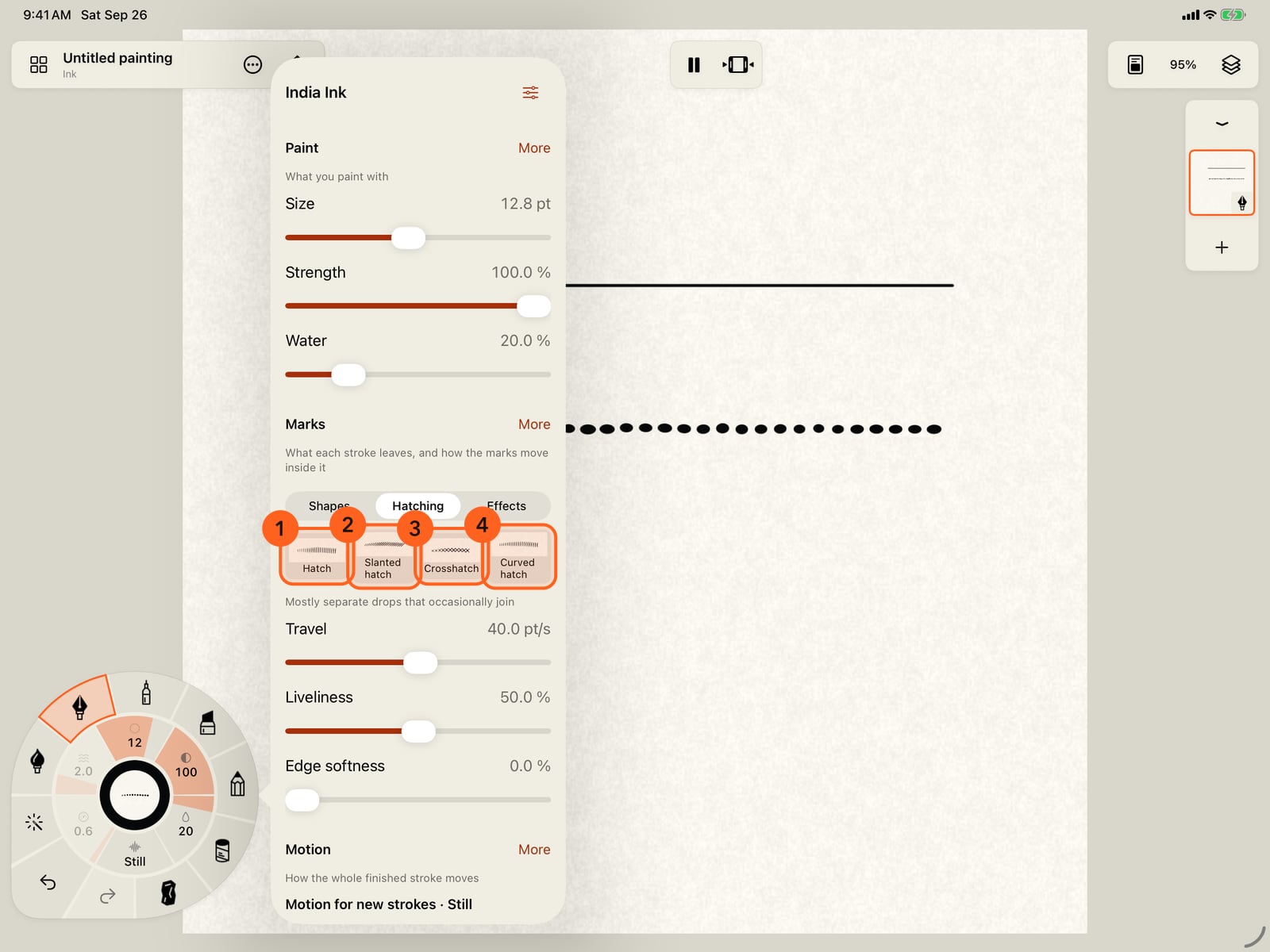
Hatching holds four kinds of line shading. Hatch runs across the stroke, Slanted hatch on a diagonal, Crosshatch in two directions, and Curved hatch follows its bend.
Choose Crosshatch and paint a third stroke. Crossing lines shade along it, where the line and the beads above have none.
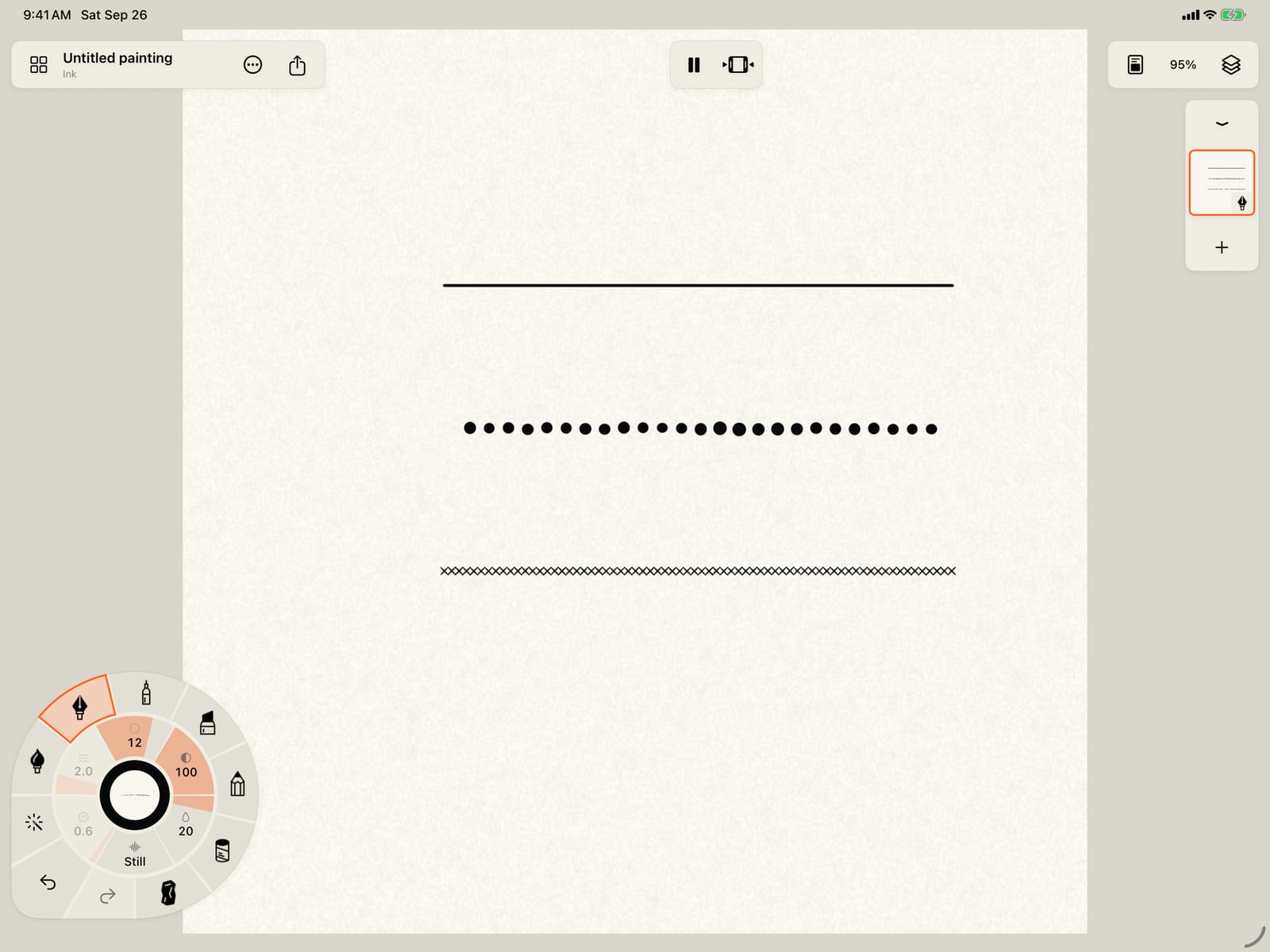
Choose Crosshatch and paint a third stroke. Crossing lines shade along it, where the line and the beads above have none.
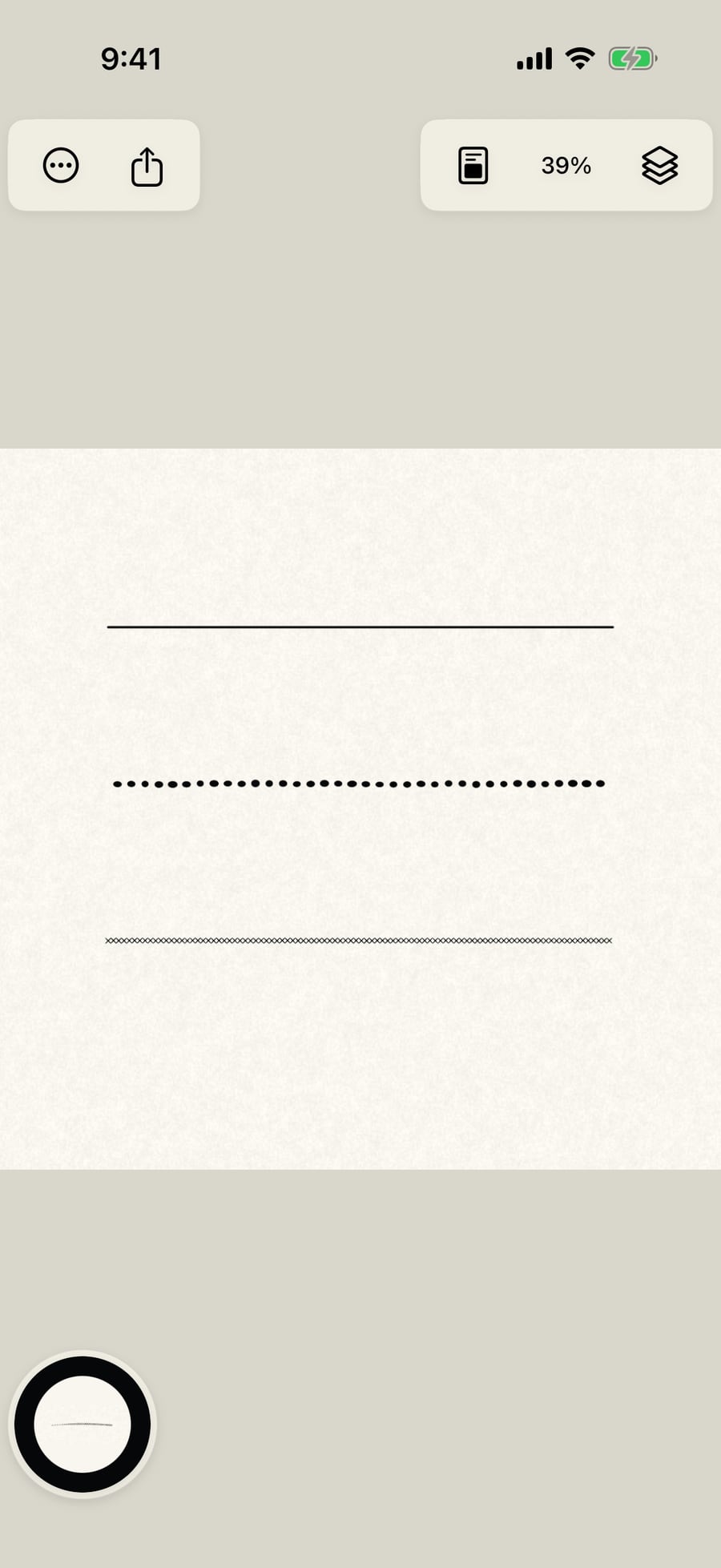
Marks from different strokes on one layer merge where they touch. To keep them apart, tap the current layer's thumbnail and turn off Join marks.
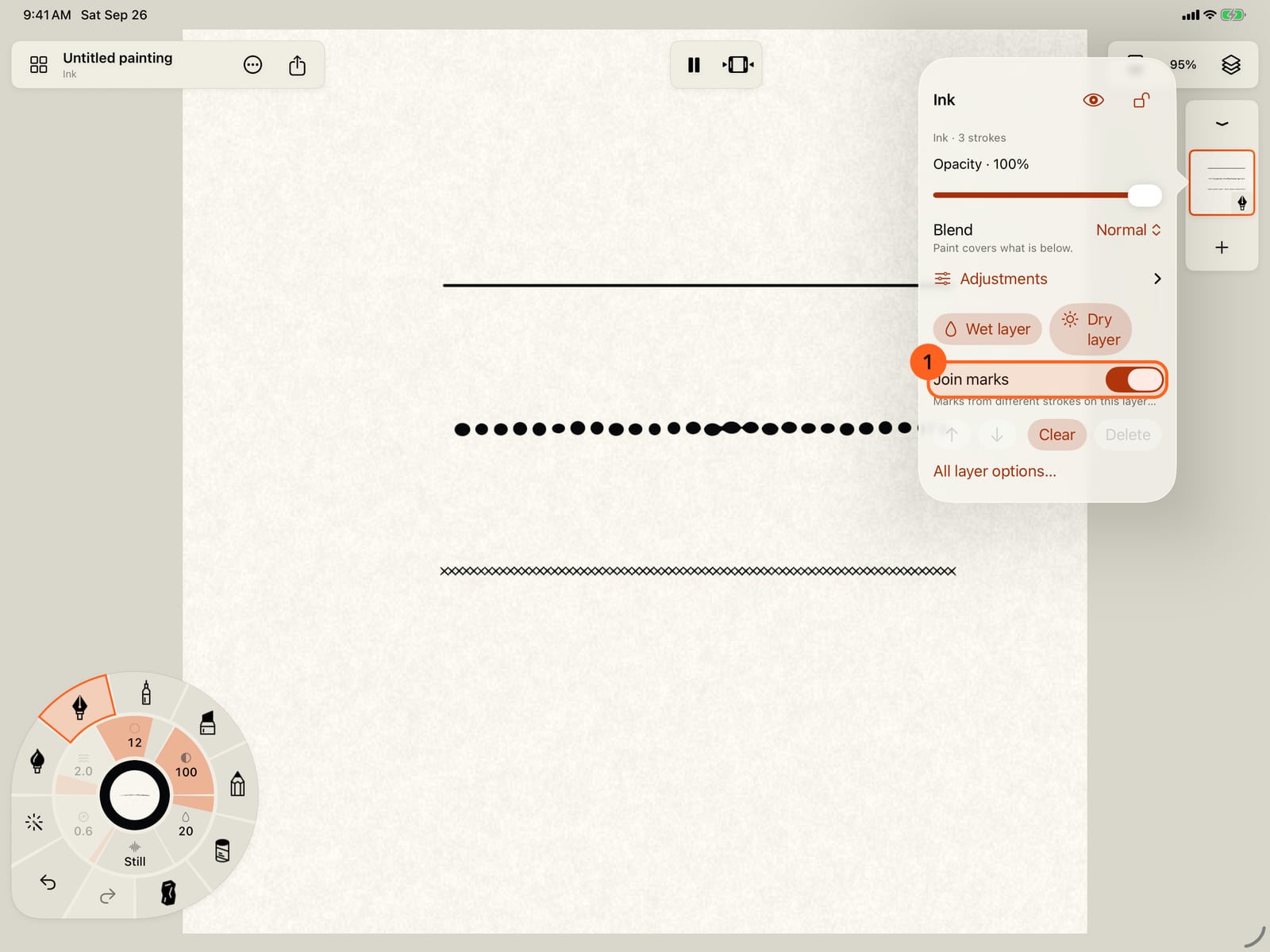
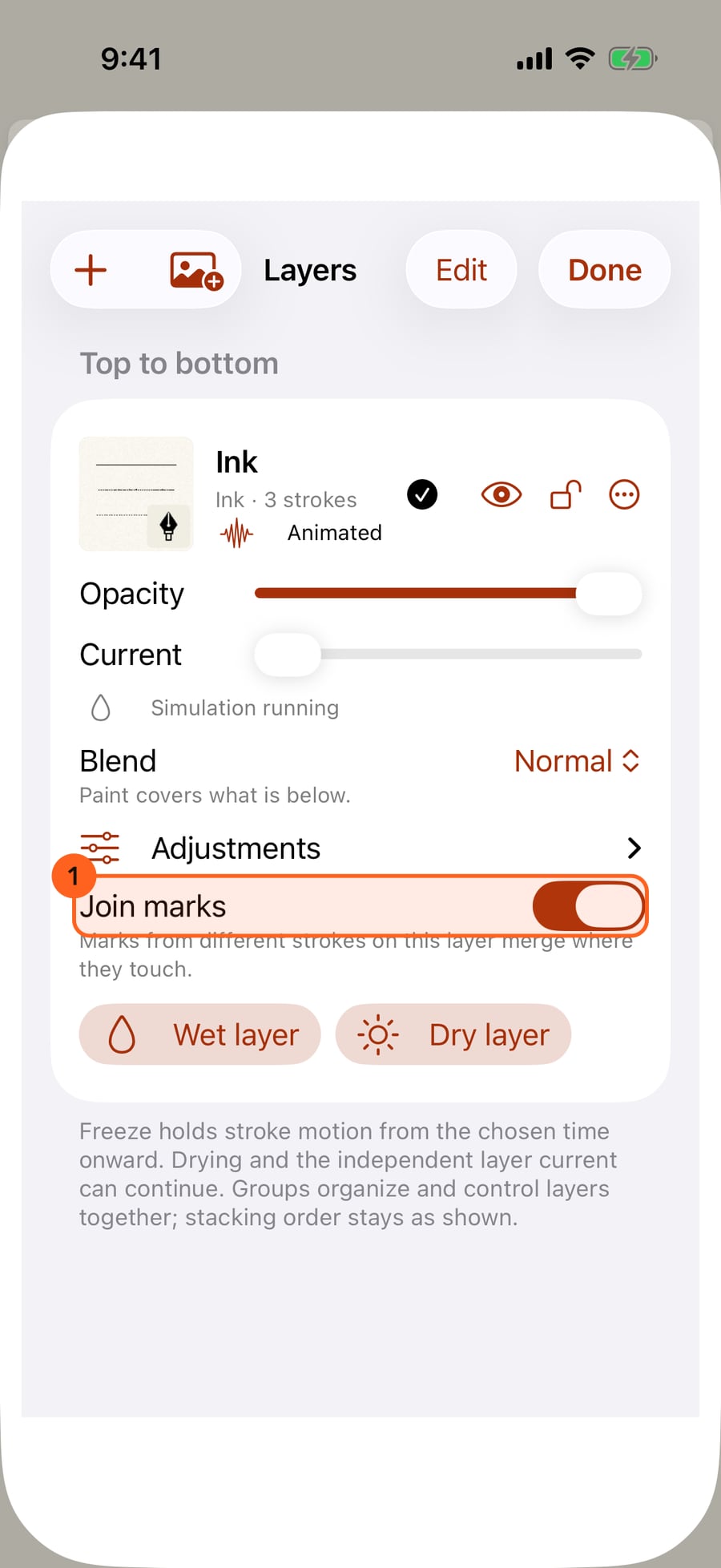
Marks from different strokes on one layer merge where they touch. To keep them apart, open Layers and turn off Join marks under the current layer.
Marks from different strokes on one layer merge where they touch. To keep them apart, click the current layer's thumbnail and turn off Join marks.
What marks are
Every stroke is Paint, Marks and Motion. Marks are what the stroke leaves. A stroke normally lays one Line of paint. With marks, the same stroke becomes a row of shapes along your path: beads, a stream, pools, stars or hatching. They are drawn live, in the brush's medium and colour, and can travel along the stroke, breathe, wobble and join into one shape where they meet. Nothing extra is painted: pause the painting and the marks hold still; play it and they move again.
Choosing marks
Marks belong to the brush, so they apply to your next strokes. Choose them in any of these places:
- The wheel's Marks ring: tap the medium in hand, then Marks. Line is first, then the groups: Shapes, Hatching and the effect categories. Tap a group, then a mark.
- The brush's settings: tap Size, Strength or Water on the wheel. The Marks section sits under Paint.
- Brush Studio → Marks: tap More under Marks in the brush's settings, or open your brushes and tap the brush's Settings (Adjust active brush and motion), then Marks. It has every control below and the advanced ones.
- The library's Marks: every mark as a tile, put on the brush in hand.
Brushes that edit paint already on the page, such as the Water Brush or the Motion Brush, have no marks.
| Group | Marks |
|---|---|
| Shapes | Line (the plain stroke), Beads, Stream, Pools, Diamonds, Tiles, Petals, Stars |
| Hatching | Hatch, Slanted hatch, Crosshatch, Curved hatch |
| Effects | Flame, rain, snow, leaves and many more: see Effects |
Each tile is a small rendered sample in your brush. Marks are sized to the brush width when you draw.
- Beads: mostly separate drops that sometimes join.
- Stream: a connected ribbon with changing necks.
- Pools: broad clusters that swell, join and pull apart.
- Diamonds, Tiles, Petals and Stars: sharp shapes that follow the path; stars breathe as they travel.
- Hatching: fine lines across the path. Hatch motion around the stroke can keep them Fixed or let them Sway, Flutter or Orbit, with Hatch amount and Hatch rate.
The mark controls
| Control | What it does |
|---|---|
| Travel | How fast the marks move along the stroke, in points a second. Negative runs toward the start. |
| Liveliness | One control for how much the marks breathe, stretch and wobble. It reads Custom once you change those separately in Brush Studio. |
| Edge softness | From a crisp outline to a soft, blurred edge. |
Marks move inside the stroke on their own; the stroke's own movement is Motion. In Brush Studio's Marks page, and in a painted stroke's inspector (Tools → Select stroke), the controls are grouped as Shape, Life, Pencil and Advanced. Life adds:
| Control | What it does |
|---|---|
| Grow and fade | The lifecycle: marks are born small, grow and fade as they travel. |
| Effect timing | With Grow and fade: Continuous, Loop or Play once. Play once starts when you finish drawing. |
| Lifetime and Fade | How long each mark lives, and how much of that it spends fading. |
| Fade by | Opacity: the whole mark grows more transparent. Pigment (dry brush): the mark keeps its shape but carries less paint, so it breaks on the paper's grain as it fades, the way a dry brush catches only the tops of the paper. It also makes a light Pencil touch leave less paint. Both: the two together, so a mark thins to grain as it vanishes. Dust, Rising sparks and Autumn gust fade by pigment; Smoke and Wildfire by both. |
| Shape over lifetime | Keep source anchored, Fast expansion, Birth size, Final size, Fade in, Spread, Curl, Spin, Color cooling, and Secondary marks (sparks, foam, droplets or rings) with their delay, lifetime and size. |
| Inside the stroke | Moves colour inside the marks: Still, Current, Ripples, Eddies, Wet / Dry or Edge Bloom, with Interior amount, rate and scale. |
Shape has Mark size, Spacing, Joining (how readily neighbouring marks merge) and Edge softness. Life also has Travels toward the end / start, Playback (whether the marks loop exactly with the painting) and Return to rest, which stops all their movement. Under Advanced: Pencil pressure → size, Variation along the path, Breathing and its rate, Travelling pulse length, Stretch, Wobble and its rate, what happens At the ends (Fade and respawn, Flow in and stop, Eased reverse) and, in wet media, Interaction: Animated Appearance, or Affect Wet Paint, which lets the marks push wet paint on their layer.
Tip: To change the marks of a stroke already painted, use Tools → Select stroke: its inspector has the brush settings' controls as well as these.
Join marks
On each layer, marks from different strokes merge where they touch, like drops of the same liquid. To keep every stroke's marks apart, turn off Join marks in the layer's controls 1: tap the current layer's thumbnail, or find it under the layer in the Layers sheet. It appears only on layers that have marks.
On iPhone, unfold the wheel to reach Size, and tap the page to close the settings and fold the wheel before you paint. Join marks is in Layers, under the current layer.
Pro: Marks are Free in every medium.
Something not behaving as expected?
Visit support or write to [email protected].