

Guides / Marks and effects
Effects
Paint fire, smoke, clouds, snow, water, leaves and more with any brush. Pick a look by category, then tune it with the wheel's three effect gauges.
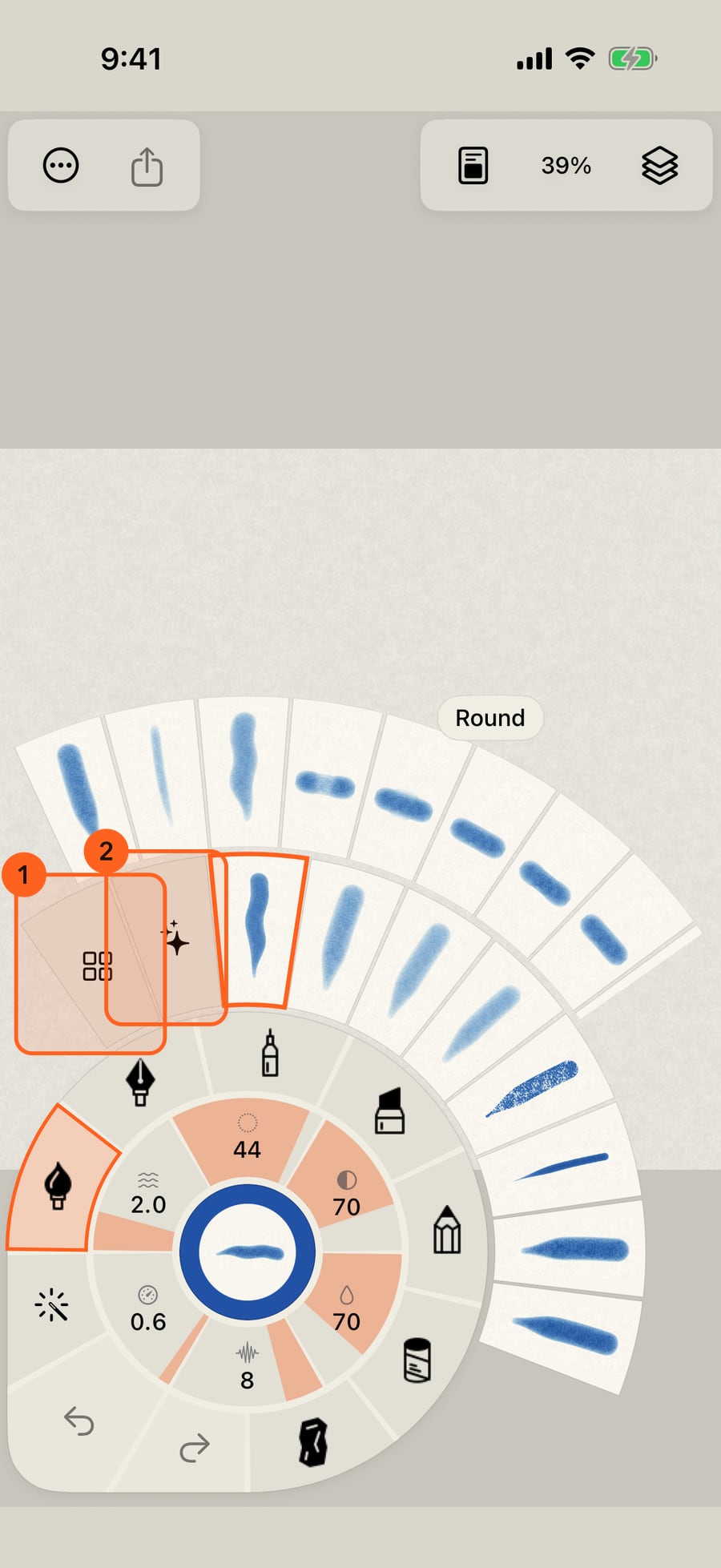
Tap the medium in hand, here Watercolor. Its brushes unfold around the wheel, after two chips, All brushes and Marks.
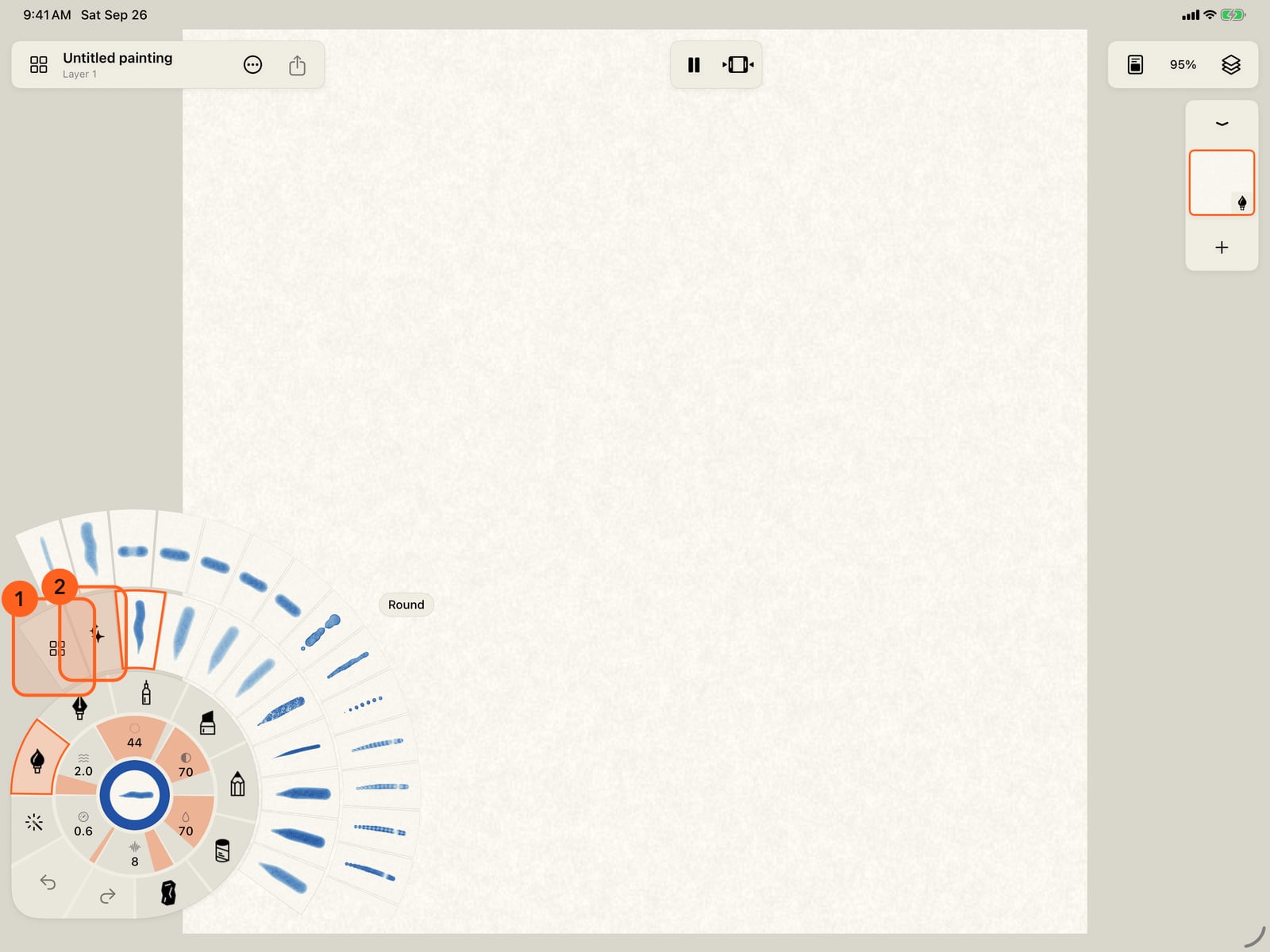
Tap the folded wheel to unfold it, then tap Watercolor, the medium in hand. Its brushes unfold around the wheel, after two chips, All brushes and Marks.
Click the medium in hand, here Watercolor. Its brushes unfold around the wheel, after two chips, All brushes and Marks.
Tap Marks. Effects are marks, so they are here beside Line, Shapes and Hatching. The effect categories follow, Fire, Smoke and Steam, Sky, Weather, Water and more, and beyond them the chosen group's marks, each a moving sample in your brush and colour.
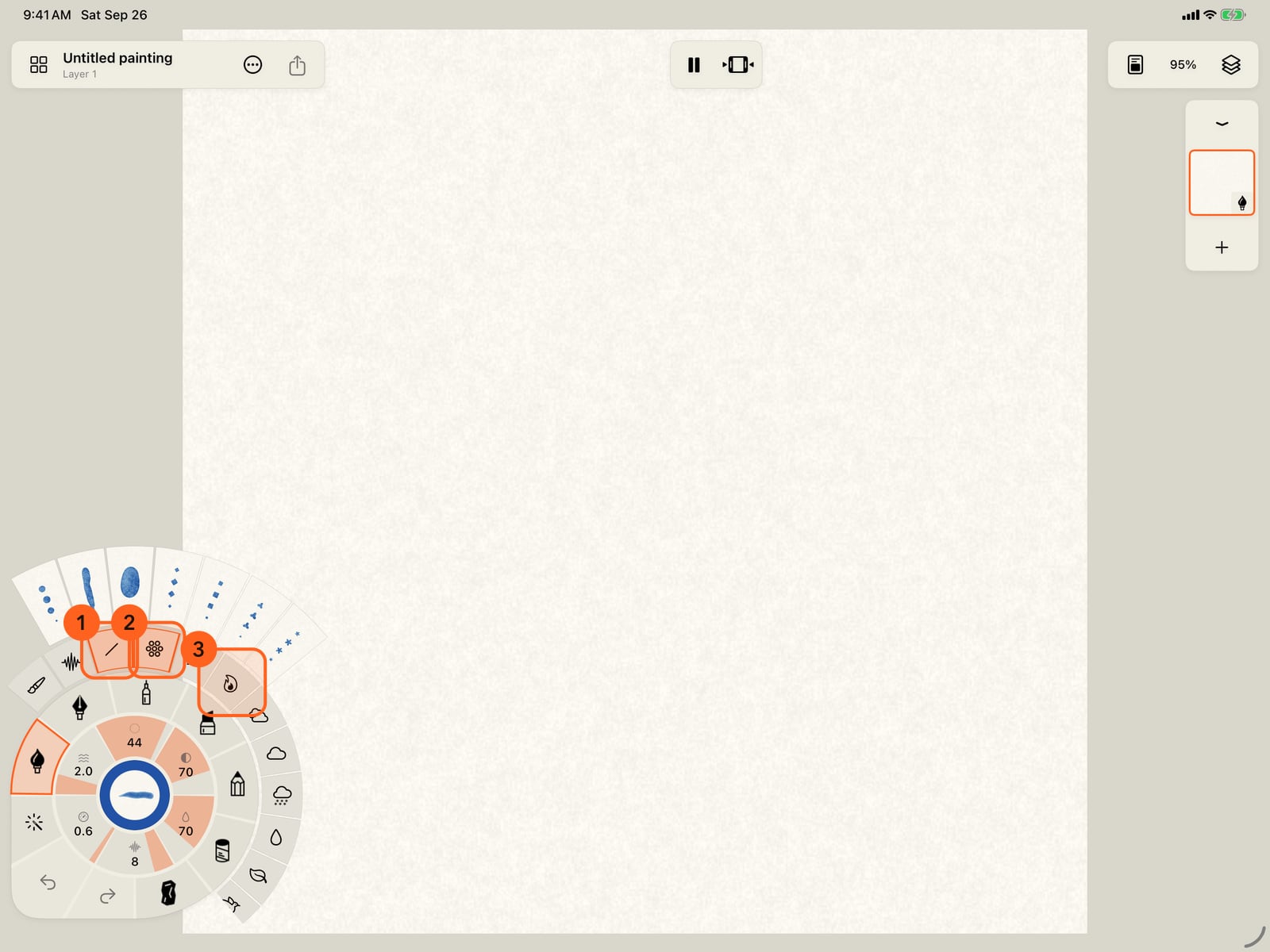
Tap Marks. Effects are marks, so they are here beside Line, Shapes and Hatching. The effect categories follow, Fire, Smoke and Steam, Sky, Weather, Water and more, and beyond them the chosen group's marks, each a moving sample in your brush and colour.
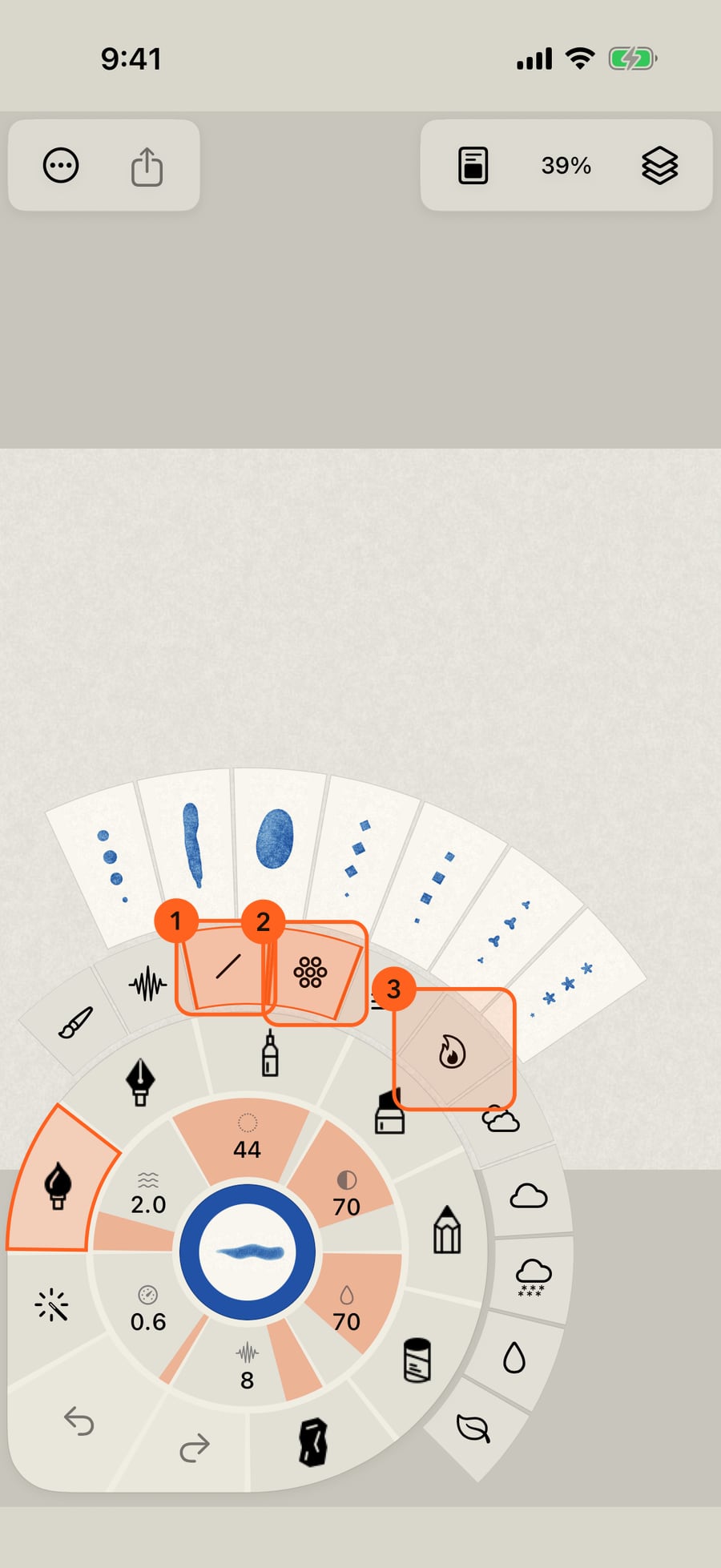
Click Marks. Effects are marks, so they are here beside Line, Shapes and Hatching. The effect categories follow, Fire, Smoke and Steam, Sky, Weather, Water and more, and beyond them the chosen group's marks, each a moving sample in your brush and colour.
Choose Line and paint a stroke upward, to compare. It is the brush's own mark.
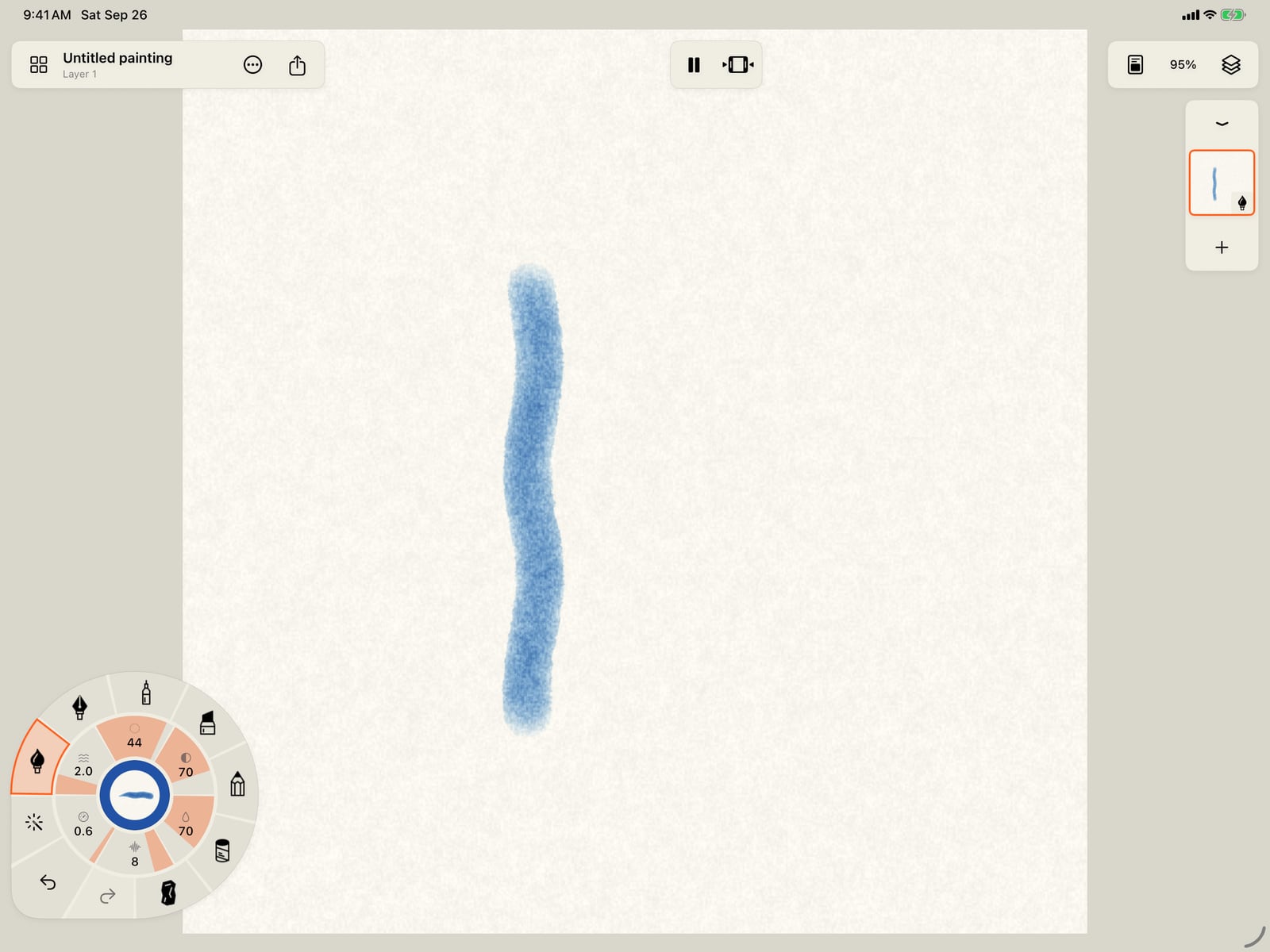
Choose Line, tap the page to fold the wheel, and paint a stroke upward, to compare. It is the brush's own mark.
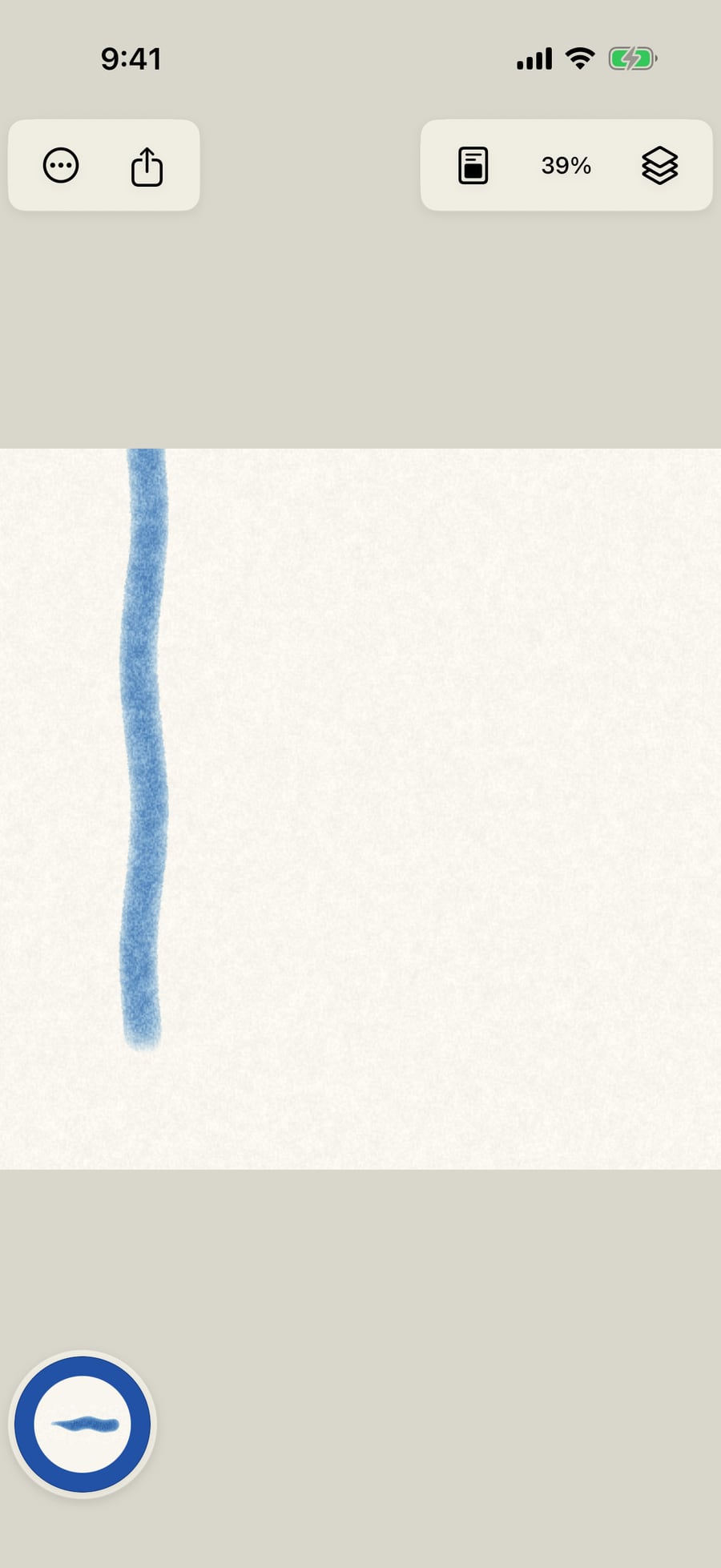
Open the Marks ring again, choose Fire, then Flame, and paint a second stroke upward. The same brush now sends tongues of flame up from where the stroke starts.
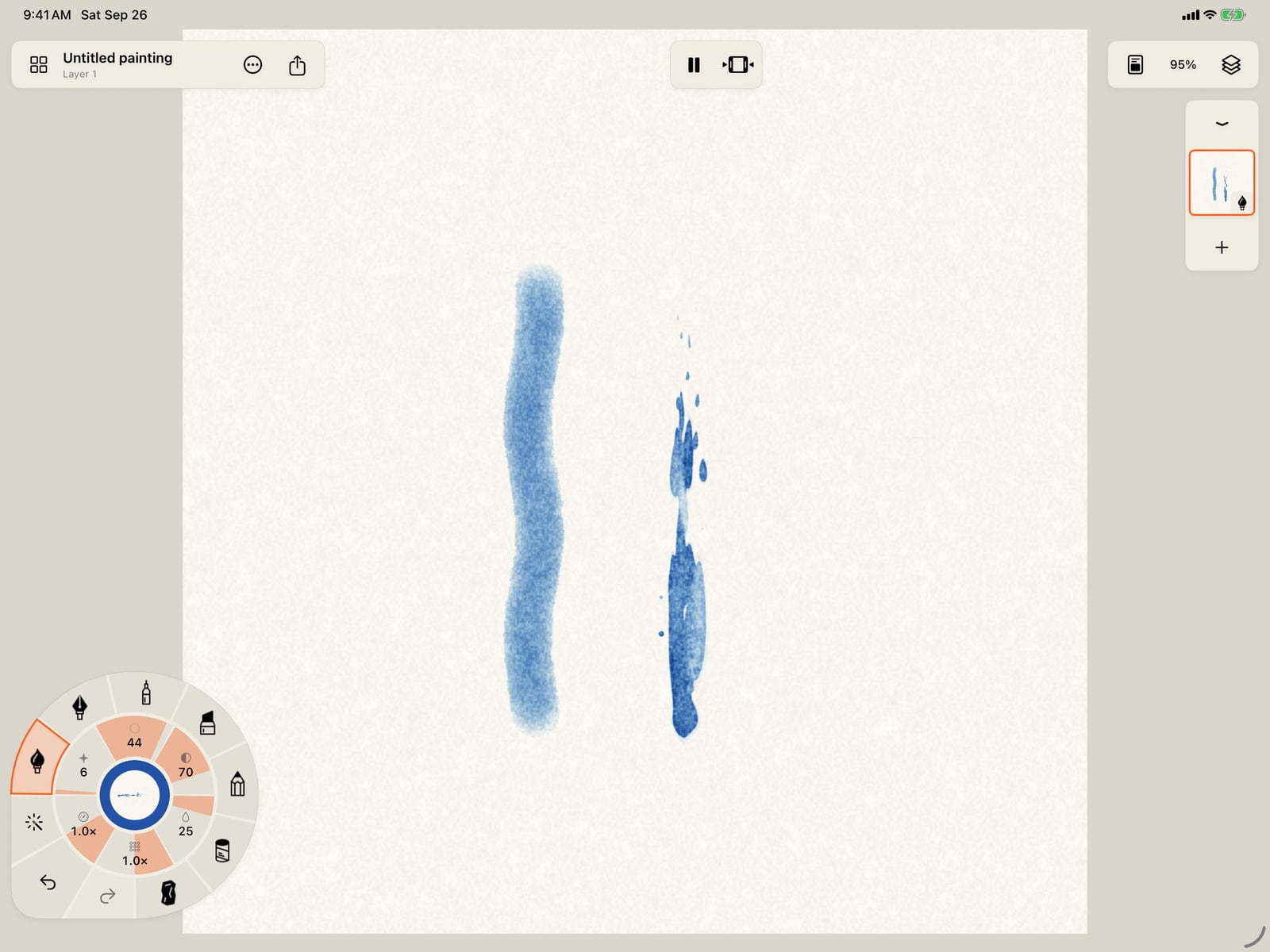
Open the Marks ring again, choose Fire, then Flame, and paint a second stroke upward. The same brush now sends tongues of flame up from where the stroke starts.
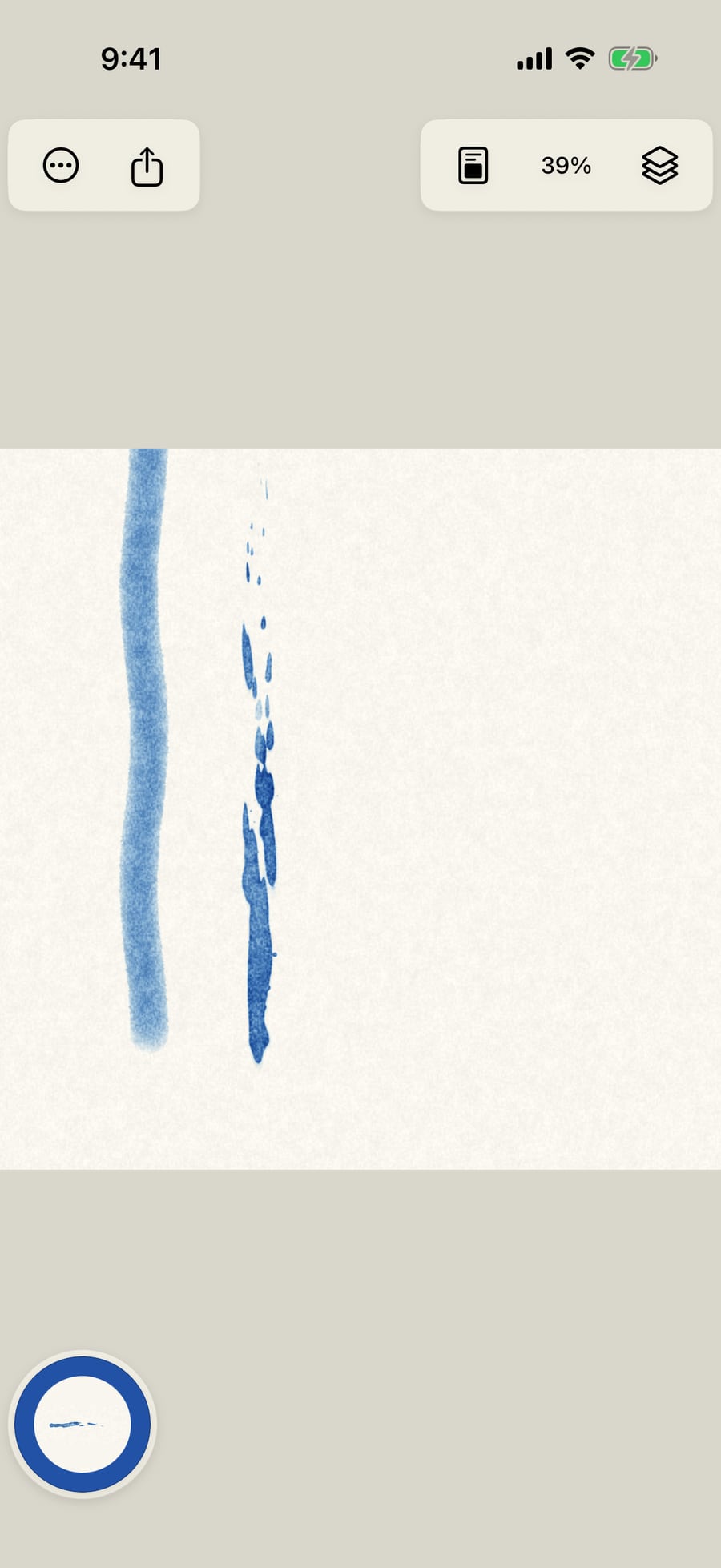
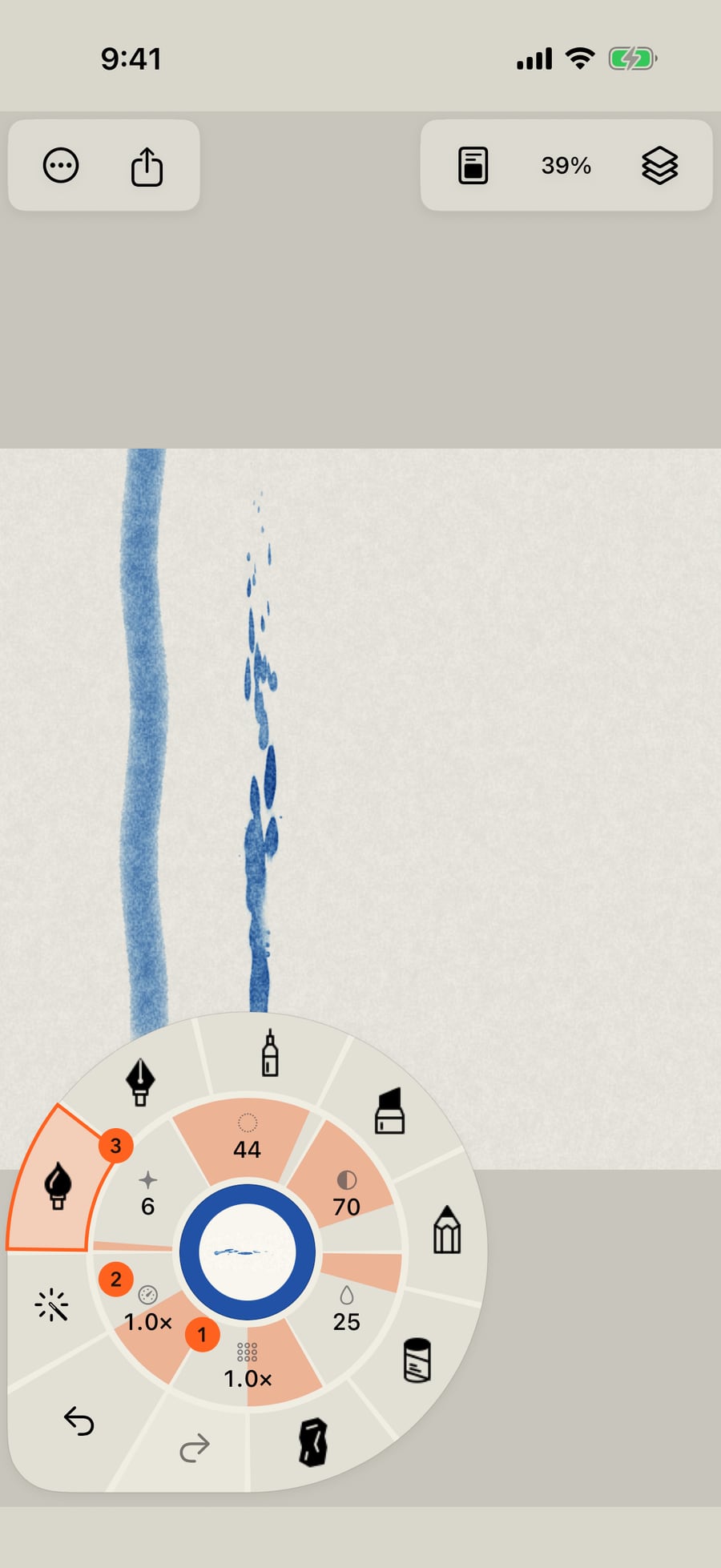
With an effect in hand, the three motion gauges on the wheel become the effect's own. For fire they read Fuel, Flicker and Sparks. Every effect has the same three, how much, how fast and its character, named to suit it.
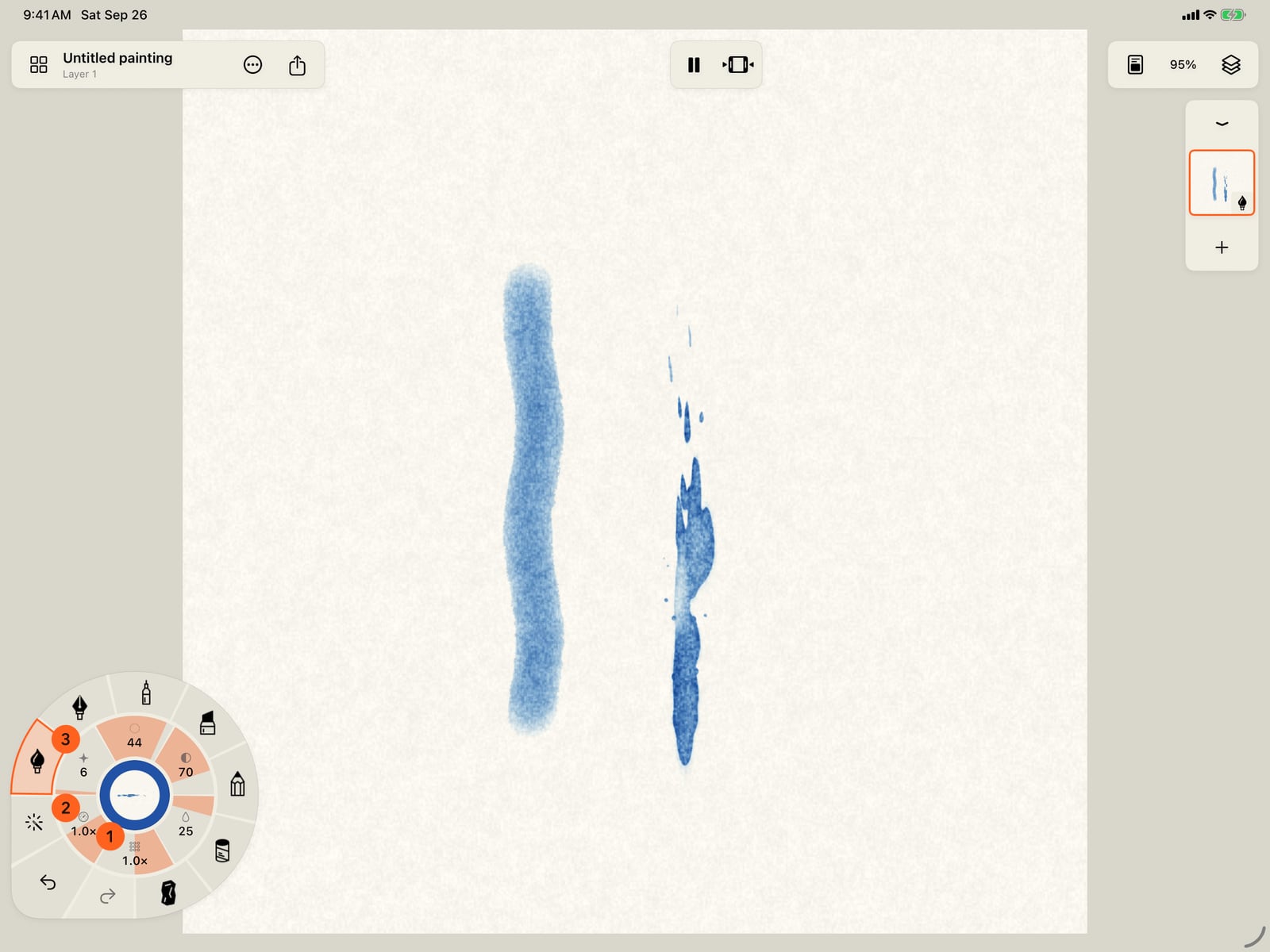
With an effect in hand, the three motion gauges on the wheel become the effect's own. For fire they read Fuel, Flicker and Sparks. Every effect has the same three, how much, how fast and its character, named to suit it.
Turn a gauge around the ring, or tap Size for the brush's settings. Below the effect's description is what your Pencil does to it; for fire, pressing harder makes bigger tongues, and a tilted Pencil bends them away from it. The three gauges are here as large sliders.
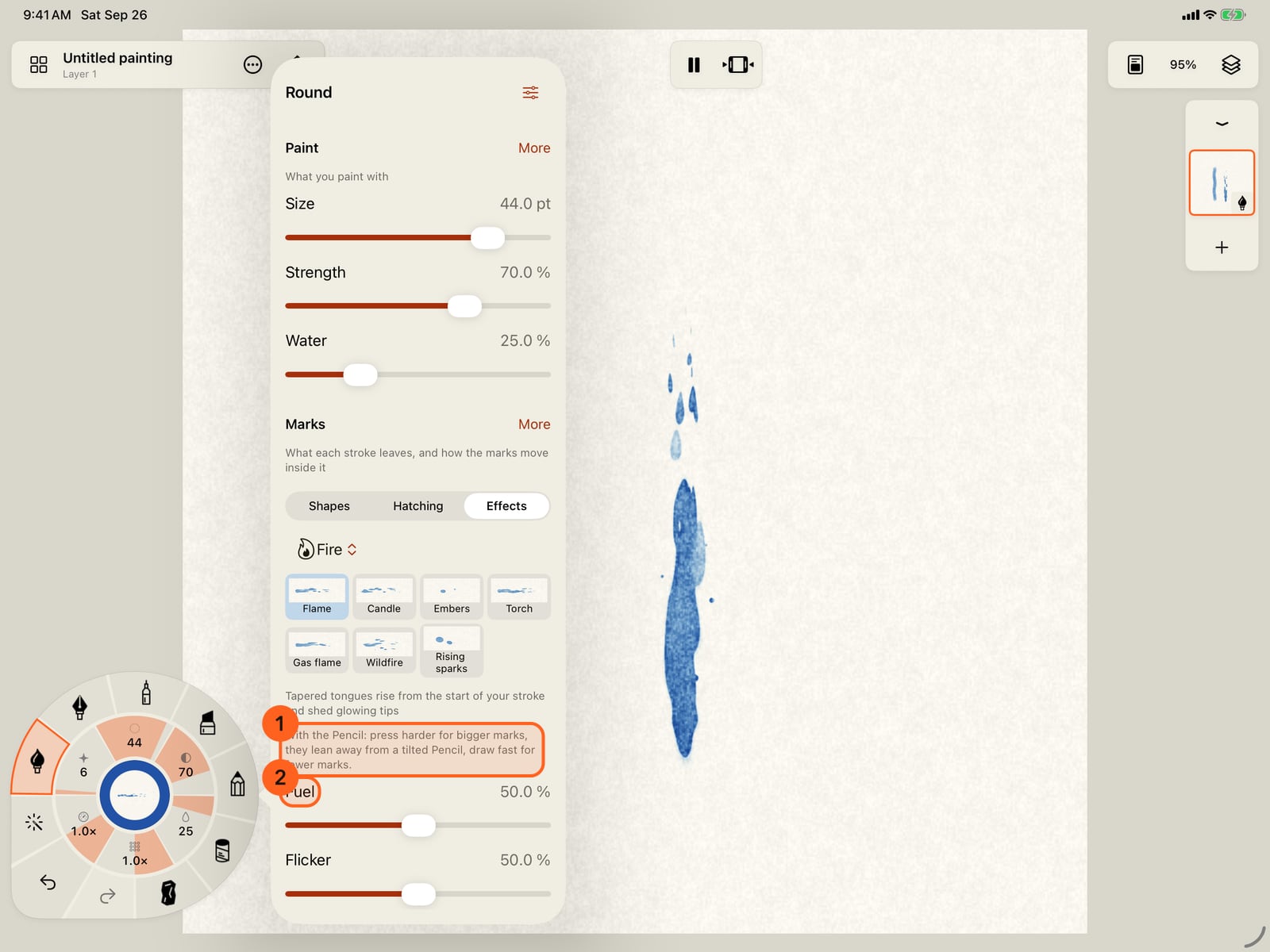
Turn a gauge around the ring, or tap Size for the brush's settings. Below the effect's description is what your Pencil does to it; for fire, pressing harder makes bigger tongues, and a tilted Pencil bends them away from it. The three gauges are here as large sliders.
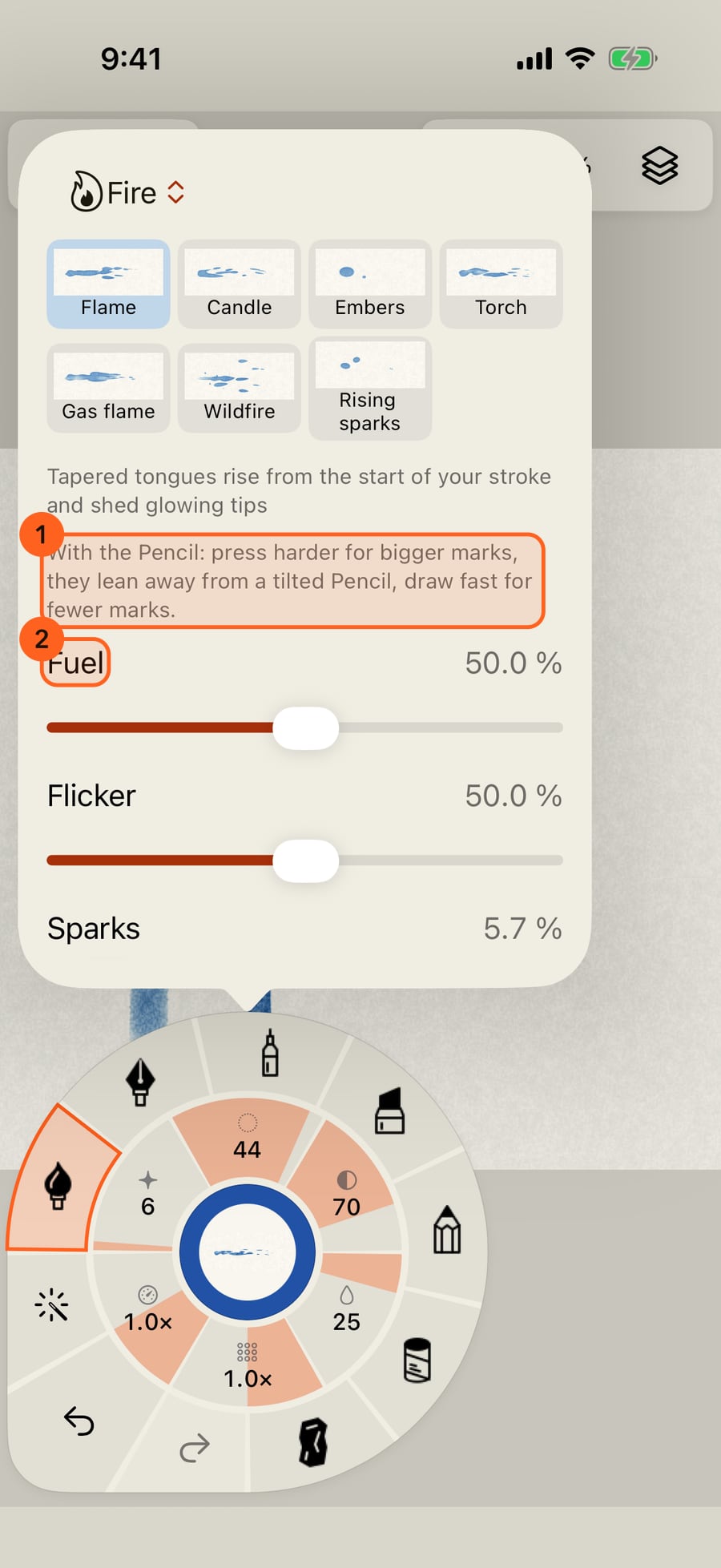
Turn a gauge around the ring, or click Size for the brush's settings. Below the effect's description is what your Pencil does to it; for fire, pressing harder makes bigger tongues, and a tilted Pencil bends them away from it. The three gauges are here as large sliders.
Turn Fuel all the way up, close the settings and paint a third flame. With more fuel, the tongues are far fuller than the one beside it.
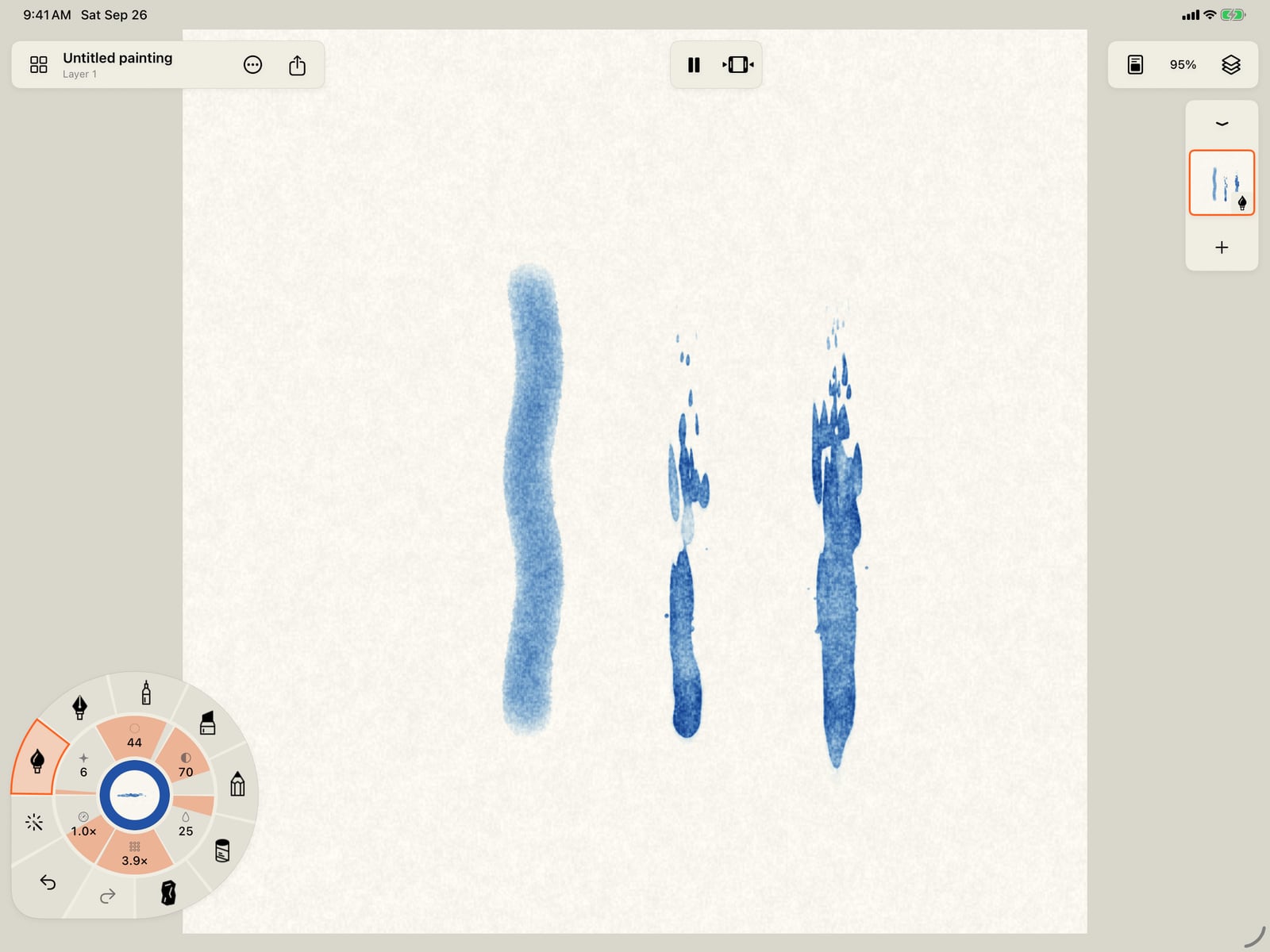
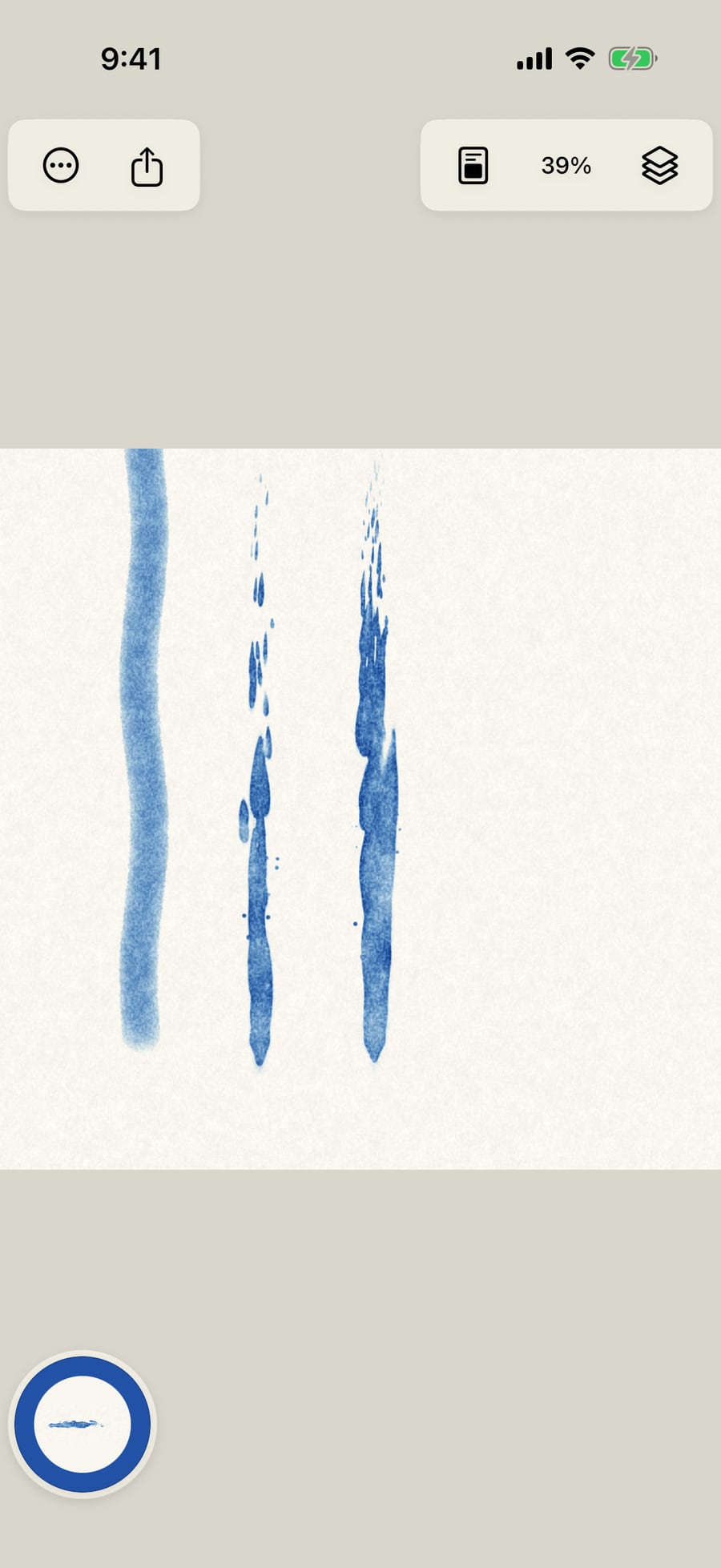
Turn Fuel all the way up, close the settings, fold the wheel and paint a third flame. With more fuel, the tongues are far fuller than the one beside it.
Each category holds several looks. Open Marks again and choose Weather, for rain, snow and lightning in different moods.
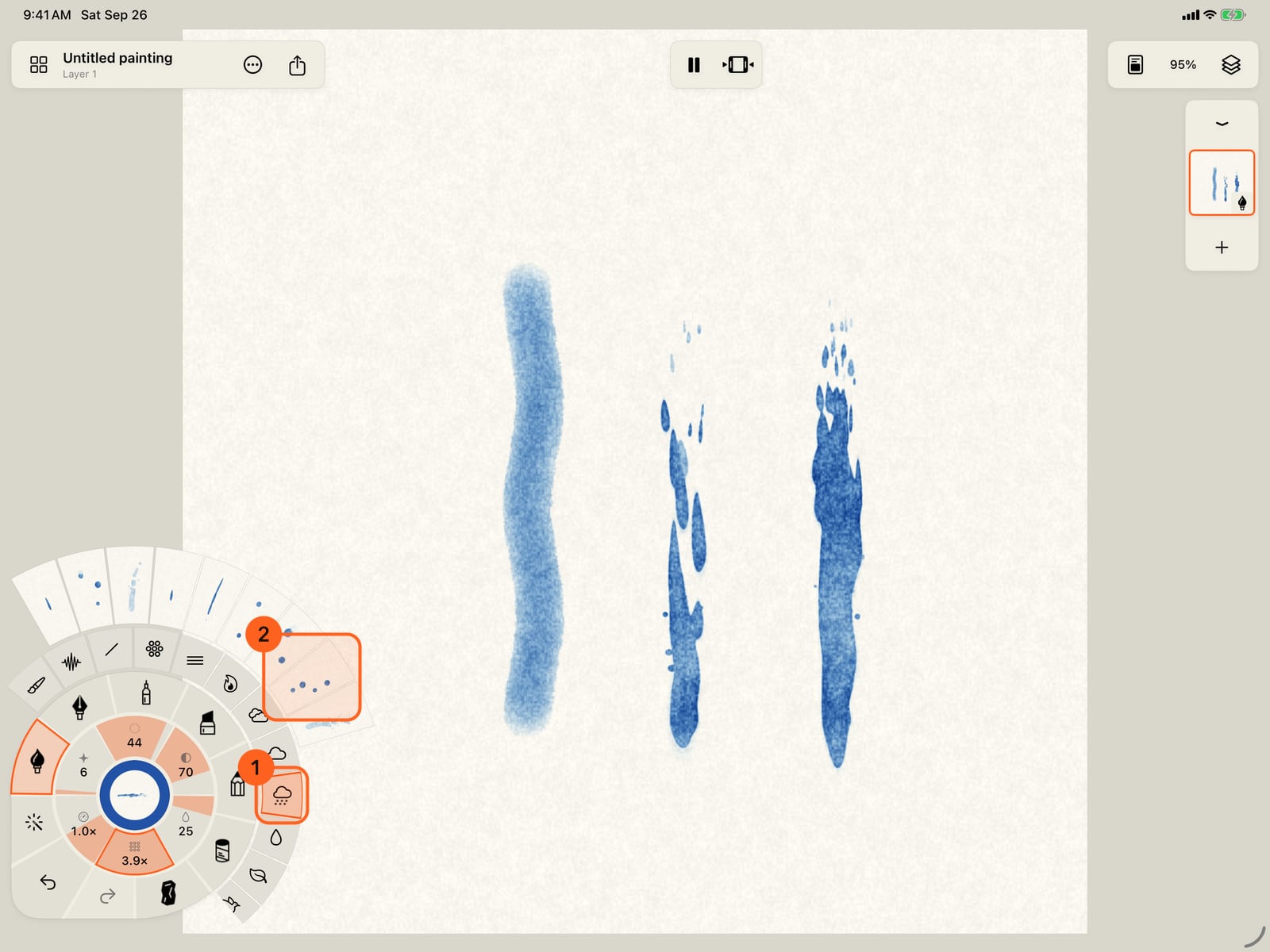
Each category holds several looks. Open Marks again and choose Weather, for rain, snow and lightning in different moods.
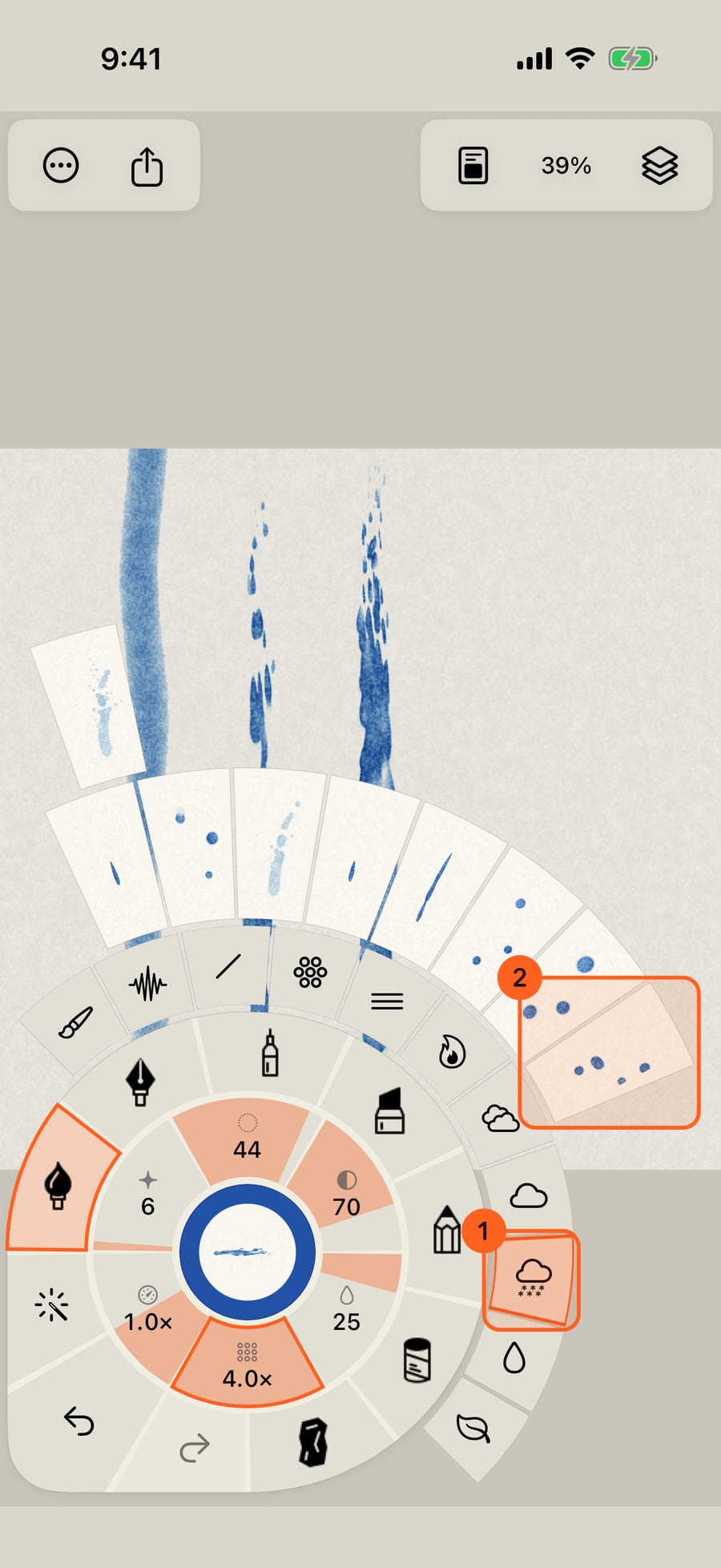
Choose Blizzard and paint a fourth stroke, downward. Snow blows along it, carried on a strong wind. Wind is the character gauge of the effects the wind carries.
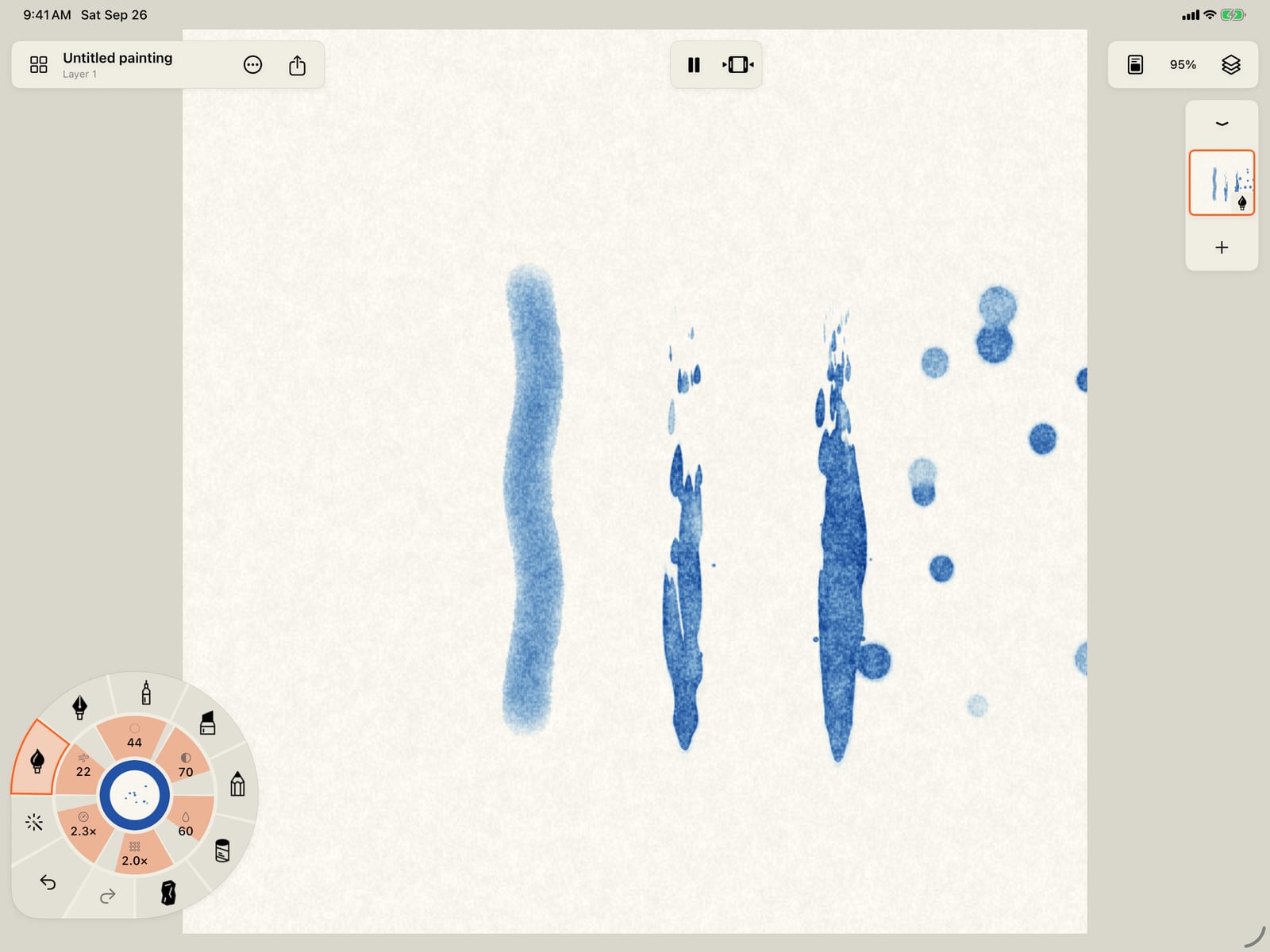
Choose Blizzard and paint a fourth stroke, downward. Snow blows along it, carried on a strong wind. Wind is the character gauge of the effects the wind carries.
The same looks are in the brush library. Open All brushes and tap Marks for every mark, the effects by category, with any effect brushes you saved at the end of theirs.
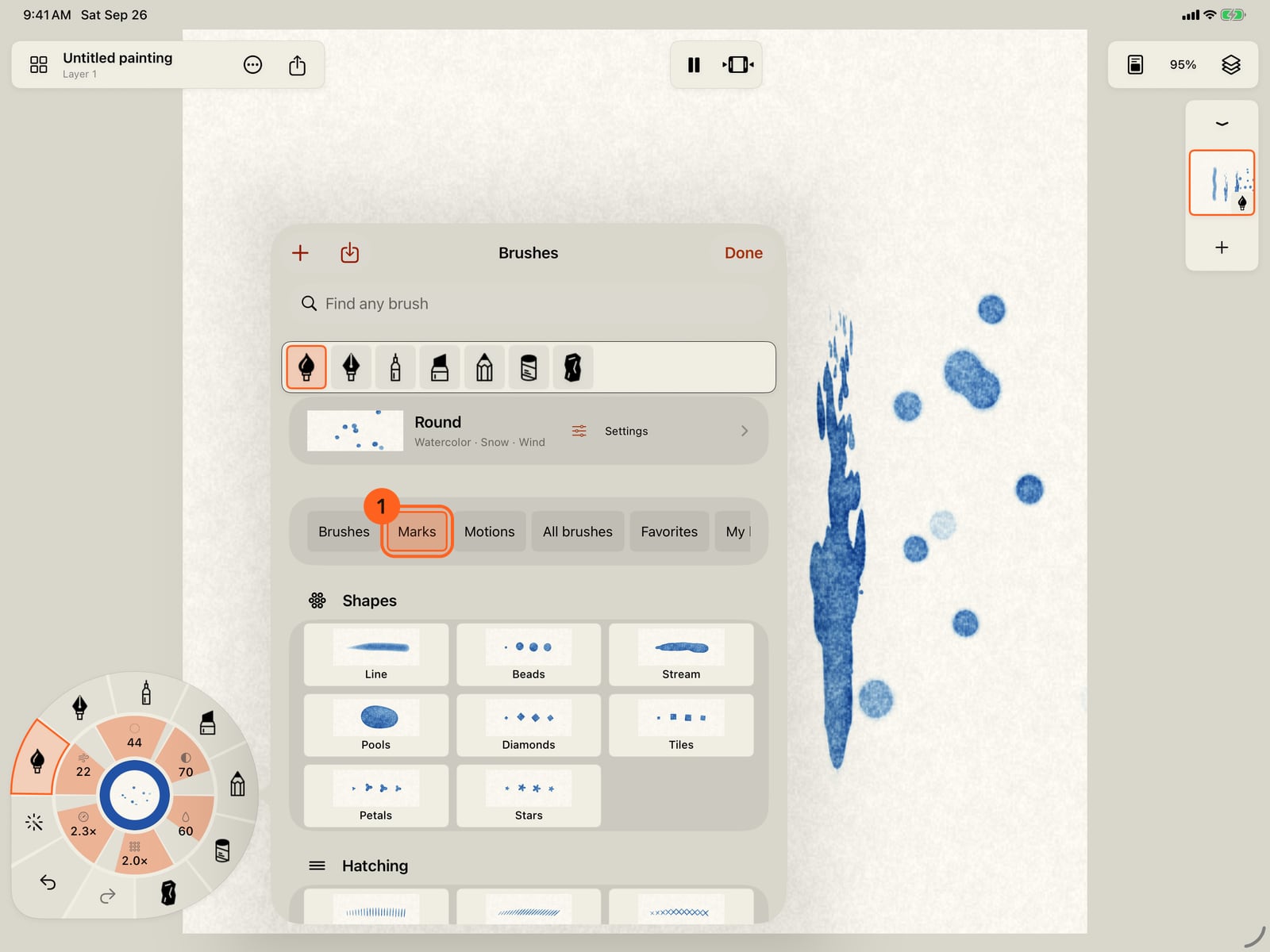
The same looks are in the brush library. Open All brushes and tap Marks for every mark, the effects by category, with any effect brushes you saved at the end of theirs.
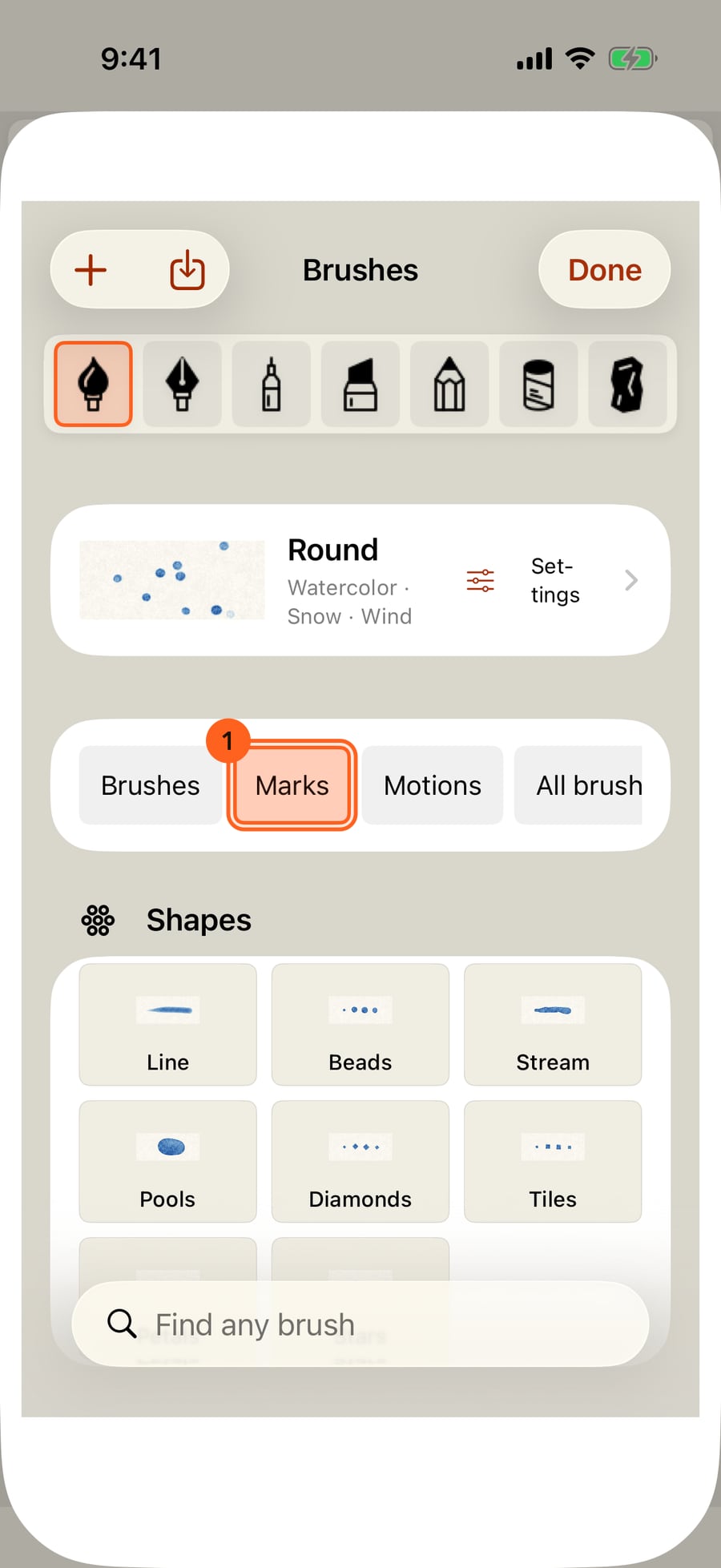
The same looks are in the brush library. Open All brushes and click Marks for every mark, the effects by category, with any effect brushes you saved at the end of theirs.
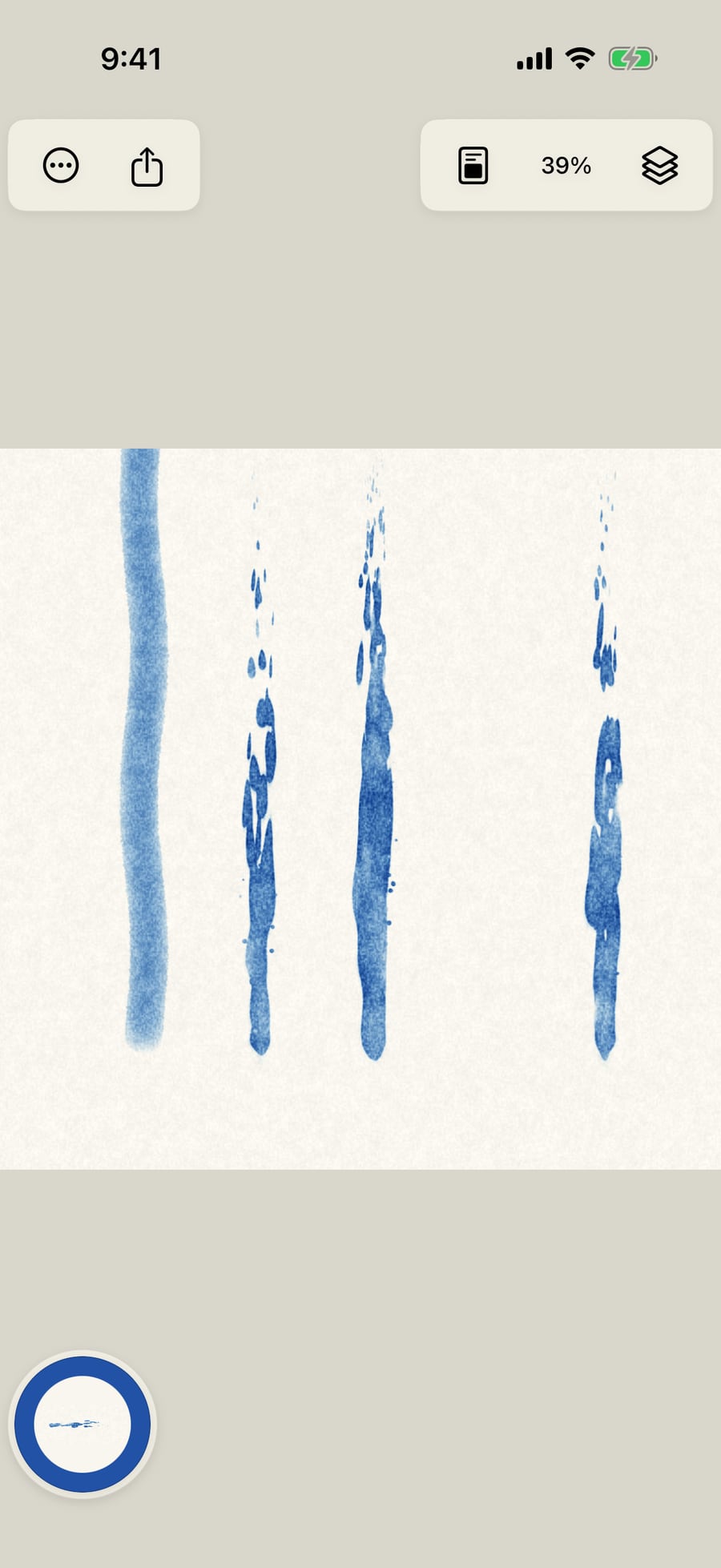
Take up Torch, from Fire, and paint a last stroke. A tall flame with only a few sparks, in your colour.
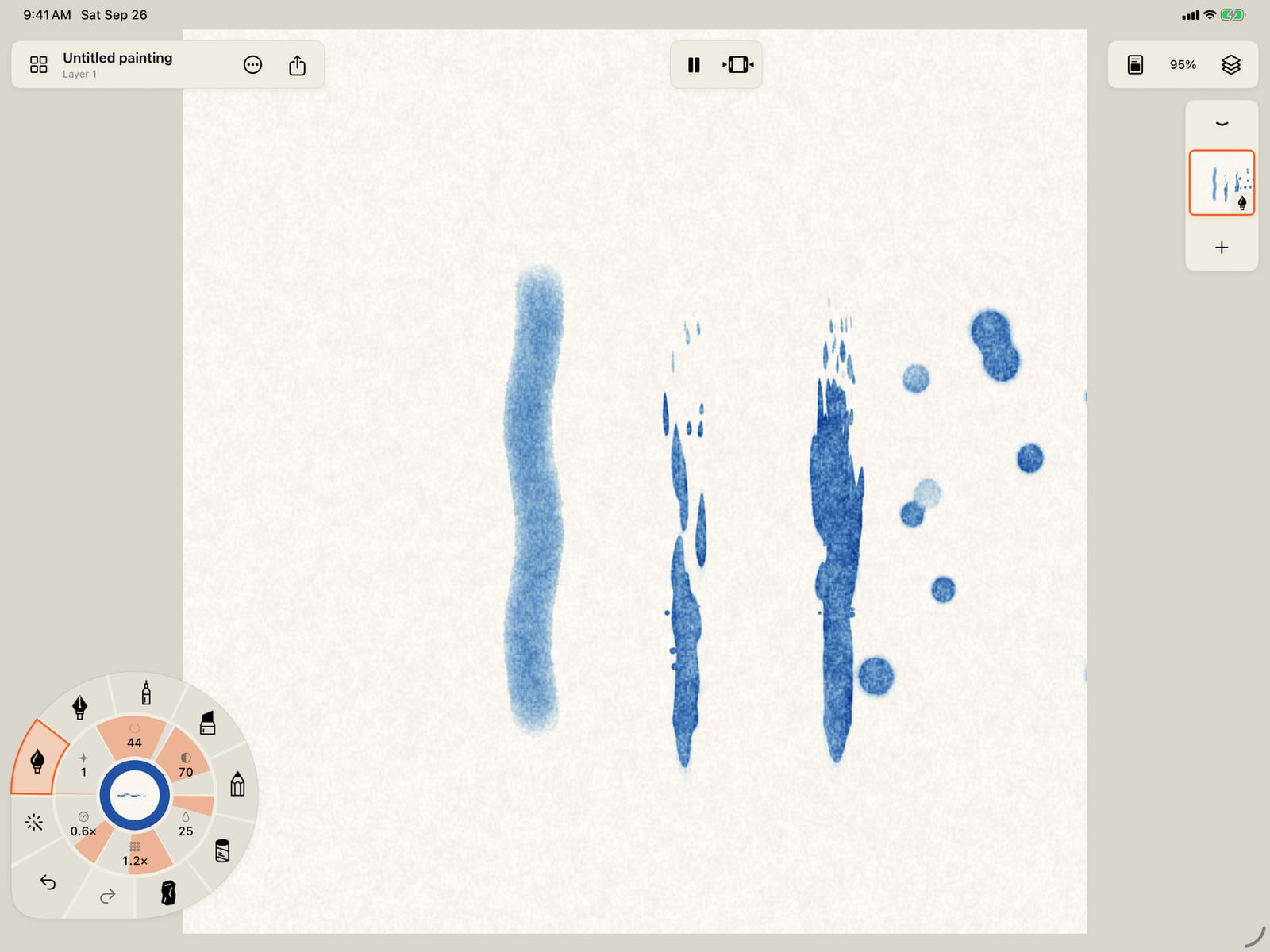
Take up Torch, from Fire, and paint a last stroke. A tall flame with only a few sparks, in your colour.
Every setting under the gauges is in Brush Studio. Tap Size, then All settings, and open Marks. Most effects grow and fade; Effect timing plays them continuously, in a loop or once, and Lifetime sets how long each mark lives.
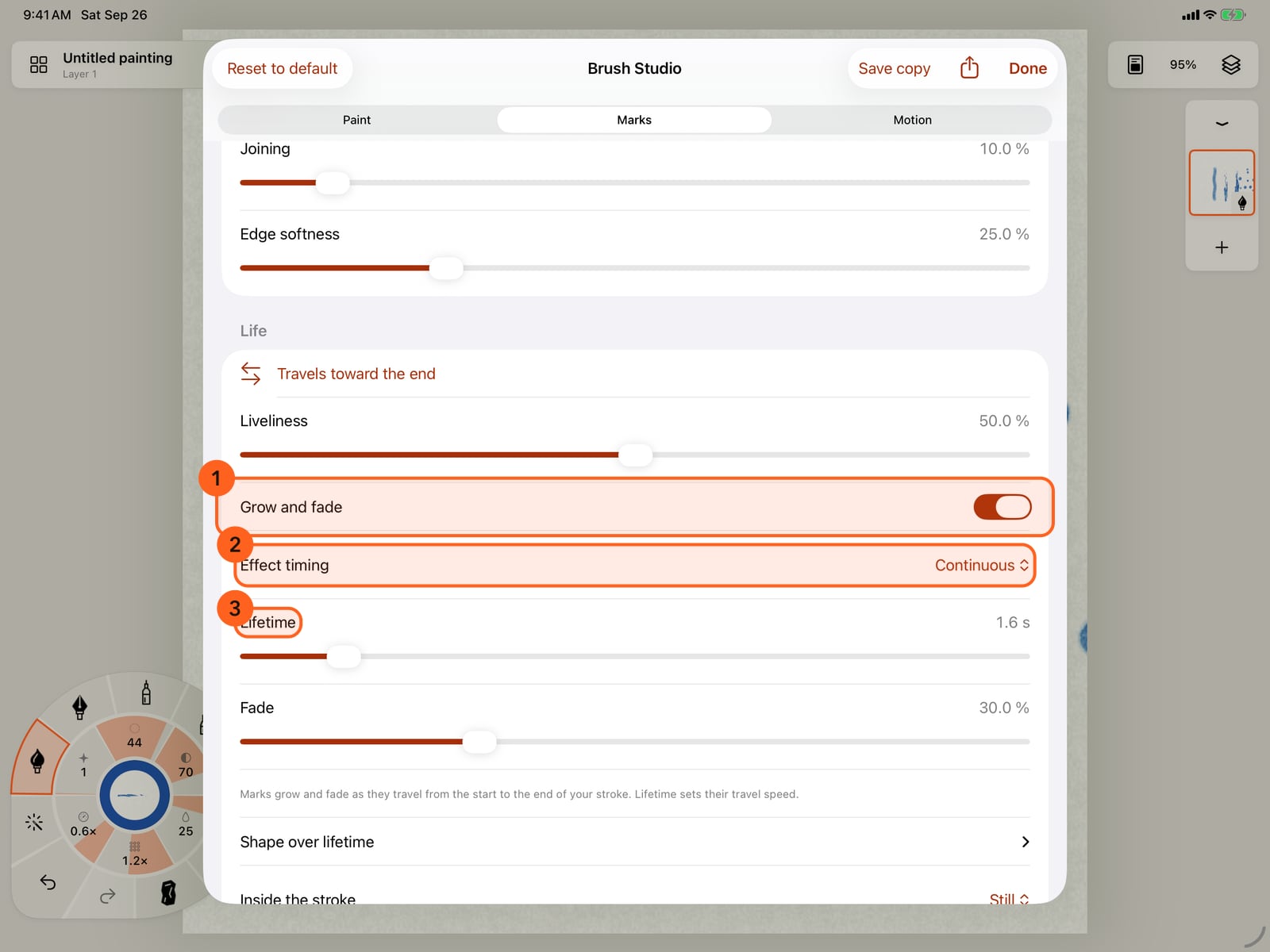
Every setting under the gauges is in Brush Studio. Tap Size, then All settings, and open Marks. Most effects grow and fade; Effect timing plays them continuously, in a loop or once, and Lifetime sets how long each mark lives.
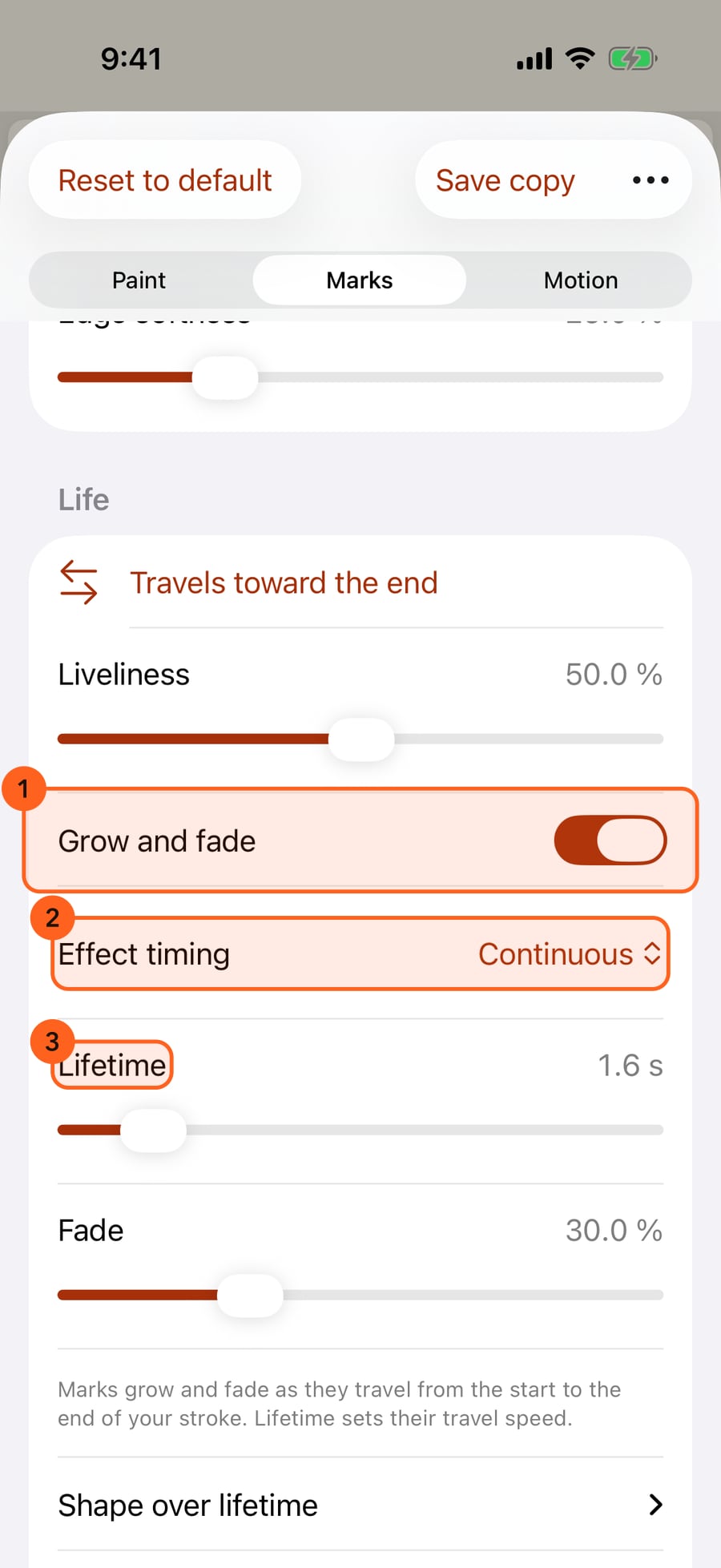
Every setting under the gauges is in Brush Studio. Click Size, then All settings, and open Marks. Most effects grow and fade; Effect timing plays them continuously, in a loop or once, and Lifetime sets how long each mark lives.
The Marks ring
Effects are marks, not brushes of one medium: the Marks ring puts an effect on the brush in hand, in its medium and your colour.
- Tap the medium in hand on the wheel's rim. Its brushes unfold, after All brushes 1 and Marks 2.
- Tap Marks. Line, Shapes, Hatching and the effect categories unfold as a ring of chips, and beyond them the chosen group's marks, each a moving sample.
- Tap a category, then a look. The rings stay open so you can try another; painting folds them.
Line takes the effect off, back to the brush's own mark. Motion opens the Motion ring for the path motion under the effect, and Brushes returns to the brush ring. Effects are offered with any paint brush; tools that edit paint already on the page, such as the Water Brush, have none, and the chip is dimmed.
A look changes the marks and how they move, never your colour or paint. Each stroke is one colour, the one in hand, so effects build up like paint: for a fire, paint a red flame, then an orange one over it, then a small yellow core, turning Strength down for the fainter layers. Only effects whose colours are the point, Confetti, Aurora and the vine's flowers, bring colours of their own.
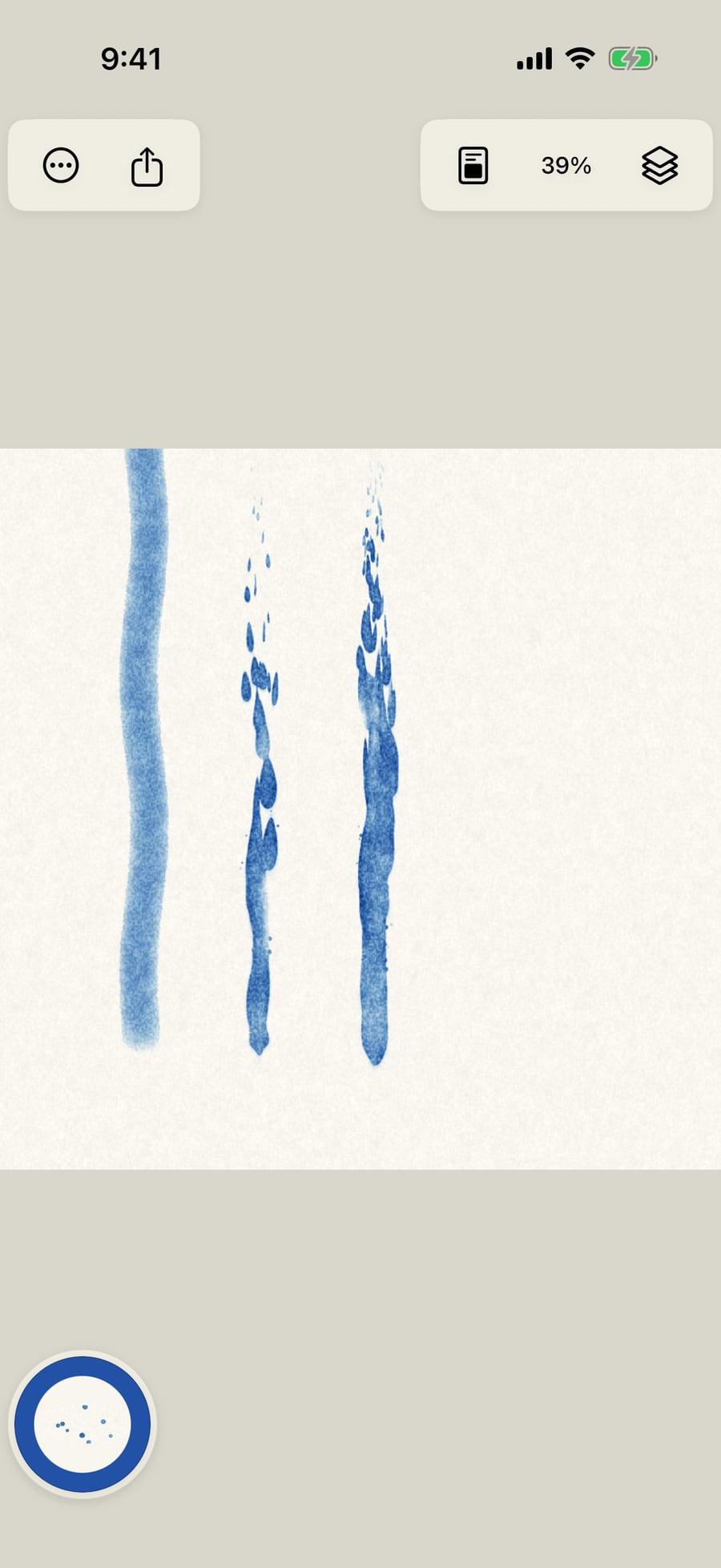
On iPhone the wheel rests folded. Tap it to unfold, and tap the page to fold it before you paint.
Categories and looks
| Category | Looks |
|---|---|
| Fire | Flame, Candle, Embers, Torch, Gas flame, Wildfire, Rising sparks |
| Smoke & Steam | Smoke, Steam, Ink plume, Dust, Chimney smoke, Incense wisp, Thick smoke, Kettle steam |
| Sky | Clouds, Mist, Aurora, Cumulus, Wispy cirrus, Drifting clouds, Storm clouds, Fog bank |
| Weather | Rain, Snow, Lightning, Drizzle, Downpour, Snow flurry, Big flakes, Blizzard, Forked lightning |
| Water | Splash, Drips, Rain on water, Shoreline, Bubbles, Foam, Fizz, Ocean waves, Gentle swell, Choppy sea, Waterfall, Cascade, River, Brook, and still water whose colour moves inside: Current, Ripples, Eddies, Wet / Dry, Edge Bloom |
| Nature | Leaves, Blossoms, Foliage, Pollen, Growing vine, Frost, Autumn gust, Dandelion seeds |
| Creatures | Flock, Fish school, Bees, Fireflies, Starlings, Butterflies |
| Magic | Magic trail, Twinkle, Vortex, Pixie dust, Glitter, Wisps |
| Explosions | Burst, Fireworks, Confetti, Impact puff, Supernova |
Draw in the direction the effect should go: flames rise from where you start, rain falls toward where you finish. For Ocean waves draw the waterline, for a River its course, and for a Waterfall the lip the water falls from; the water always falls down the page.
The effect gauges
With an effect in hand, the wheel's three motion gauges 1 2 3 become the effect's own. They always do the same three jobs, under names that suit the effect:
| Gauge | Job | Examples |
|---|---|---|
| First (Amount's place) | How much: how many marks, how close | Fuel, Density, Cover, Count, Branches, Leaves, Swell, Width |
| Second (Speed's place) | How fast | Flicker, Rise, Drift, Fall, Flow, Roll, Flight, Strikes, Growth |
| Third (Pattern's place) | The effect's character | Sparks, Splash, Curl, Billow, Wind, Swirl, Wander, Jagged, Sway, Reach, Chop, Height, Meander |
The other three gauges work on effects too, on every medium: Size scales the whole effect, Strength is its opacity, and Water is how wet its marks are: wetter marks have softer edges and run together more. Together they are what you change between layers: a big, faint, wet red flame, then a smaller, stronger yellow one.
The first two effect gauges run from a quarter to four times the look as made, with the look itself in the middle. Wind is the breeze under leaves, snow, blossoms, dust, pollen and confetti: the stroke's path motion, folded into the effect. Turn a gauge around the ring, or tap Size for the brush's settings, where the same three are large sliders. Tapping one of the effect gauges opens the Marks ring. With Line, or with Shapes and Hatching, the gauges go back to the stroke's motion: Amount, Speed and Pattern.
The Pencil
Every effect says what the Apple Pencil does to it: under its description in the brush's settings, and in Brush Studio on the Marks page, under Pencil, where each link has its own amount. Drawing speed counts for a finger or mouse too; with a finger, pressure and tilt change nothing.
| Category | Pressure | Tilt | Direction of a tilted Pencil | Drawing fast |
|---|---|---|---|---|
| Fire | Bigger tongues | They lean away from it | Fewer marks | |
| Smoke & Steam | Denser smoke | Wider | It drifts away from it | Fewer marks |
| Sky | Denser | Wider | Fewer marks | |
| Weather | Bigger drops and flakes | They slant away from it | Fewer marks | |
| Water | Bigger | Wider | Fewer marks | |
| Nature | Bigger | Wider | They blow away from it | Fewer marks |
| Creatures | Bigger | Fewer | ||
| Magic | Denser | Wider | Fewer marks | |
| Explosions | Bigger | Wider | Fewer marks |
A light touch gives the smallest or faintest marks and a firm press the fullest; tilt counts once the Pencil leans further than a usual hold. Flocks, lightning, vines and frost take the Pencil over the whole stroke rather than point by point. Effects painted before this was added keep their look, and paintings that use it need this version of the app.
The Effects collection
In the brush library (All brushes), the Effects collection 1 shows the same looks, by category. Tap one to put it on the brush in hand. Brushes you save with an effect appear at the end of their category, so a look you tuned is one tap away.
Your own looks
Tune a look with the gauges, or every setting in Brush Studio, then save the brush (Save current brush in the library, or Save copy in Brush Studio). It joins its category in the Marks ring and the library's Marks, and, with Pro, shares as a brush file like any other.
All settings
All settings opens Brush Studio; its Marks page has every setting under the gauges:
| Control | What it does |
|---|---|
| Grow and fade | Marks are born, grow and fade as they travel. |
| Effect timing | Continuous (marks keep coming), Loop (the whole gesture expands, settles and fades, then starts again) or Play once (it plays once, starting when you finish drawing). |
| Lifetime | How long each mark lives, from a quarter of a second up. |
| Fade | How much of its life a mark spends fading. |
| Shape over lifetime | Birth size, Final size, Fade in, Spread, Curl, Spin, Color cooling, Keep source anchored, Fast expansion, and Secondary marks. |
| Edge softness, Liveliness, Inside the stroke | As for all marks. Edge softness is the wheel's Water. |
Flocks, lightning, vines and frost place their own marks, so they have no Grow and fade or Inside the stroke; lightning, vines and frost have no Liveliness either, and take their character from their gauges.
Pro: Every effect and look is Free, in every medium. Sharing a saved look as a brush file is Pro.
Something not behaving as expected?
Visit support or write to [email protected].