

Guides / Getting started
How a stroke works
Every stroke is Paint, Marks and Motion, and a brush is your recipe for all three. The idea behind the wheel, the brush settings and the library.
Every stroke you paint has three parts. Paint is what you paint with, Marks is what the stroke leaves, and Motion is how the finished stroke moves. The wheel is laid out the same way. The rim and the centre are paint, and so is the first half of the ring. The second half is motion.
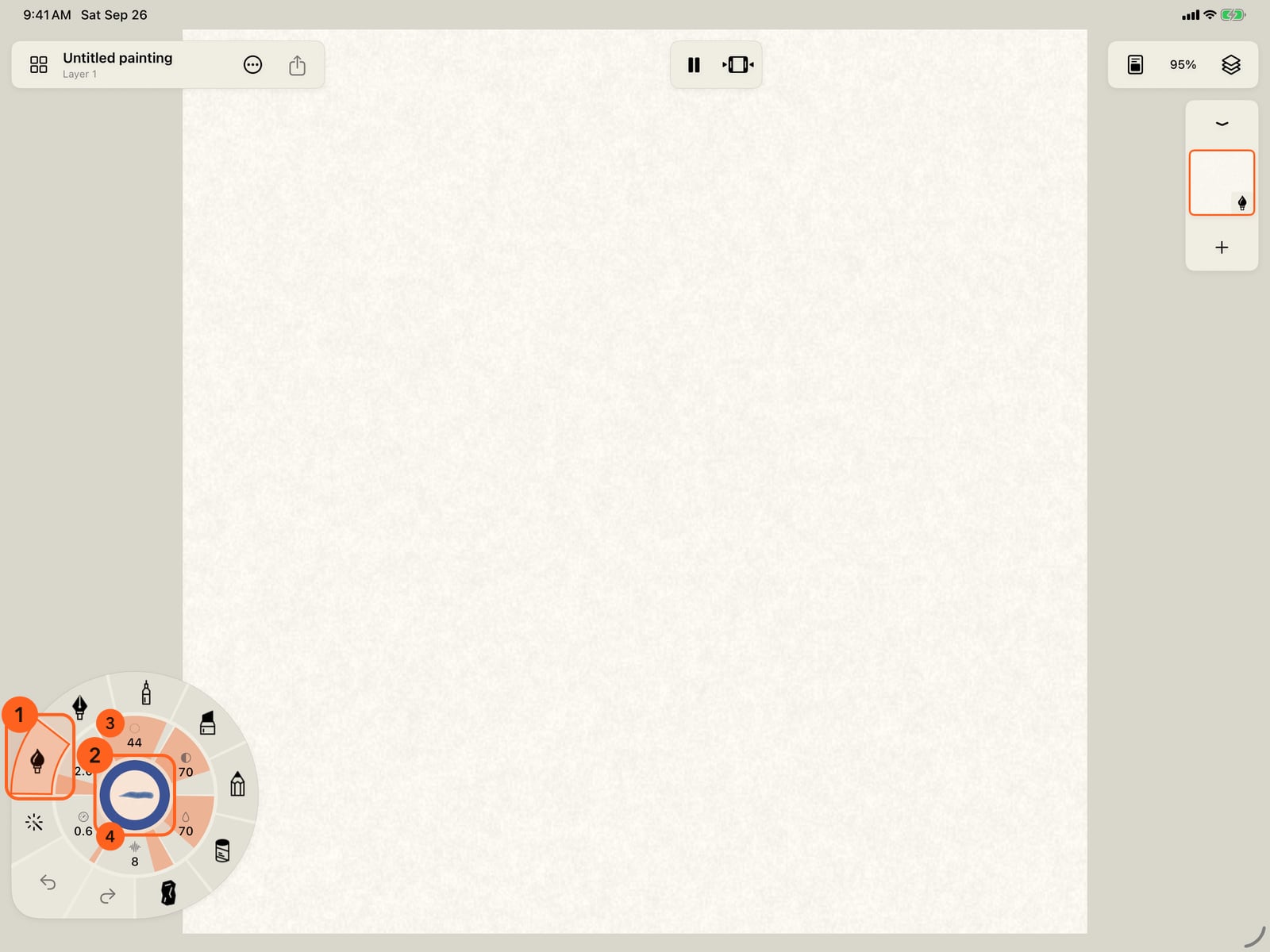
Every stroke you paint has three parts. Paint is what you paint with, Marks is what the stroke leaves, and Motion is how the finished stroke moves. Unfold the wheel. The rim and the centre are paint, and so is the first half of the ring. The second half is motion.
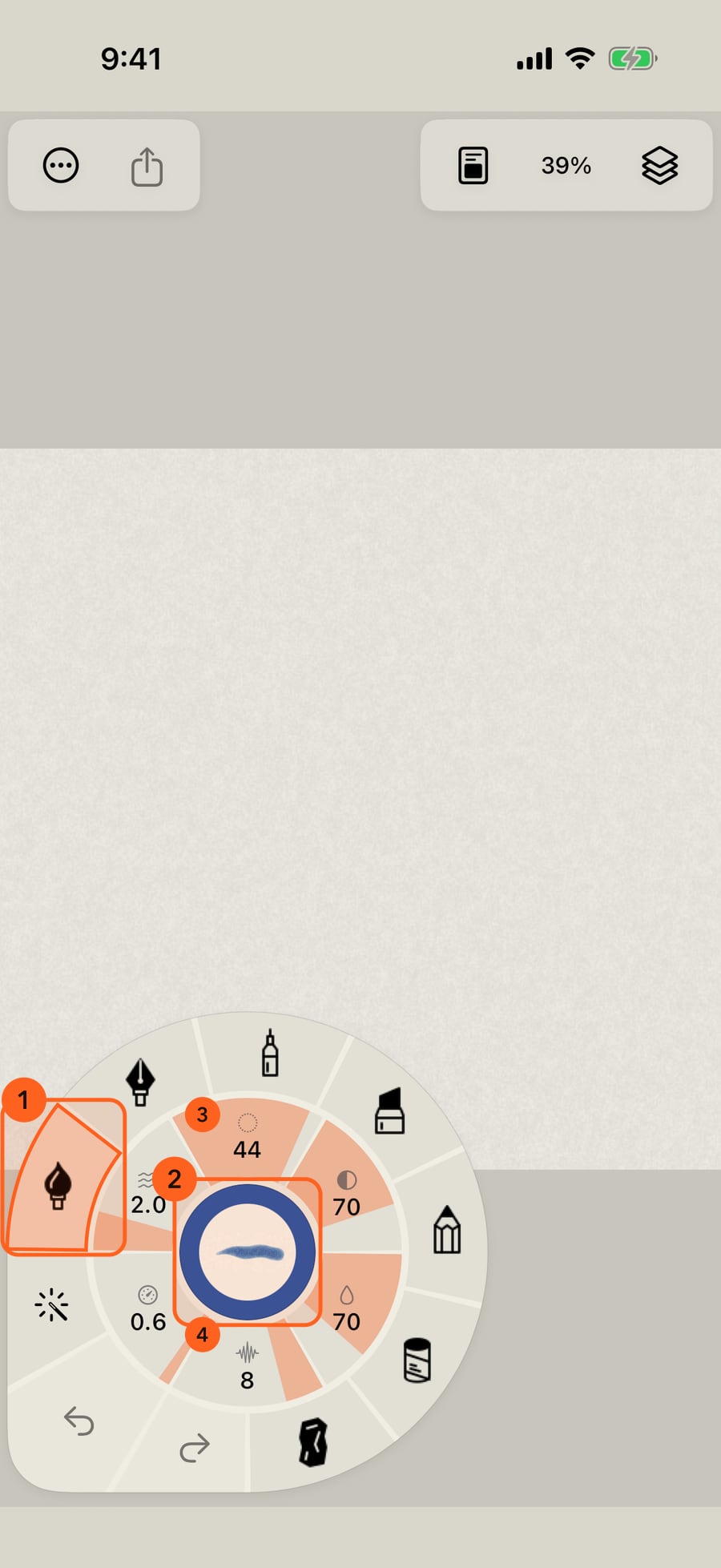
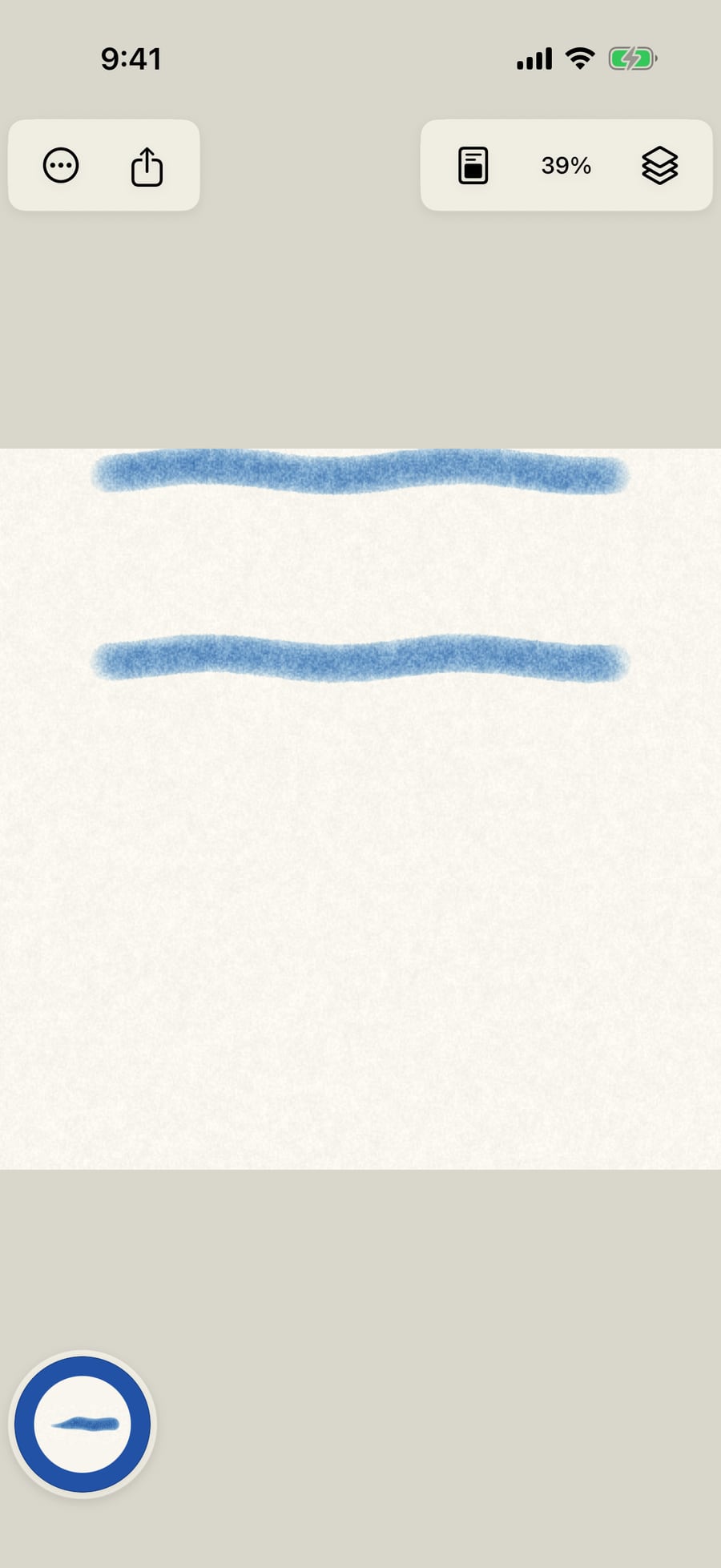
Paint first, on its own. Watercolor's Round, a plain Line, and no motion. Paint a stroke.
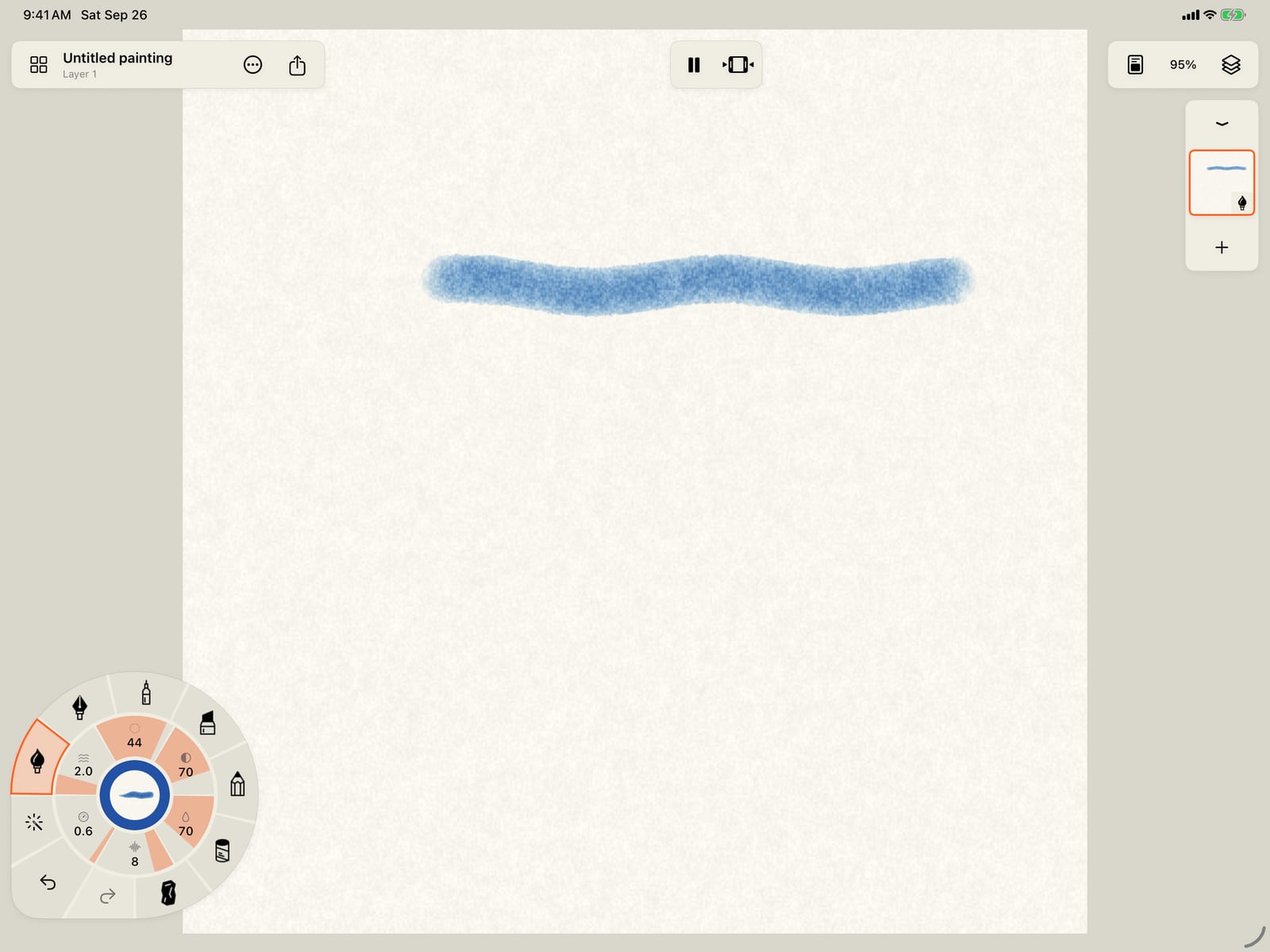
Paint first, on its own. Watercolor's Round, a plain Line, and no motion. Tap the page to fold the wheel, and paint a stroke.

Now motion. Tap Amount on the motion half of the ring, and every motion unfolds. Choose Wave.
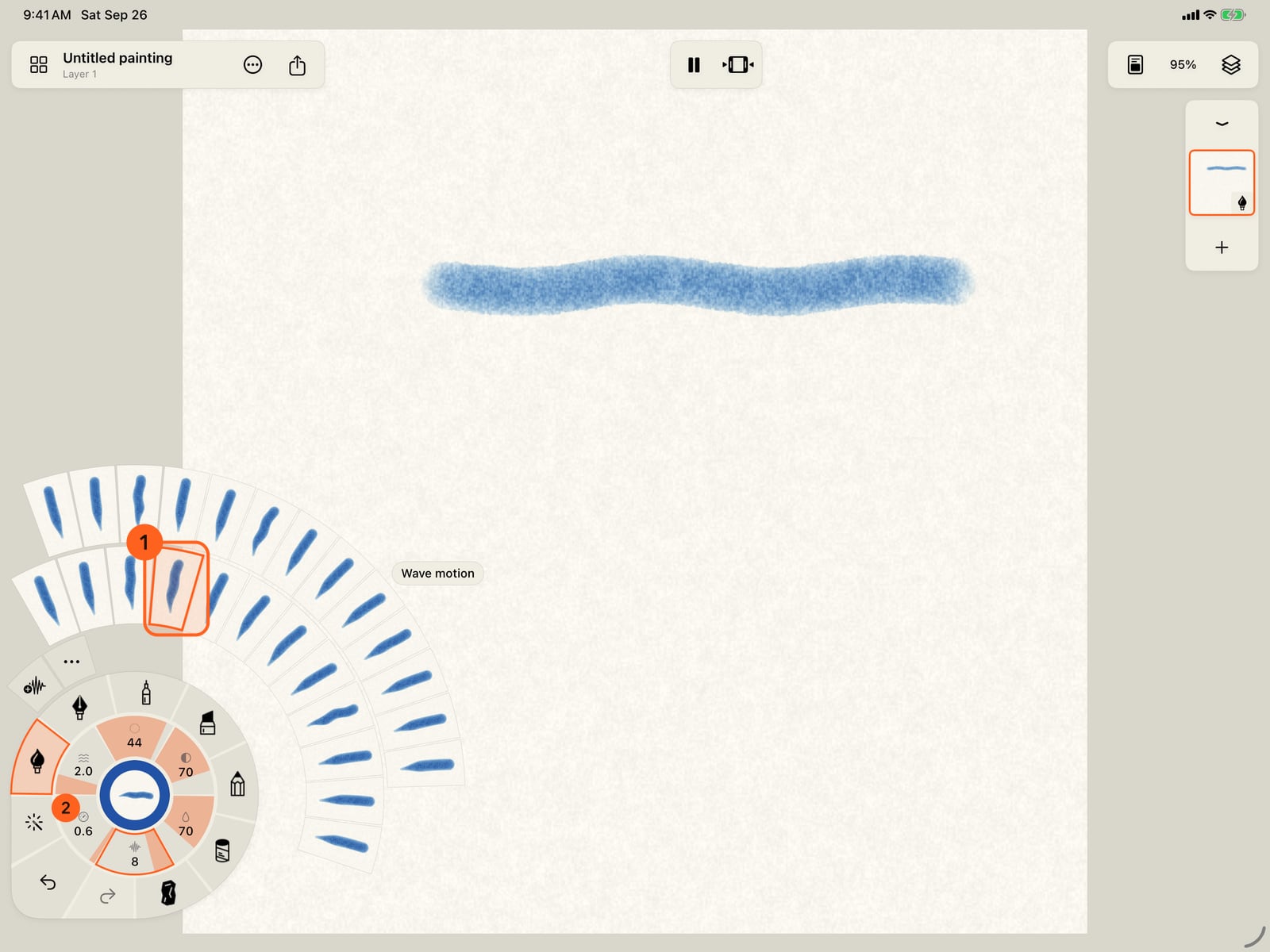
Now motion. Tap Amount on the motion half of the ring, and every motion unfolds. Choose Wave.
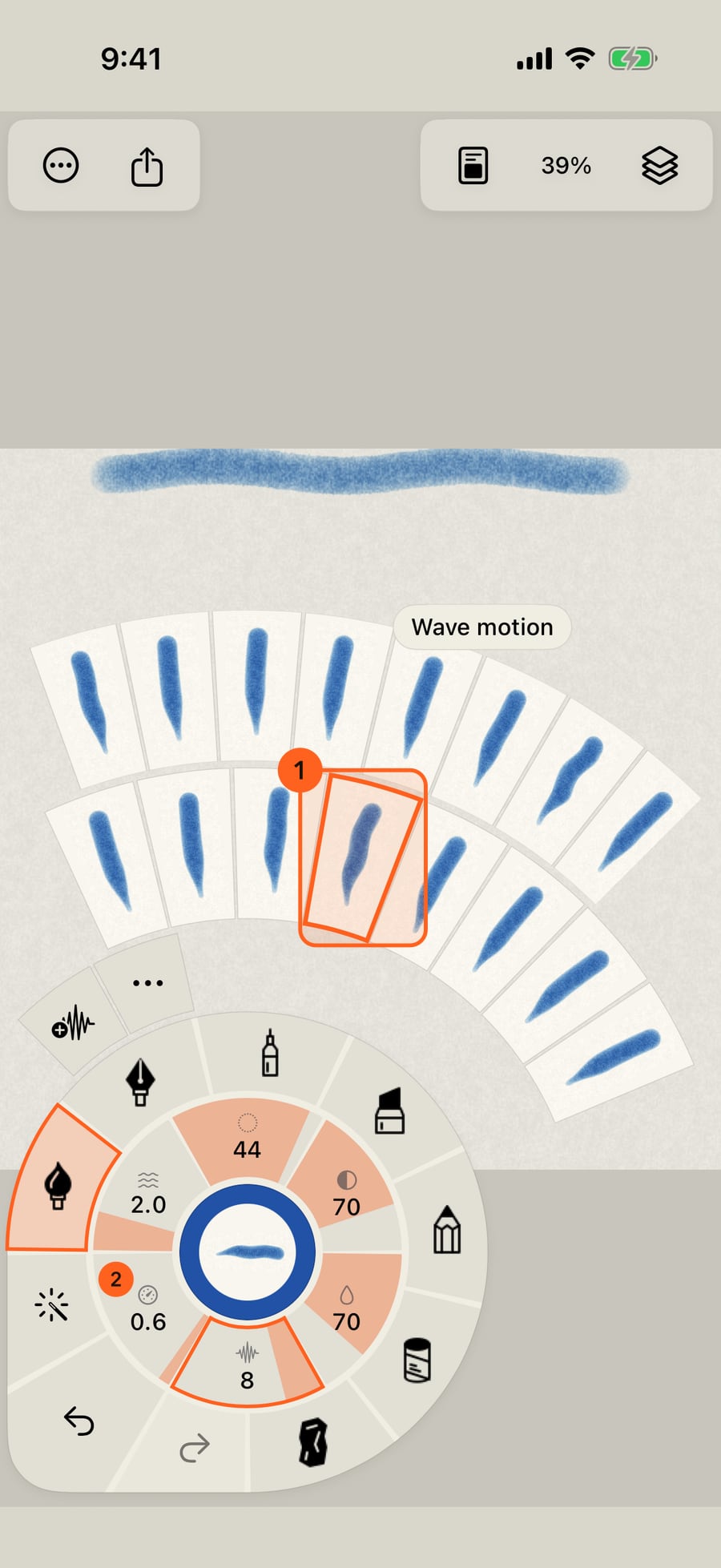
Now motion. Click Amount on the motion half of the ring, and every motion unfolds. Choose Wave.
Paint a second stroke. The same paint, and the same line, but the finished stroke now moves as a whole.
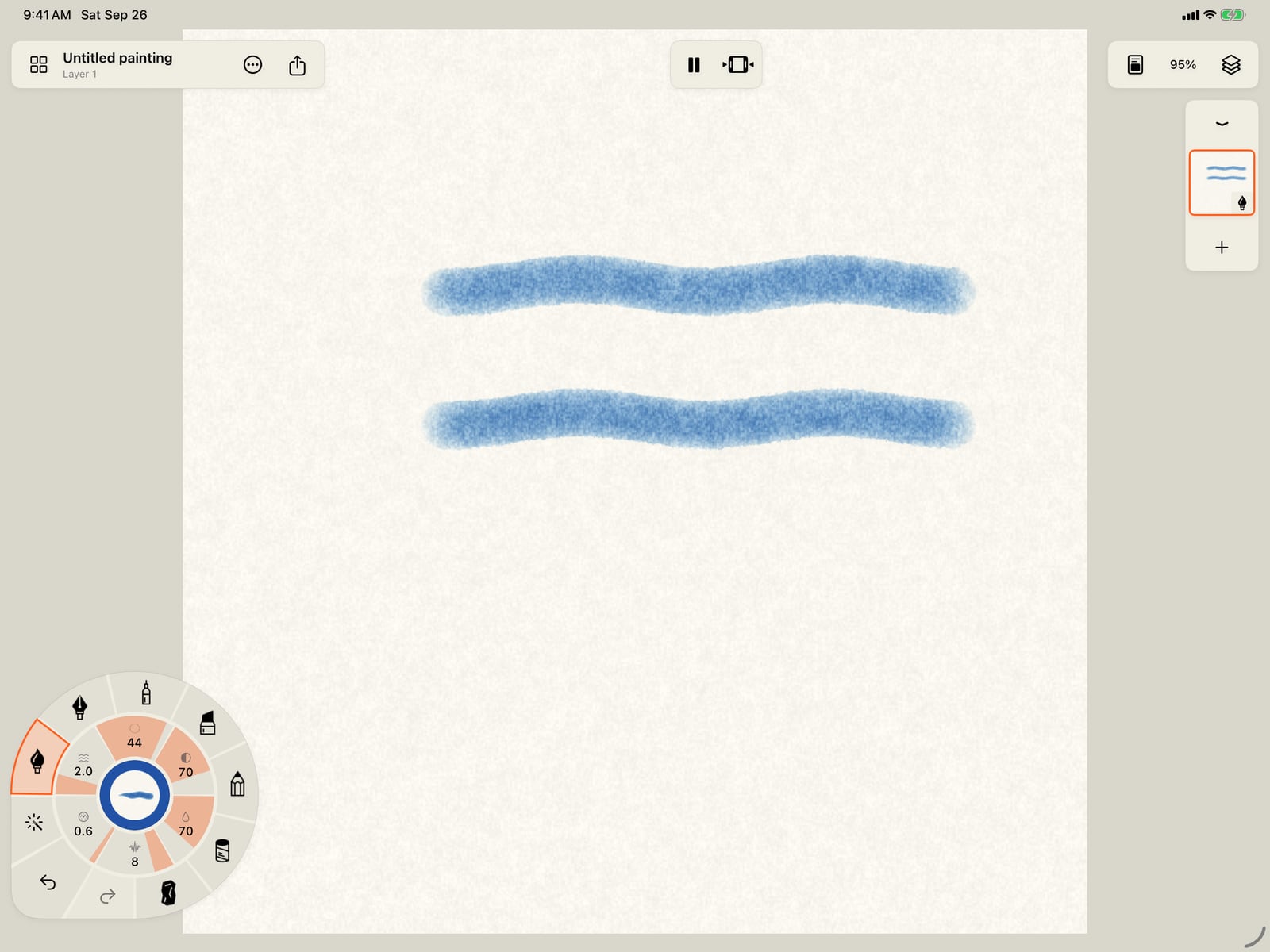
Paint a second stroke. The same paint, and the same line, but the finished stroke now moves as a whole.
Now marks. Tap Watercolor, the medium in hand, then Marks. Line is the plain stroke; then come Shapes, Hatching and effects. Choose Sky, then Clouds.
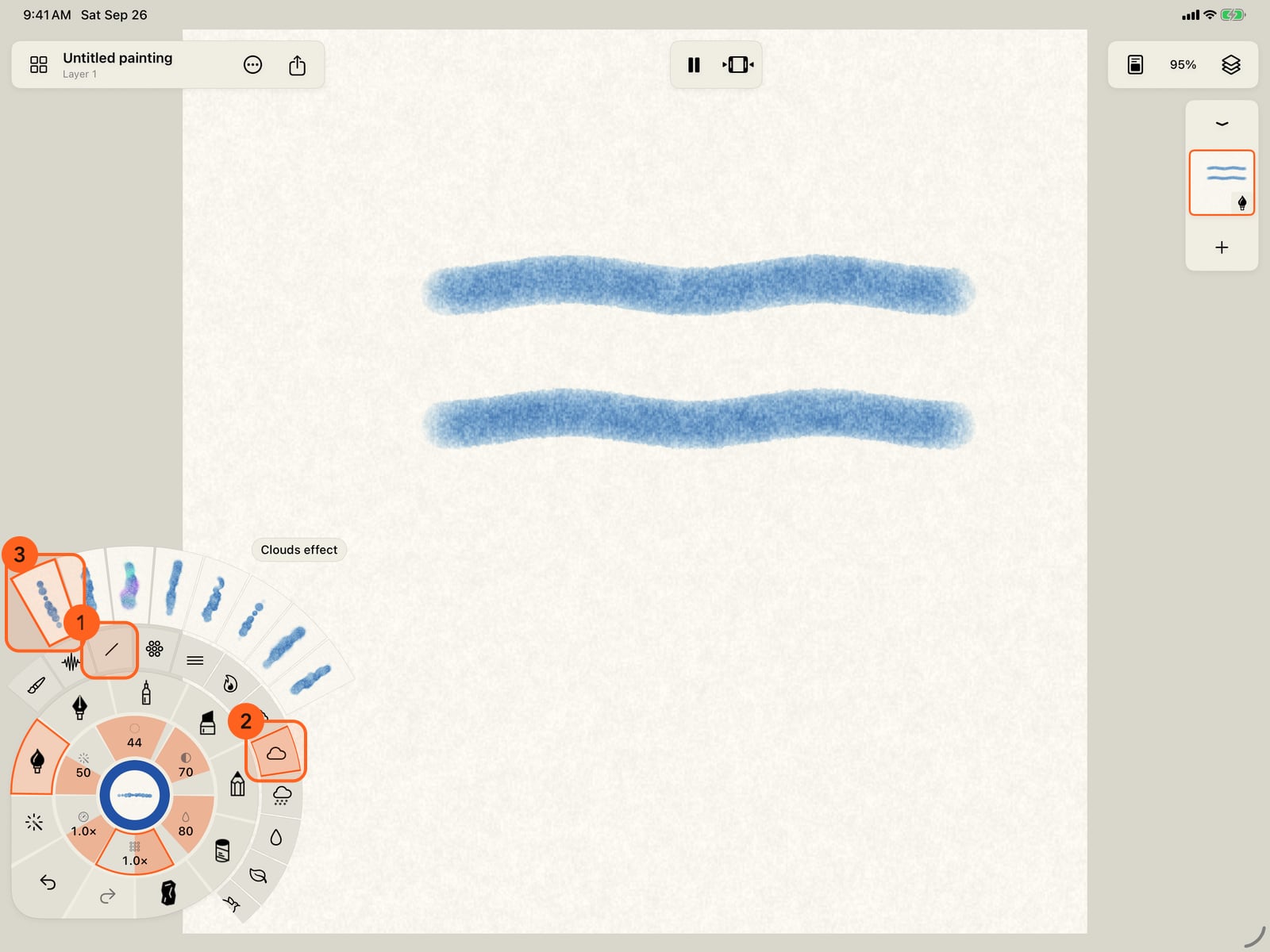
Now marks. Tap Watercolor, the medium in hand, then Marks. Line is the plain stroke; then come Shapes, Hatching and effects. Choose Sky, then Clouds.
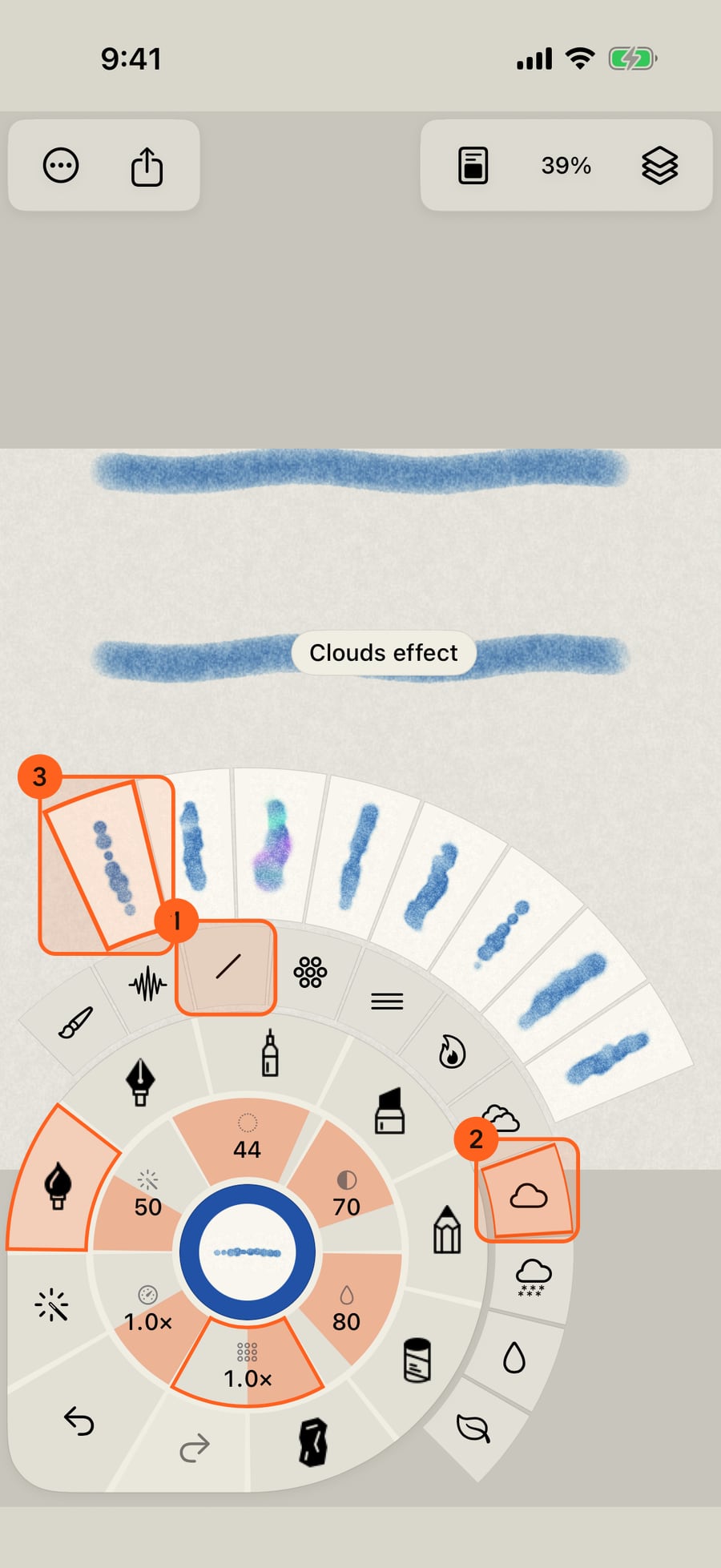
Now marks. Click Watercolor, the medium in hand, then Marks. Line is the plain stroke; then come Shapes, Hatching and effects. Choose Sky, then Clouds.
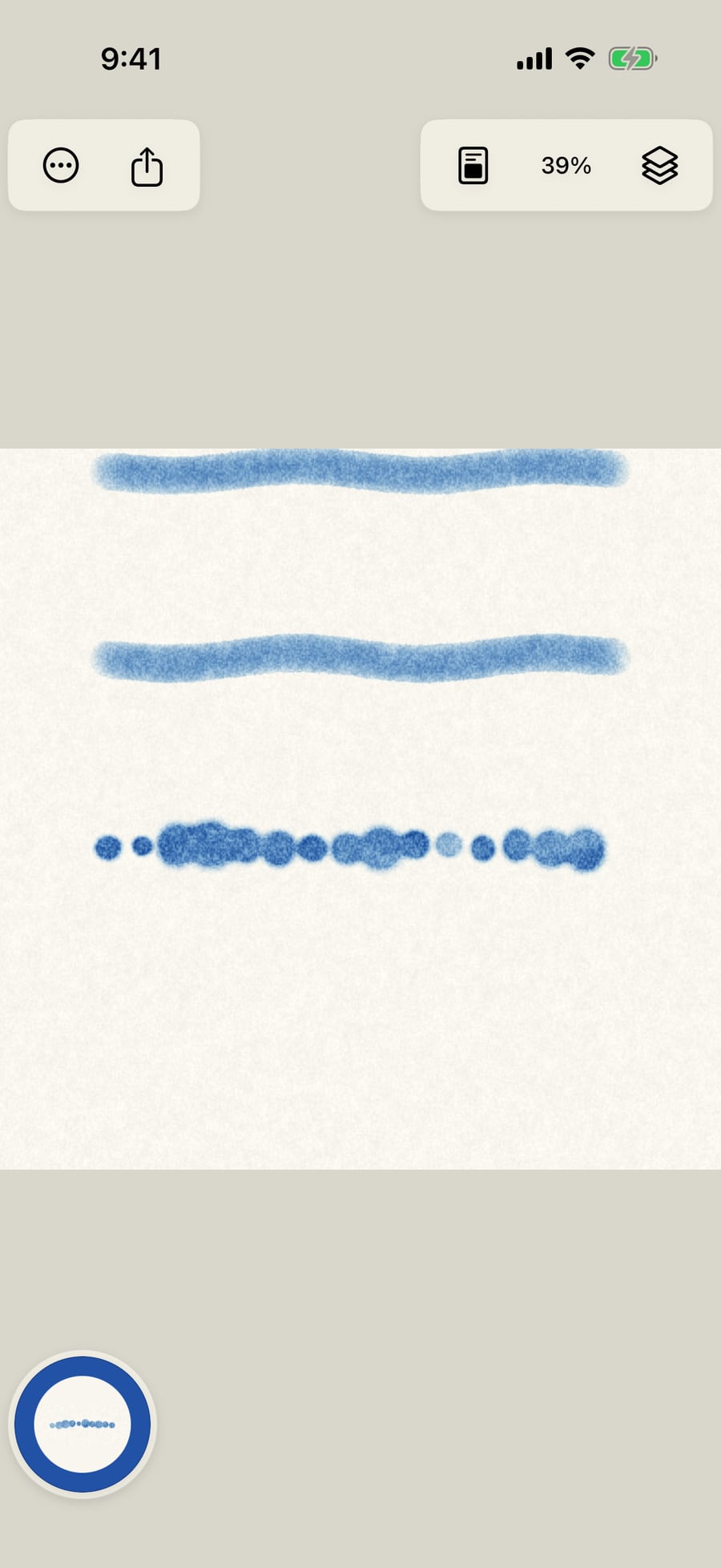
Paint a third stroke. The same paint again, but it leaves soft clouds instead of a line, and the clouds move on their own. Motion moves the whole stroke; marks move inside it.
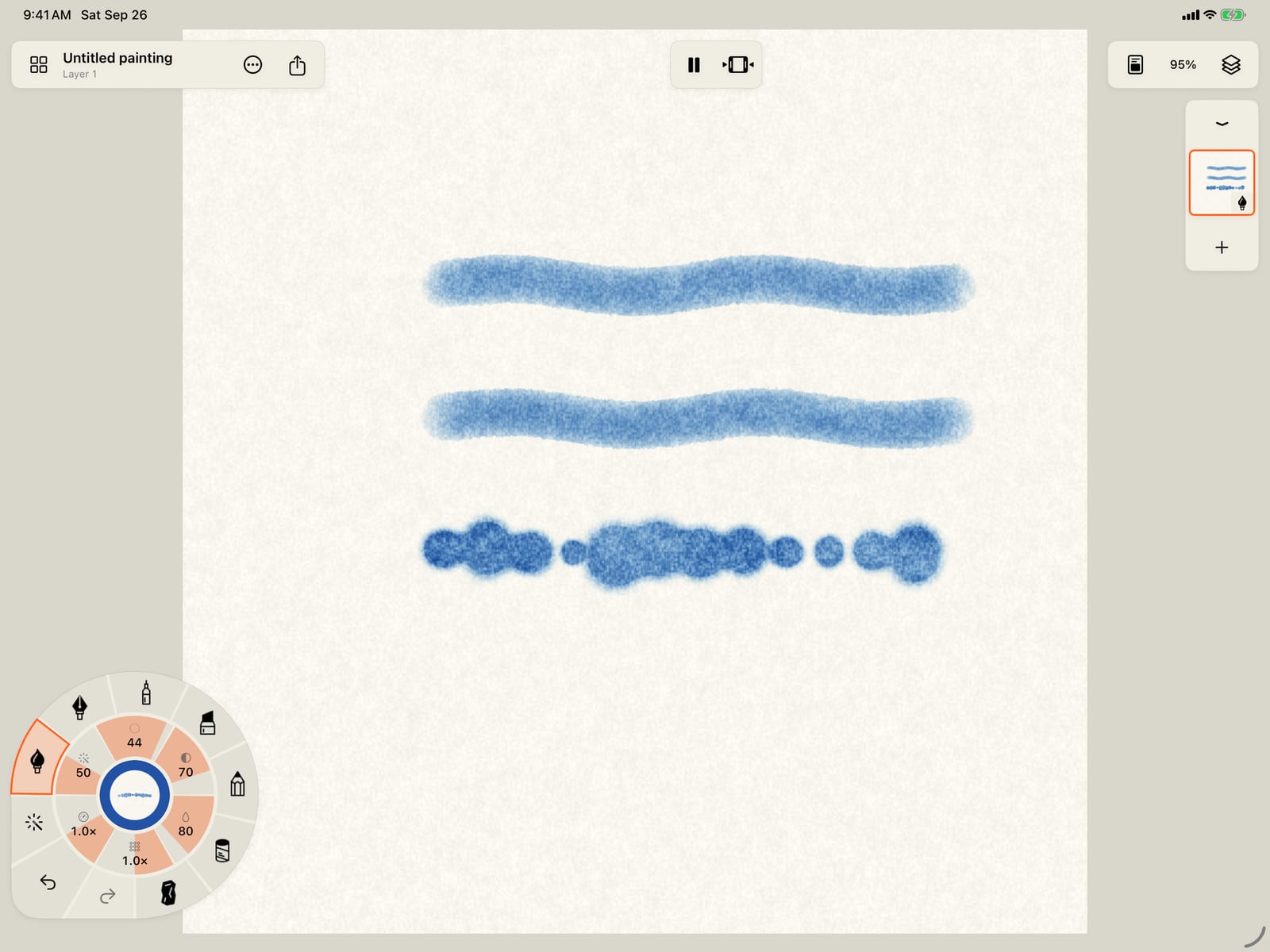
Paint a third stroke. The same paint again, but it leaves soft clouds instead of a line, and the clouds move on their own. Motion moves the whole stroke; marks move inside it.
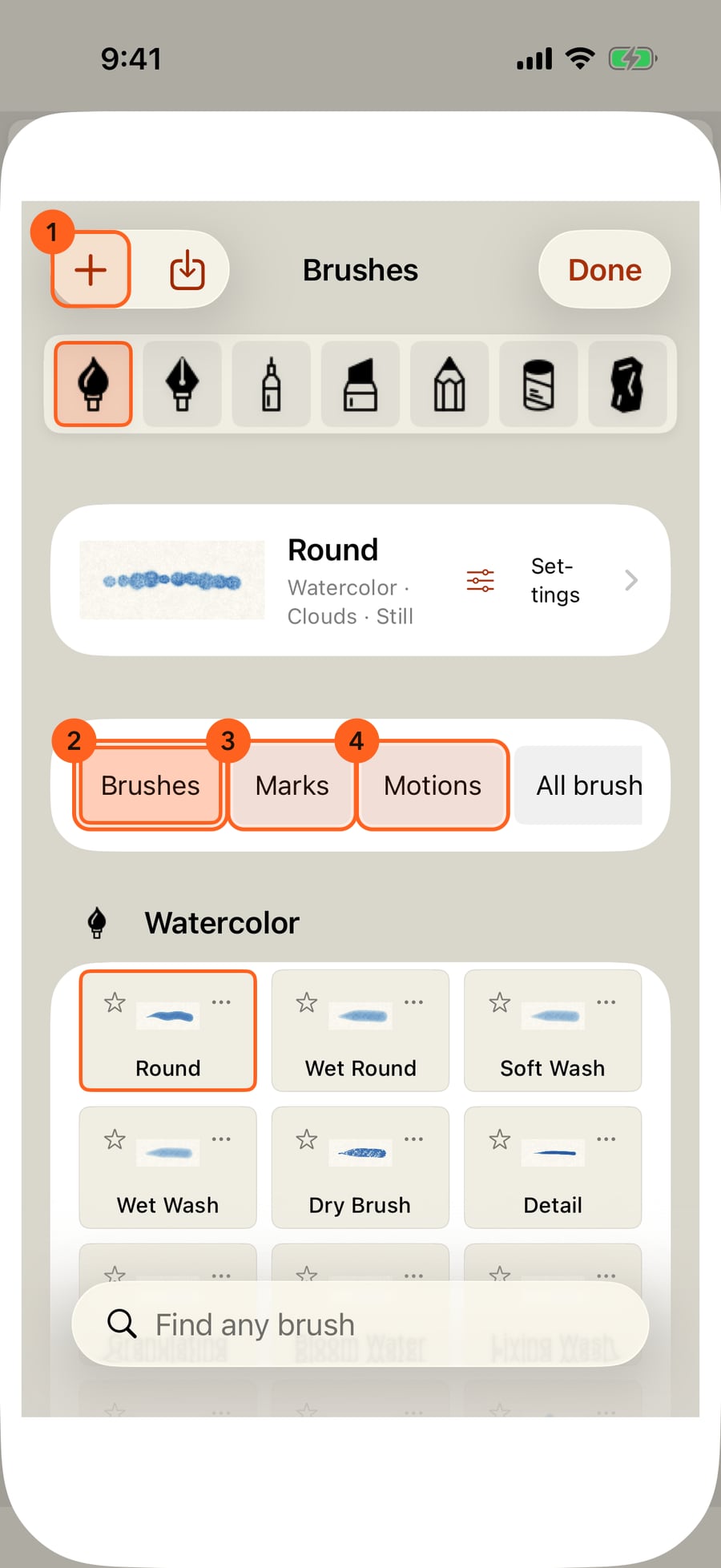
A brush is a recipe for all three. In All brushes, Save current brush keeps the paint, marks and motion in hand as your own brush, and the library is sorted the same way, with Brushes, Marks and Motions.
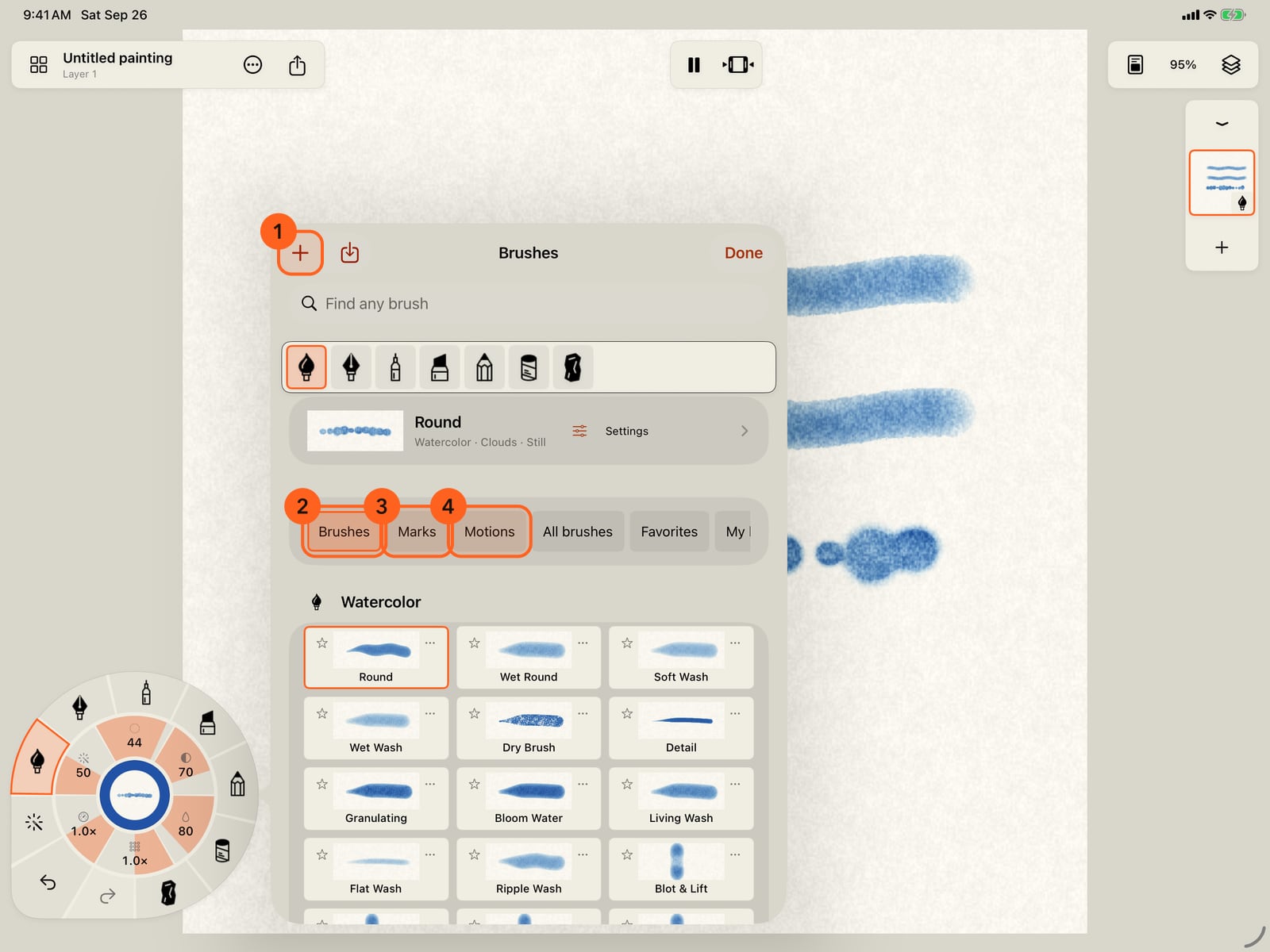
A brush is a recipe for all three. In All brushes, Save current brush keeps the paint, marks and motion in hand as your own brush, and the library is sorted the same way, with Brushes, Marks and Motions.
Paint, Marks and Motion
Every stroke in Doodly Doodle has three parts, and a brush is a saved recipe of all three.
| Part | What it is | Examples |
|---|---|---|
| Paint | What you paint with | The medium (watercolor, ink, pen, marker, graphite, pastel, charcoal), colour, size, strength, water, the paint's material and the Pencil tip |
| Marks | What each stroke leaves | A Line, or Shapes, Hatching or an Effect laid along what you draw, and how those marks move inside the stroke |
| Motion | How the whole finished stroke moves | Wave, Wind, Heartbeat, Random redraw and more, how far and how fast, anchors and combined motions |
Motion moves the whole stroke; marks move inside it. A cloud stroke with Wave motion sways as a whole while each cloud billows on its own.
Build things in layers, like paint. Each stroke is one colour. A fire is a red flame, then an orange one over it, then a small yellow core, each with its own strength. Change one part between strokes and keep the others.
Where each part lives
| Paint | Marks | Motion | |
|---|---|---|---|
| The wheel | The rim (media) 1, the centre (colour) 2, and the first half of the ring: Size, Strength, Water 3 | Tap the medium in hand, then Marks. With an effect in hand, the second half of the ring is the effect's own gauges | The second half of the ring: Amount, Speed, Pattern 4. Tap one for every motion |
| The brush's settings (tap a gauge) | The Paint section | The Marks section | The Motion section |
| Brush Studio | The Paint page, with the tip and material | The Marks page | The Motion page |
| The library | Brushes: each medium's own | Marks: every mark, for the brush in hand | Motions: every motion, for the brush in hand |
| A painted stroke (Tools → Select stroke) | Paint | Marks | Motion |
Each section of the brush's settings has More, which opens Brush Studio on that part's page.
Your brushes
Change any part, then keep the result: Save current brush in the library, or Save copy in Brush Studio. Your brushes are in My brushes, and on the wheel with the medium's own. A brush you save keeps its colour; a built-in brush takes the colour in hand.
Words
| Word | Meaning |
|---|---|
| Medium | The kind of paint, and the kind of layer it paints on. See The seven media. |
| Brush | A recipe of paint, marks and motion, with a name. |
| Tool | A brush that works on paint already down instead of adding it: Lift, Smudge, Water, the Eraser. |
| Marks | What a stroke leaves: a Line, Shapes, Hatching or an Effect. See Marks. |
| Effect | Marks that live on their own: fire, smoke, clouds, snow, water and more. See Effects. |
| Look | One version of an effect, such as Torch or Gas flame for fire. |
| Motion | How the finished stroke moves. See Add motion. |
| Paint motion | A tool that brushes motion onto strokes already painted. See Paint motion. |
| Pencil | What pressure, tilt, direction and drawing speed do: to the tip in Paint, and to each effect in Marks. |
| Layer | Strokes of one medium, stacked. See Layers. |
On iPhone the wheel rests folded. Tap it to unfold it, and tap the page to fold it before you paint.
Pro: Paint, Marks and Motion are Free in every medium. Pro adds every raw parameter, combined motions and brush files.
Something not behaving as expected?
Visit support or write to [email protected].