

Guides / Settings and Pro
Larger previews
Inspect brushes, marks and motions in a separate animated preview or magnify them under the pointer.
The library has animated previews for brushes, marks and motions. Inspecting one leaves your current brush selected.
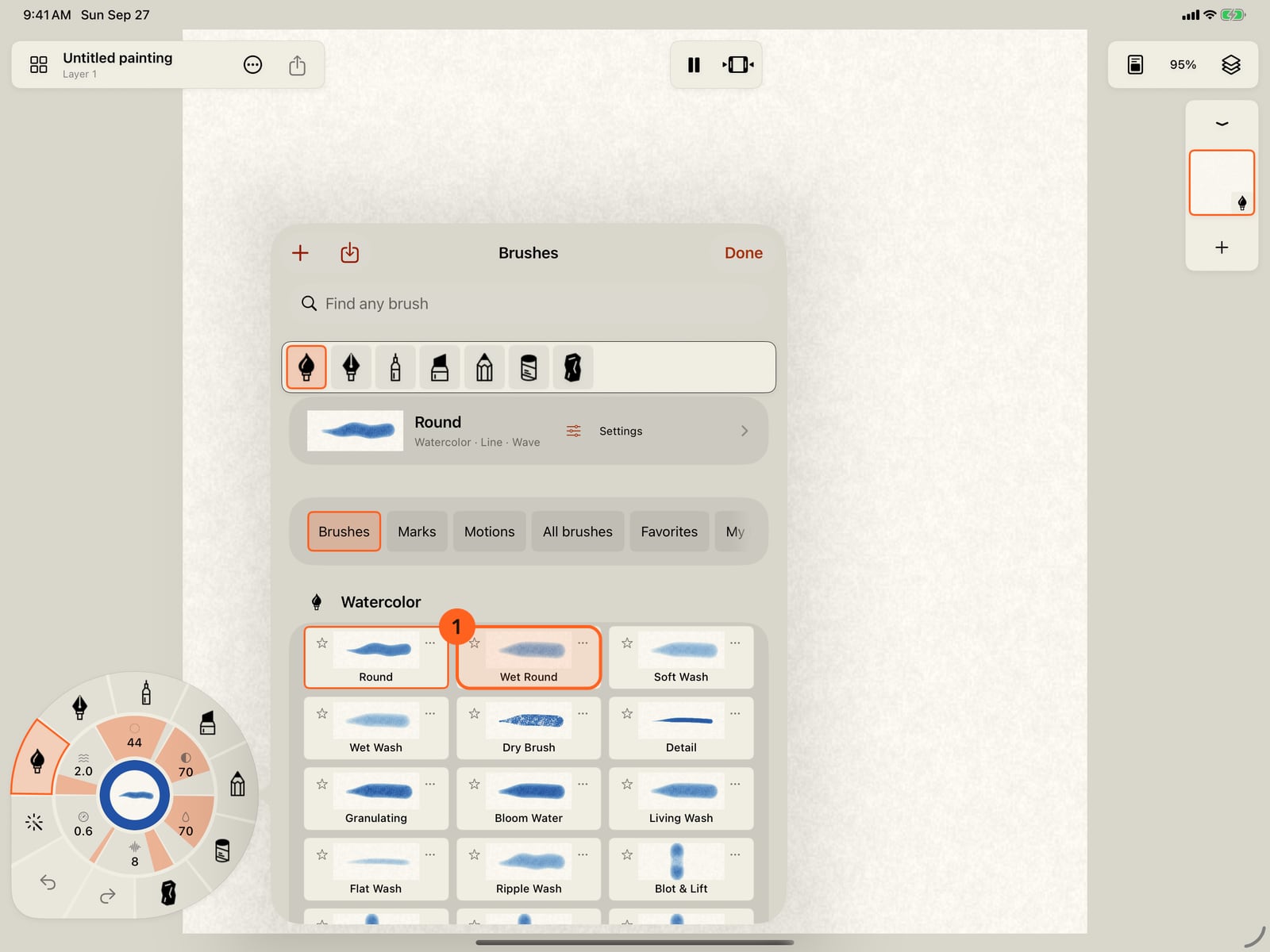
The library has animated previews for brushes, marks and motions. Inspecting one leaves your current brush selected.
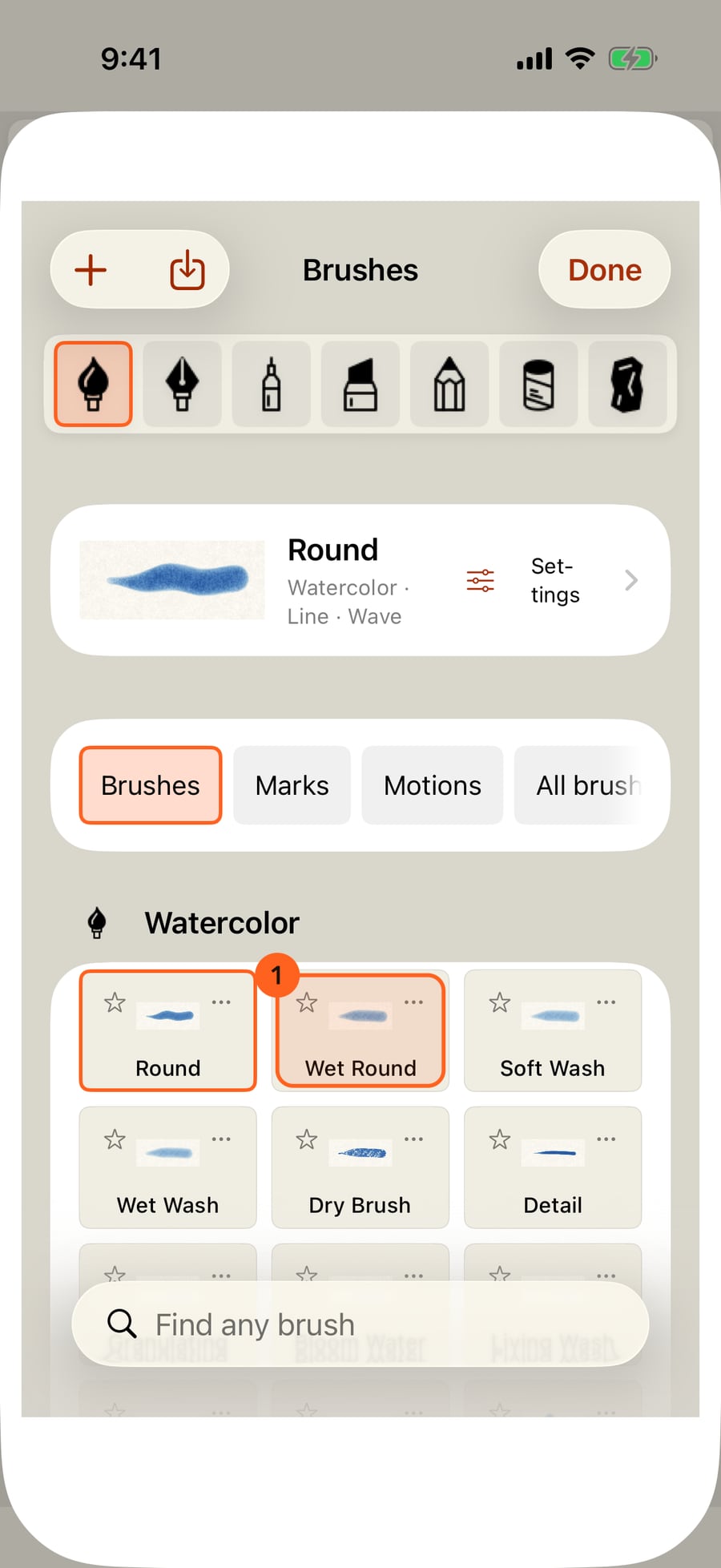
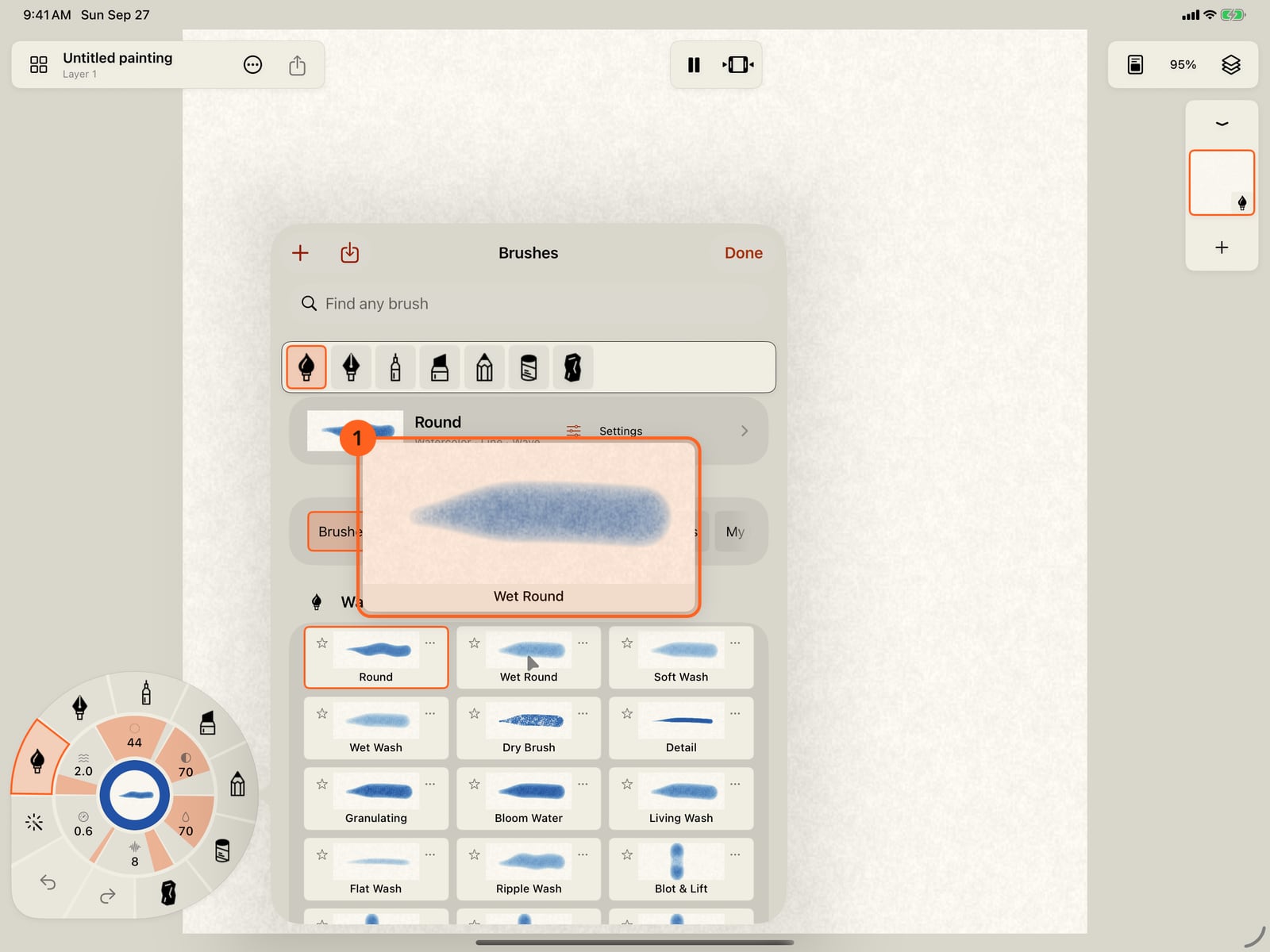
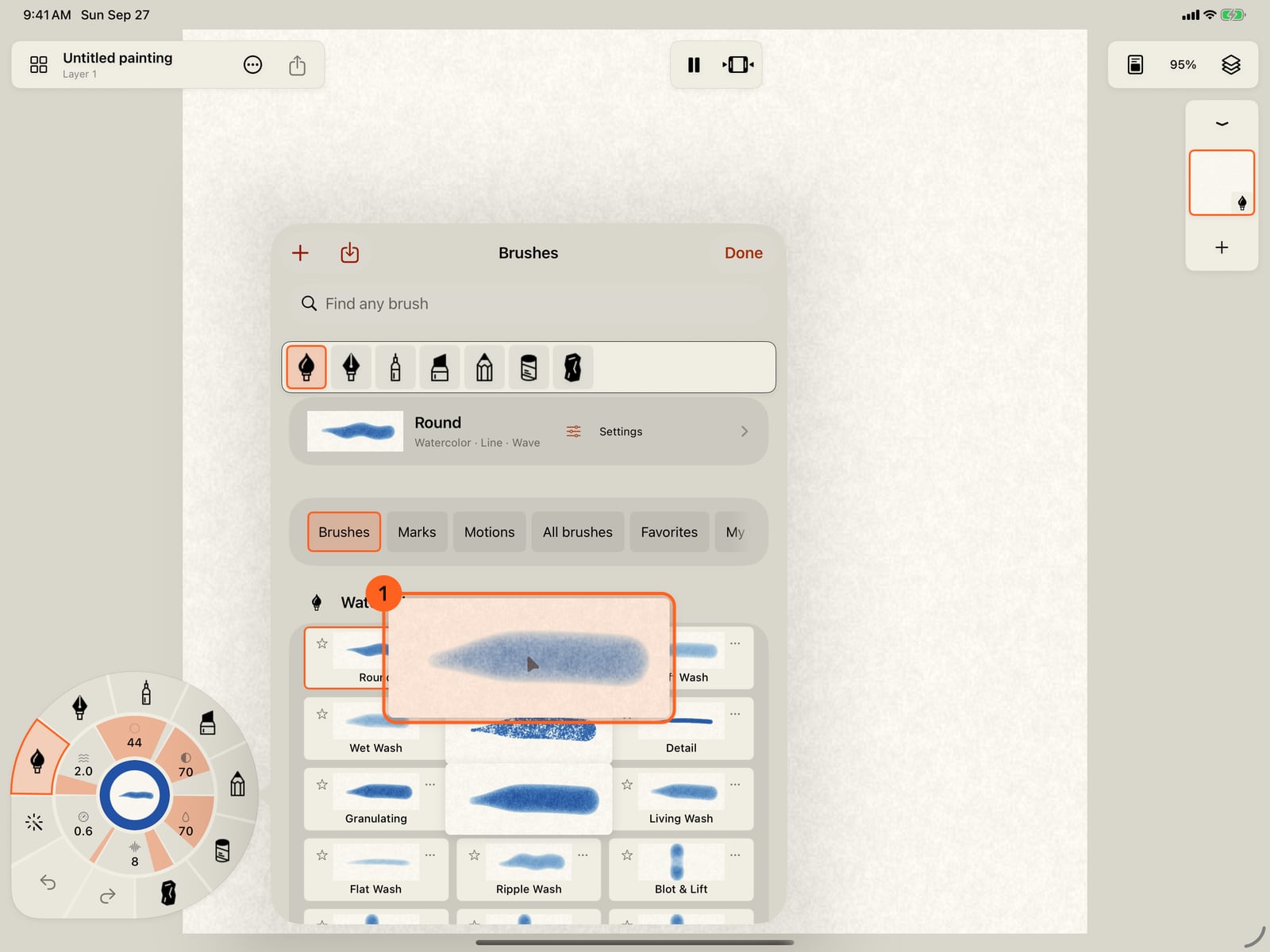
With a mouse or trackpad, hover over Wet Round to see a separate enlarged preview. It stays inside the window and leaves the controls in place.
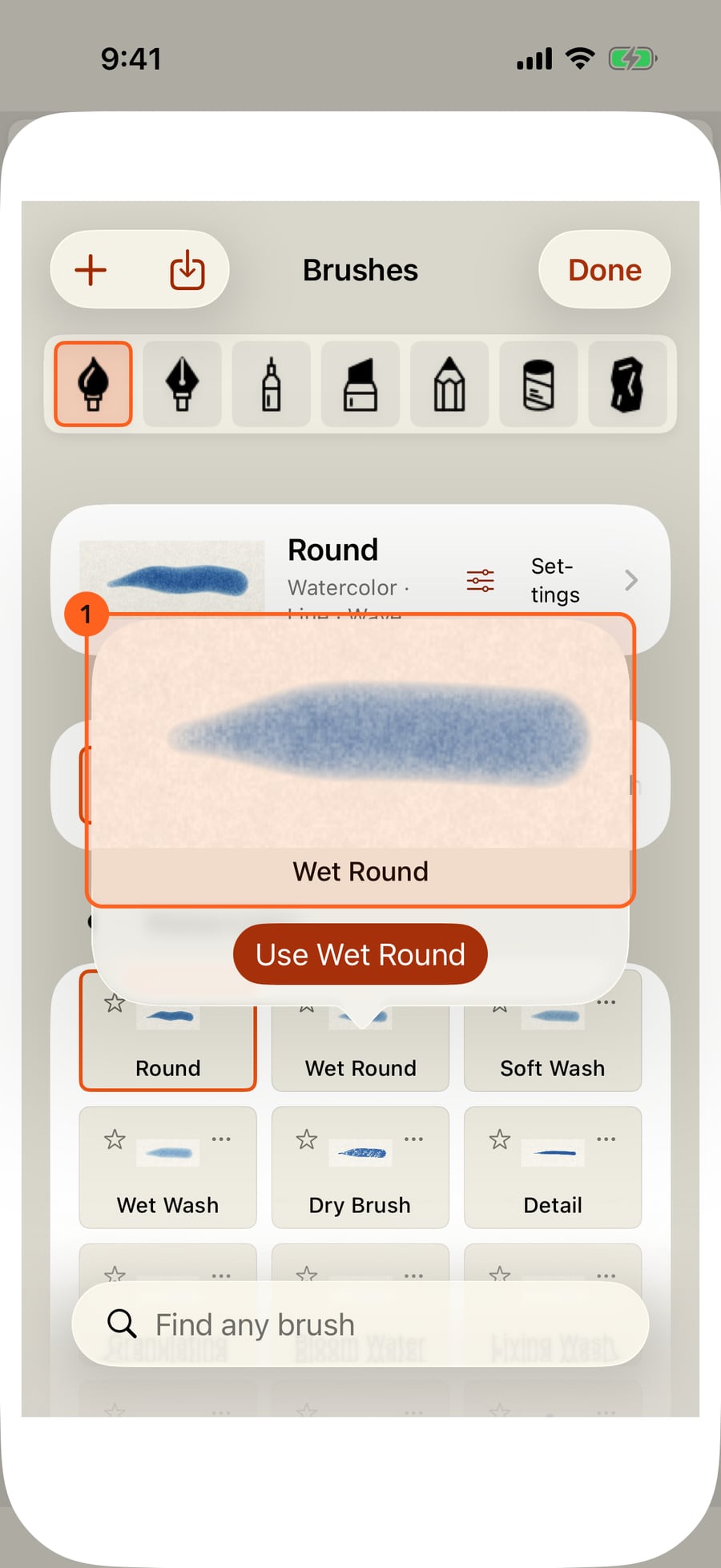
Press and hold Wet Round for a larger preview. The Use button applies it; simply looking does not change your brush.
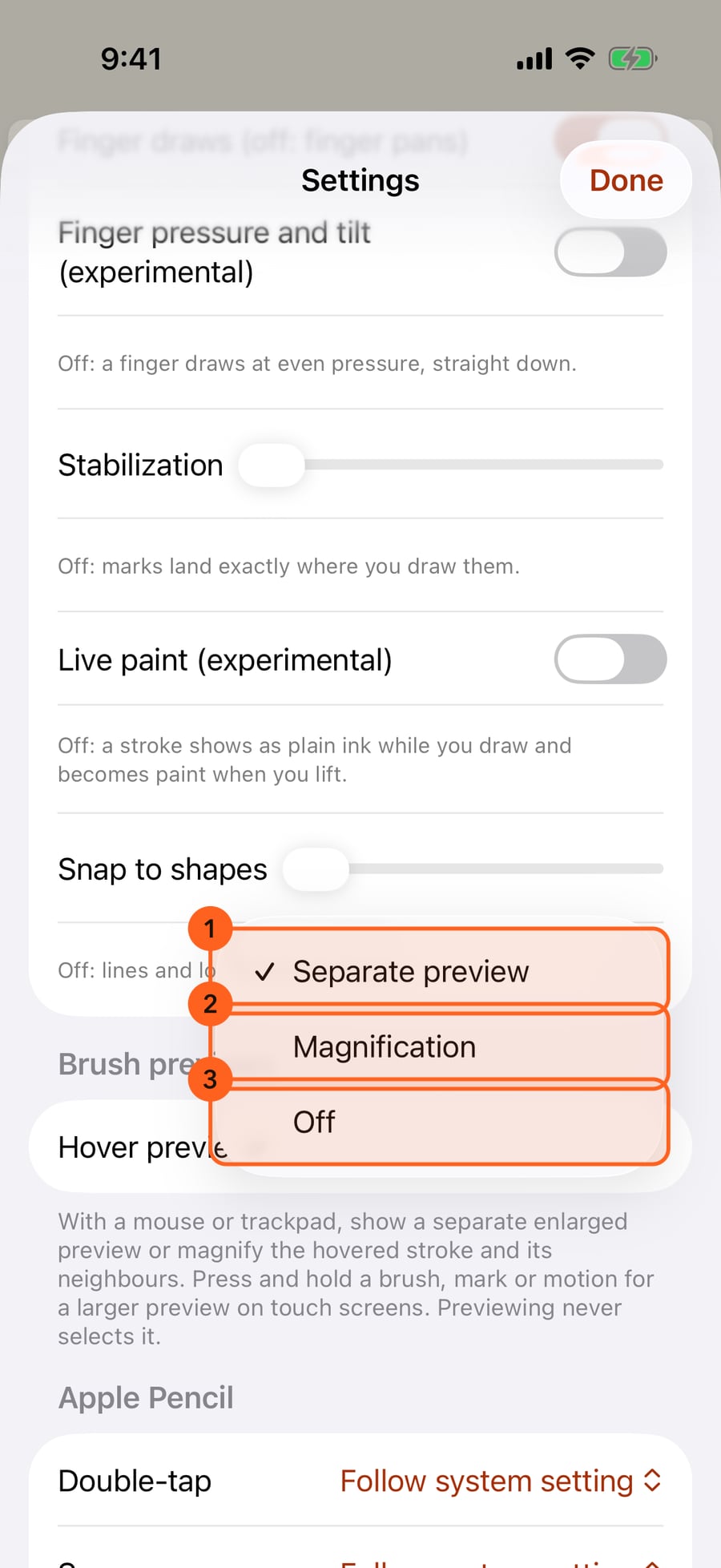
Settings has a Hover previews choice. Separate preview opens a card; Magnification enlarges the stroke and nearby previews in place. Off keeps the small previews.
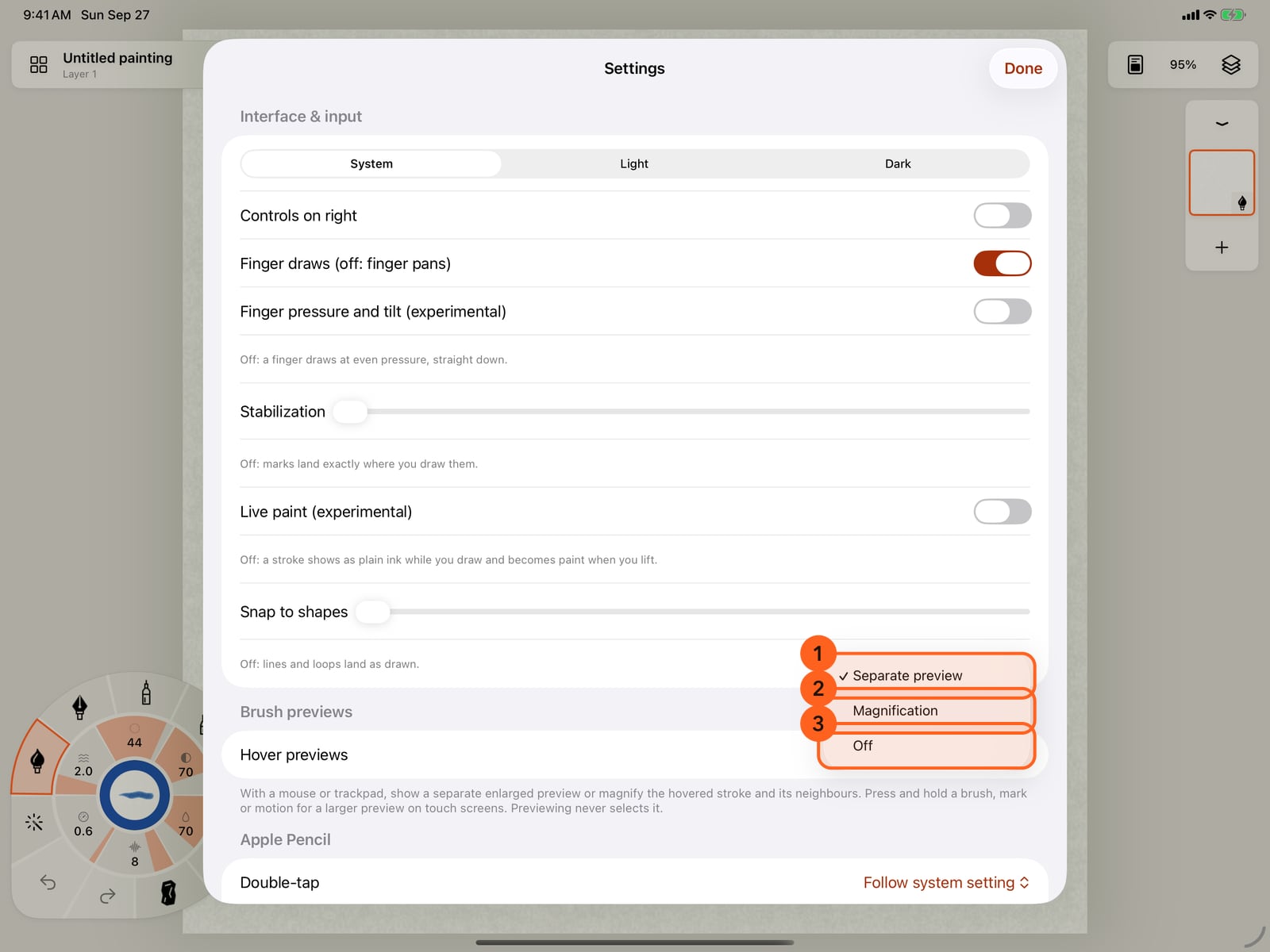
Settings has a Hover previews choice. Separate preview opens a card; Magnification enlarges the stroke and nearby previews in place. Off keeps the small previews.
Choose Magnification and return to the library. Hovering enlarges Wet Round and its closest neighbours. Click the original control to select it.
Choose Magnification for when you connect a mouse or trackpad. On touch screens, press and hold still gives a separate preview in any hover mode.
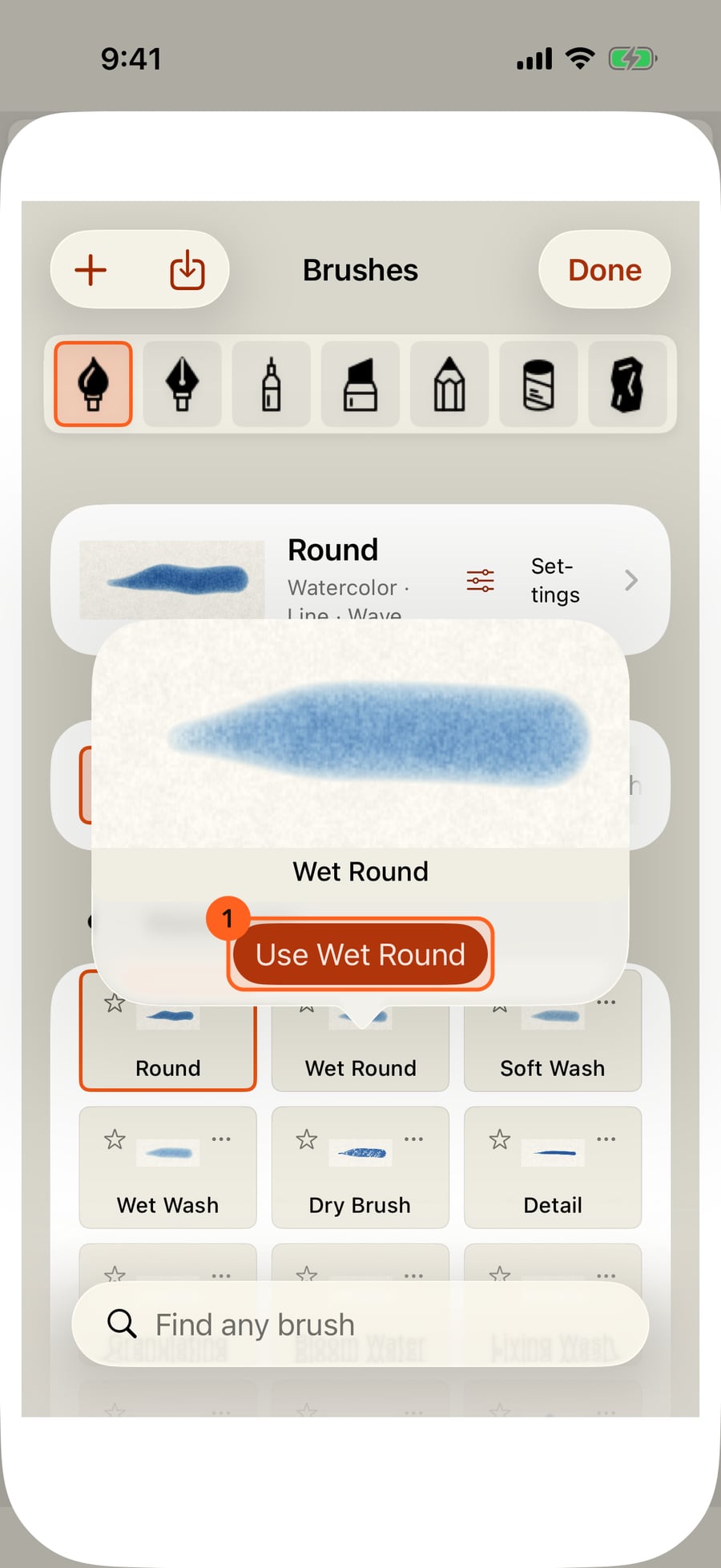
Choose Wet Round when you are ready. Previewing kept the old brush in hand until this selection; now the library closes with the new brush ready to paint.
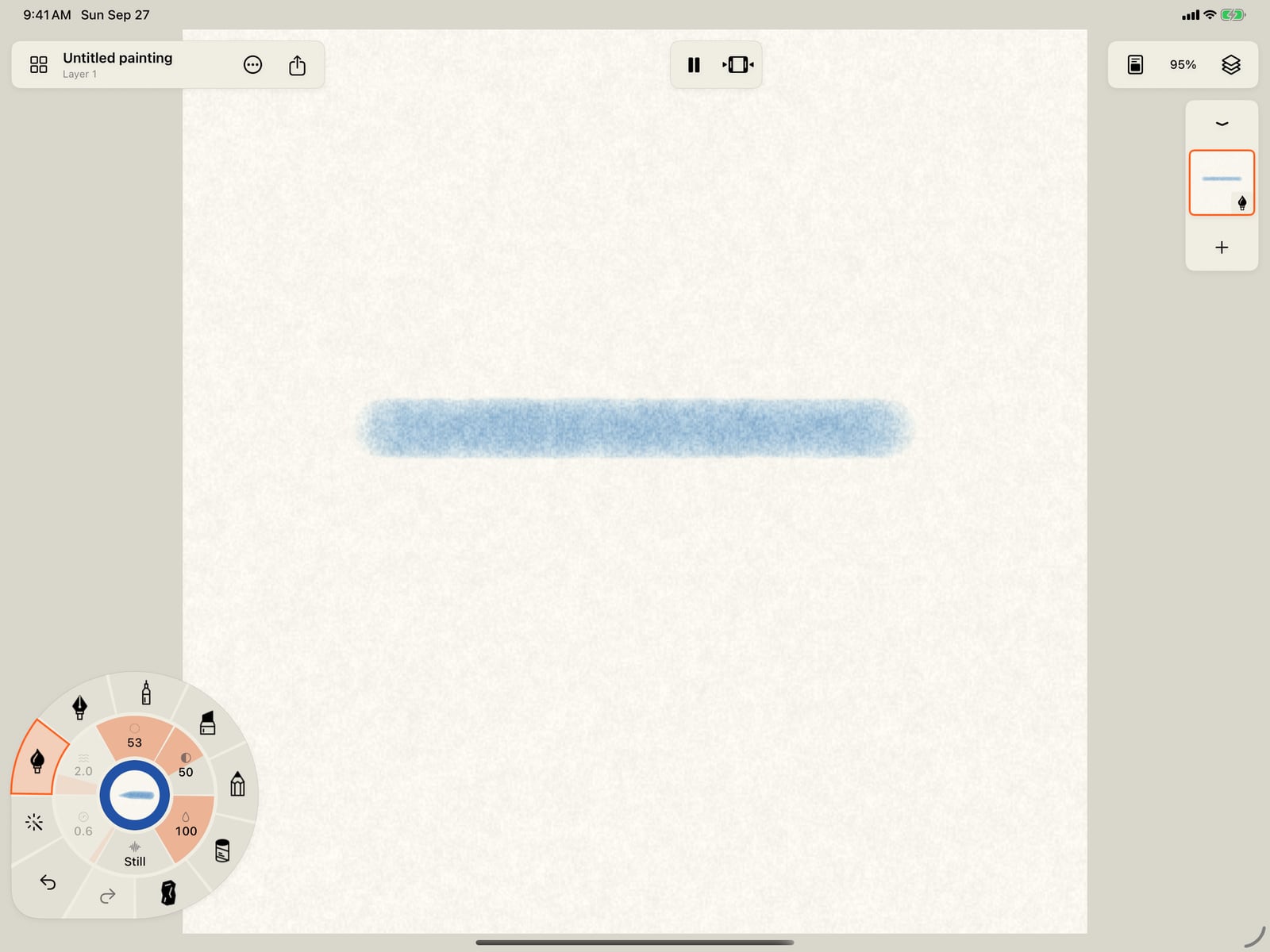
Choose Wet Round when you are ready. Previewing kept the old brush in hand until this selection; now the library closes with the new brush ready to paint.
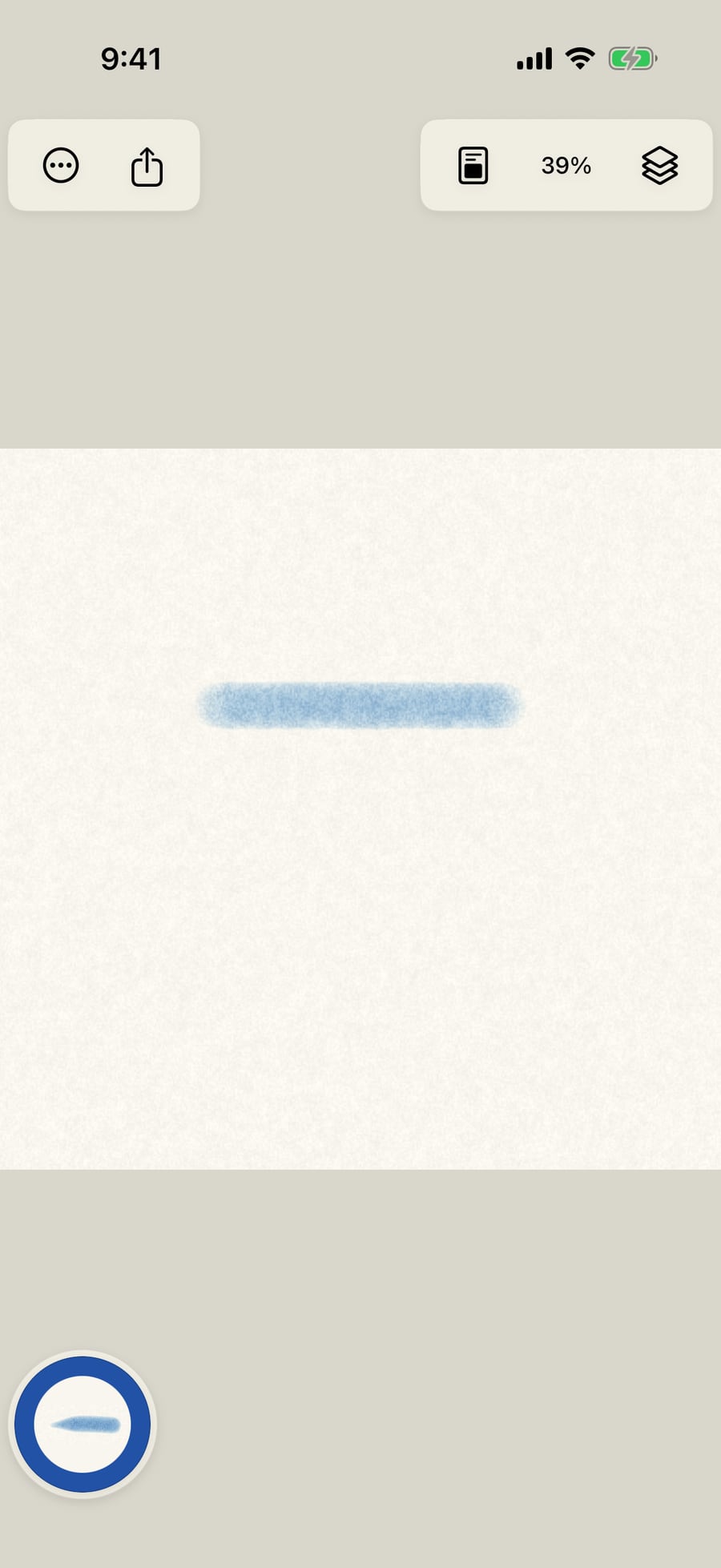
The wheel enlarges the whole wedge. Neighbouring wedges make room, and only the outer wedges above it move outward. Your selected brush stays the same.
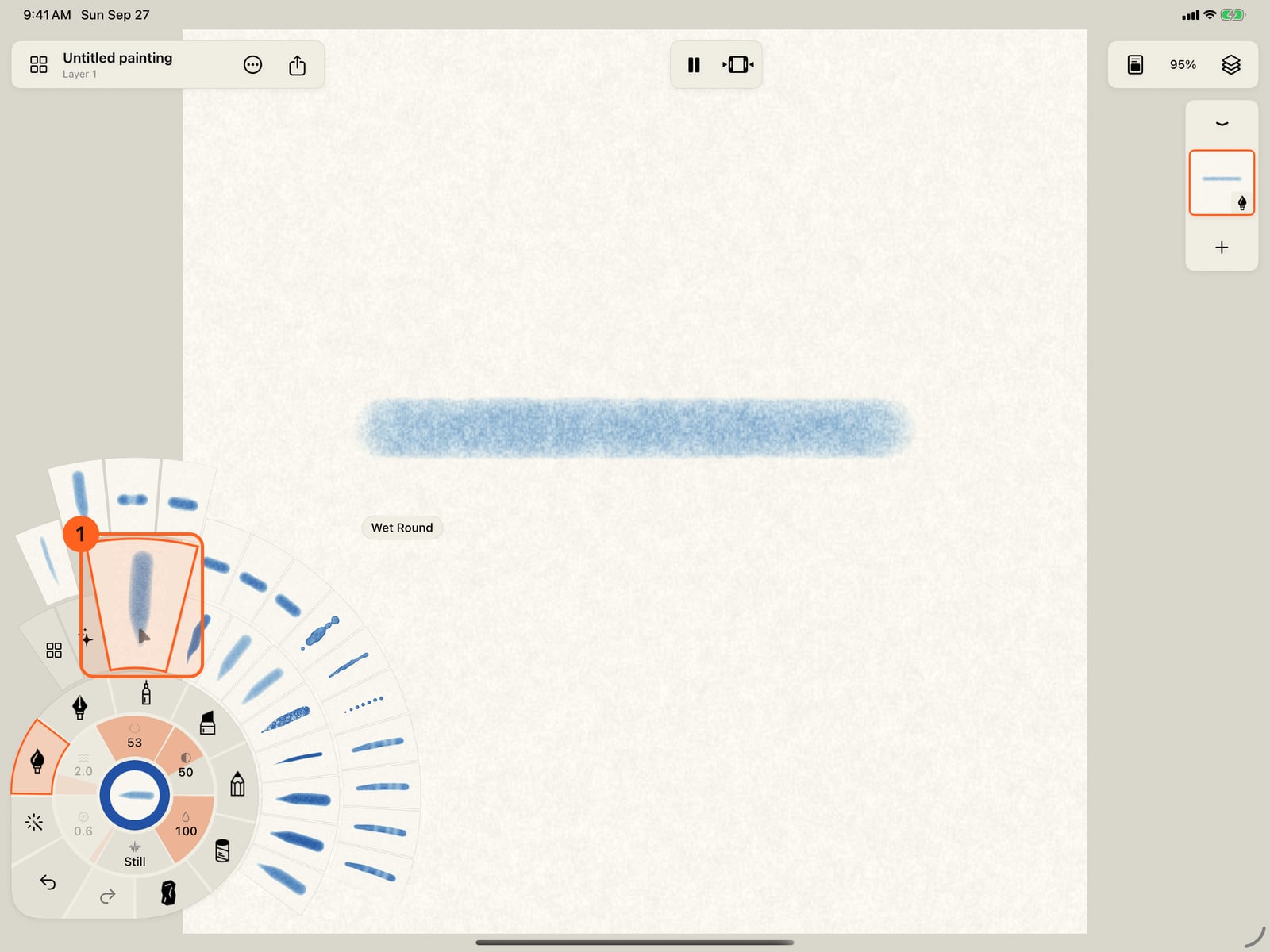
Move across the wheel and the enlargement follows like a wave. Earlier wedges settle back as the next ones expand. A faded end means there are more previews to scroll to.
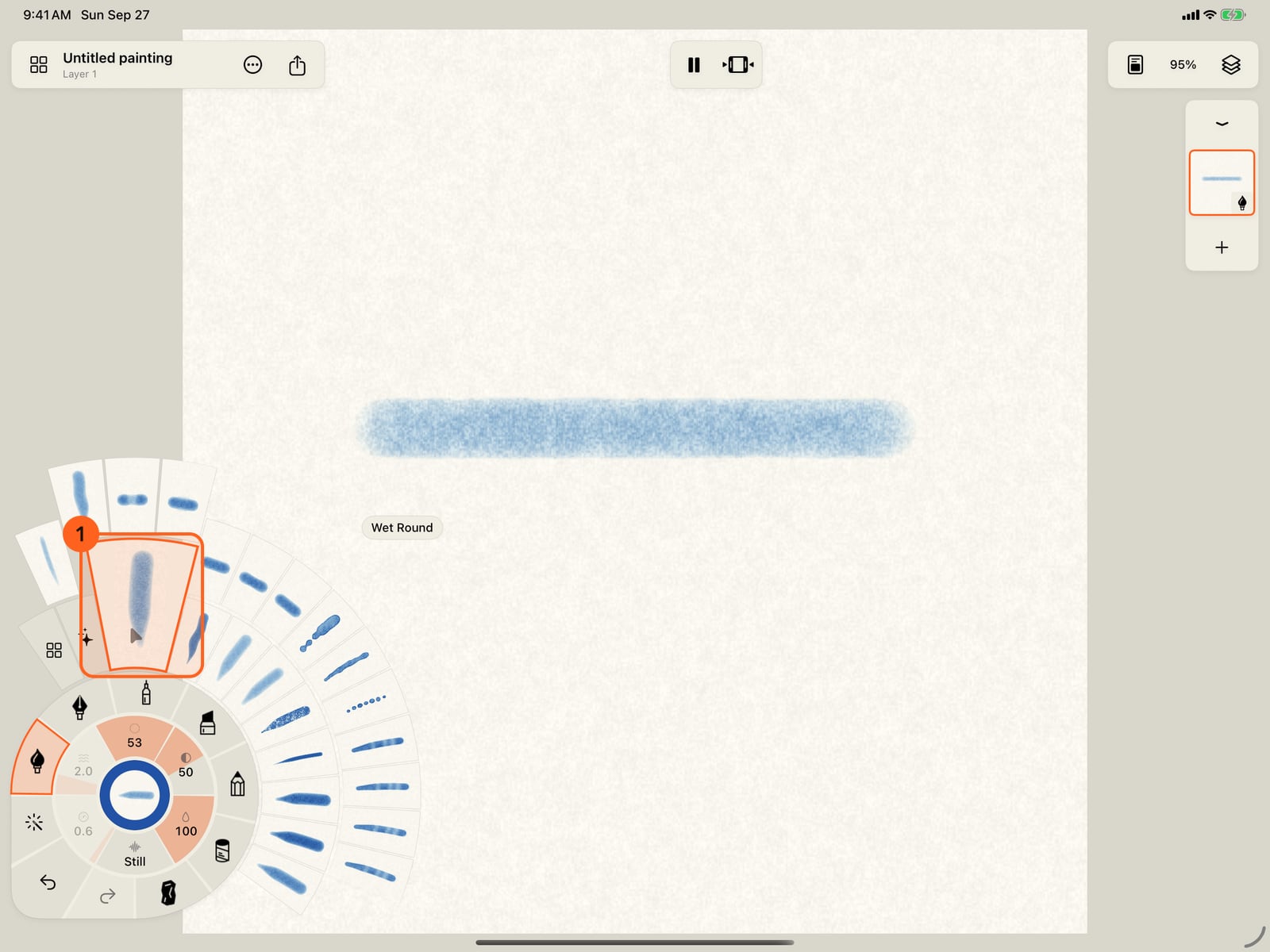
In Actions → Settings → Brush previews, choose how a mouse or trackpad enlarges brush, mark and motion previews:
| Hover previews | What happens |
|---|---|
| Separate preview | A larger animated card opens beside the control, with the preview's name. This is the default. |
| Magnification | Library previews grow with their nearest neighbours. In the wheel, the whole wedge expands and adjacent wedges make room, following the pointer like a Dock. Only overlapping outer wedges move outward. |
| Off | Hover leaves the small previews alone. |
This works in the brush library, wheel, quick settings and motion gallery. Hovering never selects a brush or changes your painting. Click or tap the original control to choose it.
Wheel enlargement fits the available screen space. Scrollable wheel rings and horizontal library and paper rows fade only at ends where more content is hidden.
On touch screens, press and hold a brush, mark or motion. The larger preview opens with a Use action; tap outside to dismiss it. This works even with hover turned off. A locked Pro choice still opens the Pro offer when you choose Use.
Previews reuse the same cached animation as their thumbnails. Reduce Motion shows a still frame and removes the magnification transition.
Something not behaving as expected?
Visit support or write to [email protected].