

Guides / Paint
Erase and lift paint
Remove whole strokes with the Eraser, or lift paint off the layer with Lift paint, in every medium but Ink.
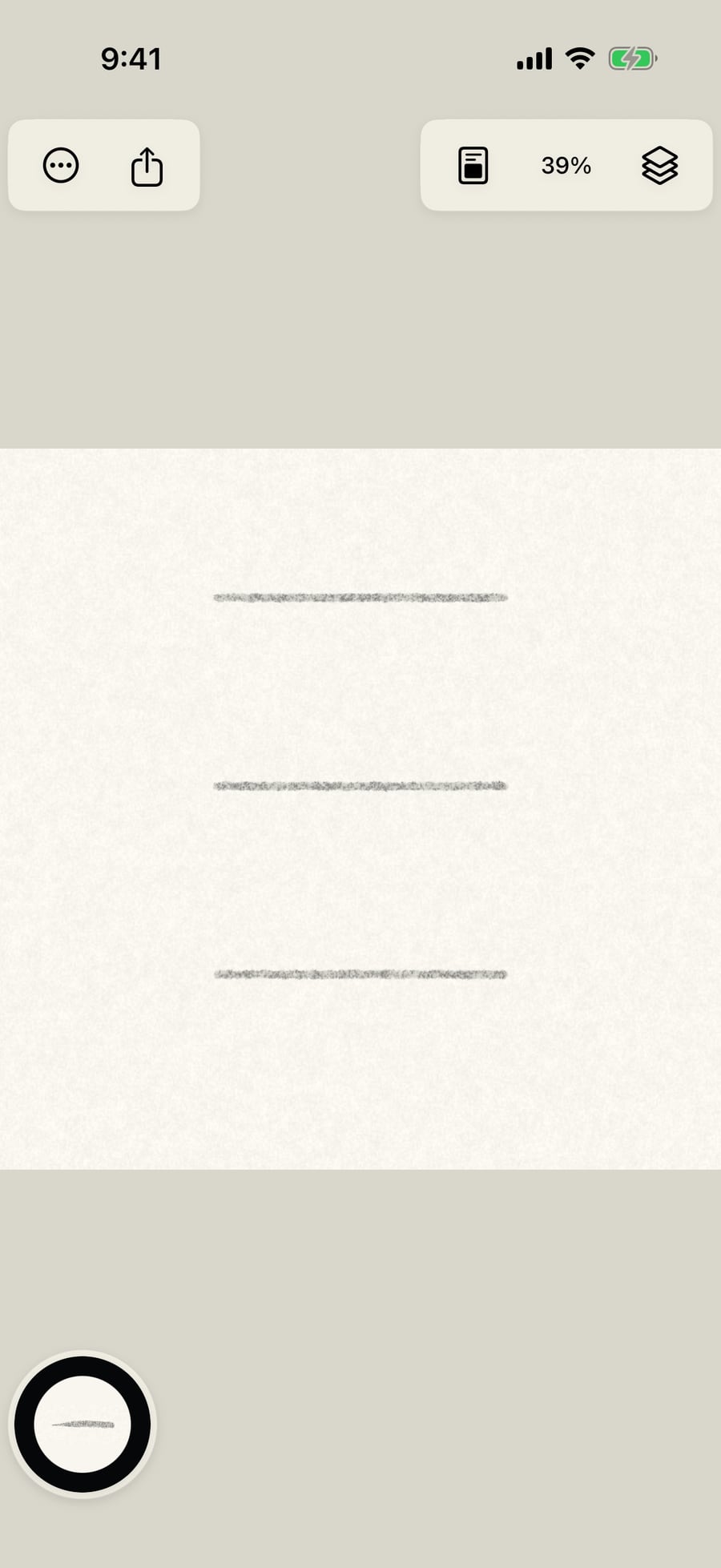
Take up Compressed Charcoal from the Charcoal brushes and paint three strokes.
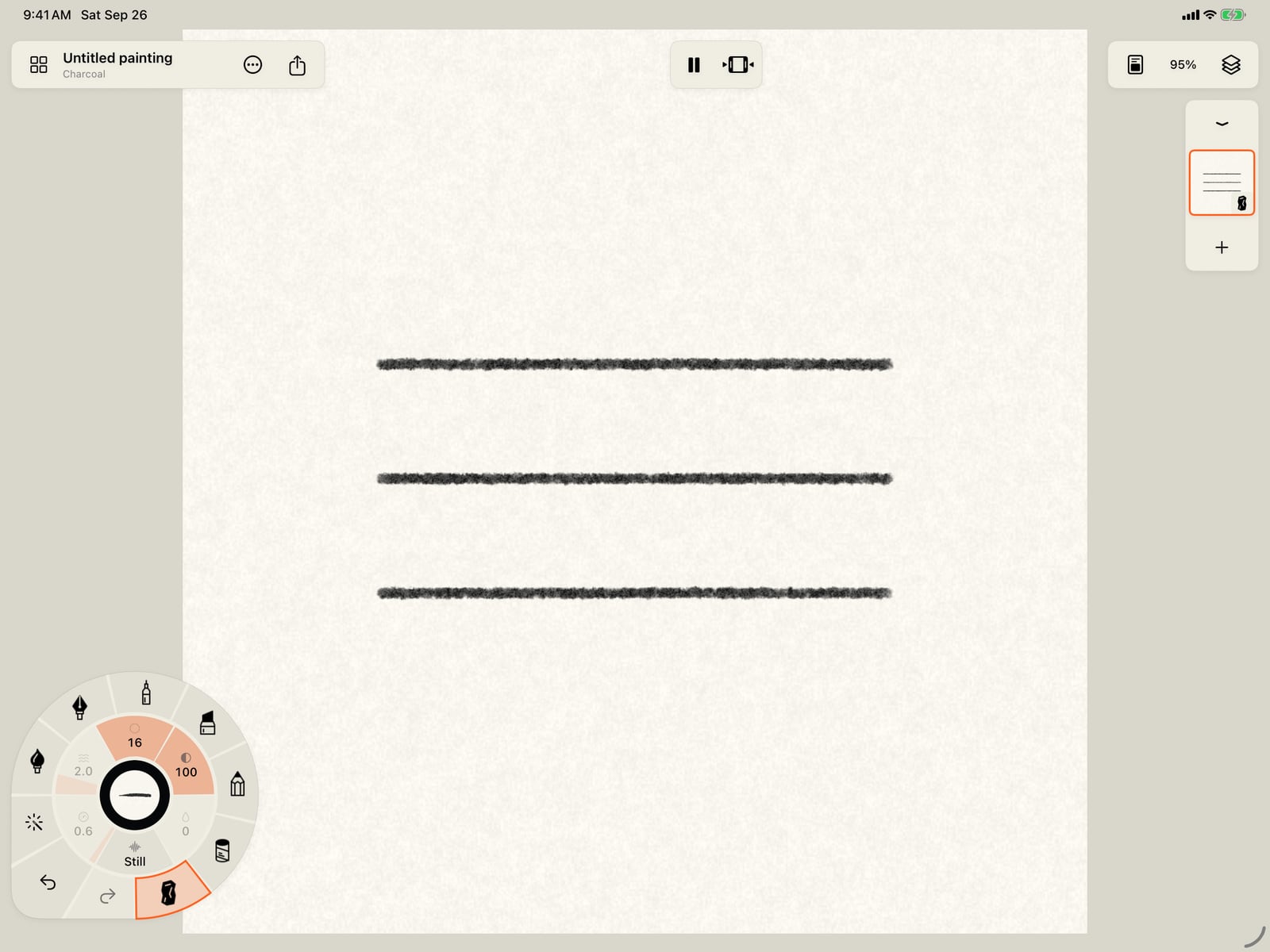
Unfold the wheel, take up Compressed Charcoal from the Charcoal brushes, fold the wheel, and paint three strokes.
Open Tools in the wheel's corner and tap Erase whole strokes. The banner at the top says the Eraser is on.
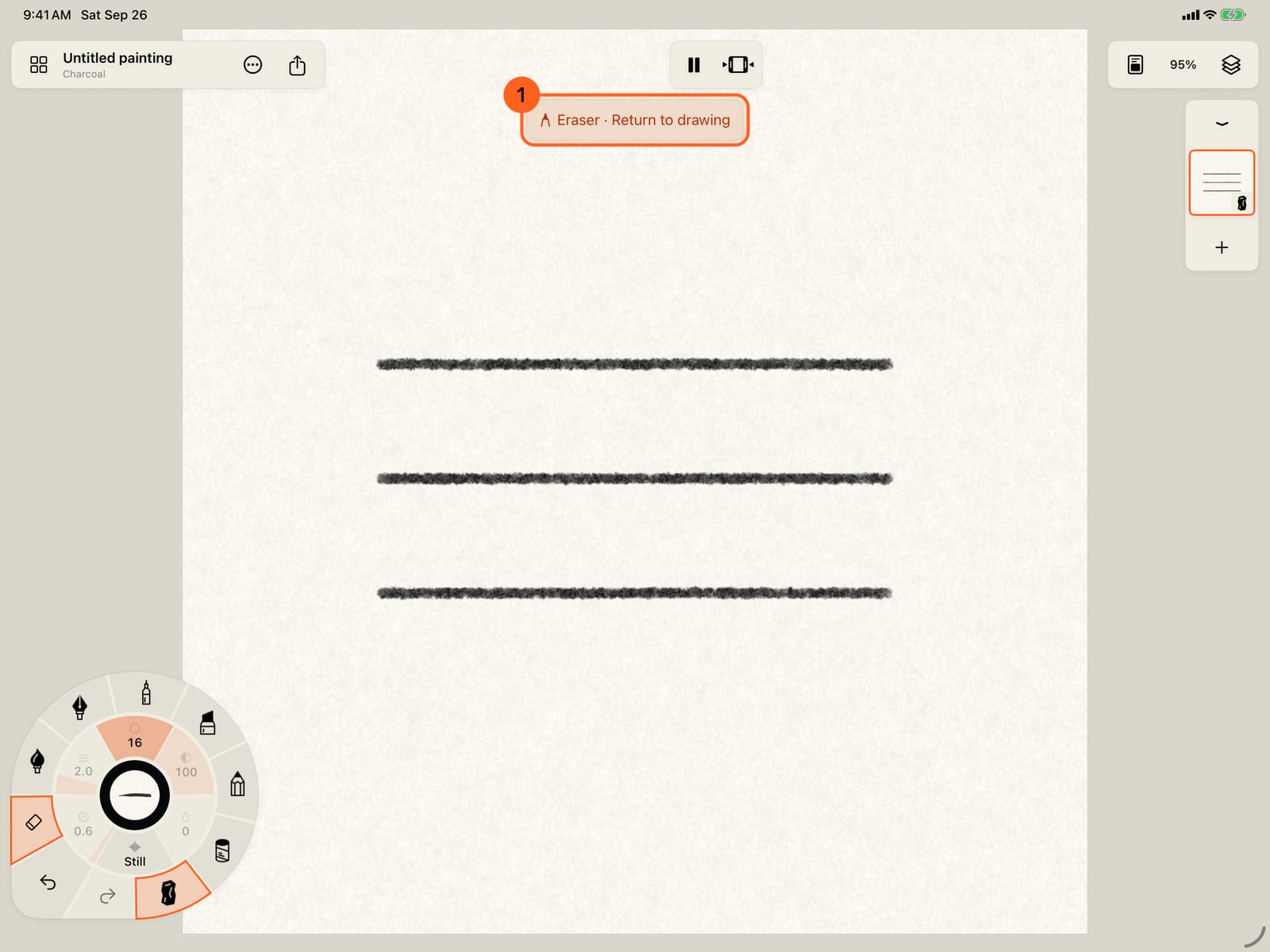
Unfold the wheel, open Tools in its corner, and tap Erase whole strokes. The banner at the top says the Eraser is on.
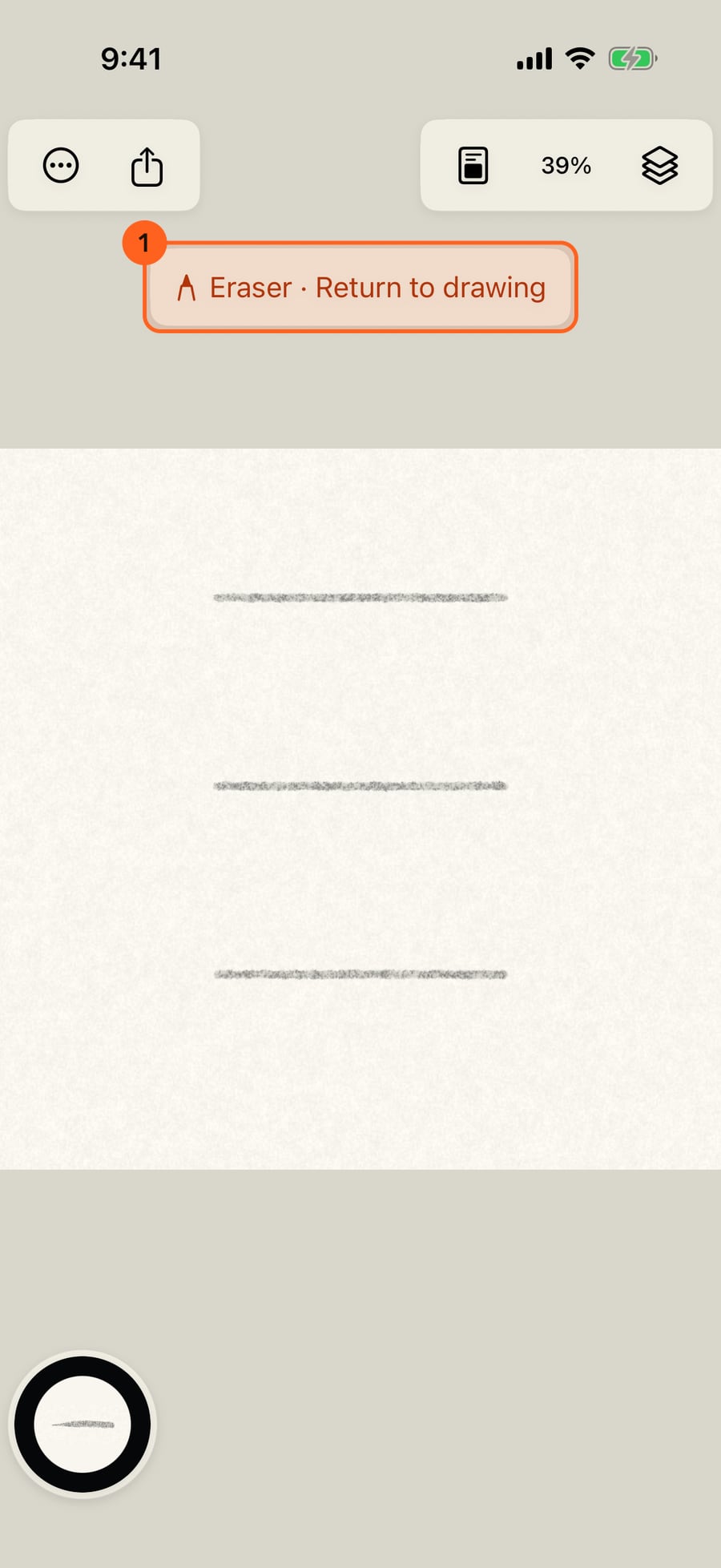
Open Tools in the wheel's corner and click Erase whole strokes. The banner at the top says the Eraser is on.
Draw across a stroke and the whole stroke goes, however little of it you touched. The Eraser removes strokes, never part of one.
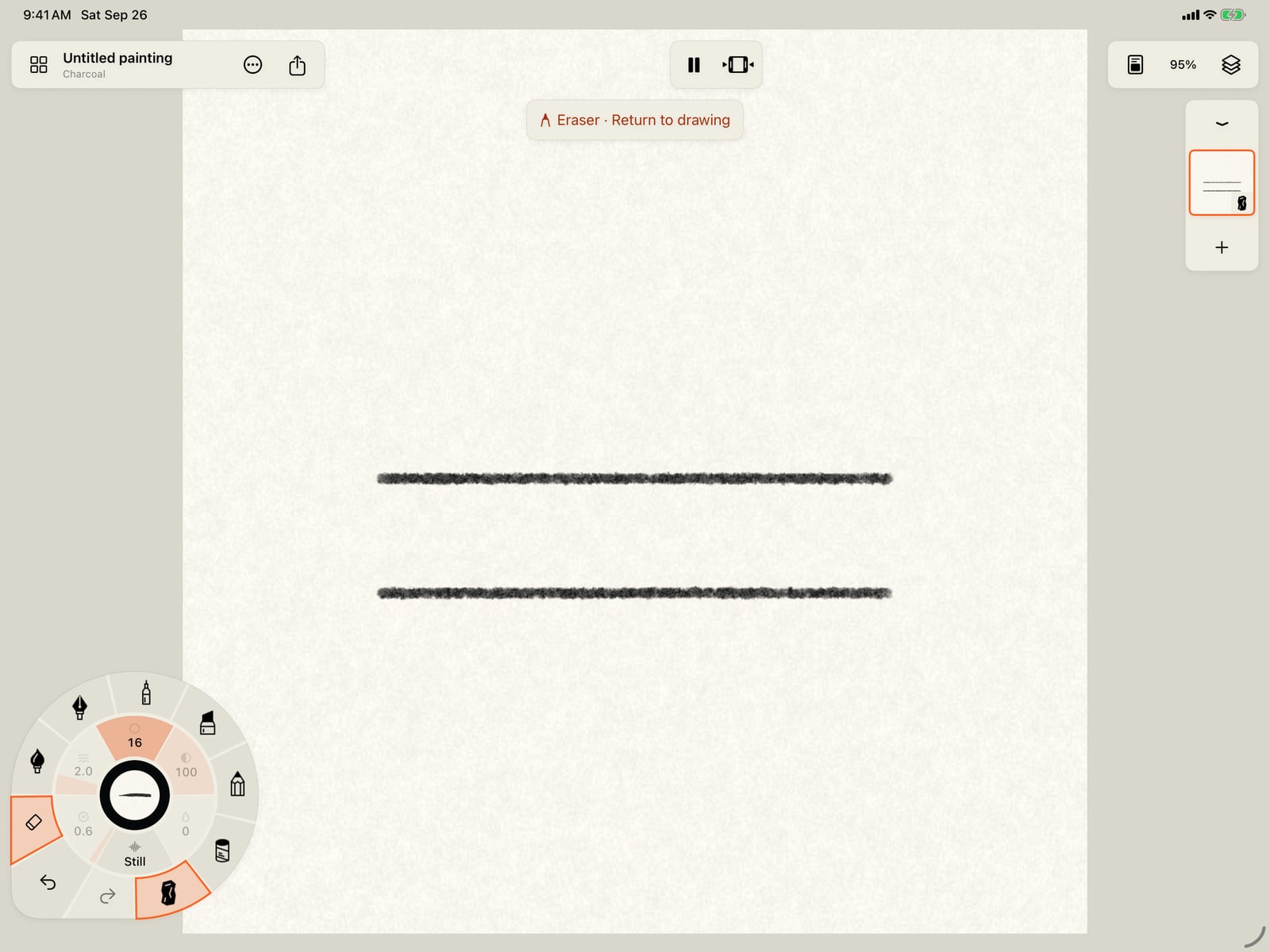
Draw across a stroke and the whole stroke goes, however little of it you touched. The Eraser removes strokes, never part of one.
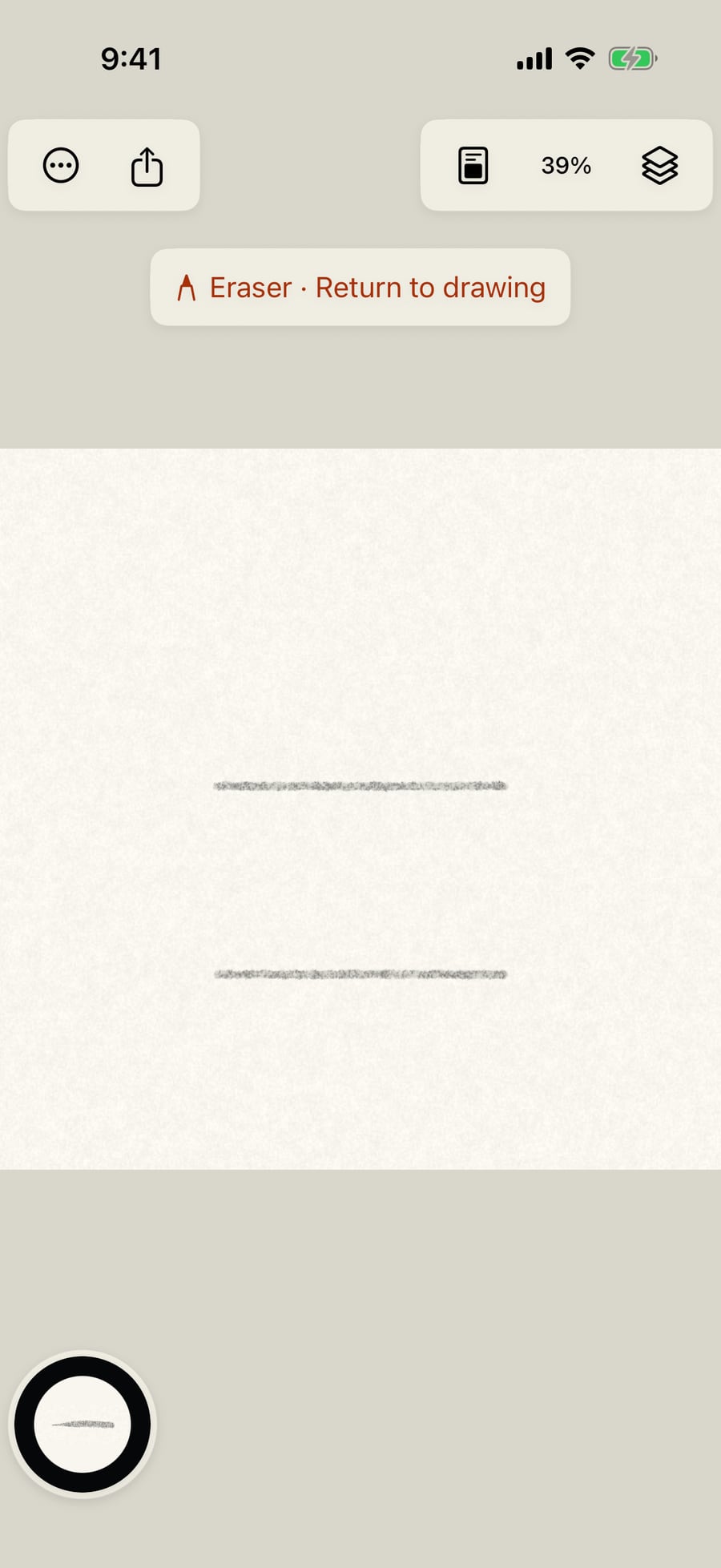
Tap the banner to return to drawing. For part of a stroke, open Tools and choose Lift paint.
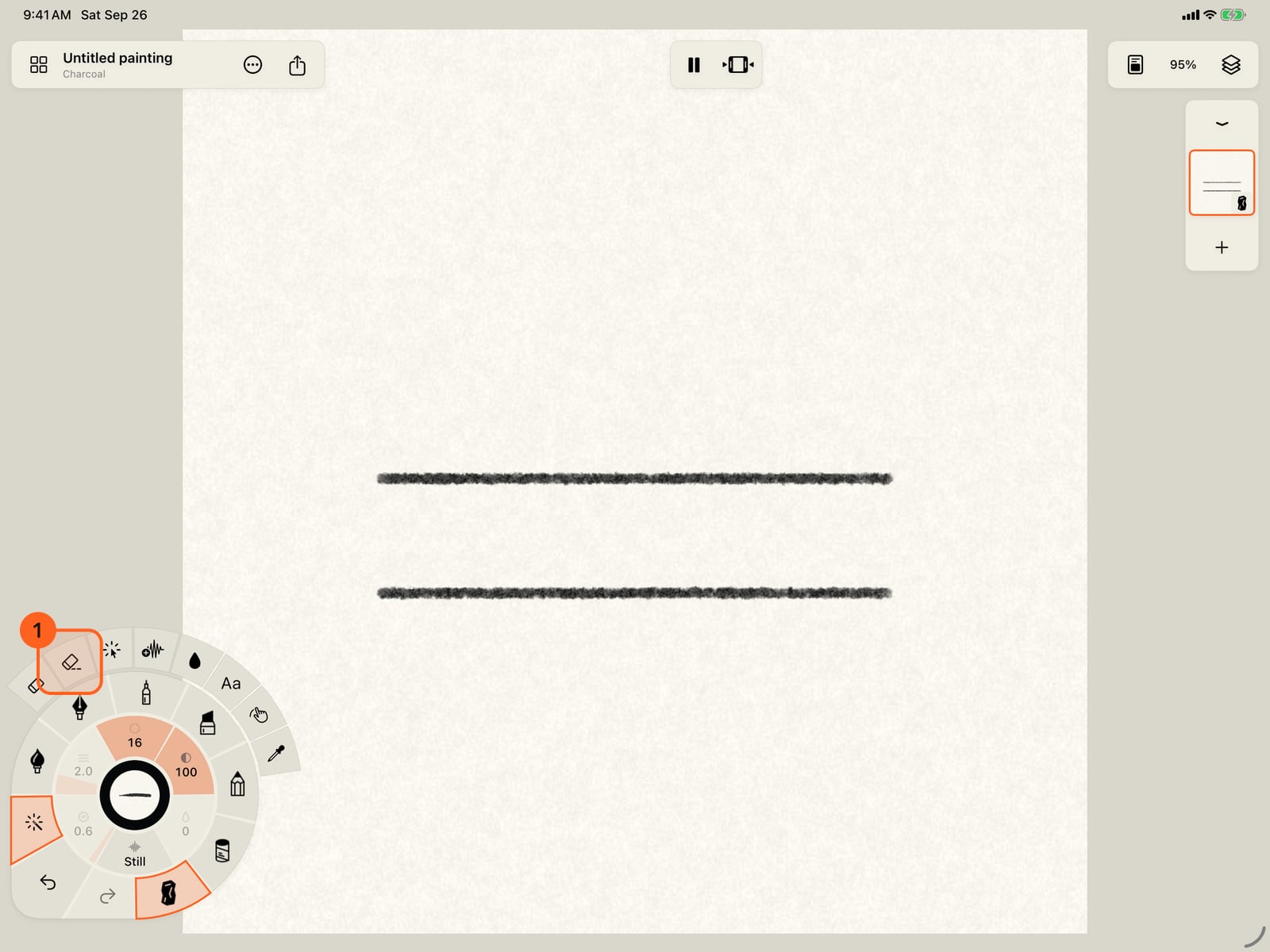
Tap the banner to return to drawing. For part of a stroke, unfold the wheel, open Tools and choose Lift paint.
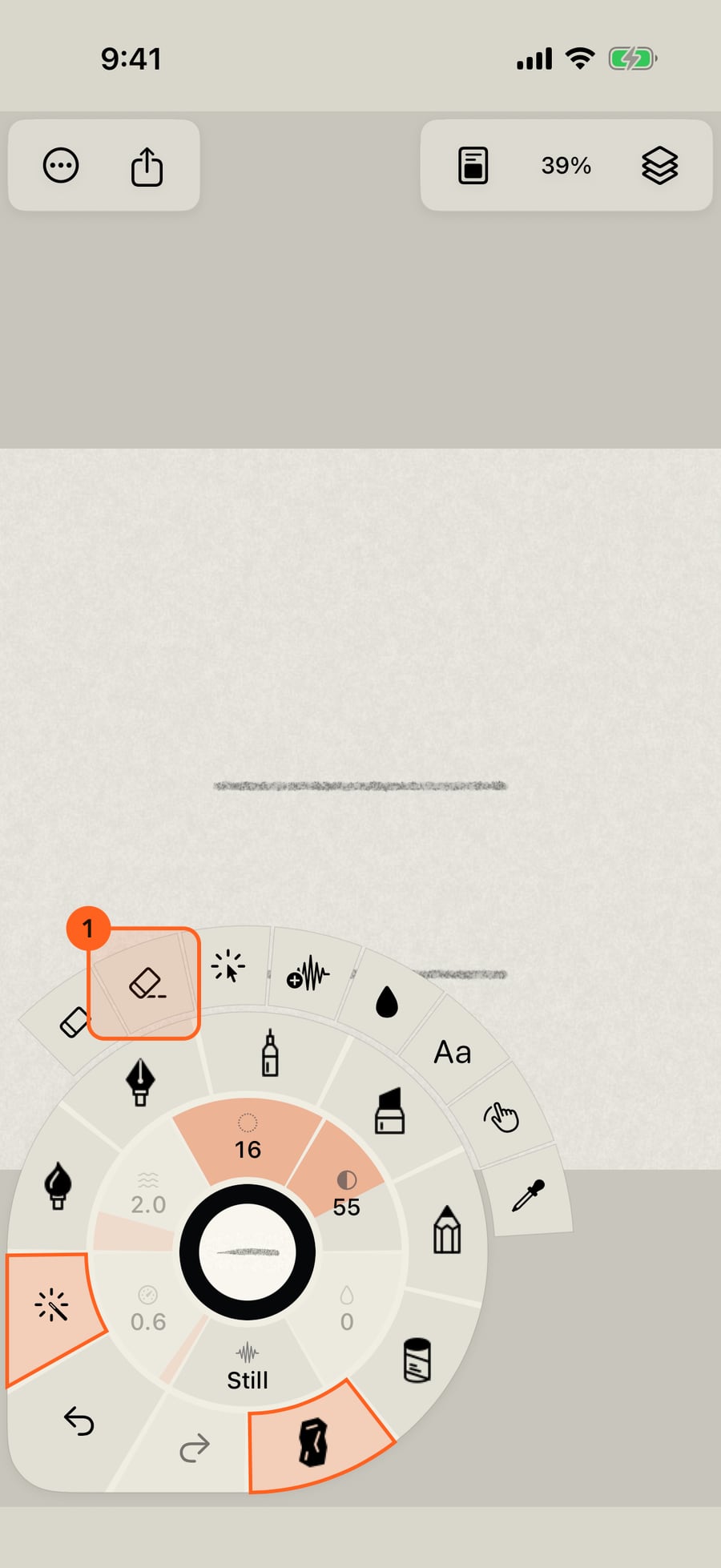
Click the banner to return to drawing. For part of a stroke, open Tools and choose Lift paint.
Paint across the bottom stroke. Lift takes paint off where it passes, and leaves the rest. The middle stroke is untouched, to compare.
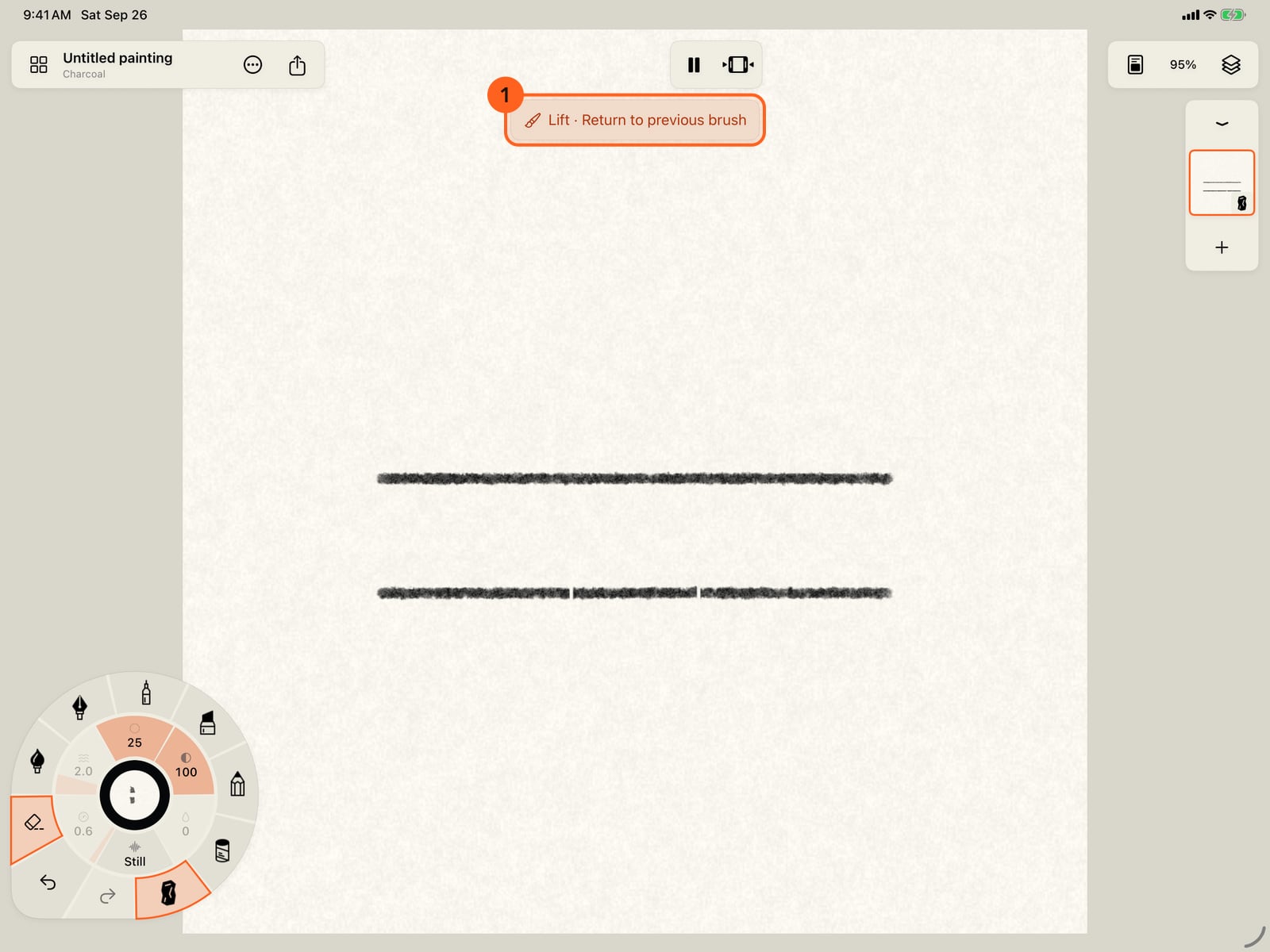
Paint across the bottom stroke. Lift takes paint off where it passes, and leaves the rest. The middle stroke is untouched, to compare.
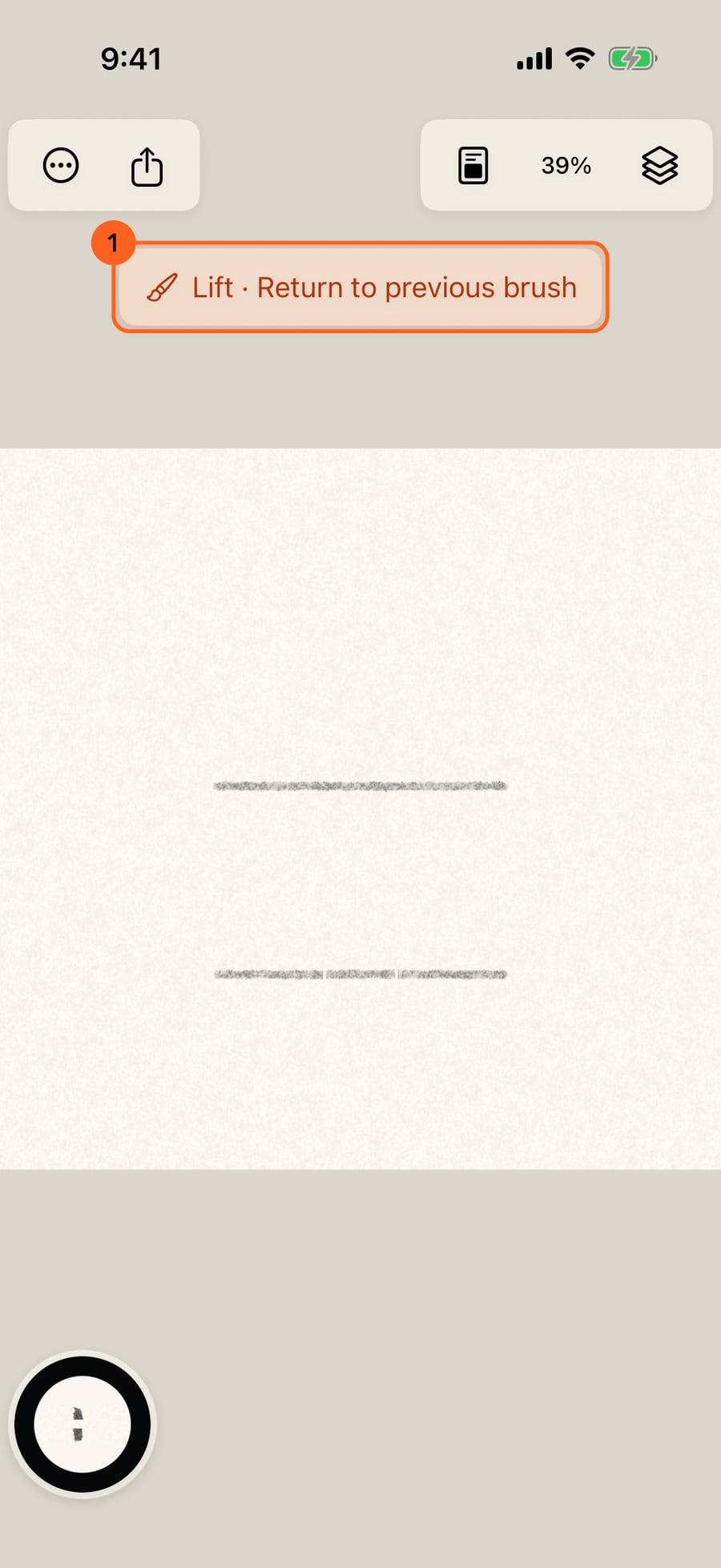
Tap the banner to return to the brush you had. A lift is a stroke like any other, so Undo takes it back.
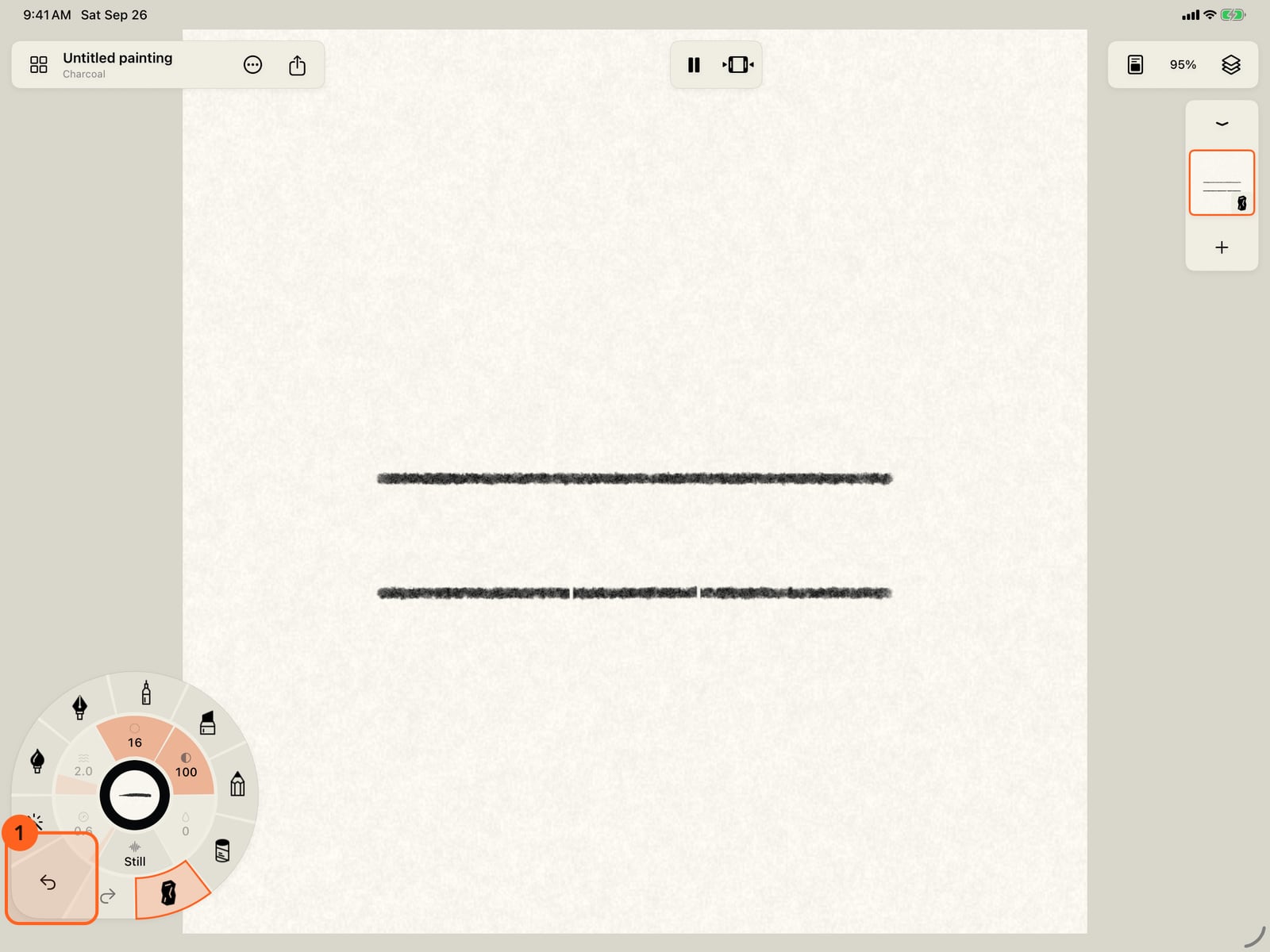
Tap the banner to return to the brush you had. A lift is a stroke like any other, so Undo takes it back.
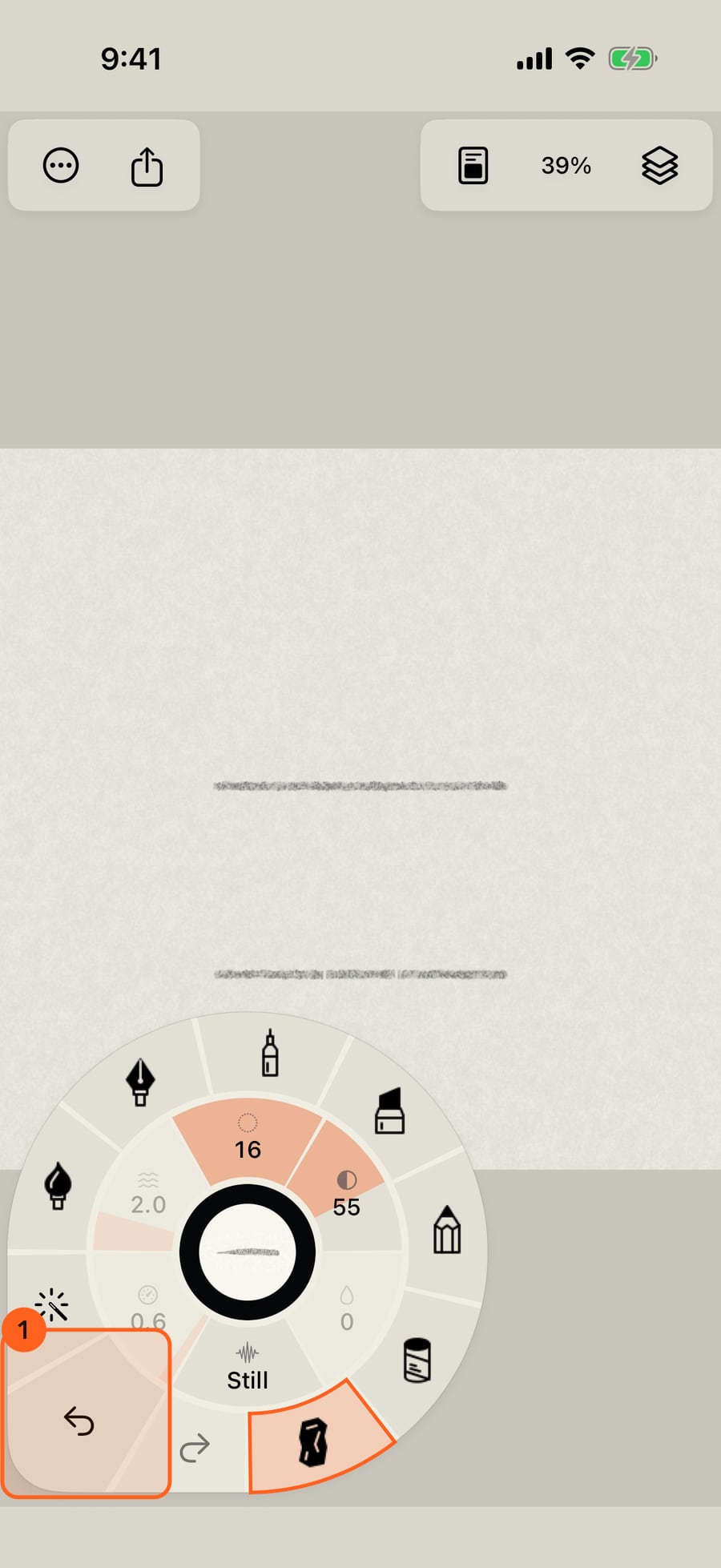
Click the banner to return to the brush you had. A lift is a stroke like any other, so Undo takes it back.
The Eraser
The Eraser (Tools → Erase whole strokes, or the E key) removes whole strokes: draw across any part of a stroke and all of it goes. It works on the current layer only, and Undo brings strokes back. While it's on, the banner Eraser · Return to drawing 2 shows at the top; tap it, the Eraser again, or the medium in hand to go back to your brush.
Because a stroke is kept as the gesture you made, not as pixels, the Eraser never leaves half a stroke. To take away part of the paint, lift it instead.
Lift paint
Tools → Lift paint takes up the current medium's lift tool at full strength, at least 40 points wide, and lifts paint off the layer where you draw. While it's on, the banner Lift · Return to previous brush takes you back to the brush you had.
| Medium | The lift tool | How it lifts |
|---|---|---|
| Watercolor | Blot & Lift | Blots wet paint and water. Re-wet a dry wash with the Water Brush first; staining pigments resist lifting. |
| Pen, Marker | Lift | Takes the line back to paper. |
| Graphite | Graphite Lift | Lifts tone off the paper. |
| Pastel, Charcoal | Lift | Lifts particles; dense deposits resist more than loose ones. |
| Ink | none | Ink dries permanent, so Lift paint is dimmed on an Ink layer. |
Lift paint is dimmed until there is paint on the layer. A lift is a stroke of its own, so Undo takes it back. The lift tools are also in each medium's brushes, where you can change their size and strength; see Blending tools.
Something not behaving as expected?
Visit support or write to [email protected].