

Guides / Paint
Colour
Pick colours from the rings around the wheel's centre, the colour panel's palettes, mixer and hex field, or the painting itself with the Eyedropper.
The wheel's centre is your next stroke, ringed in its colour. Tap it, and colours unfold around the wheel. Recent colours first, then the palette, then More colors.
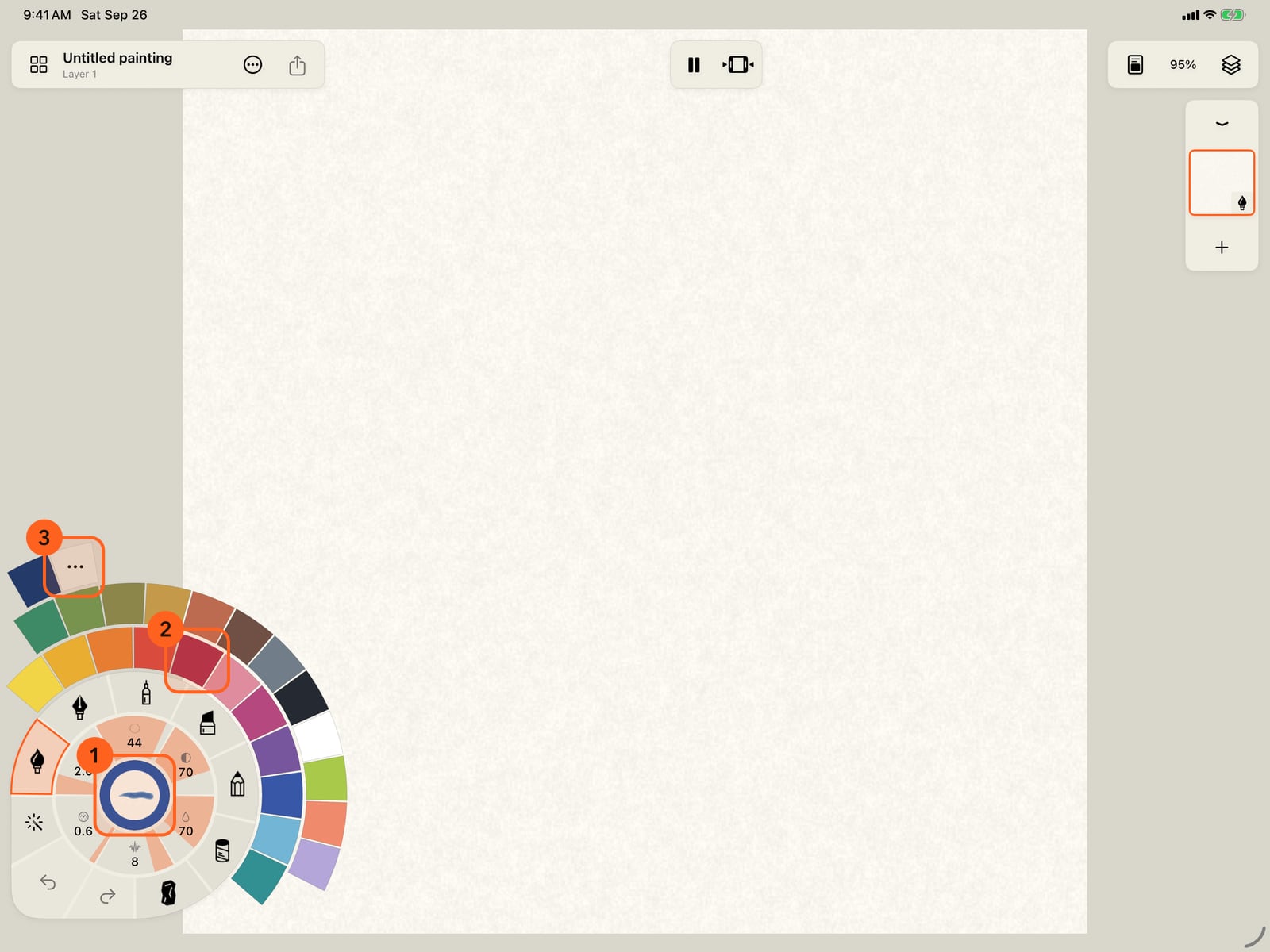
Unfold the wheel and tap its centre. Colours unfold around it. Recent colours first, then the palette, then More colors.
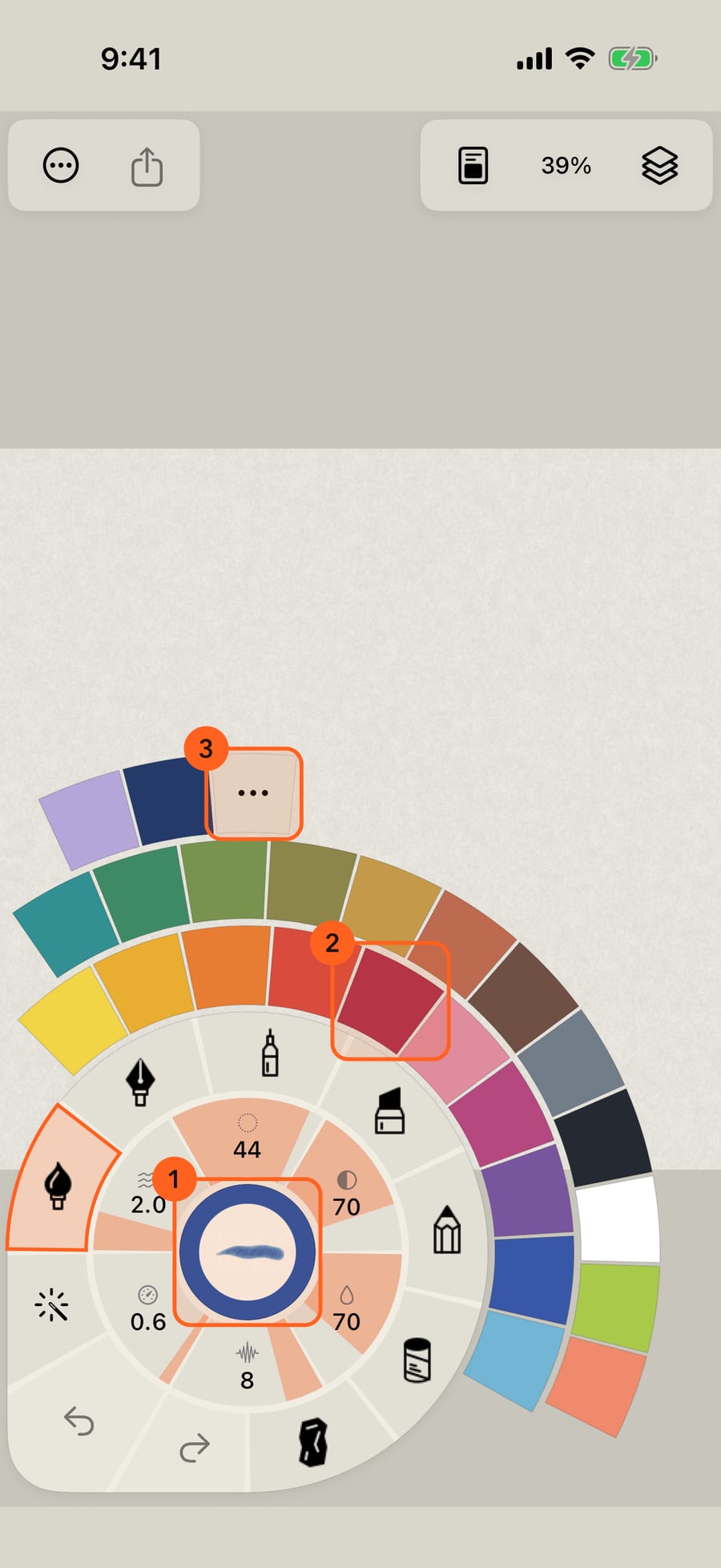
The wheel's centre is your next stroke, ringed in its colour. Click it, and colours unfold around the wheel. Recent colours first, then the palette, then More colors.
Tap a colour. The rings fold away and the centre takes the new colour. Paint a stroke.
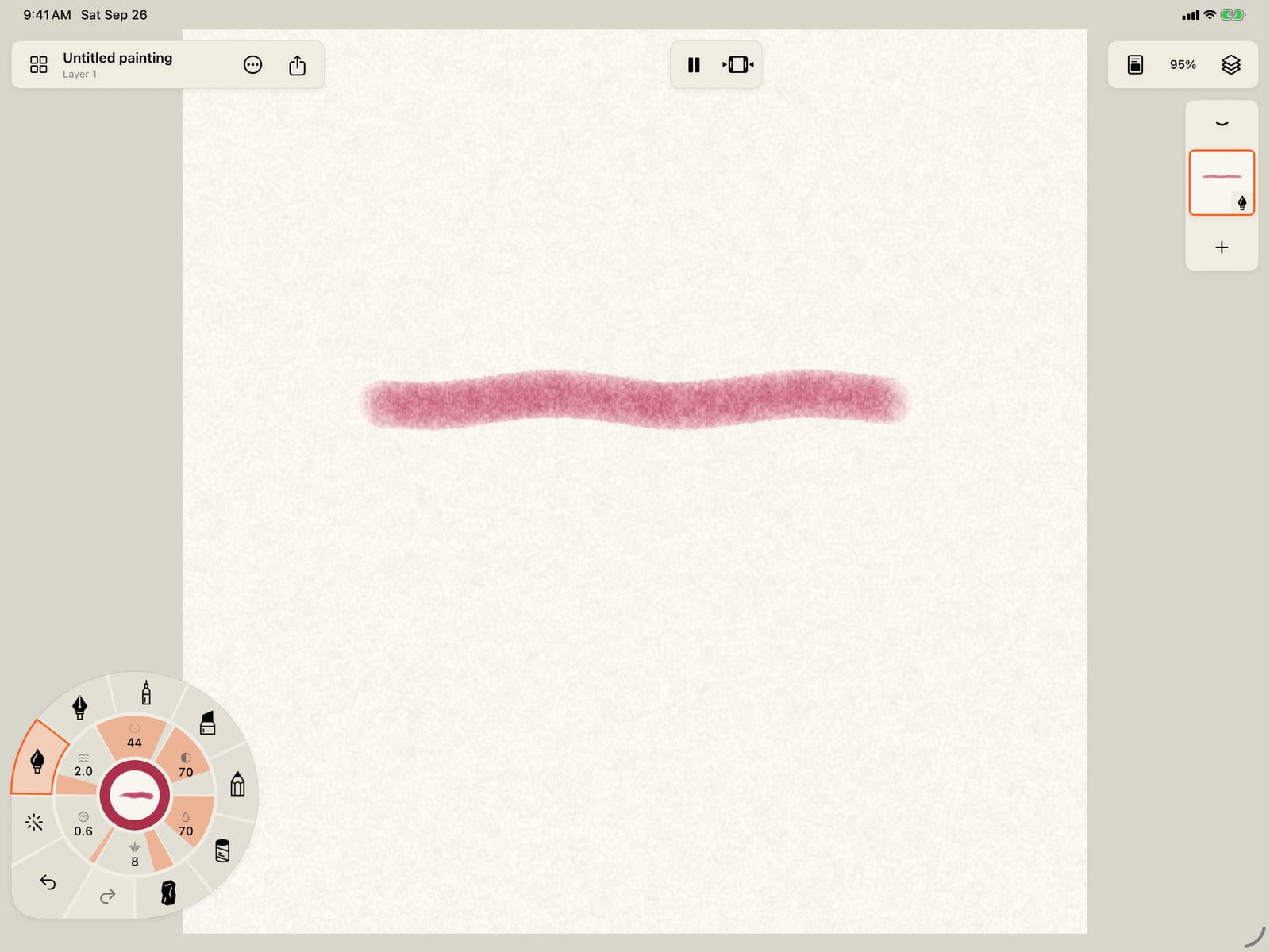
Tap a colour, then tap the page to fold the wheel, and paint a stroke.
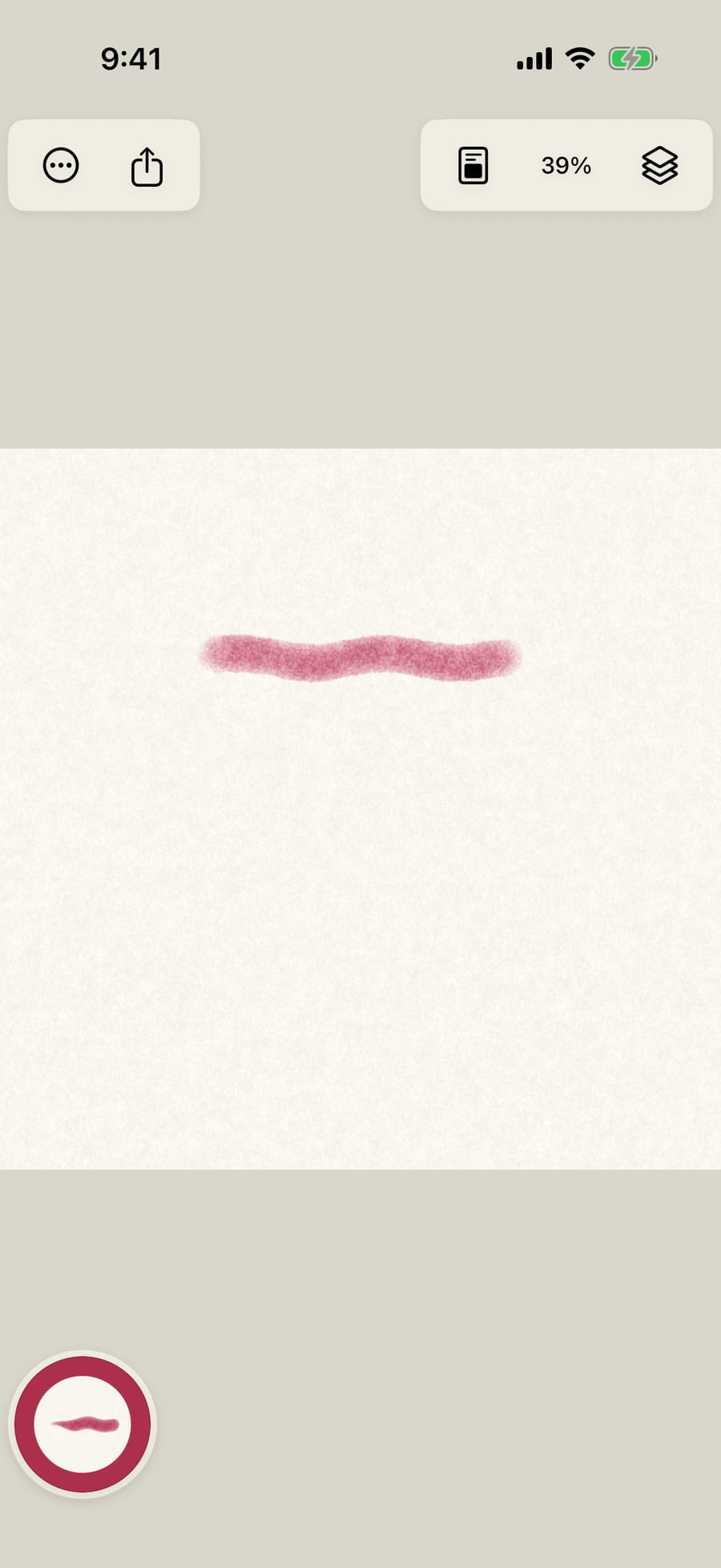
Click a colour. The rings fold away and the centre takes the new colour. Paint a stroke.
For every other colour, tap the centre, then More colors. The panel has a hex field, the system colour picker, your recent colours, and Palettes or the Mixer.
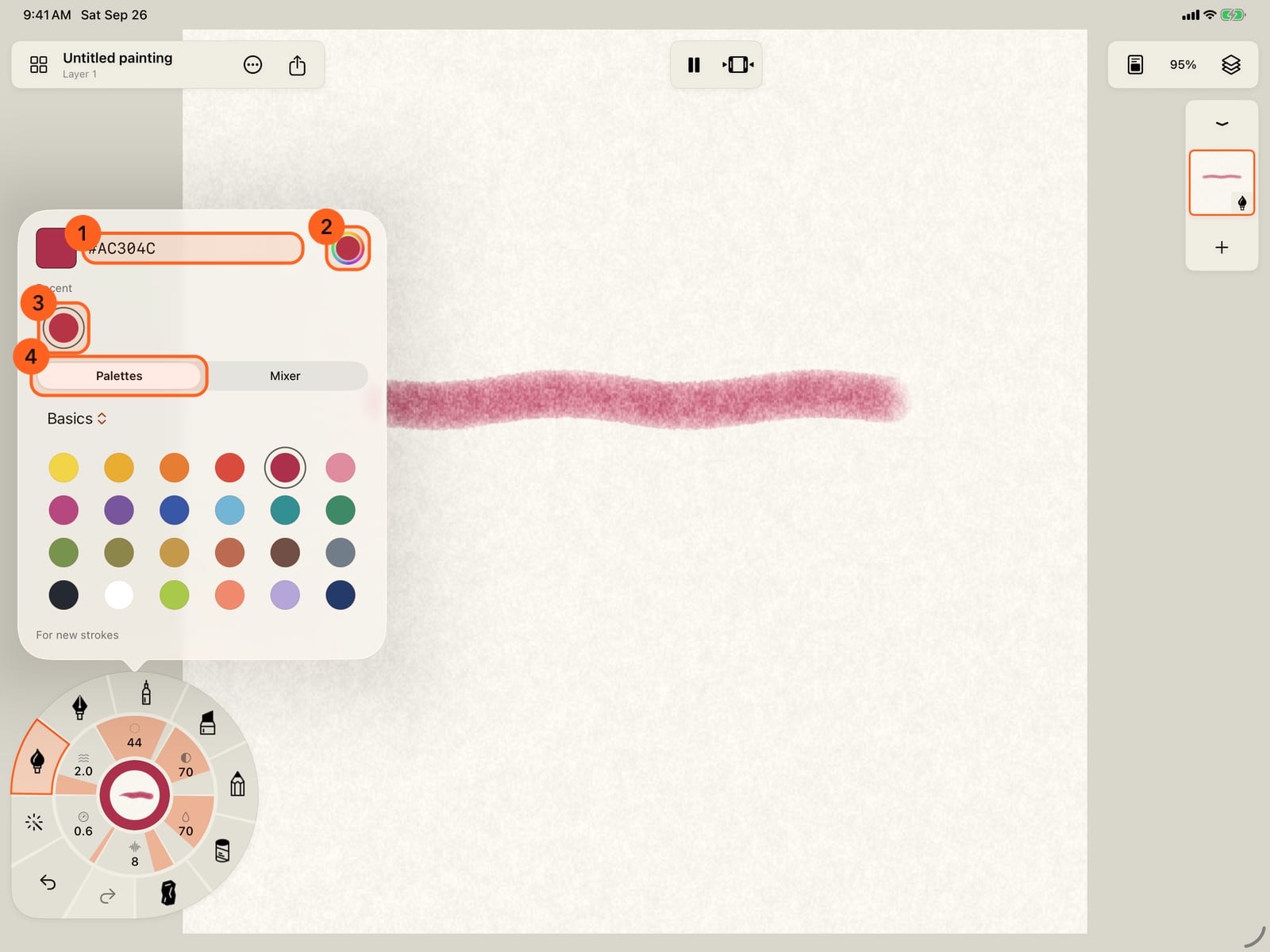
For every other colour, tap the centre, then More colors. The panel has a hex field, the system colour picker, your recent colours, and Palettes or the Mixer.
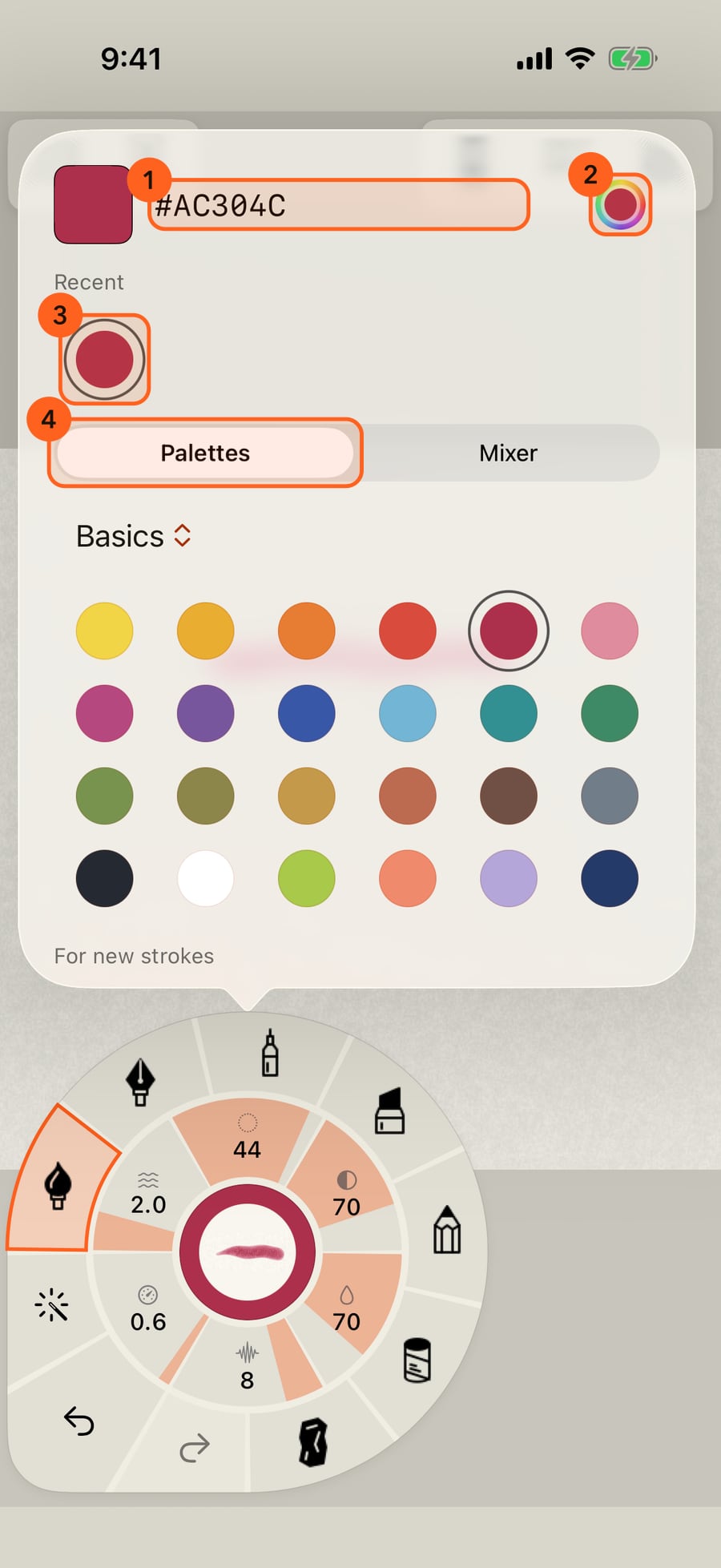
For every other colour, click the centre, then More colors. The panel has a hex field, the system colour picker, your recent colours, and Palettes or the Mixer.
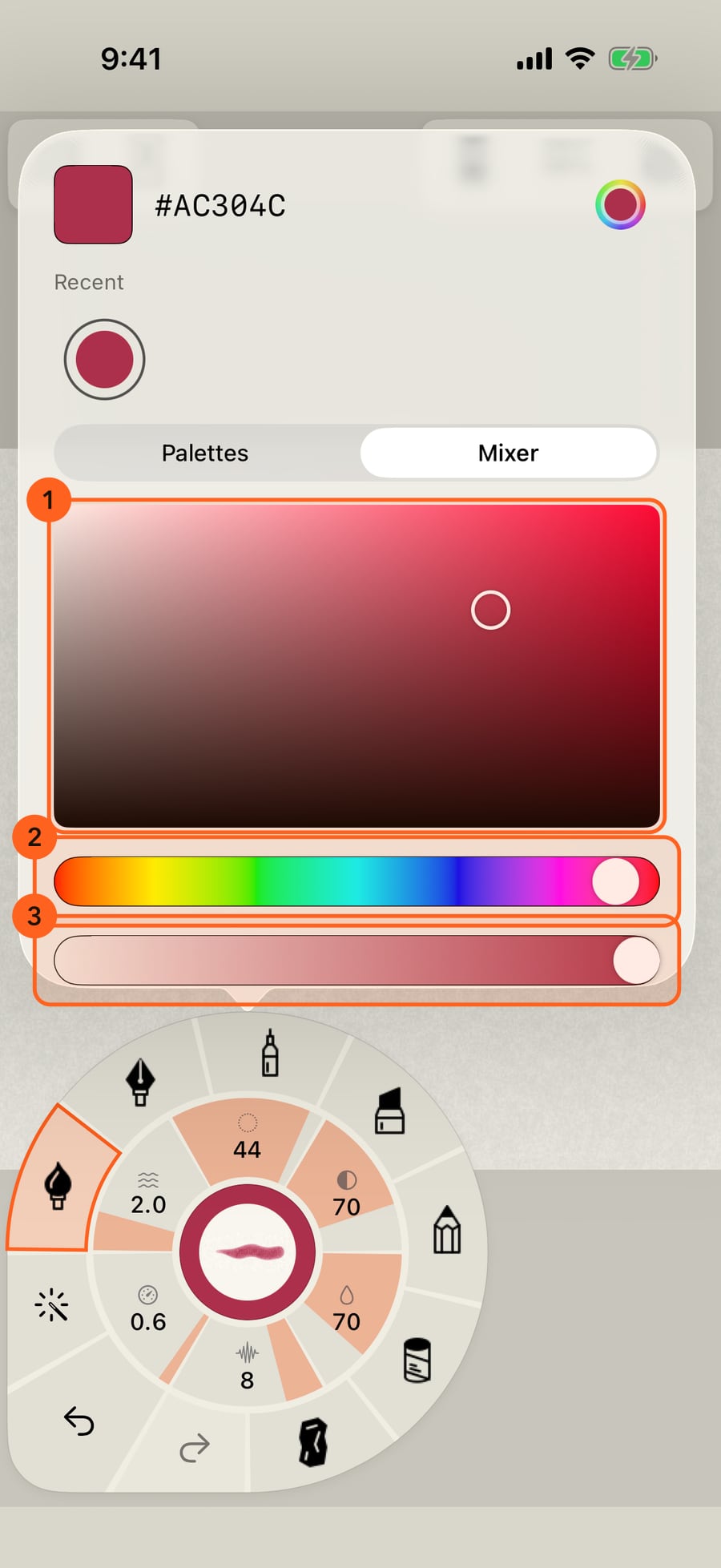
The Mixer mixes any colour. Drag in the square for saturation and brightness, and along the bars for hue and opacity.
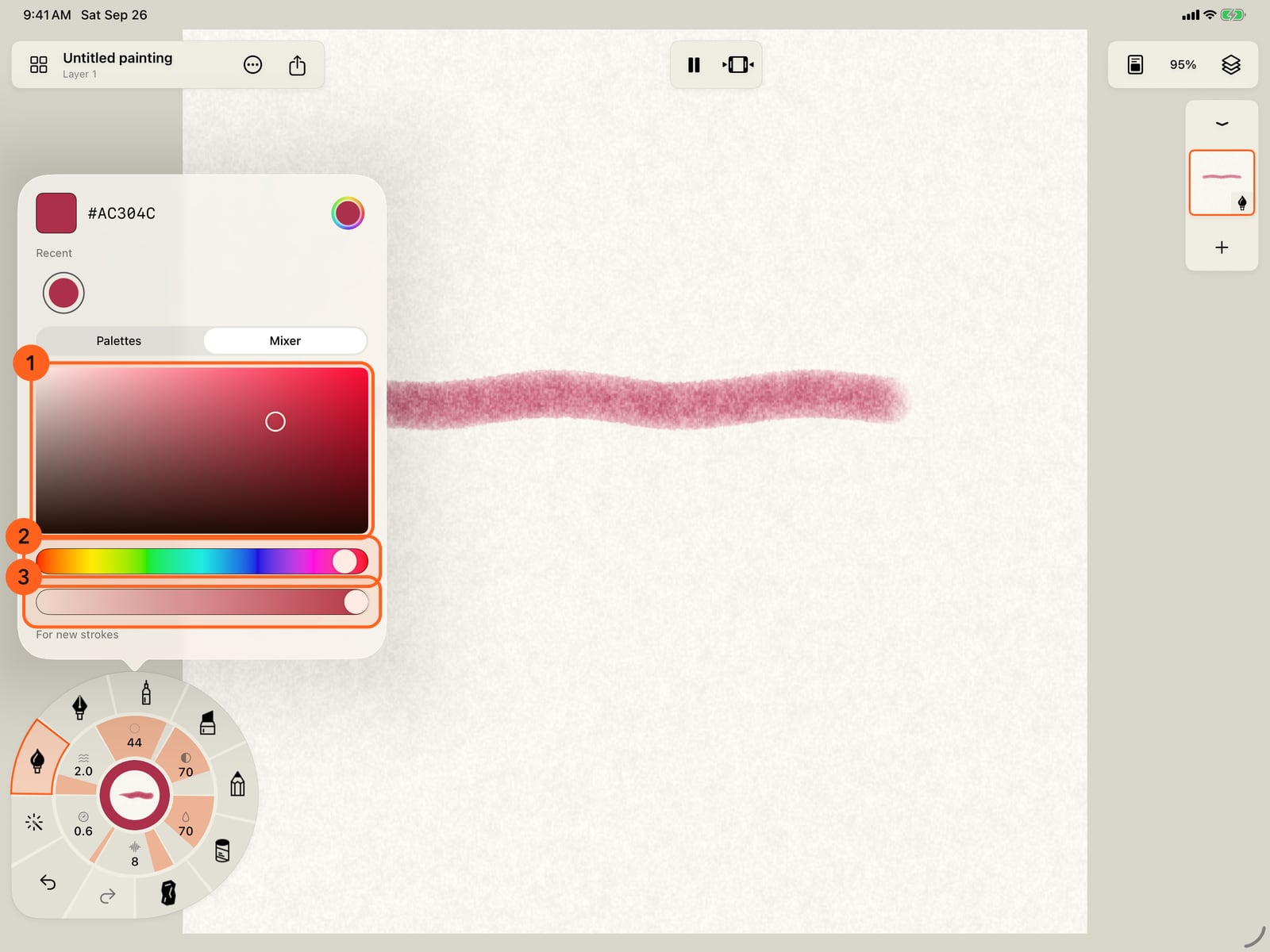
The Mixer mixes any colour. Drag in the square for saturation and brightness, and along the bars for hue and opacity.
Palettes holds six sets of named colours, Basics, Watercolor, Earth, Neutrals, Inks and Pastels. Choose one with the menu above the swatches.
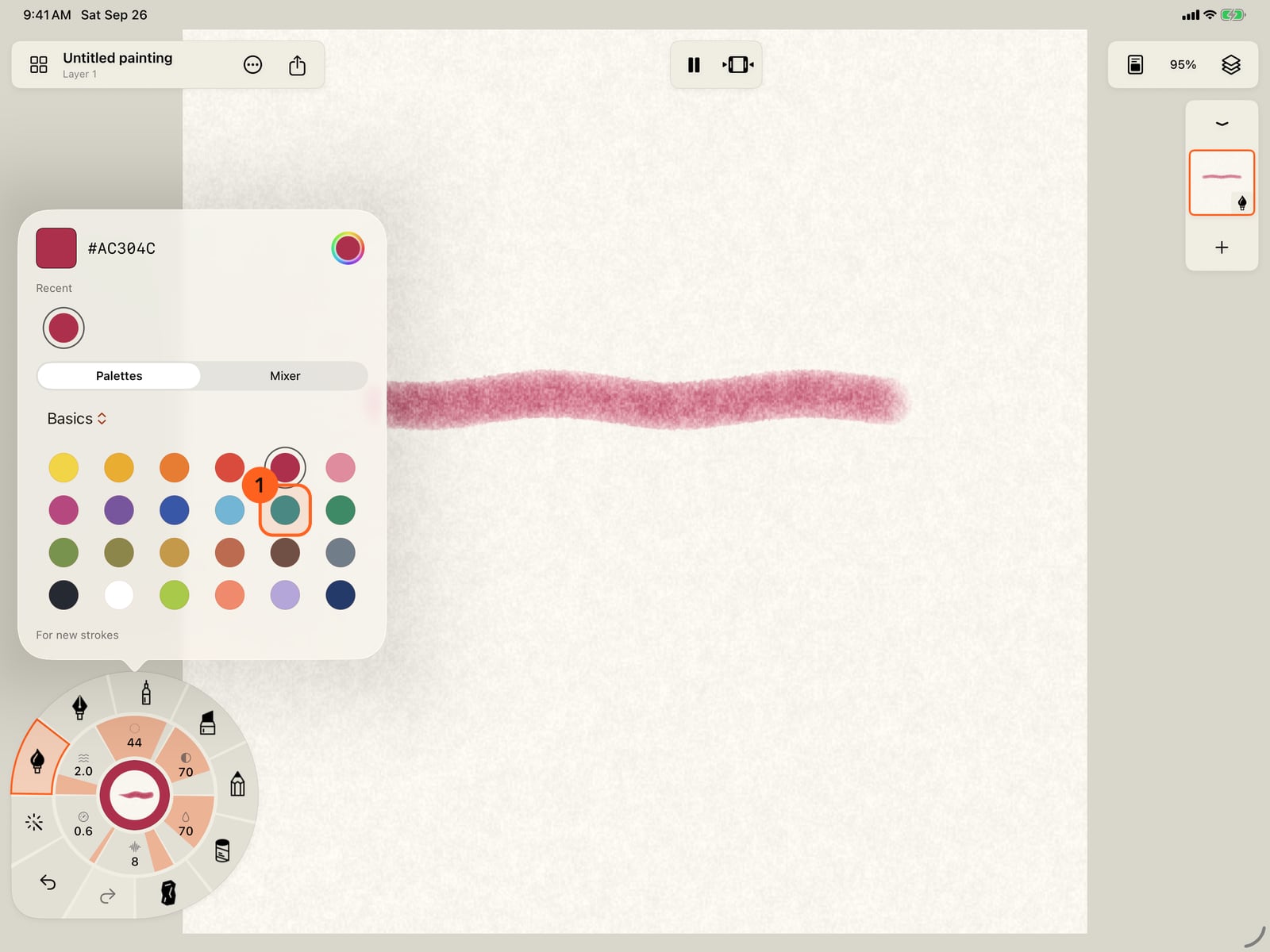
Palettes holds six sets of named colours, Basics, Watercolor, Earth, Neutrals, Inks and Pastels. Choose one with the menu above the swatches.
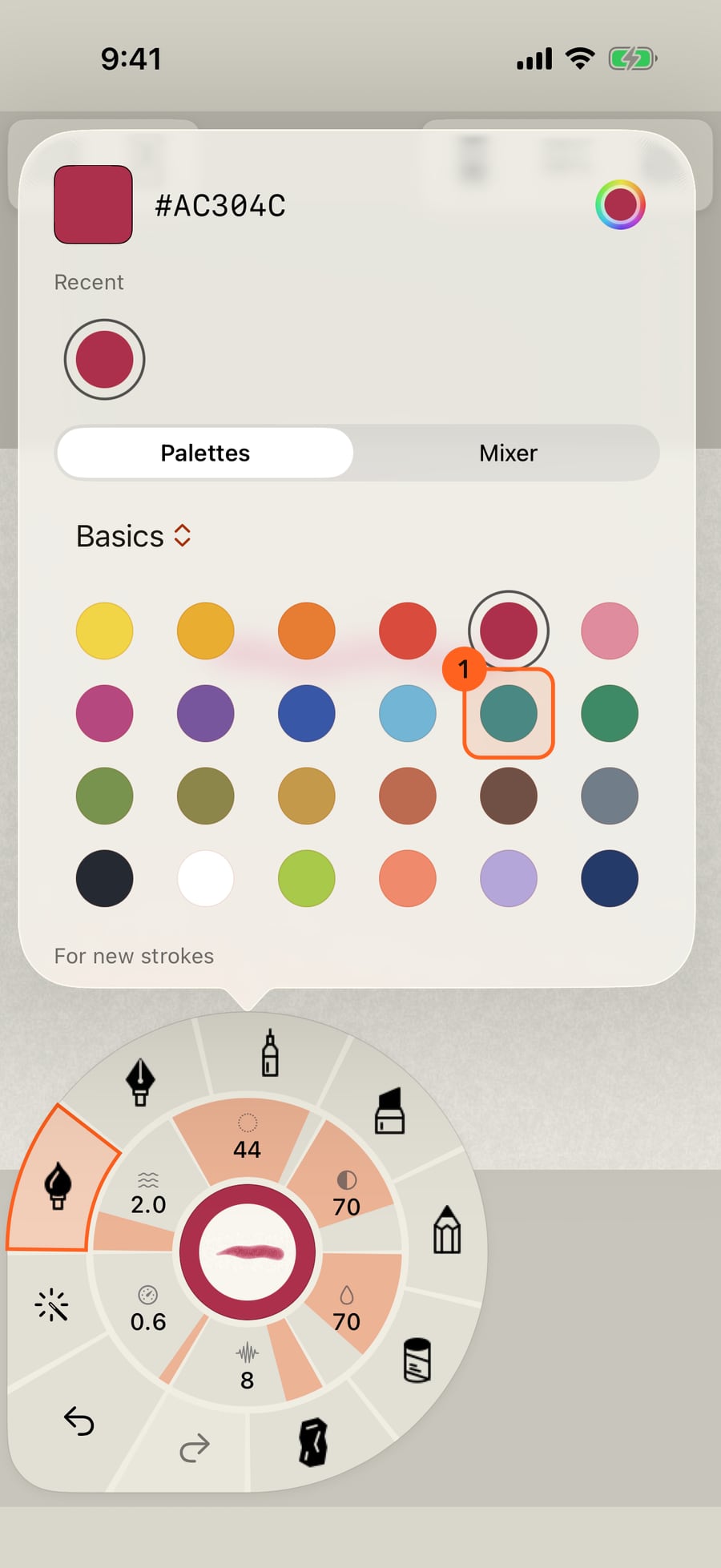
Tap a swatch to take it and close the panel, then paint below the first stroke. Two colours, side by side.
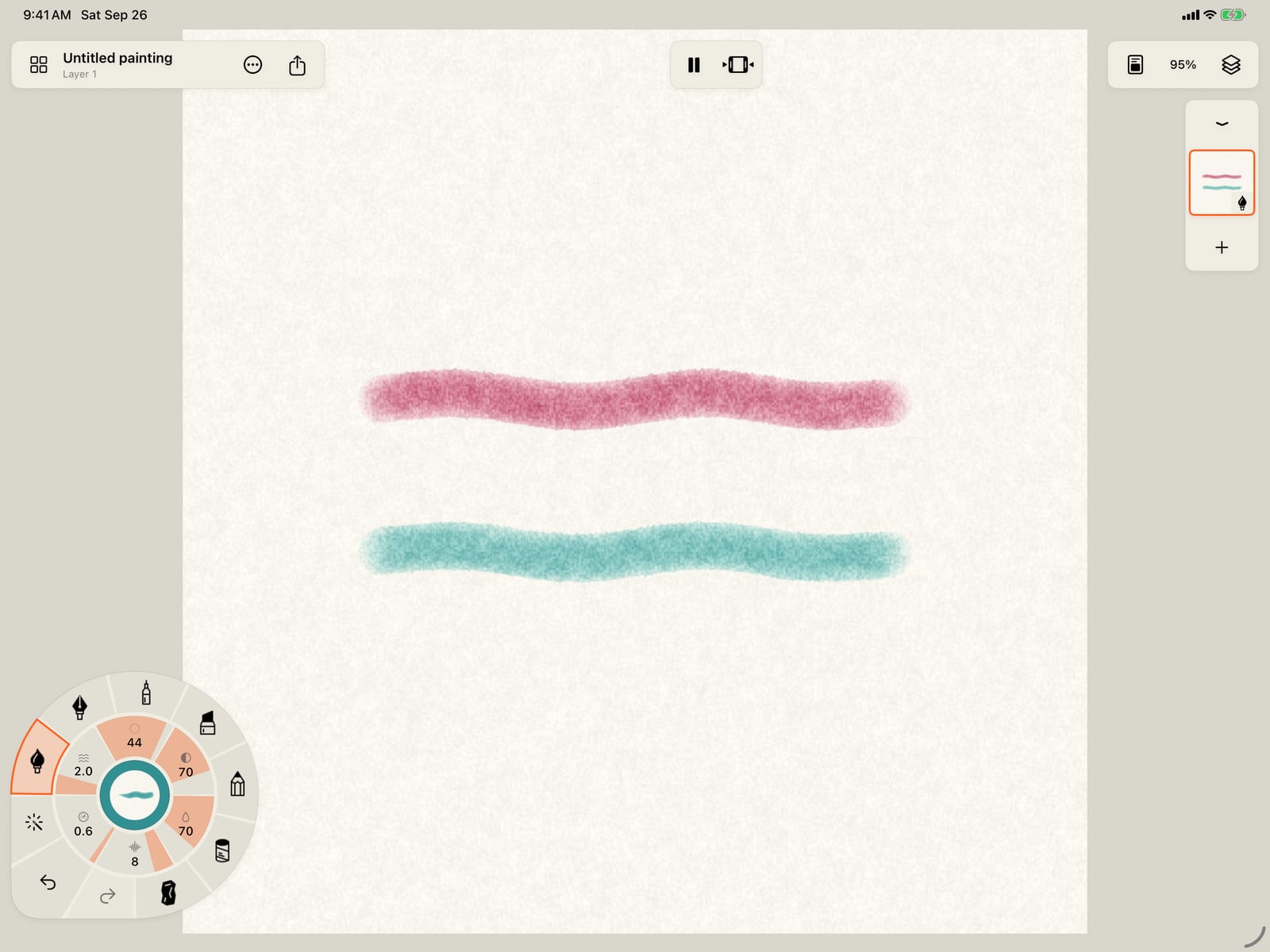
Tap a swatch to take it and close the panel, fold the wheel, and paint below the first stroke. Two colours, side by side.
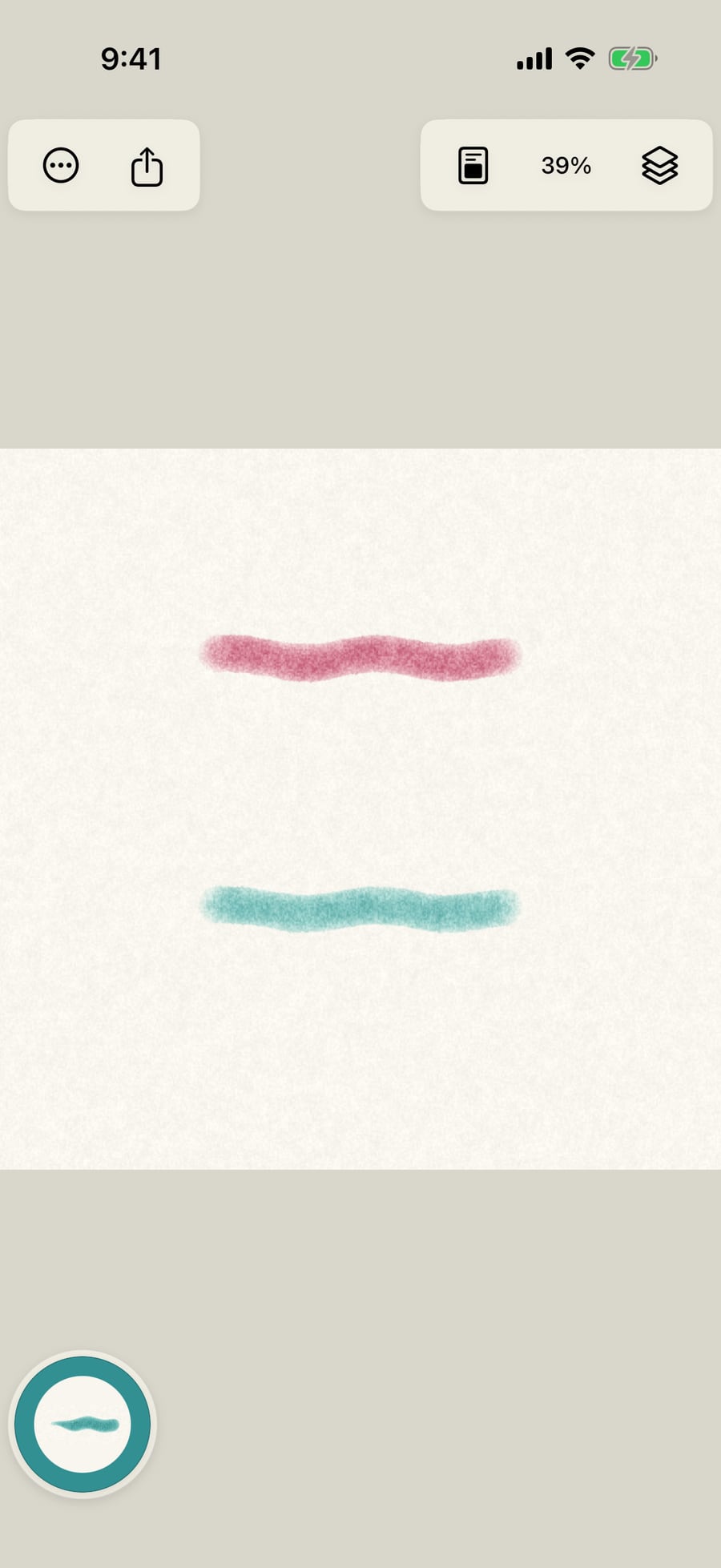
Click a swatch to take it and close the panel, then paint below the first stroke. Two colours, side by side.
To reuse a colour from the painting, open Tools in the wheel's corner and tap Eyedropper.
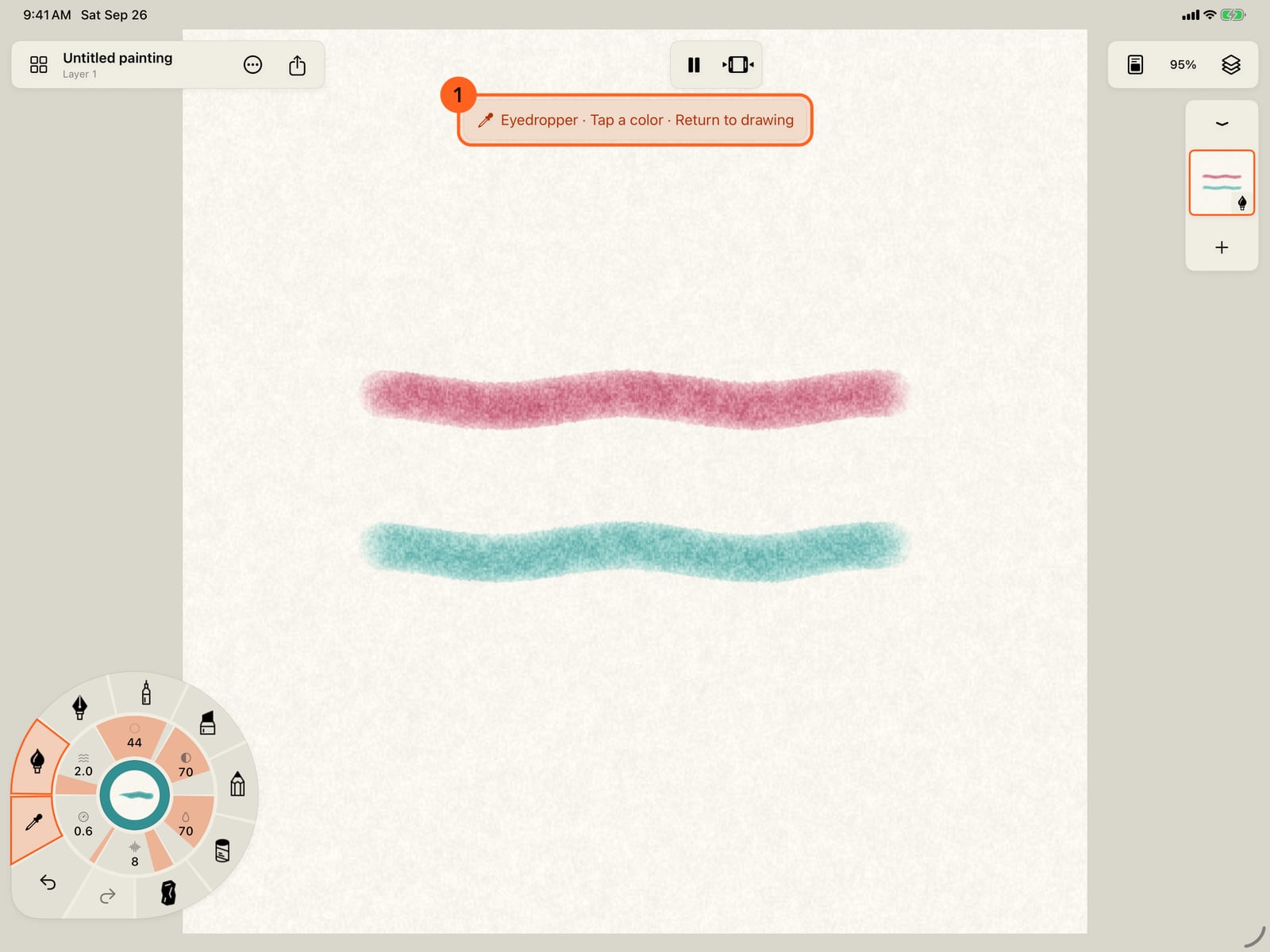
To reuse a colour from the painting, unfold the wheel, open Tools in its corner, and tap Eyedropper.
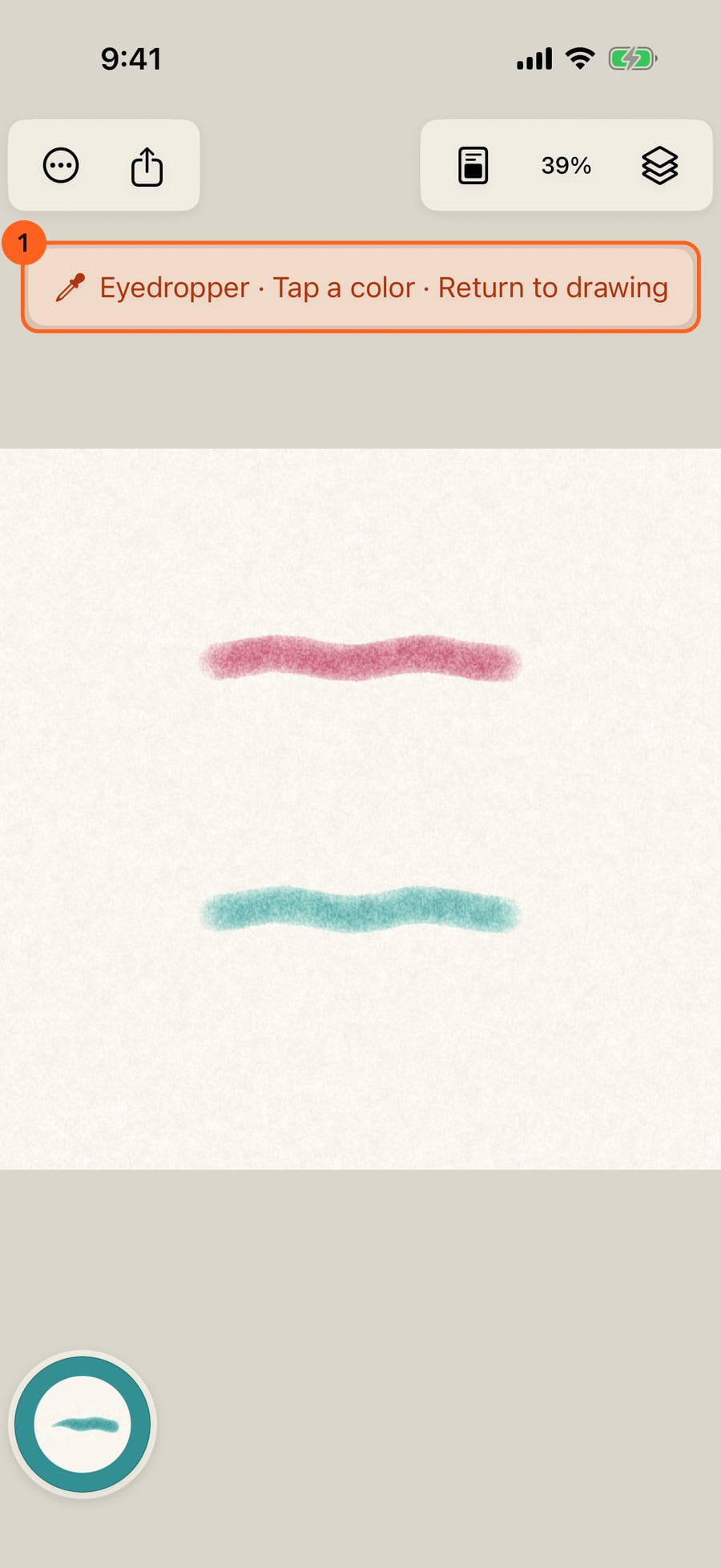
To reuse a colour from the painting, open Tools in the wheel's corner and click Eyedropper.
Then tap the painting. The colour under your finger becomes the colour in hand, and you go straight back to painting.
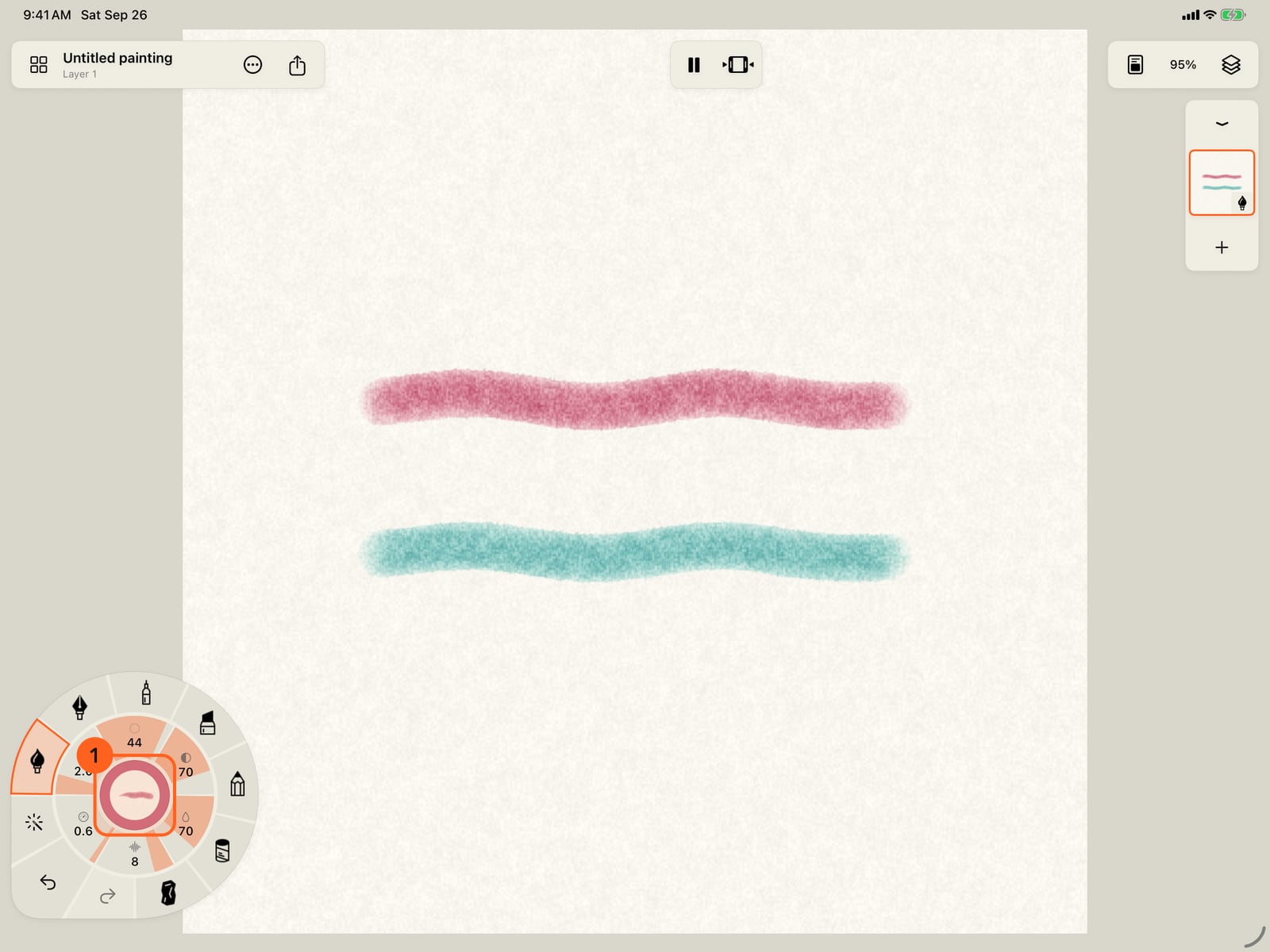
Then tap the painting. The colour under your finger becomes the colour in hand, and you go straight back to painting.
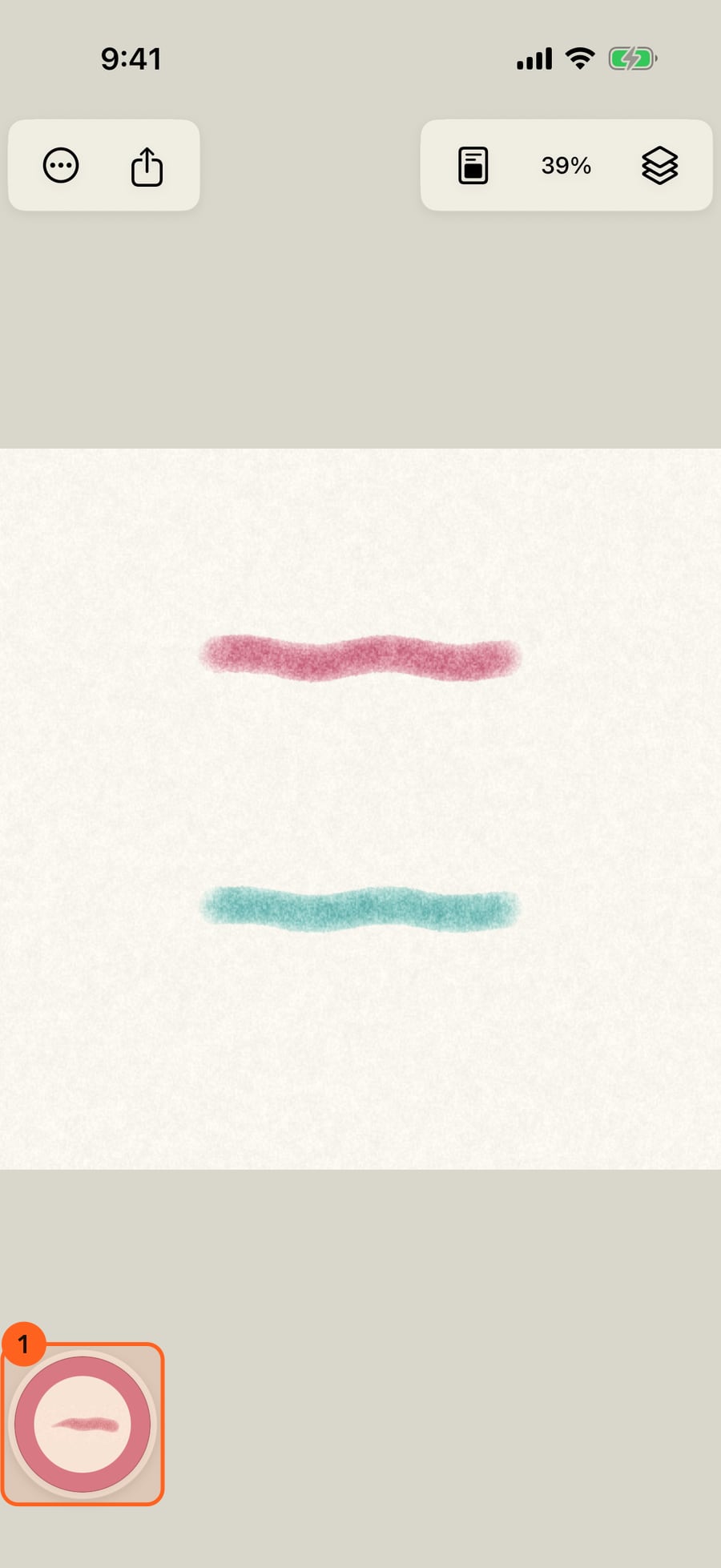
Then click the painting. The colour under your finger becomes the colour in hand, and you go straight back to painting.
The colour rings
Tap the wheel's centre 1 and colours unfold around it, nearest the hand first:
- Recent colors: the colours you picked last, most recent first, as many as there is room for.
- The palette 2: the palette chosen in the colour panel, Basics to begin with.
- More colors 3: the colour panel.
The colour in hand is outlined. Picking a colour folds the rings. Tap the centre again to fold them without choosing.
The colour panel
| Control | What it does |
|---|---|
| Current color | The colour in hand. |
| Hex 1 | Type a colour as RRGGBB or the short RGB, with or without #, and press Return. |
| Custom color 2 | Apple's colour picker: grid, spectrum and sliders, with opacity. |
| Recent 3 | The last twelve colours you picked. |
| Palettes 4 | Named swatches in six palettes: Basics (24 everyday colours), Watercolor (24 artist pigments), Earth, Neutrals, Inks and Pastels. The menu above the swatches chooses the palette; the same palette unfolds around the wheel. Tapping a swatch takes it and closes the panel. |
| Mixer | A saturation and brightness square, a Hue bar and a Colour opacity bar. The mixer changes the colour as you drag and leaves the panel open. |
Colours apply For new strokes. To recolour marks already painted, use Tools → Select stroke.
The Eyedropper
Open Tools in the wheel's corner and tap Eyedropper (or press I on a keyboard), then tap the painting: the colour you see there becomes the colour in hand, and you return to your brush. Picking never paints. The banner at the top, Eyedropper · Tap a color · Return to drawing, cancels it without picking.
Tip: Taking up a built-in brush keeps the colour in hand. A brush you saved brings back the colour it was saved with.
Click the centre of the wheel for the colour rings; the Eyedropper picks with a click.
In Actions → Settings… → Apple Pencil, a squeeze or double-tap can open the colour panel or the Eyedropper directly.
Something not behaving as expected?
Visit support or write to [email protected].