

Guides / Getting started
Welcome tour
The first launch opens a painting that already moves; here is where everything on the screen lives.
The first time you open Doodly Doodle, it opens A quiet breeze, a small study that is already moving. Every part of it is a stroke you could paint yourself.
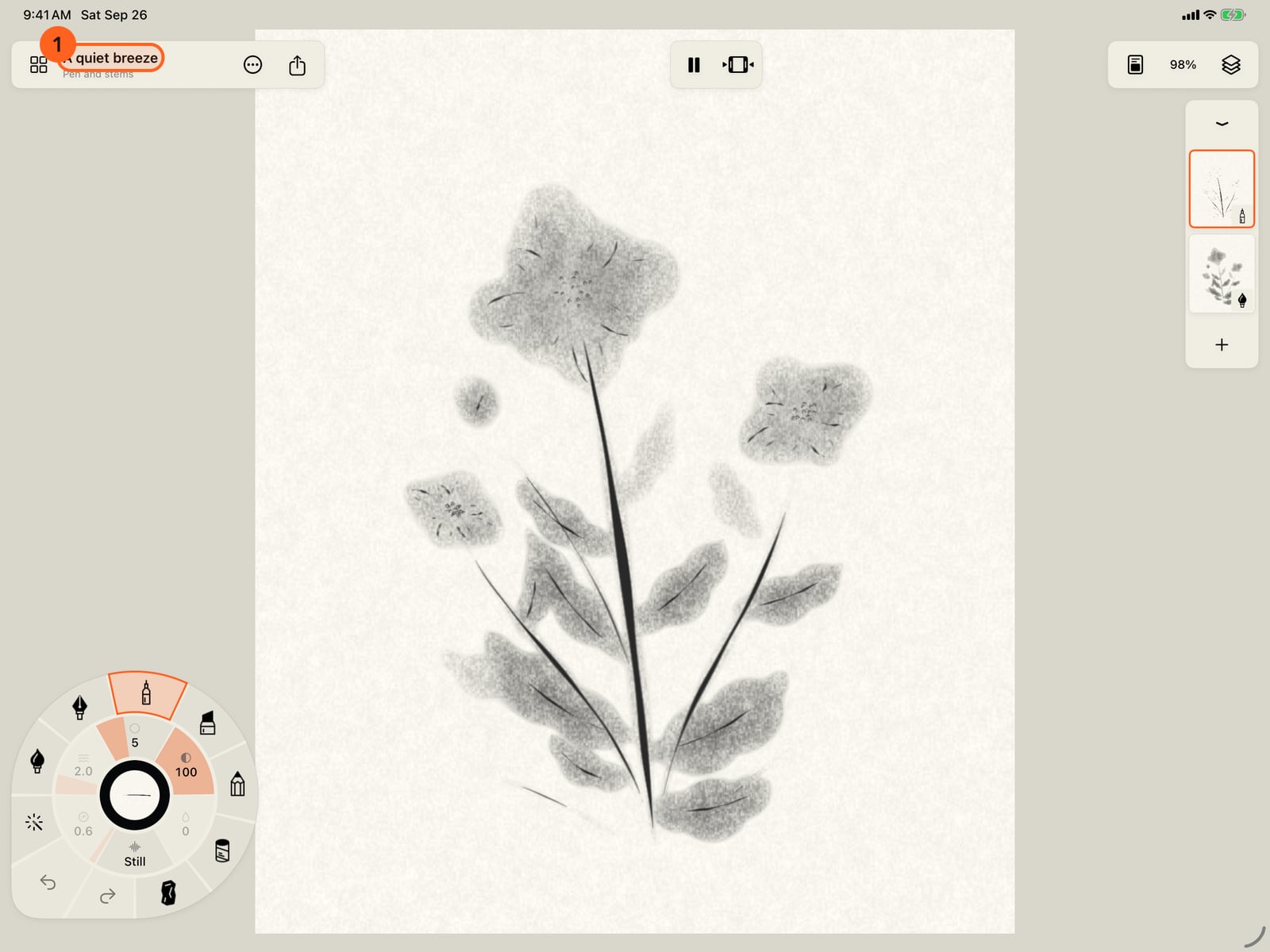
The first time you open Doodly Doodle, it opens A quiet breeze, a small study that is already moving. Every part of it is a stroke you could paint yourself.
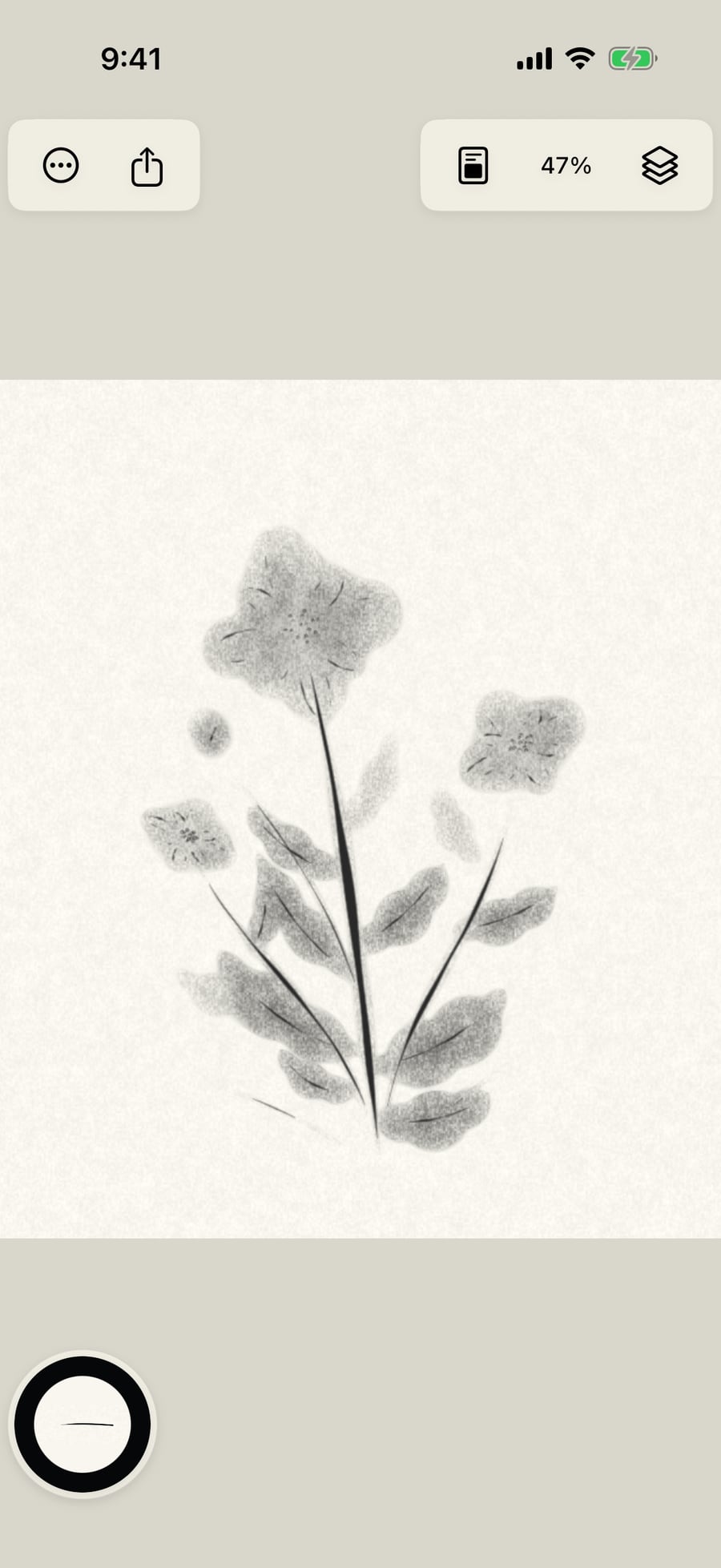
Top left is the painting as a document. Gallery holds all your paintings, the title shows which one is open, Actions holds everything else, and Share sends it on.
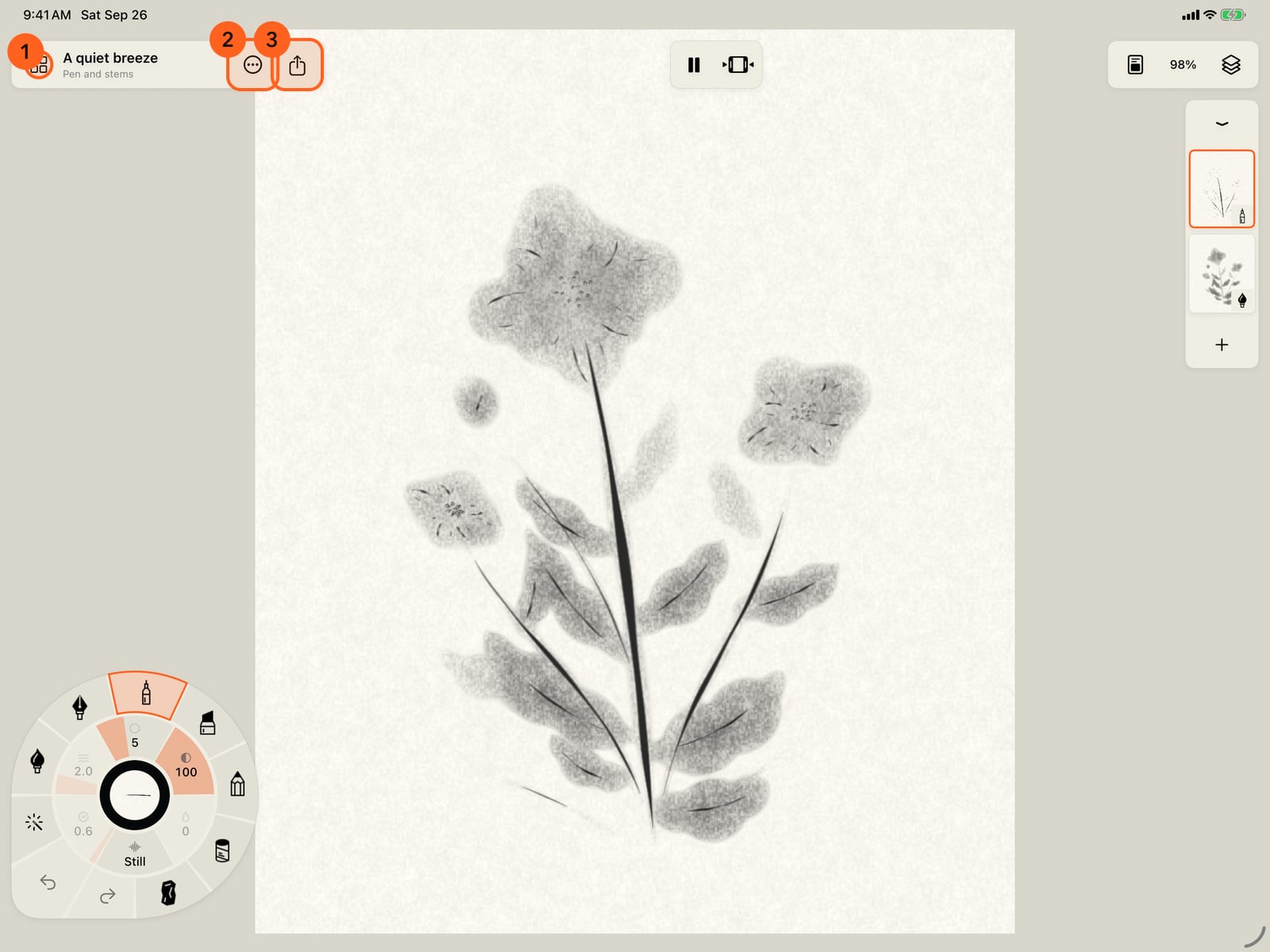
Top left are Actions and Share. Actions holds everything about the painting and the app, and Share sends the painting on.
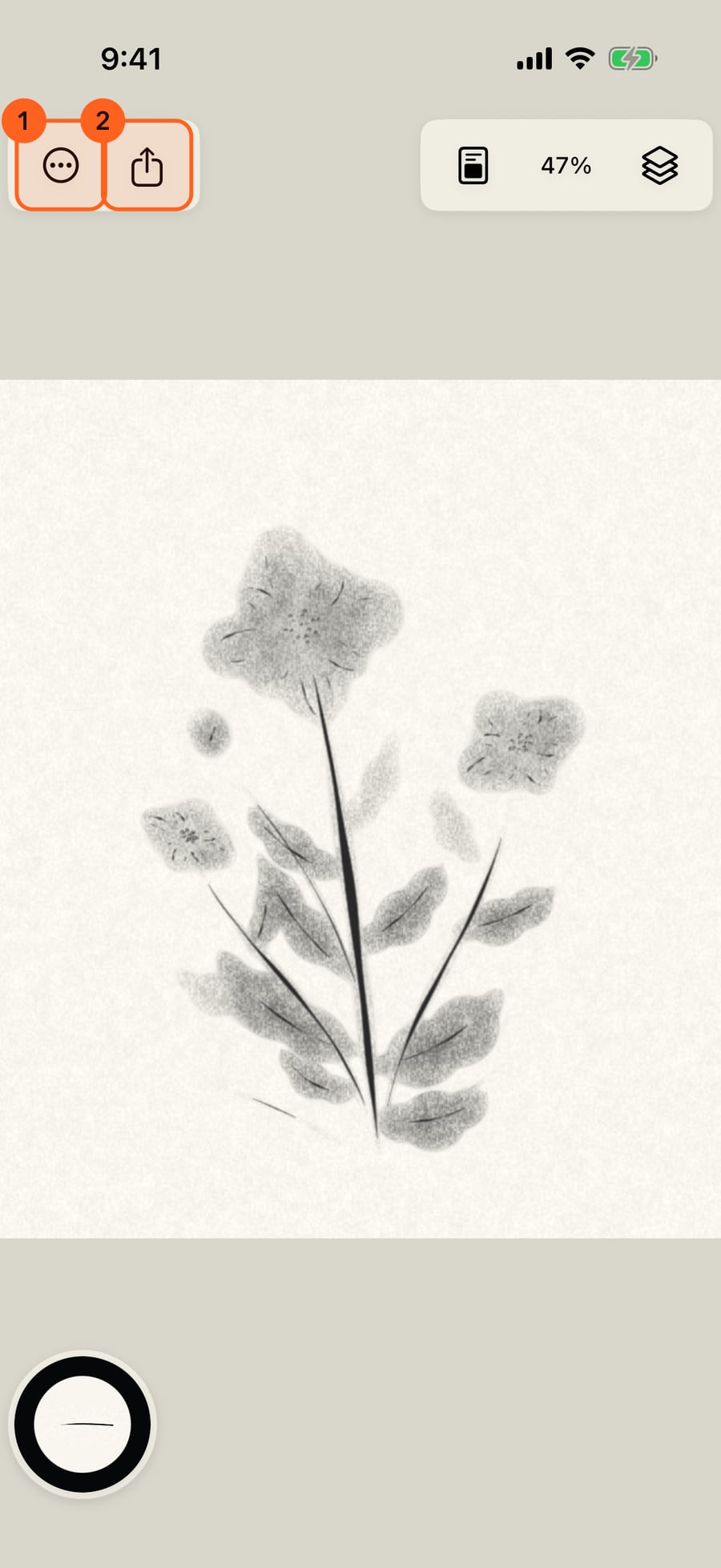
Tap Actions for a new painting, opening and saving project files, Export, playback, Hide interface, the lessons, Free and Pro, and Settings.
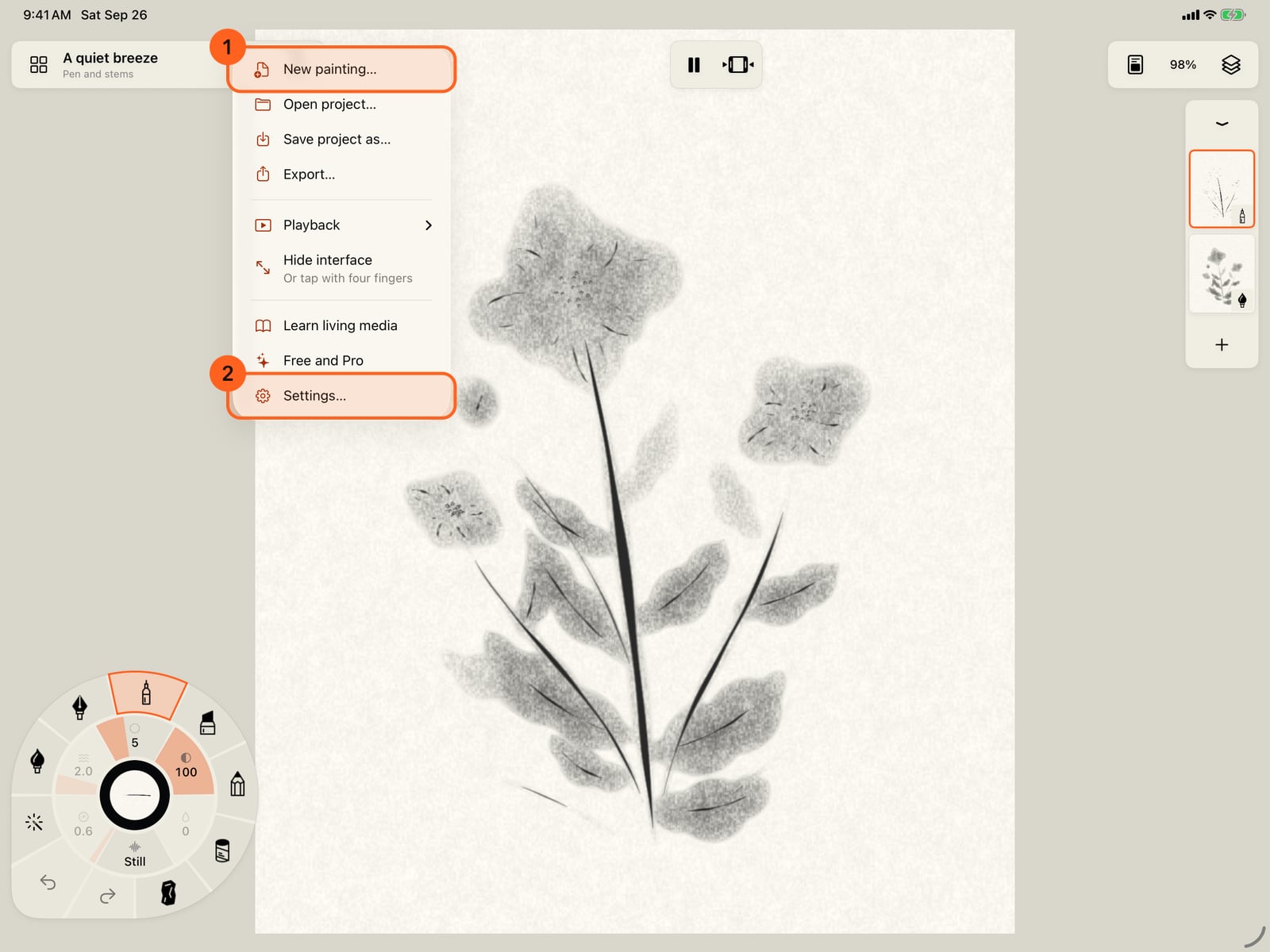
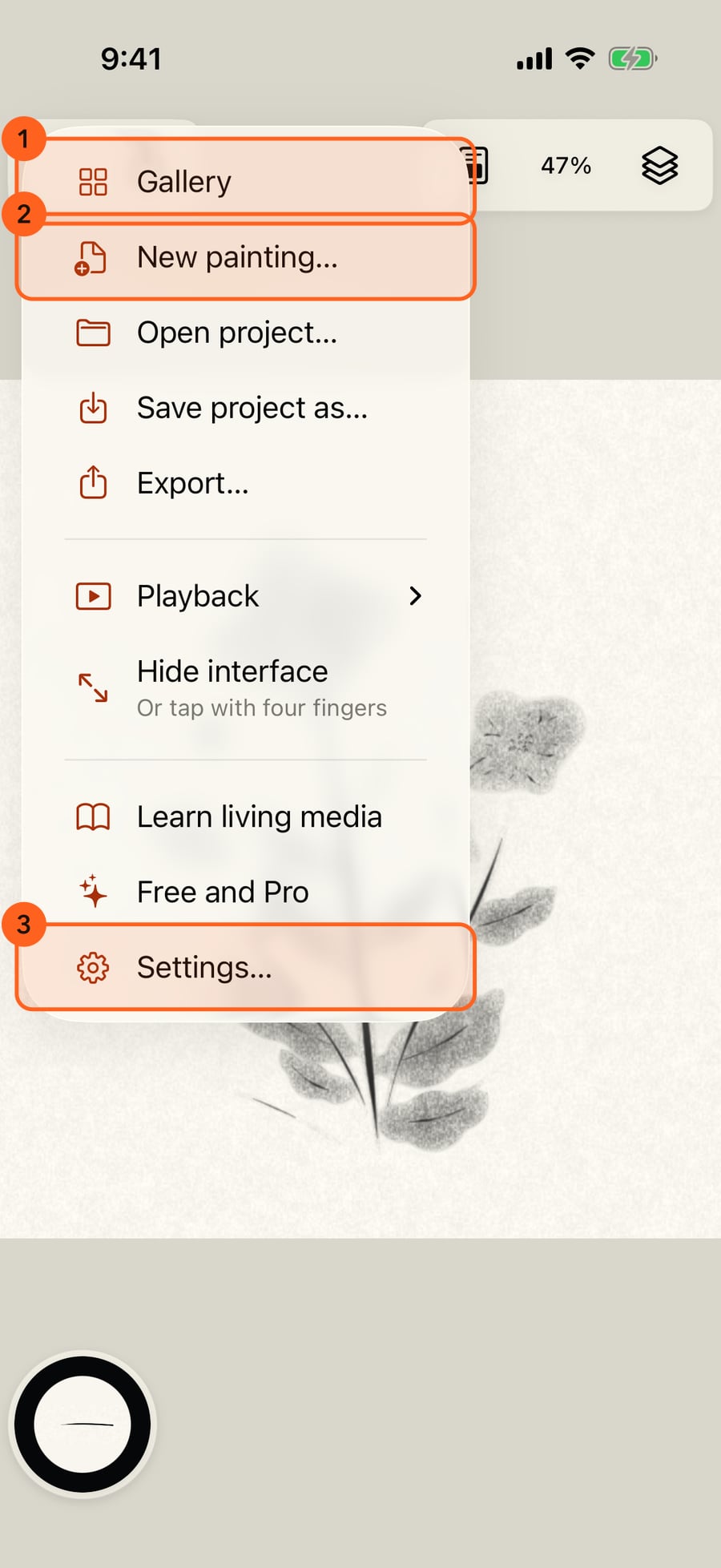
Tap Actions. On iPhone, Gallery lives here too, with a new painting, project files, Export, playback, the lessons, Free and Pro, and Settings.
Click Actions for a new painting, opening and saving project files, Export, playback, Hide interface, the lessons, Free and Pro, and Settings.
In the middle of the bar, Play and Pause run the painting's motion. Pause it, then tap Show timeline, and a scrubber drops beneath to move through time.
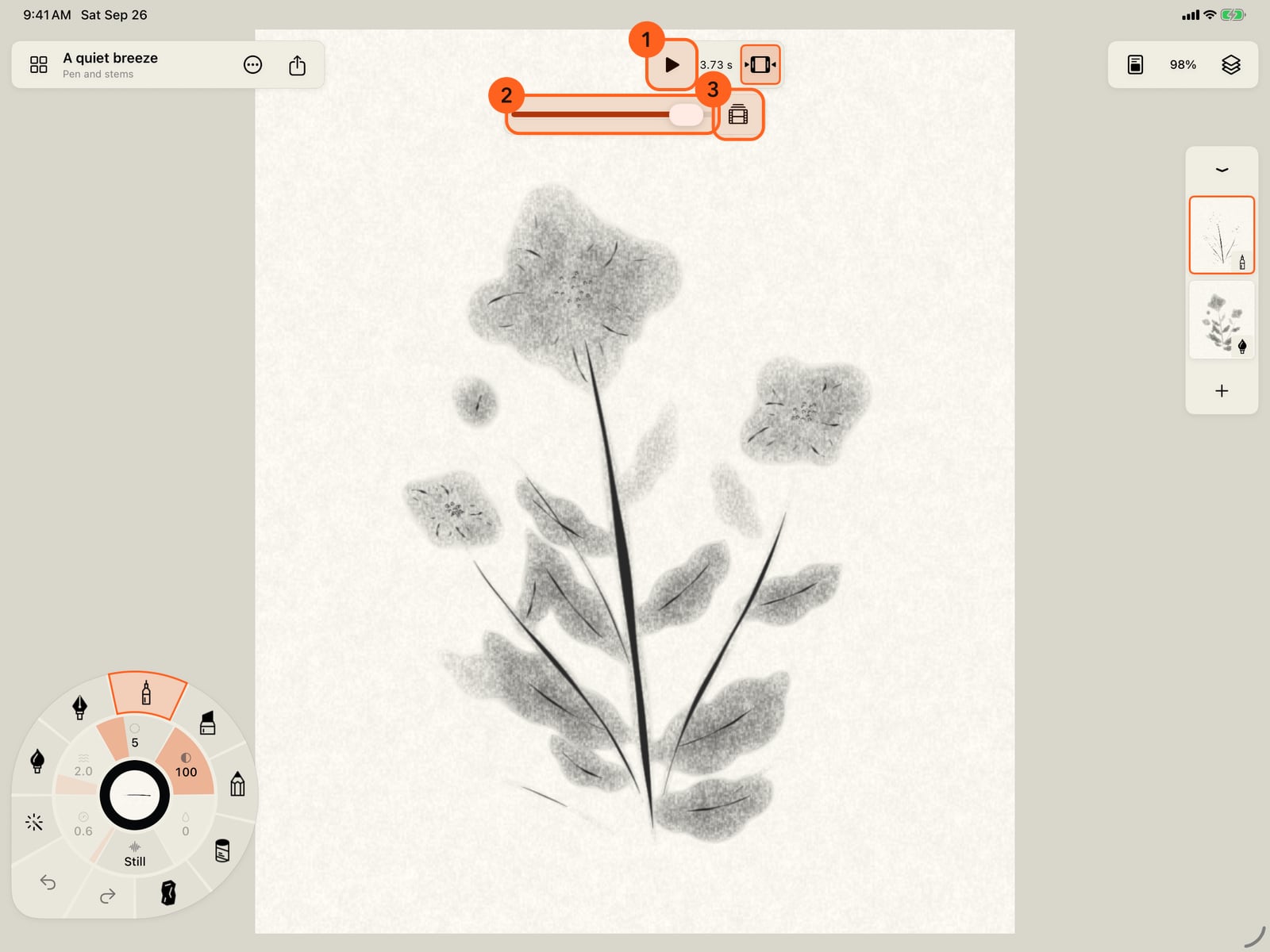
In the middle of the bar, Play and Pause run the painting's motion. Pause it, then click Show timeline, and a scrubber drops beneath to move through time.
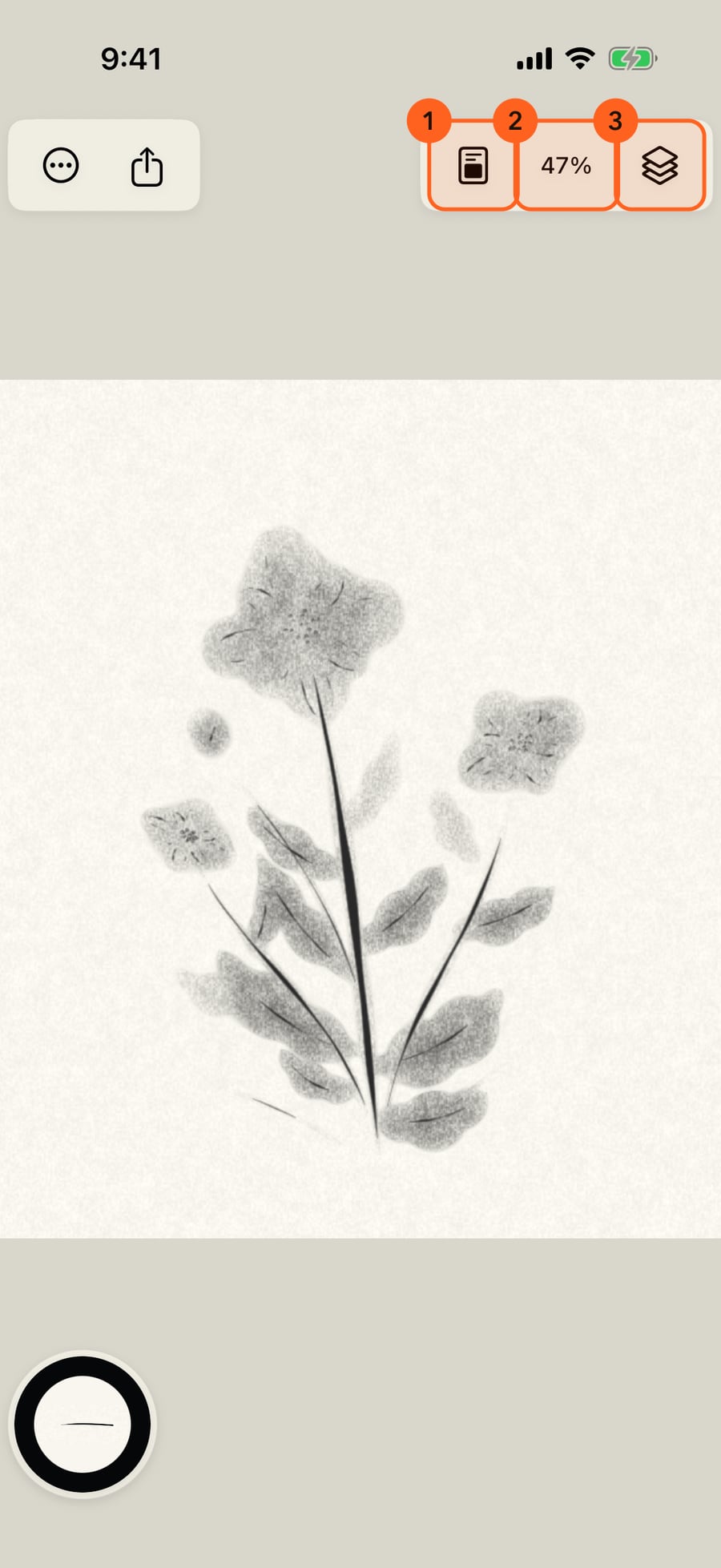
Top right is the surface. The Canvas menu holds paper, canvas size, the ruler, symmetry and guides; the percentage is the zoom menu; and Layers opens every layer's settings.
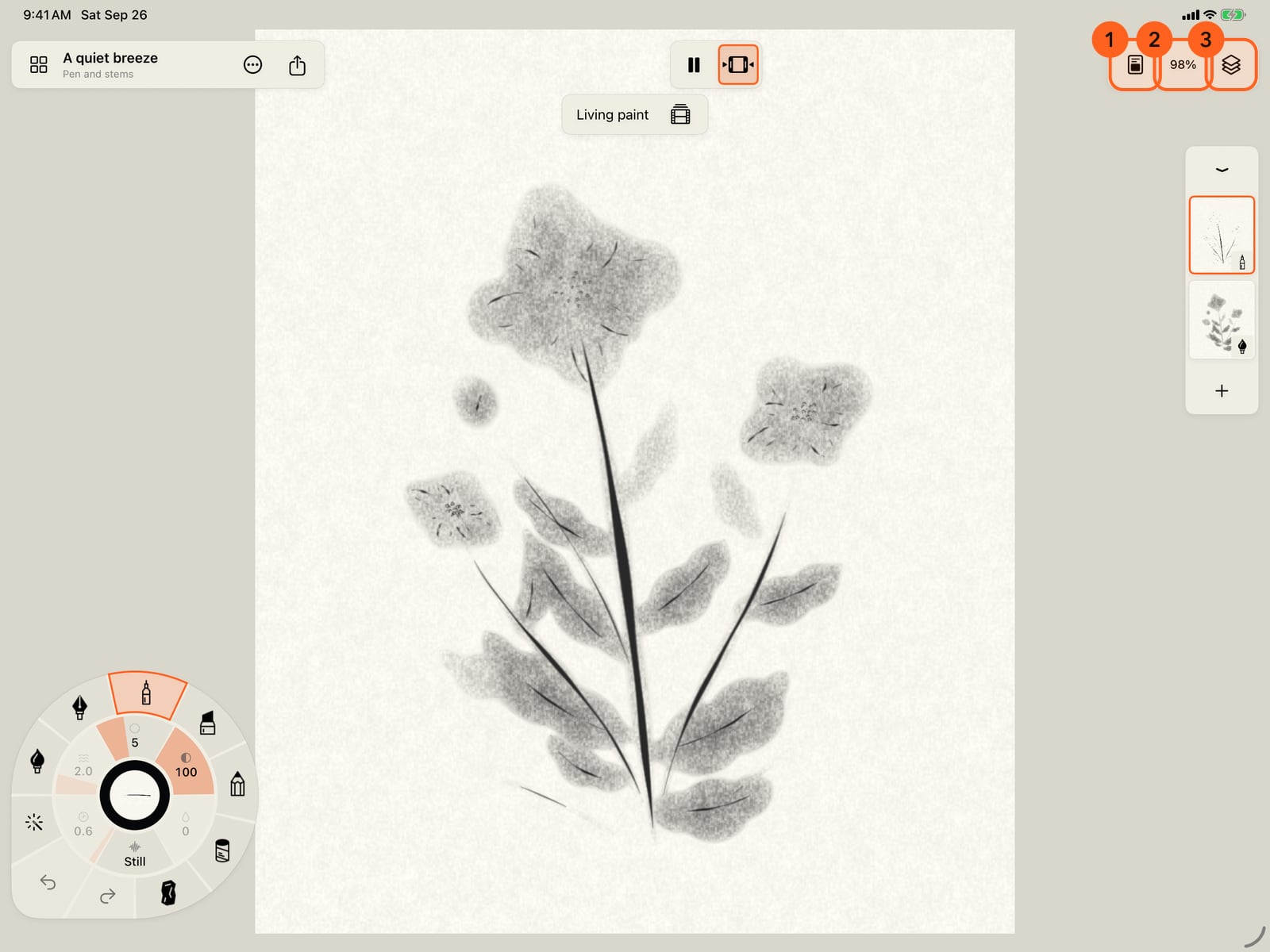
Top right is the surface. The Canvas menu holds paper, canvas size, the ruler, symmetry and guides; the percentage is the zoom menu; and Layers opens every layer's settings.
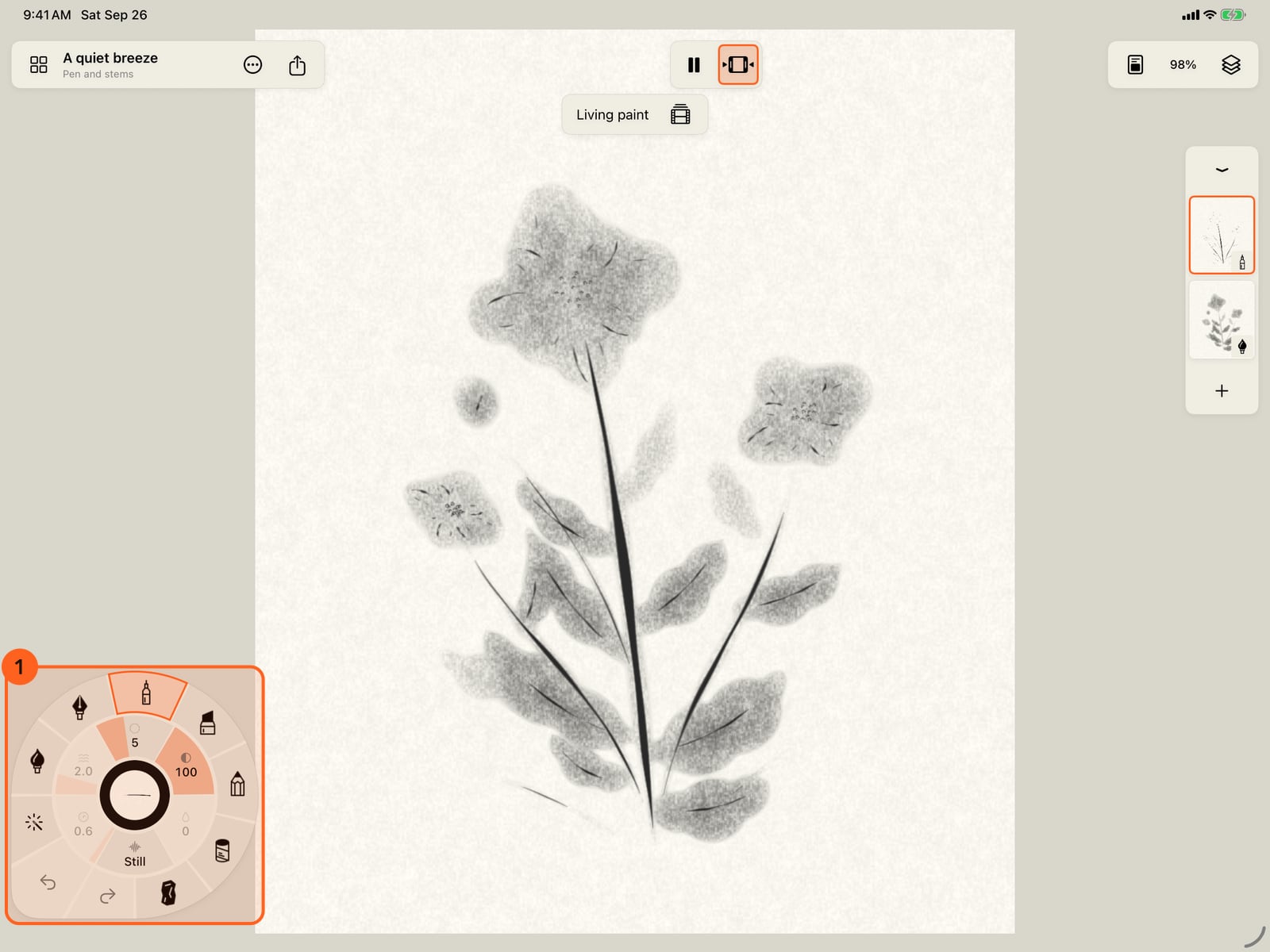
Bottom left is the stroke wheel. It holds the medium, brush, colour, size and motion of your next mark, with Undo, Redo and Tools under your thumb.
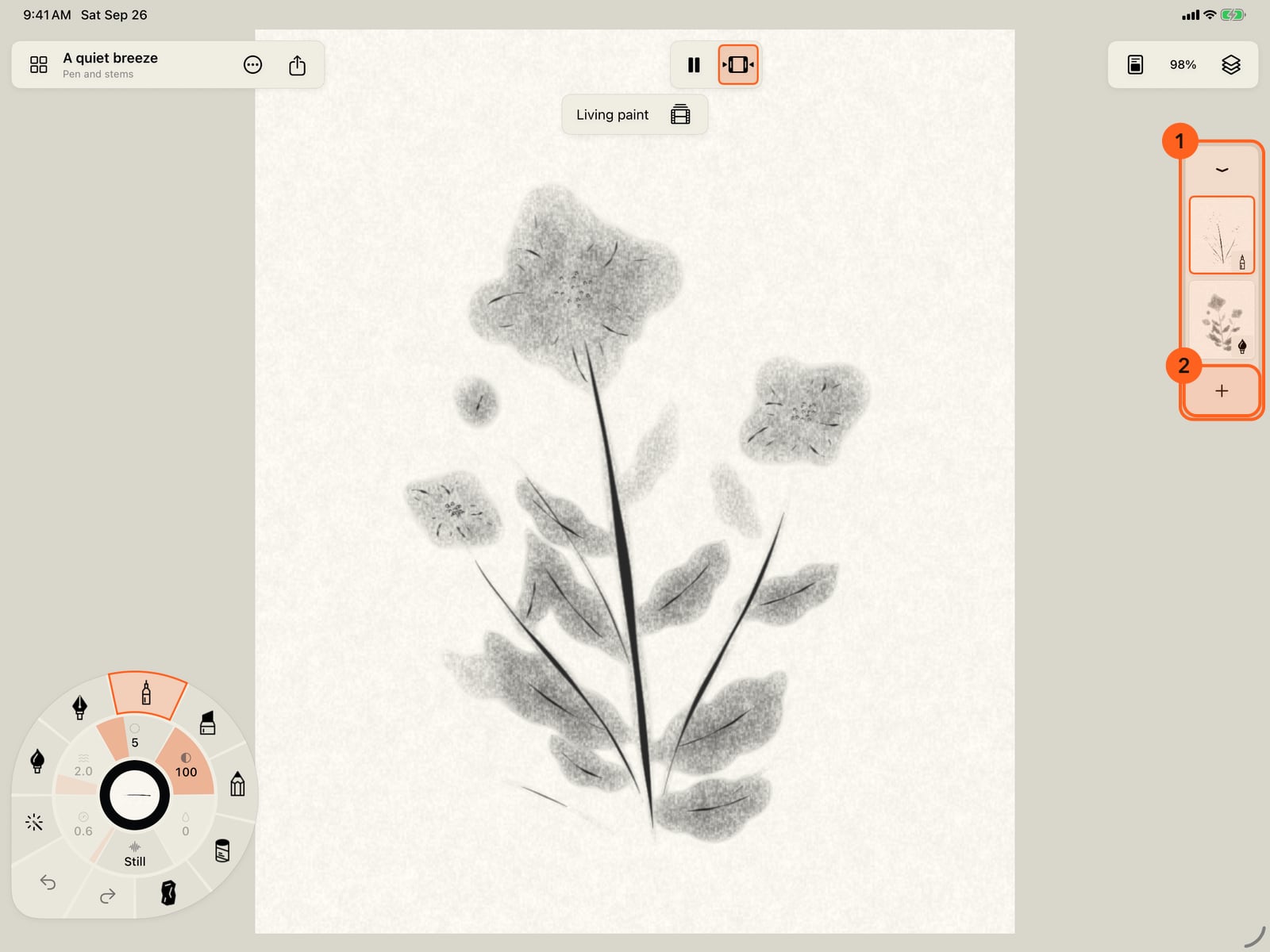
Bottom left is the stroke wheel, folded to its centre on iPhone. Tap it to unfold the medium, brush, colour, size and motion of your next mark.
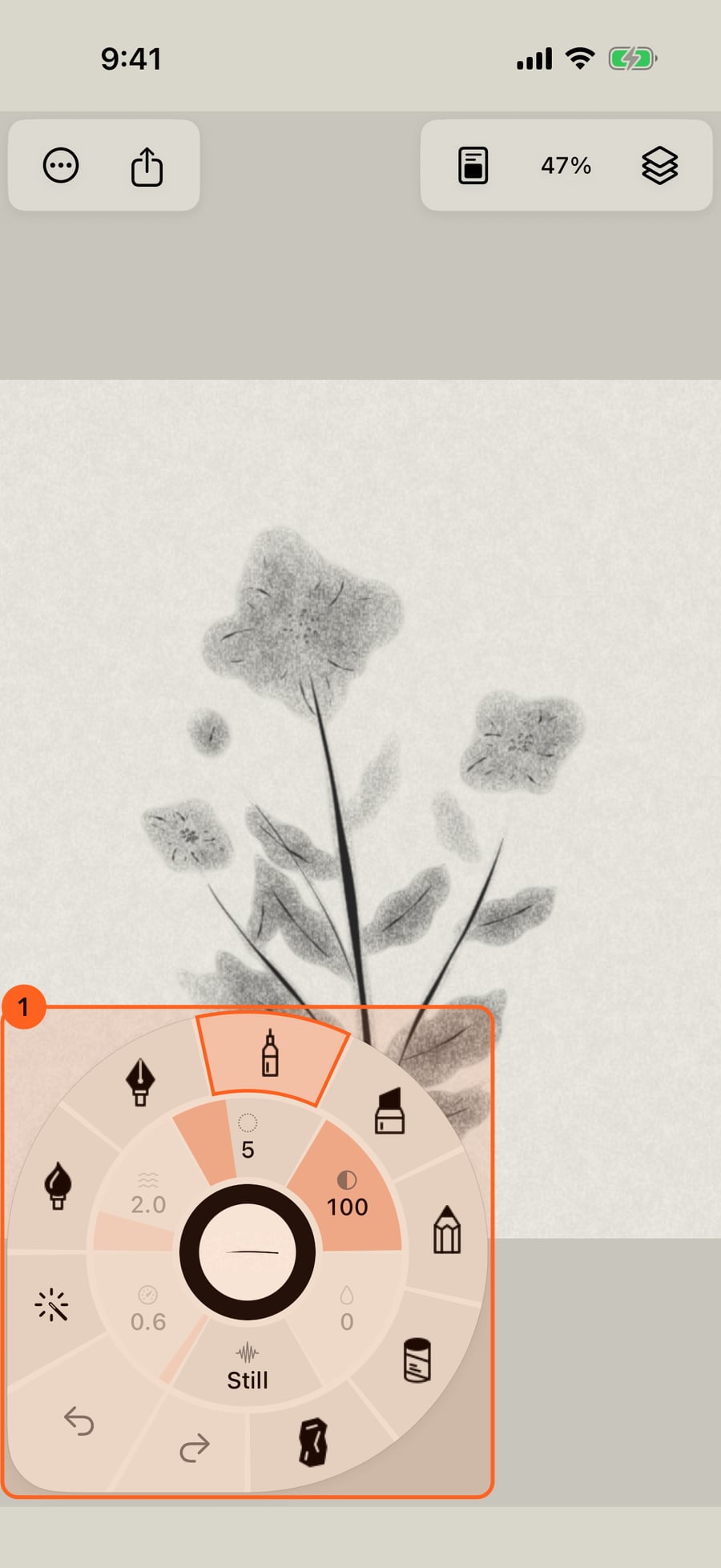
Down the right side, the layer strip lists the painting's layers. Tap one to paint on it, or the plus to add another.
Tap the page to fold the wheel, then tap Layers. On iPhone there's no room for the layer strip, so the layers open as a sheet.
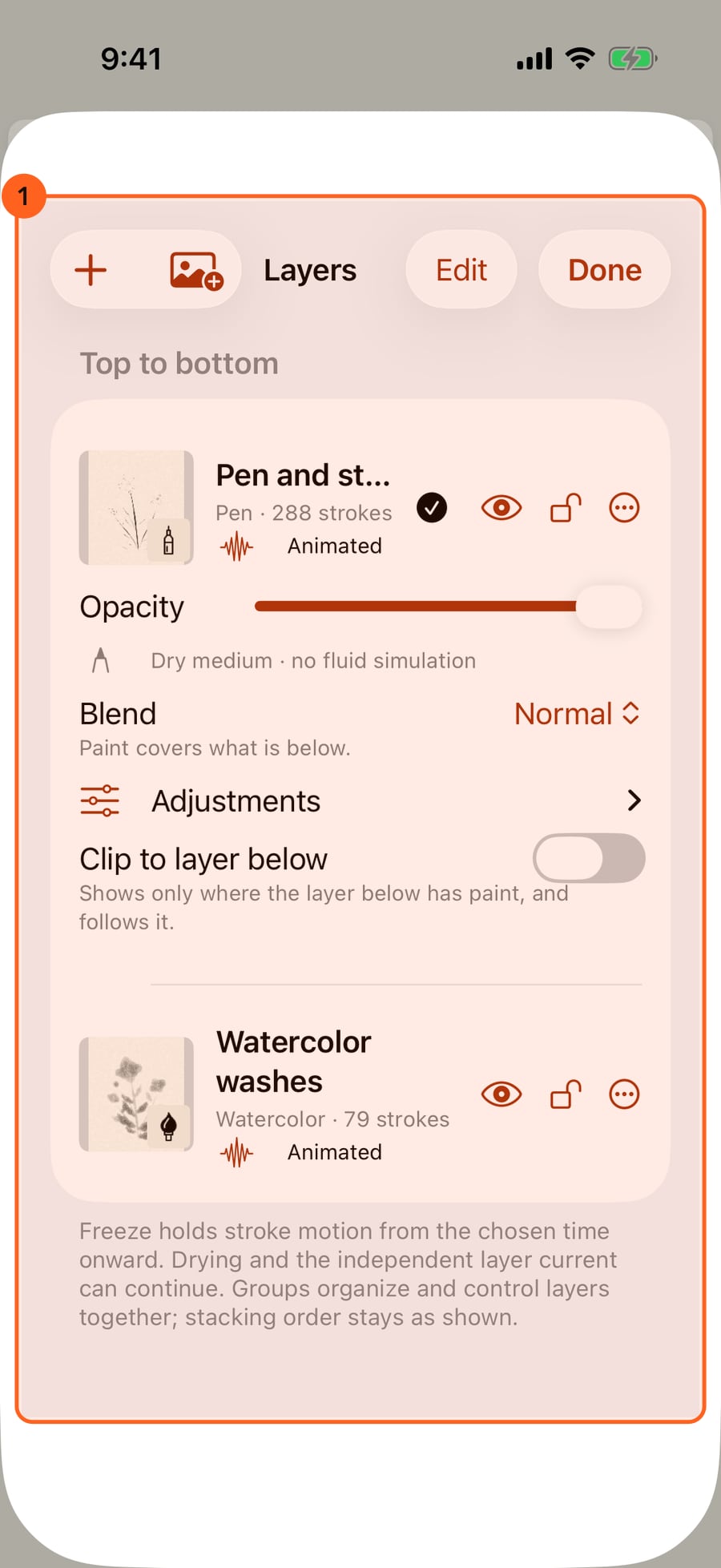
Down the right side, the layer strip lists the painting's layers. Click one to paint on it, or the plus to add another.
The first launch
The first time you open Doodly Doodle it shows A quiet breeze, a finished study that is already playing. It's an ordinary painting: pause it, scrub it, paint on it, or open the Gallery and start your own. It stays in the Gallery until you delete it. The lessons that used to greet new users are still in Actions → Learn living media (see Lessons).
Tip: With Reduce Motion turned on in the Settings app, paintings open paused. Tap Play when you want them to move.
The top bar
The bar runs across the top of the page. Document controls hug the leading corner, the painting's clock sits in the middle, and the surface controls hug the trailing corner.
| Control | What it does |
|---|---|
| Gallery 1 | All your paintings, templates and a custom size. See Gallery. |
| Title | The painting's title, with the layer you're painting on beneath it. Rename a painting in the Gallery. |
| Actions 2 | Gallery (on narrow screens), New painting…, Open project…, Save project as…, Export…, Playback (Animation settings…, Restart animation, Replay drying), Hide interface, Learn living media, Free and Pro and Settings…. |
| Share 3 | Share image, Share loop and Export…. See Share and export. |
| Play / Pause | Runs or holds the painting's motion. While paused, the bar shows the time in seconds. |
| Show timeline | Drops a bar beneath: the Animation time scrubber (while paused; Living paint while playing) and Animation settings. |
| Canvas and paper | Paper…, Canvas size…, Ruler, Flip canvas view, Symmetry, Guides, and Inside the lines when the painting has a colouring page. It's highlighted while any of these aids is on. |
| Zoom (the percentage) | Zoom in, Zoom out, 100%, Fit canvas, Reset rotation and Rotate 15° either way. See Gestures and the view. |
| Layers | Every layer's visibility, lock, opacity, blend mode, adjustments and groups. |
The Actions and Share menus wait while a stroke is still being drawn, and Share needs at least one stroke on the page.
On iPhone the bar keeps only what fits: Actions and Share on the left, Canvas and paper, Zoom and Layers on the right. Gallery moves into the Actions menu, and there's no Play button or timeline in the bar. Paintings still play as they open, and Actions → Playback → Restart animation plays from the start.
The stroke wheel
The wheel in the bottom corner is everything about your next mark: the seven media around its rim, the Size, Strength and Water gauges for the stroke and Amount, Speed and Pattern for its motion, and the corner under your thumb with Undo, Redo and Tools (where the eraser and eyedropper live). Its centre shows the next stroke in the current colour; tap it for colours. Your first painting walks through it.
On iPhone the wheel rests folded to its centre. Tap it to unfold; tap the page, or start drawing, to fold it again.
Squeeze or double-tap Apple Pencil to bring the wheel beside the pencil; see Apple Pencil and touch.
A secondary click on the page brings the wheel to the pointer; see Mouse, trackpad and keyboard.
Tip: Settings → Interface & input → Controls on right moves the wheel to the bottom-right corner and the layer strip to the left, for left-handed painting.
The layer strip
On the side opposite the wheel, the strip shows the painting's layers with thumbnails. Tap a layer to paint on it, drag to reorder, and tap New layer to add one. The button at its top (Hide layer strip) collapses it, and Show layer strip brings it back. Each layer holds one medium; see the Layers guide for everything else.
Below about 420 points of width, as on iPhone, the strip is hidden to leave the page clear. The Layers button in the top bar opens the same layers as a sheet.
Hiding everything
Actions → Hide interface, or a four-finger tap, clears the screen for looking. The Show interface button in the top corner brings it all back. See Gestures and the view.
Something not behaving as expected?
Visit support or write to [email protected].