

Guides / Getting started
Your first painting
Pick up a brush from the stroke wheel, choose a colour, paint, and undo a mark.
This is your page. The stroke wheel in the corner holds everything about the mark you're about to make.
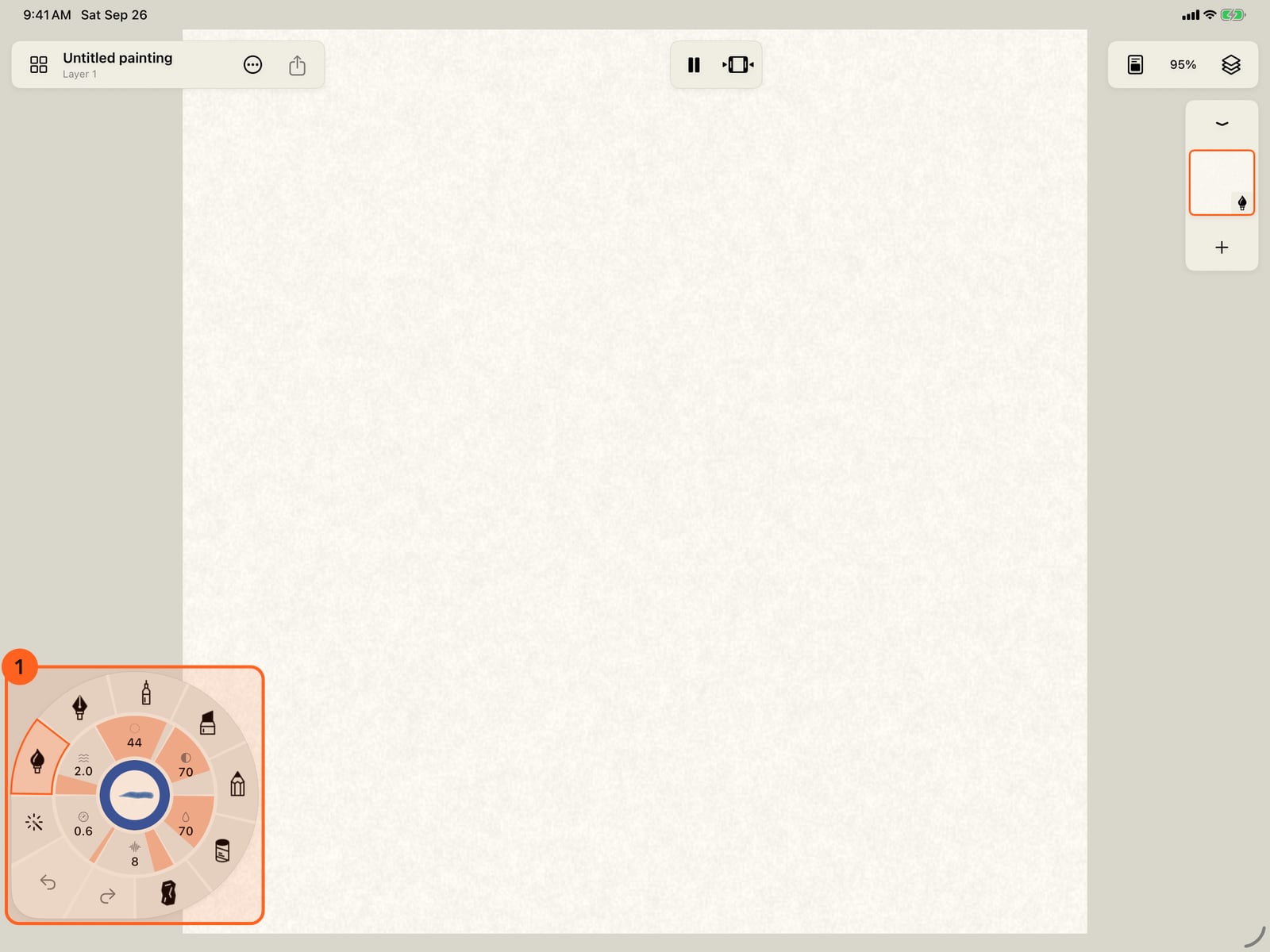
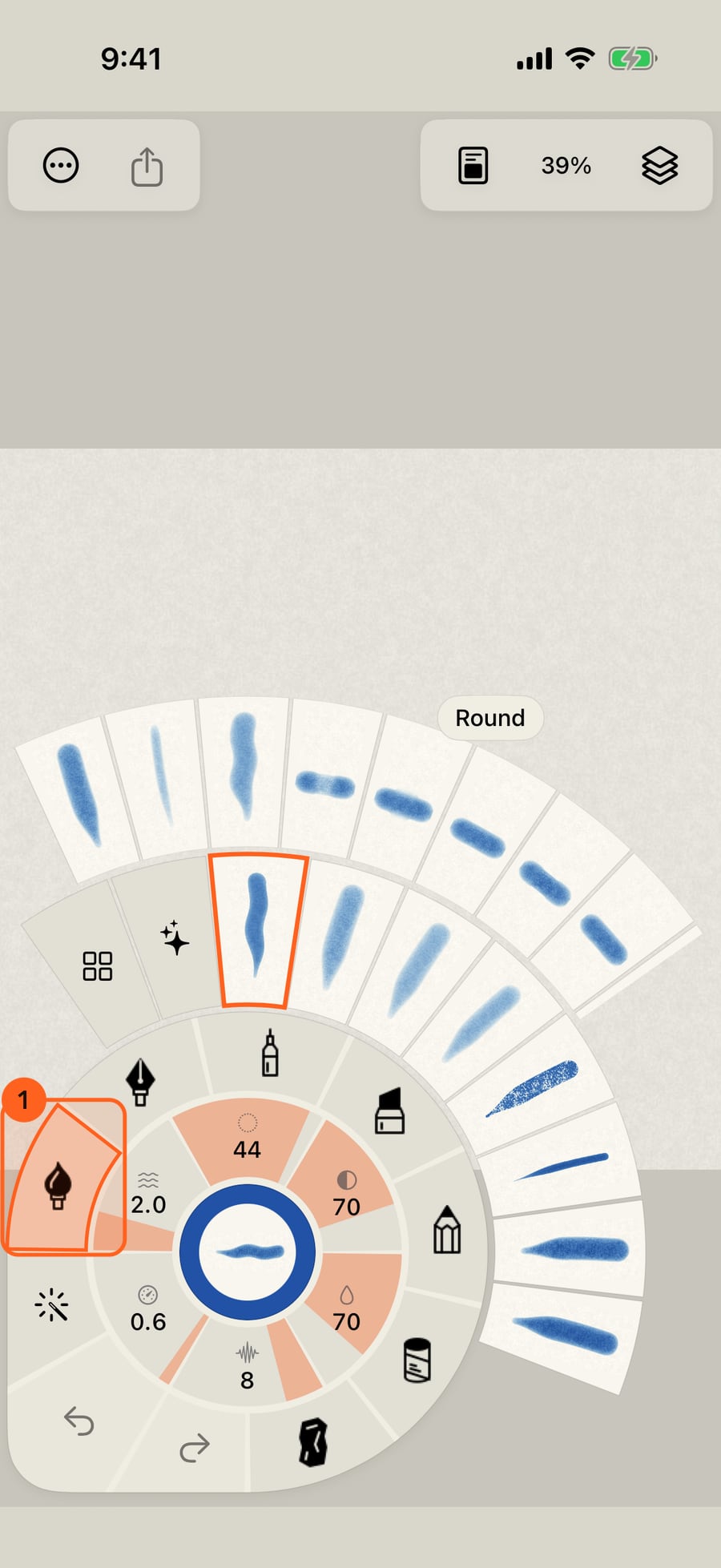
This is your page. On iPhone the stroke wheel rests folded in the corner. Tap it to unfold it.

The rim holds the seven media. Watercolor is in hand, so tapping it unfolds its brushes. Tap another medium to switch.
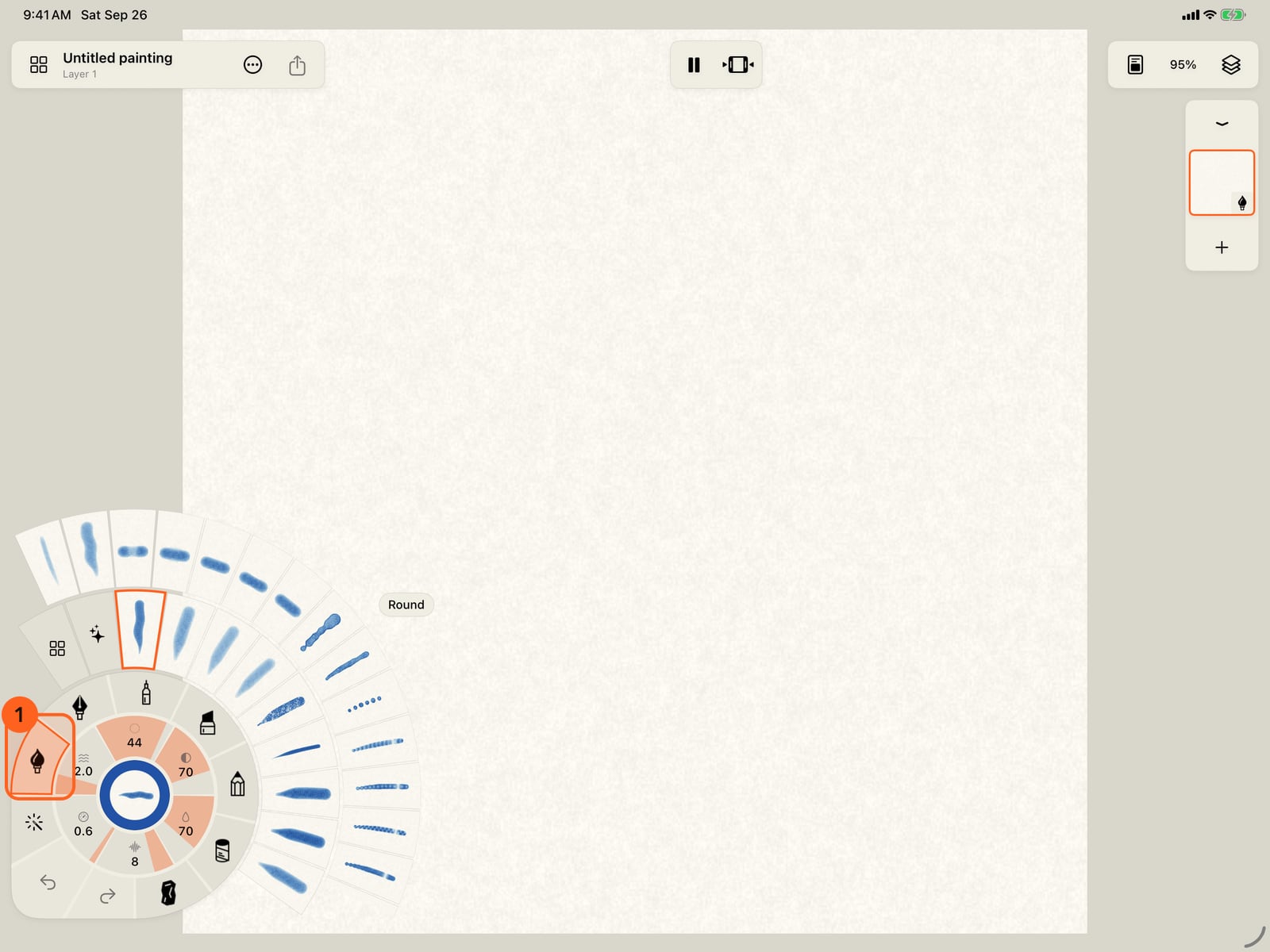
The rim holds the seven media. Watercolor is in hand, so tapping it unfolds its brushes. Tap another medium to switch.
The rim holds the seven media. Watercolor is in hand, so clicking it unfolds its brushes. Click another medium to switch.
The centre shows your next stroke. Tap it, and colours unfold around the wheel.
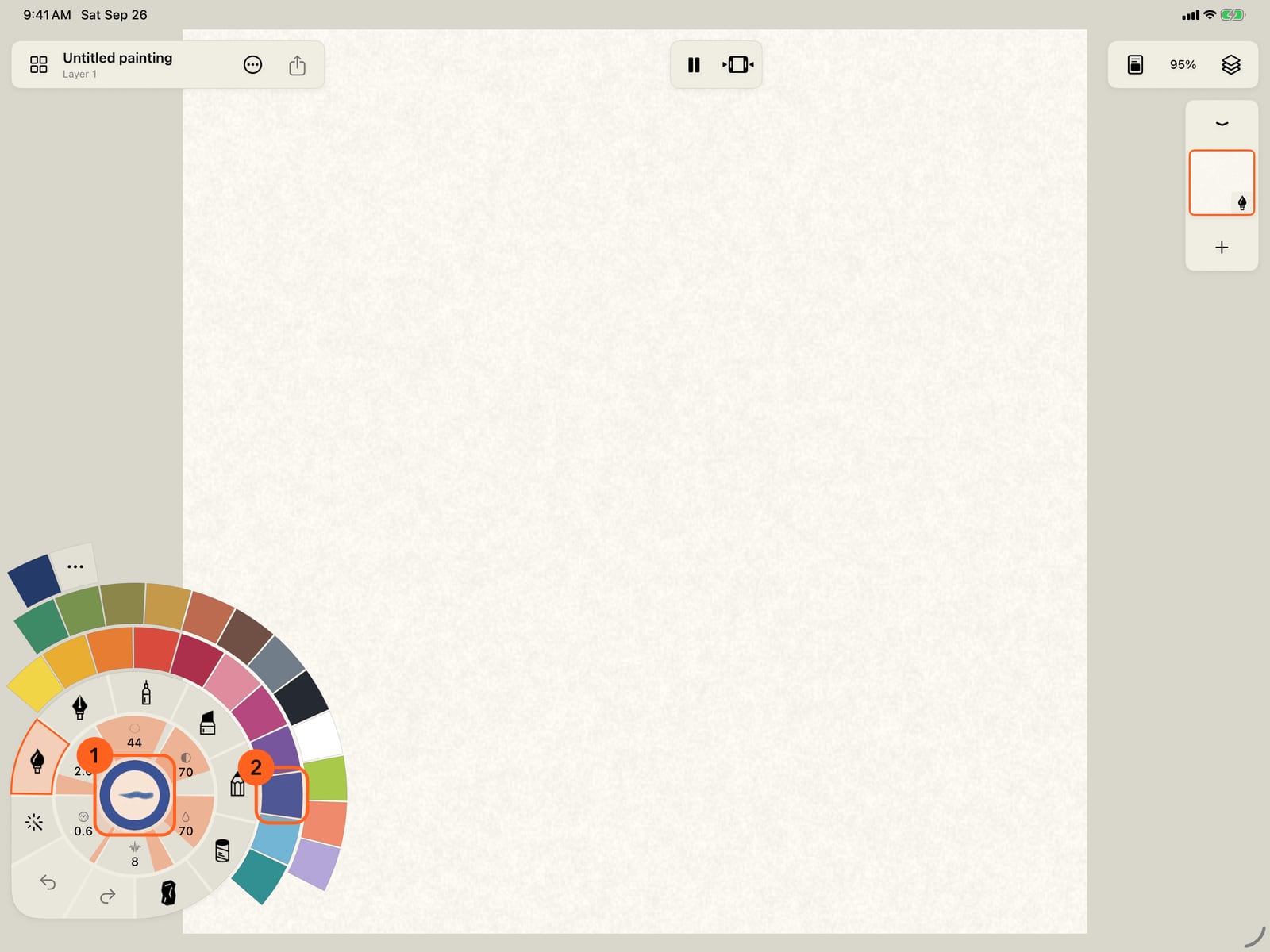
The centre shows your next stroke. Tap it, and colours unfold around the wheel.
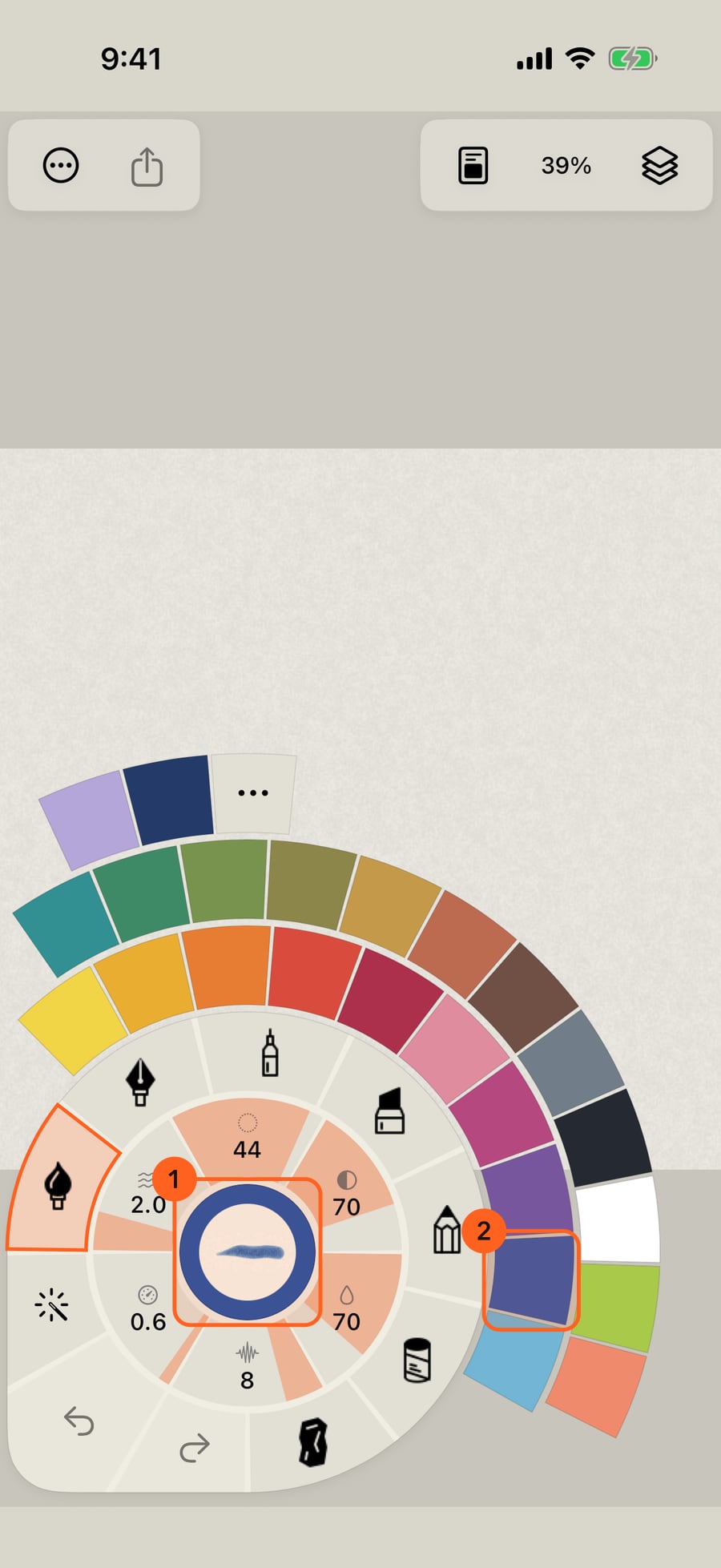
The centre shows your next stroke. Click it, and colours unfold around the wheel.
Pick a colour, then paint with Apple Pencil and lift. Watercolor stays wet for a while, so strokes that meet will mix.
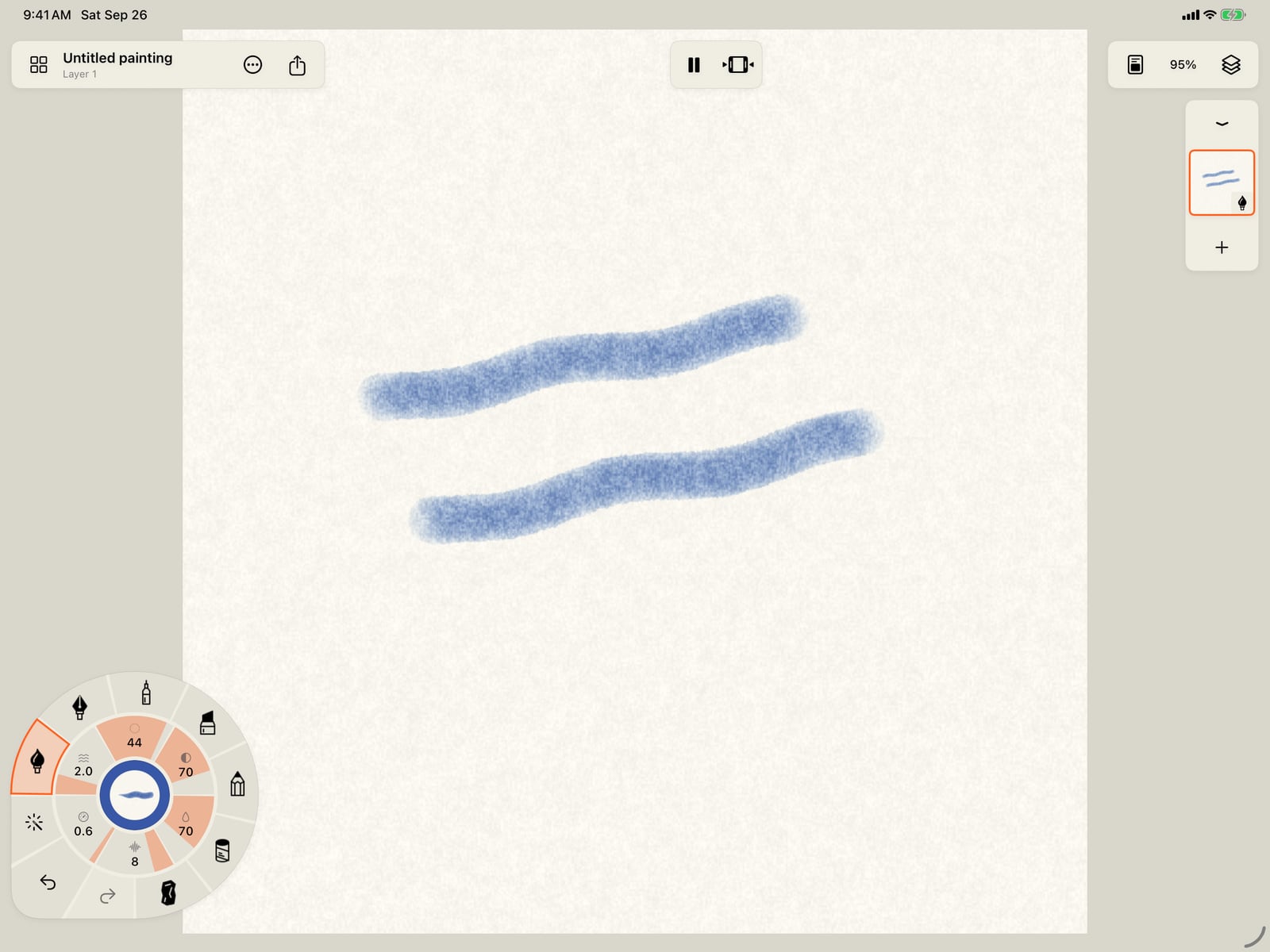
Pick a colour, then tap the page to fold the wheel away. Paint with your finger and lift. Watercolor stays wet for a while, so strokes that meet will mix.
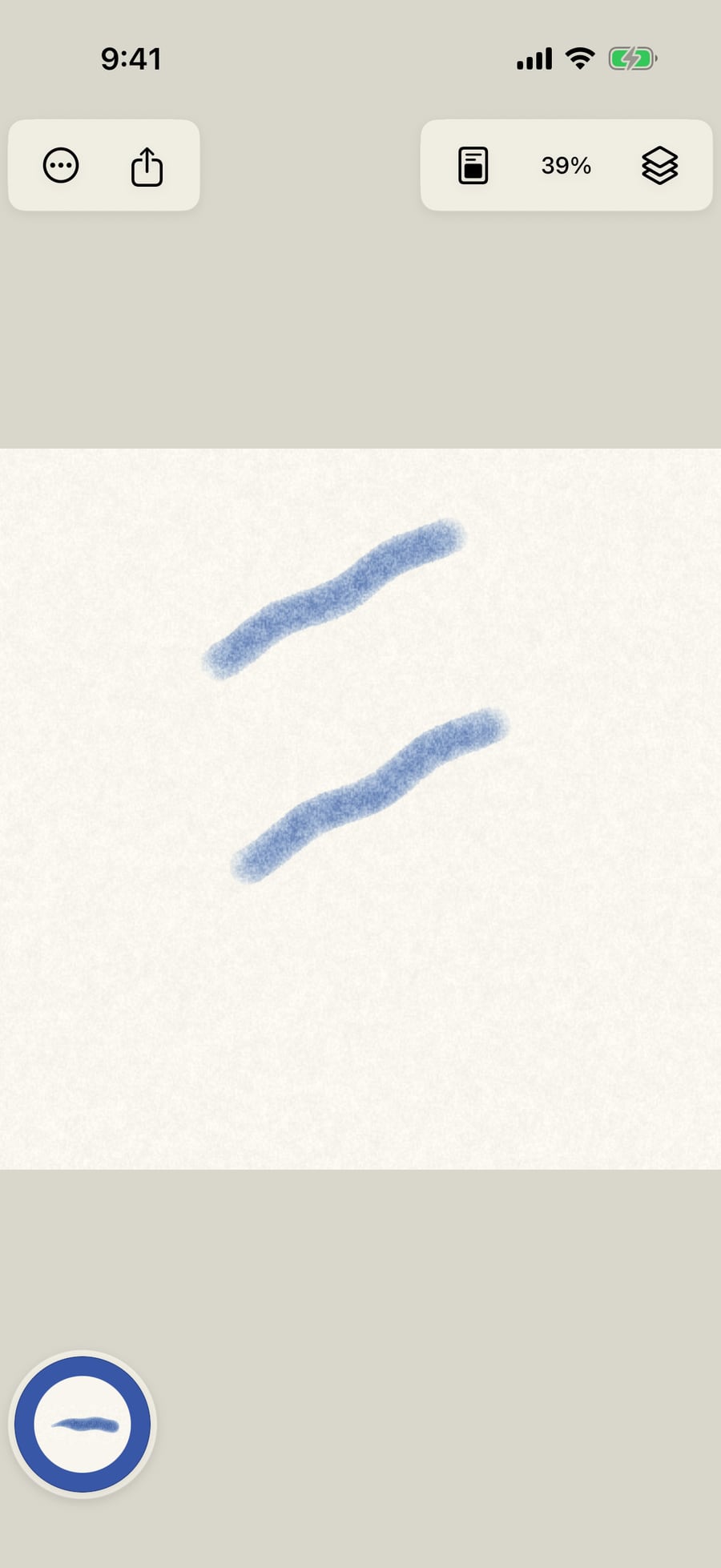
Pick a colour, then paint with your mouse, trackpad or tablet, and let go. Watercolor stays wet for a while, so strokes that meet will mix.
Around the centre, the gauges set your next stroke. Size, Strength and Water shape it, and Amount, Speed and Pattern move it. Turn one clockwise for more.
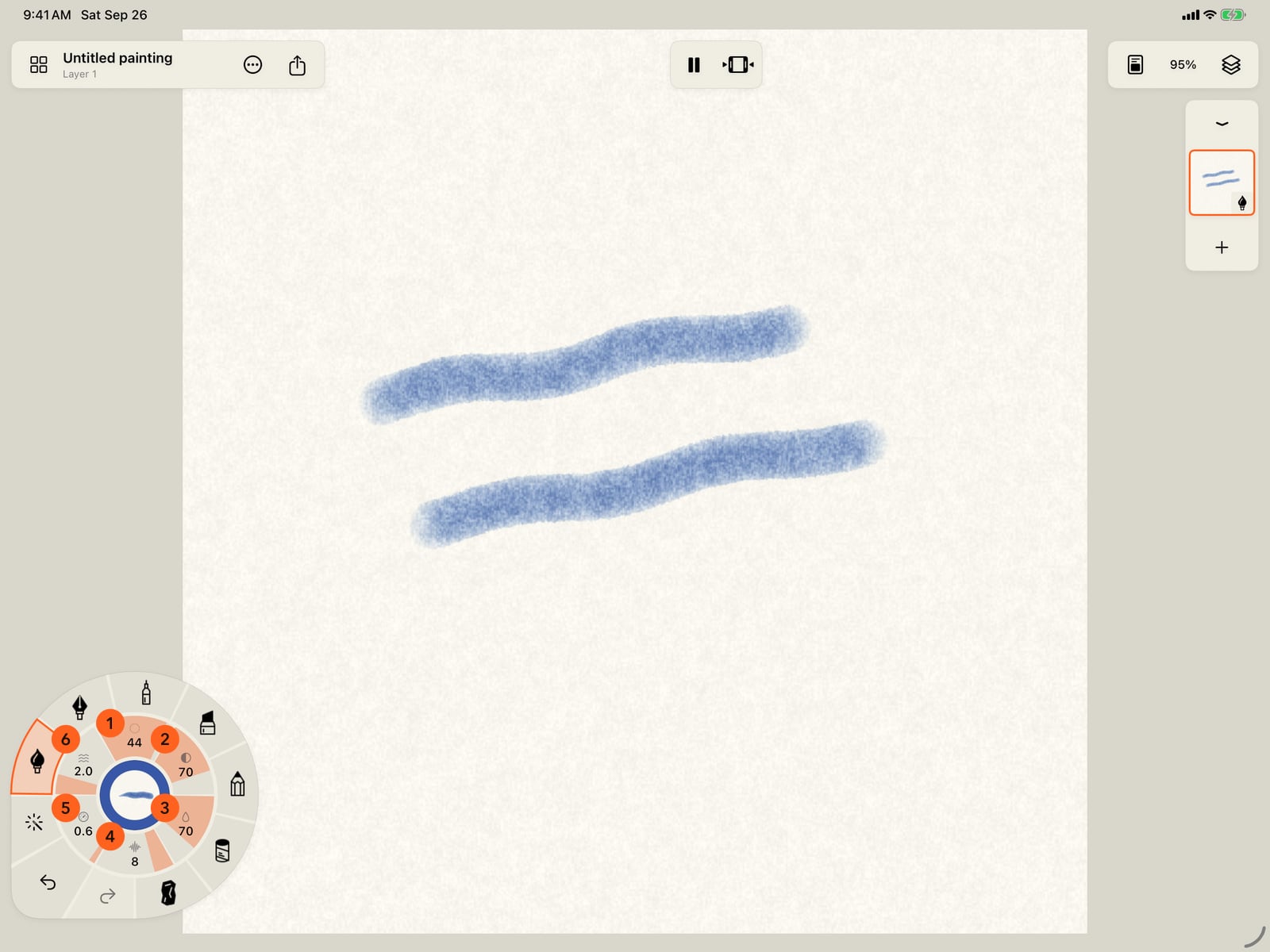
Tap the wheel again to unfold it. The gauges set your next stroke. Size, Strength and Water shape it, and Amount, Speed and Pattern move it. Turn one clockwise for more.

Changed your mind? Tap Undo in the wheel's corner, or tap the page with two fingers.
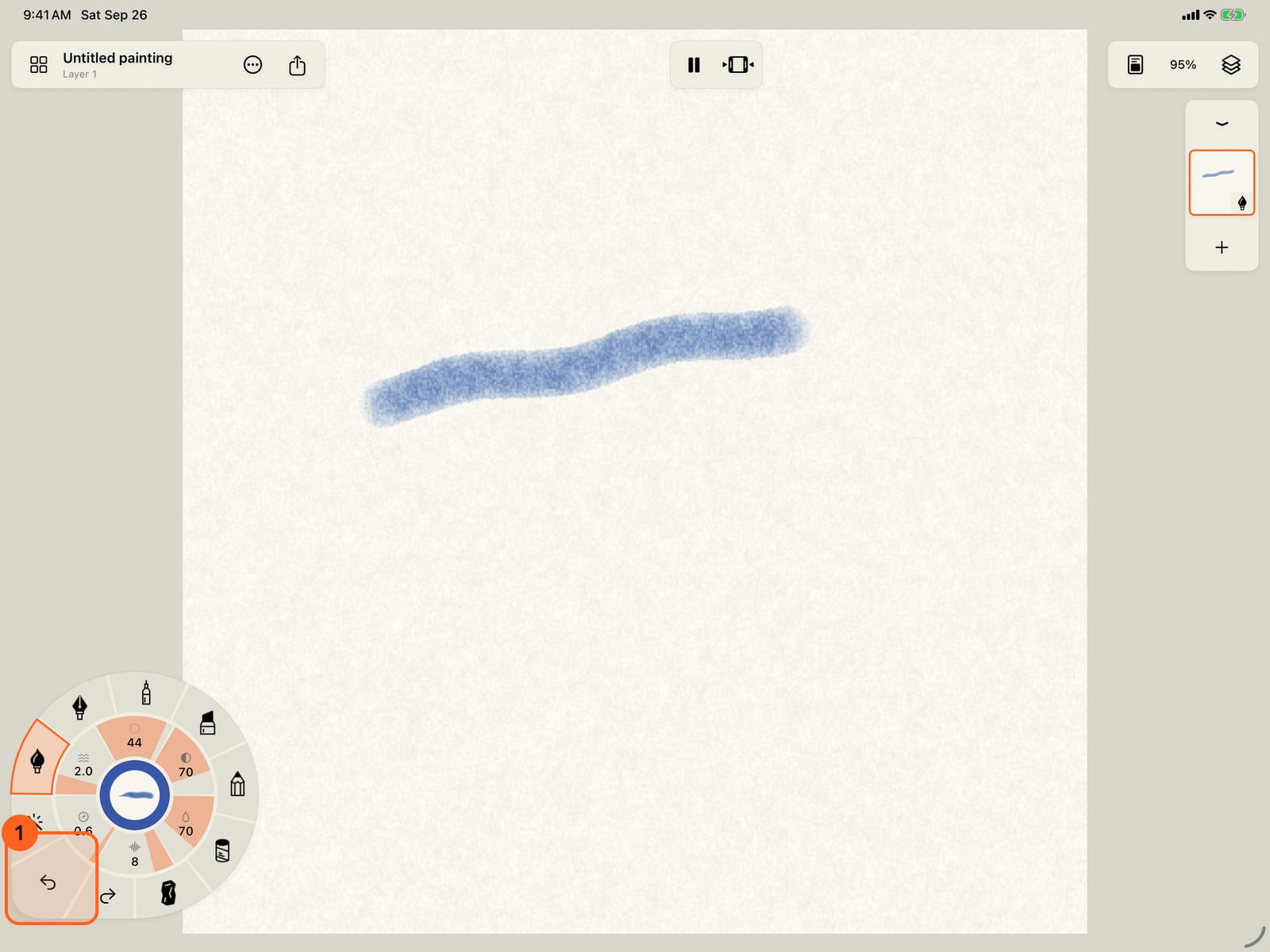
Changed your mind? Tap Undo in the wheel's corner, or tap the page with two fingers.
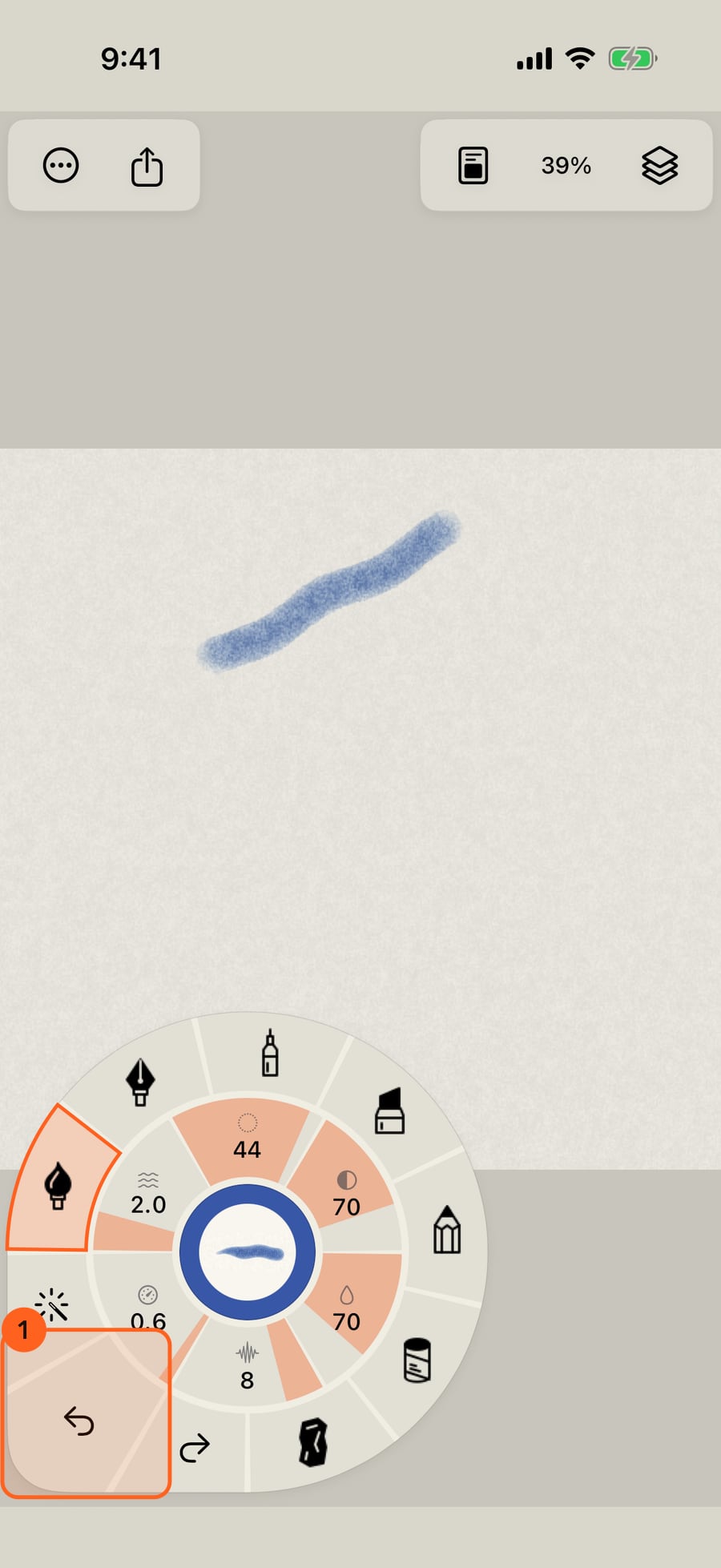
Changed your mind? Click Undo in the wheel's corner, or click the page with two fingers.
The stroke wheel
Everything about the mark lives on the wheel 1:
- The rim holds the seven media: Watercolor, Ink, Pen, Marker, Graphite, Pastel and Charcoal. Tap one to pick up its last brush; tap the medium already in hand to unfold its brushes.
- The gauges turn clockwise for more: Size, Strength and Water for the stroke, then Amount, Speed and Pattern for how it moves. Tap a motion gauge to choose the motion; tap Size, Strength or Water for the brush's own settings.
- The centre plays your next stroke in the current colour. Tap it for recent colours, the palette and More colors.
- The corner under your thumb holds Undo, Redo and Tools (the Eraser and Eyedropper are on the Tools ring).
On iPhone the wheel rests folded to its centre so the page stays clear. Tap it to unfold; drawing folds it again.
On the Mac, draw with a mouse, trackpad or drawing tablet. A secondary click brings the stroke wheel to the pointer. ⌘Z undoes and ⇧⌘Z redoes.
Squeeze or double-tap Apple Pencil to bring the wheel beside the pen. No Pencil? Turn on Finger draws in Actions → Settings… → Interface & input; two fingers then move the page.
Tip: Brush controls change your next strokes. To change a mark already on the page, use Tools → Select stroke.
Something not behaving as expected?
Visit support or write to [email protected].