

Guides / Getting started
Opening the app
Each time Doodly Doodle opens, carry on with your last painting, paint a book by number, or start a new painting in the Studio.
- Free
- Everything in this guide works in Free.
Each time you open Doodly Doodle, it starts here. Continue carries on with the painting you had open, and New painting starts a blank page in the Studio.
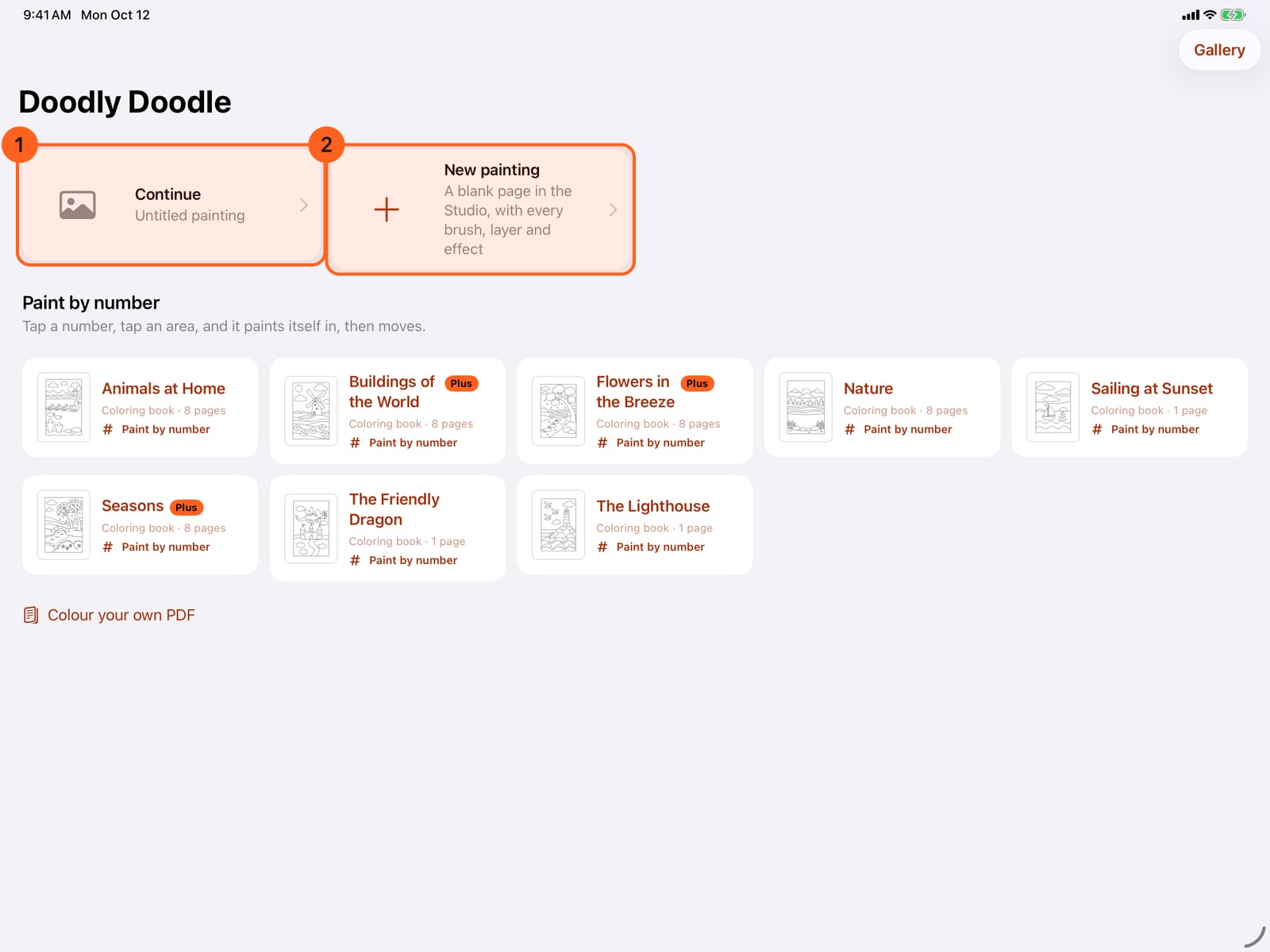
Each time you open Doodly Doodle, it starts here. Continue carries on with the painting you had open, and New painting starts a blank page in the Studio.
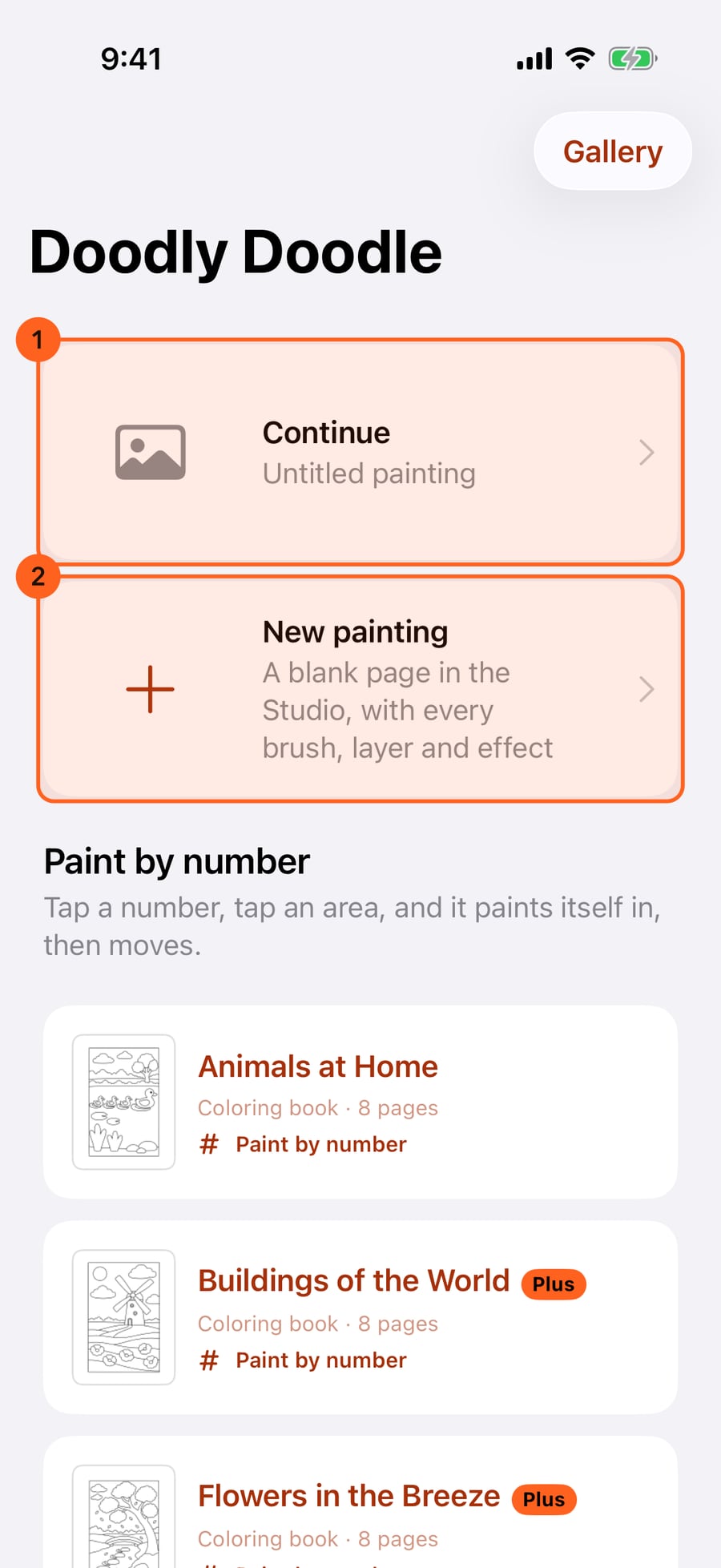
Below them are the books to paint by number. Tap one to look through its pages.
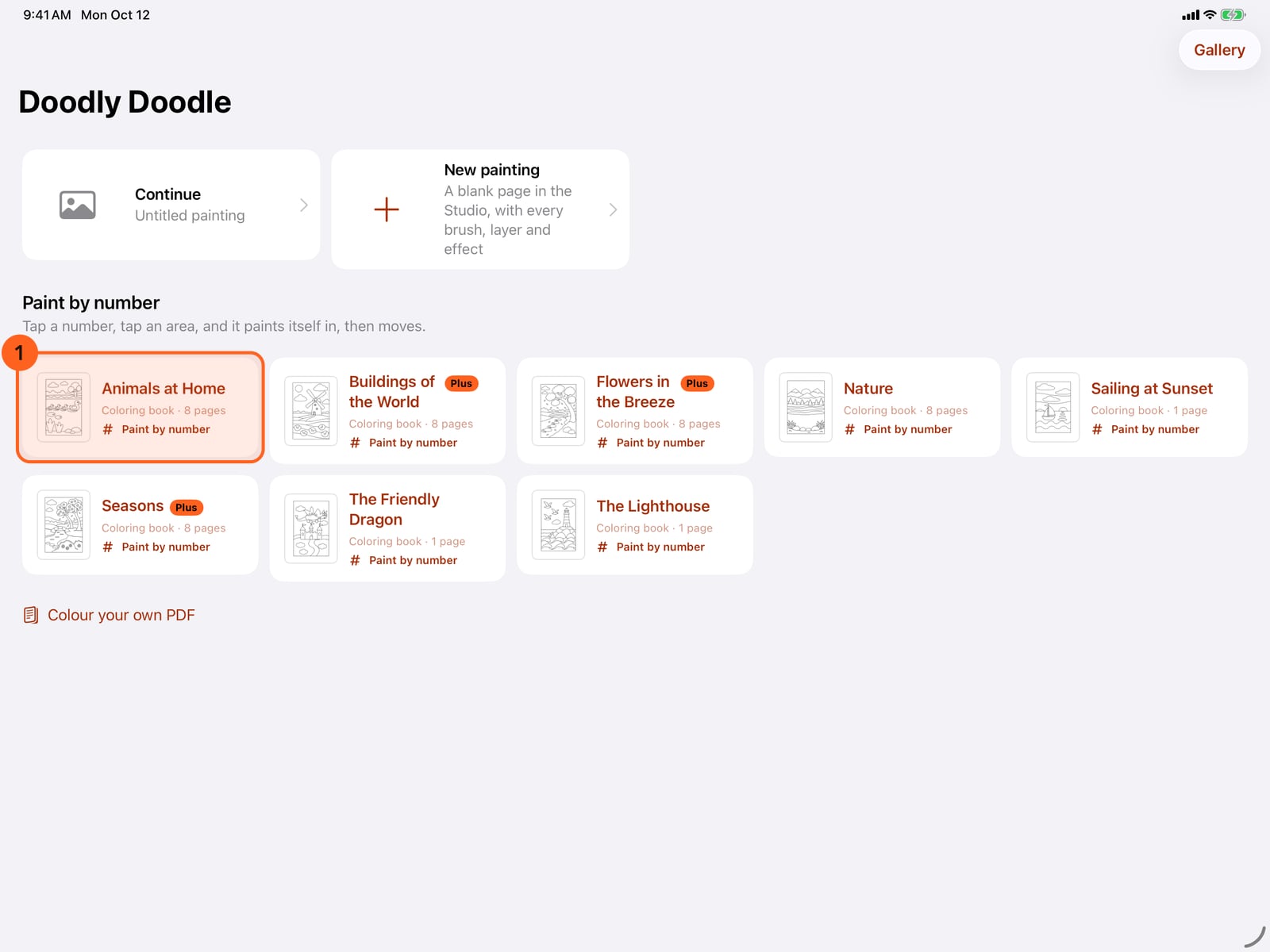
Below them are the books to paint by number. Tap one to look through its pages.
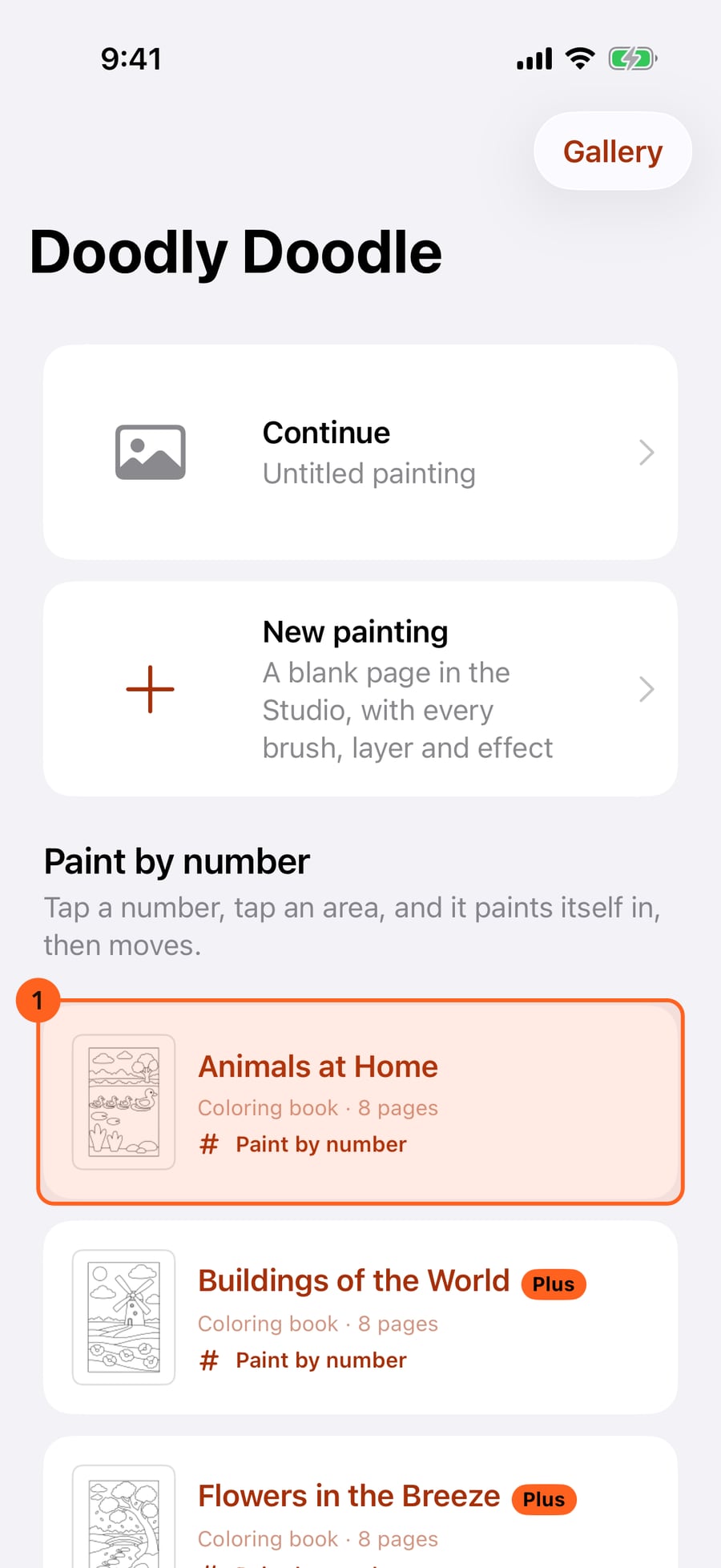
Below them are the books to paint by number. Click one to look through its pages.
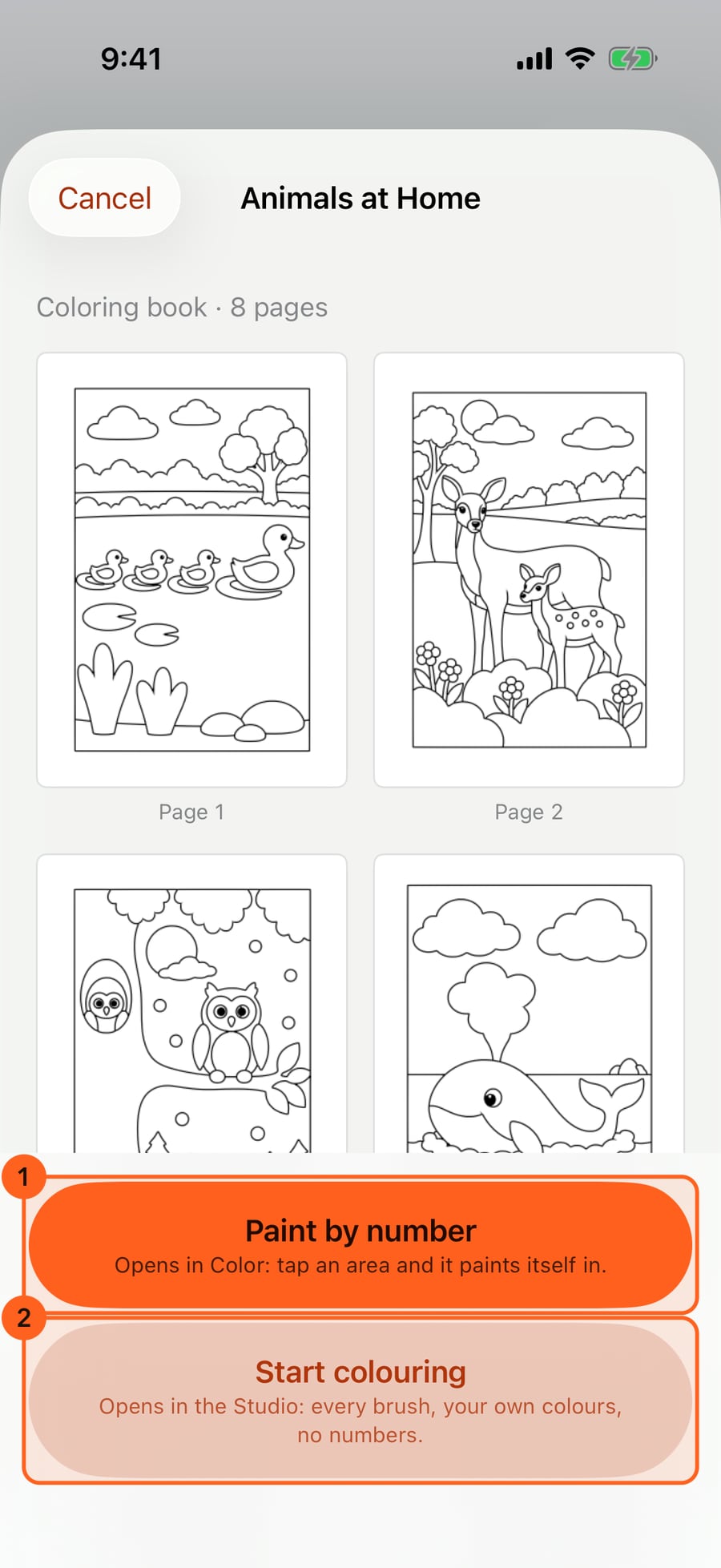
Paint by number opens the book in Color, ready to paint. Start colouring opens it in the Studio as a plain coloring book.
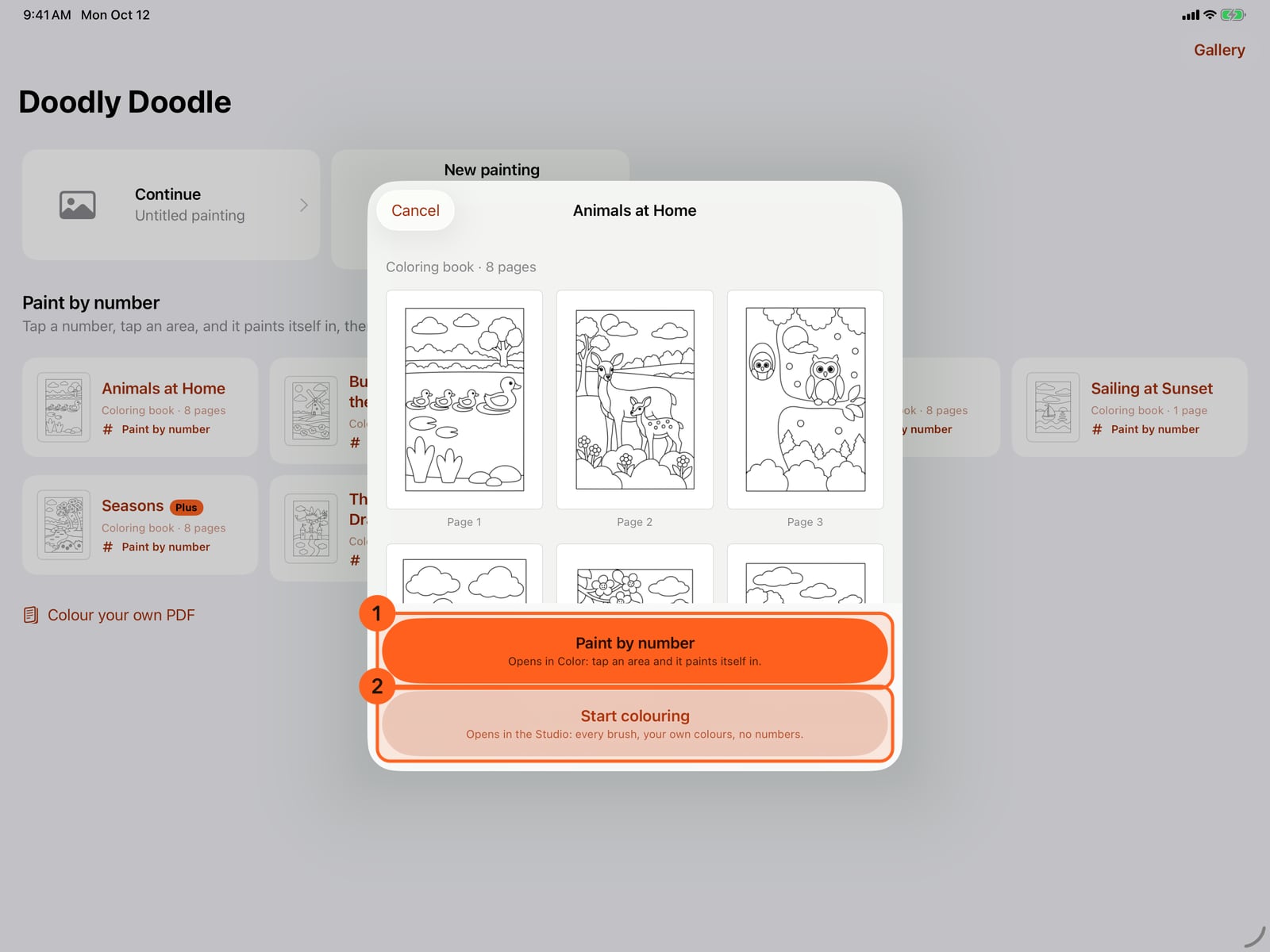
Paint by number opens the book in Color, ready to paint. Start colouring opens it in the Studio as a plain coloring book.
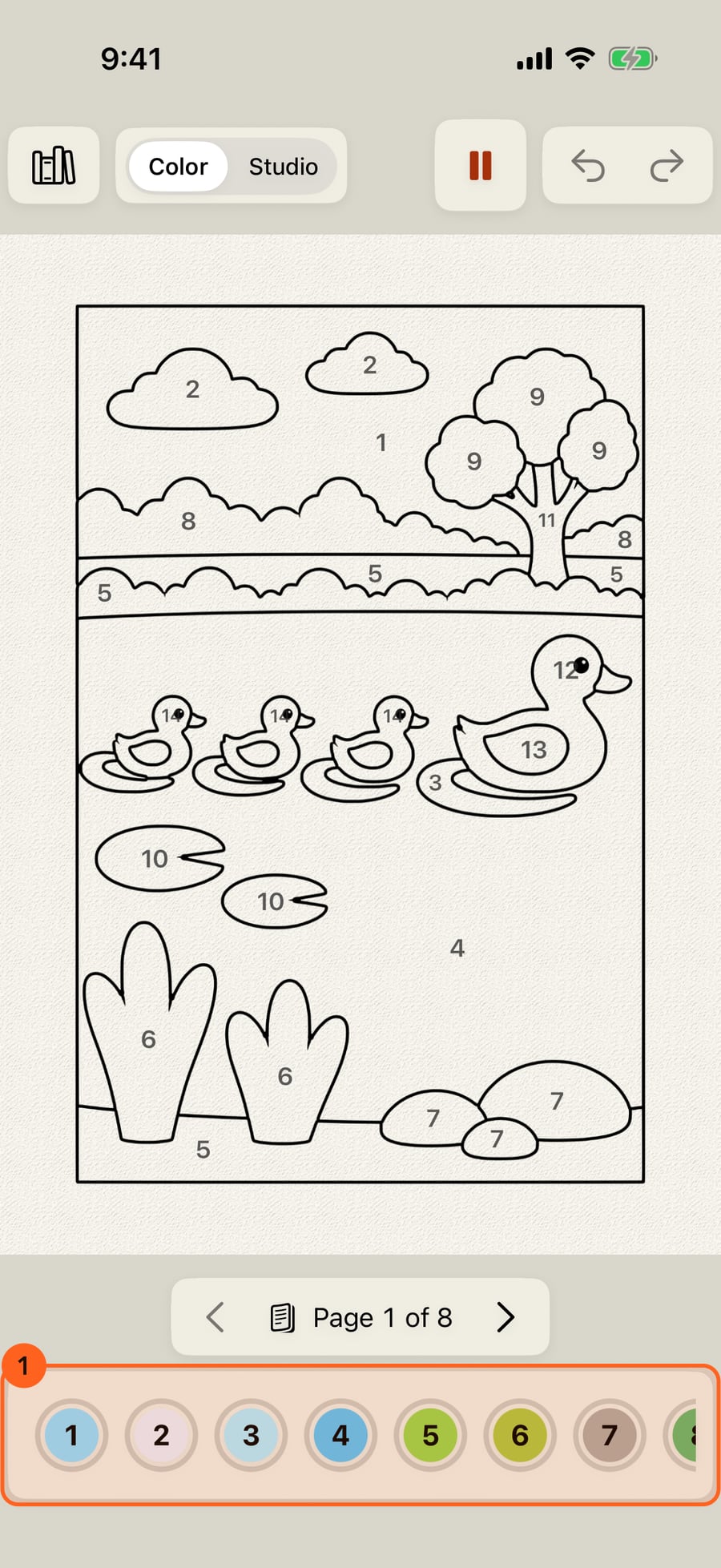
Here, Paint by number. The book opens on its first page, with a number in every area.
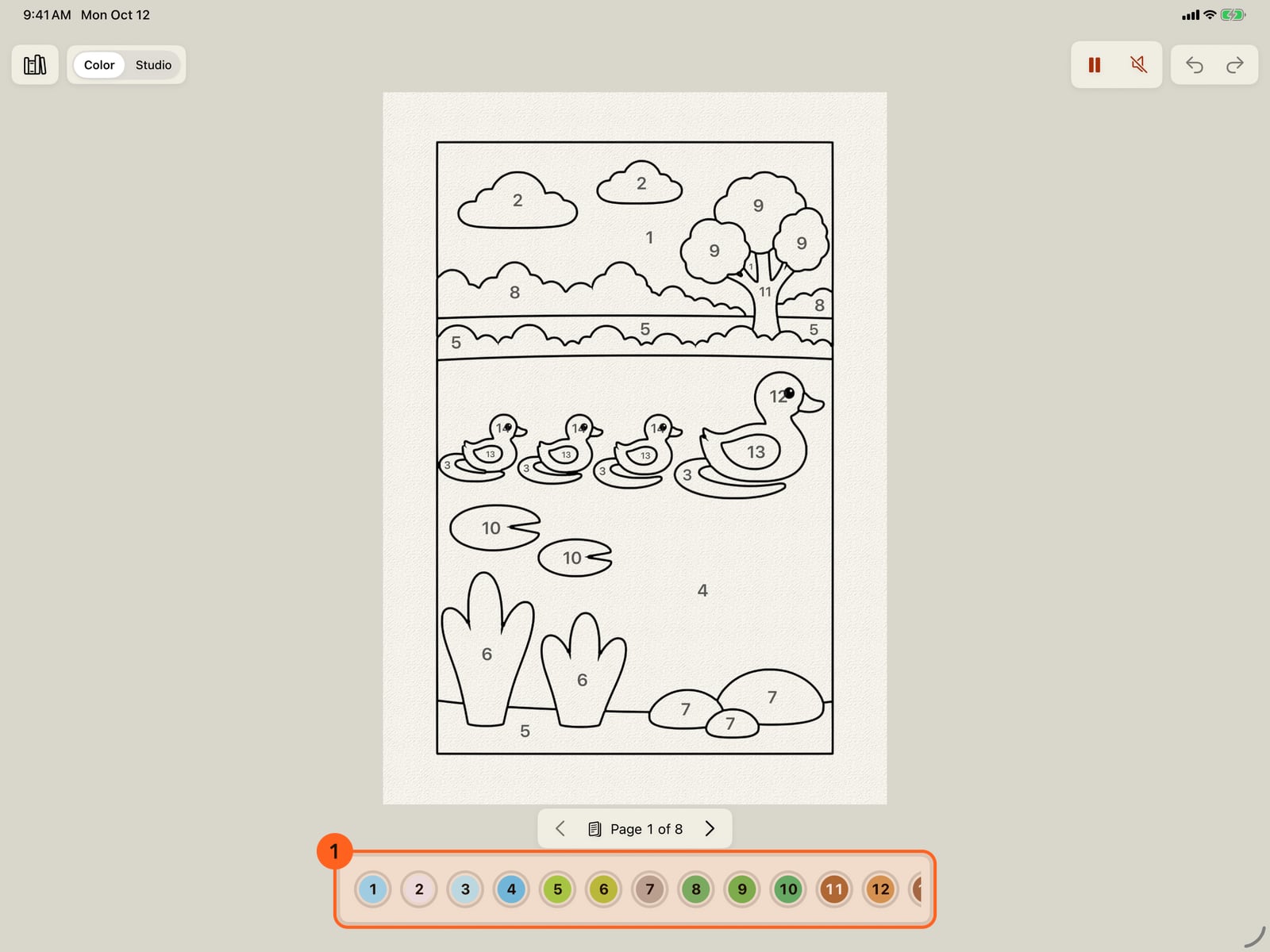
Here, Paint by number. The book opens on its first page, with a number in every area.
The start screen
The first time you open Doodly Doodle it shows a painting that already moves and the welcome tour. After that, each time the app starts it opens on the start screen, with your last painting already open behind it:
- Continue 1 steps aside for the painting you had open, its last frame on the card.
- New painting 2 asks for a size and opens a blank page in the Studio, with every brush, layer and effect (see Your first painting).
- Paint by number 1: the books that come with the app. Tap one to look through its pages; Paint by number opens it in Color, where a tap paints an area in (see Paint by number), and Start colouring opens it in the Studio as a plain coloring book. A book with a Plus badge starts free on page 1; its other pages come with Plus, and without Plus its card has Unlock with Plus, which opens Free and Plus.
- Colour your own PDF opens Coloring books, with Import a PDF.
- Gallery, top right, opens all your paintings.
- Without Plus, More with Plus sits beside Continue and New painting: what Plus adds, briefly, and Get Plus, which opens Free and Plus. It's a card on the screen, never a pop-up, and it's gone once you have Plus.
Coming back to the app from the background goes straight back to what you were doing; the start screen is for a fresh start. Opening a painting or a PDF from the Files app, or a shared link, opens it directly.
Plus: The start screen and everything on it are Free. Its Plus card and Unlock with Plus show only without Plus.
Try it in the app.
Download on the App Store Free for iPad, iPhone and MacSomething not behaving as expected?
Visit support or write to [email protected].