

Guides / Settings and Pro
Free and Pro
What Free includes, what the one-time Pro purchase adds, and how to buy, restore, redeem a code or share Pro with your family.
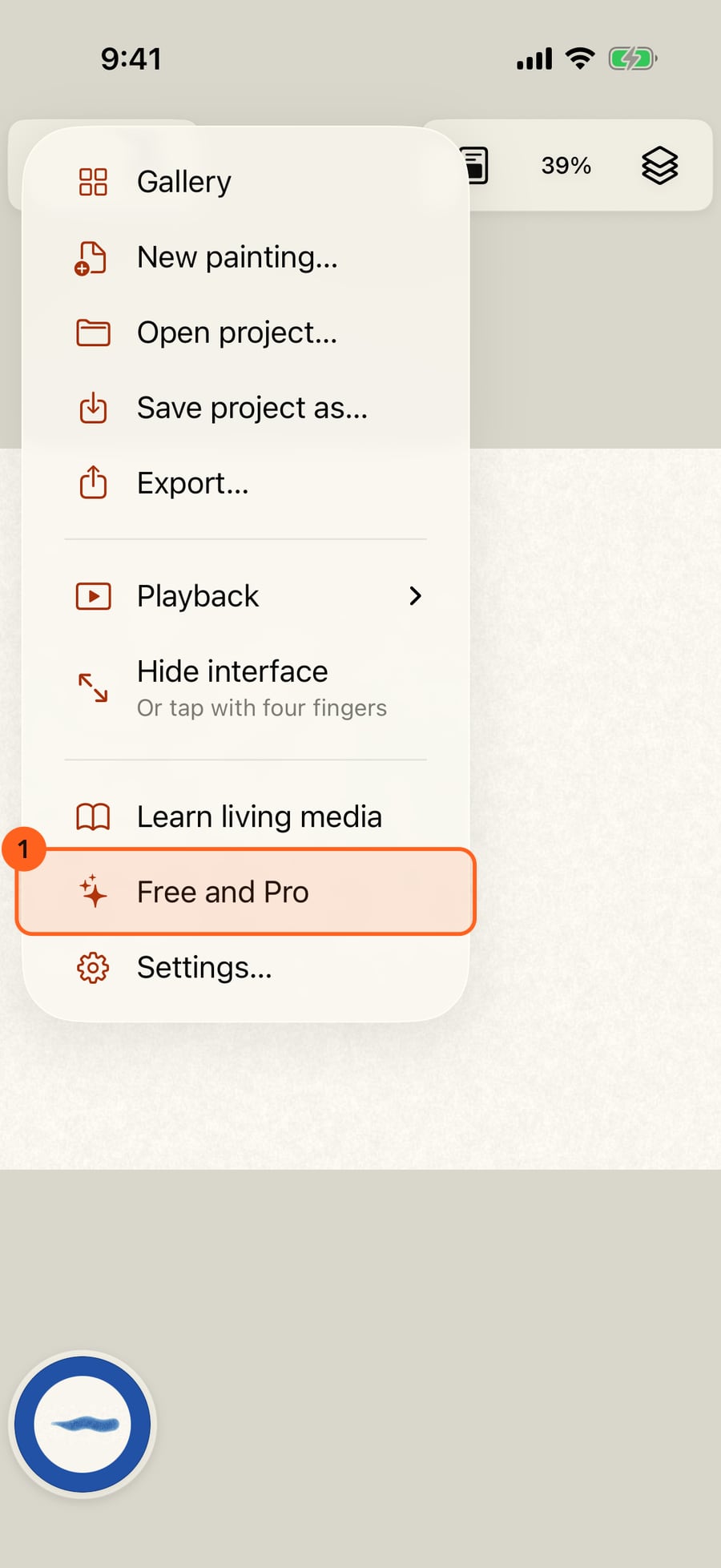
Free and Pro is in the Actions menu, just above Settings.
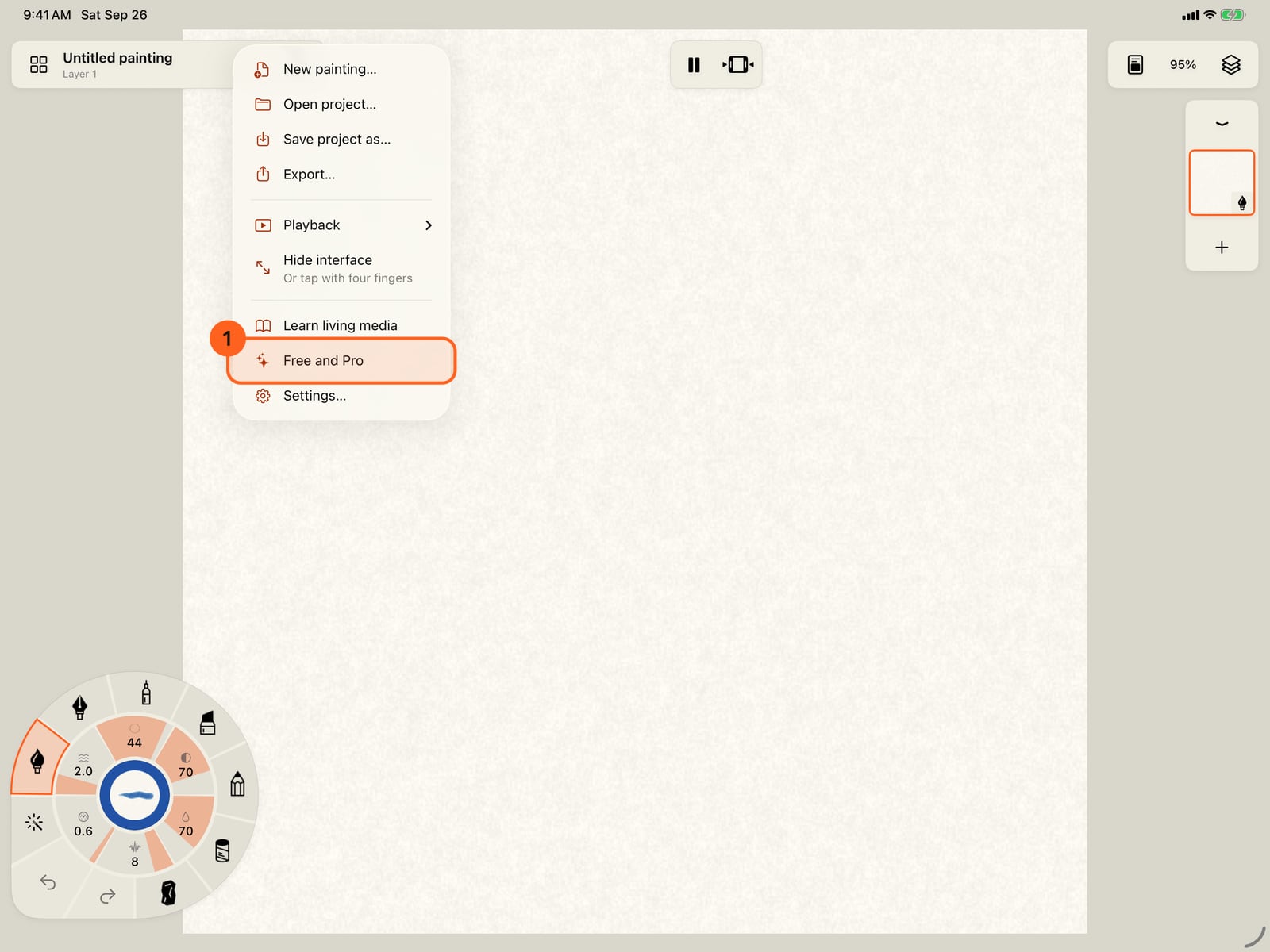
Free and Pro is in the Actions menu, just above Settings.
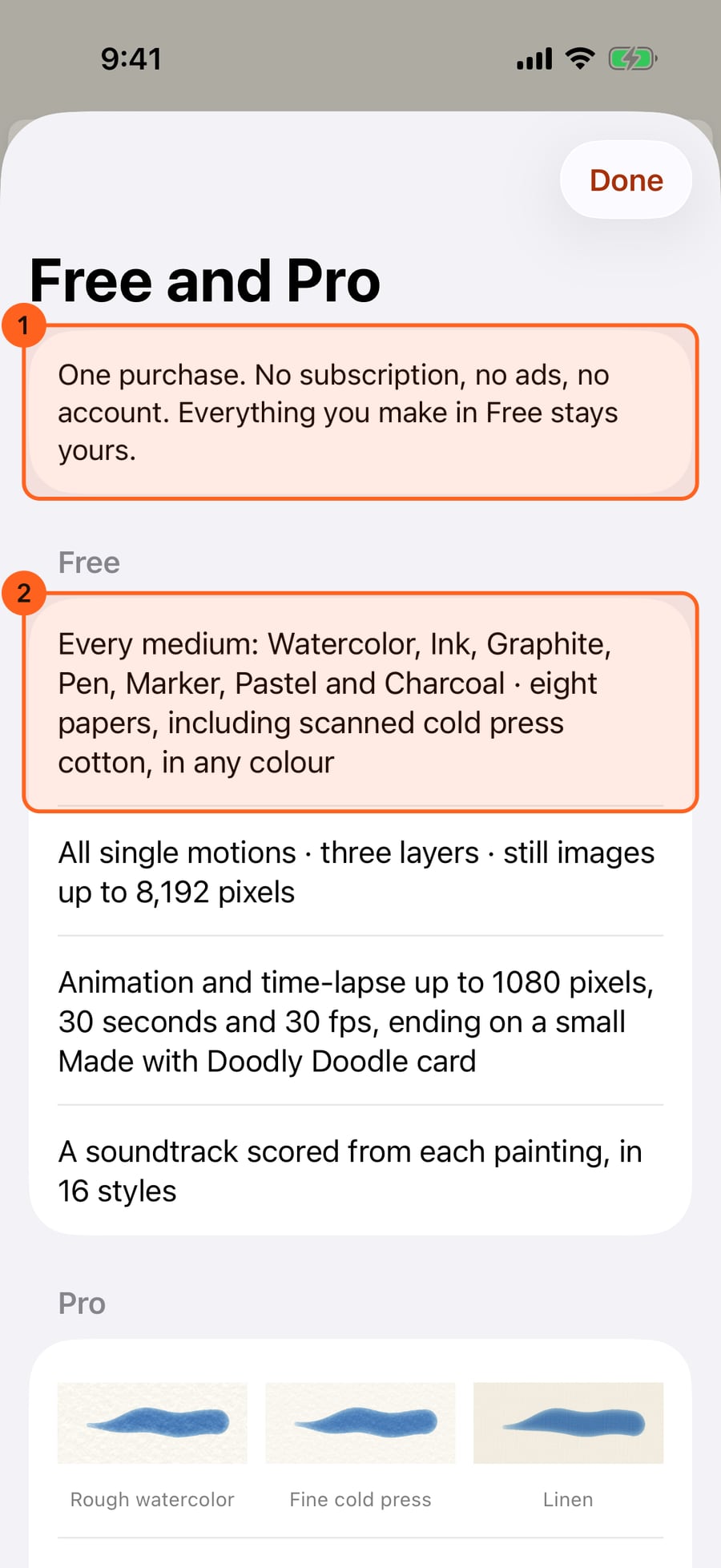
Pro is one purchase, with no subscription, no ads and no account. Free already has every medium, every single motion and three layers.
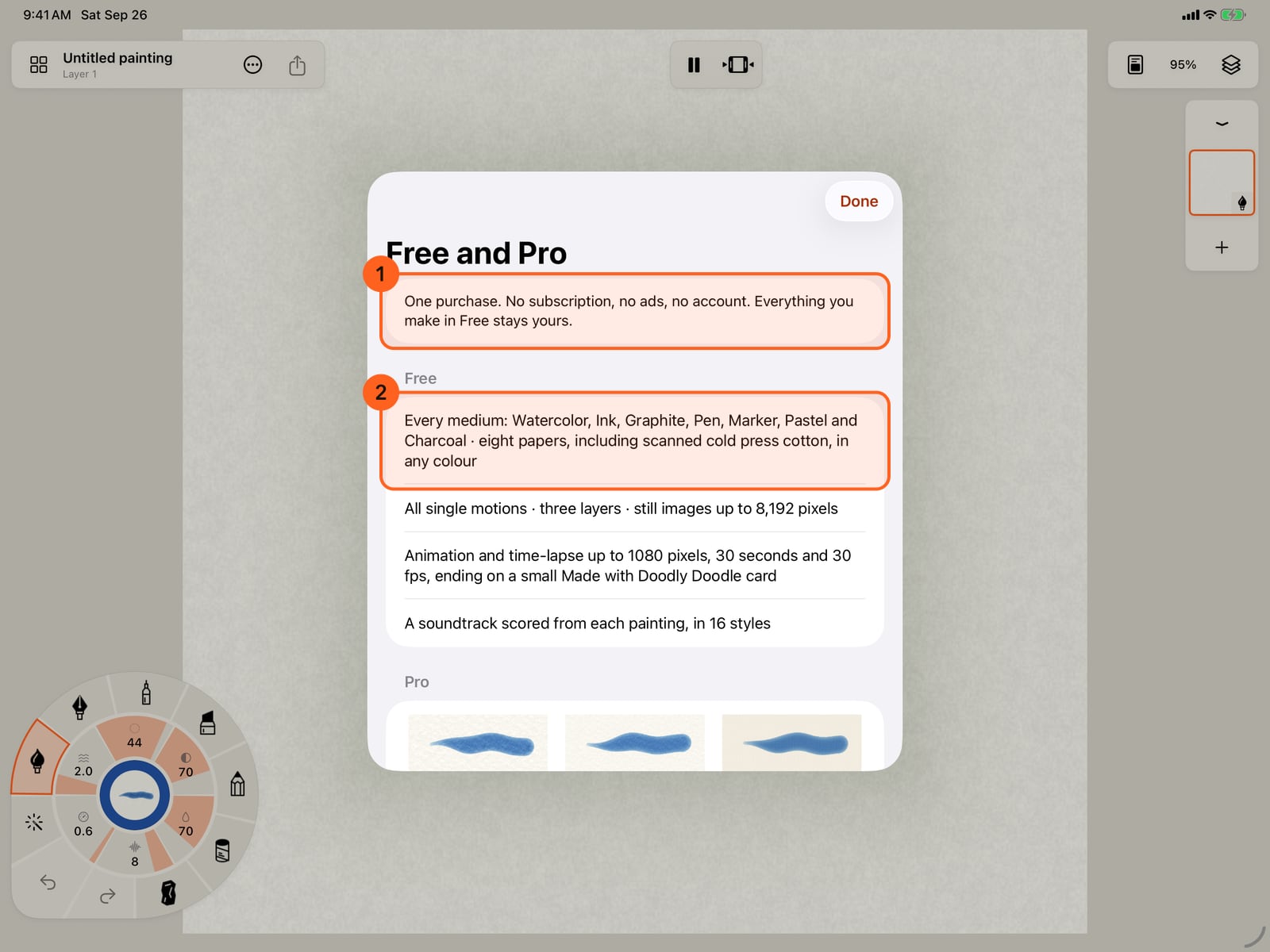
Pro is one purchase, with no subscription, no ads and no account. Free already has every medium, every single motion and three layers.
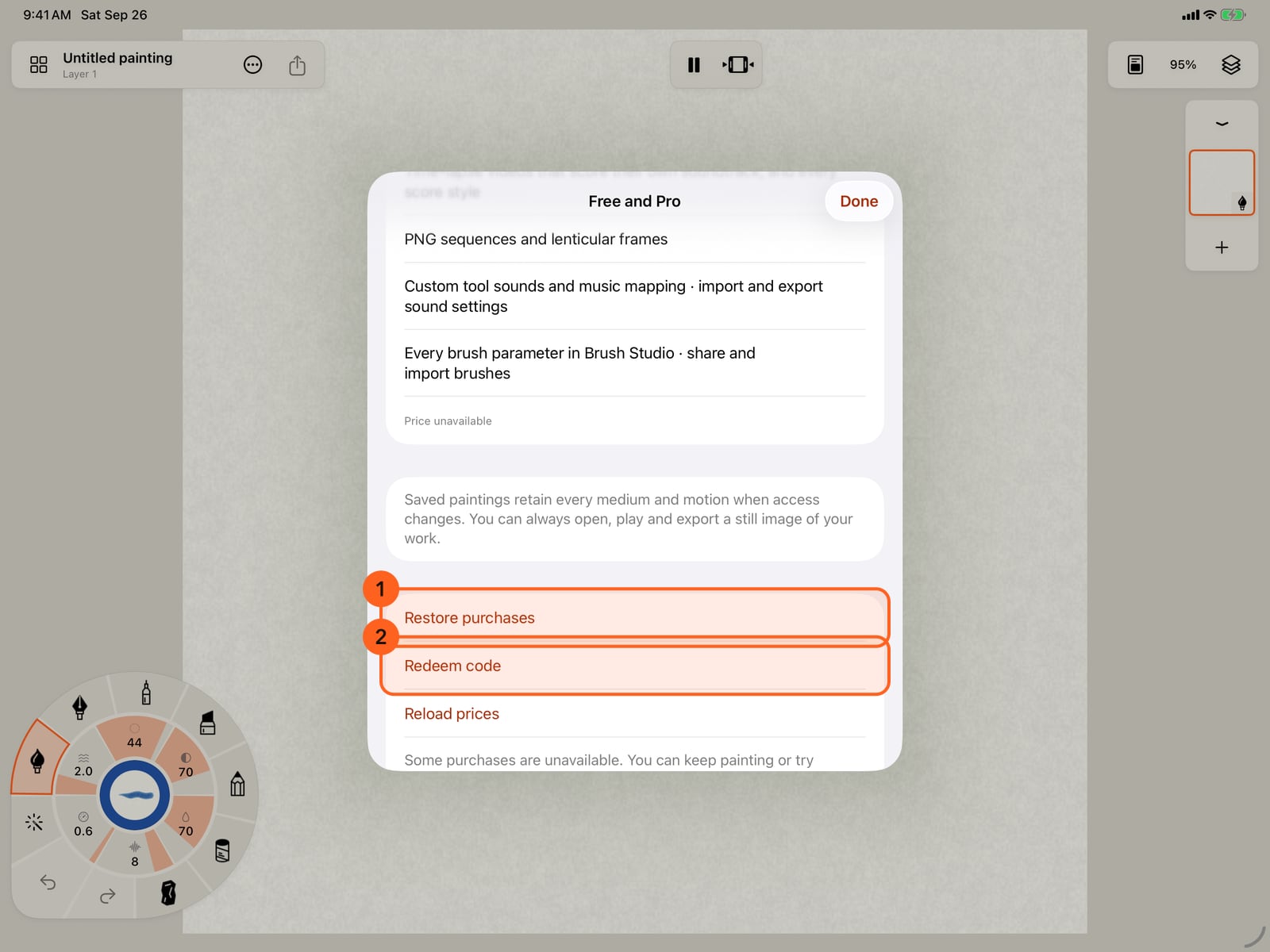
Pro adds scanned papers, sixteen layers, motion stacks, larger exports and more. Restore purchases brings Pro to another device, and Redeem code takes an offer code.
Pro adds scanned papers, sixteen layers, motion stacks, larger exports and more. Restore purchases brings Pro to another device, and Redeem code takes an offer code.
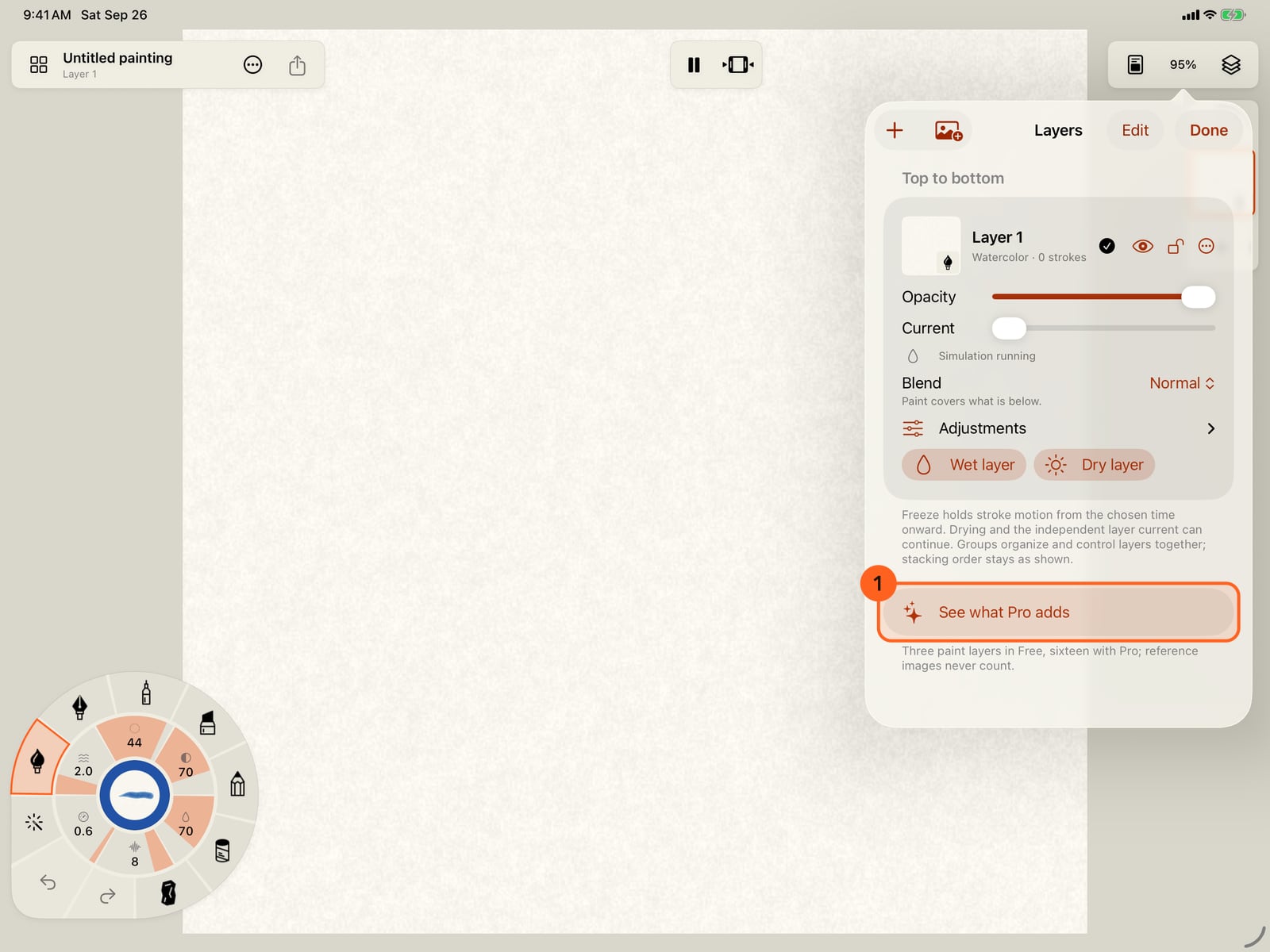
Tap Done. Where Free runs out of room, as at the end of the layer list, See what Pro adds opens the same page.
Tap Done. Where Free runs out of room, as at the end of the layer list, See what Pro adds opens the same page.
Click Done. Where Free runs out of room, as at the end of the layer list, See what Pro adds opens the same page.
Actions → Free and Pro shows what you have and what Pro adds. Pro is one purchase: no subscription, no ads, no account. Everything you make in Free stays yours.
Free
- Every medium: Watercolor, Ink, Graphite, Pen, Marker, Pastel and Charcoal.
- Eight papers, including scanned cold press cotton, in any colour.
- Every single motion, and three layers.
- Still images up to 8,192 pixels.
- Animation and time-lapse exports up to 1080 pixels, 30 seconds and 30 fps, ending on a small Made with Doodly Doodle card.
- A soundtrack scored from each painting, in the Free styles.
Pro adds
| Pro | Where it shows |
|---|---|
| Six more scanned papers, from rough watercolour to linen | Paper… |
| Sixteen layers | Layers |
| Motion stacks: several motions combined on one brush | Combine motions |
| Larger and longer animation exports, without the end card | Export… |
| Stills up to 16,384 pixels, and every stroke sharp when you zoom in close | Export…, and the page |
| Time-lapse videos that score their own soundtrack, and every score style | Export…, Settings → Sound |
| PNG sequences and lenticular frames | Export… |
| Custom tool sounds and music mapping; importing and exporting sound settings | Settings → Sound → Advanced sound |
| Every brush parameter in Brush Studio; sharing and importing brushes | Brush Studio |
Buying, restoring and redeeming
| Control | What it does |
|---|---|
| Buy (with the price) | Buys Pro through the App Store. When the page opens on something you reached for, Buy sits beside it at the top. Once you own it, the button reads Purchased, and the page says thank you. |
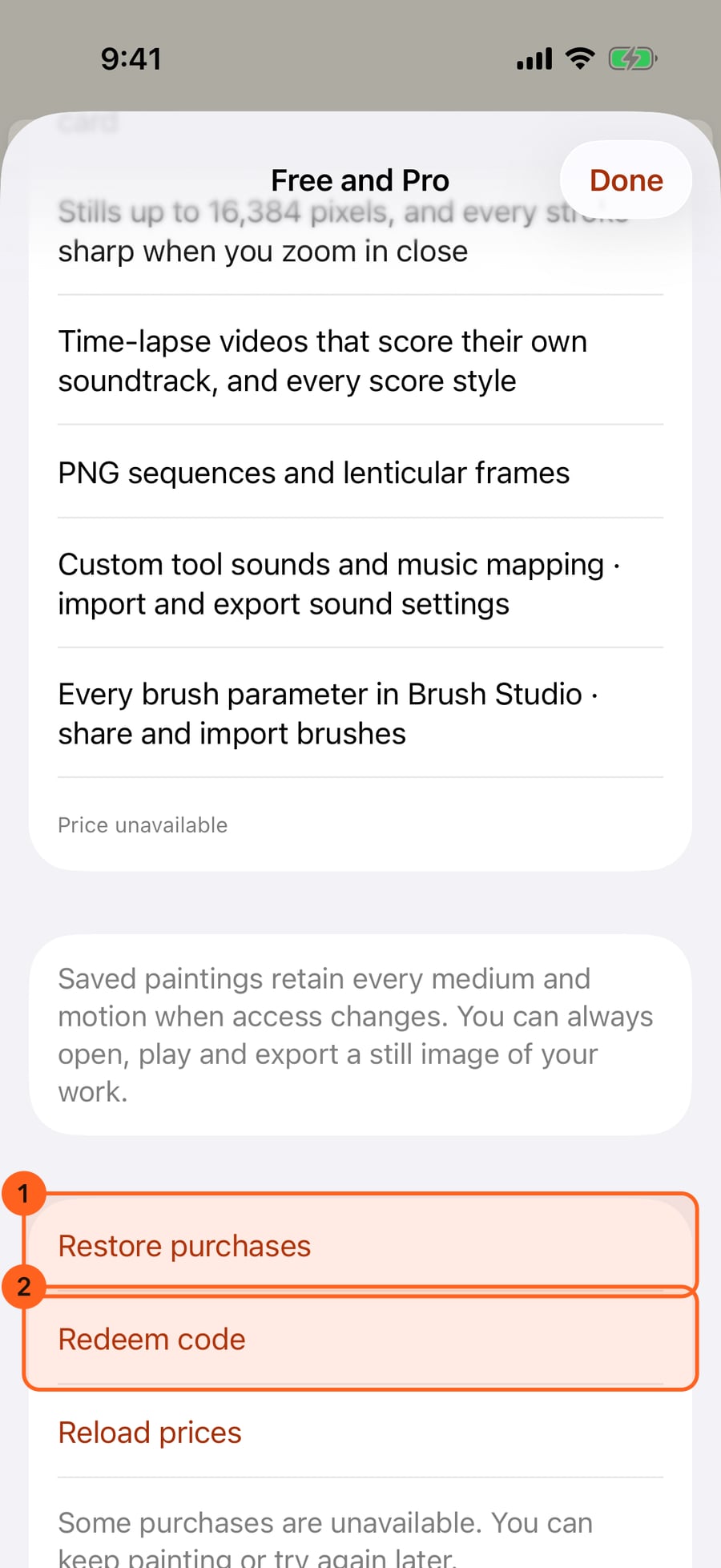
| Restore purchases 1 | Checks the App Store for Pro bought with your Apple Account, on another device or before reinstalling. |
| Redeem code 2 | Enters an App Store offer code. Shown until you have Pro. |
| Reload prices | Shown under Price unavailable when the price didn't load: asks the App Store again. |
Family Sharing: Pro is shared with your Family Sharing group. Family members get Pro on their own devices when they open the app signed in to their Apple Account; Restore purchases checks again if it hasn't arrived.
If a purchase waits for approval, as with Ask to Buy, the page says so, and Pro arrives when it's approved.
Where Free meets Pro
You don't need to hunt for the page. It opens where Free runs out, on what you reached for: what Pro adds there, the way to keep going in Free, and Buy. A fourth paint layer, for example, opens it on Sixteen layers with Pro.
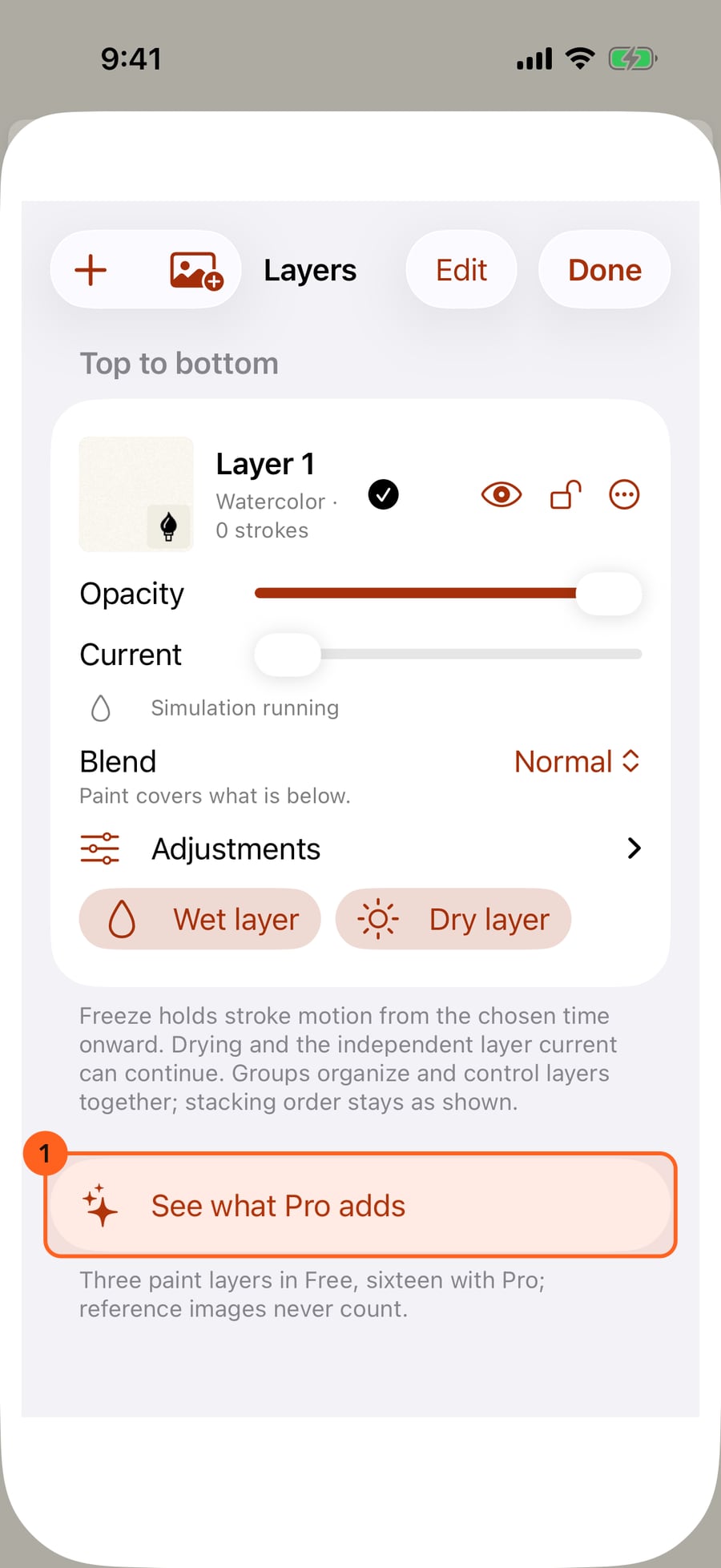
- See what Pro adds 1 at the end of the layer list (Three paint layers in Free, sixteen with Pro; reference images never count.) and of the brush library.
- A fourth paint layer: +, Duplicate, or a brush that needs a layer of its own.
- Choosing a scanned paper that comes with Pro, and the note on the canvas when a brush carries a motion stack.
- All parameters are included with Pro and Motion stacks are included with Pro in Brush Studio and the stroke inspector, and Share brush…. These open the page over Brush Studio or the inspector, so you come back to where you were. In the brush library, Share… and Import brush… open it too.
- In Export…, Get Pro beside a choice that needs Pro, and Remove with Pro beside the end card. See Share and export.
- Settings → Sound says in place which styles are Pro, and Advanced sound has Explore Pro.
Nothing changes until you choose. After a purchase the page says Thank you. Pro is ready.; tap Done to carry on where you left off.
Pro: Changing access never changes a saved painting. Paintings made with Pro features keep every medium, paper and motion on a Free device, and you can always open them, play them and export a still image.
Something not behaving as expected?
Visit support or write to [email protected].