

Guides / Getting started
Gestures and the view
Zoom, pan and rotate the page, undo and redo with a tap of two or three fingers, use the Zoom menu and the Hand tool, and hide the interface.
Paint a stroke or two first, so you can see the page move.
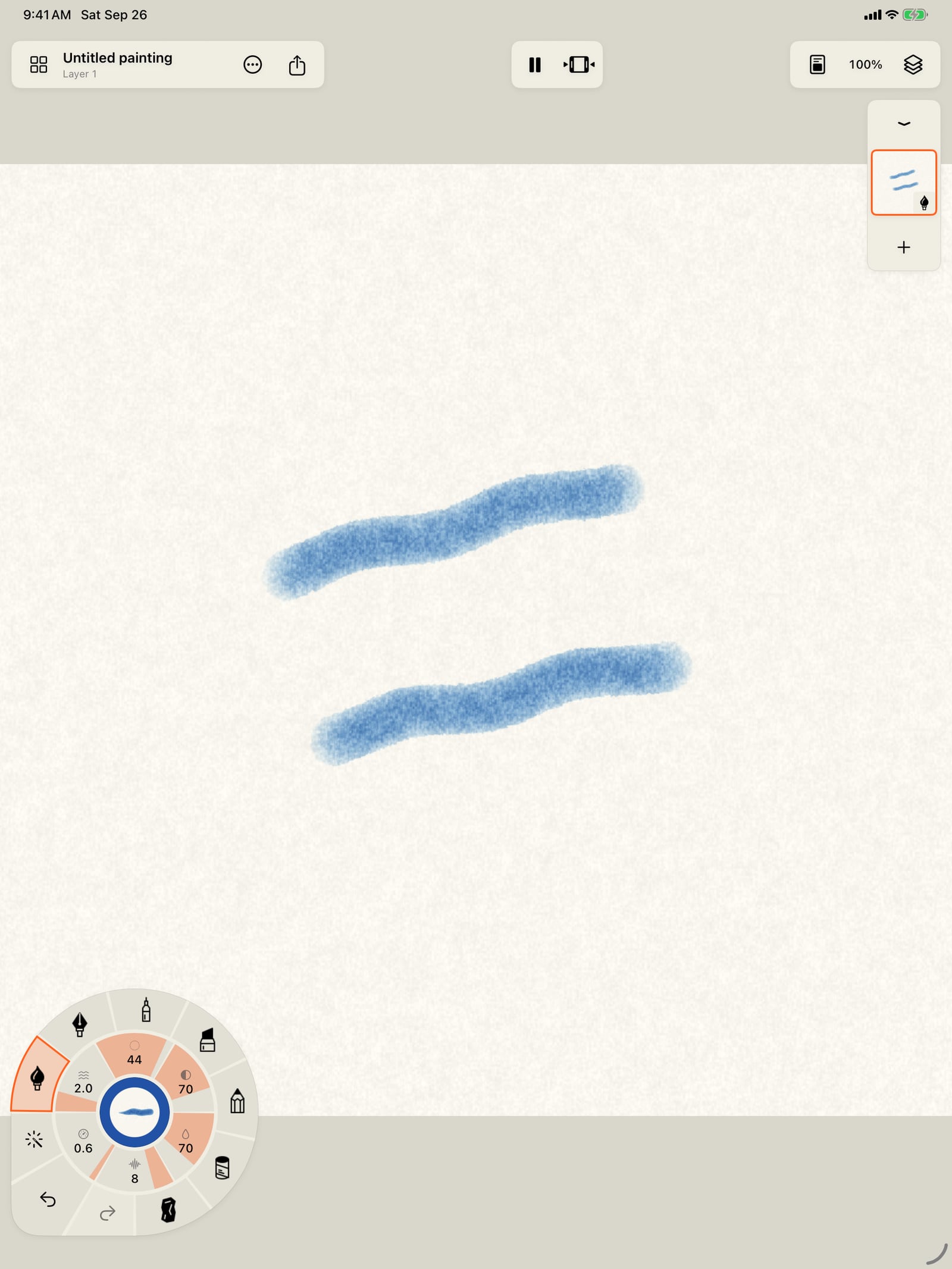
Paint a stroke or two first, so you can see the page move.
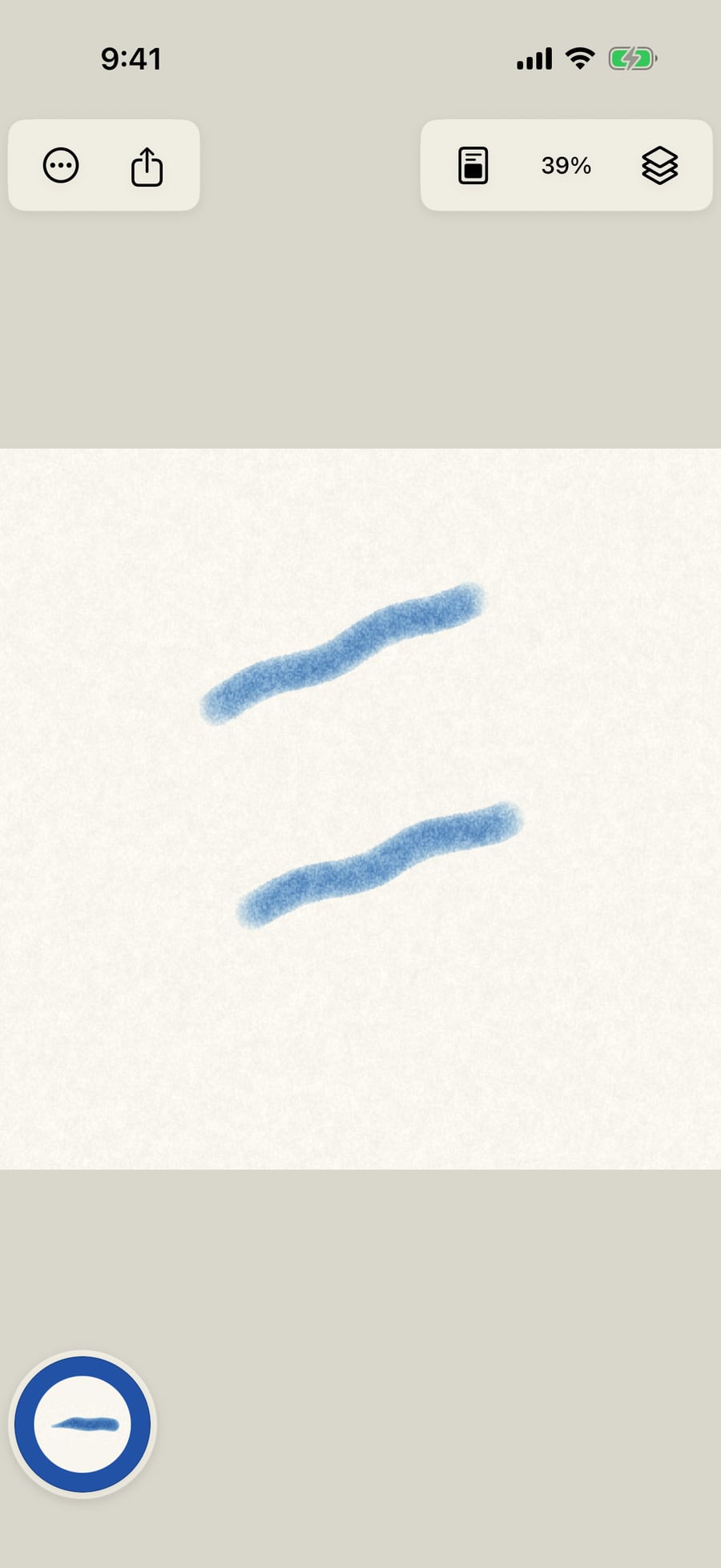
Tap the page with two fingers to undo the last stroke.
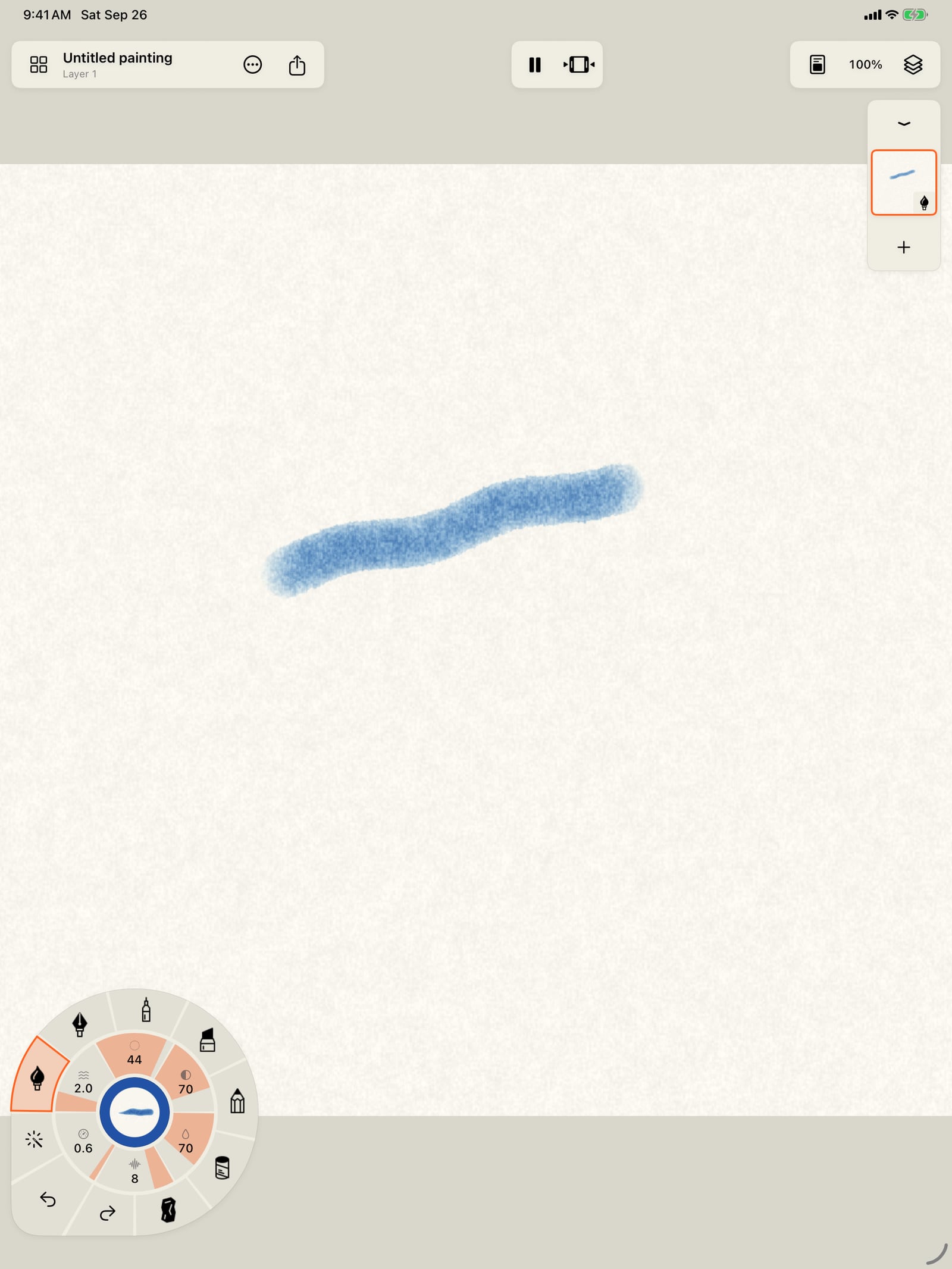
Tap the page with two fingers to undo the last stroke.
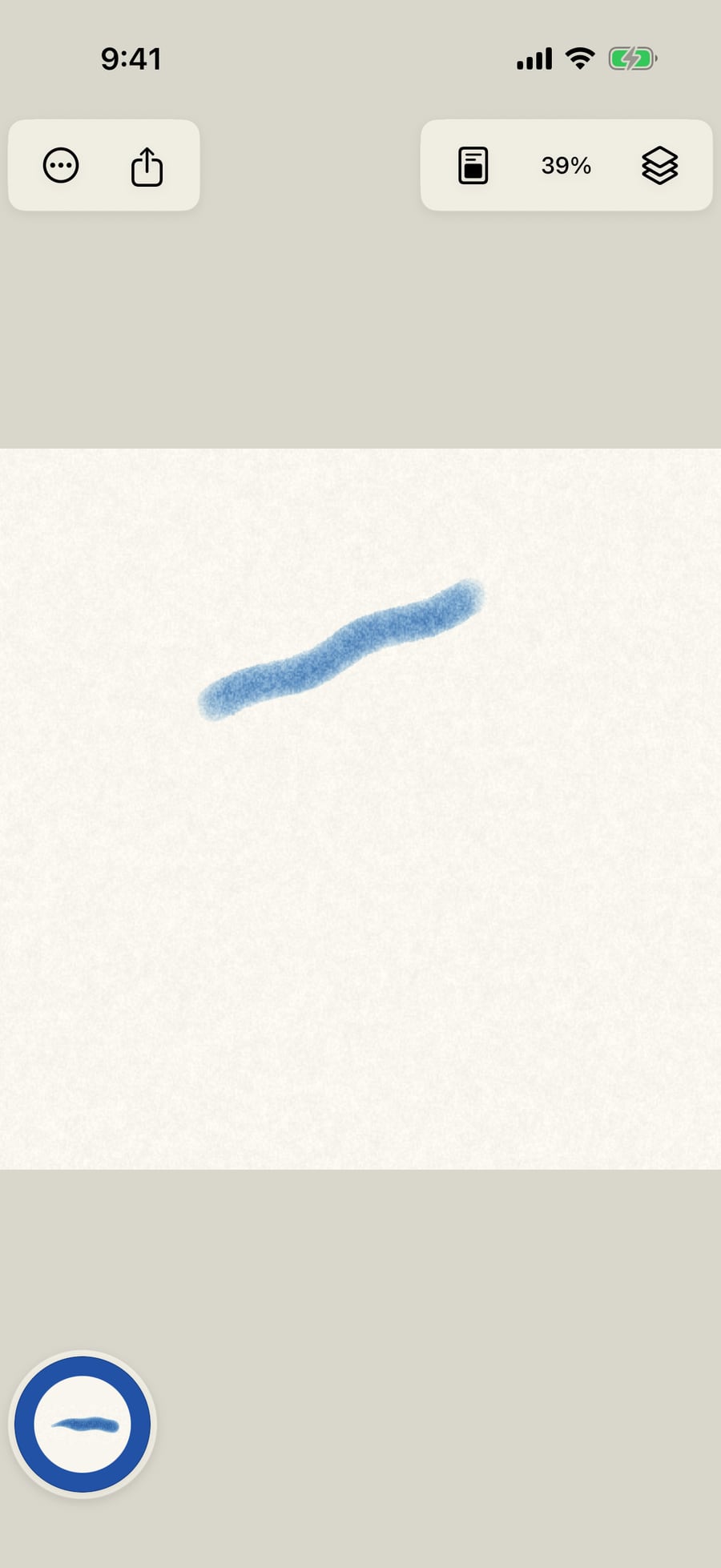
Click the page with two fingers to undo the last stroke.
Tap with three fingers to redo it. Tap again to undo or redo one more step.
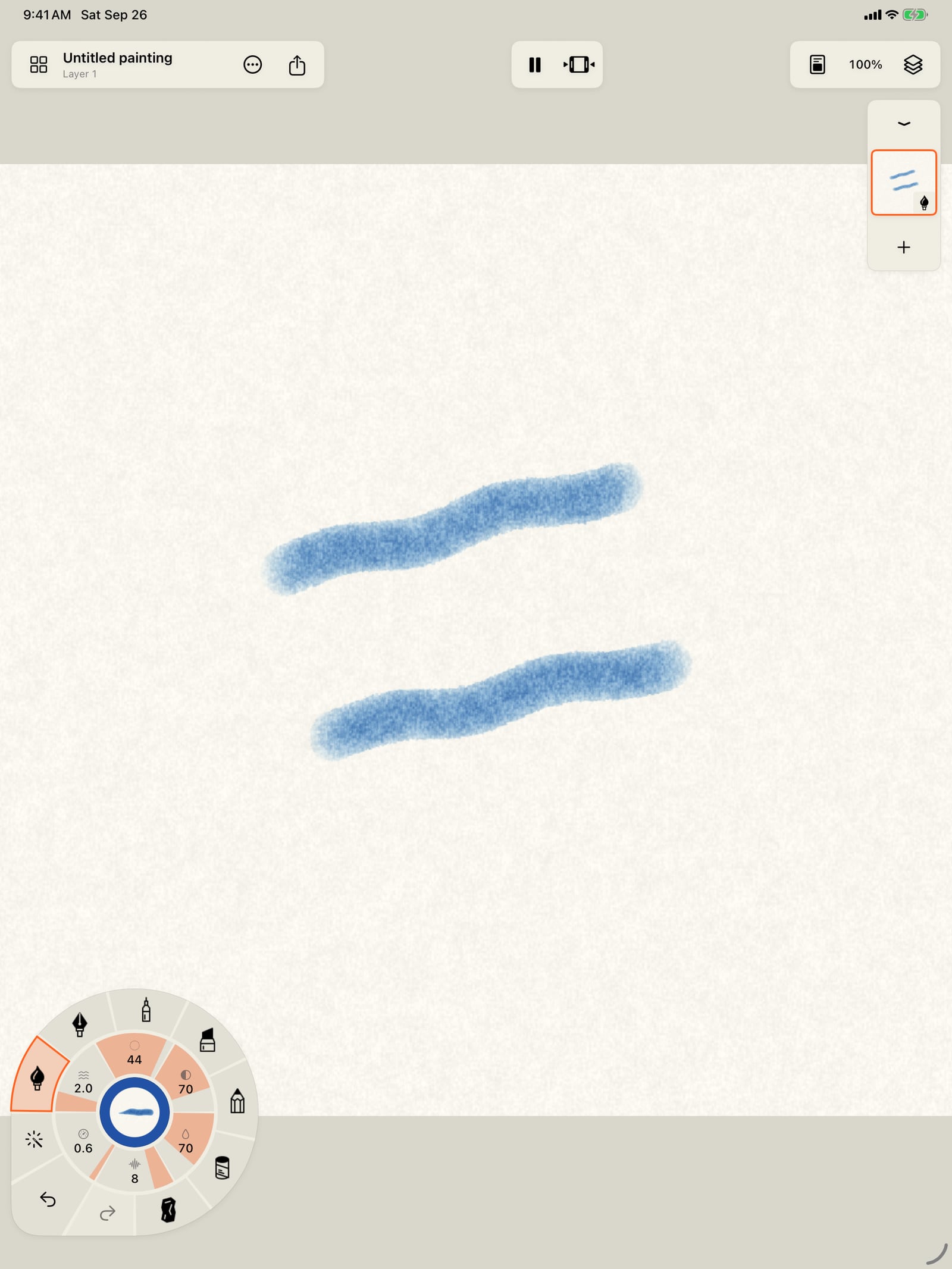
Tap with three fingers to redo it, or use Redo in the wheel's corner. Tap again to undo or redo one more step.
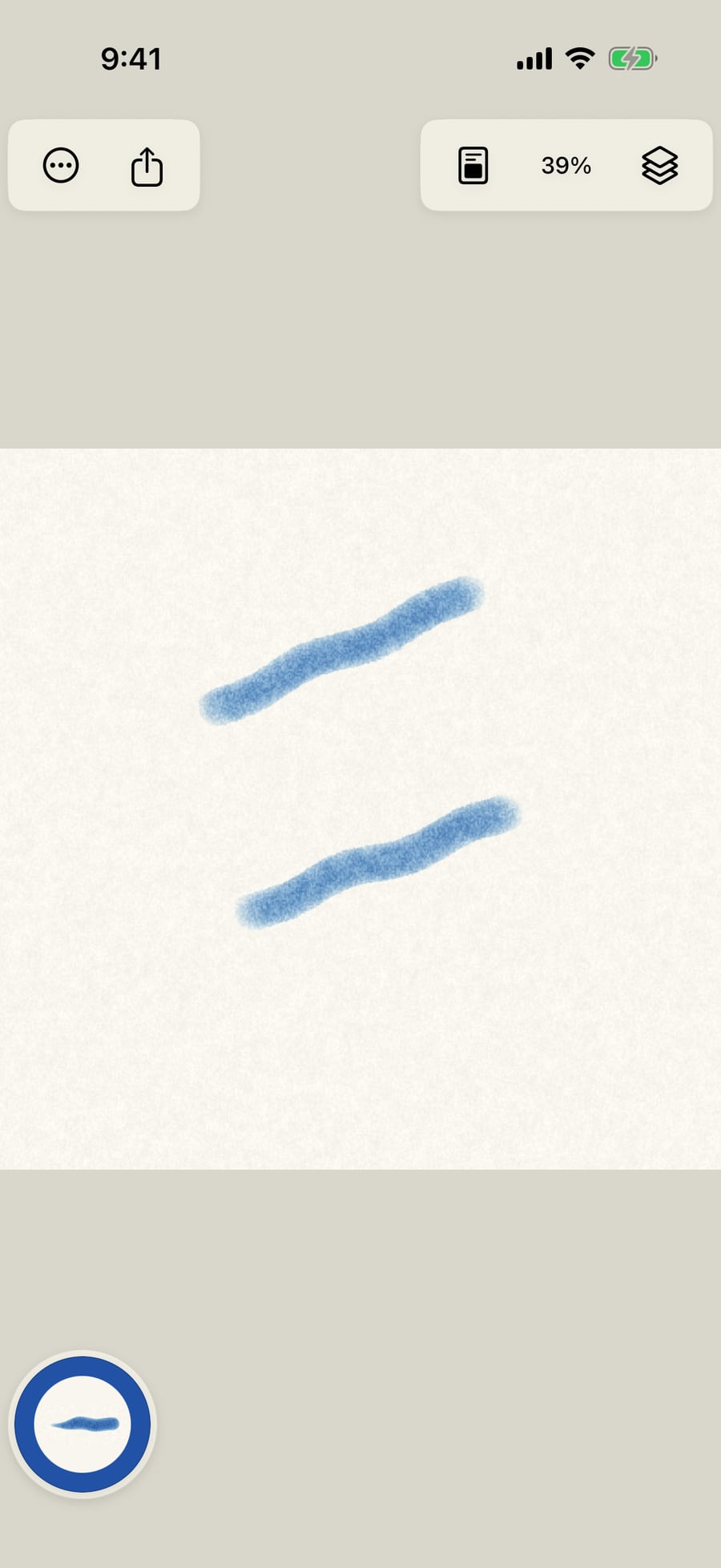
Click with three fingers to redo it. Click again to undo or redo one more step.
Pinch with two fingers to zoom, twist them to rotate, and drag with two fingers to move the page. The percentage in the top bar follows the zoom.
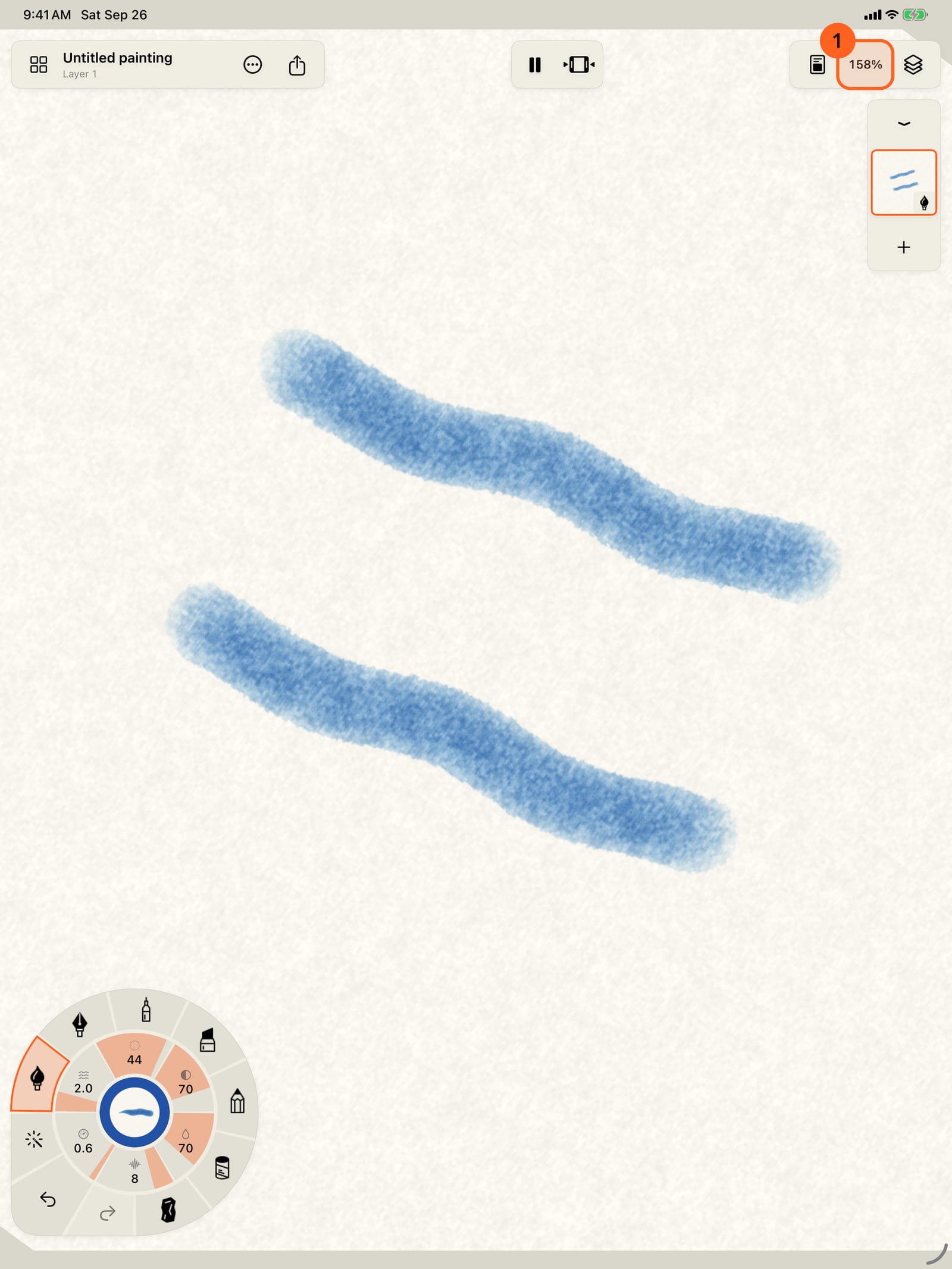
Pinch with two fingers to zoom, twist them to rotate, and drag with two fingers to move the page. The percentage in the top bar follows the zoom.
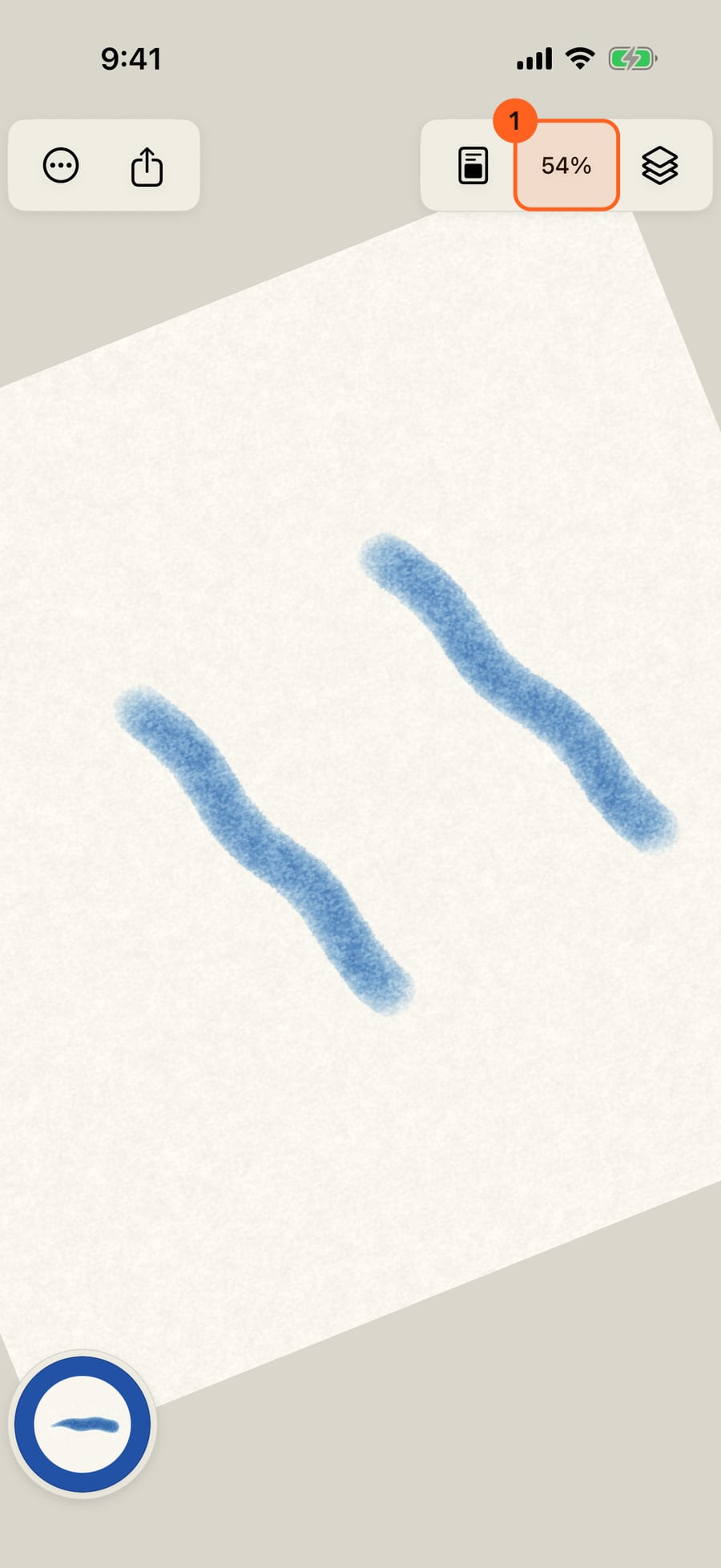
Tap the percentage for the Zoom menu. Fit canvas brings the whole page back, straight, and Reset rotation only straightens it.
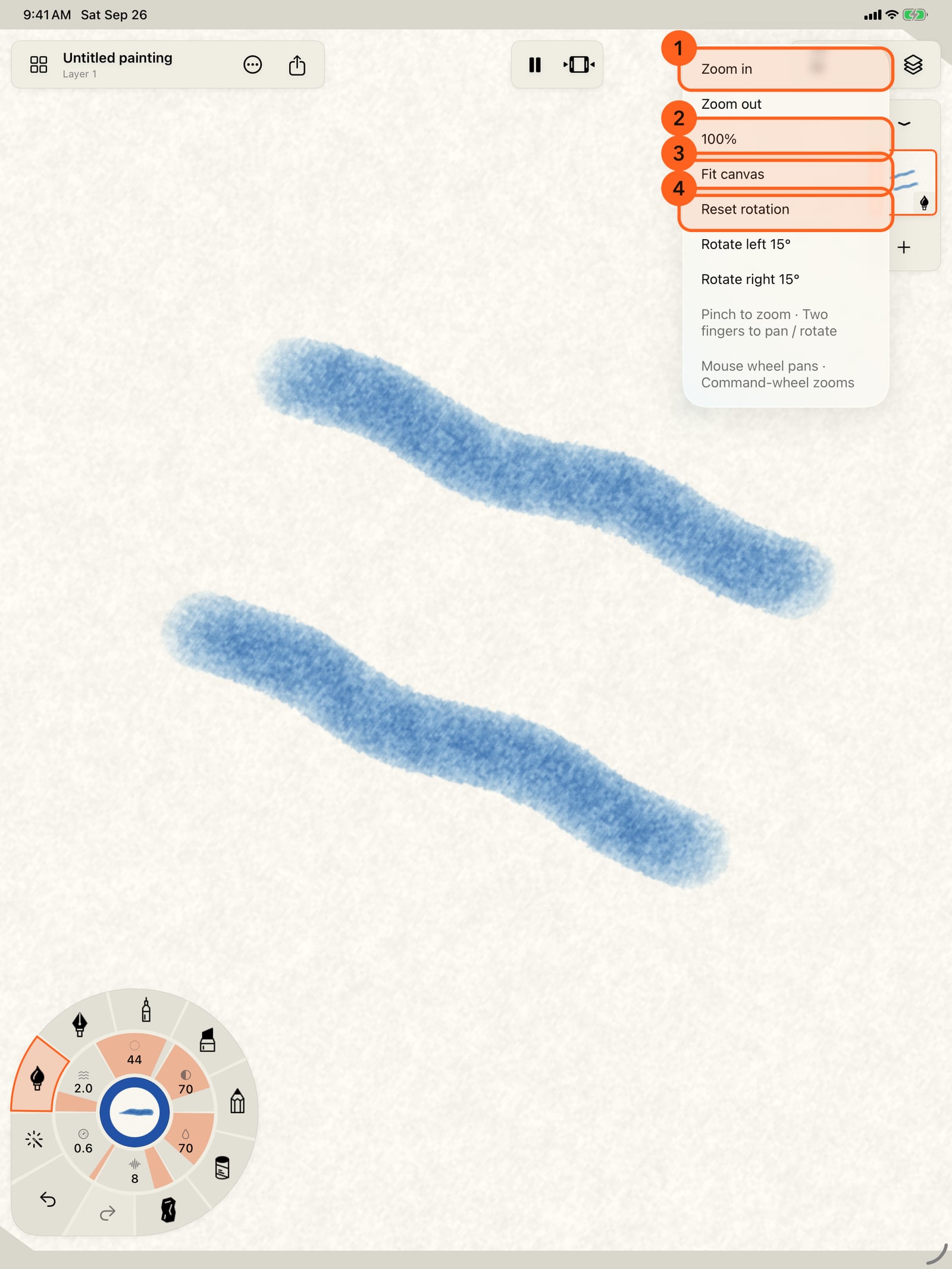
Tap the percentage for the Zoom menu. Fit canvas brings the whole page back, straight, and Reset rotation only straightens it.
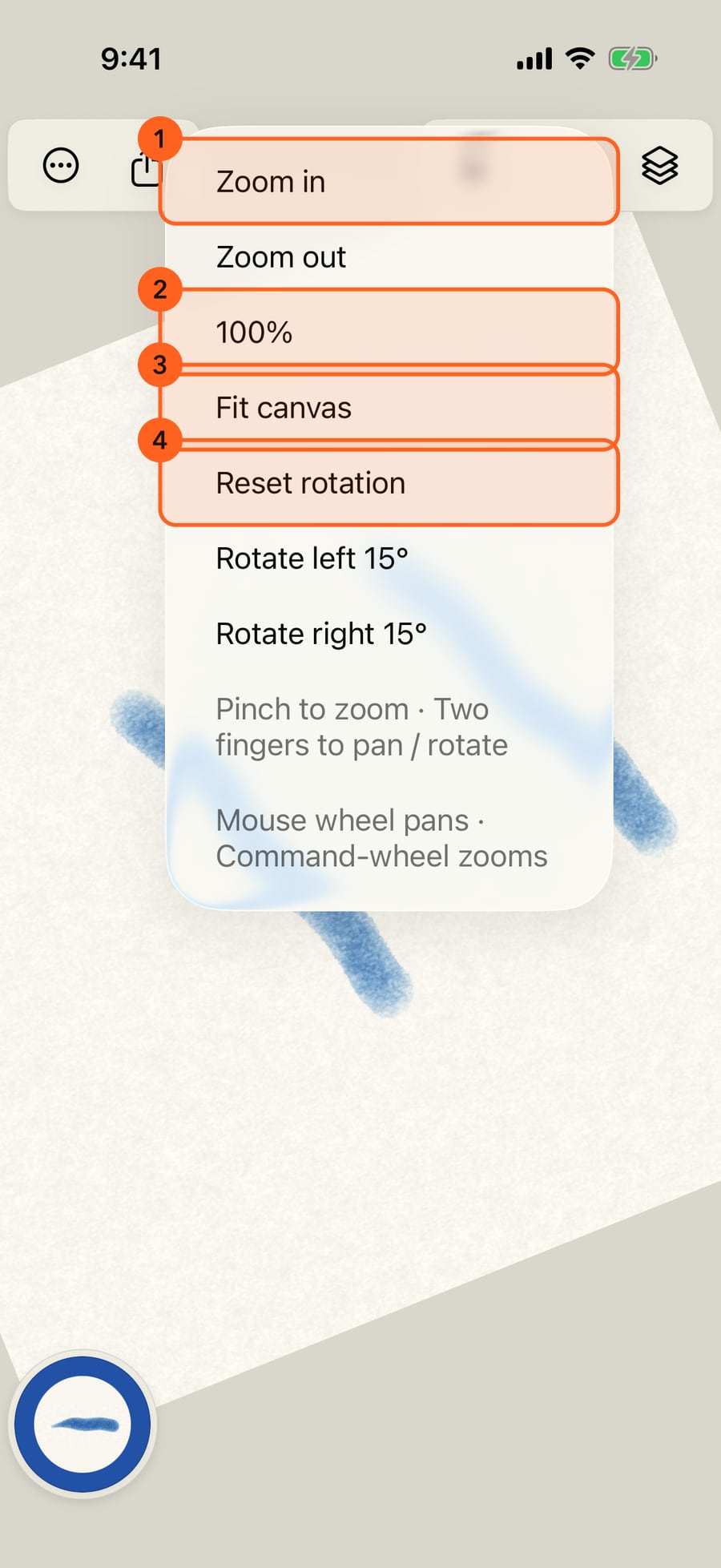
Click the percentage for the Zoom menu. Fit canvas brings the whole page back, straight, and Reset rotation only straightens it.
Tap Fit canvas. For moving the page with one finger or the pencil, open Tools in the wheel's corner and choose the Hand tool.
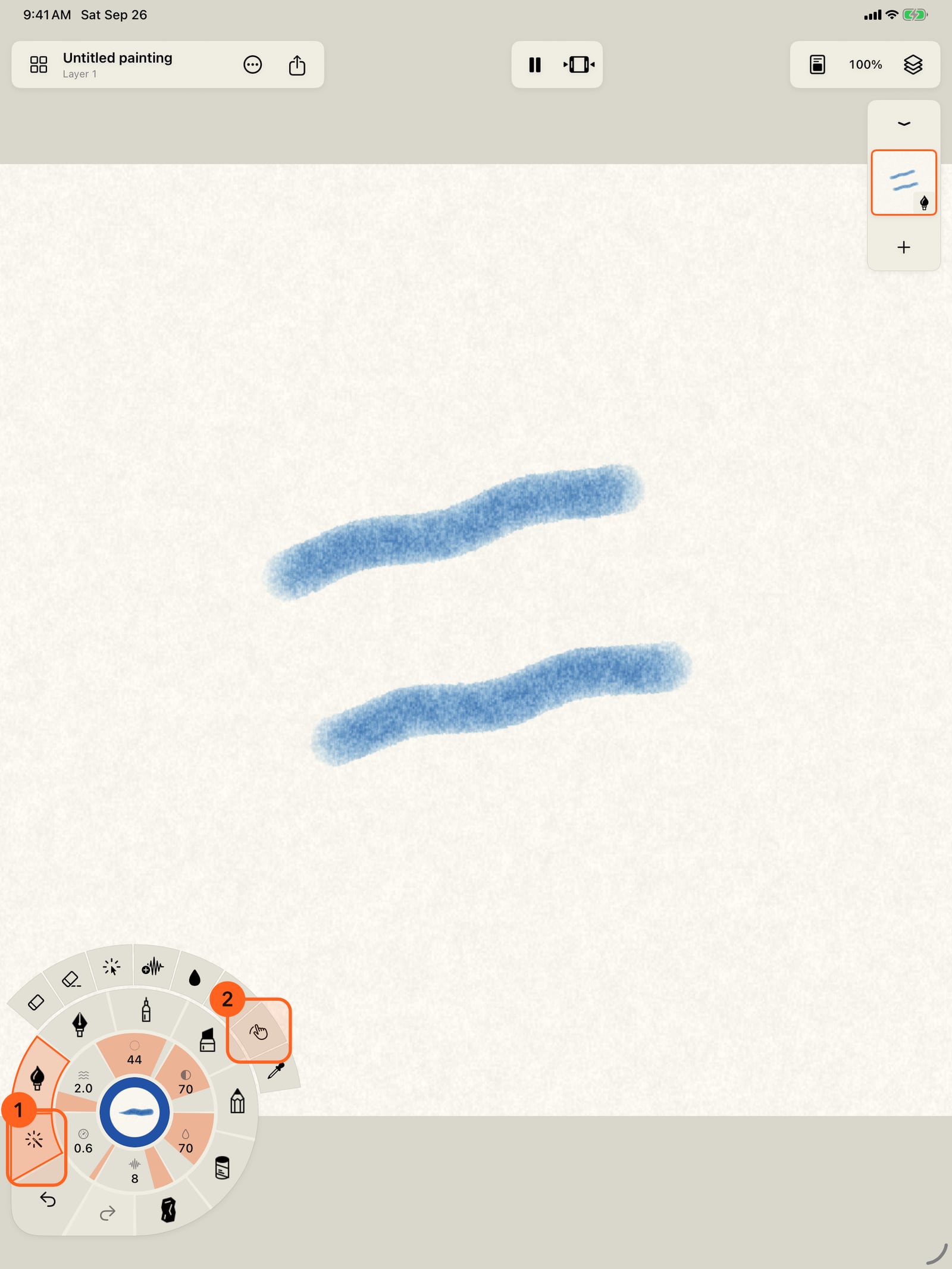
Tap Fit canvas. For moving the page with one finger, unfold the wheel, open Tools in its corner, and choose the Hand tool.
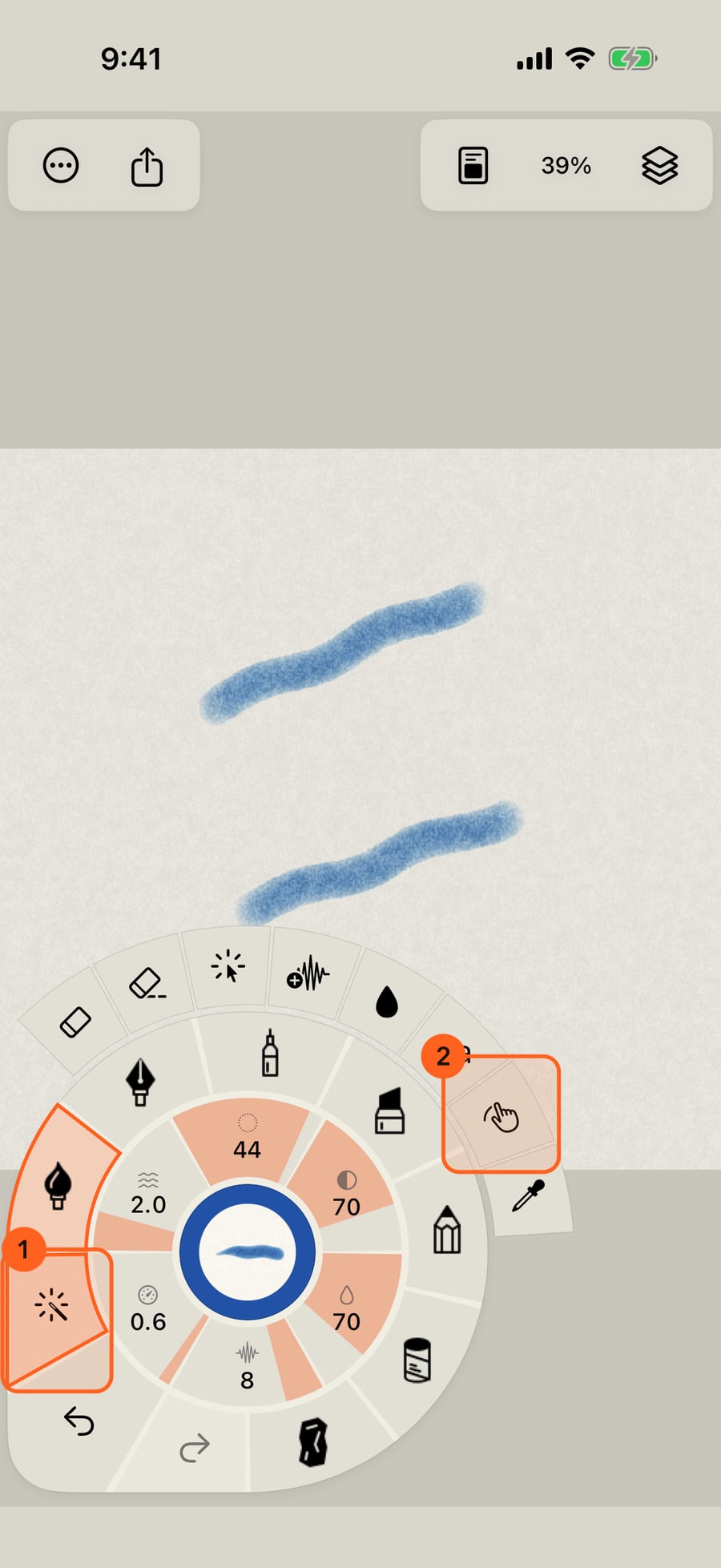
Click Fit canvas. For moving the page with one finger or the pencil, open Tools in the wheel's corner and choose the Hand tool.
Now a drag moves the page instead of painting. When you're done, tap Return to drawing at the top of the page.
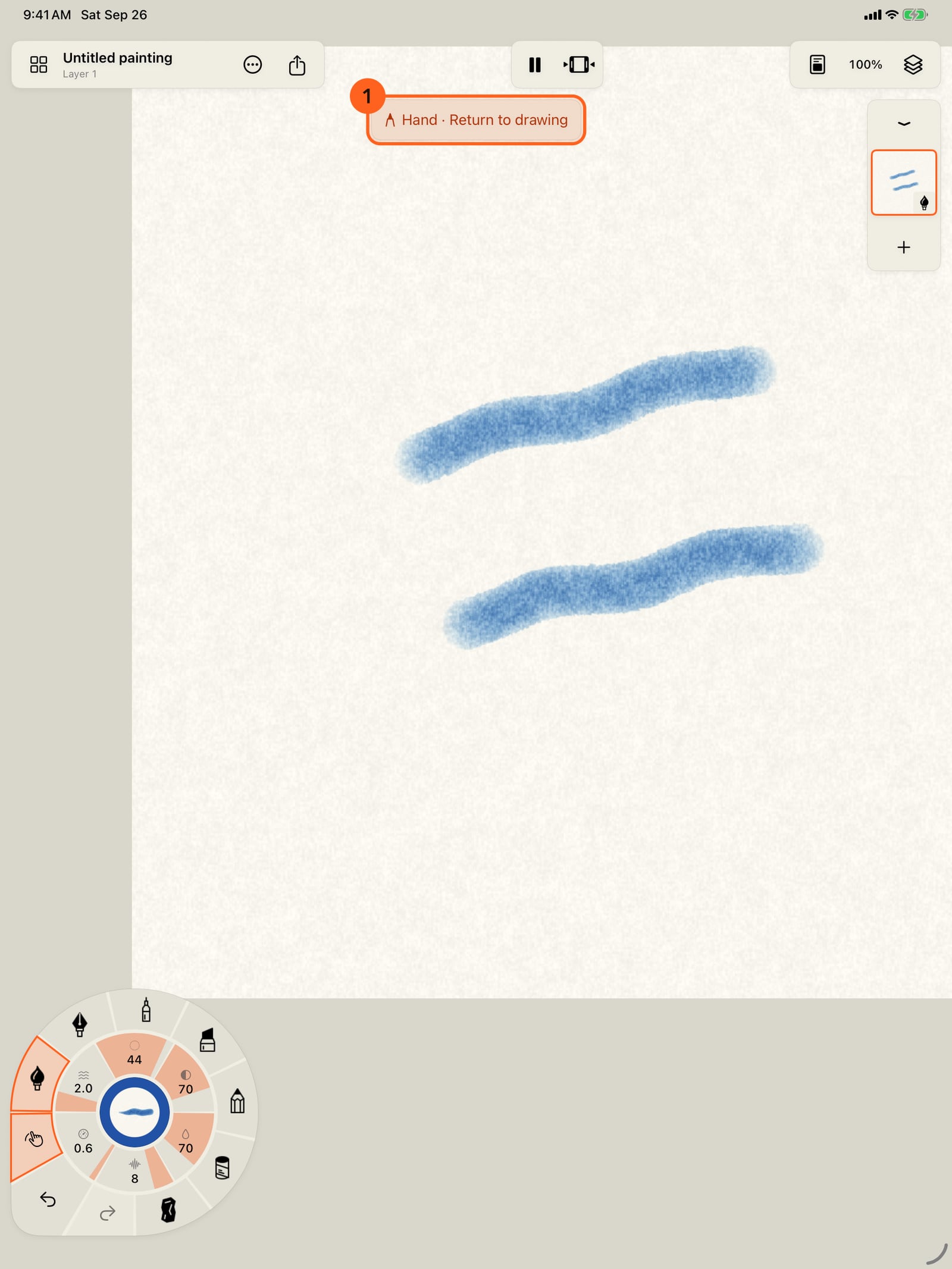
Now a drag moves the page instead of painting. When you're done, tap Return to drawing at the top of the page.
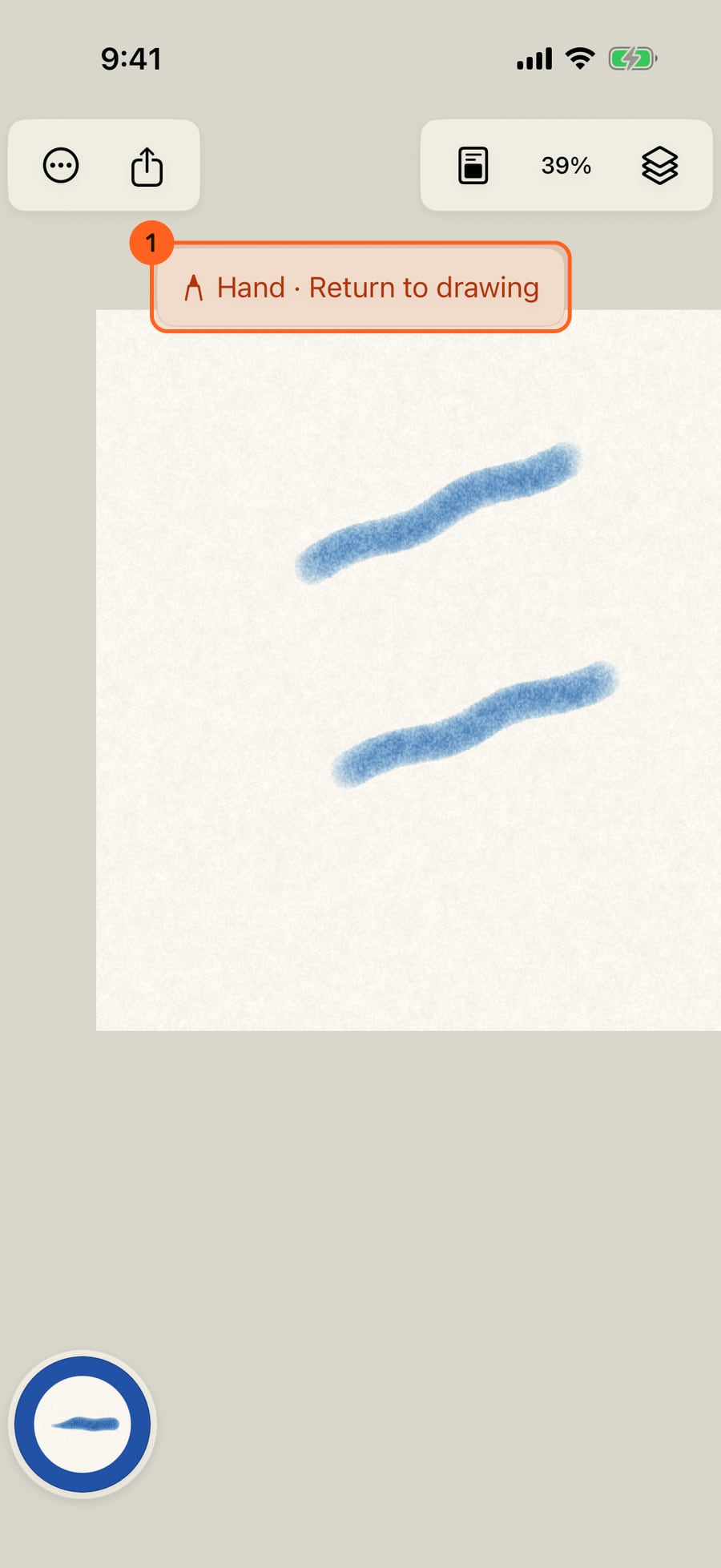
Now a drag moves the page instead of painting. When you're done, click Return to drawing at the top of the page.
To look at the painting on its own, tap Actions, then Hide interface, or tap with four fingers. Show interface, in the corner, brings everything back.
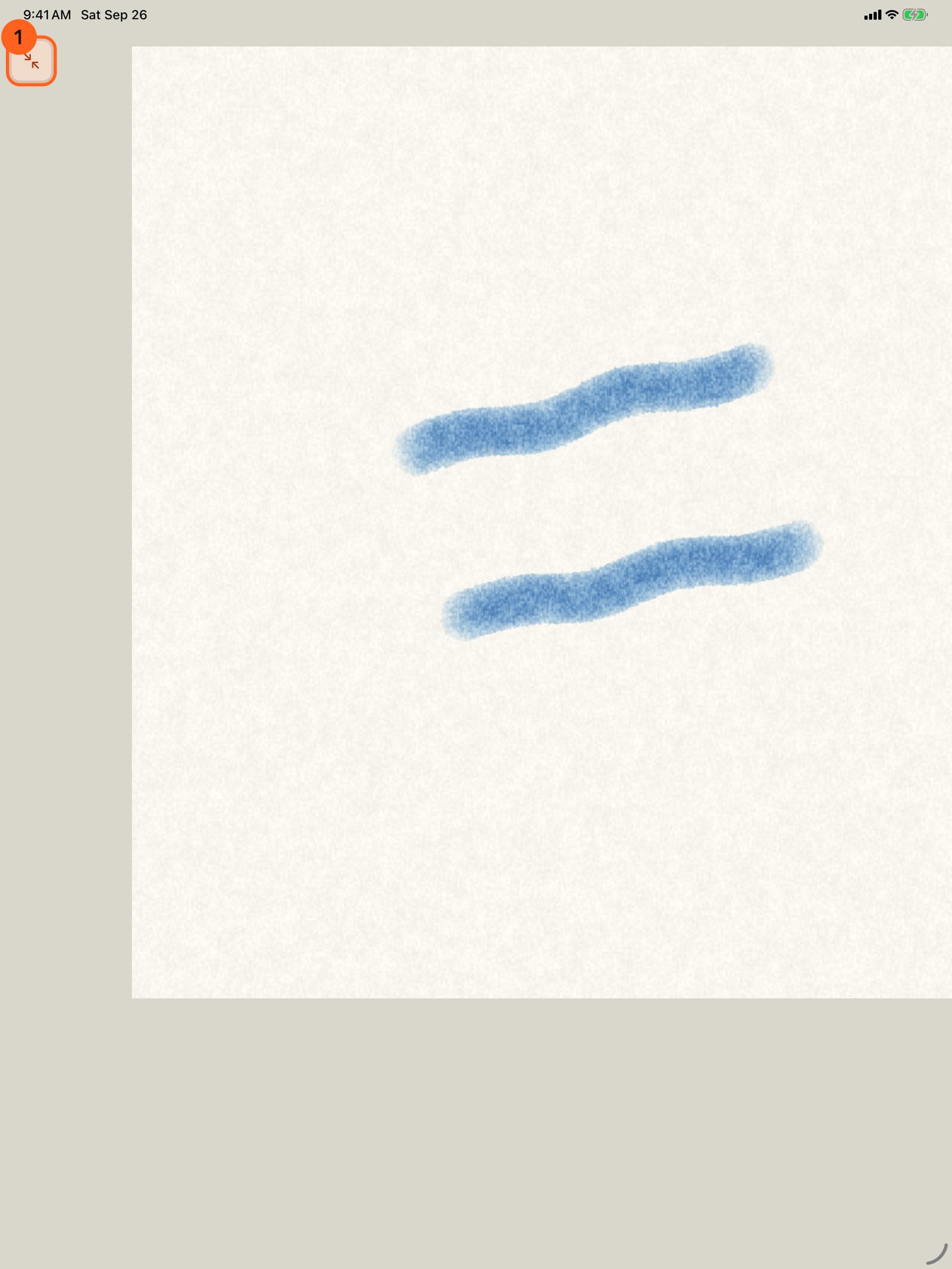
To look at the painting on its own, tap Actions, then Hide interface, or tap with four fingers. Show interface, in the corner, brings everything back.
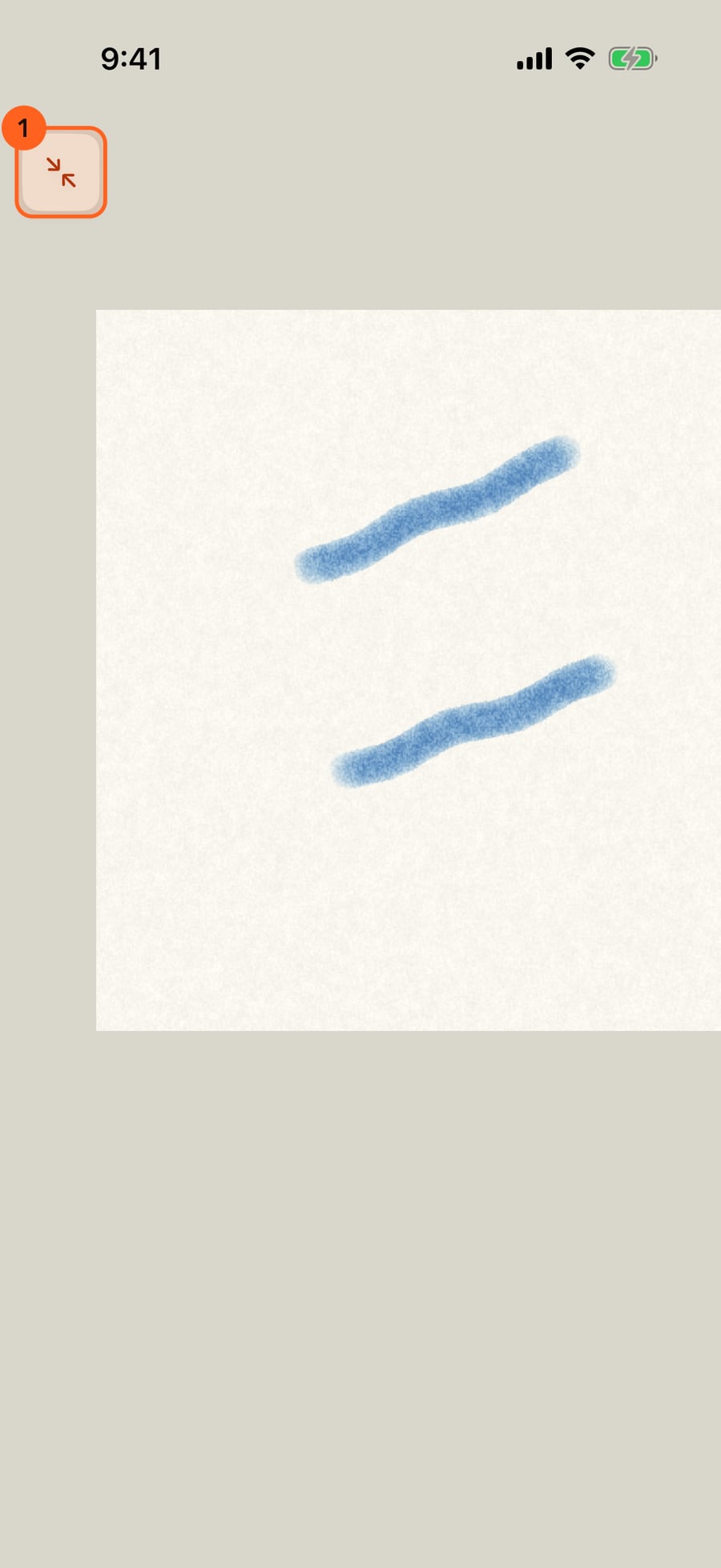
To look at the painting on its own, click Actions, then Hide interface, or click with four fingers. Show interface, in the corner, brings everything back.
Two-finger gestures
| Gesture | What it does |
|---|---|
| Pinch | Zooms in and out around your fingers |
| Twist | Rotates the page |
| Two-finger drag | Moves the page |
| Two-finger tap | Undo |
| Three-finger tap | Redo |
| Four-finger tap | Hides the interface, or shows it again |
Pinch, twist and drag work together in one movement. The taps act when your fingers lift, and they never leave marks on the page. They work whether or not your finger paints.
With Finger draws turned off in Settings, a single finger moves the page too, and only Apple Pencil paints. See Apple Pencil and touch.
The Zoom menu
Tap the percentage 1 in the top bar:
| Item | What it does |
|---|---|
| Zoom in | 125% of the current zoom |
| Zoom out | 80% of the current zoom |
| 100% | One canvas pixel to one screen point |
| Fit canvas | The whole page, centred and straight |
| Reset rotation | Straightens the page, keeping the zoom |
| Rotate left 15°, Rotate right 15° | Turns the page in steps |
The menu's last lines remind you of the gestures. Fit canvas is also where to go if you lose the page off screen. Zoom reaches from a tenth of the page's size up to close enough to see single canvas pixels; the painting is re-rendered sharply at each zoom once your fingers lift.
On the Mac, scroll to move the page and hold ⌘ while scrolling to zoom. ⌘= zooms in, ⌘− zooms out and ⌘0 fits the canvas. See Mouse, trackpad and keyboard.
The Hand tool
Tools, in the wheel's corner, holds the tools that act on the page rather than paint on it. The Hand tool 2 makes one finger, Apple Pencil or the pointer move the page. While it's on, a note at the top of the page reads Hand · Return to drawing; tap it, or choose the Hand tool again, to paint. The Tools button shows the Hand's symbol while it's on.
Press H to turn the Hand tool on or off.
Hide the interface
Actions → Hide interface (the menu reminds you: Or tap with four fingers) leaves only the painting. The small Show interface button in the top-left corner, or another four-finger tap, brings the bars, the wheel and the layers back. Playback carries on while the interface is hidden.
With the interface hidden, squeezing or double-tapping Apple Pencil can still bring the brush controls to the pencil, if you've set it to in Settings → Apple Pencil.
Tip: Undo and Redo are also on the wheel, beside Tools. Touch and hold either to repeat it.
Something not behaving as expected?
Visit support or write to [email protected].