

Guides / Getting started
Mouse, trackpad and keyboard
Paint on the Mac with a mouse, trackpad or drawing tablet, call the stroke wheel with a secondary click, scroll to move and zoom, and use the keyboard shortcuts.
Secondary-click the page, with the right button or a two-finger click on a trackpad, and the stroke wheel comes to the pointer. Click the page to send it back to its corner.
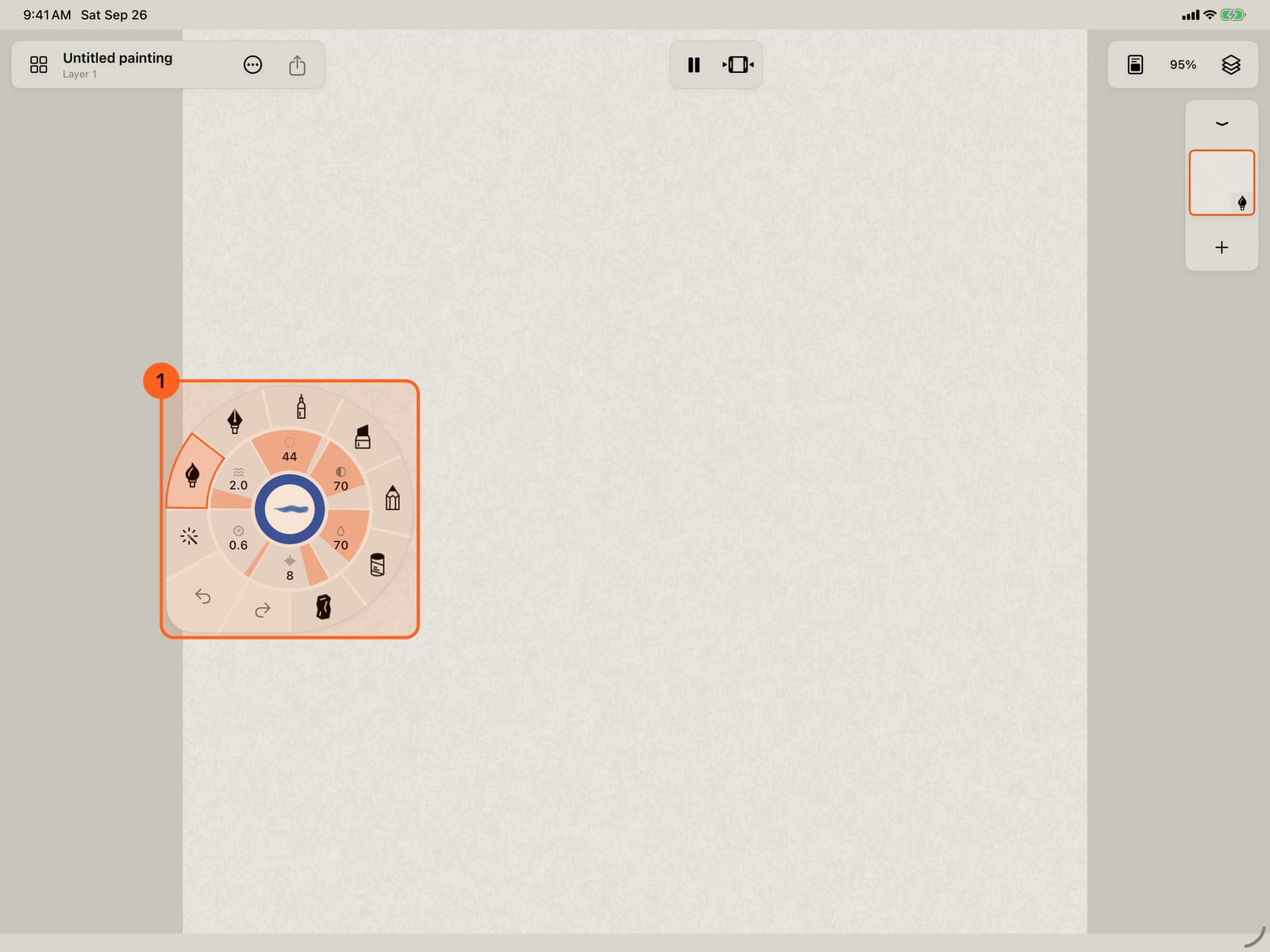
Hold the button and drag to paint, with a mouse, trackpad or drawing tablet. Before you press, a circle under the pointer shows where the brush will land and how wide.
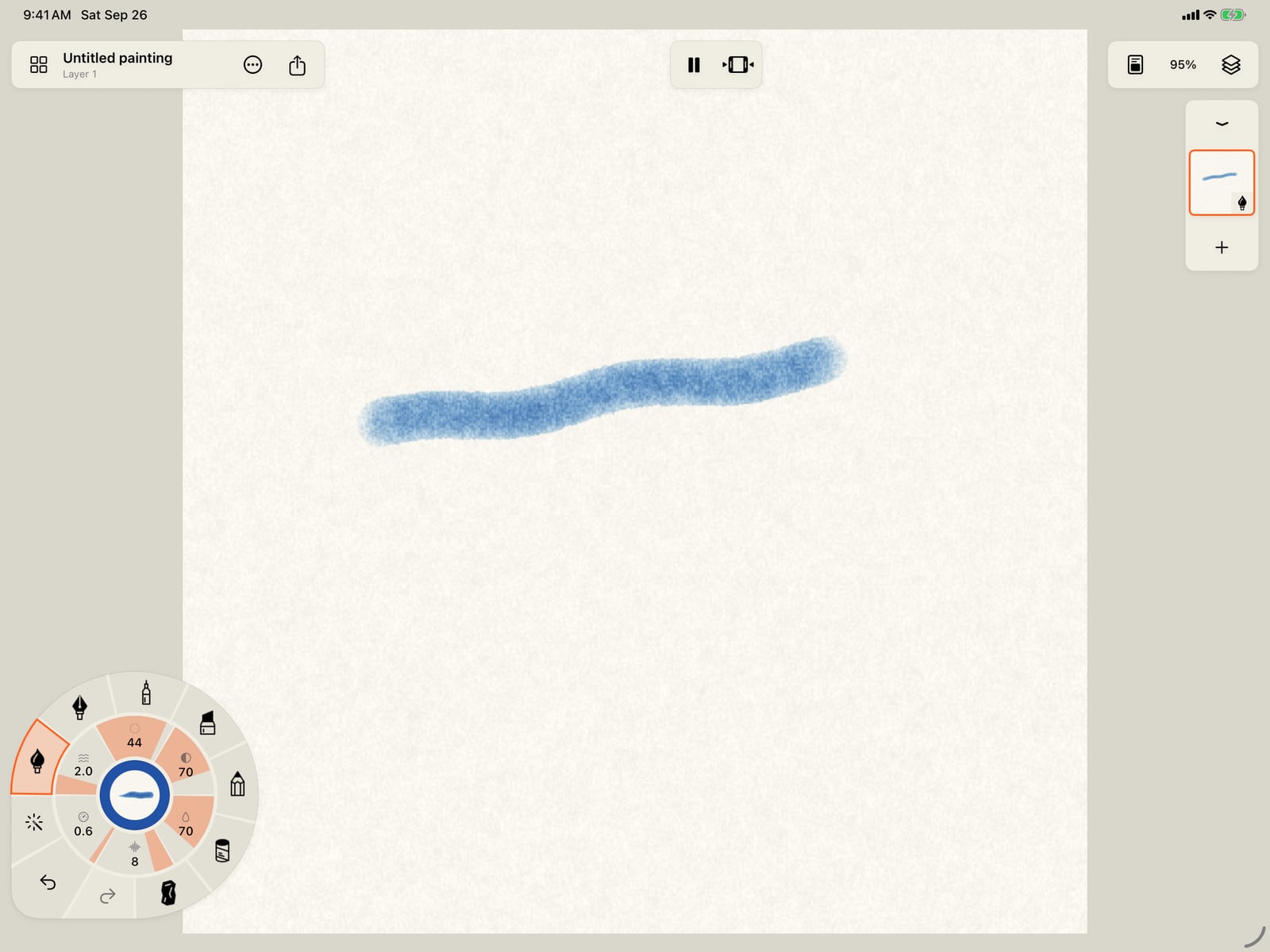
Scroll to move the page, and hold Command while you scroll to zoom. The zoom menu lists the keys; Command-0 fits the whole page again.
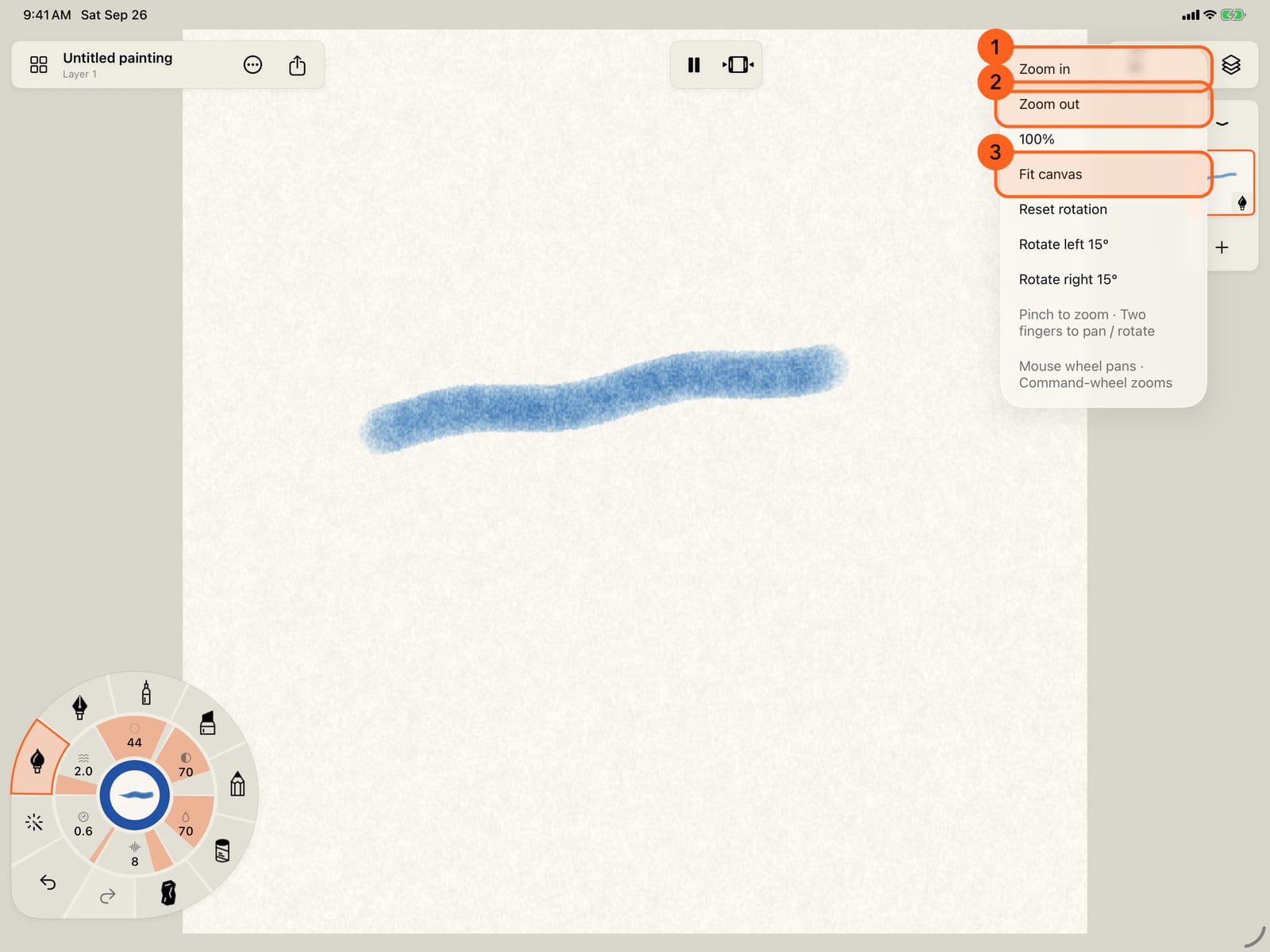
Press E for the Eraser, H for the Hand tool, and I for the Eyedropper. Their keys work even while the Tools ring is folded.
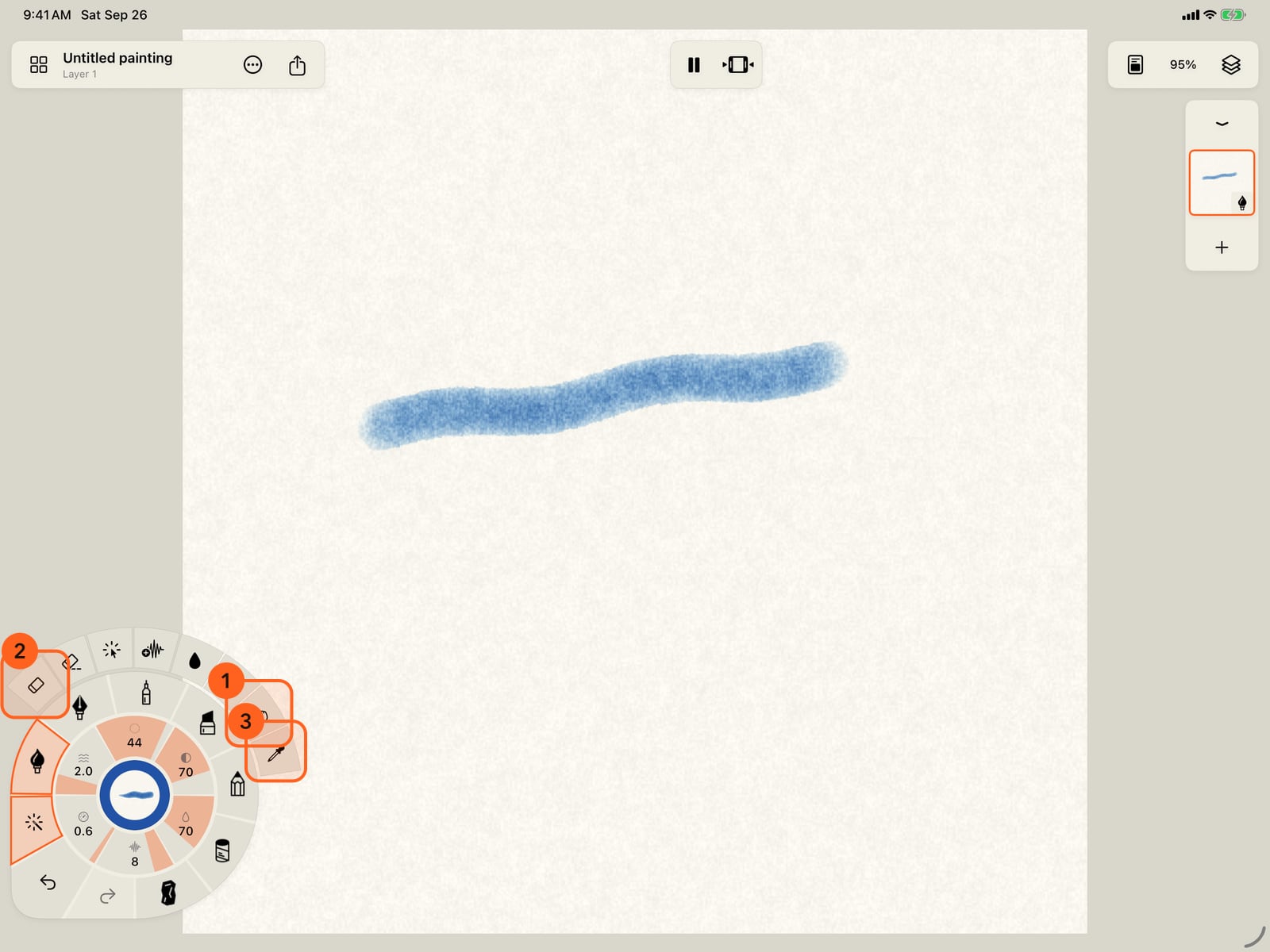
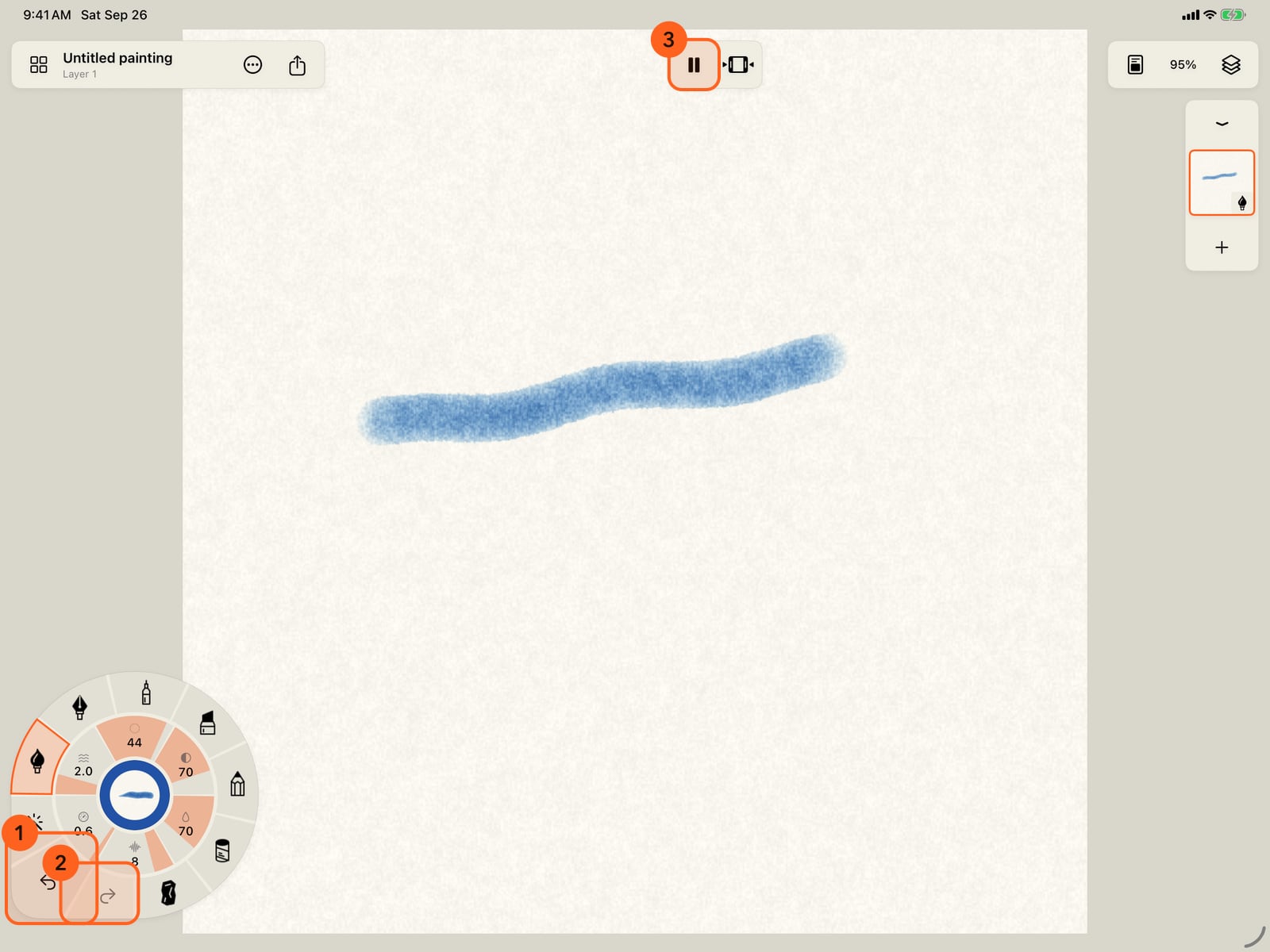
Command-Z undoes and Shift-Command-Z redoes, like Undo and Redo on the wheel. Space plays and pauses the painting.
Drawing with a pointer
Doodly Doodle on the Mac is the iPad app, with the pointer in place of the pencil. Everything it can paint, it paints with a mouse, a trackpad or a drawing tablet: press and drag to draw, release to finish the stroke. The pointer paints whether or not Finger draws is on.
- Hover footprint: as the pointer moves over the page, a circle shows where the brush will land and how wide it is at the current zoom.
- Pressure: a mouse, trackpad or drawing tablet paints at an even pressure. Size and Strength on the wheel set the weight of the mark.
- Secondary click (right-click, or a two-finger click on a trackpad) brings the stroke wheel 1 to the pointer, on the side away from your drawing hand. Choosing a tool, or clicking the page, sends it back to its corner.
Moving around
| Input | What it does |
|---|---|
| Scroll (wheel, or two fingers on a trackpad) | Moves the page |
| ⌘ + scroll | Zooms in and out around the pointer |
| The Zoom menu (the percentage) | Zoom in, Zoom out, 100%, Fit canvas, Reset rotation, Rotate left 15°, Rotate right 15° |
| Hand tool (H) | Dragging moves the page instead of painting |
See Gestures and the view for the Zoom menu in full.
Keyboard shortcuts
| Keys | What they do |
|---|---|
| ⌘Z | Undo |
| ⇧⌘Z | Redo |
| Space | Play or pause the painting |
| ⌘= | Zoom in |
| ⌘− | Zoom out |
| ⌘0 | Fit canvas |
| E | Eraser (whole strokes) on or off |
| H | Hand tool on or off |
| I | Eyedropper on or off |
- E works when there's something to erase: the layer you're on has strokes and isn't locked.
- Space belongs to the Play button in the top bar, so it works while that button is showing (a window at least 500 points wide).
There's no menu bar with the app's commands: every command lives in the app's own controls, in the top bar and on the wheel, just as on iPad.
Tip: Settings → Interface & input → Controls on right puts the wheel in the bottom-right corner, if you draw with your left hand.
Something not behaving as expected?
Visit support or write to [email protected].