

Guides / Getting started
Apple Pencil and touch
Paint with Apple Pencil pressure, tilt and hover, choose what double-tap and squeeze do, and decide whether your finger paints or moves the page.
Apple Pencil paints with pressure and tilt. Press harder for a fuller, darker mark, and lean the pencil to shade with its side.
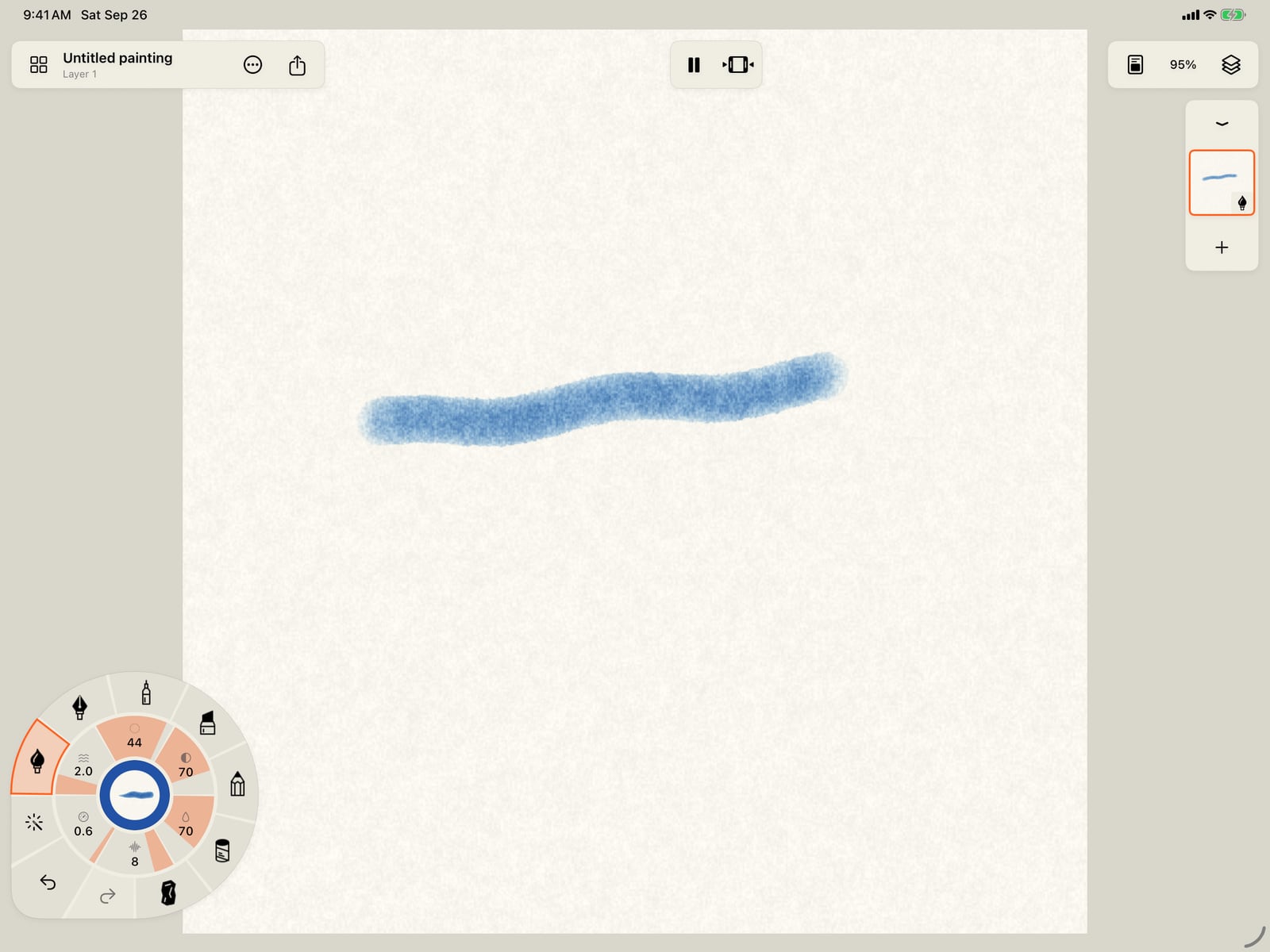
On iPhone you paint with your finger. Touch the page, draw, and lift.
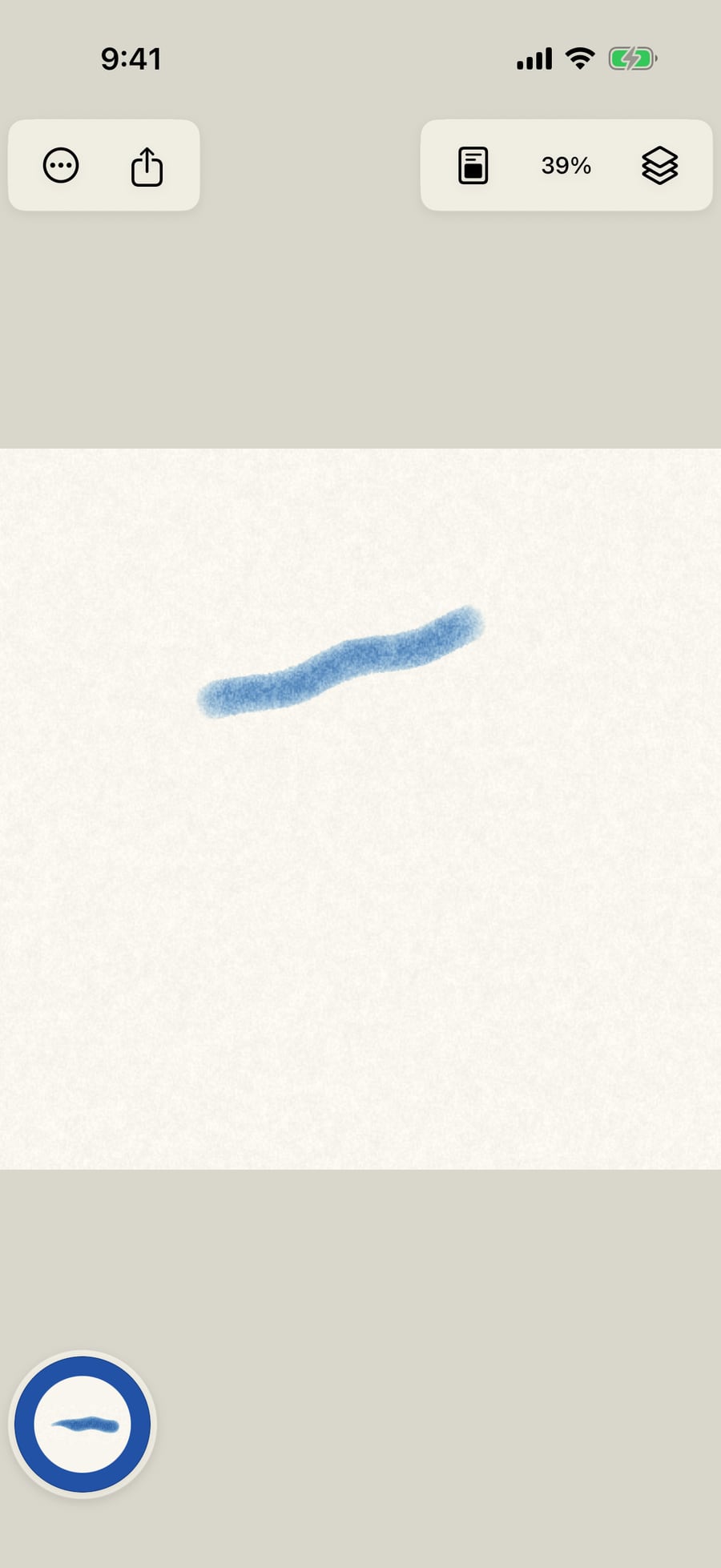
Open Actions, then Settings. Finger draws decides what one finger does. On, it paints; off, it moves the page and only Apple Pencil paints.
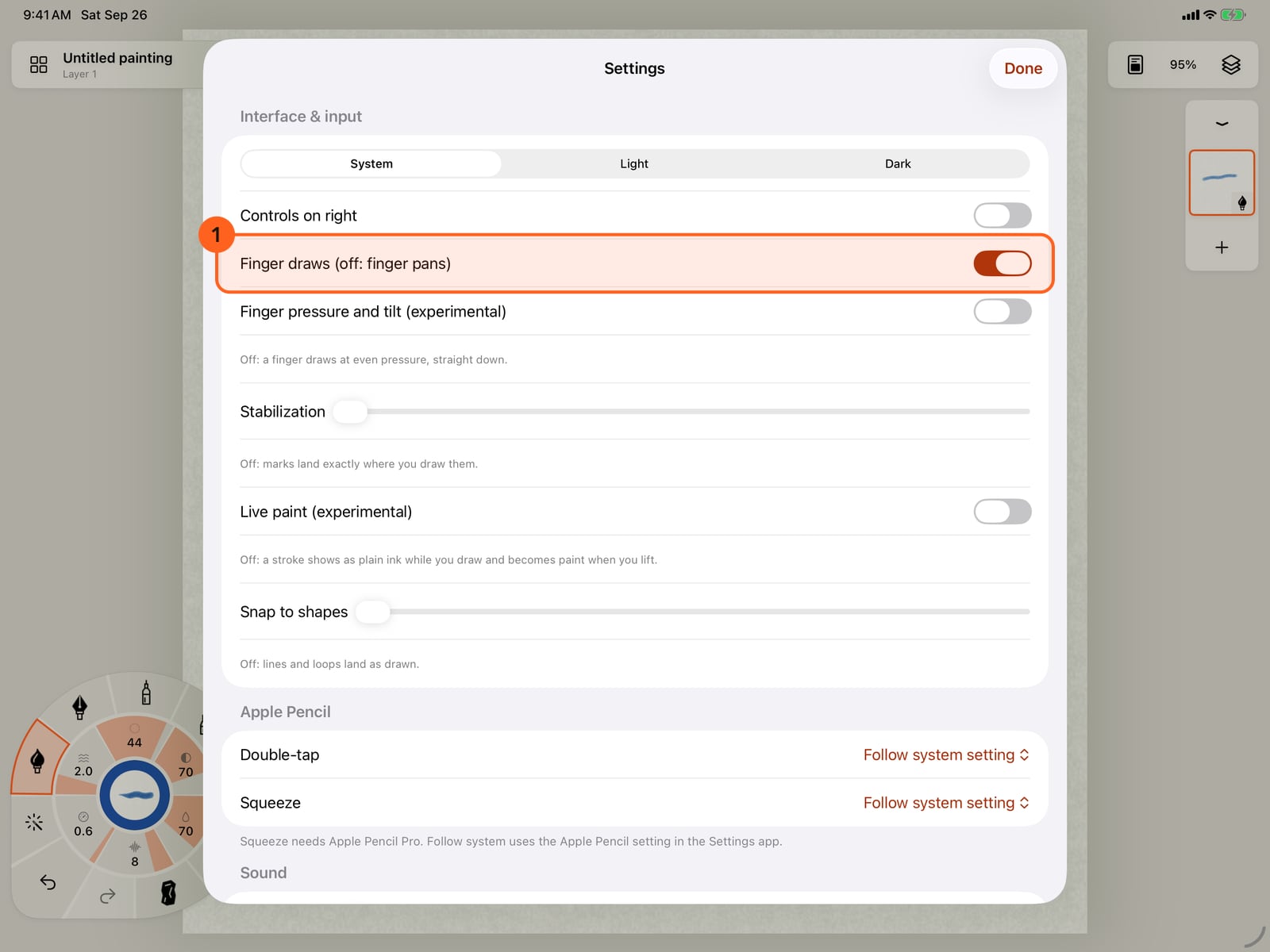
Open Actions, then Settings. Keep Finger draws on. Turned off, a finger moves the page instead of painting.
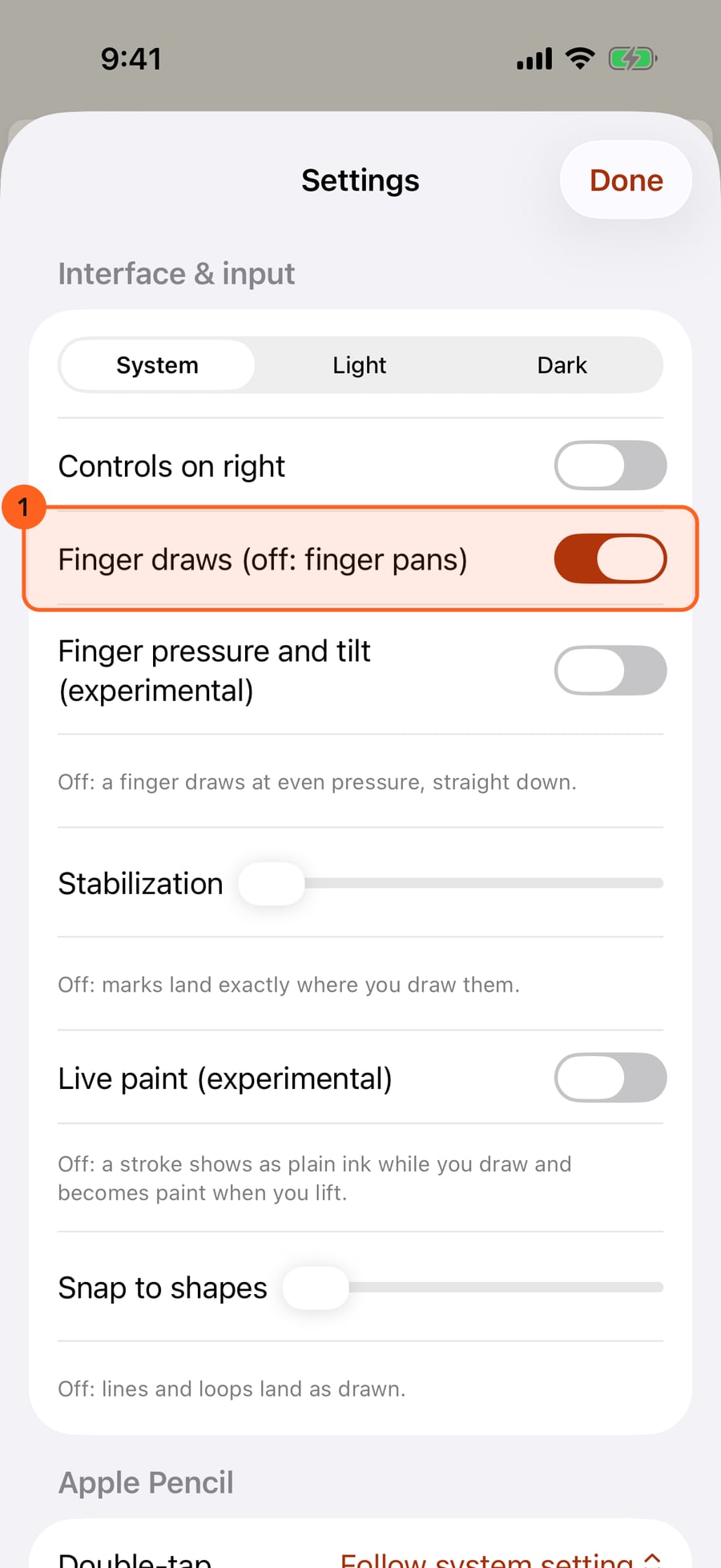
A finger has no pressure or tilt, so it paints at an even weight. Finger pressure and tilt, an experimental setting, makes them up from how you move.
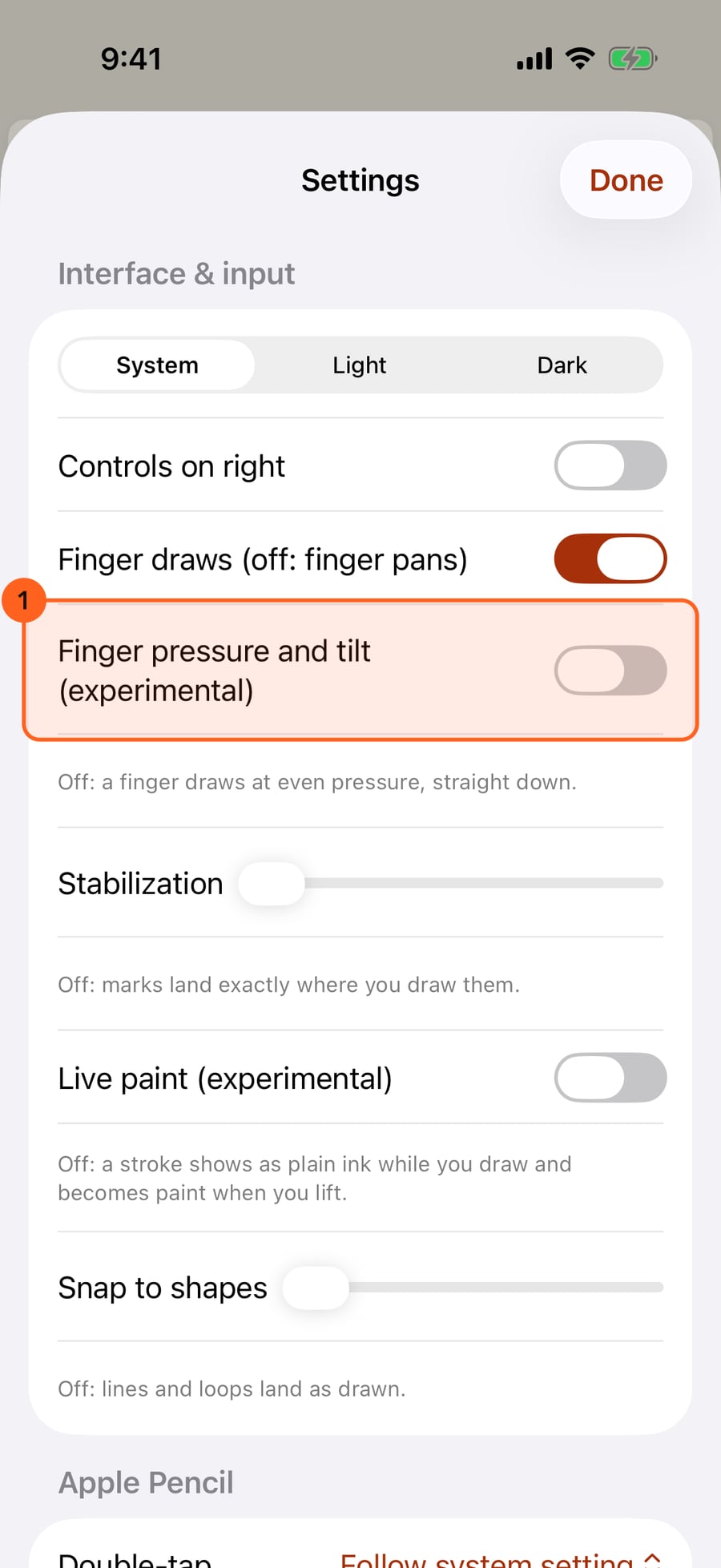
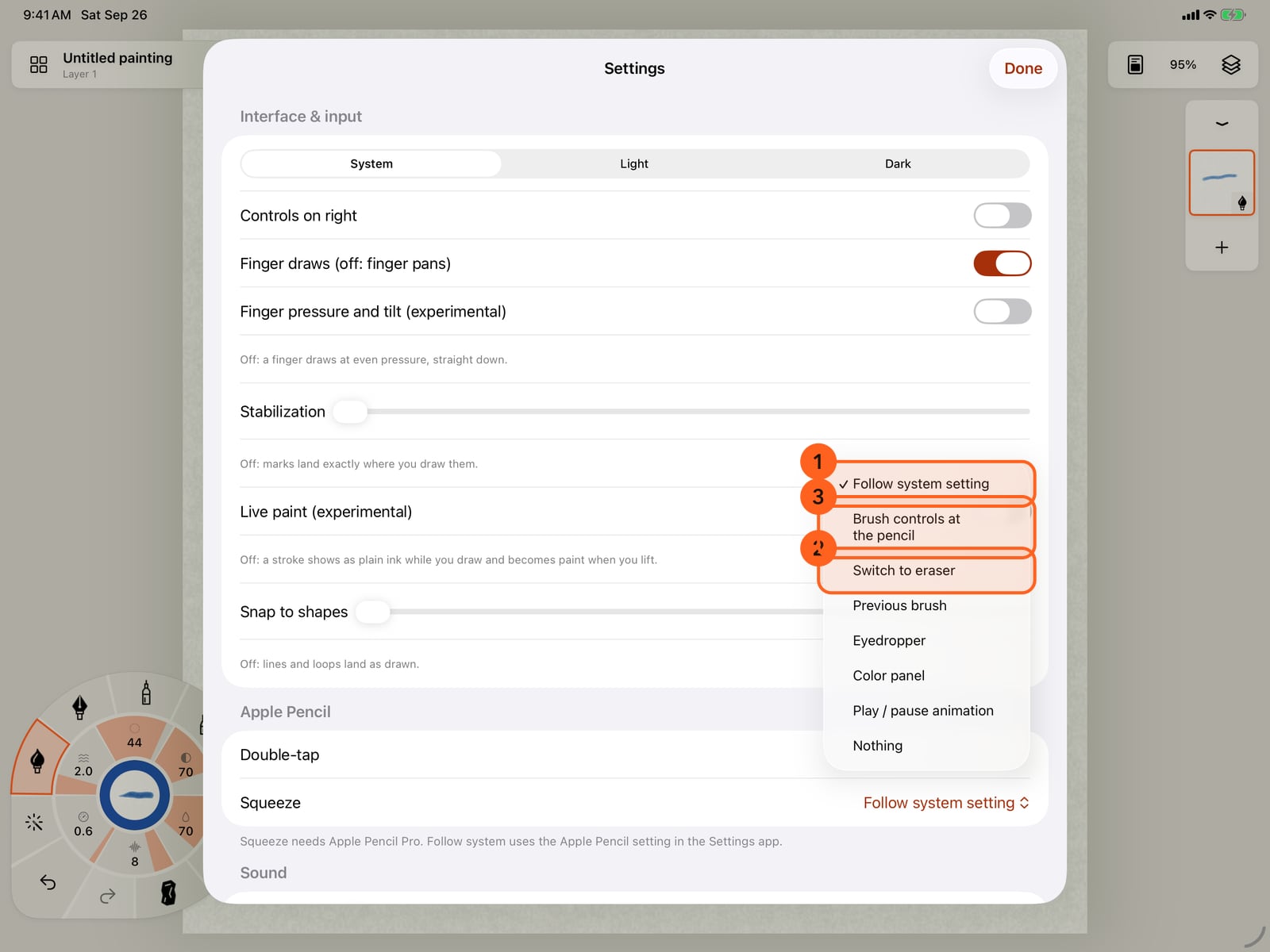
Under Apple Pencil, tap Double-tap to choose what a double-tap on the pencil does. Follow system setting uses the choice in the Settings app.
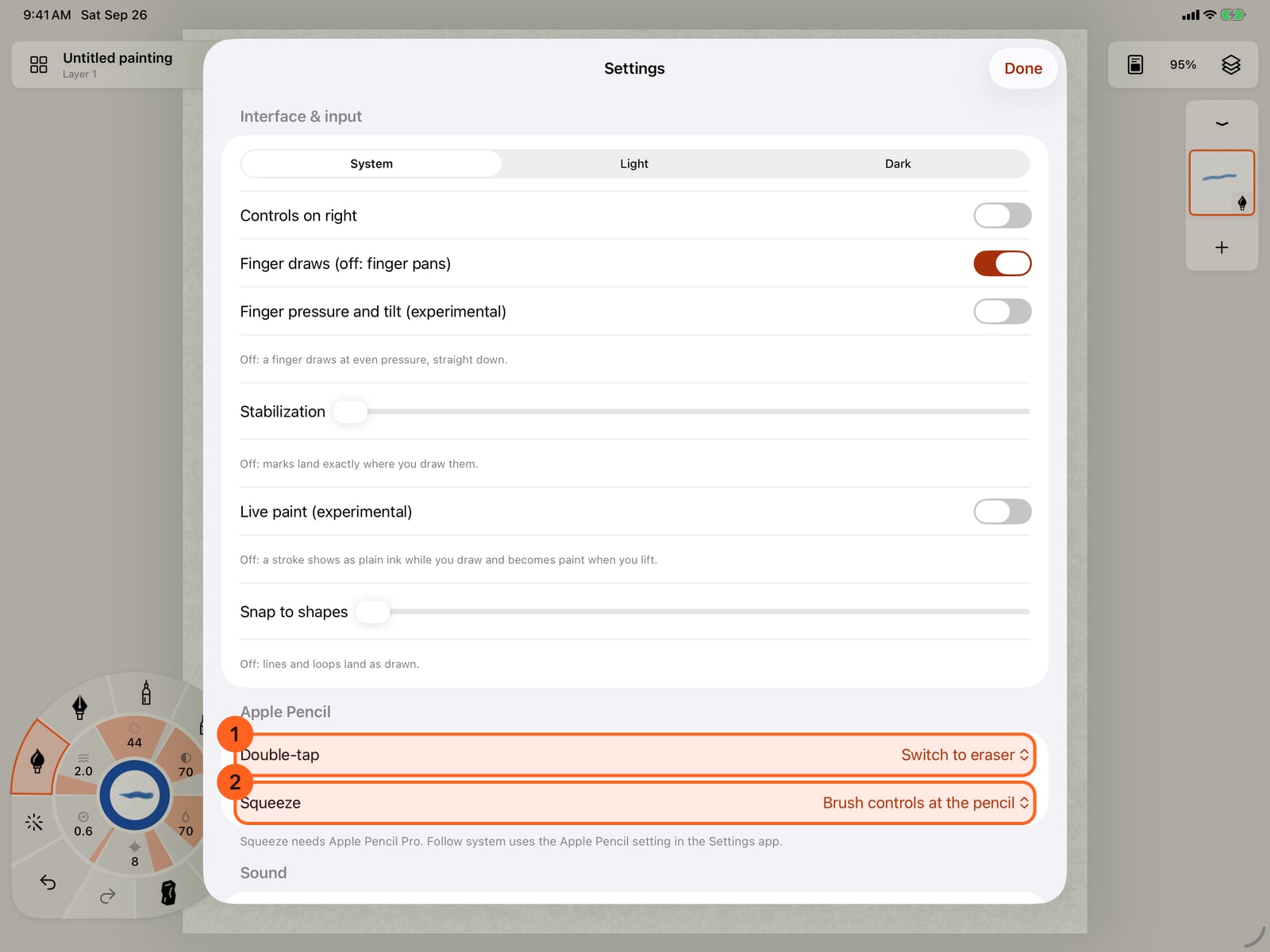
Here, a double-tap switches to the eraser. Now tap Squeeze, which works with Apple Pencil Pro and can do something different.
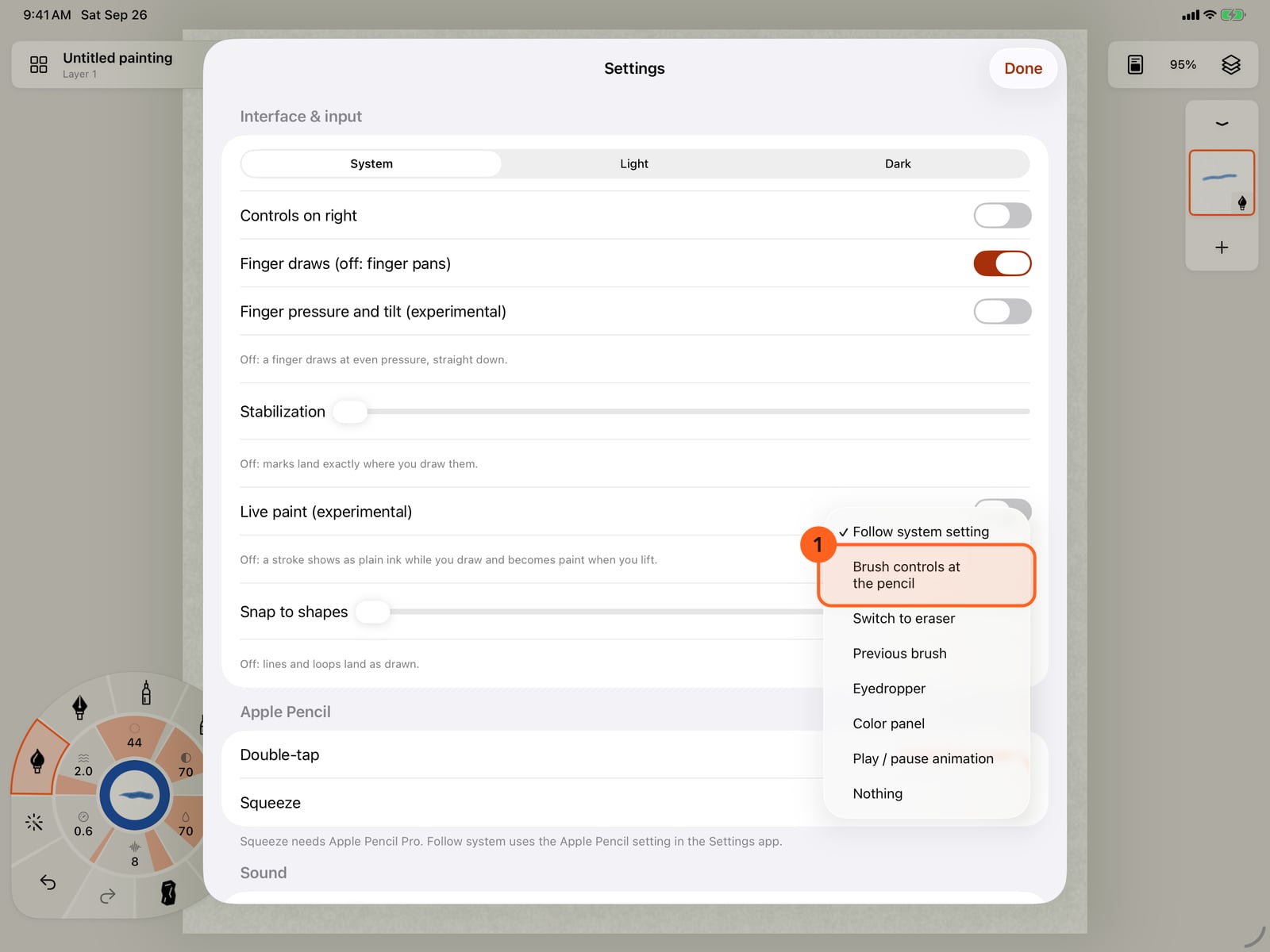
Choose Brush controls at the pencil. A squeeze now brings the stroke wheel beside the pencil, and a double-tap swaps to the eraser and back.
Tap Done and paint again. On an iPad with pencil hover, a circle shows where the brush will land and how wide, before the tip touches.
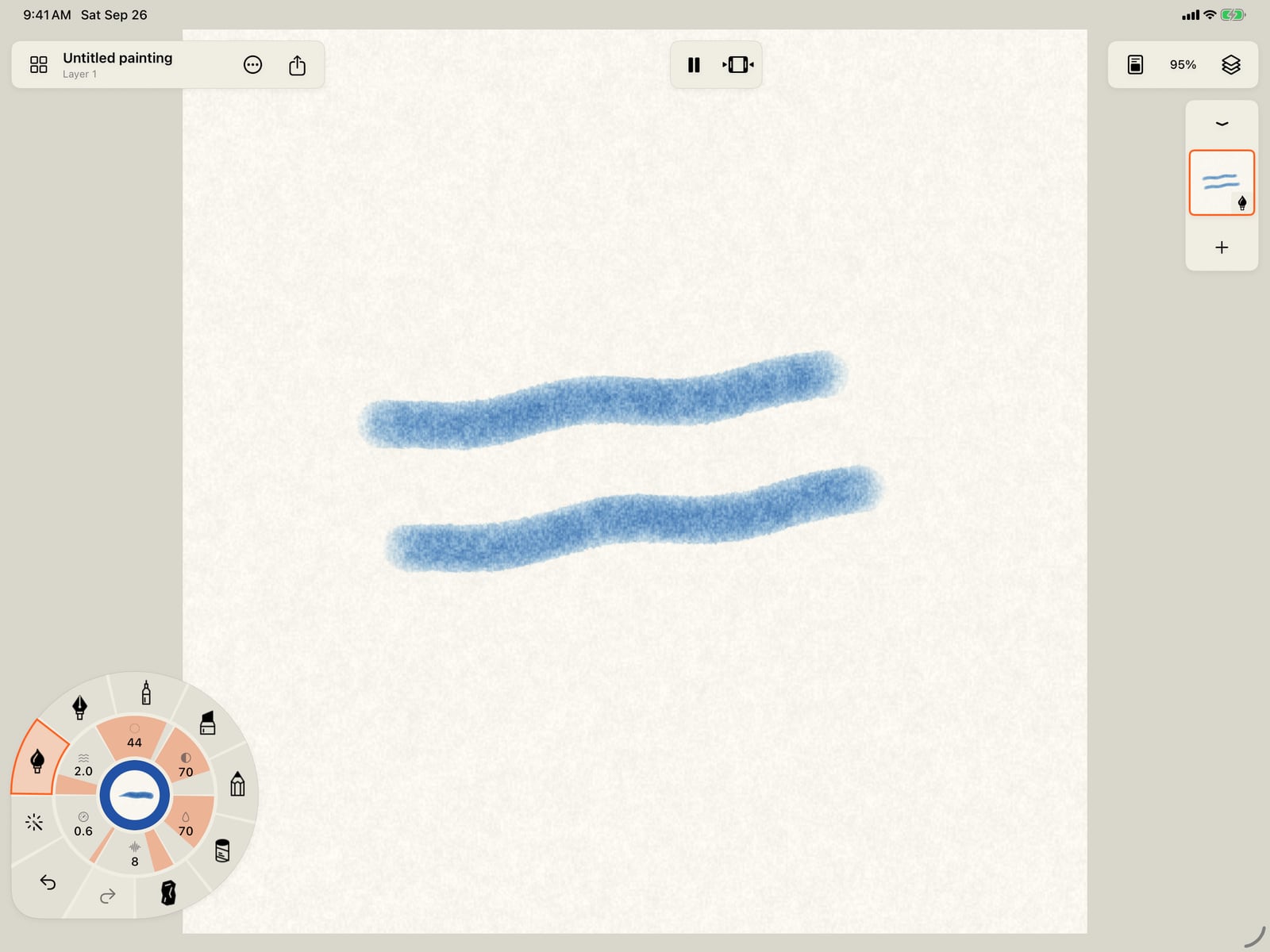
Tap Done and paint again. Two fingers still zoom, rotate and move the page, and a two-finger tap undoes.
Apple Pencil
Every brush answers the pencil:
- Pressure widens the mark as you press, and with many brushes deepens it too. Brush Studio sets how each brush responds.
- Tilt matters for brushes with a shaped tip. Lean a Graphite pencil over and it shades with its side; stand it up for a fine line.
- Hover: on an iPad and Apple Pencil that support hover, a circle follows the tip above the page, showing where the brush will land and how wide it will be. It disappears as the tip touches.
Two fingers still zoom, rotate and move the page, and a tap with two or three fingers undoes or redoes, while the pencil paints. See Gestures and the view.
iPhone has no Apple Pencil, so your finger paints. A finger has no pressure or tilt: marks are an even weight, straight down. The experimental Finger pressure and tilt setting makes both up from how you move; see Experimental settings.
Double-tap and squeeze
Settings → Apple Pencil has a choice for each gesture:
| Choice | What the gesture does |
|---|---|
| Follow system setting | Whatever the Apple Pencil page of the Settings app chooses (the default). Switch to eraser and Switch to previous work as they say, Show color palette opens the colour panel, and Show ink attributes or the palette brings the brush controls to the pencil. |
| Brush controls at the pencil | Brings the stroke wheel beside the pencil tip, on the side away from your drawing hand. Do it again, or tap the page, to send it back to its corner. |
| Switch to eraser | Erases whole strokes; do it again to paint. |
| Previous brush | Swaps to the brush you used before, and back. |
| Eyedropper | Picks a colour from the painting with the next touch. |
| Color panel | Opens the colour panel. |
| Play / pause animation | Starts or holds the painting's motion. |
| Nothing | The gesture is ignored. |
Double-tap works with Apple Pencil (2nd generation) and Apple Pencil Pro. Squeeze needs Apple Pencil Pro. The two can do different things: say, double-tap for the eraser and squeeze for the brush controls.
Finger draws
Settings → Interface & input → Finger draws (off: finger pans):
- On: one finger paints, like the pencil. Two fingers move, zoom and rotate the page.
- Off: one finger moves the page, and only Apple Pencil paints.
The first time you open the app it follows the Settings app's Only Draw with Apple Pencil choice: on an iPad set to draw only with the pencil, Finger draws starts off; on iPhone it starts on. Your choice is kept after that.
Tip: With Finger draws on, Finger pressure and tilt (experimental) appears beneath it. See Experimental settings.
Something not behaving as expected?
Visit support or write to [email protected].