

Guides / Settings and Pro
Experimental settings
Try Live paint, which shows the real paint under the pencil as you draw, and Finger pressure and tilt, which gives finger strokes a swell and a taper.
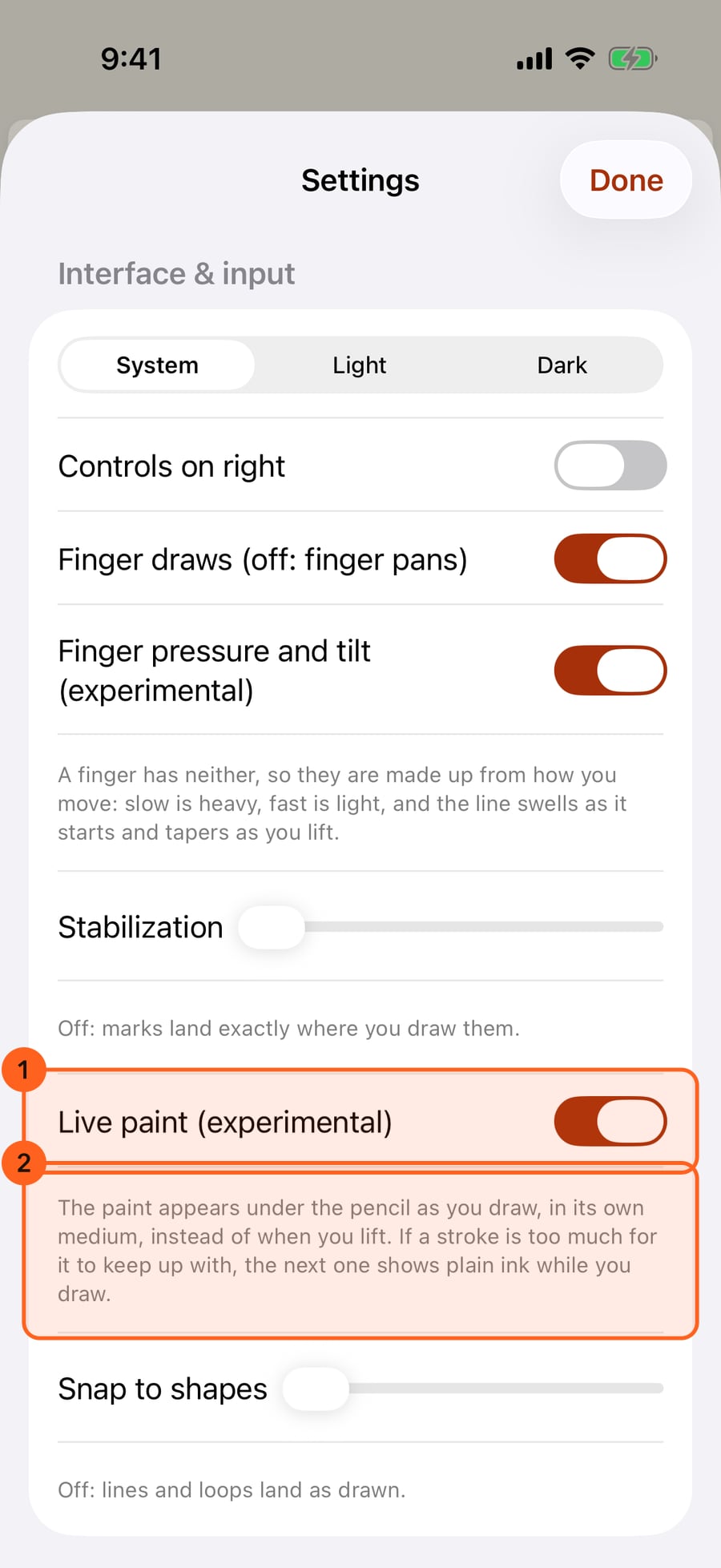
The two experimental settings are in Settings, under Interface and input. They're off until you turn them on; here, both are on.
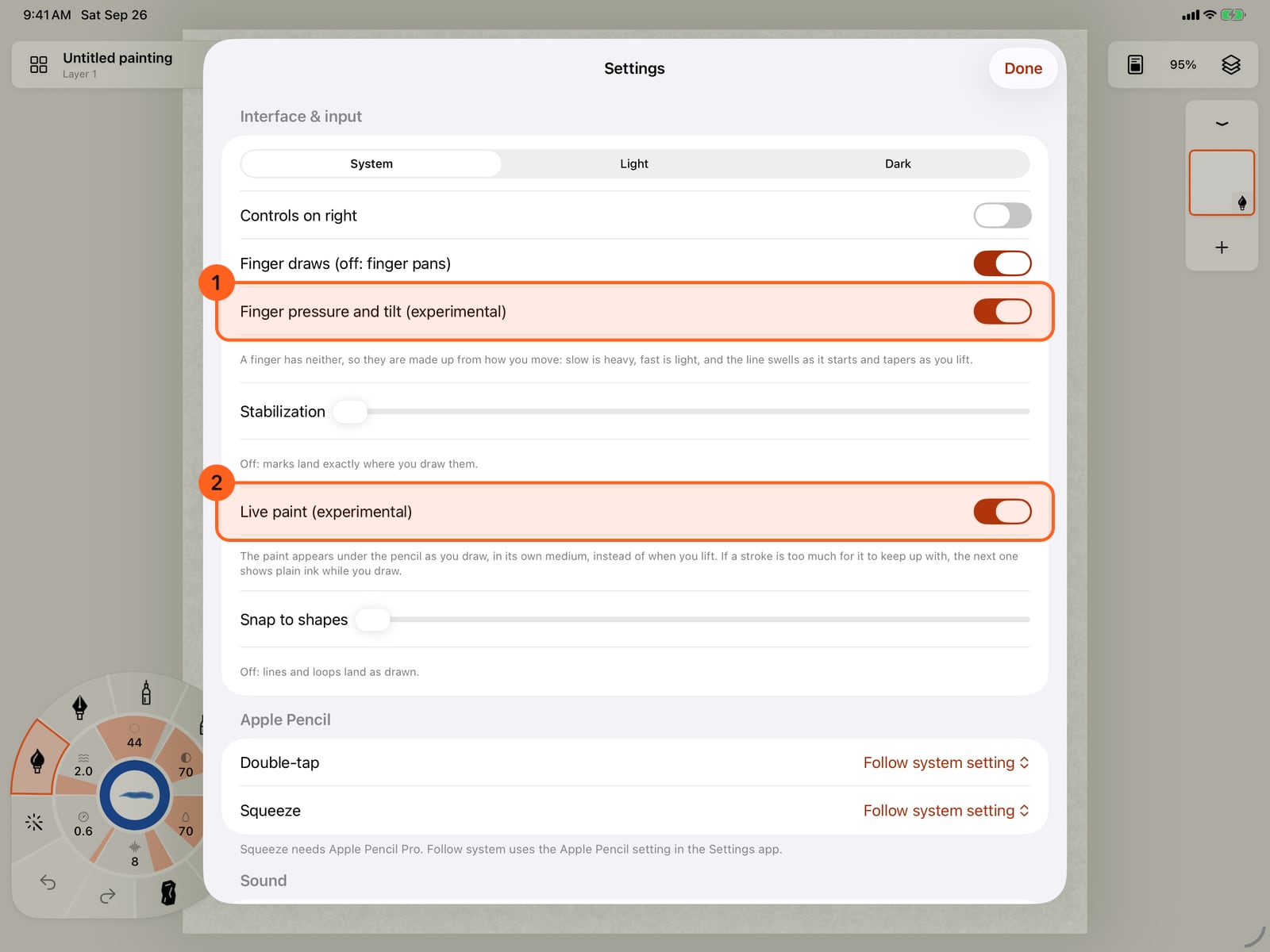
The two experimental settings are in Settings, under Interface and input. They're off until you turn them on; here, both are on.
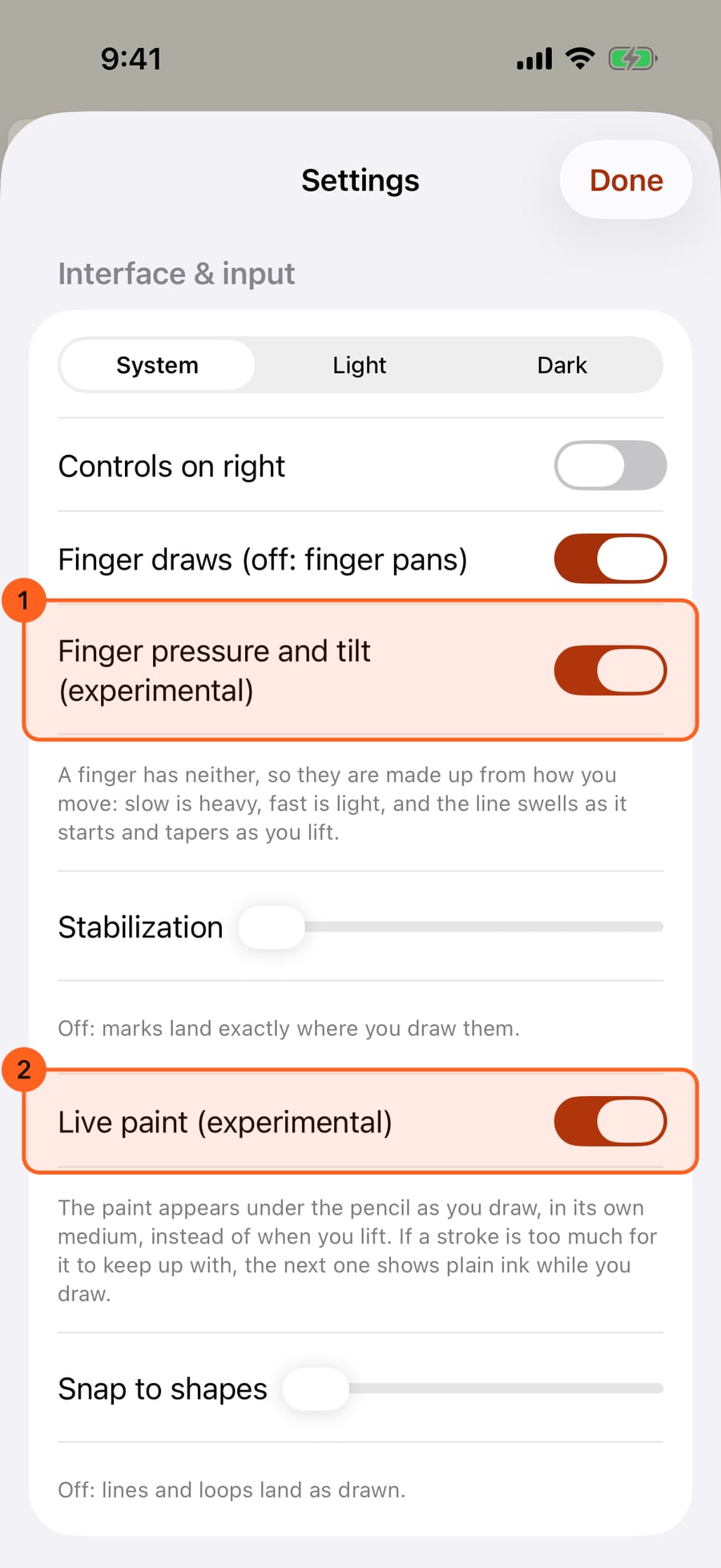
Finger pressure and tilt appears while Finger draws is on. A finger has neither, so they're made up from how you move.
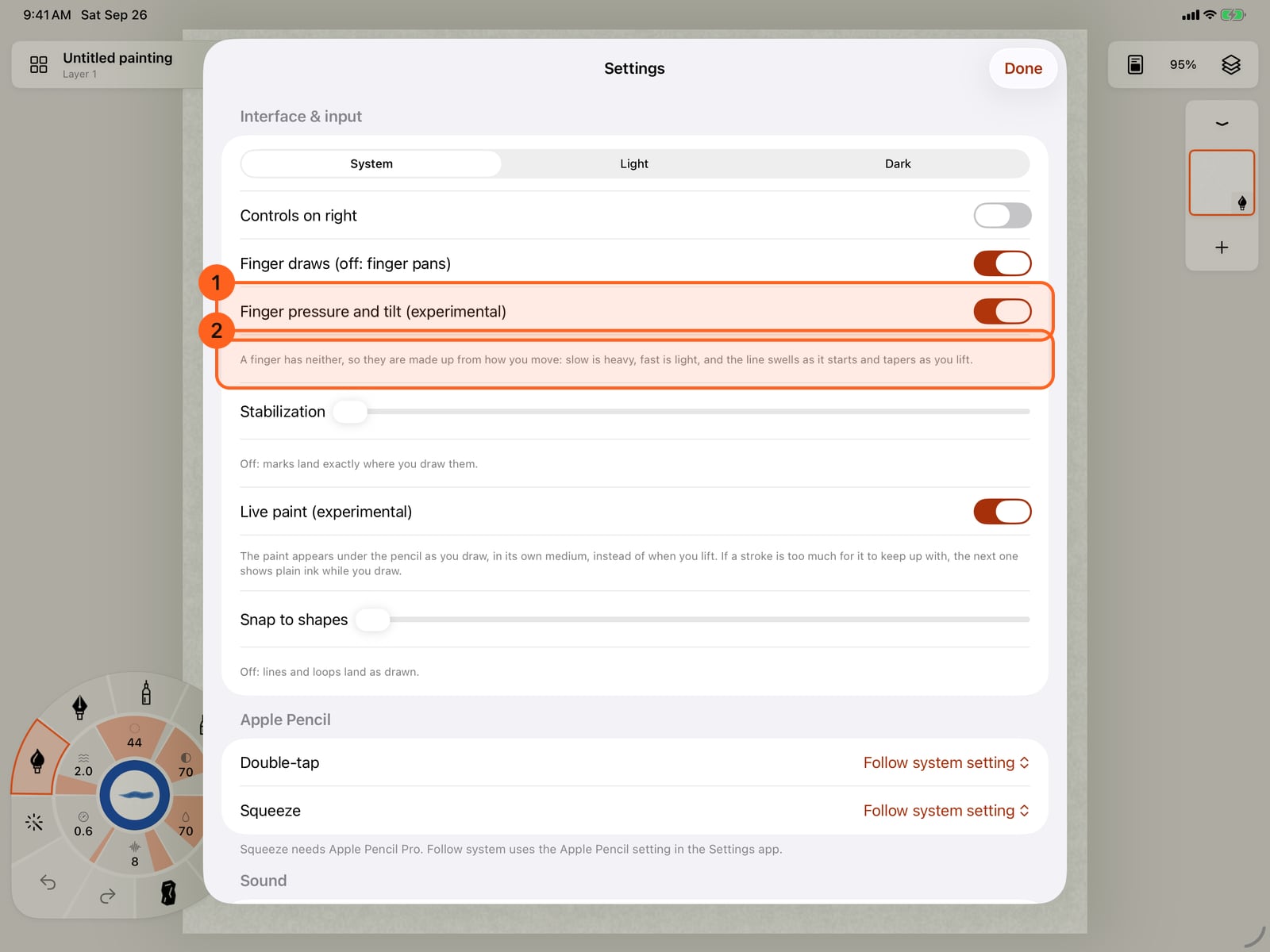
Finger pressure and tilt appears while Finger draws is on. A finger has neither, so they're made up from how you move.
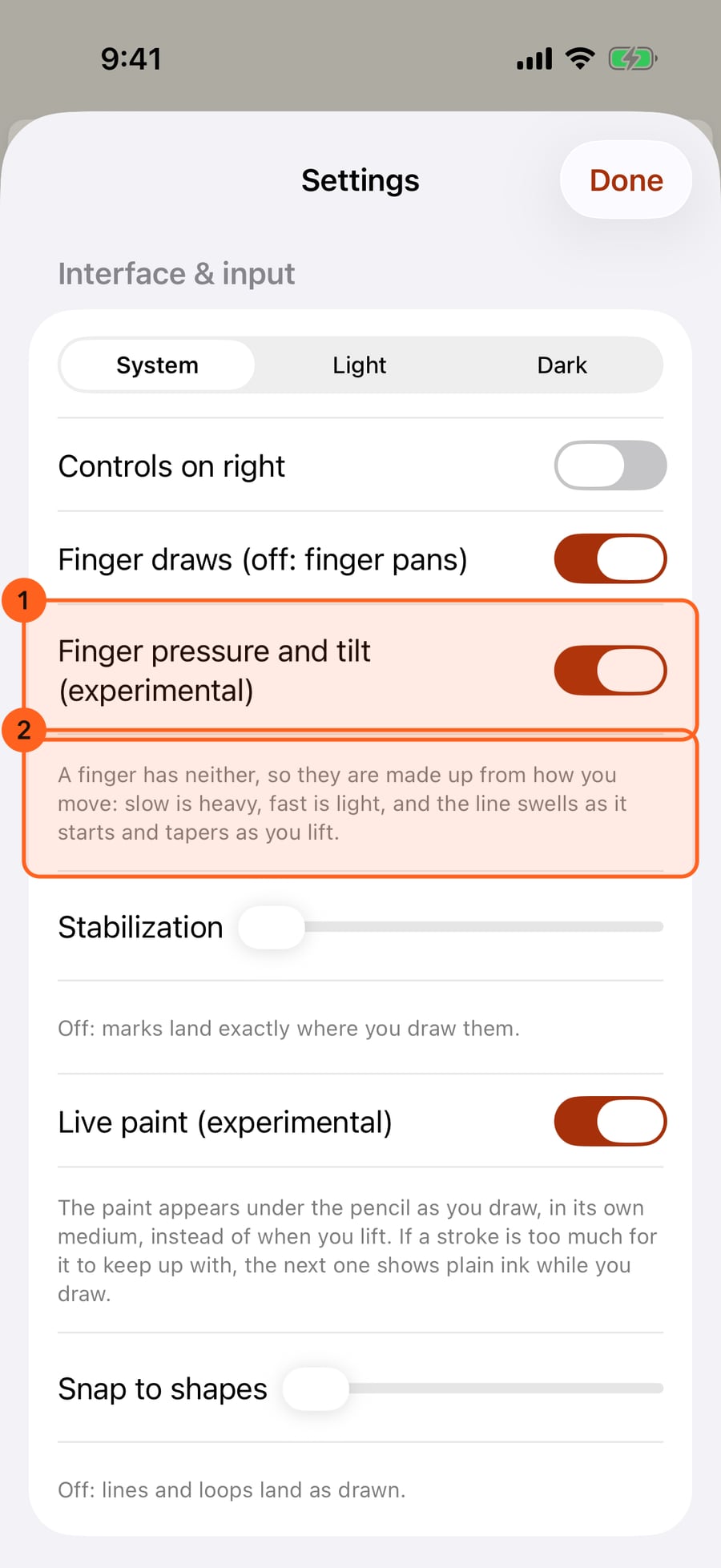
With Live paint on, the paint appears in its own medium under the pencil as you draw, instead of when you lift.
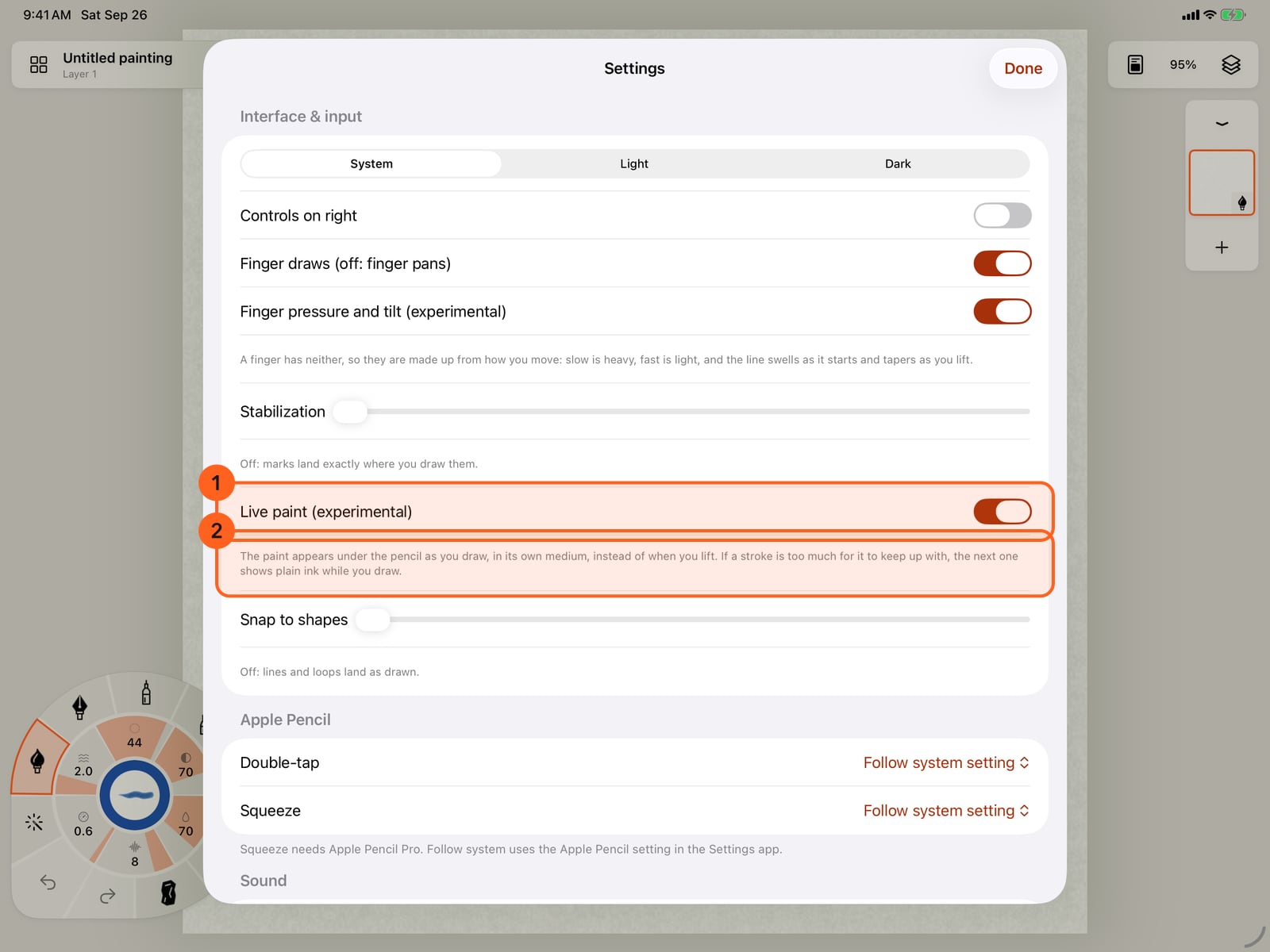
With Live paint on, the paint appears in its own medium under the pencil as you draw, instead of when you lift.
Tap Done and paint with a finger, slowly, then quickly. Slow is heavy and fast is light, and the line swells as it starts and tapers as you lift.
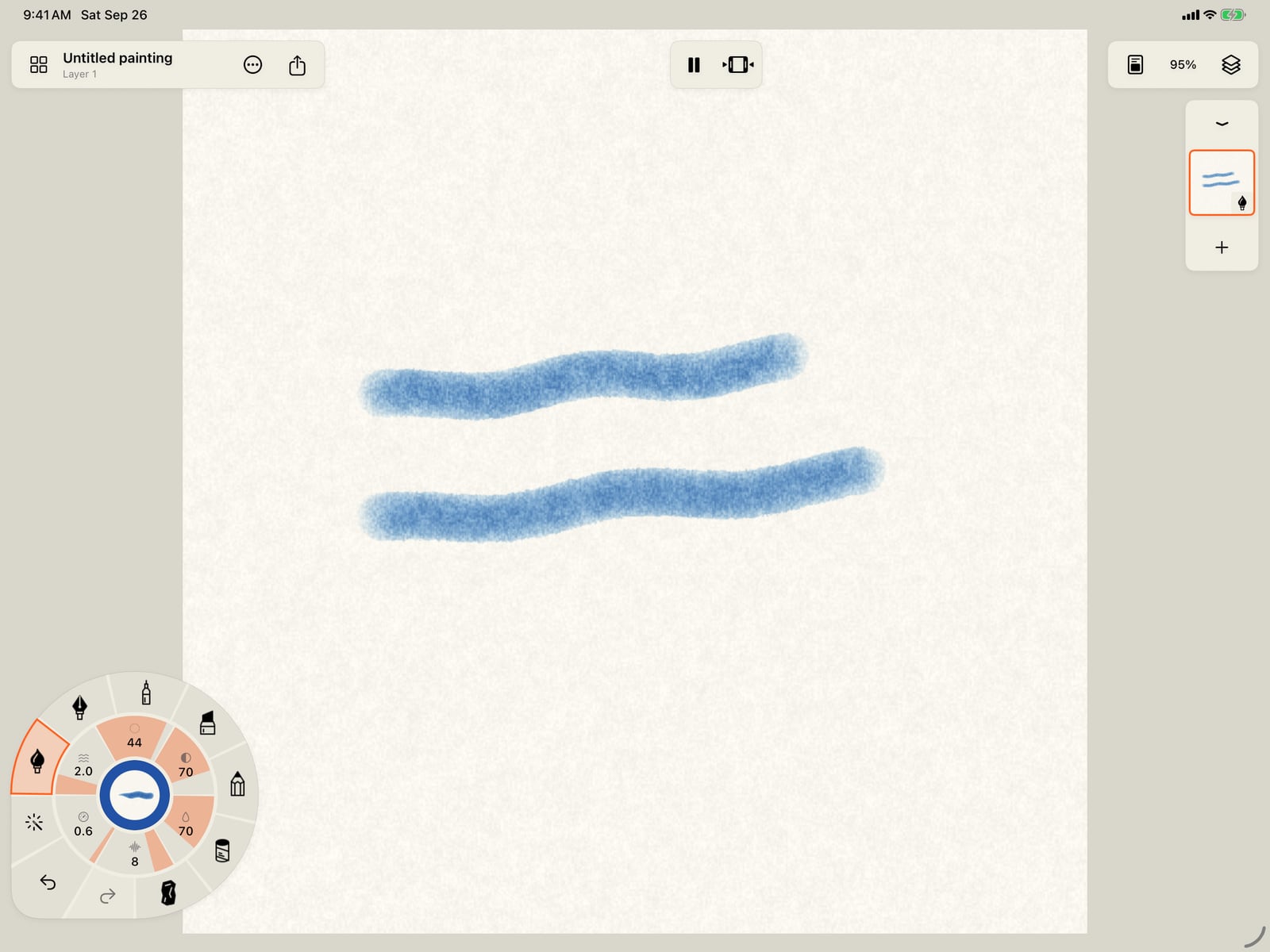
Tap Done and paint with a finger, slowly, then quickly. Slow is heavy and fast is light, and the line swells as it starts and tapers as you lift.
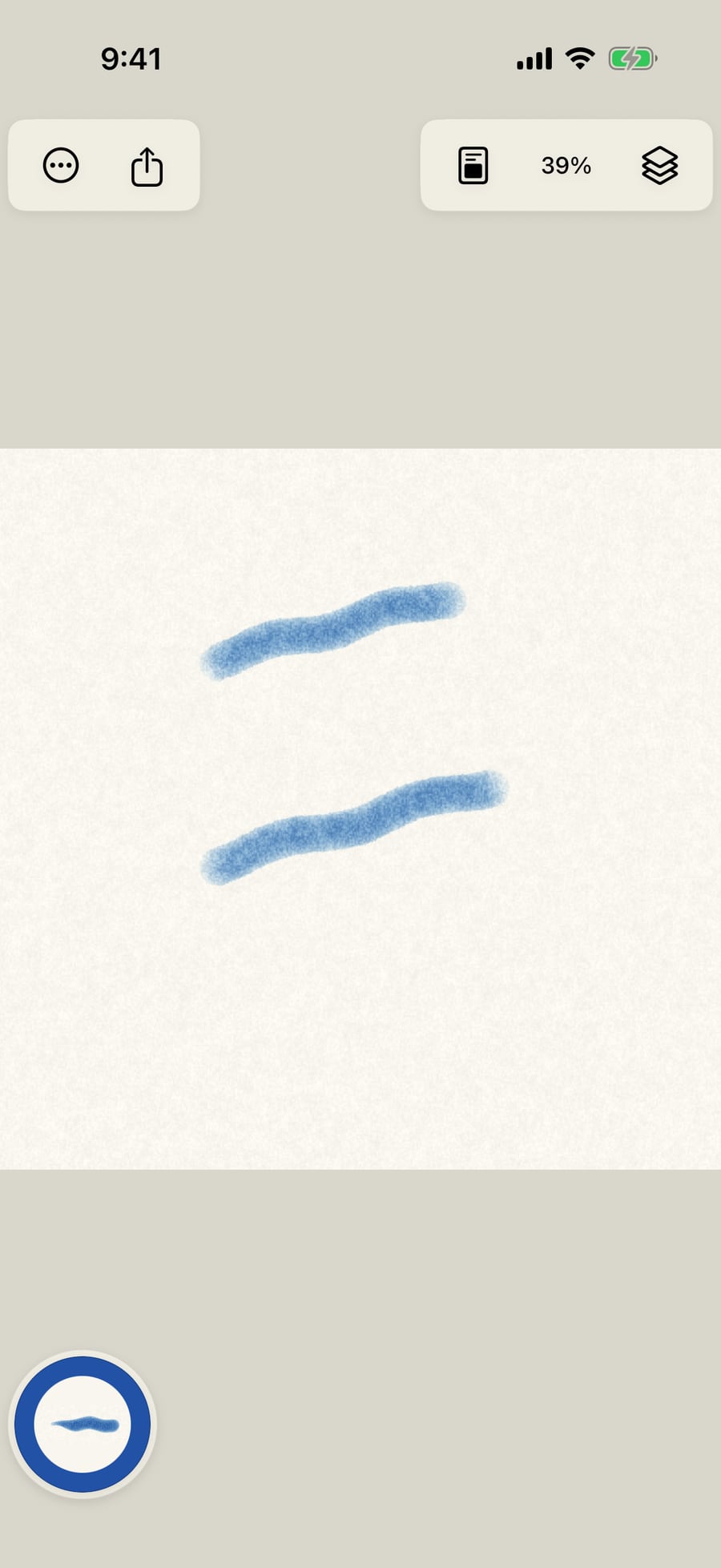
Click Done and paint with a finger, slowly, then quickly. Slow is heavy and fast is light, and the line swells as it starts and tapers as you lift.
Two settings in Settings → Interface & input are marked experimental. They work, but they're still being judged, so they're off until you turn them on, and they may change or become the normal behaviour later.
Live paint (experimental)
| Setting | While you draw |
|---|---|
| Off (the default) | The stroke shows as plain ink under the pencil, and becomes paint when you lift. |
| On | The paint itself appears under the pencil, in its own medium: watercolour spreading, graphite catching the paper's tooth. |
The finished stroke is the same either way: Live paint only changes what you see while drawing. If a stroke is too much for it to keep up with, the next stroke shows plain ink while you draw, and the paint arrives as you lift.
Finger pressure and tilt (experimental)
This setting appears only while Finger draws is on.
| Setting | A finger stroke |
|---|---|
| Off (the default) | Even pressure, straight down |
| On | Pressure and tilt made up from how you move: slow is heavy, fast is light, and the line swells as it starts and tapers as you lift. The made-up pen leans at a relaxed angle. |
It changes only finger strokes: Apple Pencil and the Mac's pointer aren't affected. Brushes that respond to pressure and tilt respond to the made-up values in the same way.
On iPhone, where you paint with your finger, this is the way to get strokes that thicken and thin with your movement.
On the Mac, the pointer isn't a finger, so Finger pressure and tilt doesn't change it.
Tip: The caption under each switch says what its current setting does, so you can compare before you decide.
Something not behaving as expected?
Visit support or write to [email protected].