

Guides / Settings and Pro
Settings
Every setting in one place, from appearance and input to Apple Pencil gestures, sound and music, storage, and the app's version and links.
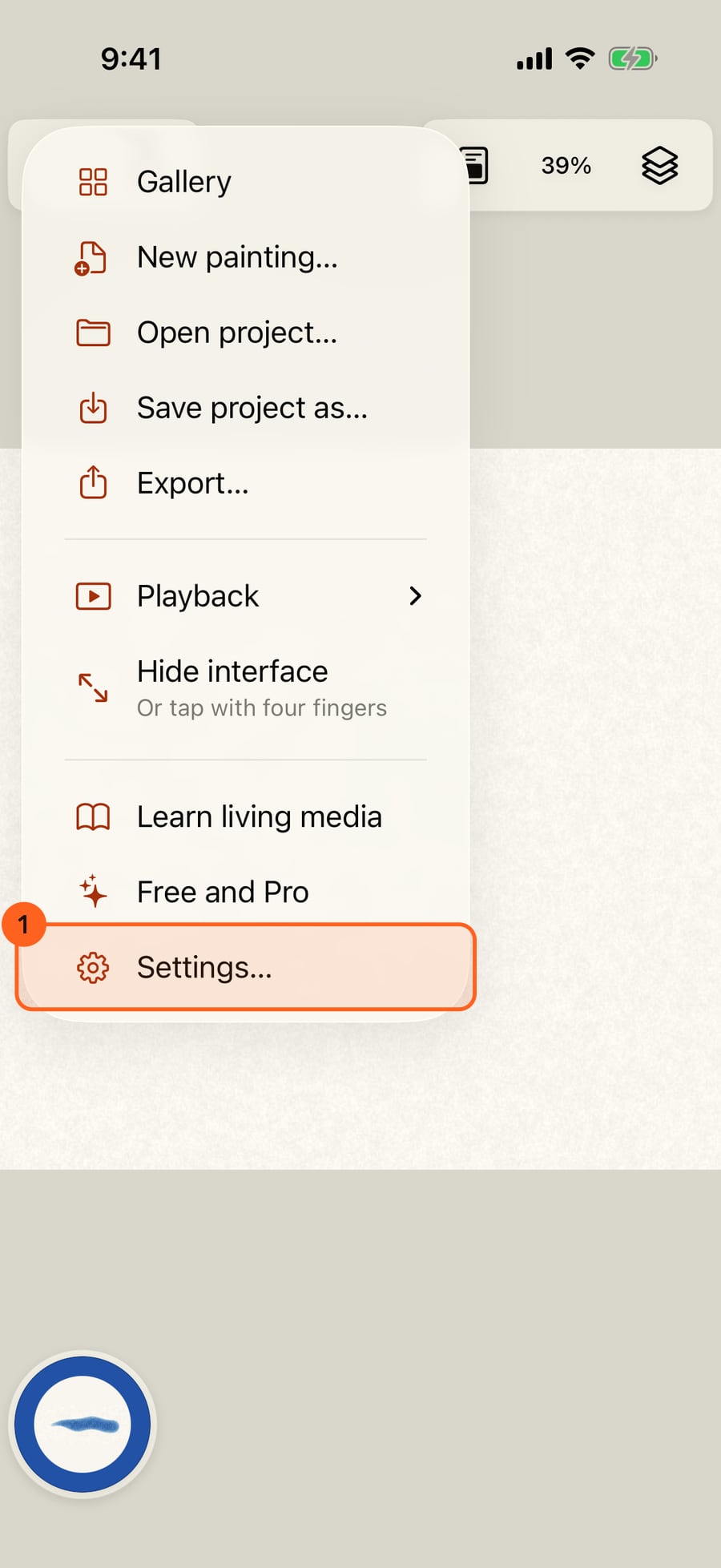
Settings is the last item in the Actions menu.
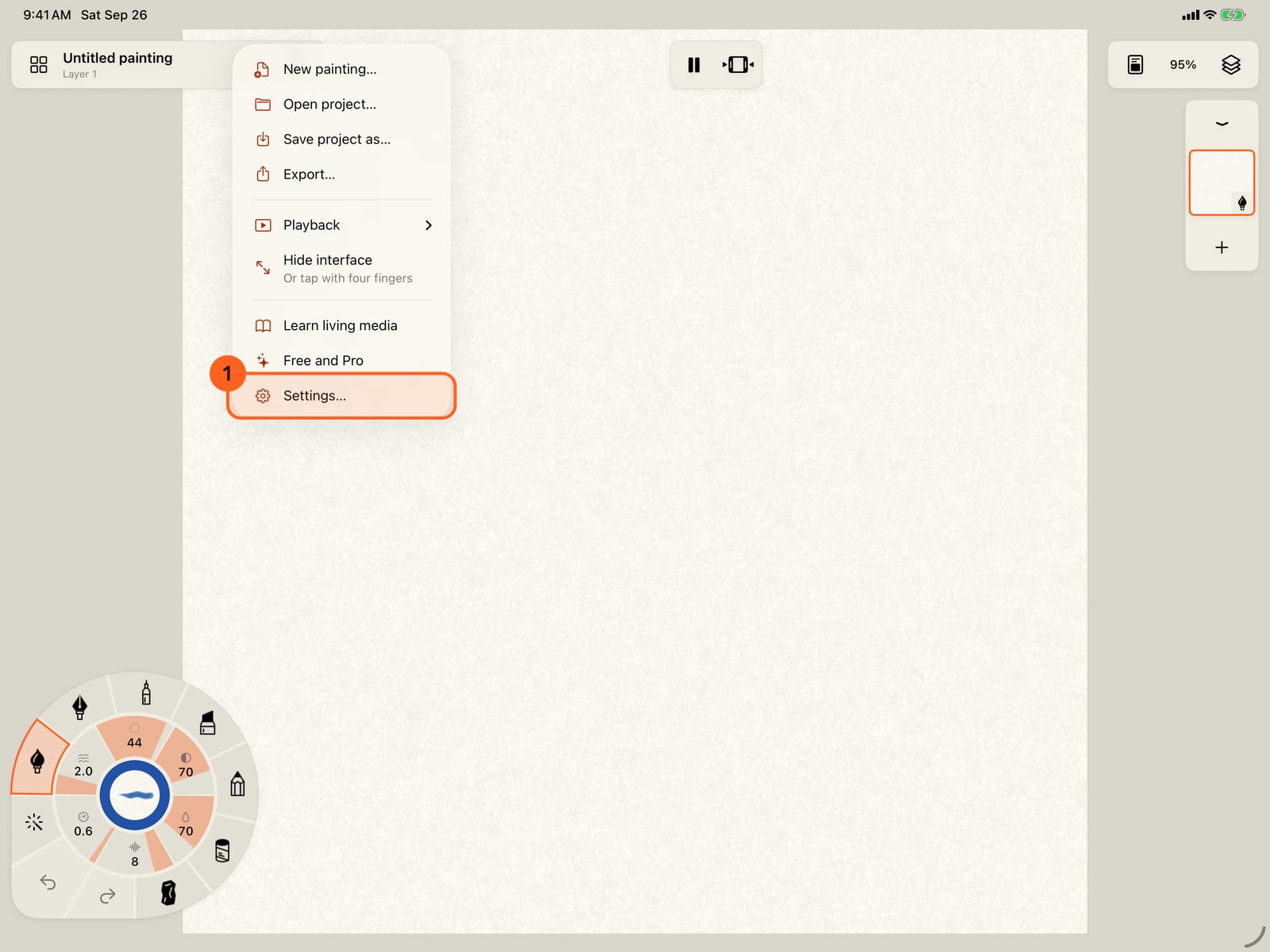
Settings is the last item in the Actions menu.
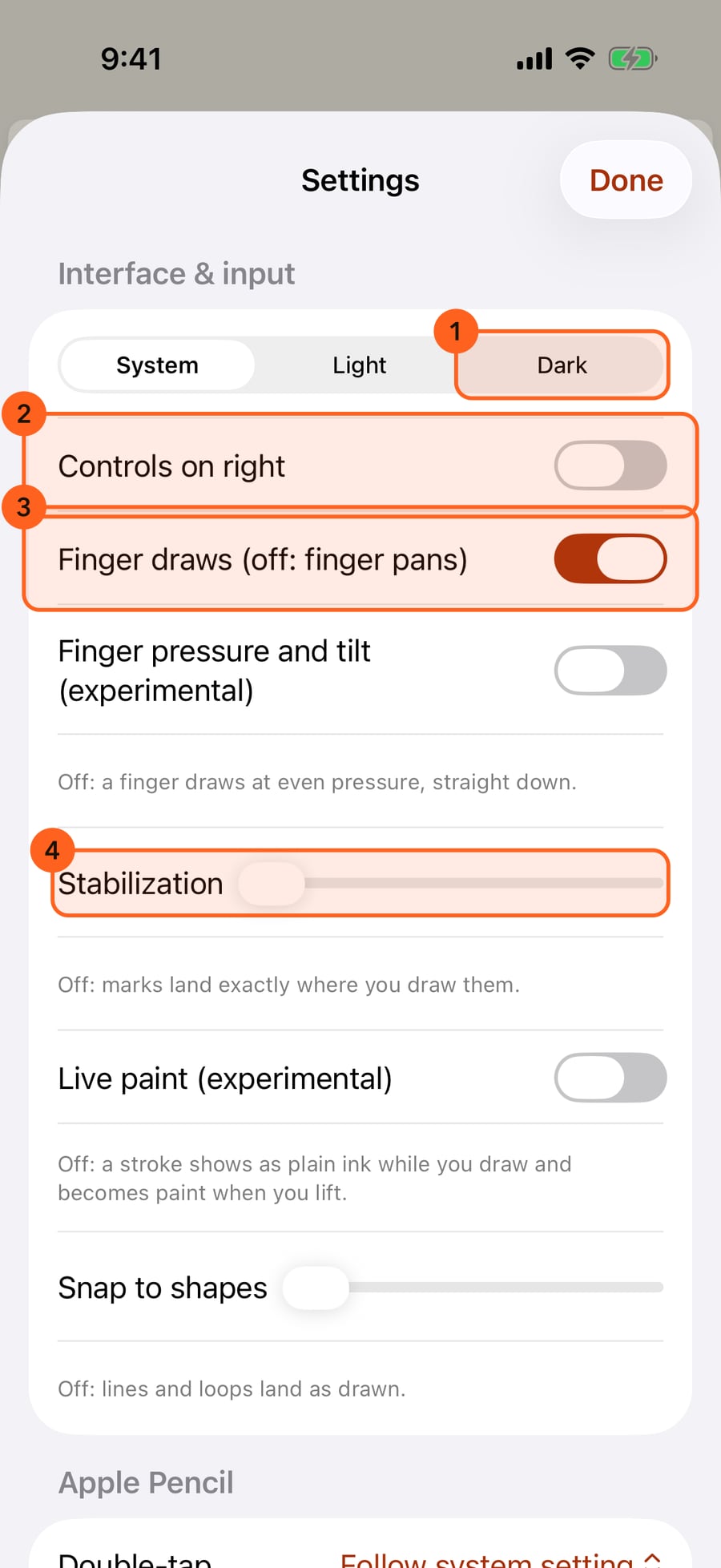
Interface and input comes first. It sets the appearance, which side the controls sit on, what your finger does, and how strokes are steadied or snapped.
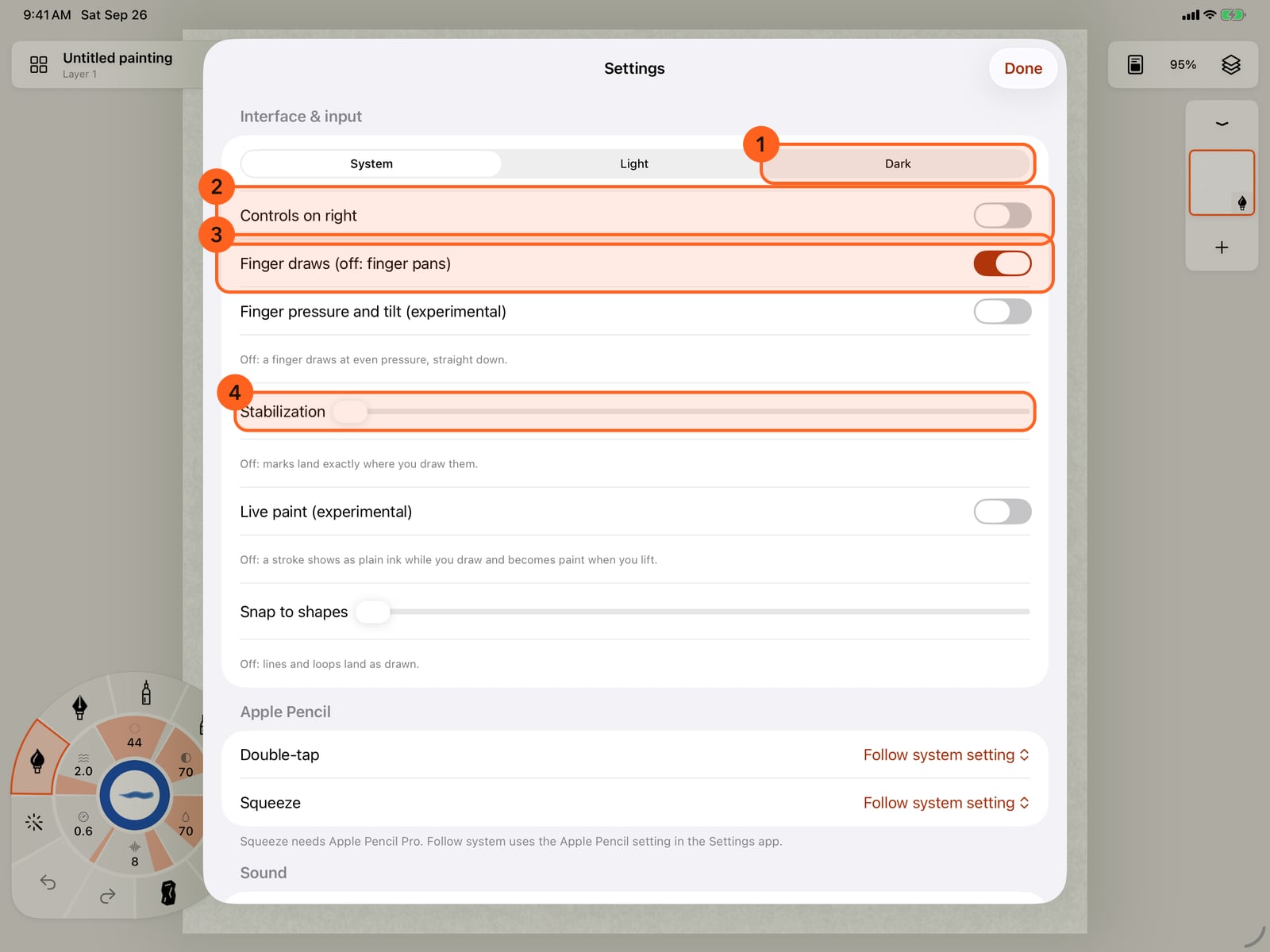
Interface and input comes first. It sets the appearance, which side the controls sit on, what your finger does, and how strokes are steadied or snapped.
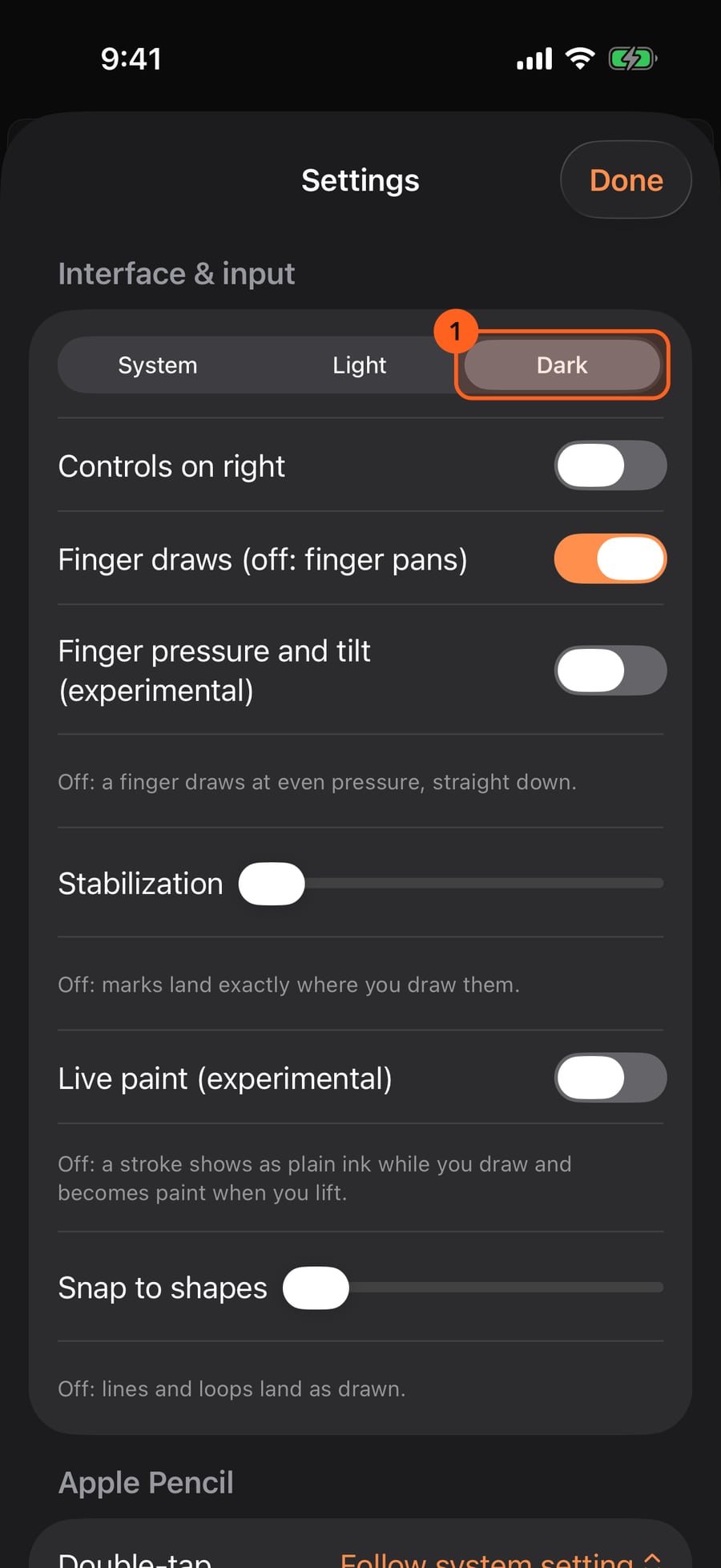
Appearance follows the system unless you choose Light or Dark. Here, Dark.
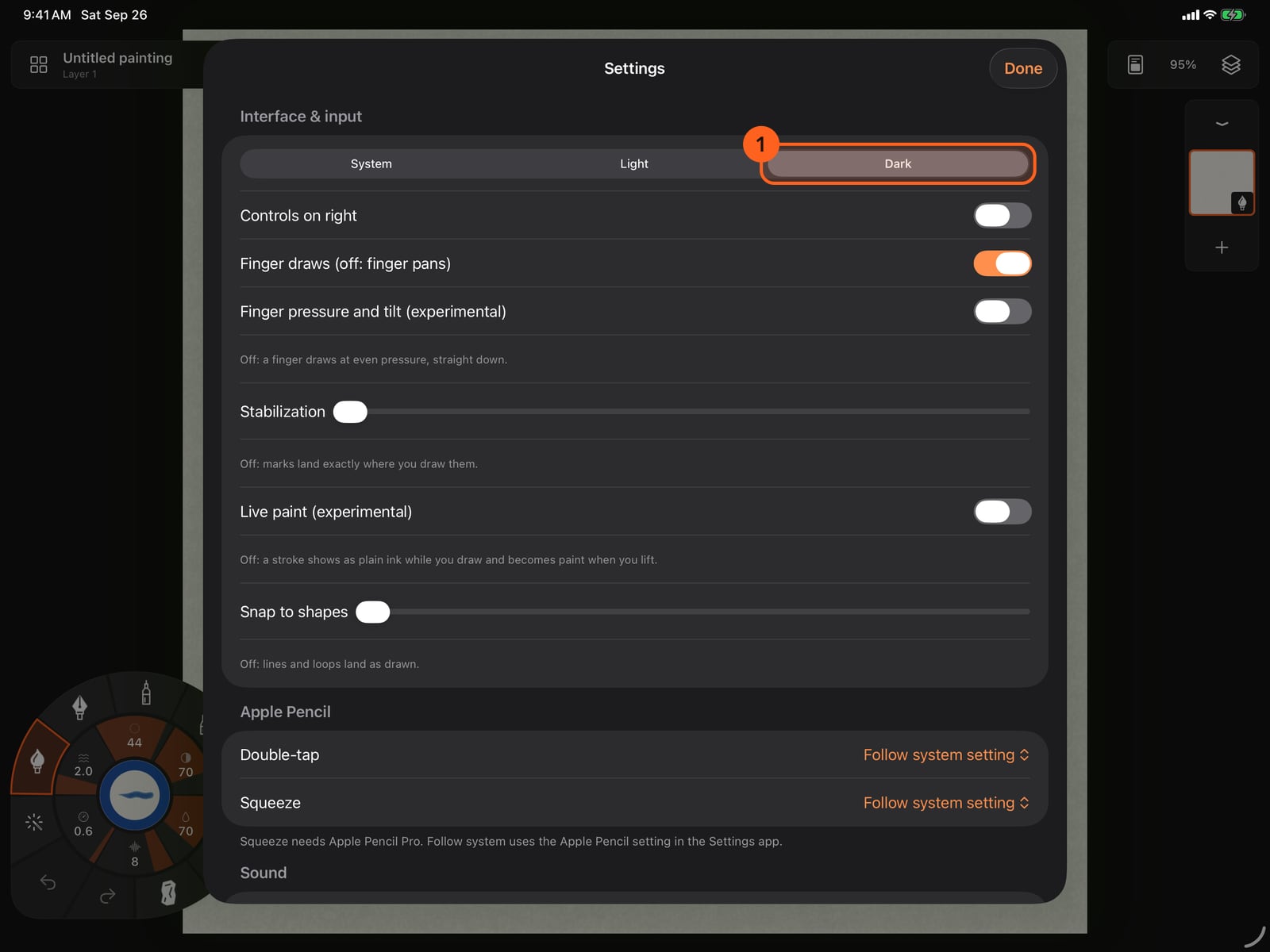
Appearance follows the system unless you choose Light or Dark. Here, Dark.
Tap System to follow the device again. Under Apple Pencil, choose what a double-tap and a squeeze do.
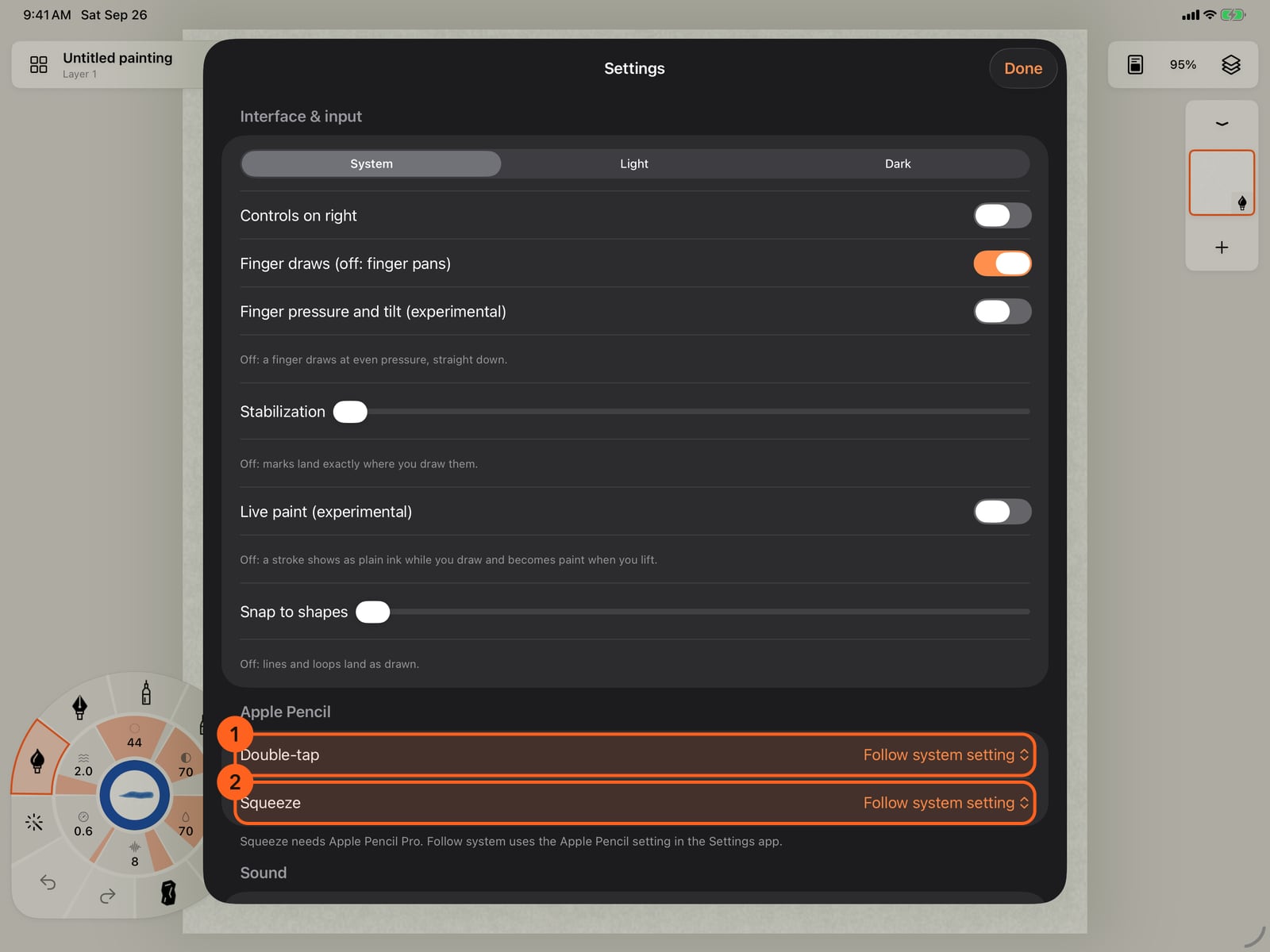
Tap System to follow the device again. Under Apple Pencil, choose what a double-tap and a squeeze do.
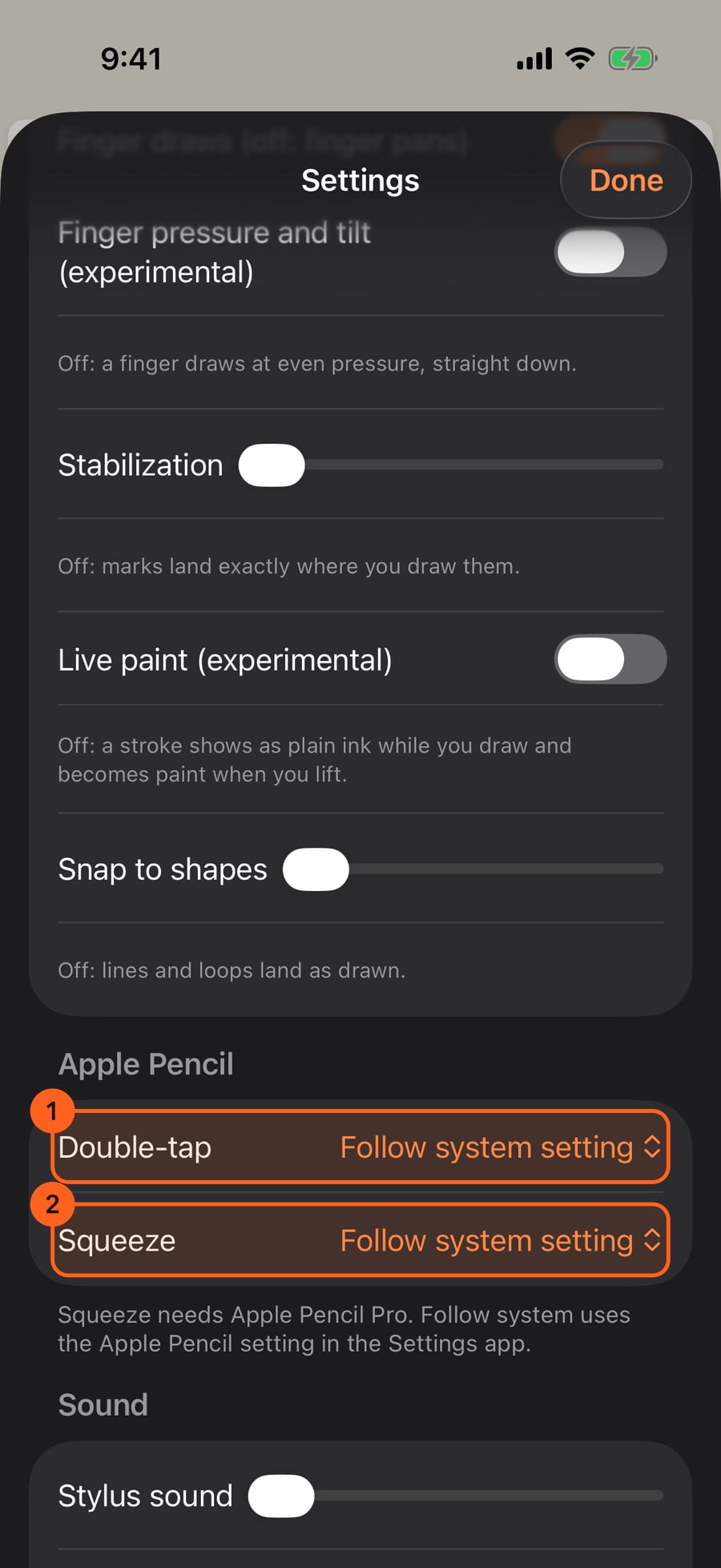
Click System to follow the device again. Under Apple Pencil, choose what a double-click and a squeeze do.
Sound sets the stylus sound, music while you paint, and this painting's musical style and mood.
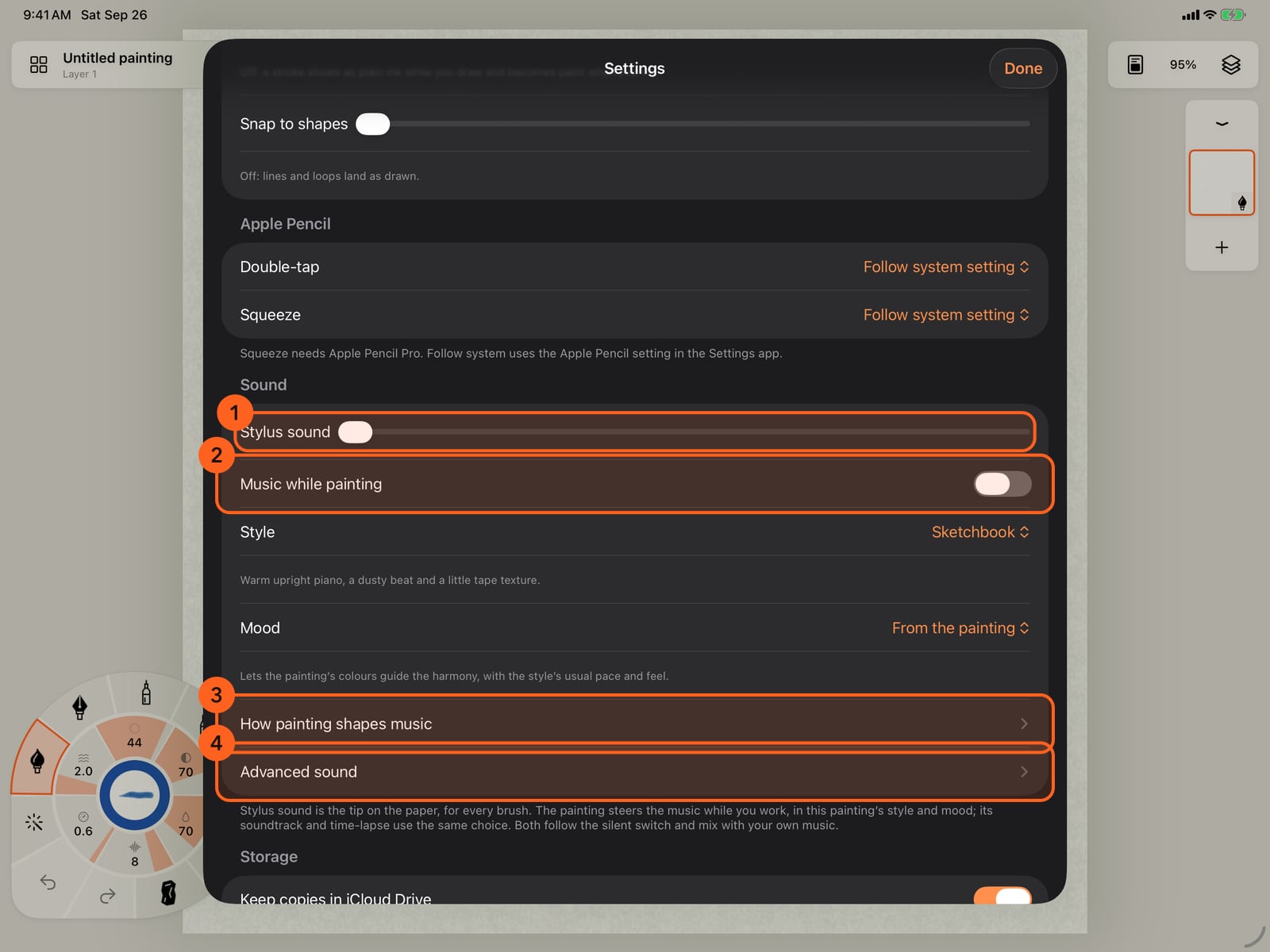
Sound sets the stylus sound, music while you paint, and this painting's musical style and mood.
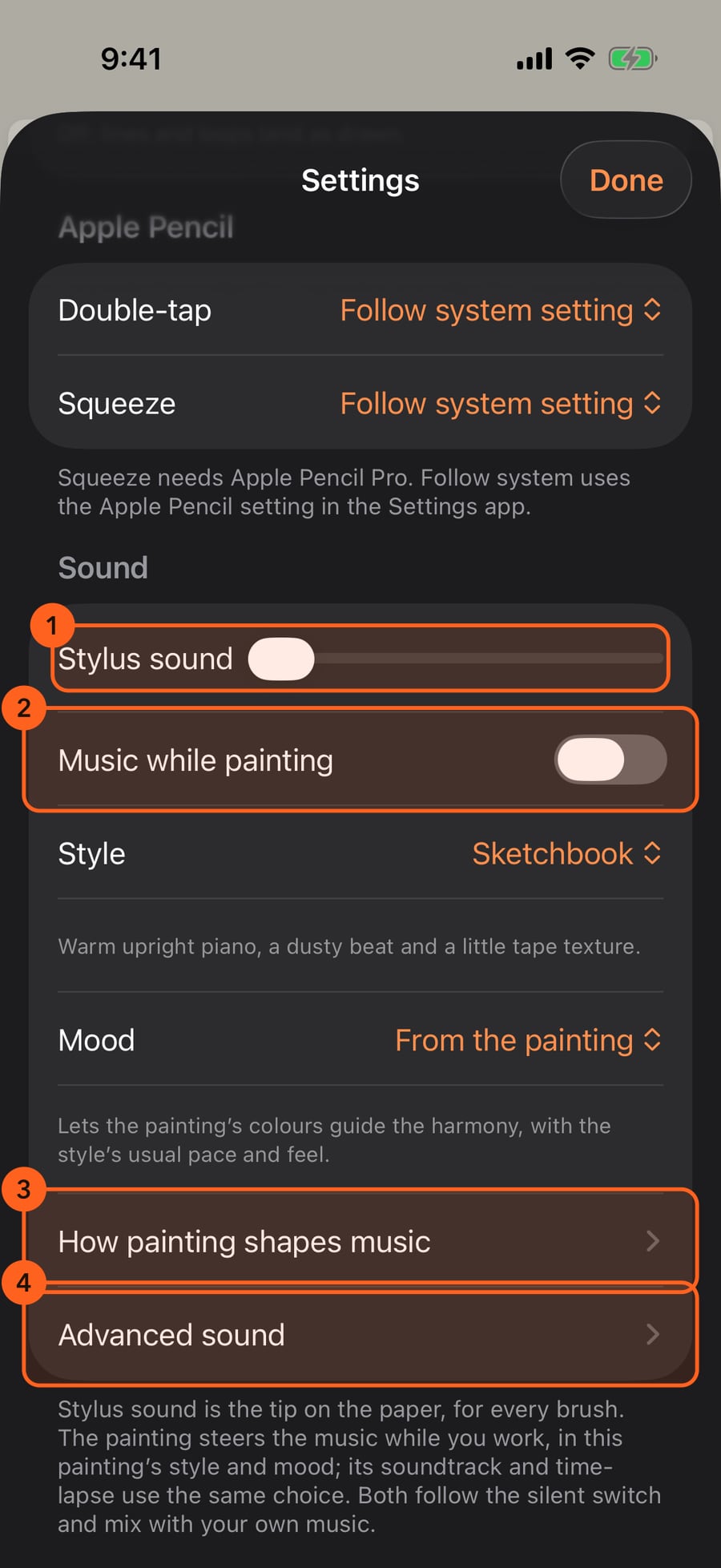
Storage decides where your paintings' copies live, and shows the room that brush previews and exports take.
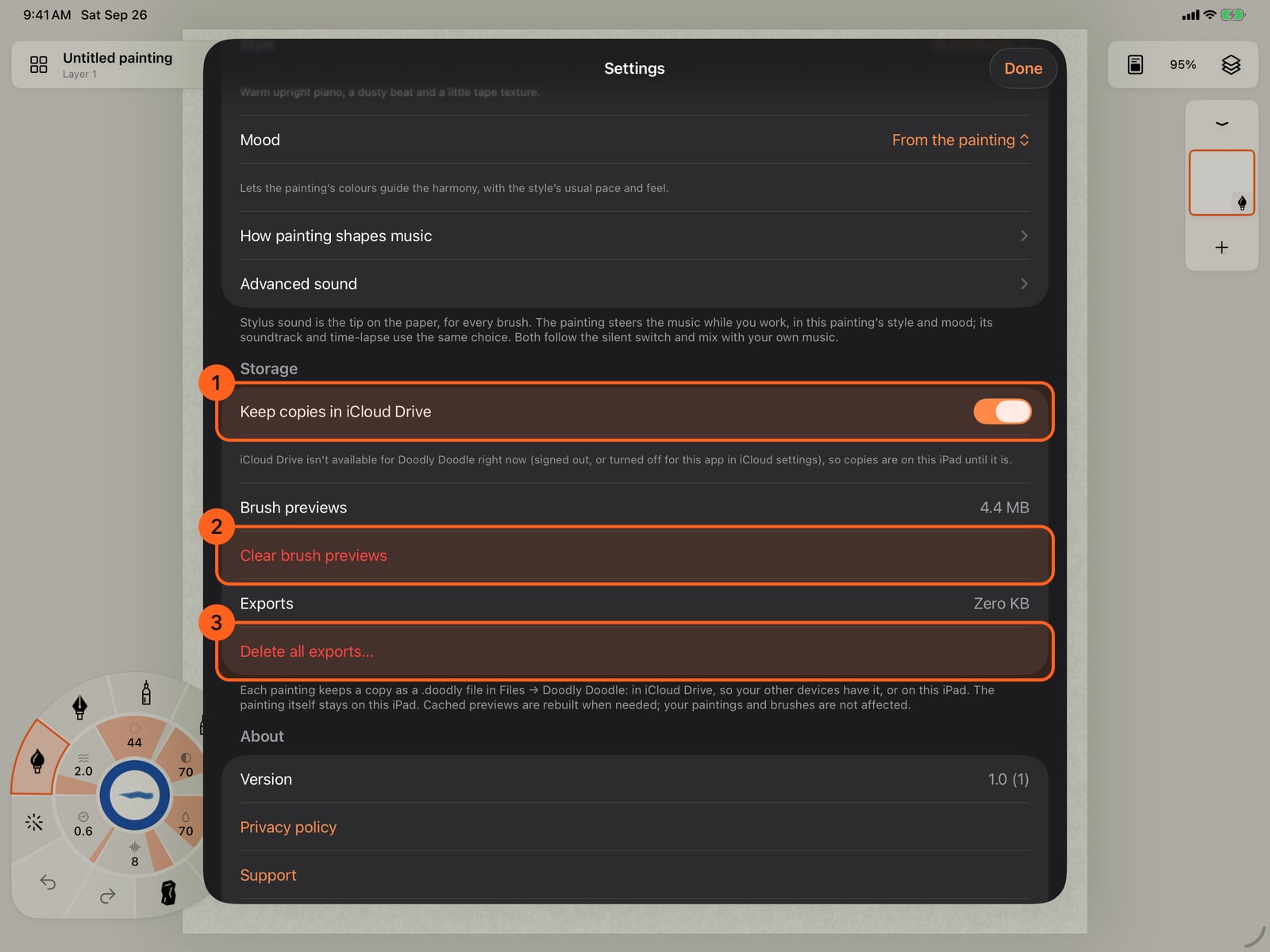
Storage decides where your paintings' copies live, and shows the room that brush previews and exports take.
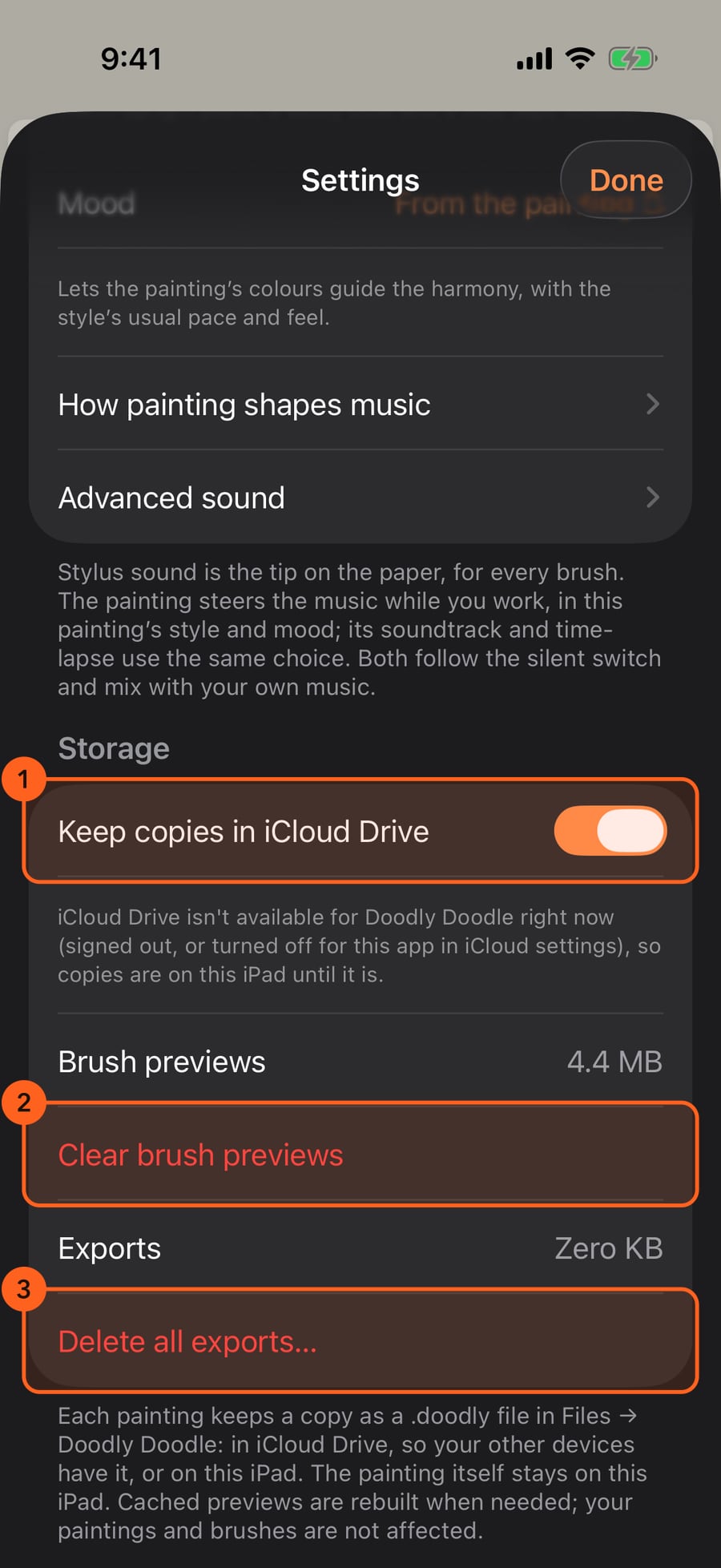
About shows the version, the privacy policy, support and acknowledgements. Tap Done when you're finished.
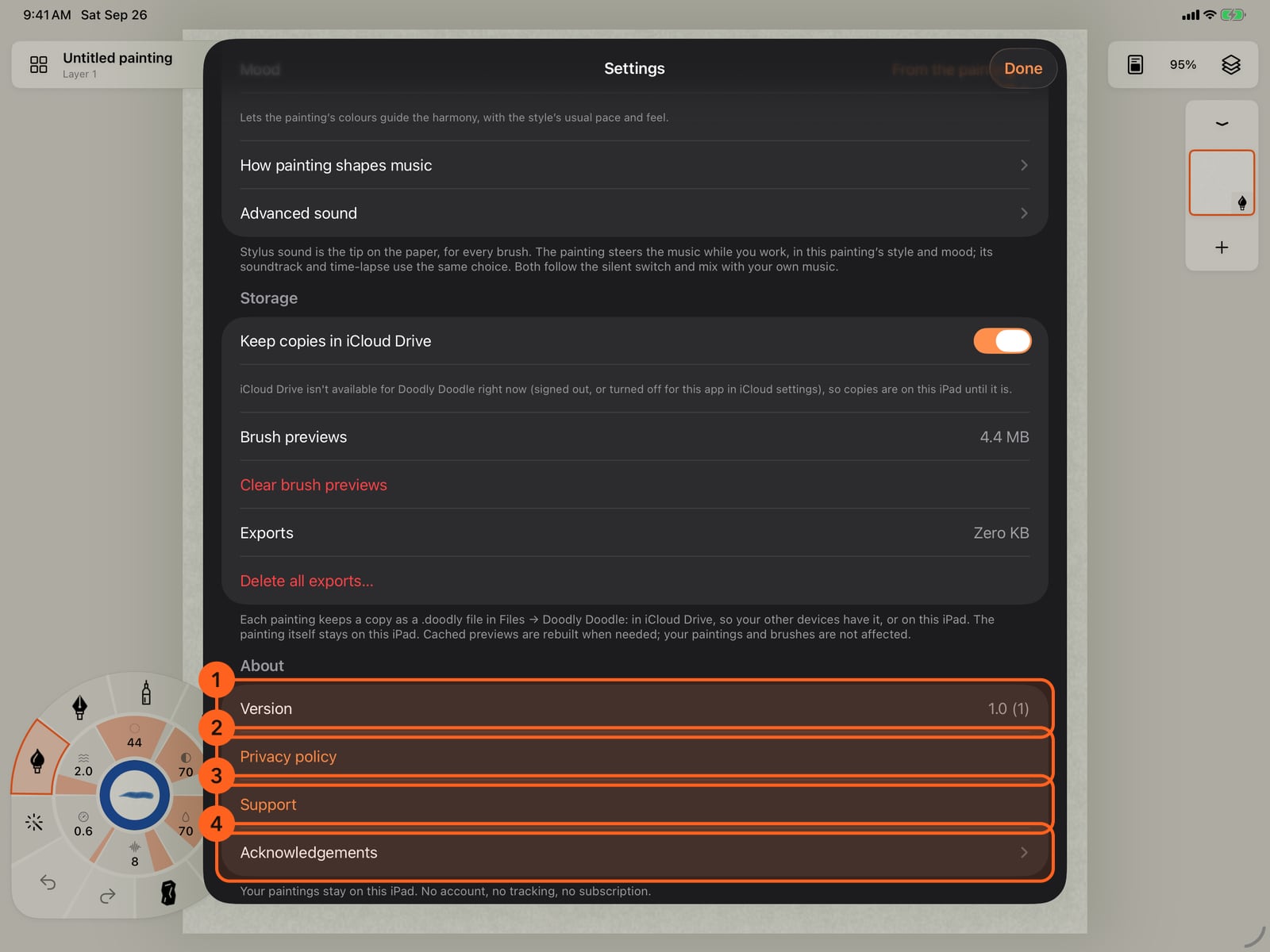
About shows the version, the privacy policy, support and acknowledgements. Tap Done when you're finished.
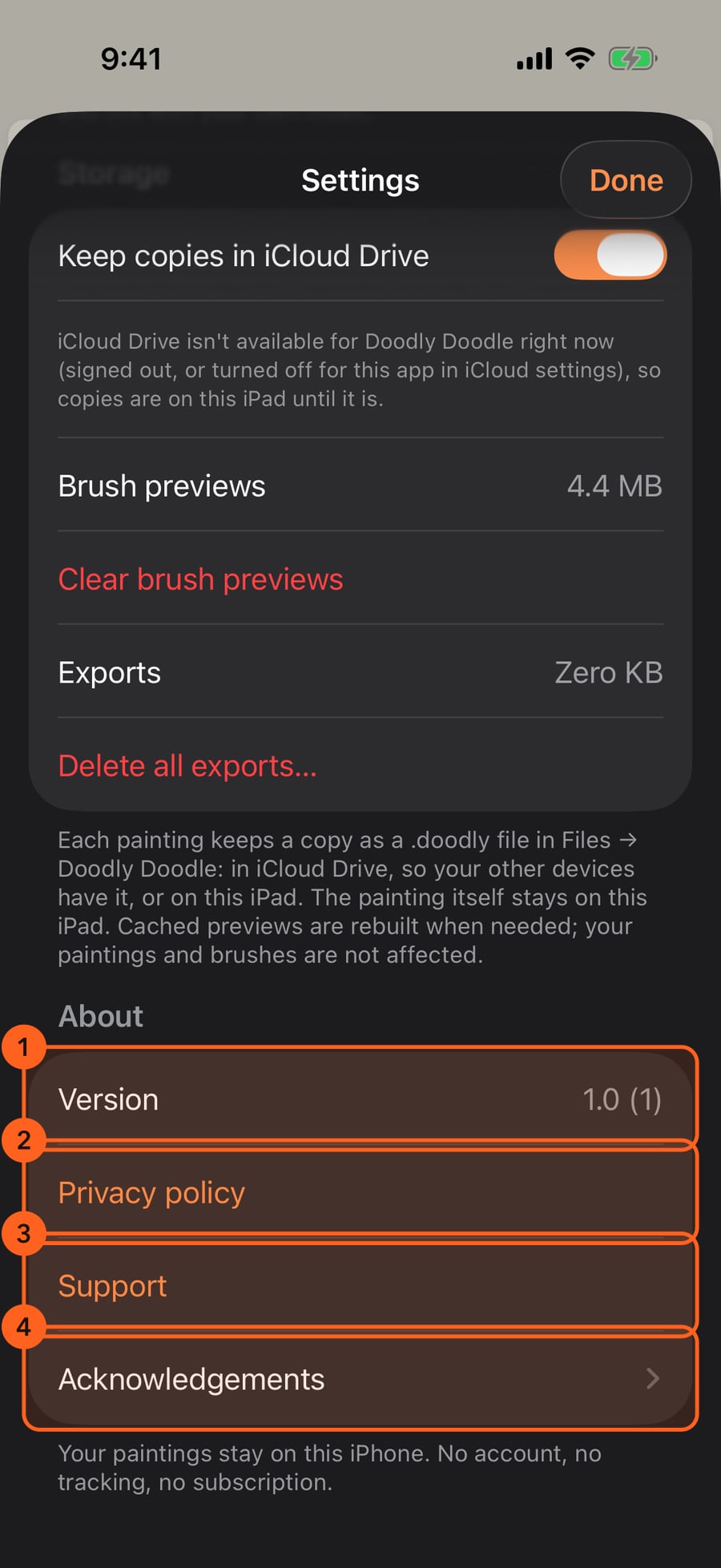
About shows the version, the privacy policy, support and acknowledgements. Click Done when you're finished.
Actions → Settings… opens the app's preferences. Changes take effect at once; Done closes the sheet. Settings belong to the app on this device, except the music's Style and Mood, which belong to the painting that's open.
Interface & input
| Setting | What it does |
|---|---|
| Appearance | System (the default), Light or Dark for the app's controls. The painting and its paper don't change. |
| Controls on right | Puts the stroke wheel in the bottom-right corner and the layer strip on the left, for left-handed painting. Off by default. |
| Finger draws (off: finger pans) | On: one finger paints. Off: one finger moves the page and only Apple Pencil paints. The first time, it follows the Settings app's Only Draw with Apple Pencil. See Apple Pencil and touch. |
| Finger pressure and tilt (experimental) | Shown while Finger draws is on. Makes up pressure and tilt from how your finger moves. Off by default. See Experimental settings. |
| Stabilization | A slider. Further right, the mark follows a little behind the pencil and catches up when you lift, which steadies a slow line. It doesn't change pressure or tilt. All the way left (the default) is off: marks land exactly where you draw. |
| Live paint (experimental) | The paint appears in its own medium under the pencil as you draw, instead of when you lift. Off by default. See Experimental settings. |
| Snap to shapes | A slider. A nearly straight line lands straight, and a loop that comes back to its start lands as a clean circle or ellipse; further right snaps rougher shapes. All the way left (the default) is off. |
The caption under each of these says what the current setting does.
Apple Pencil
| Setting | Choices |
|---|---|
| Double-tap | Follow system setting, Brush controls at the pencil, Switch to eraser, Previous brush, Eyedropper, Color panel, Play / pause animation, Nothing |
| Squeeze | The same choices. Squeeze needs Apple Pencil Pro. |
Follow system setting (the default for both) uses the Apple Pencil page of the Settings app. What each choice does is in Apple Pencil and touch.
Sound
| Setting | What it does |
|---|---|
| Stylus sound | A slider for the sound of the tip on the paper, for every brush. All the way left (the default) is silent. |
| Music while painting | Music that follows your painting as you work. Off by default. |
| Style | The instruments and arrangement of this painting's music, with a line describing it. Styles marked · Pro need Pro. |
| Mood | From the painting lets its colours guide the harmony; Calm, Hopeful, Wistful, Dreamy, Playful, Mysterious and Adventurous steer it. A line describes each. |
| How painting shapes music | What your strokes, colours and coverage do to the music. |
| Advanced sound | Tool sound editors and music mapping (Pro), and exporting and importing sound settings. |
Stylus sound and music follow the silent switch and mix with your own music. The painting's soundtrack and time-lapse music use the same style and mood.
Pro: On Free, a Pro style can be chosen and previewed when exporting a soundtrack, but music while painting plays the first style until you have Pro, and Settings says so. The tool sound editors, music mapping and importing sound settings are Pro; exporting them is Free.
Storage
| Setting | What it does |
|---|---|
| Keep copies in iCloud Drive | On (the default): each painting's .doodly copy is in iCloud Drive → Doodly Doodle. Off: on this device, in On My iPad (or iPhone) → Doodly Doodle. See Files and iCloud. |
| Brush previews | How much room the cached brush pictures take. |
| Clear brush previews | Deletes them; they're rebuilt when needed. Your brushes and paintings aren't affected. |
| Exports | How much room Files → Doodly Doodle → Exports takes. |
| Delete all exports… | After you confirm, deletes every file in the Exports folder. Anything you've shared or saved elsewhere stays. |
About
| Item | What it is |
|---|---|
| Version | The app's version and build |
| Privacy policy | Opens doodlydoodle.app/privacy |
| Support | Opens doodlydoodle.app/support |
| Acknowledgements | Licences for the sound libraries, fonts and recordings the app uses |
Your paintings stay on this device: no account, no tracking, no subscription.
Something not behaving as expected?
Visit support or write to [email protected].