

Guides / Getting started
Daily practice
Five minutes a day in Actions → Learn and practise. Three short drawing exercises, a warm-up, a shape and a skill, each scored with stars, a match and one tip. The help fades as you improve, and a streak and calendar keep count.
- Free
- Everything in this guide works in Free.
Practice is in the Actions menu. Tap Actions, then Learn and practise.
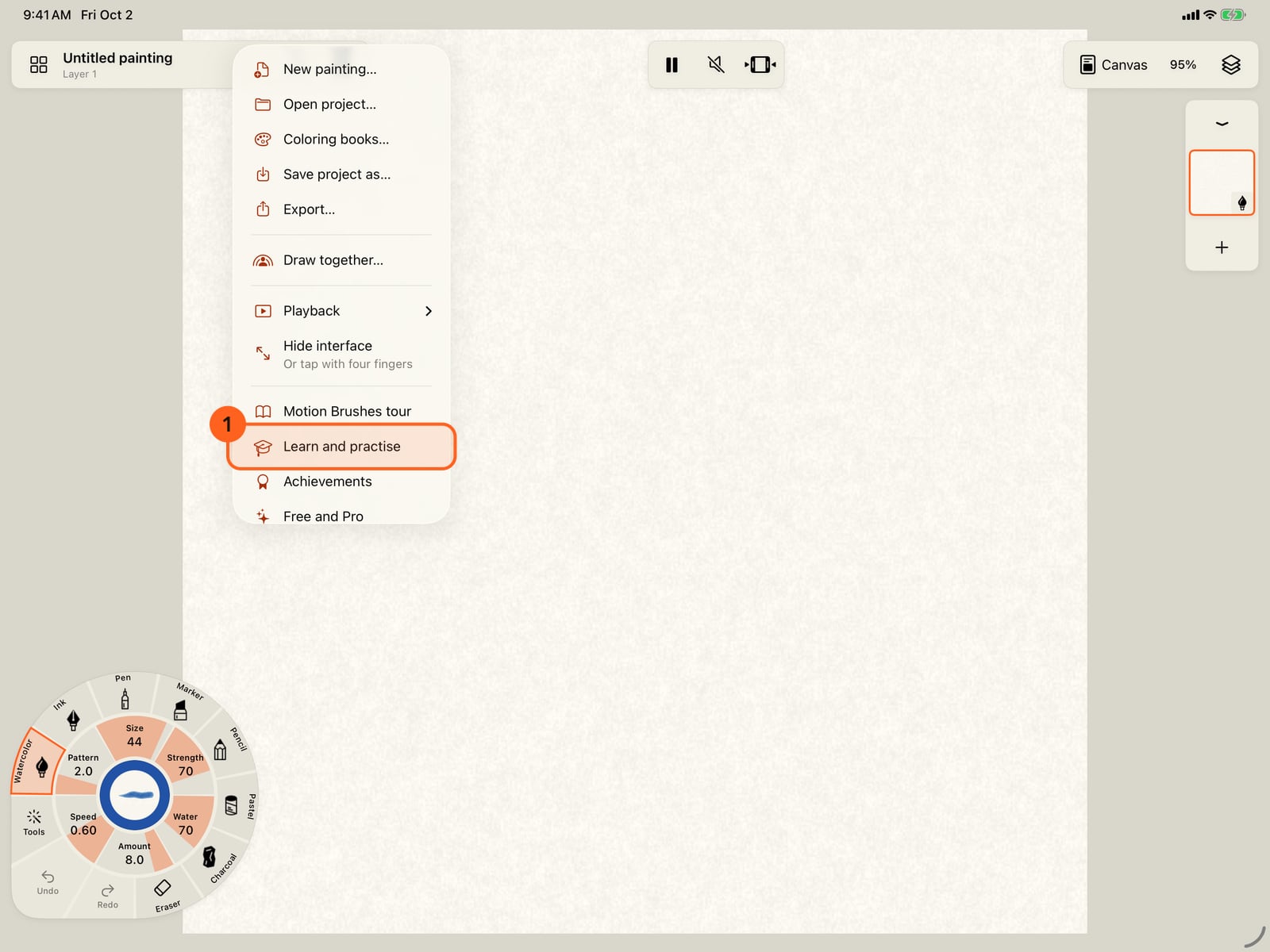
Practice is in the Actions menu. Tap Actions, then Learn and practise.
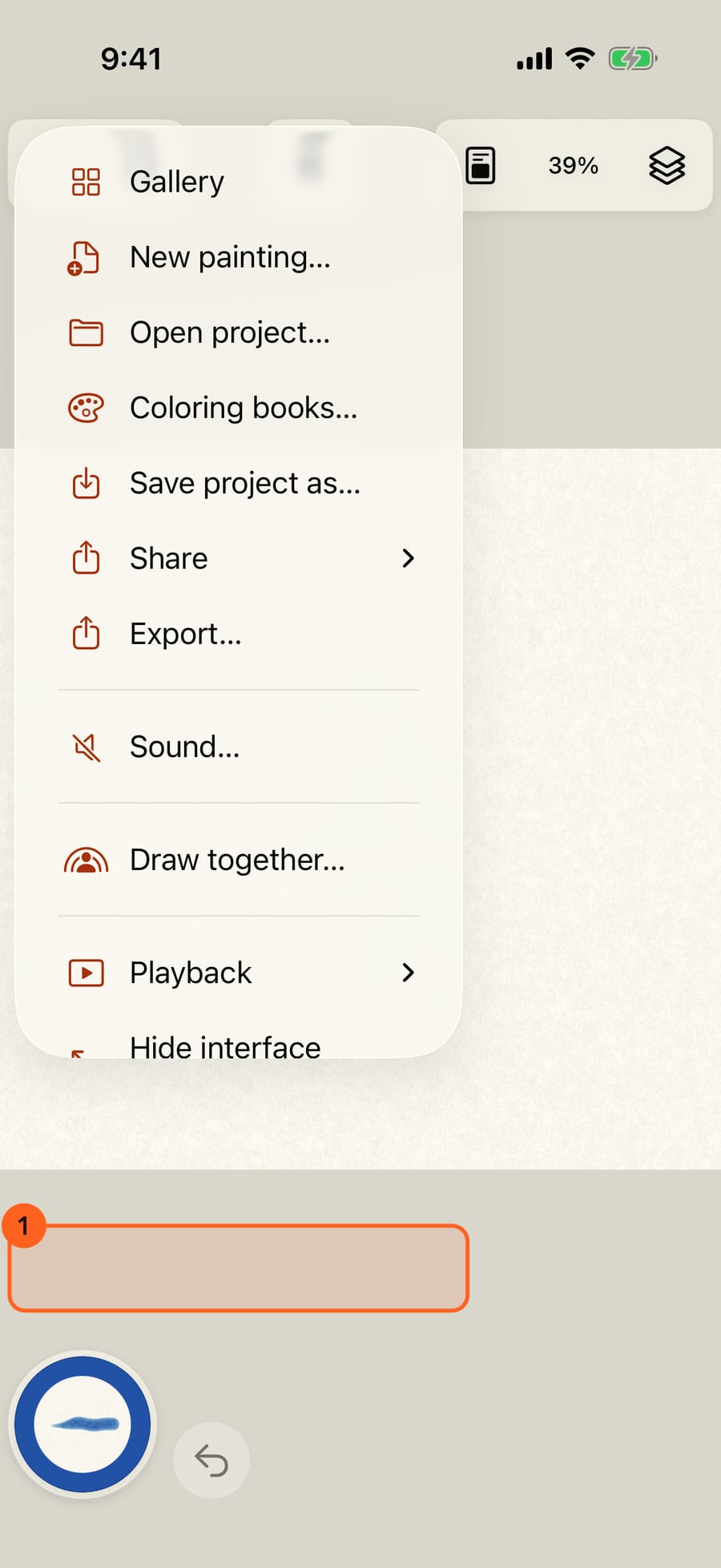
Practice is in the Actions menu. Click Actions, then Learn and practise.
Learn and practise opens on Today. It shows three short exercises, a warm-up, a shape and a skill, with your streak and the last seven days. Tap Start today's practice.
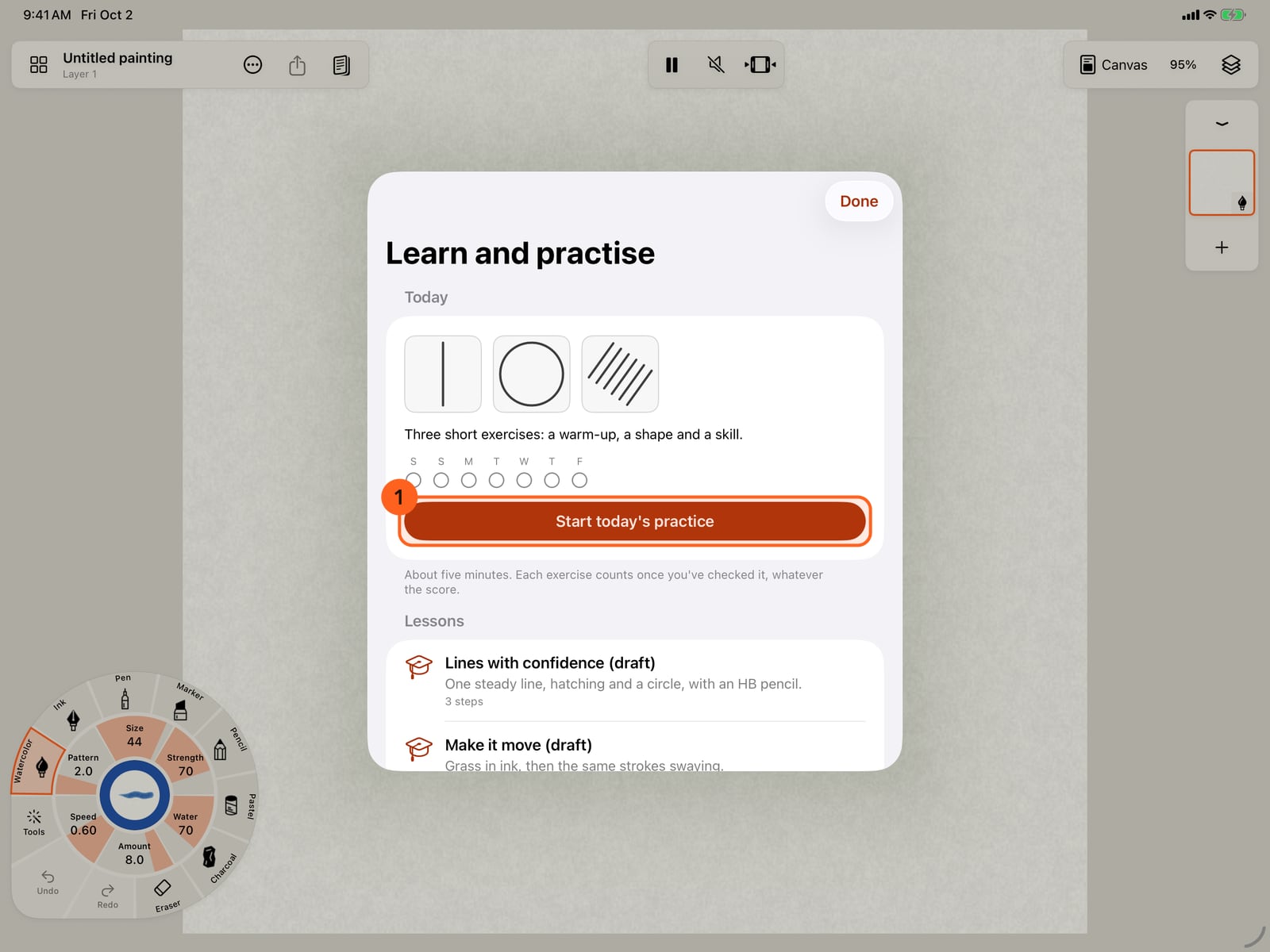
Learn and practise opens on Today. It shows three short exercises, a warm-up, a shape and a skill, with your streak and the last seven days. Tap Start today's practice.
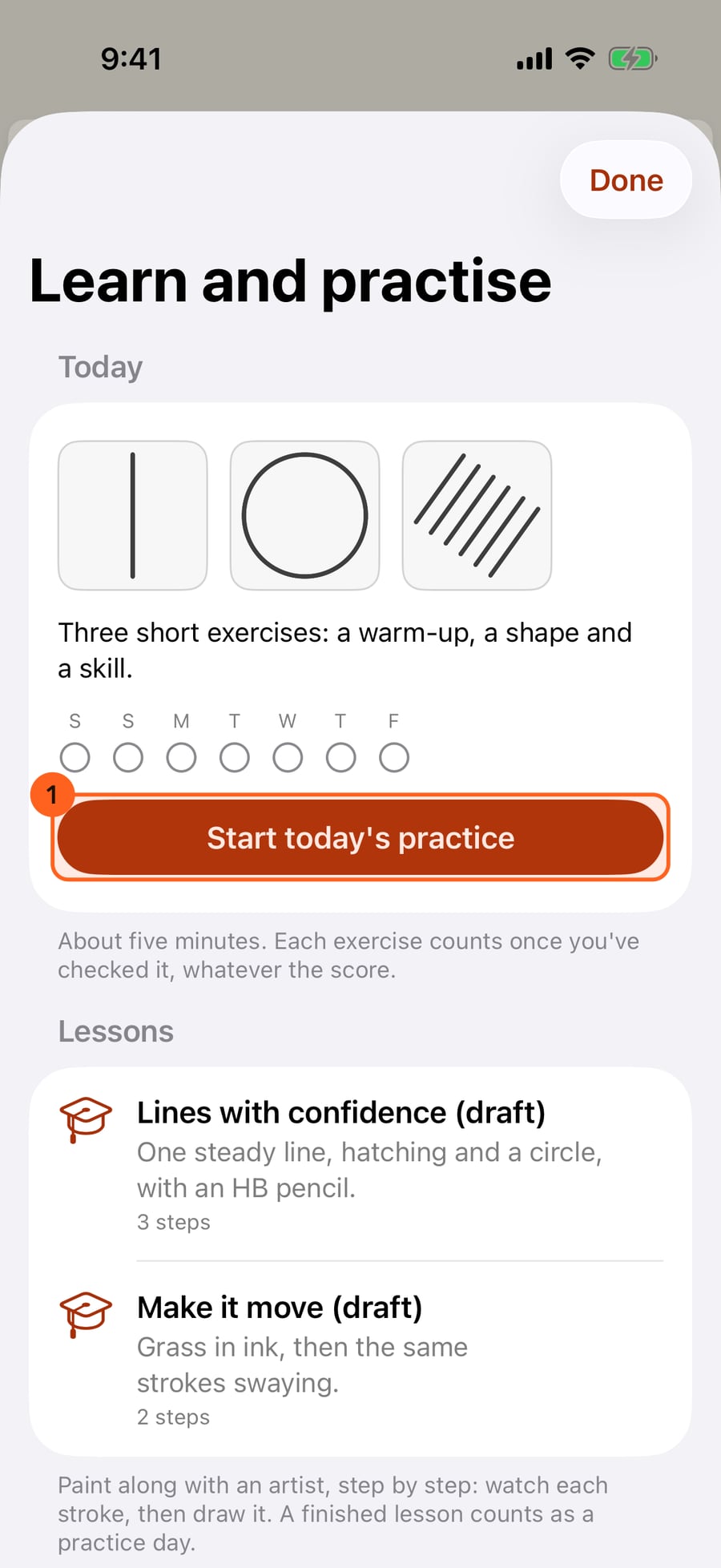
Learn and practise opens on Today. It shows three short exercises, a warm-up, a shape and a skill, with your streak and the last seven days. Click Start today's practice.
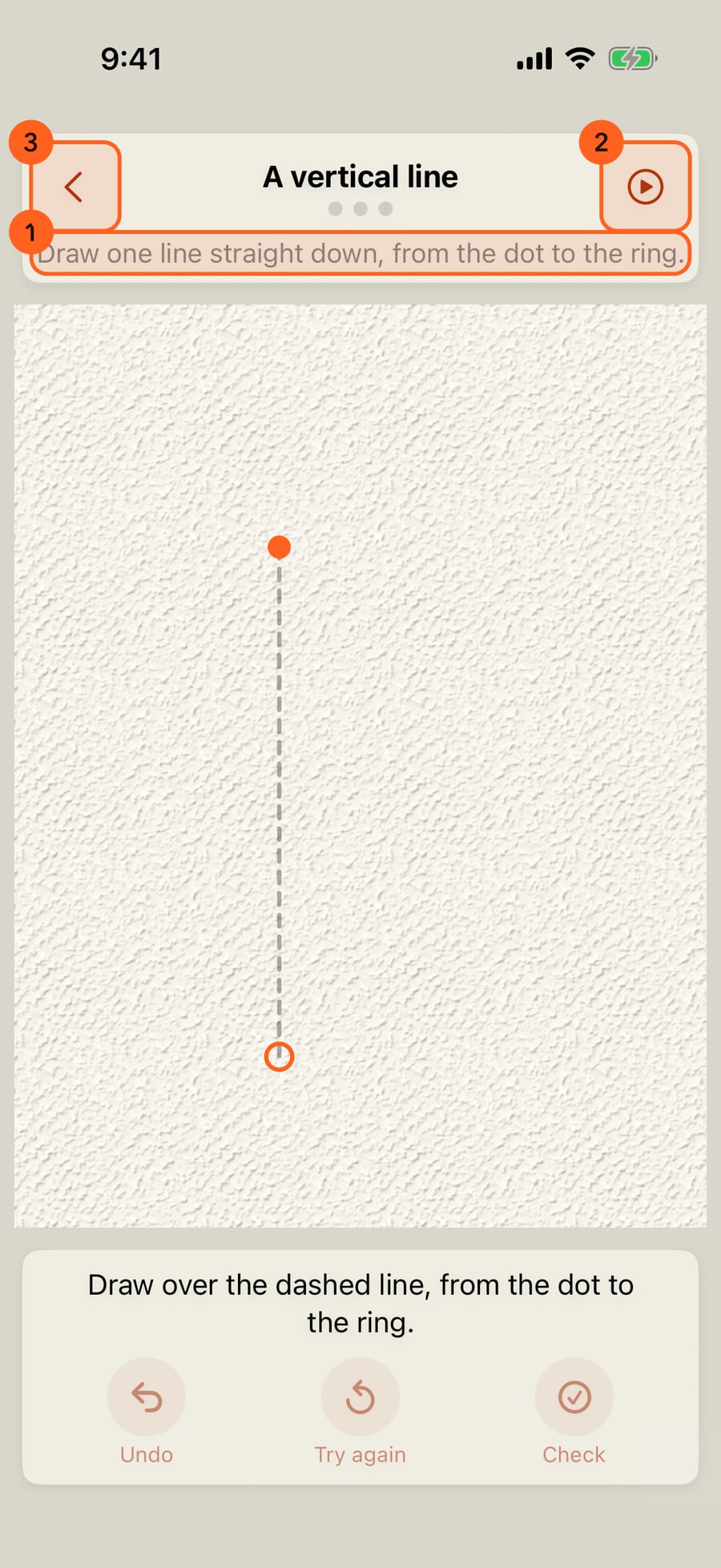
Each exercise opens on a page of its own. The prompt says what to draw. At first you trace a dashed line, from the dot to the ring. Show me draws it for you, then fades.
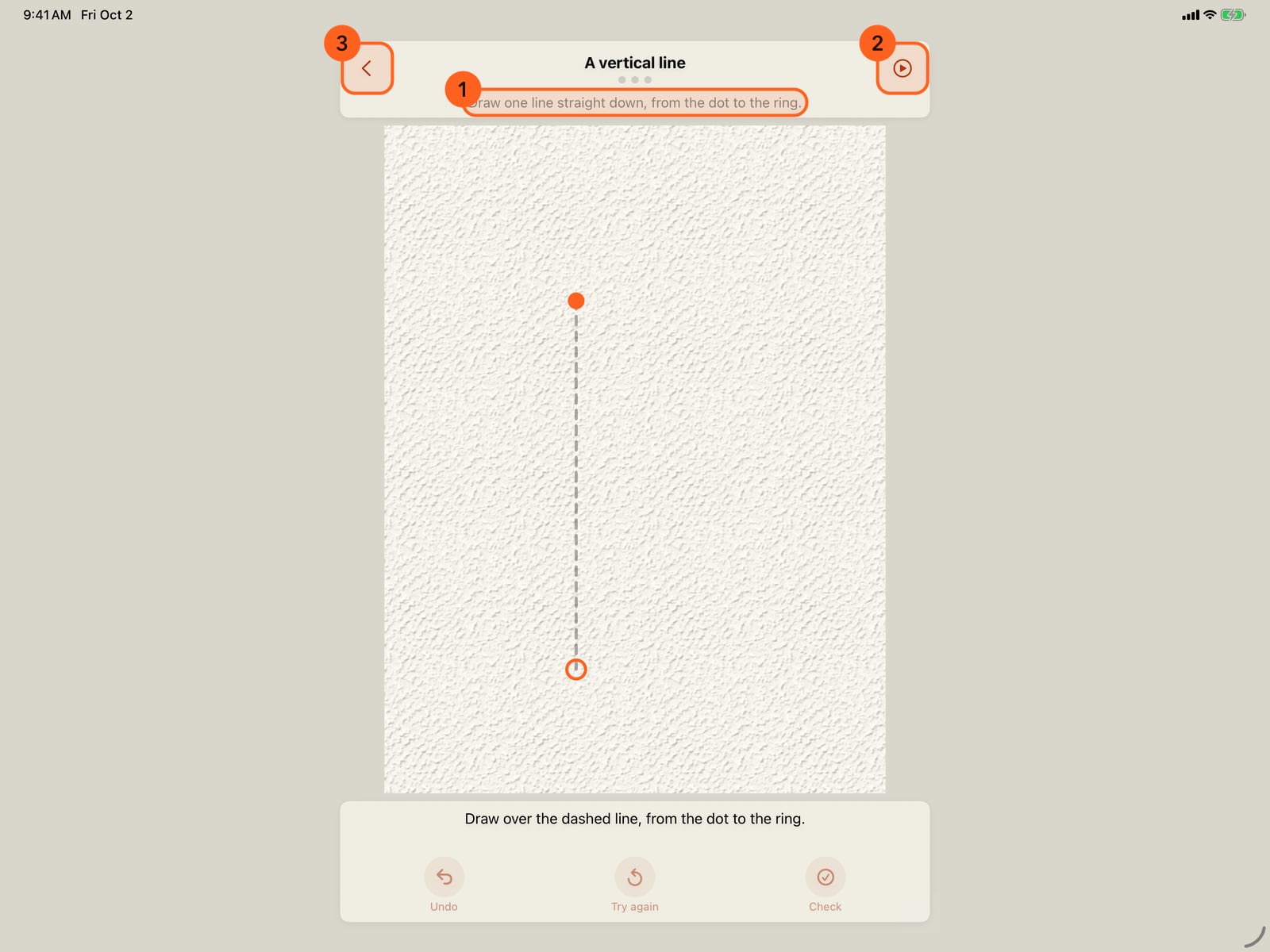
Each exercise opens on a page of its own. The prompt says what to draw. At first you trace a dashed line, from the dot to the ring. Show me draws it for you, then fades.
Draw it with your finger or Apple Pencil. Once the strokes are down, it checks itself. You get one to three stars, how closely you matched, and one tip. Red dashes show what you missed.
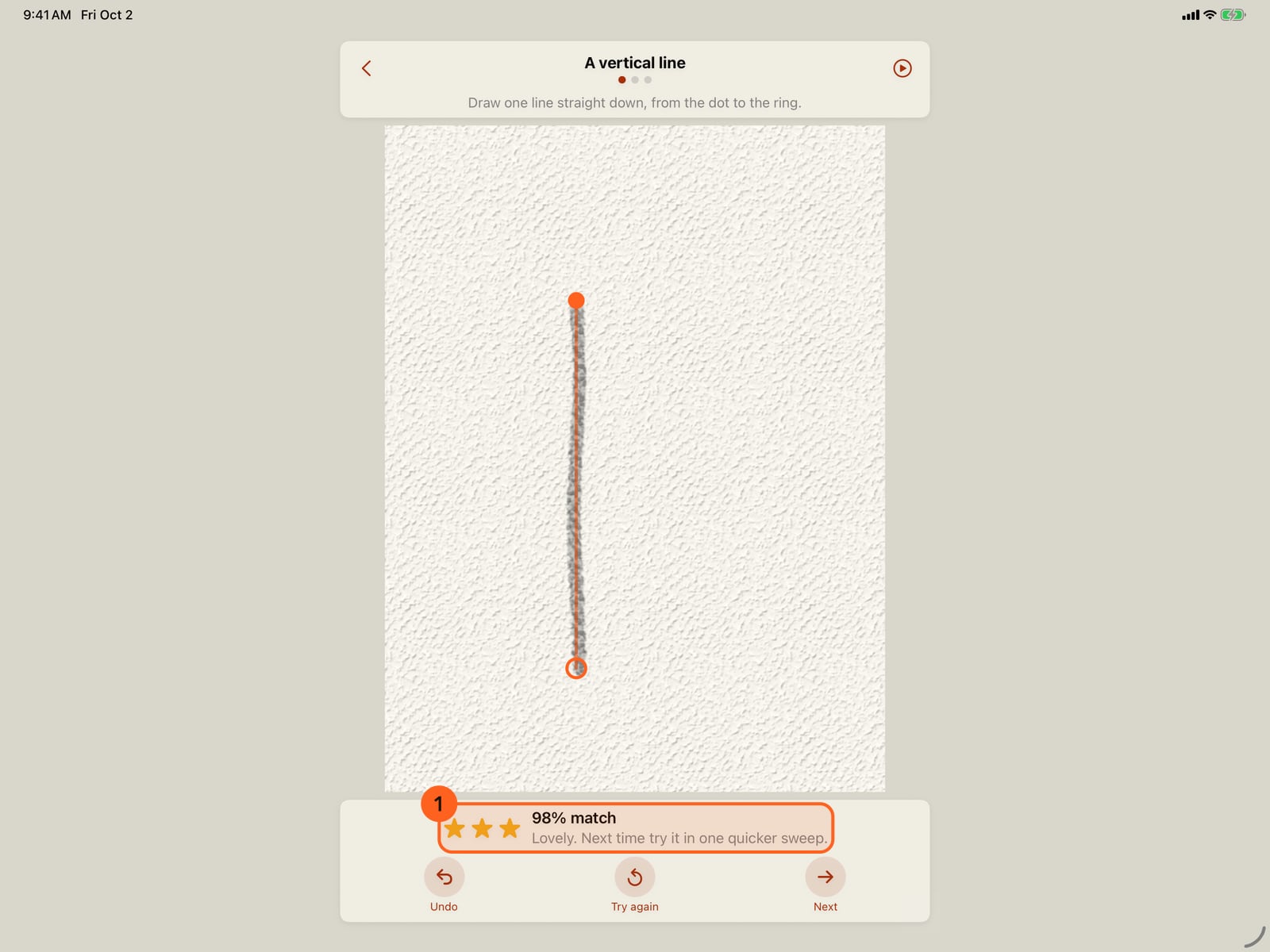
Draw it with your finger or Apple Pencil. Once the strokes are down, it checks itself. You get one to three stars, how closely you matched, and one tip. Red dashes show what you missed.
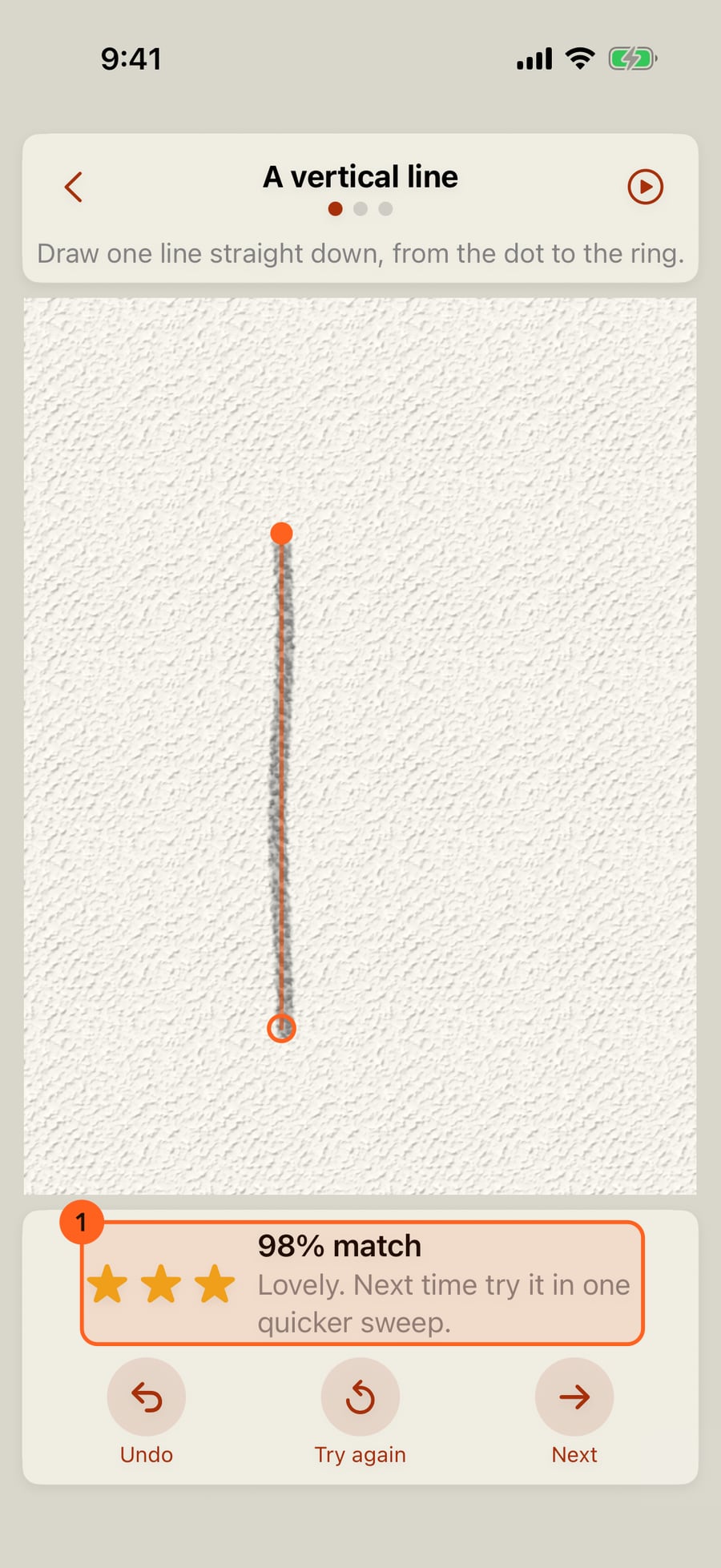
Undo takes back a stroke, and Try again clears the page. Try as often as you like. Your best try is kept.
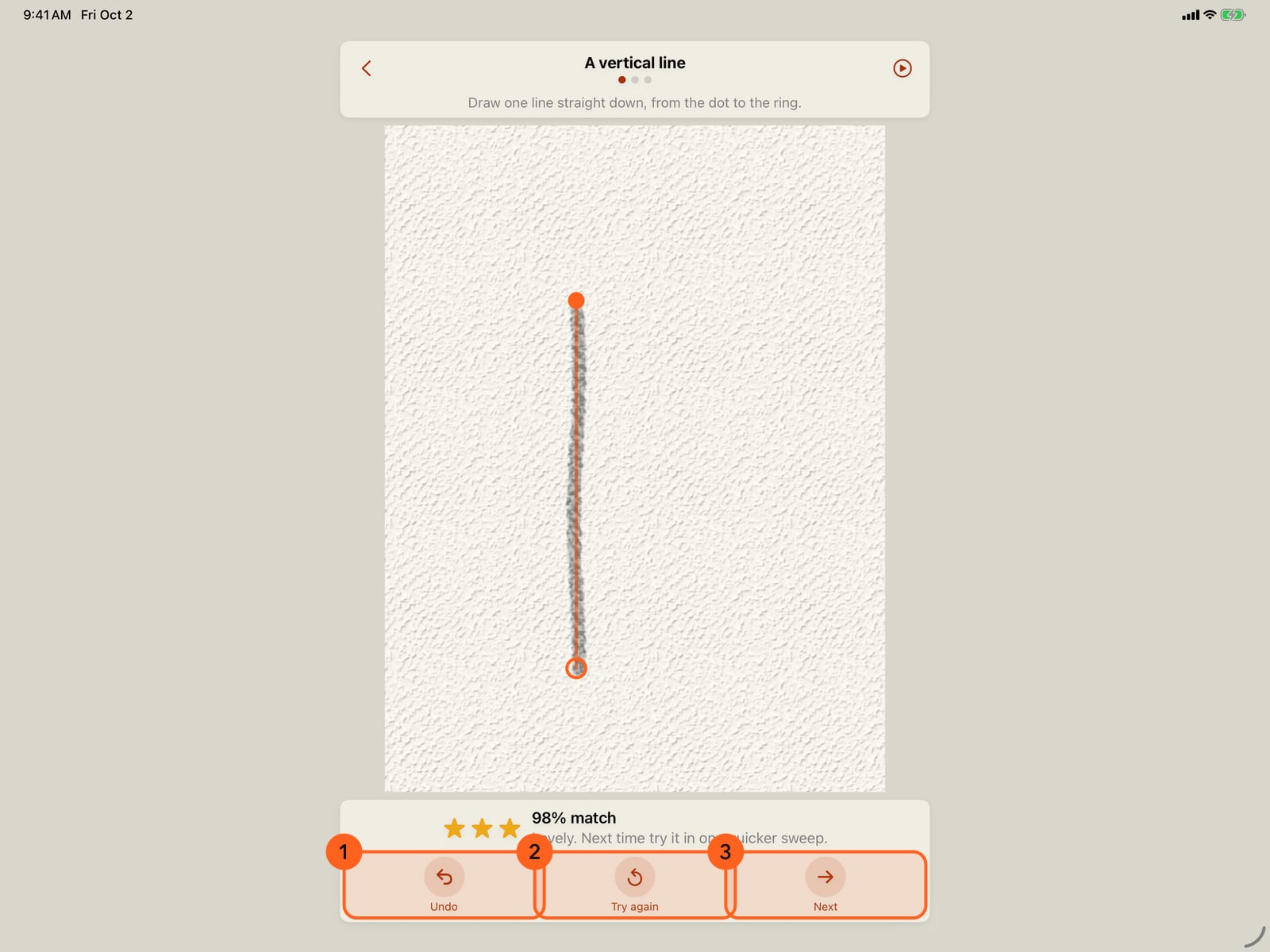
Undo takes back a stroke, and Try again clears the page. Try as often as you like. Your best try is kept.
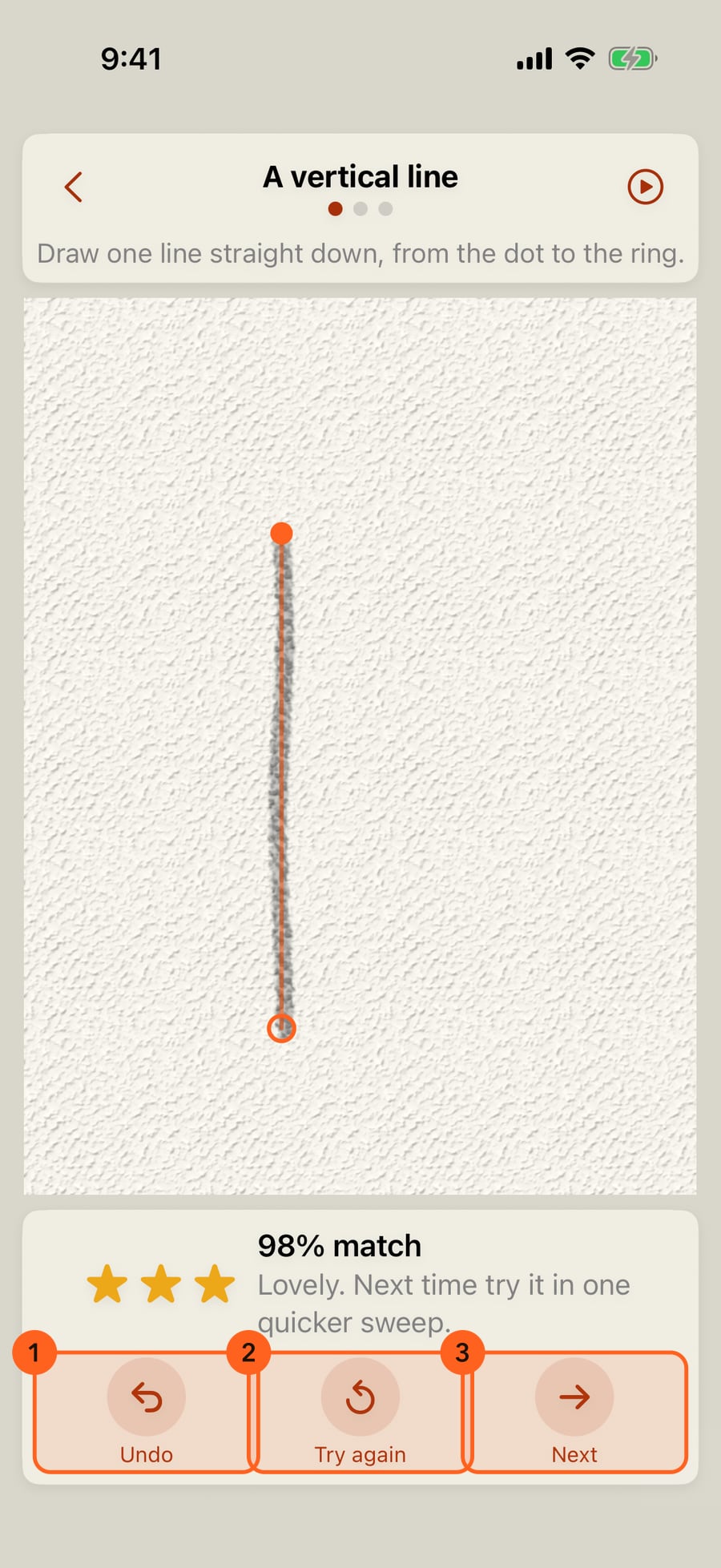
Next goes on to the shape. Every exercise counts once it's checked, whatever the score.
Next goes on to the shape. Every exercise counts once it's checked, whatever the score.
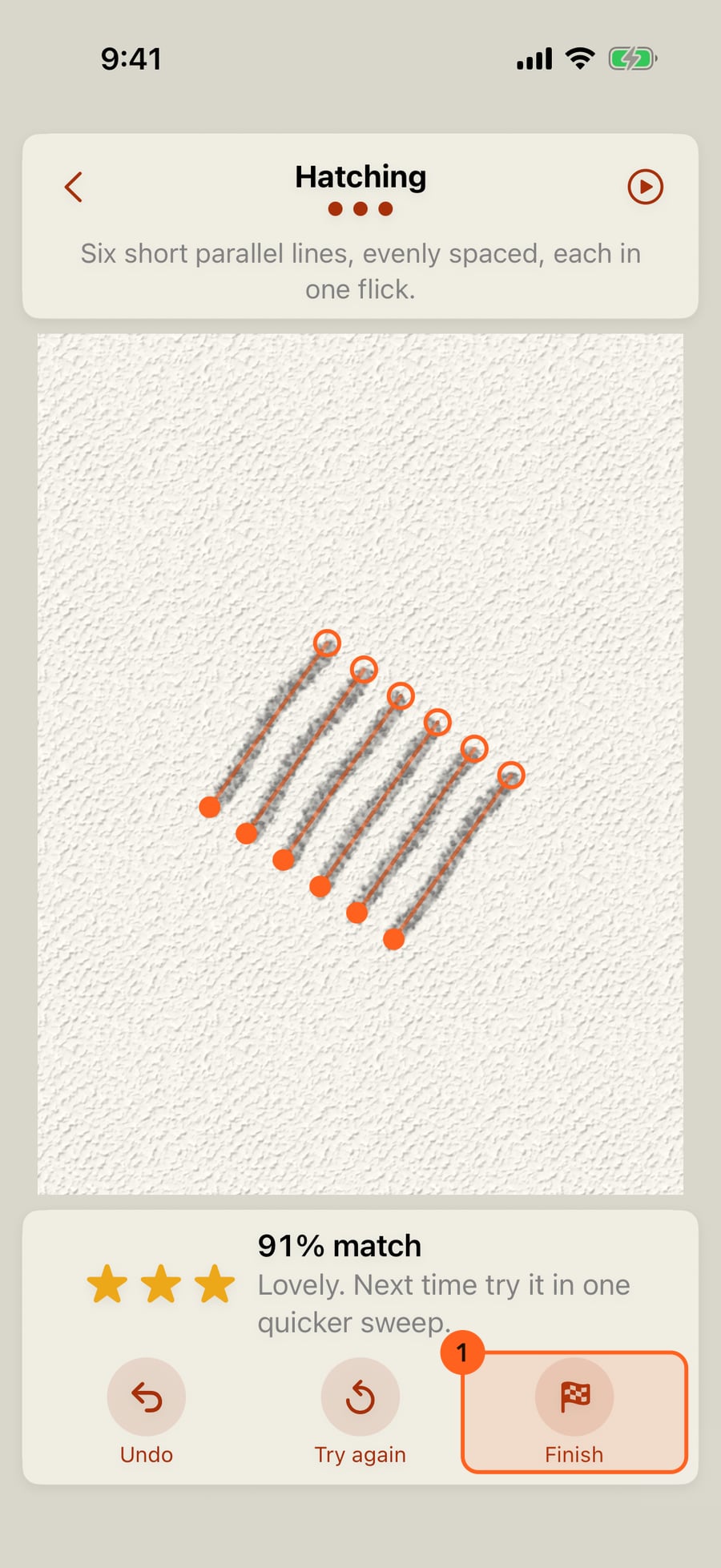
The third is a skill, such as hatching, a letter, or a line that swells and tapers. Finish ends the set.
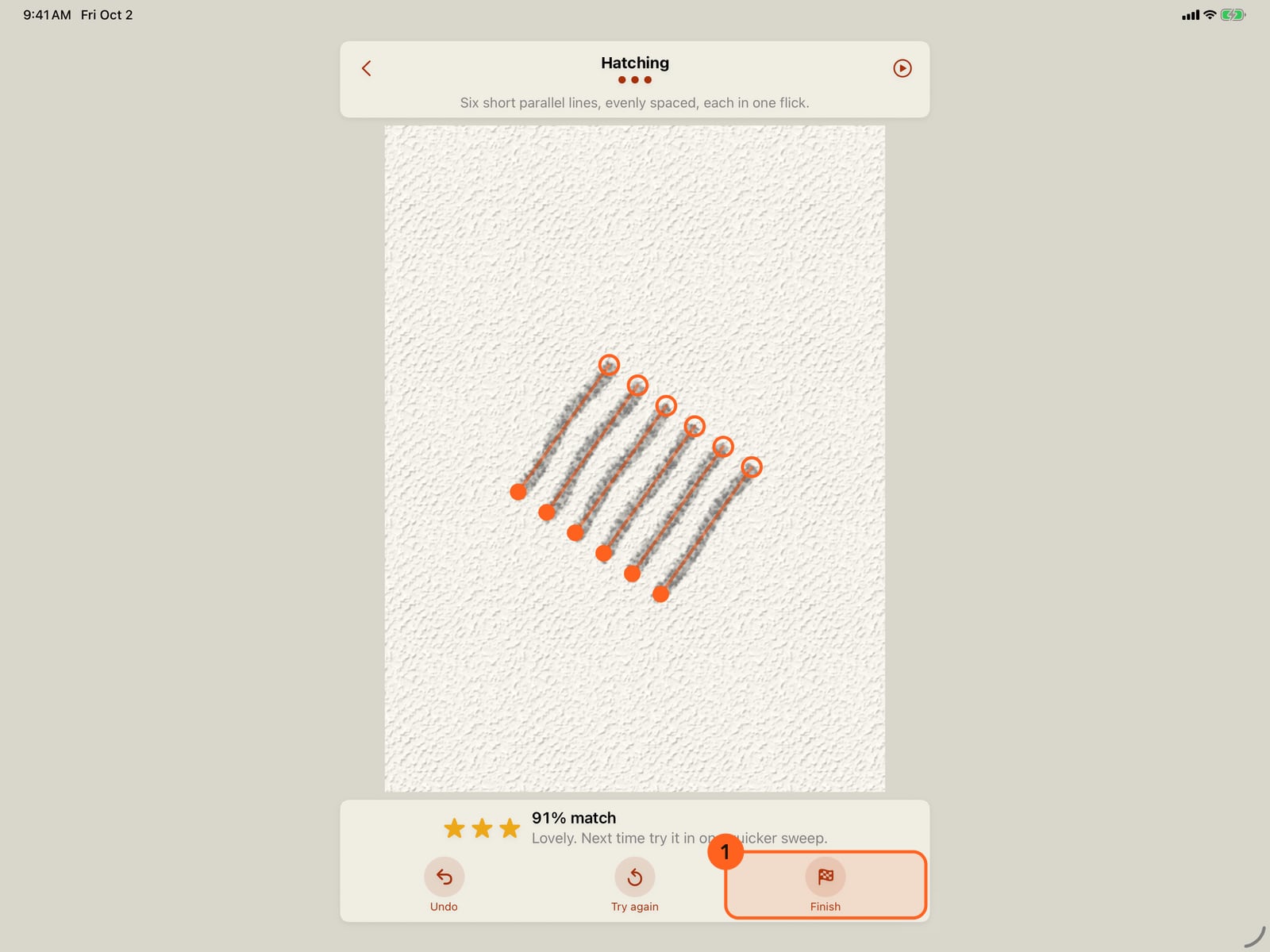
The third is a skill, such as hatching, a letter, or a line that swells and tapers. Finish ends the set.
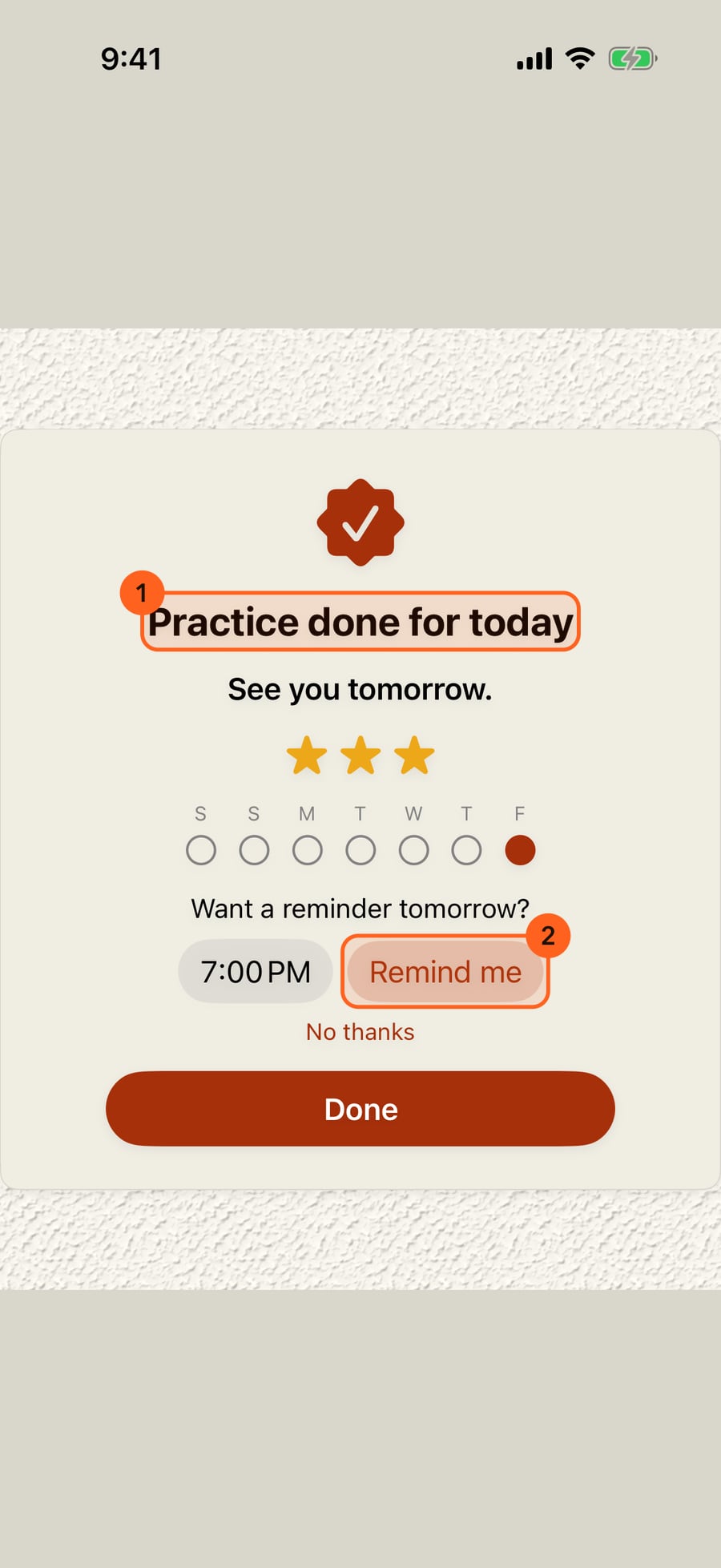
Practice done for today. The day joins your streak, and the week fills in. The first time, it offers a reminder for tomorrow.
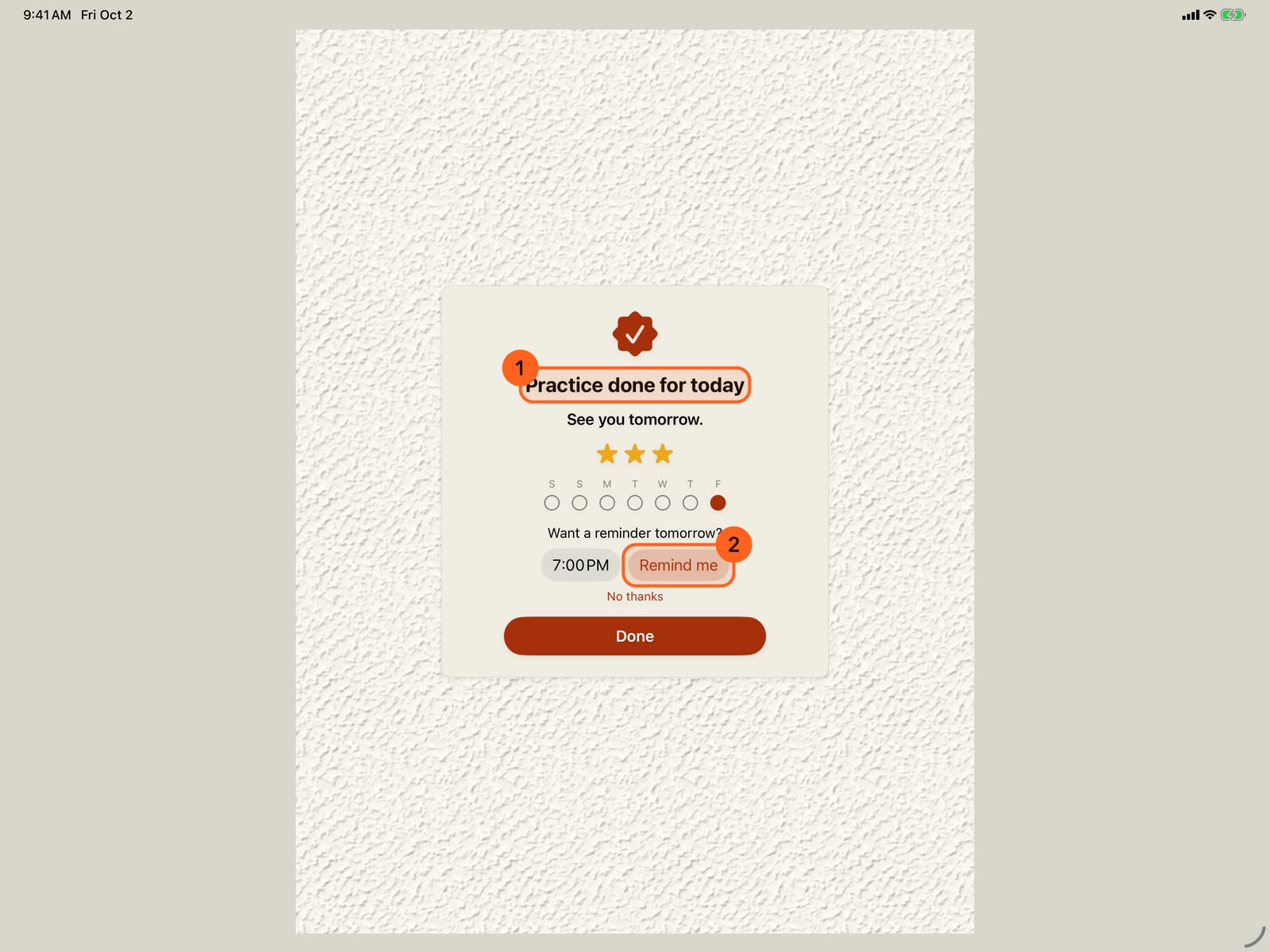
Practice done for today. The day joins your streak, and the week fills in. The first time, it offers a reminder for tomorrow.
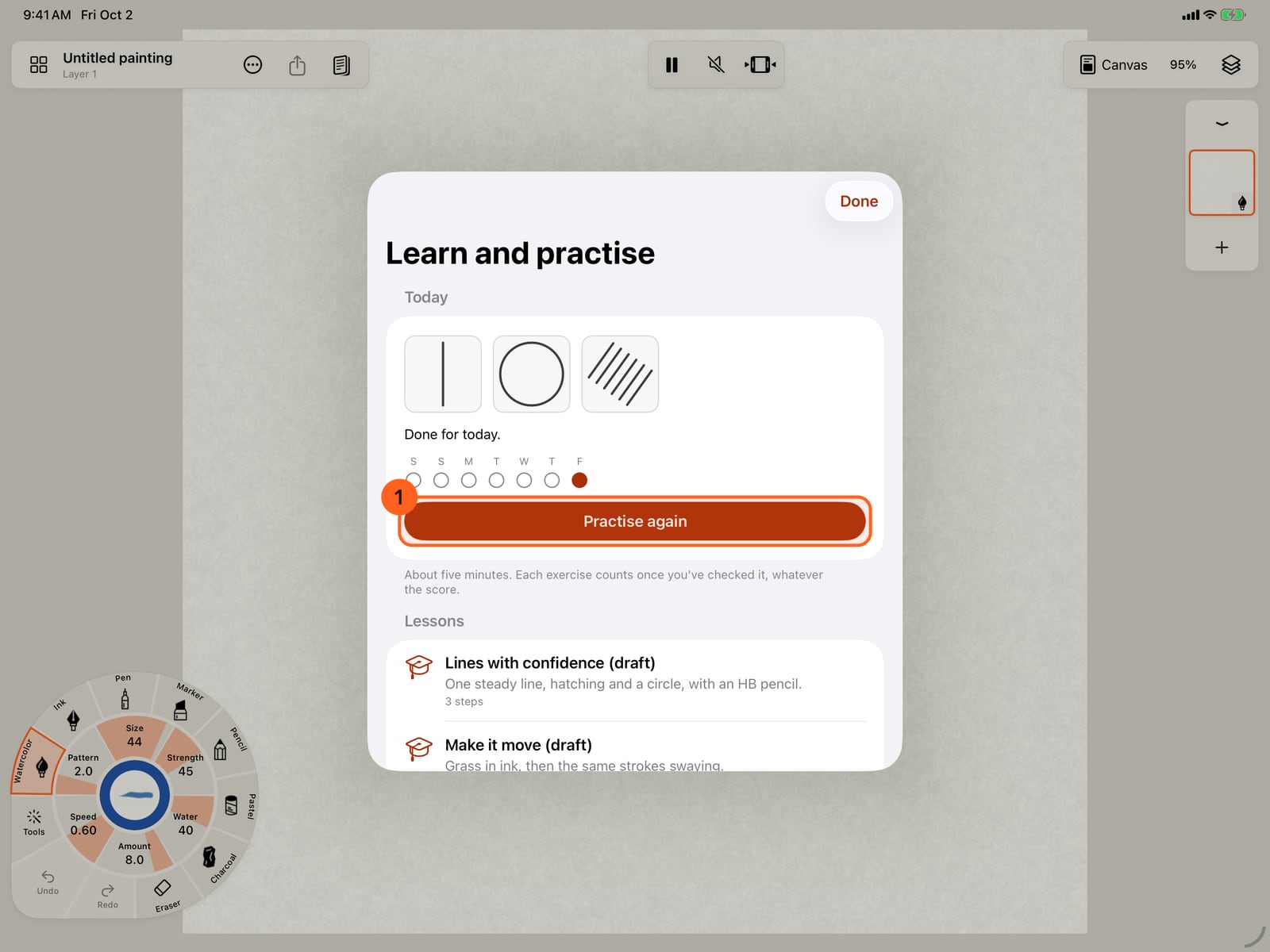
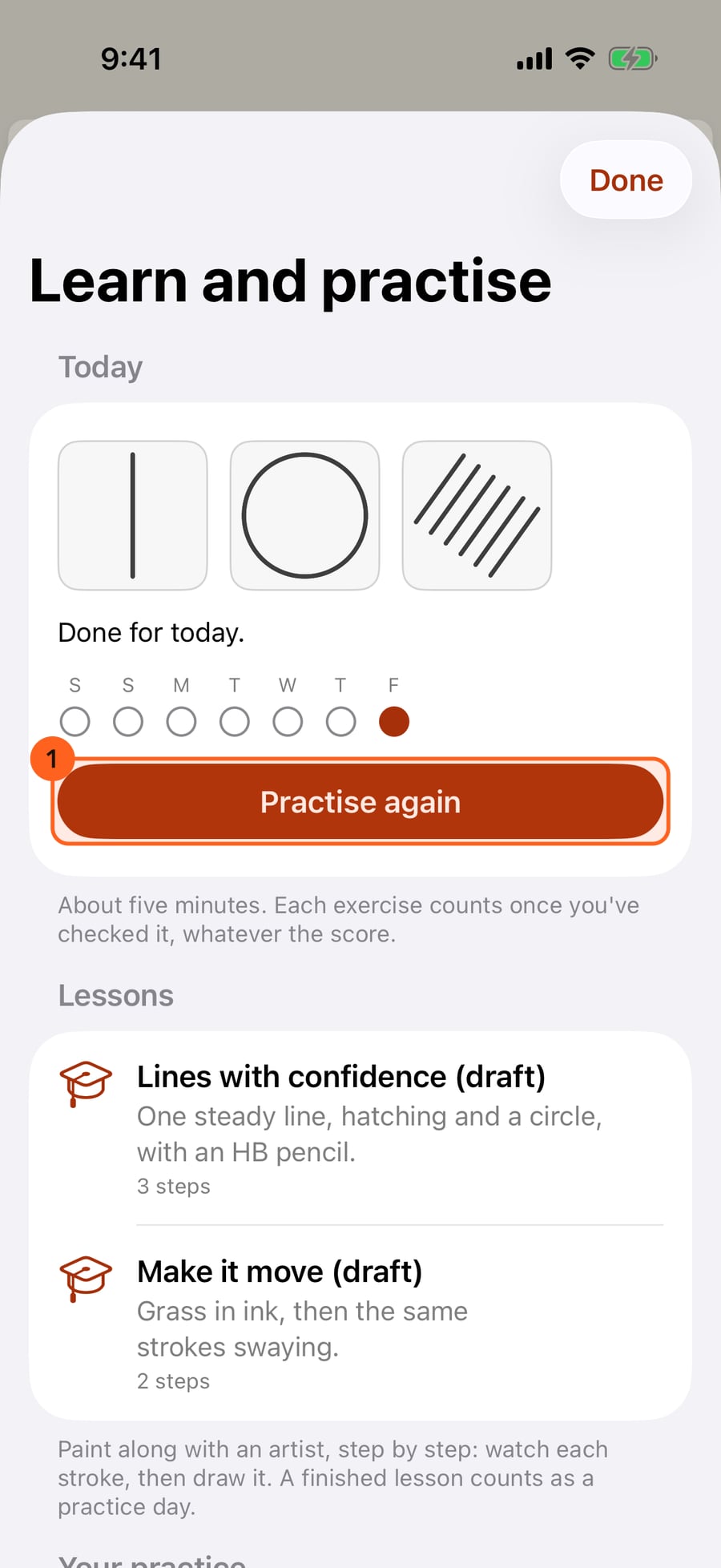
Done takes you back to your painting. In Learn and practise, today is done. Practise again plays the same three once more, and tomorrow brings a new set.
Done takes you back to your painting. In Learn and practise, today is done. Practise again plays the same three once more, and tomorrow brings a new set.
Today's practice
Actions → Learn and practise 1 opens the sheet where practice lives. Its first section, Today, shows the day's three exercises as small pictures, a line about your streak, the last seven days (a filled dot for each day you practised) and one button:
| Button | When |
|---|---|
| Start today's practice | Nothing done yet today. |
| Continue, 2 of 3 | You left part way: it opens the next exercise you haven't checked. |
| Practise again | Today is done. The same three, each to try afresh; the day already counts. |
A set takes about five minutes. It is the same all day, on every device, and different each day: a warm-up line (level, vertical or diagonal), a shape (a circle, a tilted ellipse or an S-curve) and a skill (hatching, a line that swells and tapers, or the letters s, a and k). Each day varies them a little, in place, length and angle.
An exercise
Each exercise opens on a page of its own, with the HB pencil in hand. The rest of the workspace steps aside until you go back; nothing in it changes.
| Control | What it does |
|---|---|
| Back | Returns to the painting you had open. The set is kept: Continue picks it up at the exercise you were on. |
| Title and dots | The exercise, and how far through the set you are. |
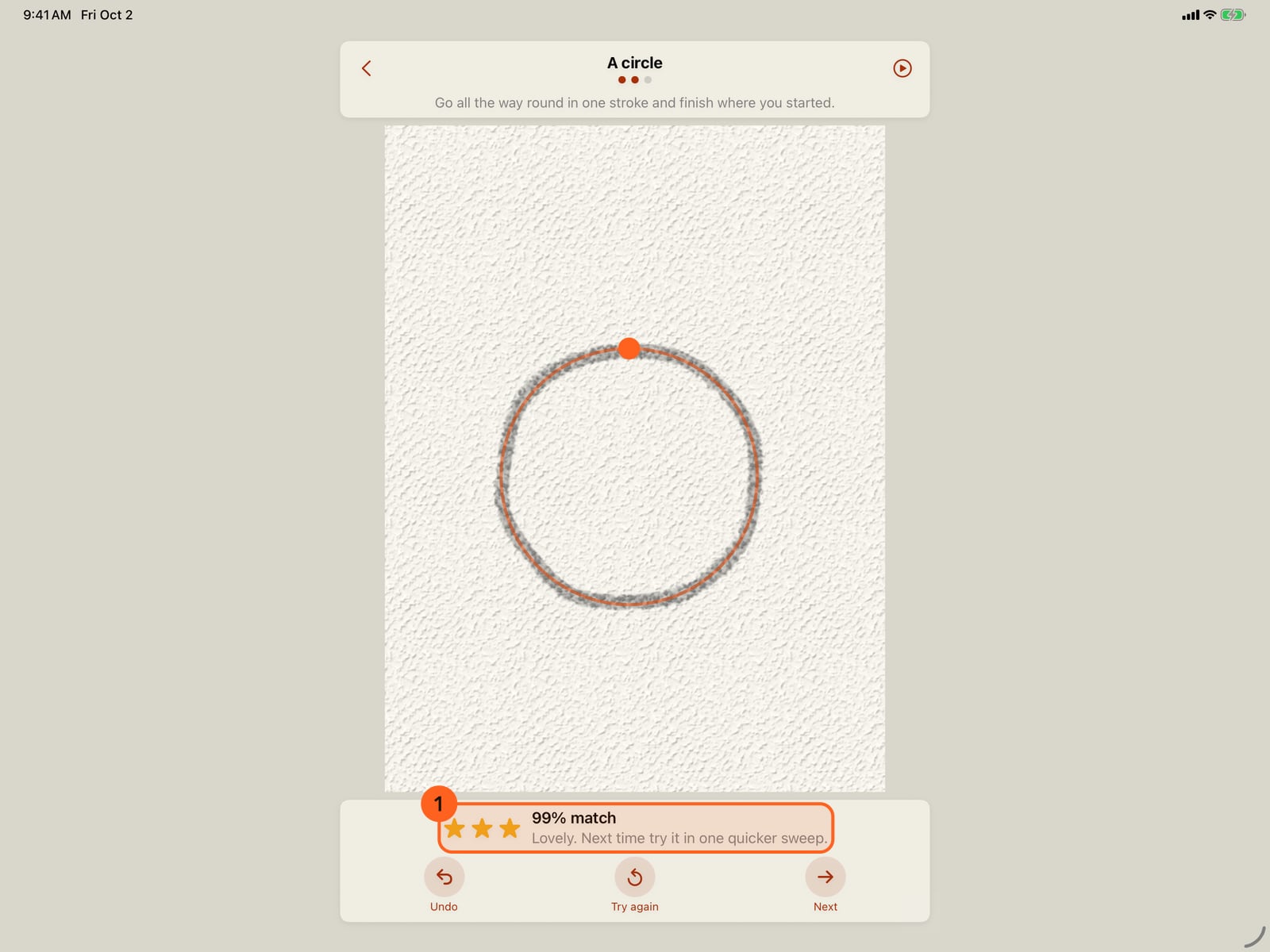
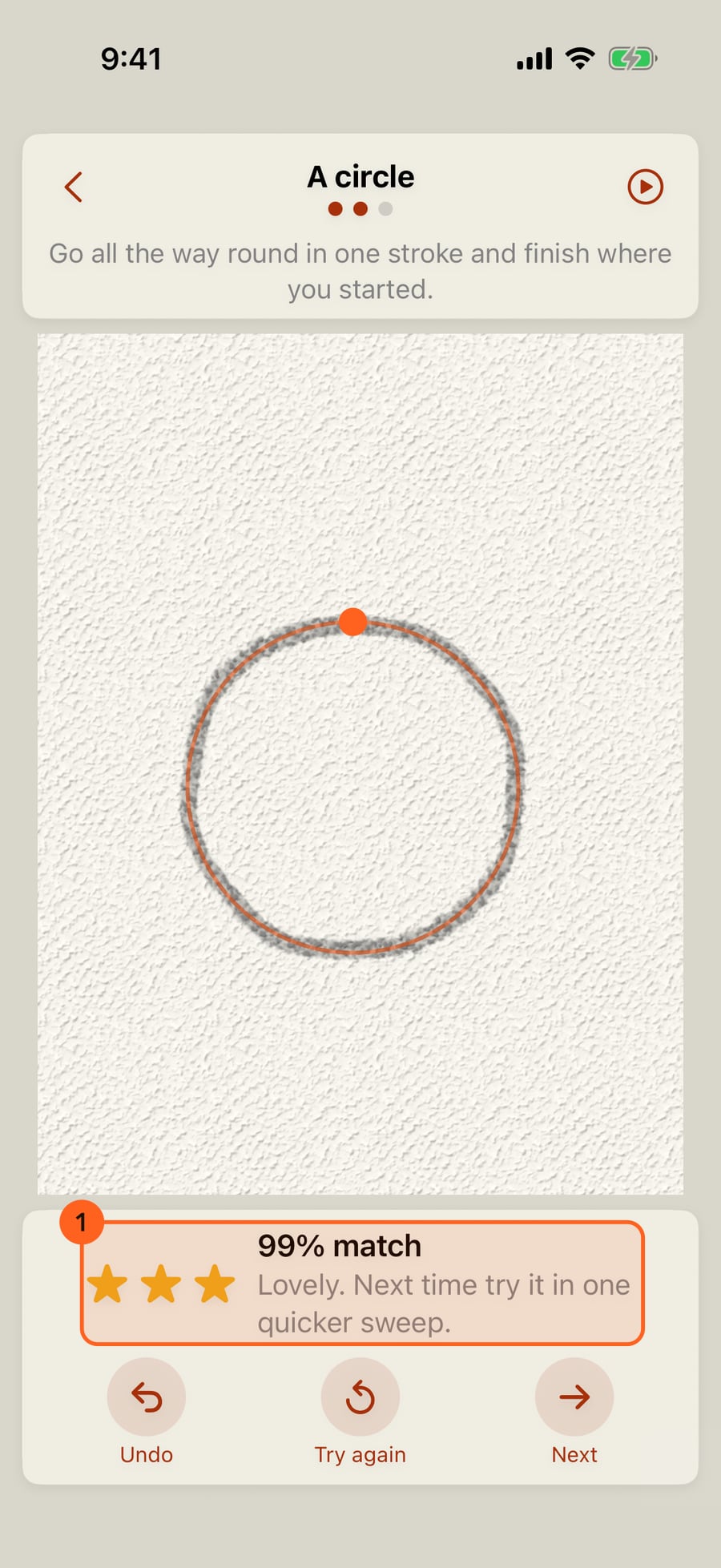
| Prompt | What to draw, such as Go all the way round in one stroke and finish where you started. |
| Show me | The target draws itself at a hand's pace, then fades. |
| Undo | Takes back the last stroke. |
| Try again | Clears the page for a fresh try. |
| Check | Scores the page now. It checks itself anyway once the exercise's strokes are down, so you rarely need it. |
| Next / Finish | Once it's checked: on to the next exercise, or, after the third, the end of the set. |
Draw with Apple Pencil, a finger or a pointer. A finger always draws here, even when Finger draws is off in Settings; the setting itself doesn't change. While an exercise is scored, Steady Stroke, Predictive Stroke, drawing guides, symmetry and made-up finger pressure are off, so the line is your hand's.
The score
After a check, the panel at the bottom shows:
- One to three stars: three from 85% and up, two from 60%, and one for any finished try.
- NN% match: how closely your strokes follow the target.
- One tip, from what cost the most, such as Go all the way along, and finish where the line finishes., Start at the dot and follow the line's direction. or Space the lines evenly, like the ones shown.
On the page, the target appears over your drawing and red dashes mark the parts of it nothing came near. The score is about where the line goes, its direction and how steady it is; for hatching, the angle, spacing and straightness; for letters, the stroke order. Speed never counts against you.
Every exercise counts once it has been checked, whatever its score, and your best try at each is kept. A perfect score is never needed to go on.
Help that fades
The help changes as you keep practising:
| Practice days | How the target is shown |
|---|---|
| The first 5 | A dashed line to trace, from a filled dot to a ring. It draws itself as the exercise opens. |
| From 5 | Only the dots: start at the filled one and end at the ring. The tilted ellipse, S-curve, swell and taper, and the letter a join the set. |
| From 15 | The shape is a small model in a box at the top: copy it anywhere on the page, about the same size or bigger. The letter k joins the set. |
Letters number their start dots in writing order. Swell and taper asks you to start light, press in the middle and lift away light. It appears only once the app has felt Apple Pencil pressure, because a finger or a mouse has none. If you try it without a Pencil, the tip says so.
Done for the day
Finish shows Practice done for today: your streak, stars for the set as a whole and the week with today filled in. The first time, it asks Want a reminder tomorrow? with a time: Remind me 2 turns on the practice reminder (iOS asks to allow notifications), and No thanks doesn't ask again. Done goes back to the painting you had open.
Streaks and the calendar
A practice day is a day you finish the daily set or a lesson. Days count in your own calendar, so travelling never moves one.
- Streak: practice days in a row. One missed day is forgiven; two missed days in a row end it. Today doesn't break it before you've practised.
- Best streak: your longest, shown under the calendar. It is never lost.
- Your practice: a month calendar with each practice day filled in. The arrows go to earlier and later months.
The foot of Learn and practise links to Achievements, which include badges for practice days, streaks and lessons, and to the Practice reminder.
Reminder and iCloud
Both are in Settings → Practice, and under Practice reminder in Learn and practise:
| Setting | What it does |
|---|---|
| Practice reminder | Off by default. On, a notification at the time you choose (7:00 pm unless you change it), only on days you haven't practised yet. It's scheduled on this device; nothing is sent. |
| Sync practice with iCloud | On by default. Your practice days and finished lessons reach your other devices on the same Apple Account, through your own iCloud, so the streak and calendar count all of them. The line beneath says whether it's syncing. |
See Settings.
Practice pages are not paintings: they never appear in the Gallery or in Files. Everything in Learn and practise is Free.
On the Mac, draw with a mouse, trackpad or tablet. Swell and taper needs a pen whose pressure changes as you press. With a mouse or trackpad it stays out of the set.
Something not behaving as expected?
Visit support or write to [email protected].