

Guides / Settings and Pro
Achievements
Optional badges for drawing days, strokes into the millions, the motions, media, effects and brushes you try, and the brush challenges you complete, with a dashboard of how you're doing. Off until you turn them on; iCloud adds up your devices, and Game Center is a separate choice.
Achievements are off until you turn them on. They are in Settings, under Achievements.
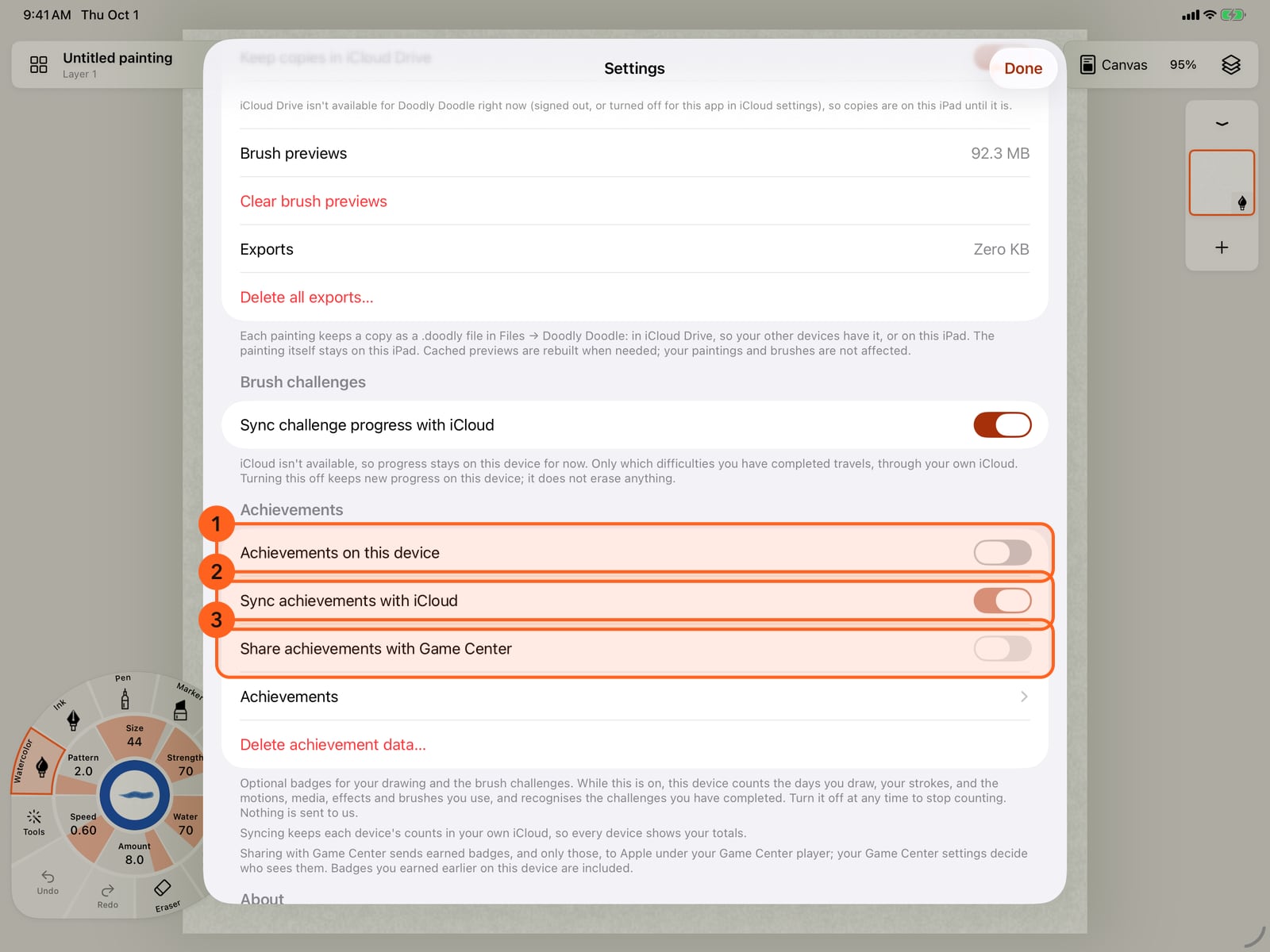
Achievements are off until you turn them on. They are in Settings, under Achievements.
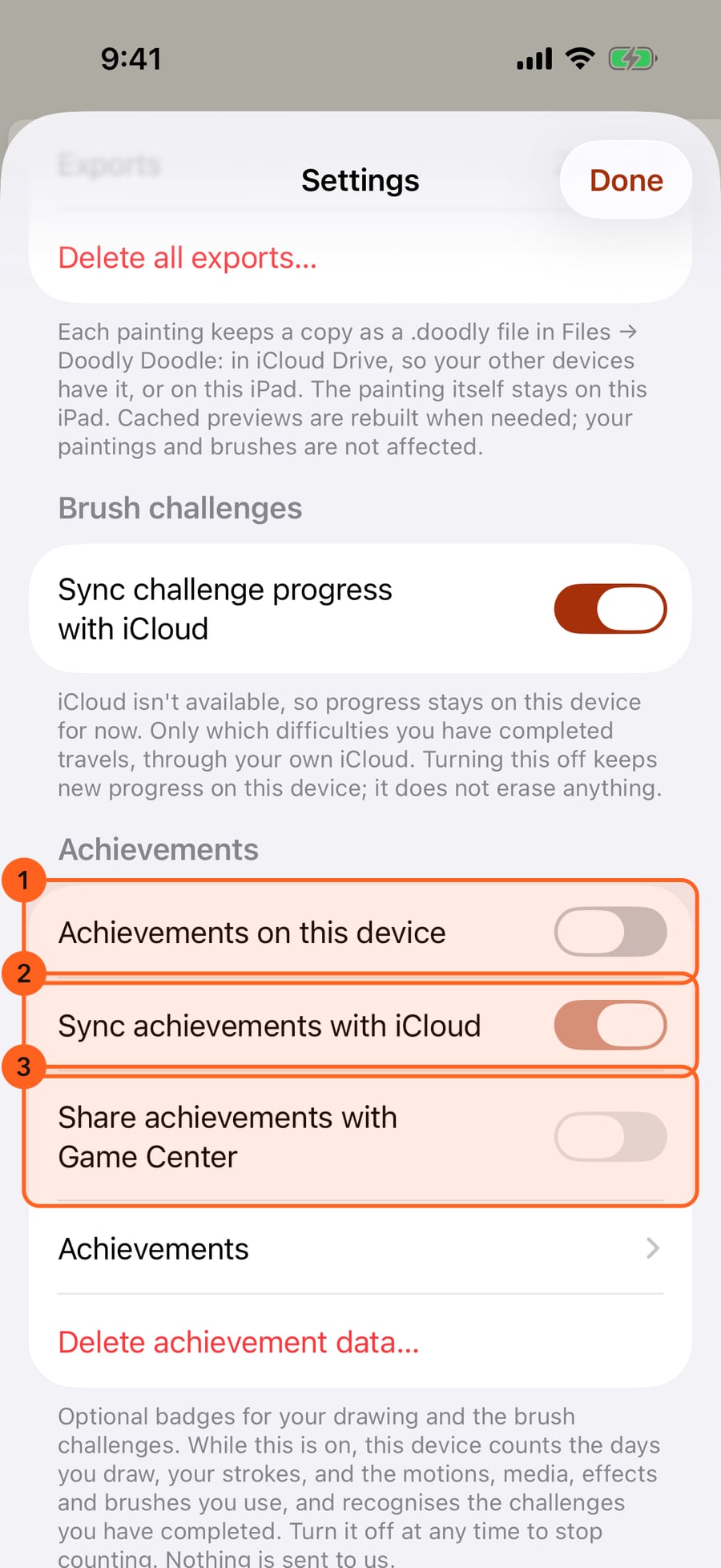
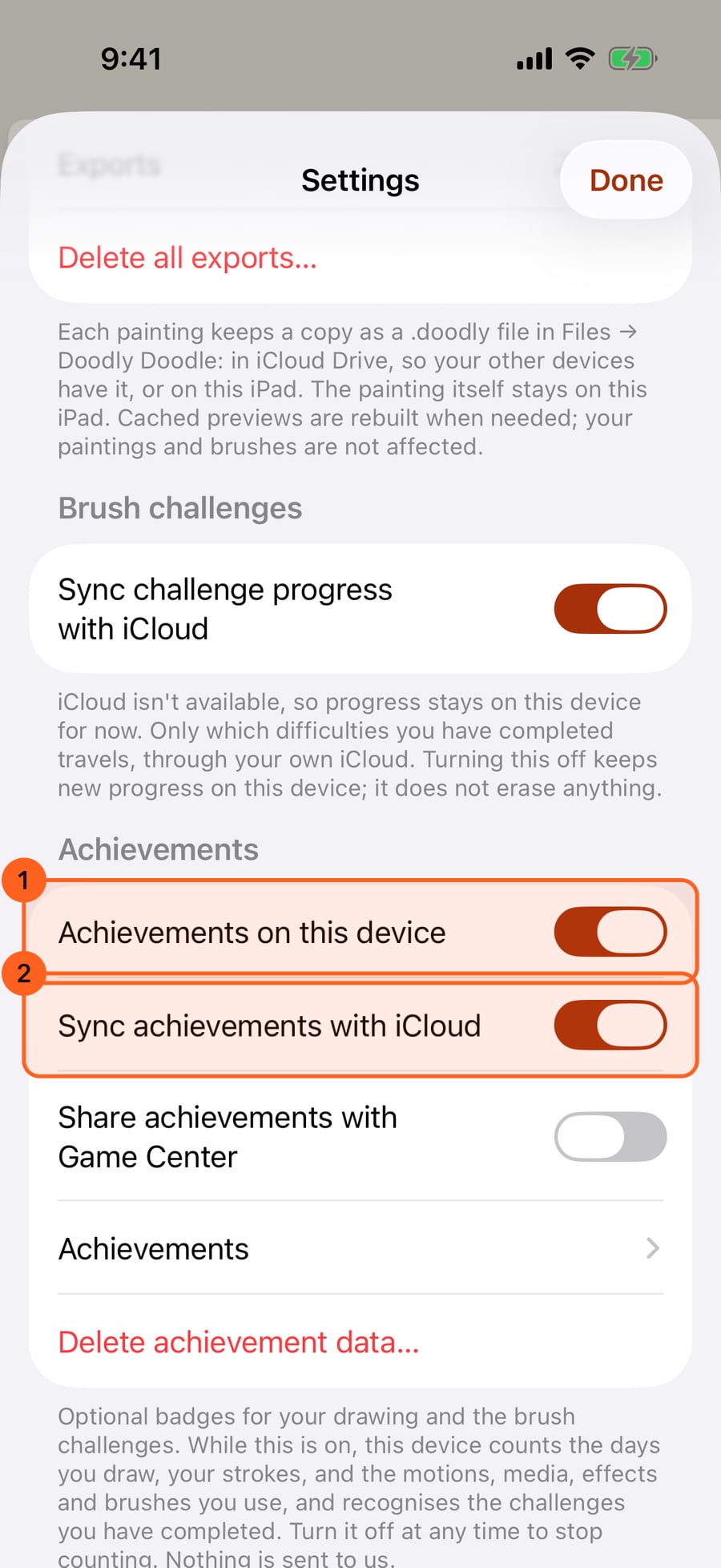
Turn on Achievements on this device. From now on, the days you draw, your strokes, and the motions, media, effects and brushes you use are counted. Sync with iCloud adds up all your devices; sharing with Game Center is a separate choice, and stays off here.
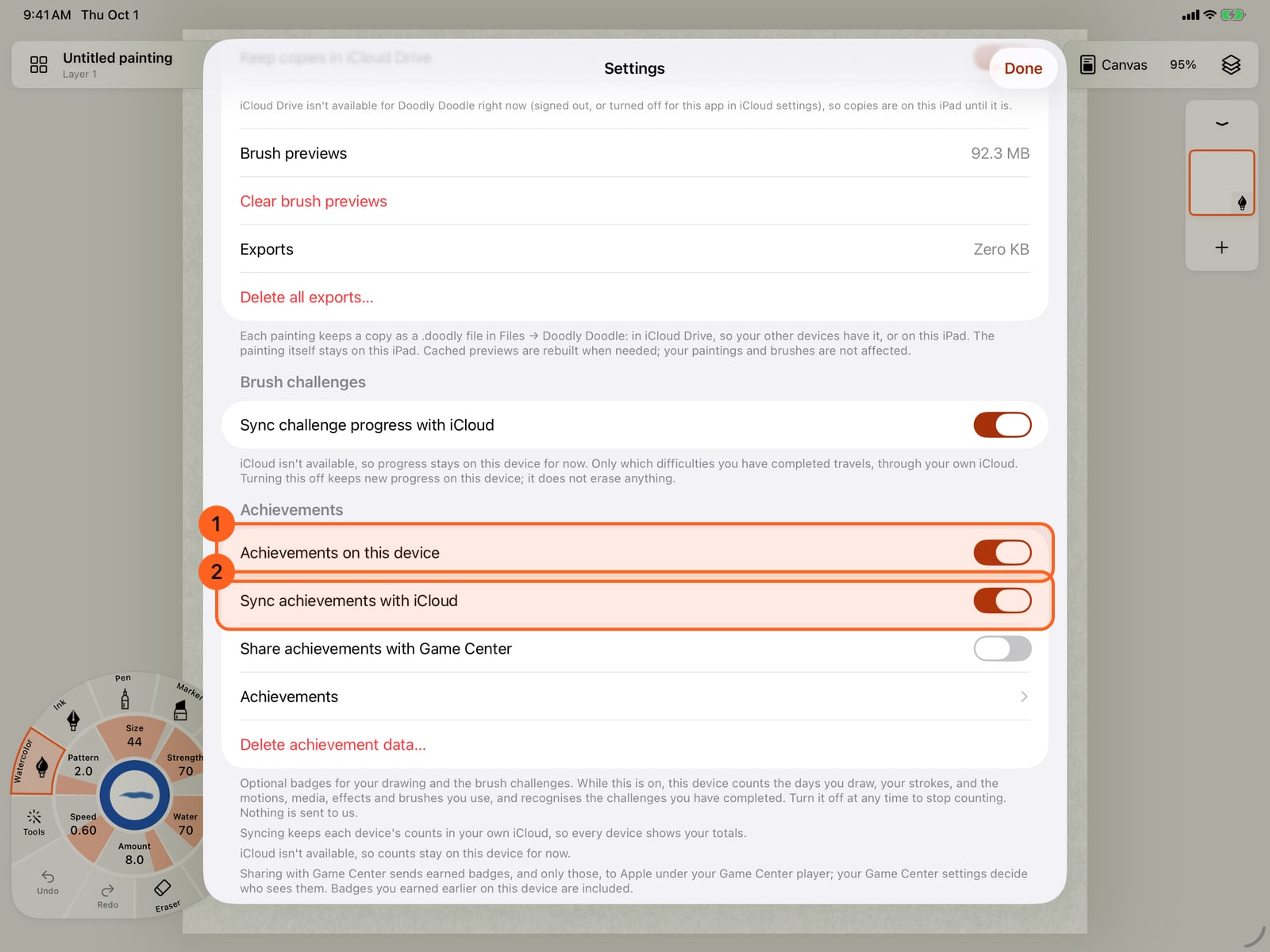
Turn on Achievements on this device. From now on, the days you draw, your strokes, and the motions, media, effects and brushes you use are counted. Sync with iCloud adds up all your devices; sharing with Game Center is a separate choice, and stays off here.
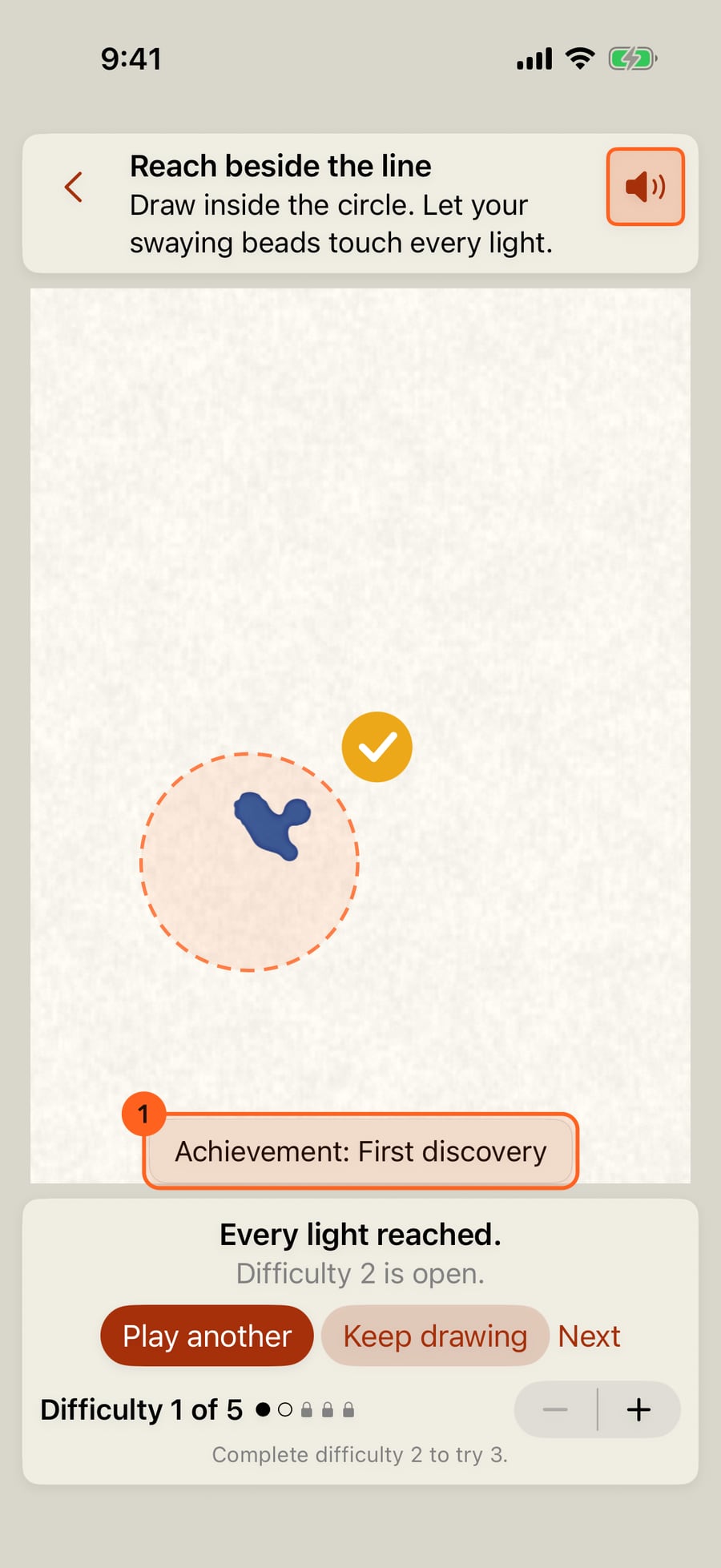
Complete a brush challenge and the badge is told quietly, above the challenge's buttons.
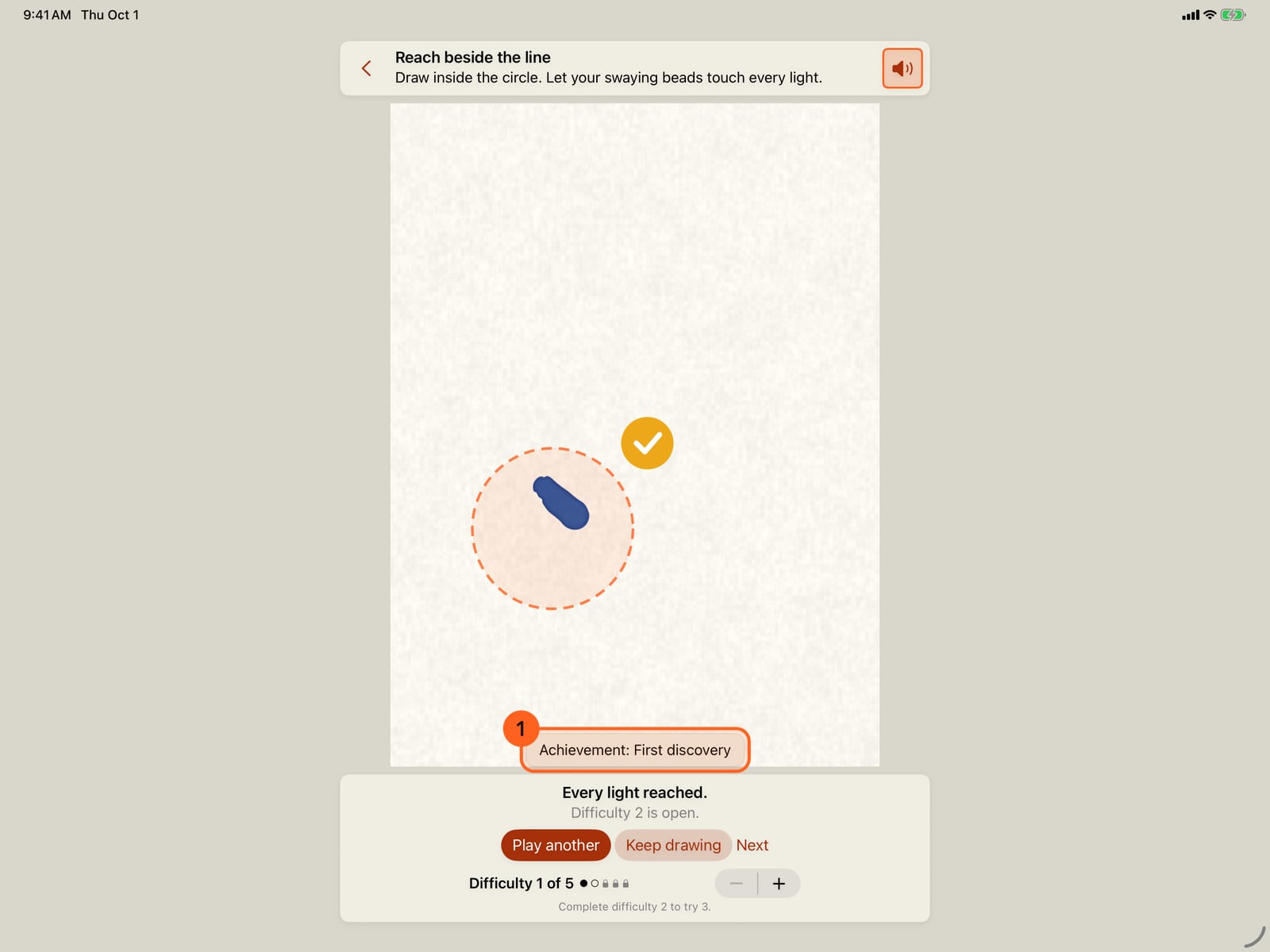
Complete a brush challenge and the badge is told quietly, above the challenge's buttons.
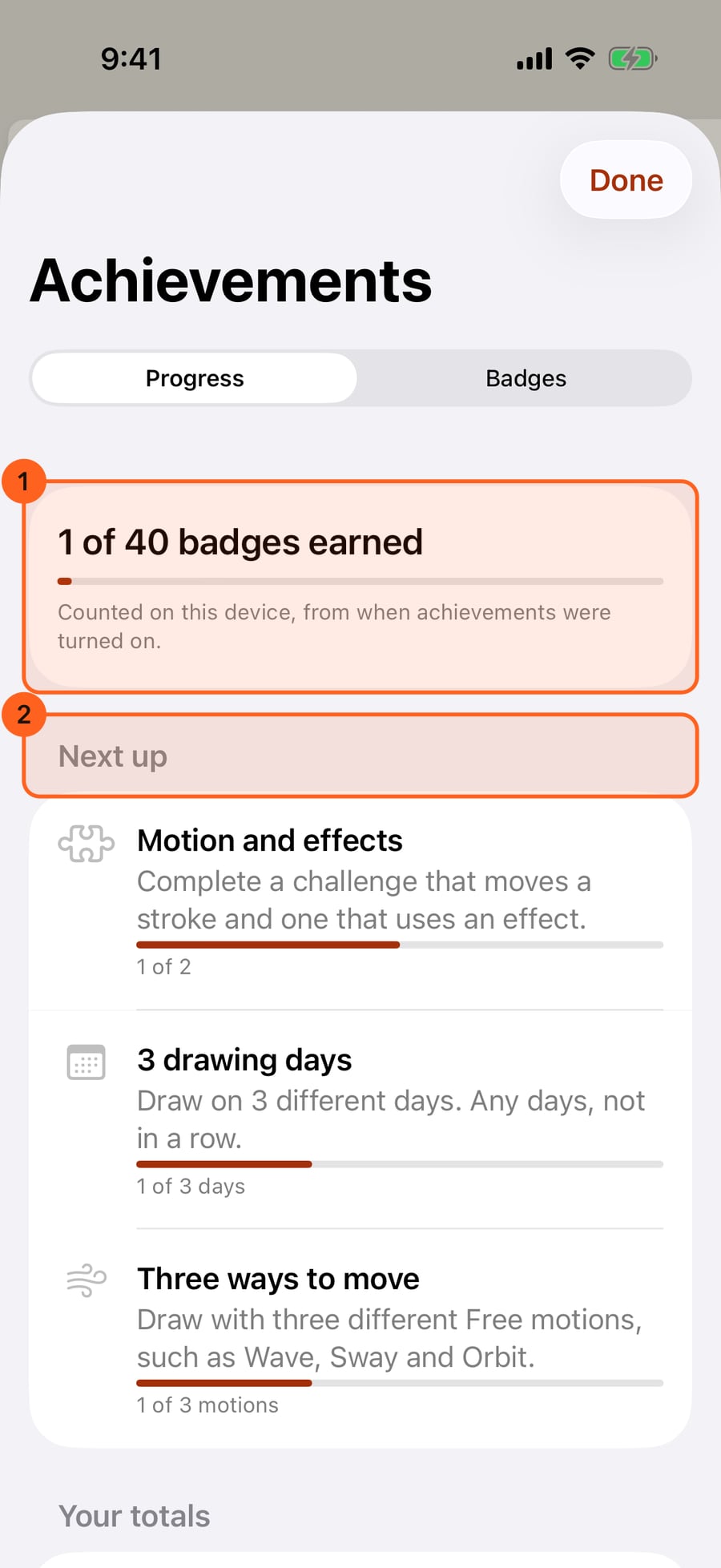
While achievements are on, Achievements is in the Actions menu. Progress shows how many badges you have earned, and the ones you are nearest to next.
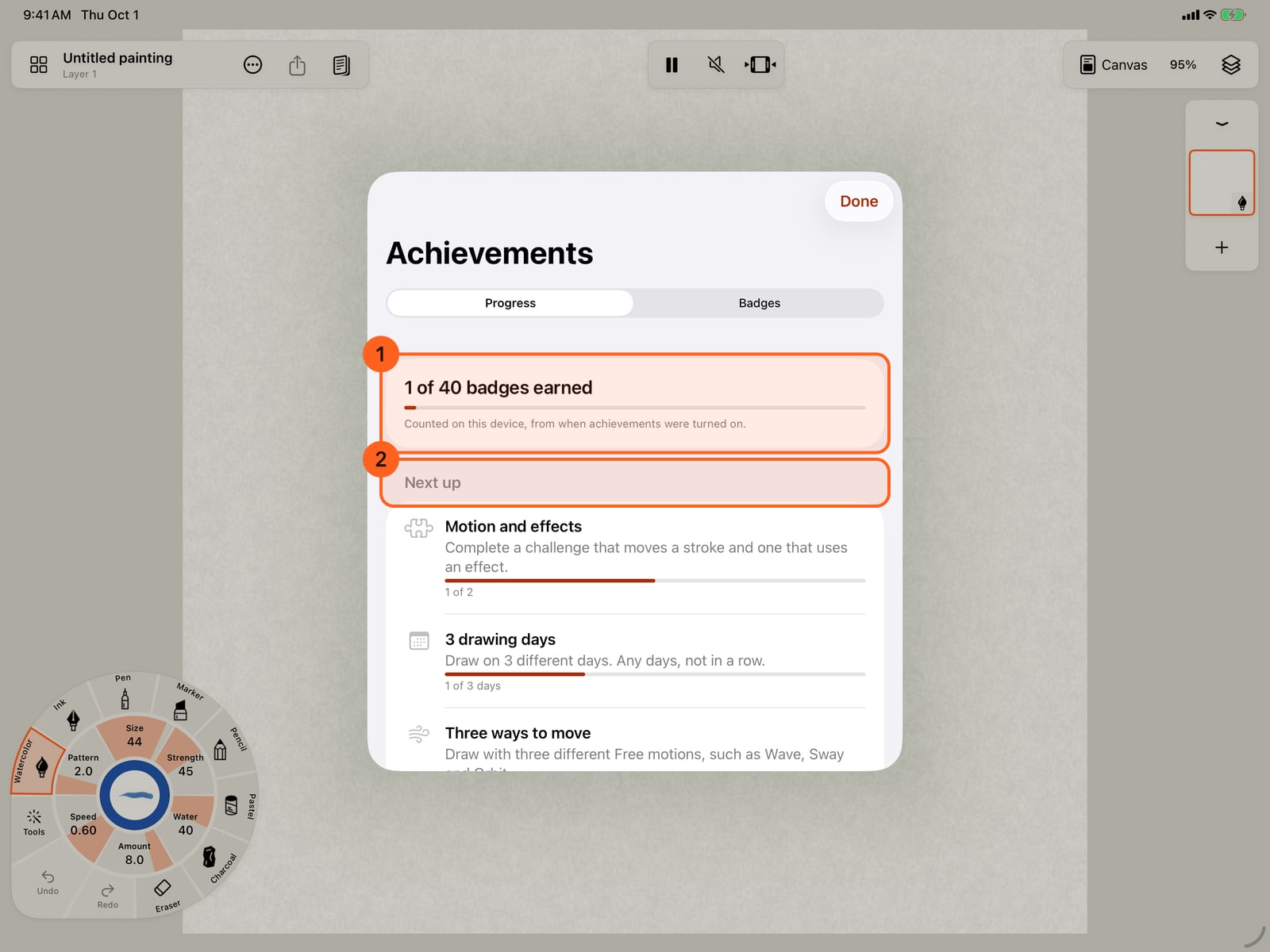
While achievements are on, Achievements is in the Actions menu. Progress shows how many badges you have earned, and the ones you are nearest to next.
Your totals add up everything counted so far, on all your devices with iCloud.
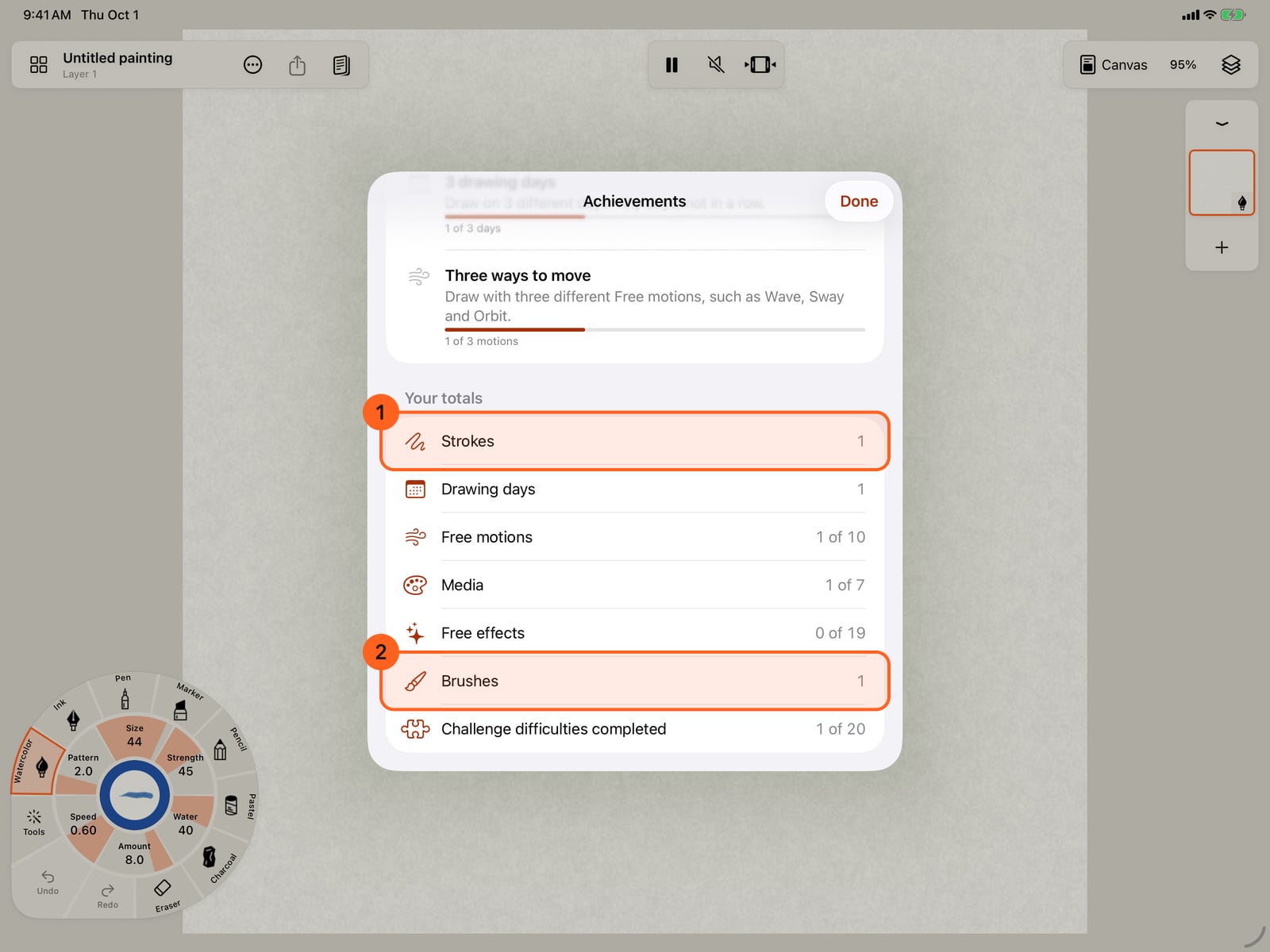
Your totals add up everything counted so far, on all your devices with iCloud.
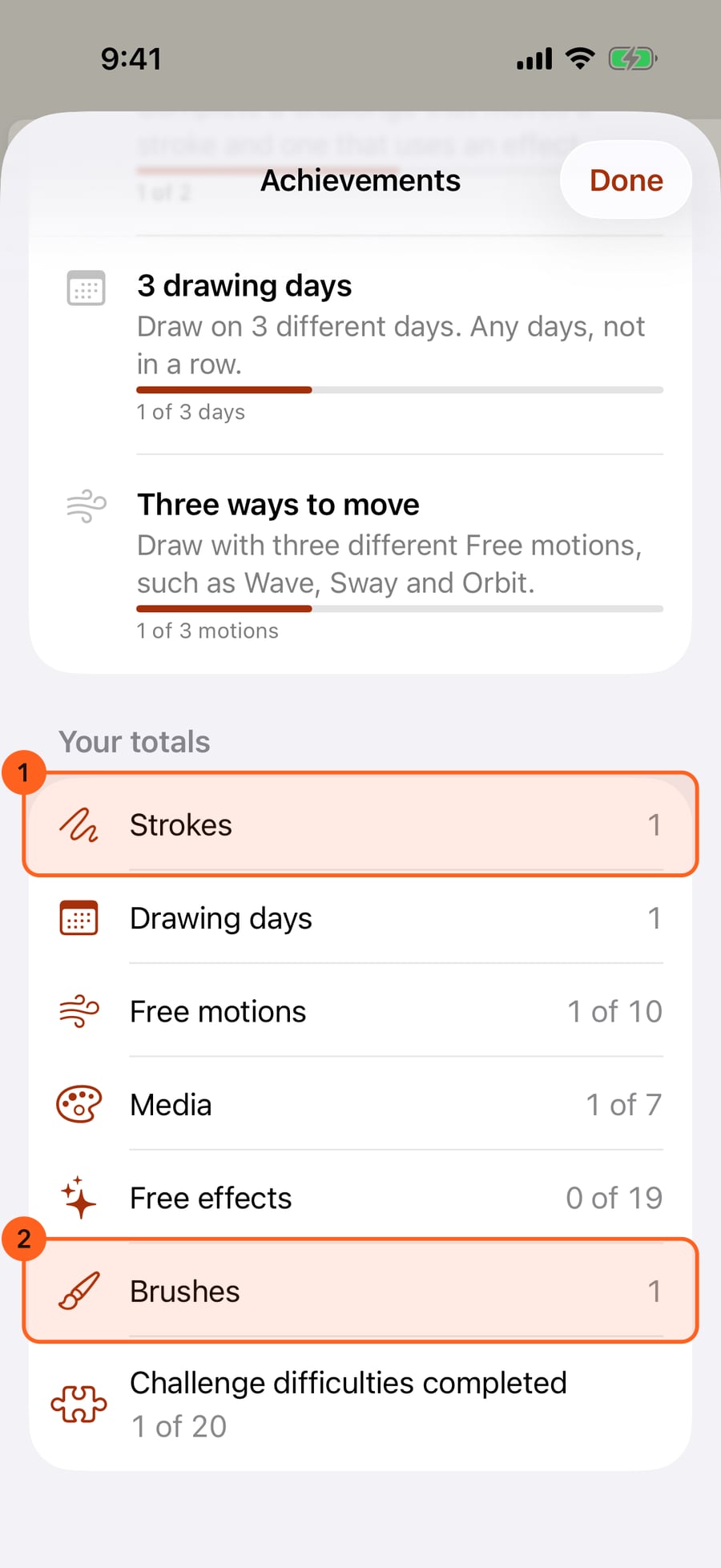
Badges lists every badge, what it asks, and how far you have got. First discovery is earned.
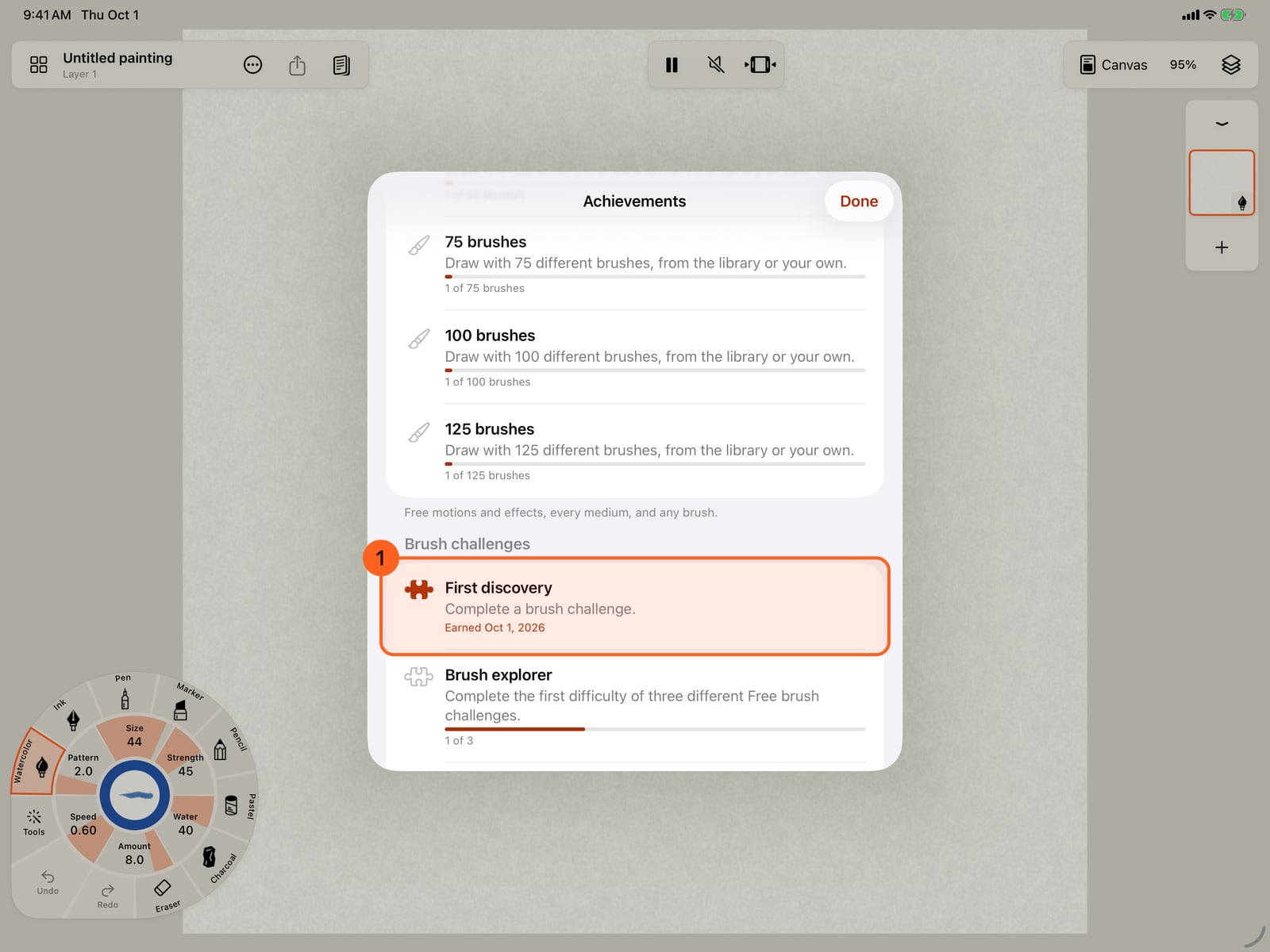
Badges lists every badge, what it asks, and how far you have got. First discovery is earned.
To start again, Delete achievement data deletes this device's counts and badges, here and in iCloud, and turns the switches off. Your drawings and challenge progress stay.
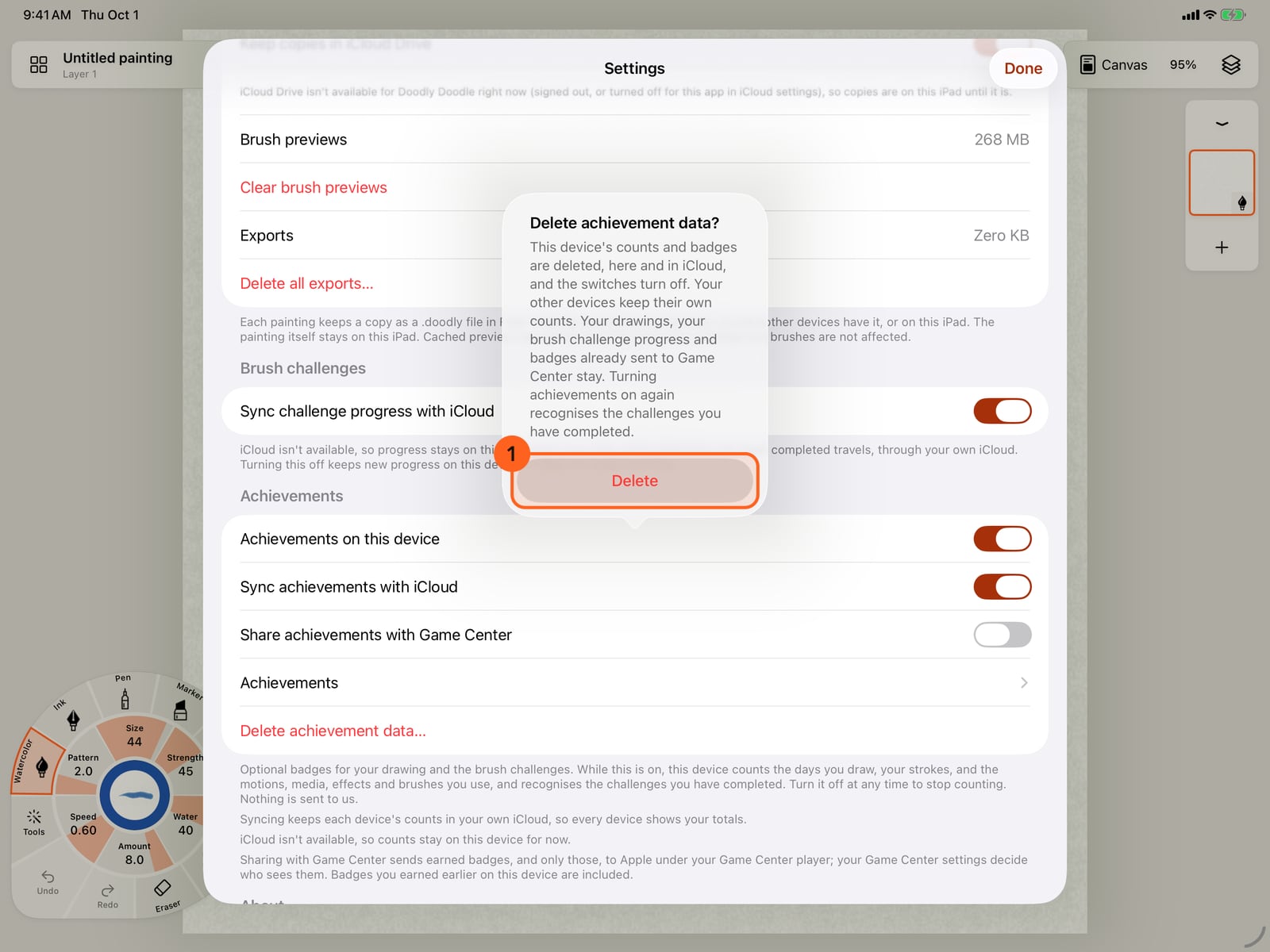
To start again, Delete achievement data deletes this device's counts and badges, here and in iCloud, and turns the switches off. Your drawings and challenge progress stay.
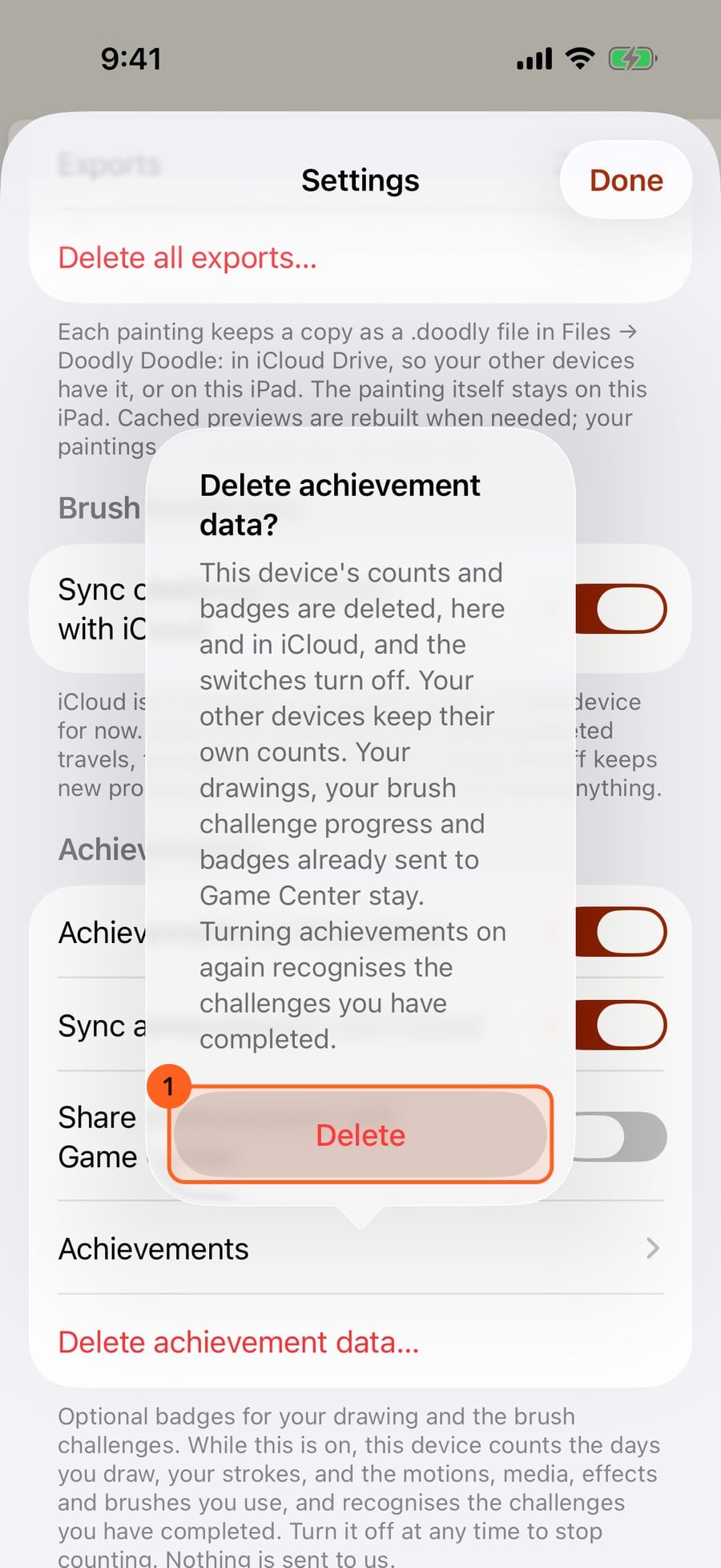
Achievements are optional badges: some for drawing, some for the brush challenges. They are off until you turn them on, and there are no streaks, timers or scores.
Turning them on
Settings → Achievements has three switches.
| Setting | What it does |
|---|---|
| Achievements on this device | Off by default. On, this device counts the days you draw, your strokes, and the motions, media, effects and brushes you use, and recognises the challenges you have completed. Turn it off at any time to stop counting. Nothing is sent to us; see the privacy policy. |
| Sync achievements with iCloud | On by default, and only used while achievements are on. Each device keeps its own counts in your own iCloud, so every device signed in to the same Apple Account shows your totals. It can take a little while. Off: counts stay on this device; nothing in iCloud is erased. The line beneath says whether counts are syncing now. |
| Share achievements with Game Center | Off by default, and only available while achievements are on. On, earned badges, and only those, go to Apple under your Game Center player; your Game Center settings decide who sees them. Badges earned earlier on this device are included. If you are not signed in to Game Center, the system asks once. |
When a badge is earned, a short line says so, at the bottom of the canvas or above a challenge's buttons, and VoiceOver reads it. There is no sound and no pop-up.
How you're doing
While achievements are on, Actions → Achievements opens them; they are also under the switches in Settings and at the foot of the challenge list.
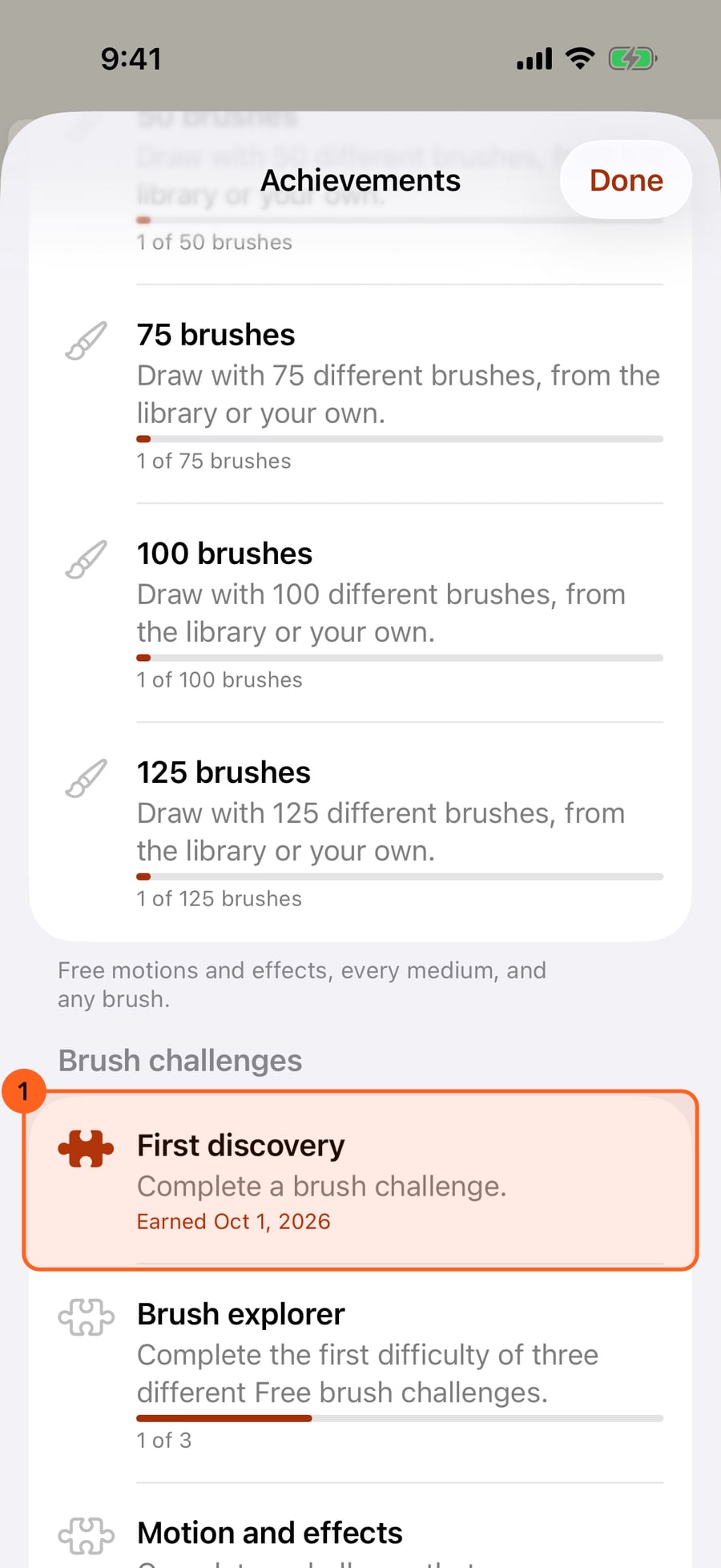
Progress 1 shows how many badges you have earned, Next up 2: the three badges you are nearest to, and Your totals: strokes, drawing days, Free motions, media, Free effects, brushes, and challenge difficulties completed. With iCloud, the totals are those of all your devices.
Badges lists every badge under Drawing, Exploring and Brush challenges: what it asks, how far you have got, and the day you earned it.
The badges
| Badge | How to earn it |
|---|---|
| 3, 10, 30 and 100 drawing days | Draw on that many different days. Any days, not in a row; missing a day takes nothing away. |
| 100, 1,000, 5,000, 10,000, 25,000, 50,000, 100,000, 250,000, 500,000, 1,000,000, 2,500,000 and 5,000,000 strokes | Each stroke counts once, however many marks it leaves. Erasing doesn't count, and undoing doesn't take a stroke back. Past 5,000,000 the count stops, and the total says 5,000,000+. |
| Three ways to move, Every Free motion | Draw with three, then all ten, of the Free motions, such as Wave, Sway and Orbit. |
| Three media, Every medium | Draw with three, then all seven, media. |
| First effect, Five effects, Every Free effect | Draw with one, five, then all nineteen Free effects, such as Snow, Fireflies or Smoke. |
| 10, 30, 50, 75, 100 and 125 brushes | Draw with that many different brushes, from the library or your own. |
| First discovery | Complete any brush challenge. |
| Brush explorer | Complete the first difficulty of three different Free challenges. |
| Motion and effects | Complete a challenge that moves a stroke and one that uses an effect. |
| Halfway up | Complete difficulty 3 of a Free challenge. |
| Every challenge | Complete the first difficulty of every Free challenge. |
| A favourite mastered | Complete difficulty 5 of a Free challenge. |
| Mastered: Reach beside the line, and one for each Free challenge | Complete difficulty 5 of that challenge. |
| Every challenge mastered | Complete difficulty 5 of every Free challenge. |
Drawing and Exploring are counted from when achievements were turned on, on each device; nothing earlier is counted. Challenge badges come from the challenges you have completed, so difficulties completed on another device, through iCloud, count too. Every badge can be earned with Free: Pro motions and effects aren't counted, and the Pro challenge has no badge of its own.
Pausing and deleting
Turn Achievements on this device off to pause: nothing new is counted, the badges you earned stay, and the screen says so. Turning it on again carries on from where it stopped; what you drew in between isn't counted.
Delete achievement data… asks first, then deletes this device's counts and badges, on the device and in iCloud, and turns the switches off. Your other devices keep their own counts; delete there too to start over everywhere. Your paintings, your challenge progress and badges already sent to Game Center stay; Game Center's own settings decide what happens to those. Turned on again, achievements recognise the challenges you have completed, but this device's drawing counts start from nothing.
If someone else signs in to Game Center on this device, badges earned before are not sent to them automatically; Settings offers Also share earlier badges with this Game Center player instead. If another Apple Account signs in to iCloud, this device's counts stay with the account they were counted under and come back when it does.
Something not behaving as expected?
Visit support or write to [email protected].