

Guides / Getting started
Lessons
Four short lessons in Actions → Learn living media walk through the three parts of every stroke, Paint, Marks and Motion, then your own brush, and hand you a brush to try.
The lessons live in the Actions menu. Tap Actions, then Learn living media.
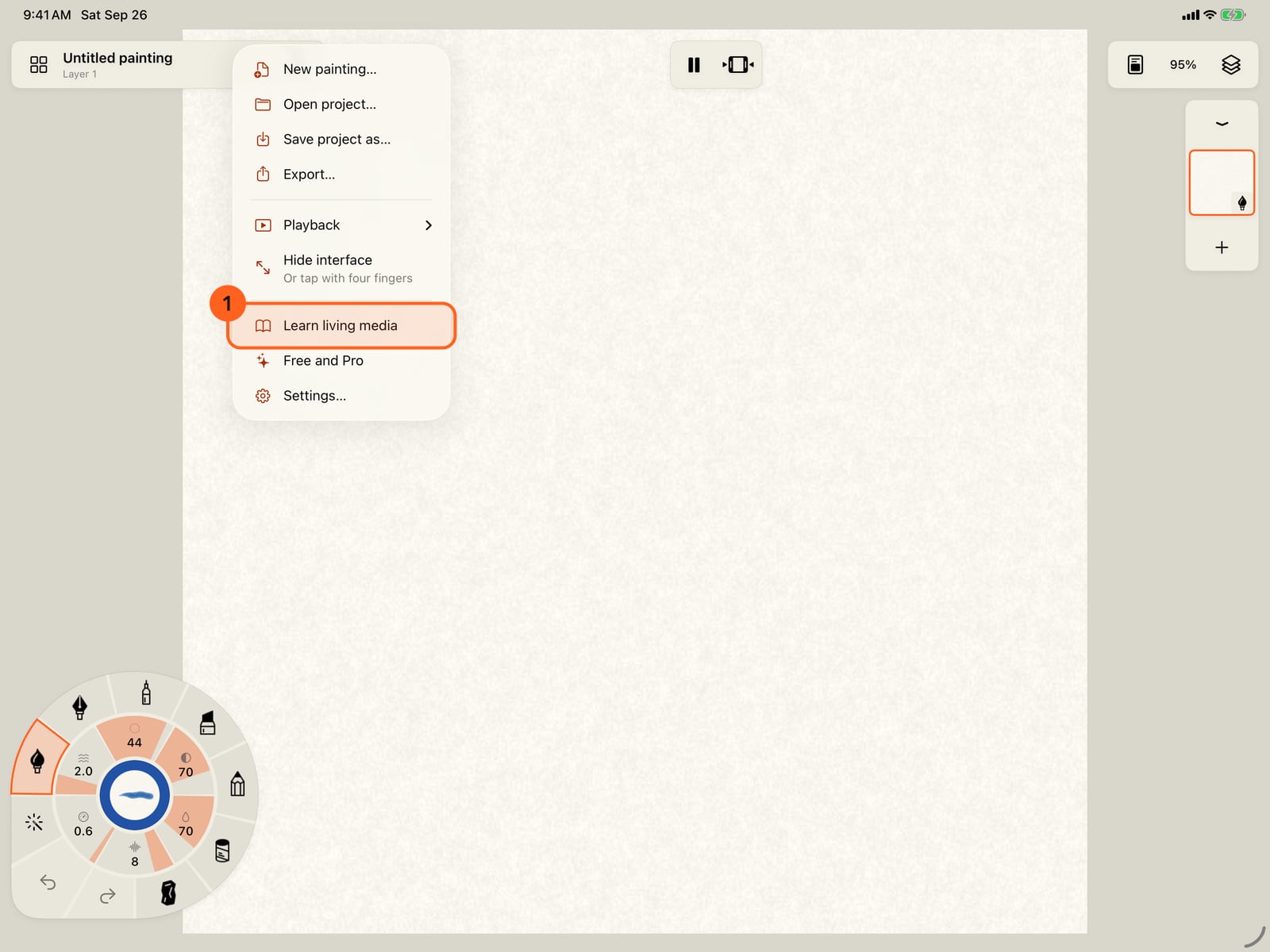
The lessons live in the Actions menu. Tap Actions, then Learn living media.
The lessons live in the Actions menu. Click Actions, then Learn living media.
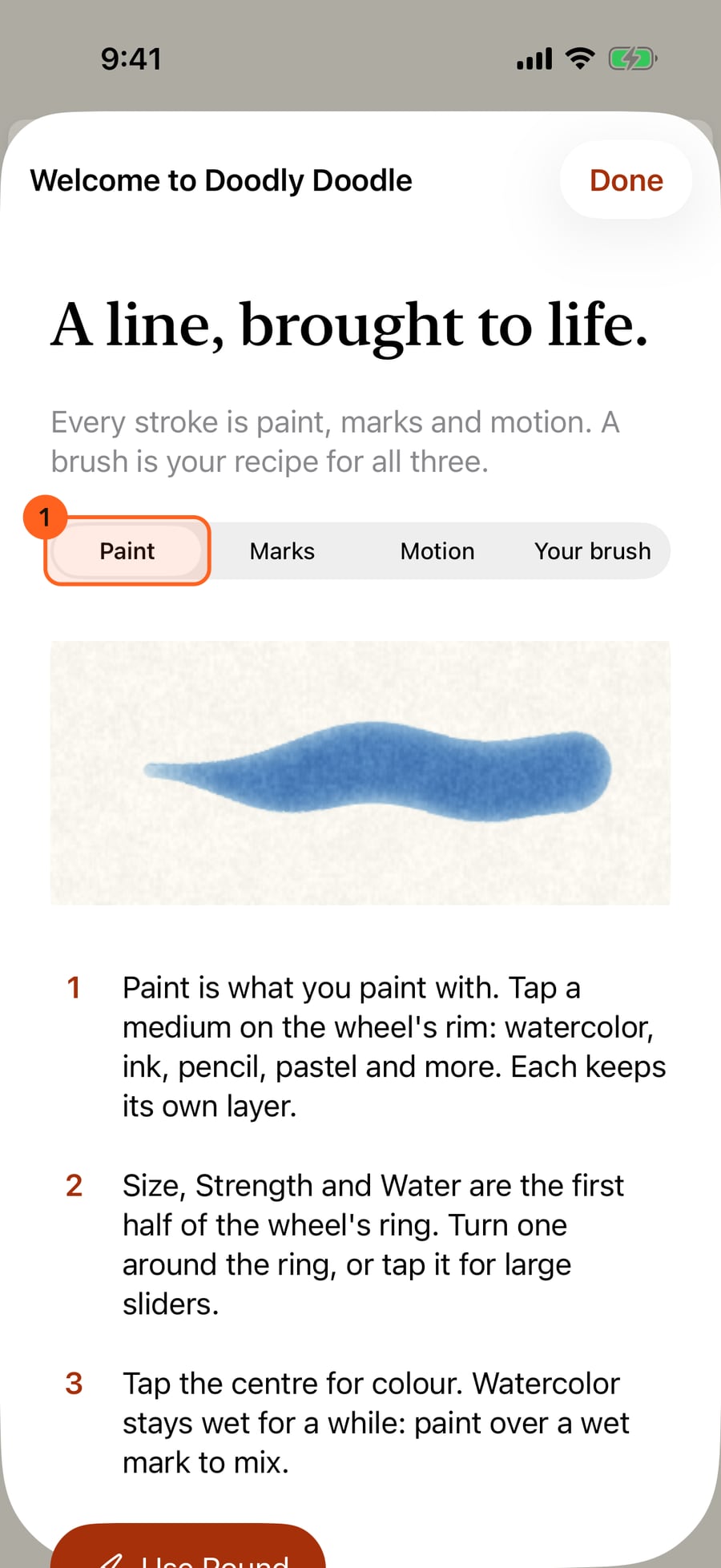
Each lesson is three short steps with a moving sample of its brush. They follow the three parts of every stroke. Paint comes first, what you paint with.
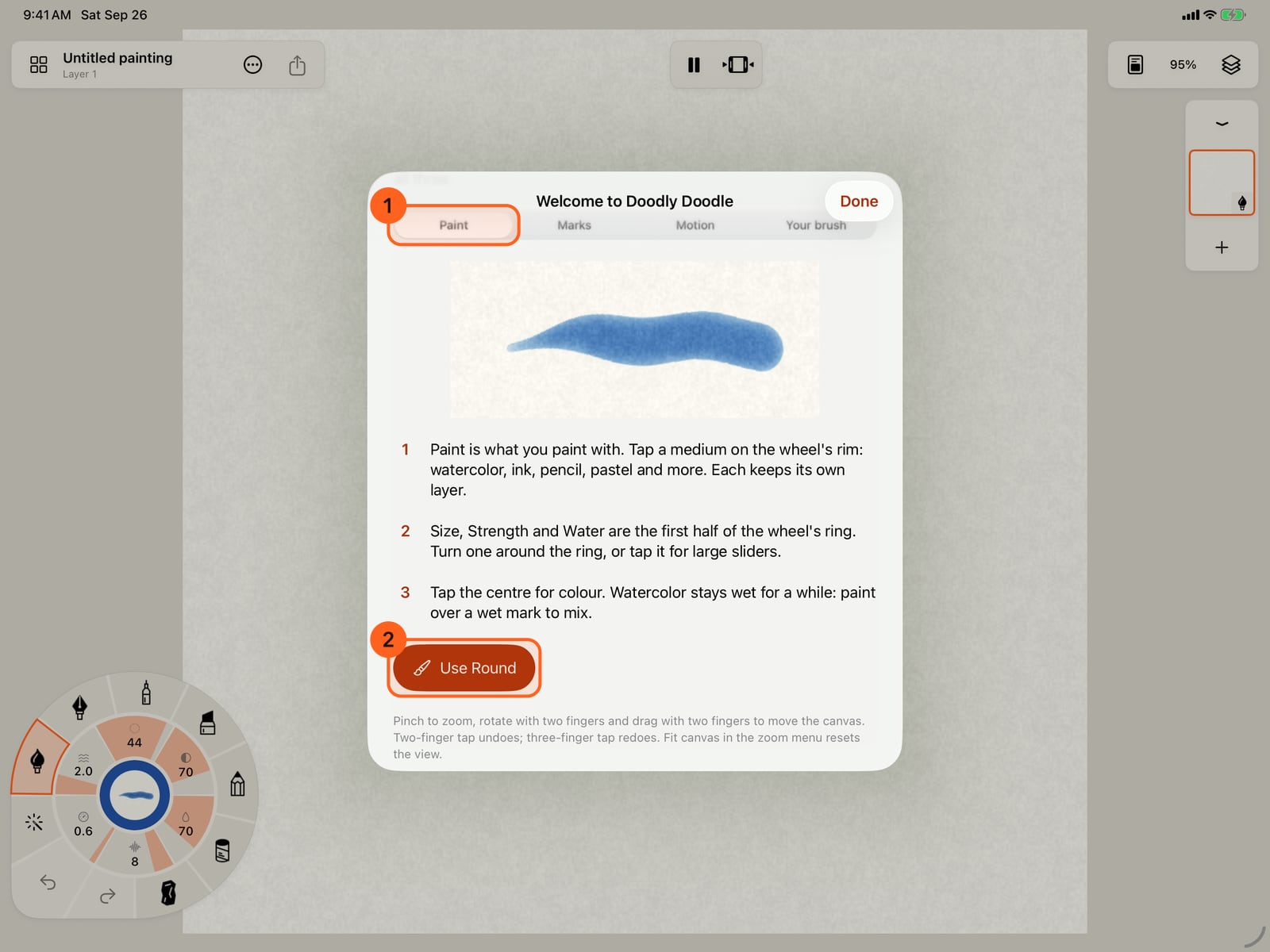
Each lesson is three short steps with a moving sample of its brush. They follow the three parts of every stroke. Paint comes first, what you paint with.
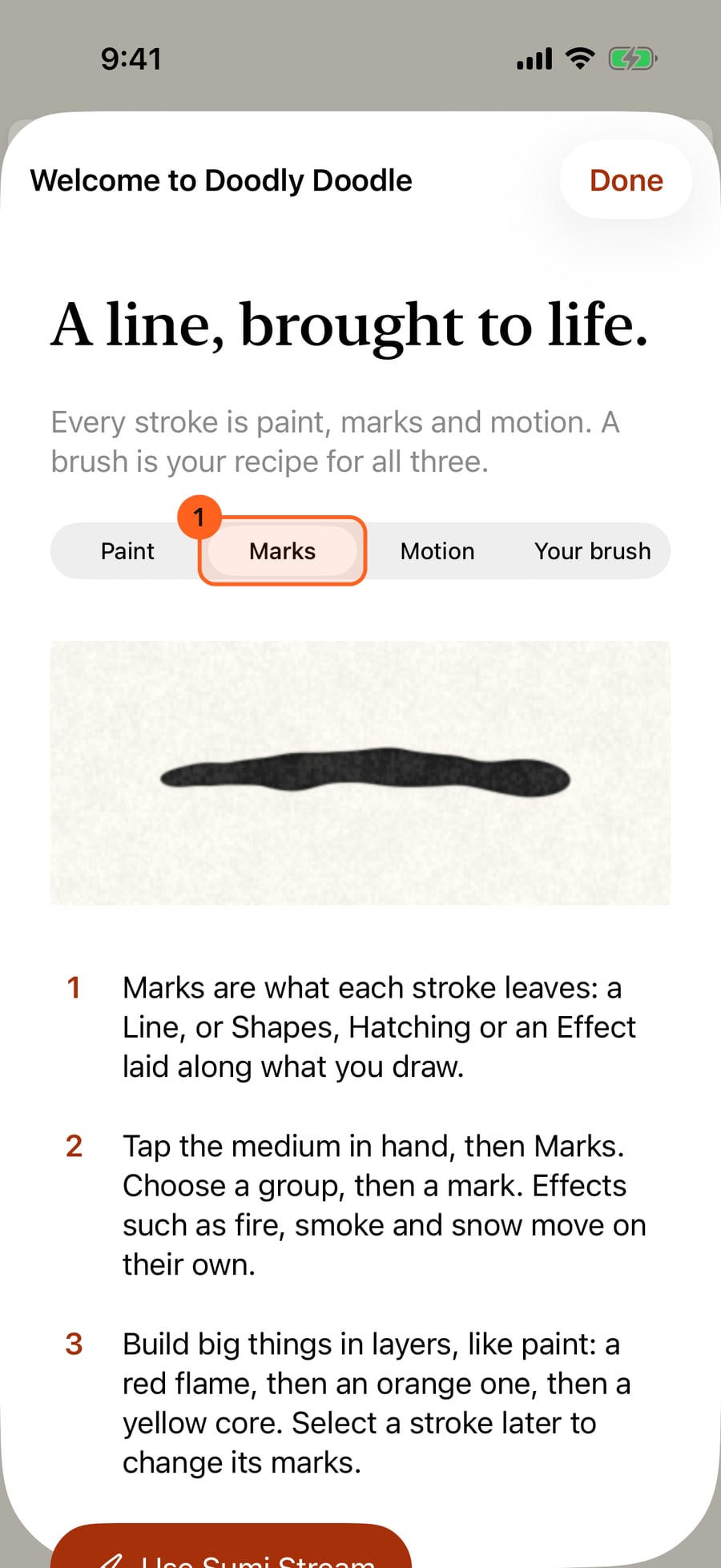
Marks is what each stroke leaves, a line or shapes, hatching and effects, and how to build big things in layers.
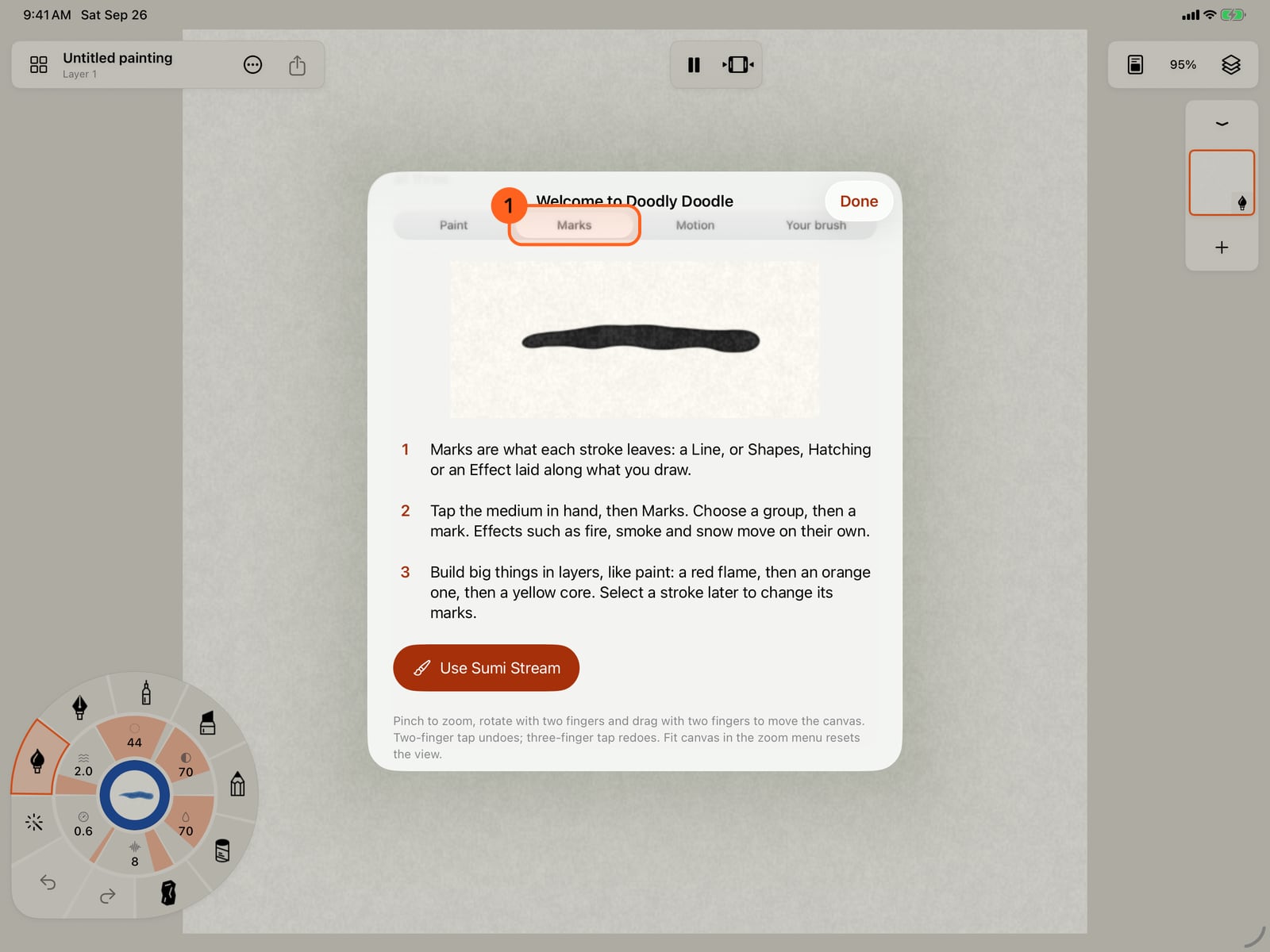
Marks is what each stroke leaves, a line or shapes, hatching and effects, and how to build big things in layers.
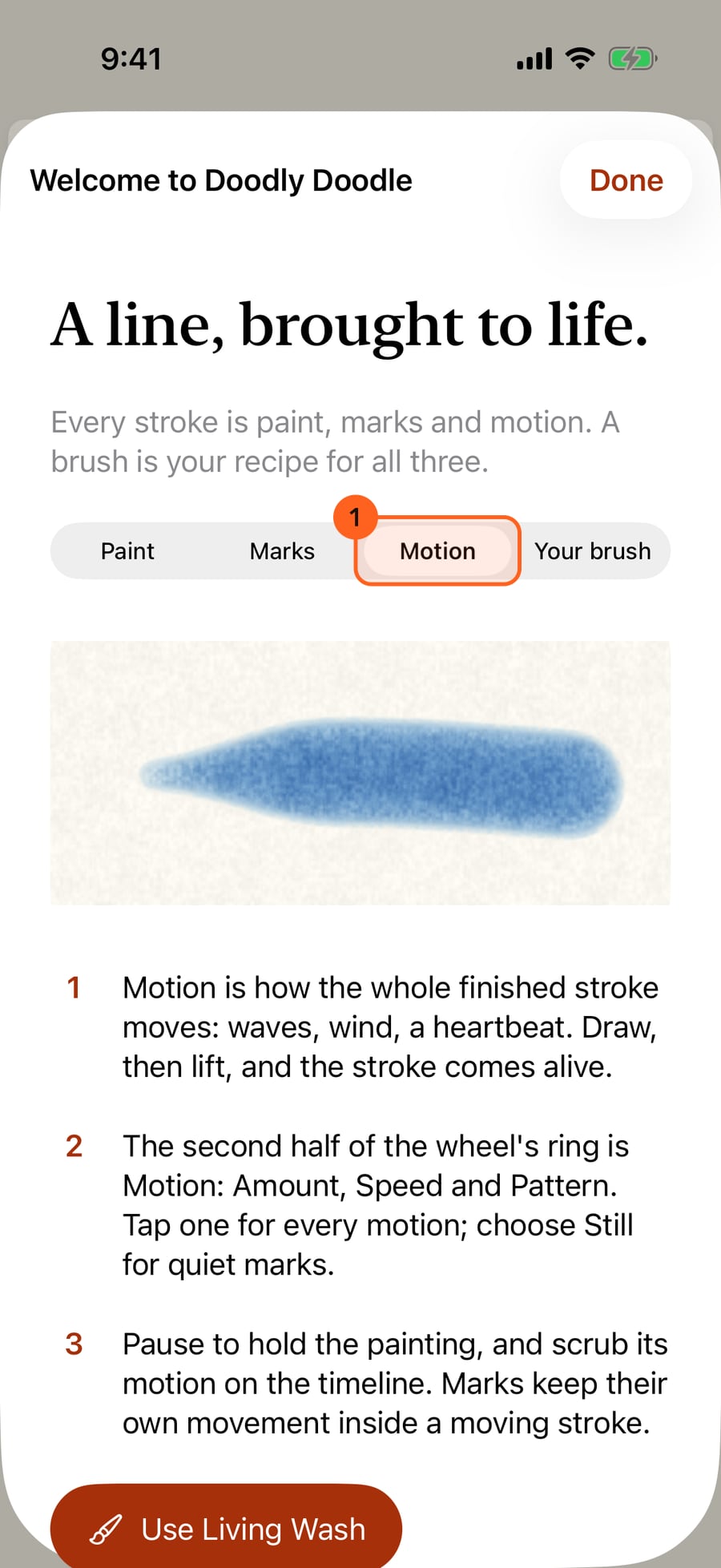
Motion is how the whole finished stroke moves, from the second half of the wheel's ring.
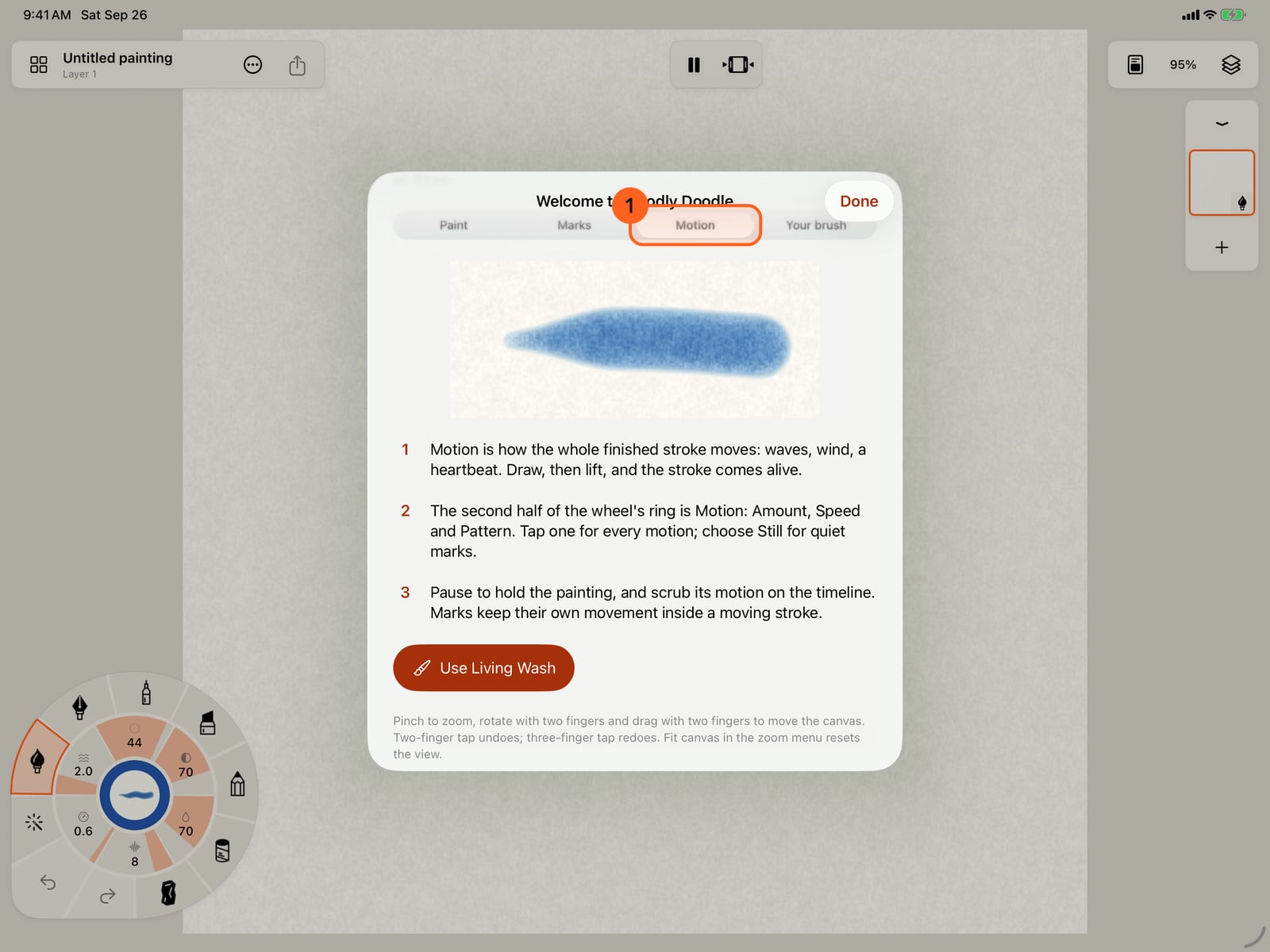
Motion is how the whole finished stroke moves, from the second half of the wheel's ring.
Your brush puts the three together. A brush is a recipe of paint, marks and motion, and you can keep your own.
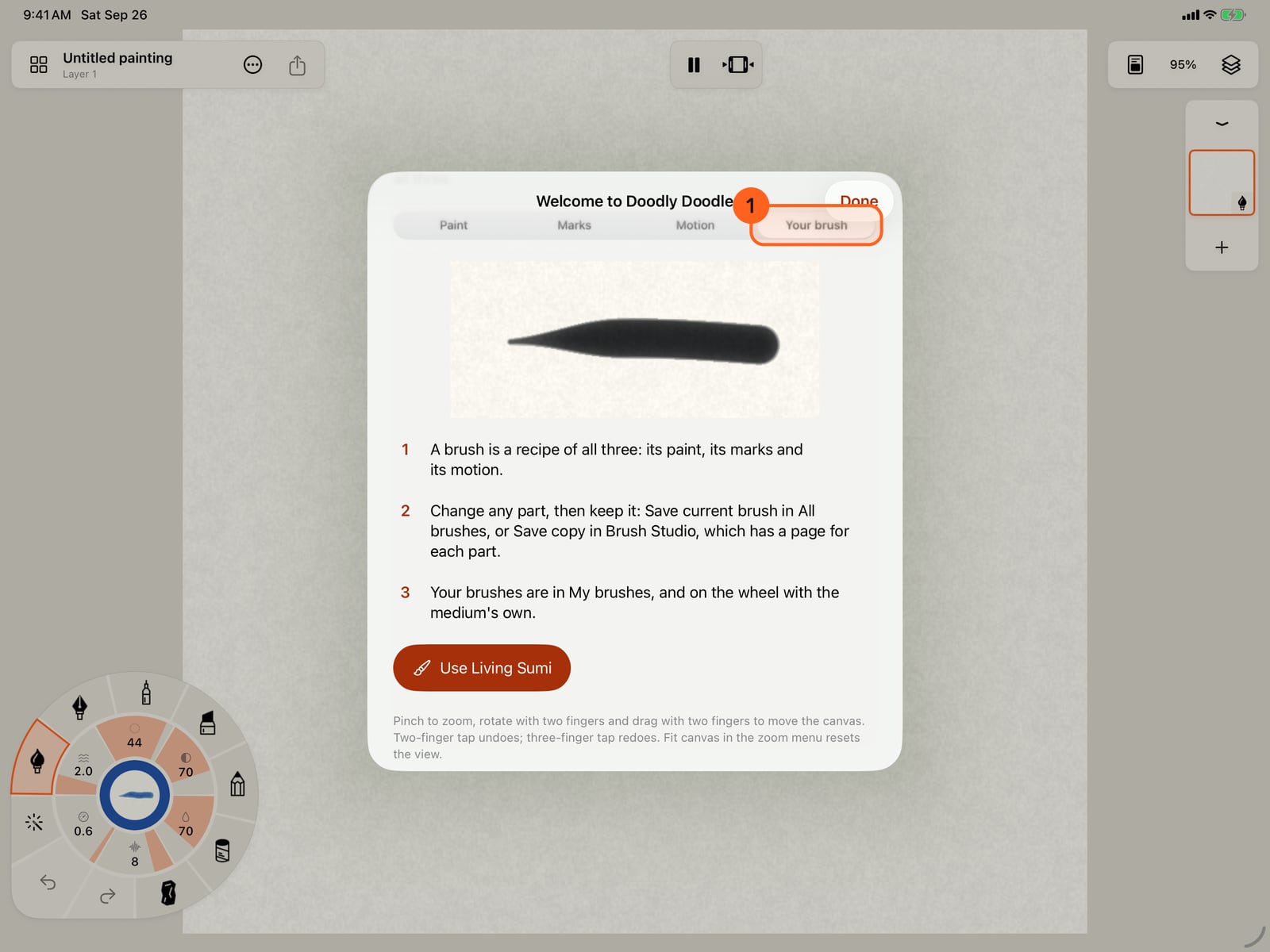
Your brush puts the three together. A brush is a recipe of paint, marks and motion, and you can keep your own.
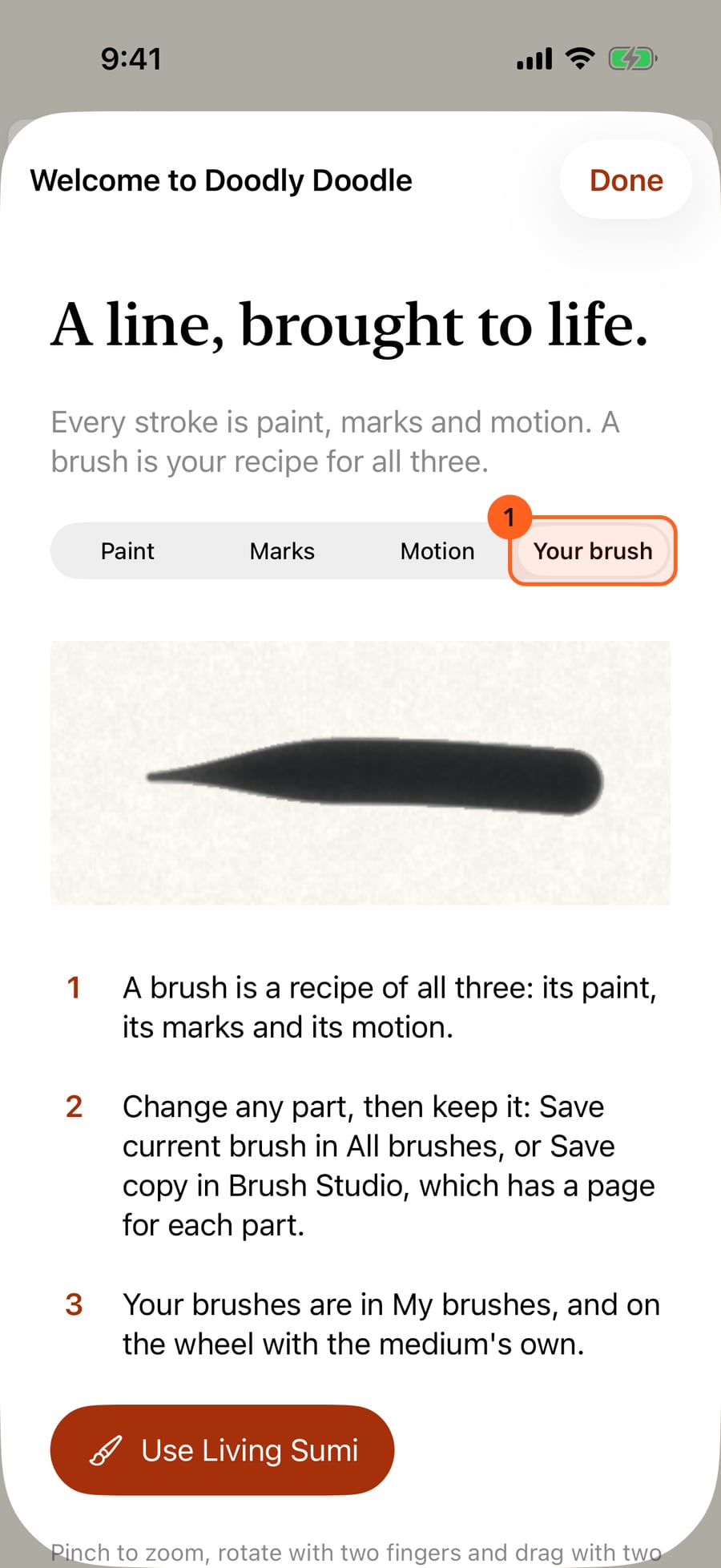
Tap Use Living Sumi. The lesson closes with that brush in hand, ready to paint.
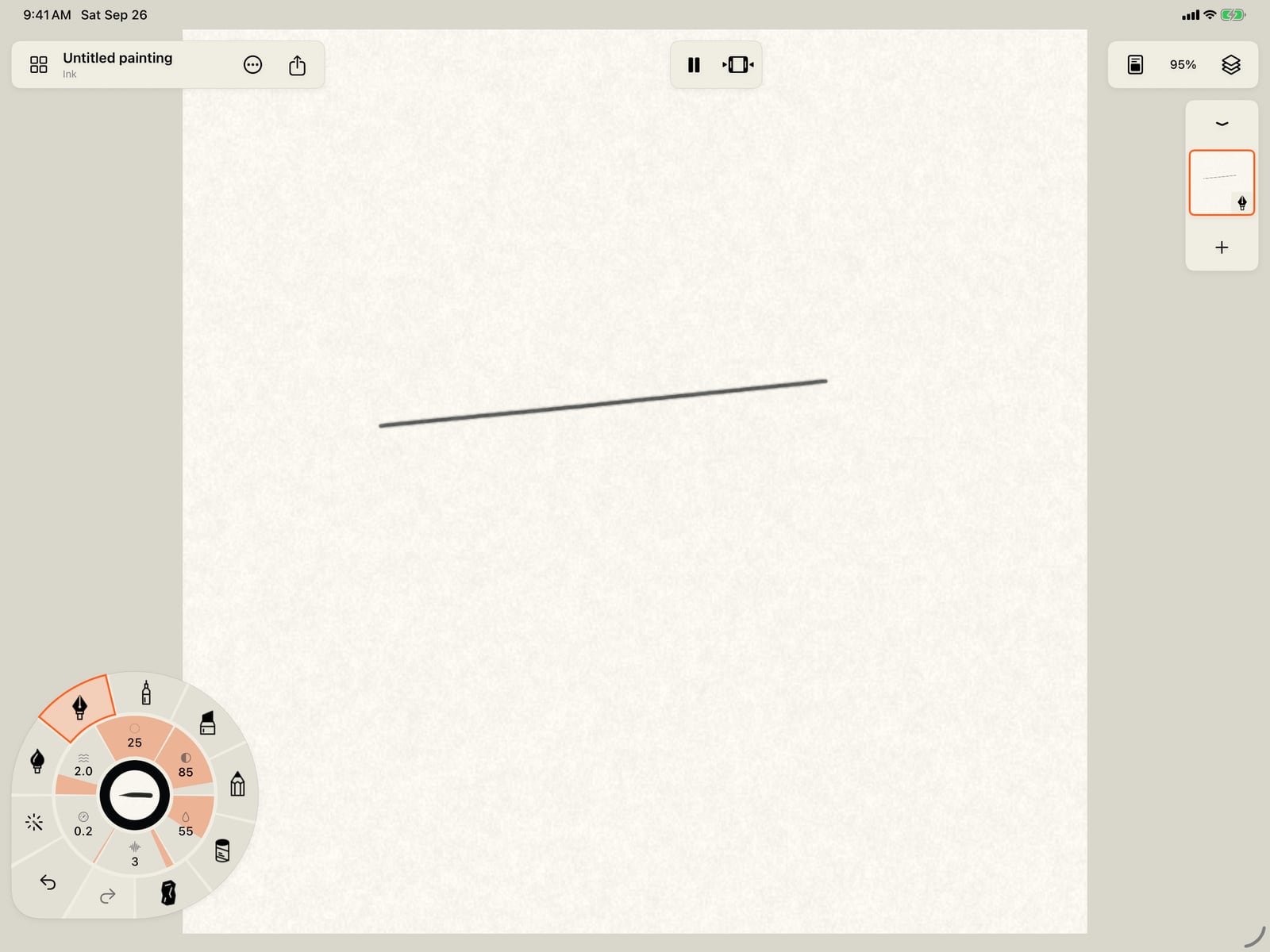
Tap Use Living Sumi. The lesson closes with that brush in hand, ready to paint.
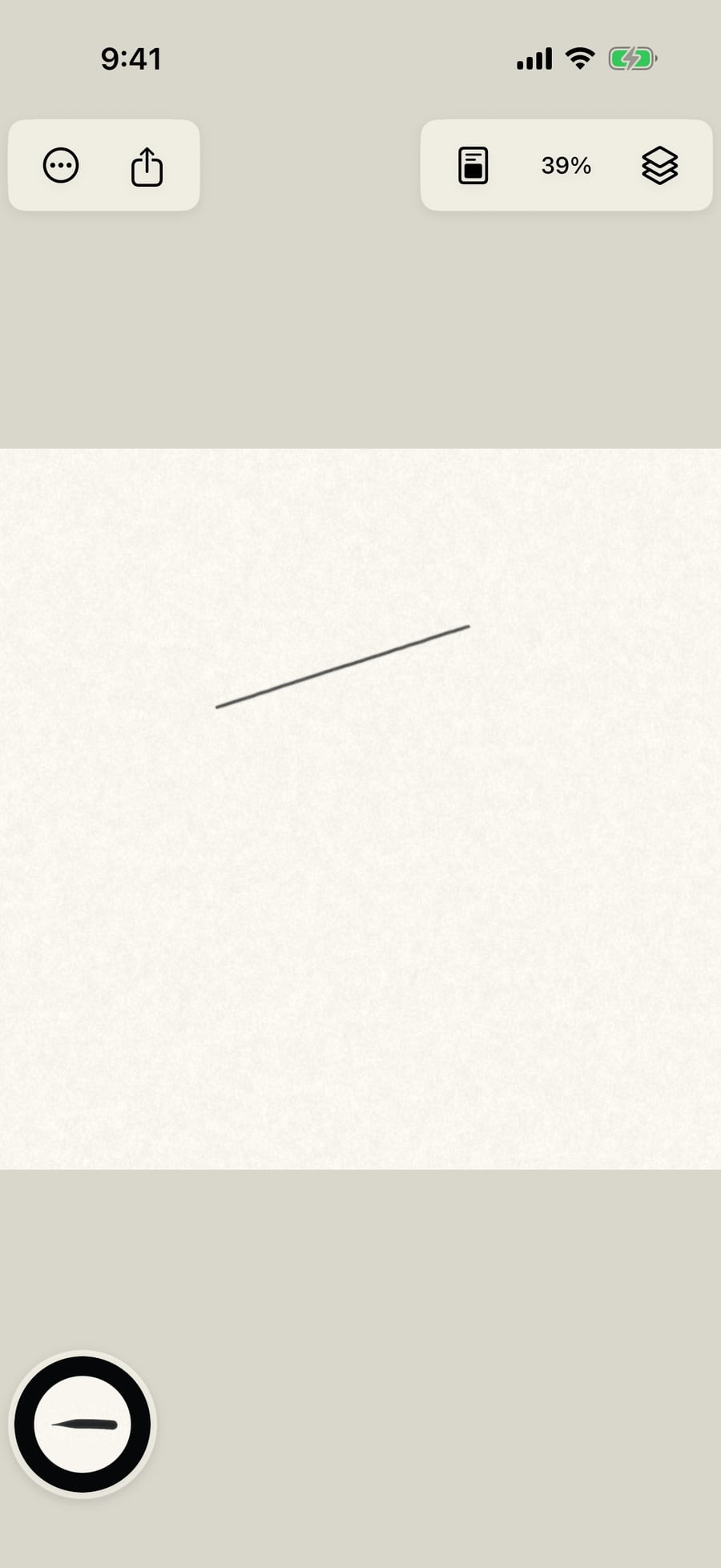
Click Use Living Sumi. The lesson closes with that brush in hand, ready to paint.
Learn living media
Actions → Learn living media opens Welcome to Doodly Doodle. Every stroke is paint, marks and motion, and a brush is your recipe for all three (see How a stroke works); there is a lesson for each. Choose a lesson at the top; each has a moving sample of its brush, three numbered steps, and a button that picks the brush up for you.
| Lesson | Brush | What it covers |
|---|---|---|
| Paint 1 | Round | Media on the wheel's rim, each on its own layer; Size, Strength and Water, the paint half of the ring; colour from the centre; mixing wet watercolor |
| Marks | Sumi Stream | A Line, or Shapes, Hatching and Effects laid along what you draw, from the wheel's Marks; effects that move on their own; building fire and the like in layers of strokes; changing marks later with Select stroke |
| Motion | Living Wash | How the finished stroke moves; Amount, Speed and Pattern, the motion half of the ring; Still for quiet marks; pausing and scrubbing |
| Your brush | Living Sumi | A brush as a recipe of paint, marks and motion; saving your own from the library or Brush Studio; finding it in My brushes and on the wheel |
Use brush name 2 selects that lesson's brush and closes the lesson. If the brush can't be picked up right now, the lesson stays open and says why. Picking up an Ink or Graphite brush finds or adds a layer of that medium, so your other marks stay as they are. Done closes it without changing your brush.
The foot of the lesson recalls the gestures: pinch to zoom, rotate and drag with two fingers, a two-finger tap to undo and three to redo, and Fit canvas in the Zoom menu to reset the view.
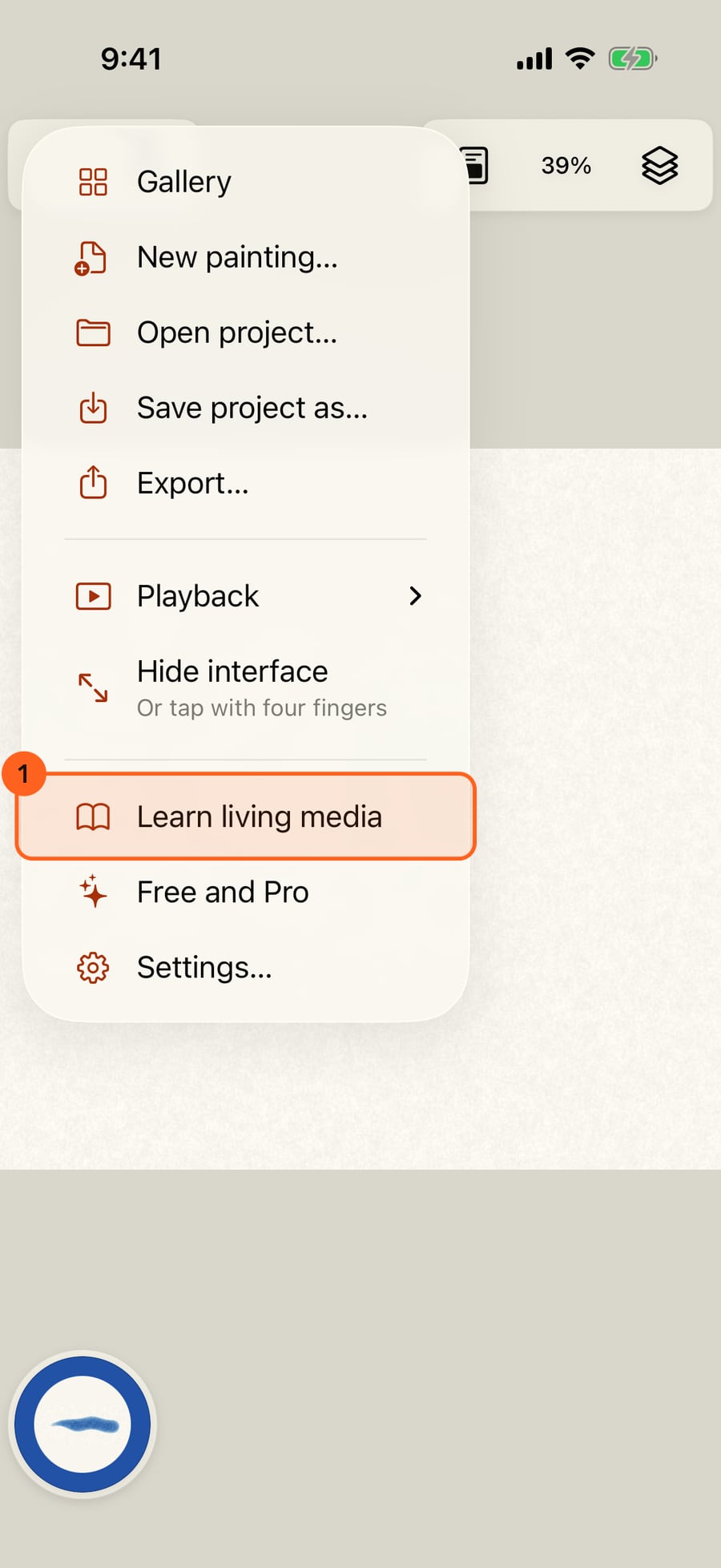
On iPhone, Learn living media is in the same Actions menu, below Gallery and the painting's other commands.
Tip: New to the app? Welcome tour and Your first painting come first; the lessons go deeper into each medium.
Something not behaving as expected?
Visit support or write to [email protected].