

Guides / Selecting and drawing aids
Panel layouts
Lay out a comic page from a library of panel layouts, draw the borders with any brush, and paint inside one panel at a time.
Open the Canvas and paper menu. Panel layouts is near the top.
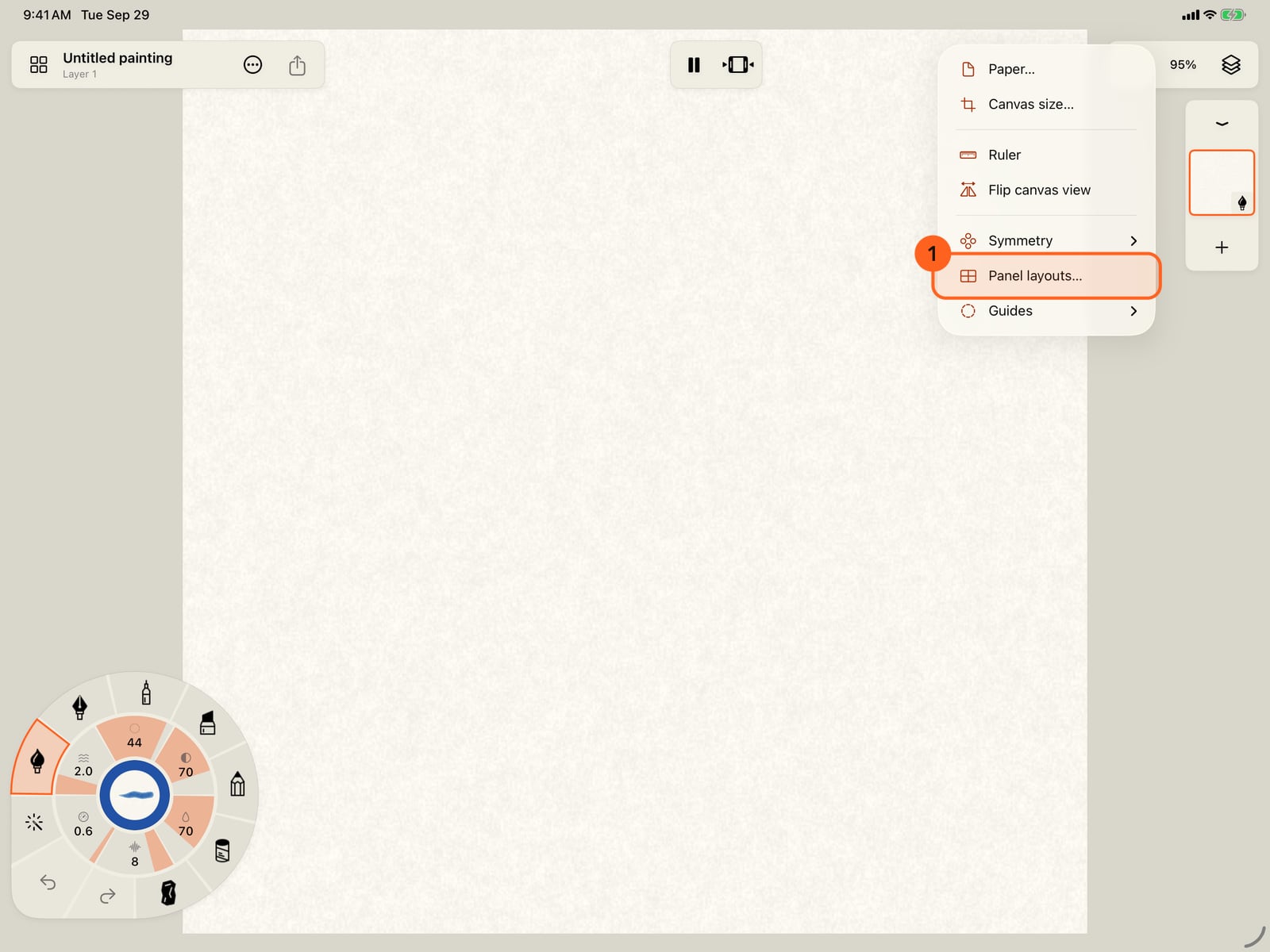
Open the Canvas and paper menu. Panel layouts is near the top.
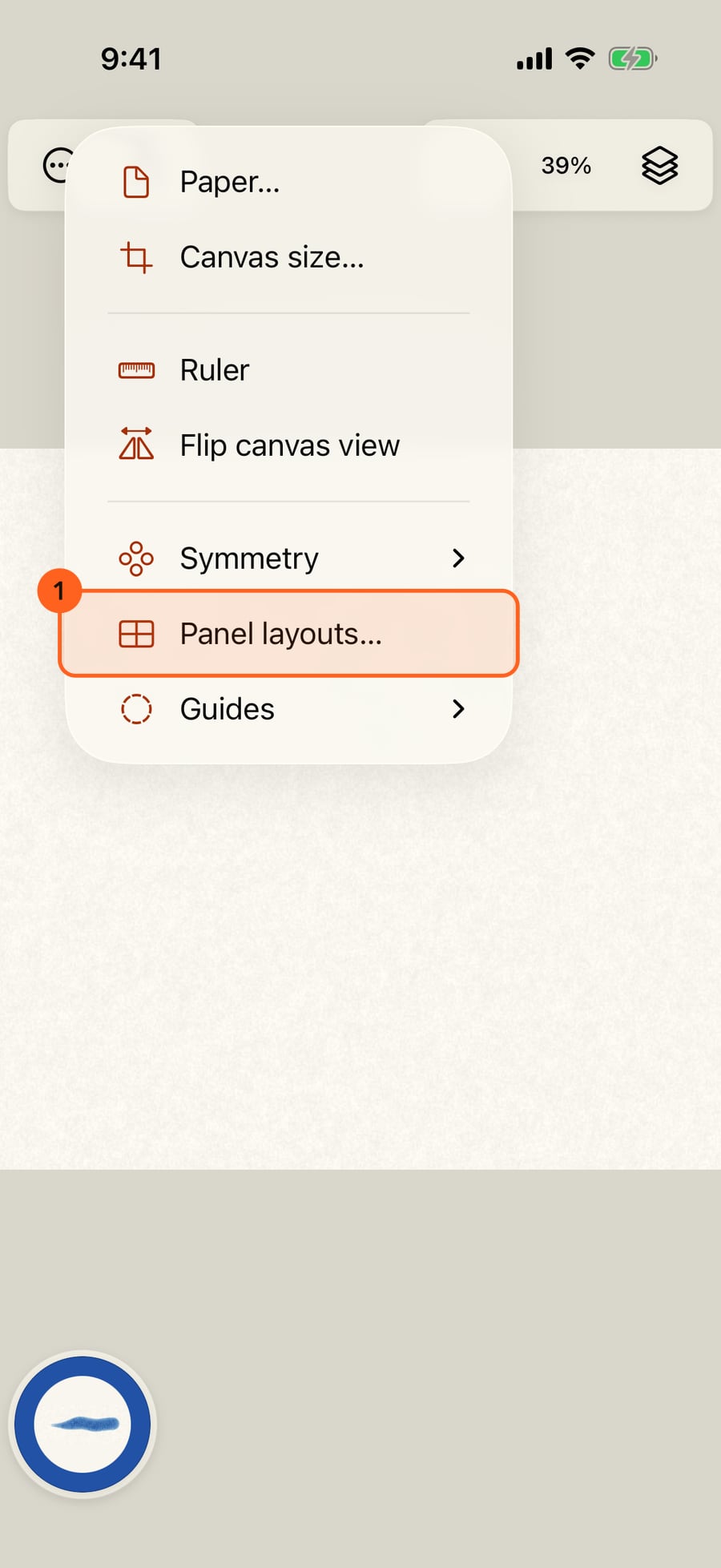
Choose it, and pick a layout. Along the top are comics, manga, strips, storyboards and studies; the thumbnails show your page with its margin and gutters.
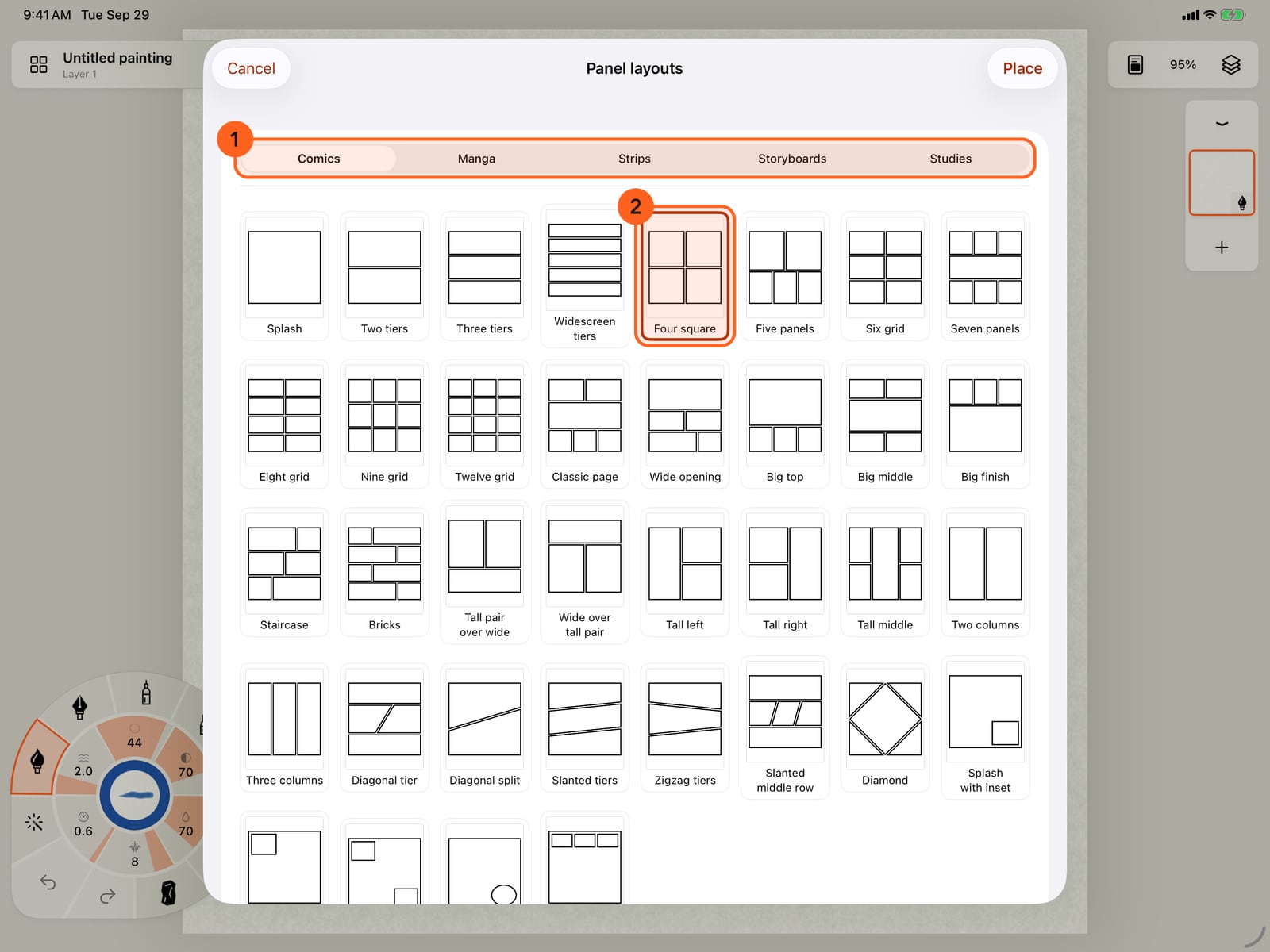
Choose it, and pick a layout. Along the top are comics, manga, strips, storyboards and studies; the thumbnails show your page with its margin and gutters.
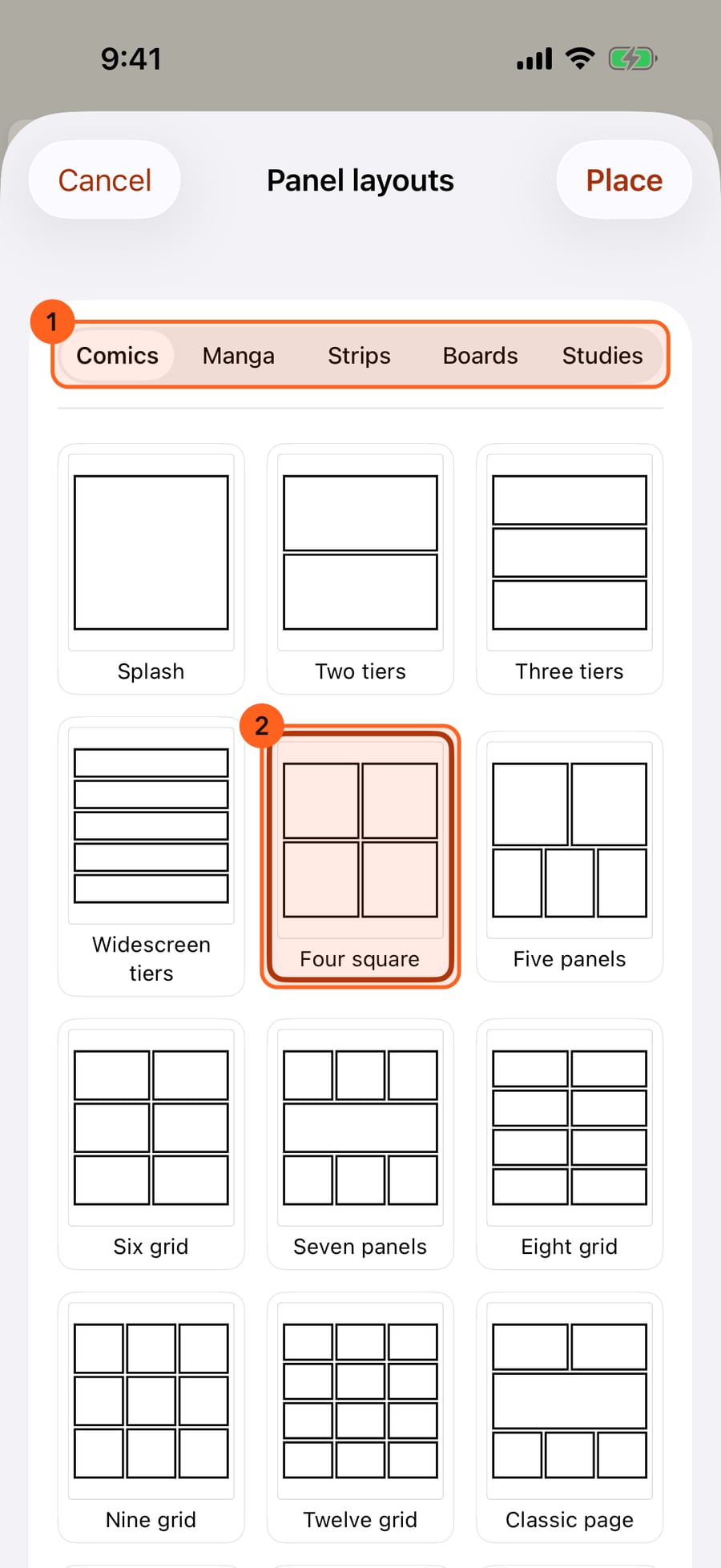
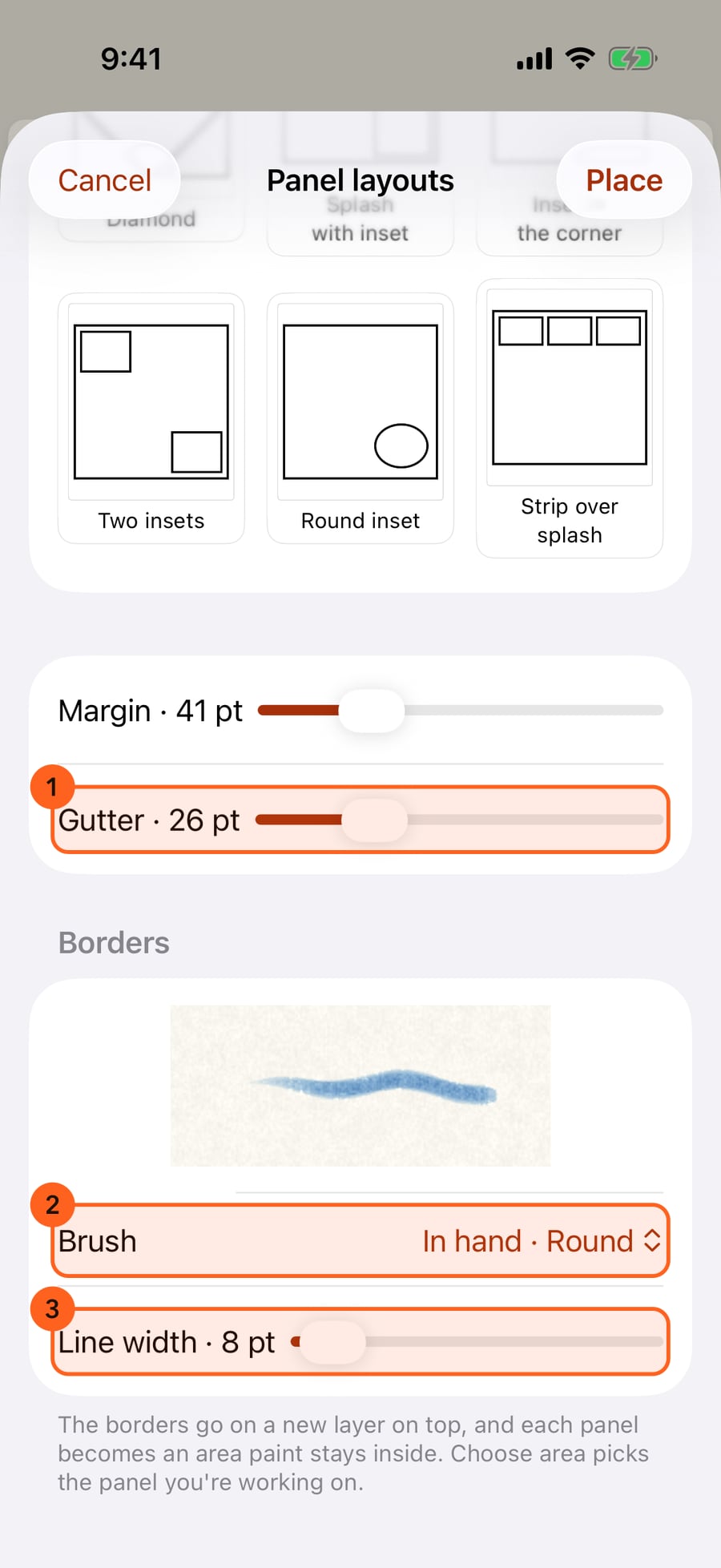
Further down, Margin and Gutter set the space around and between the panels, and Borders picks the brush that draws them and its line width.
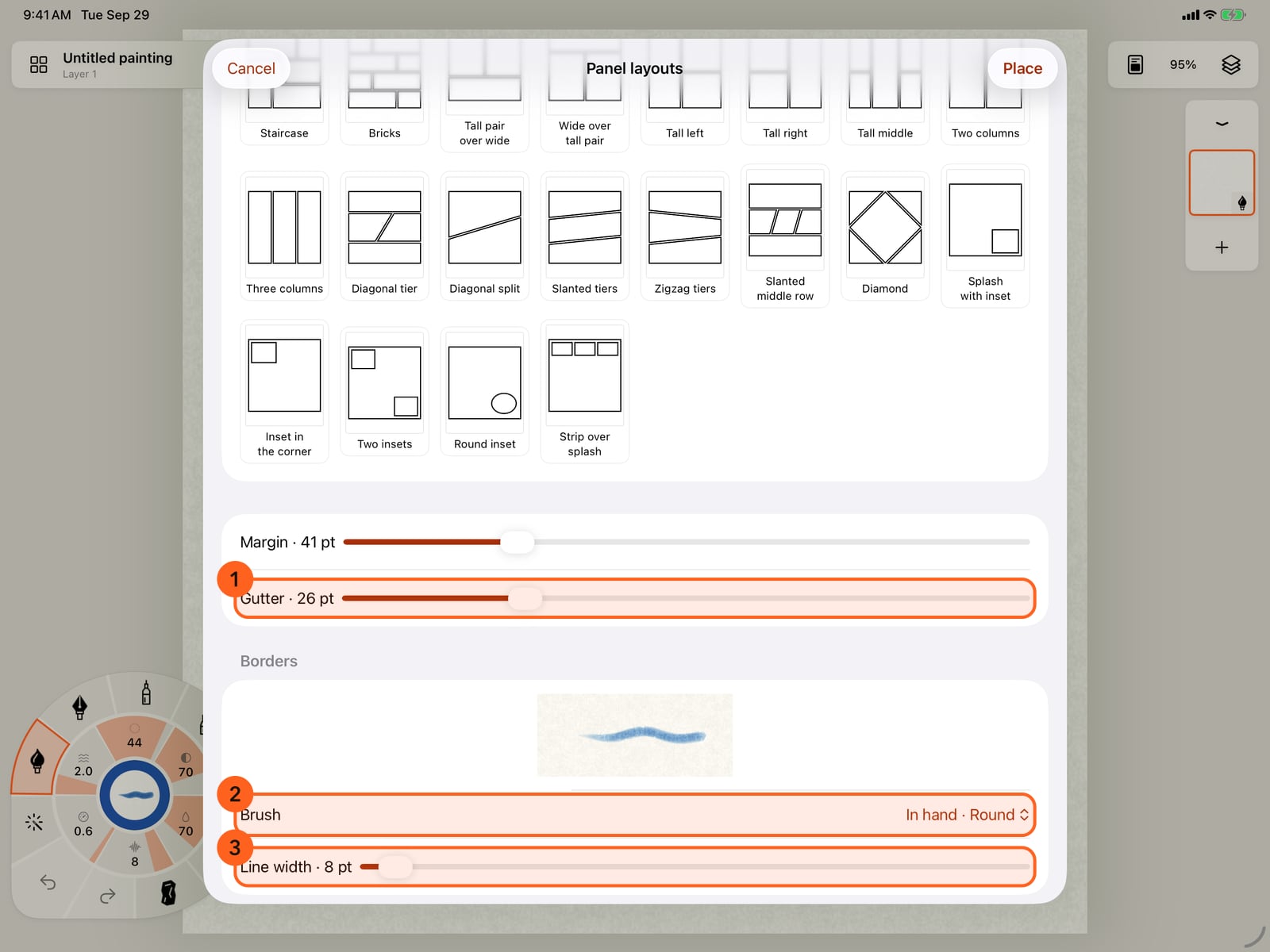
Further down, Margin and Gutter set the space around and between the panels, and Borders picks the brush that draws them and its line width.
Tap Place. The borders are drawn with that brush on a new layer on top, and each panel becomes an area the paint stays inside.
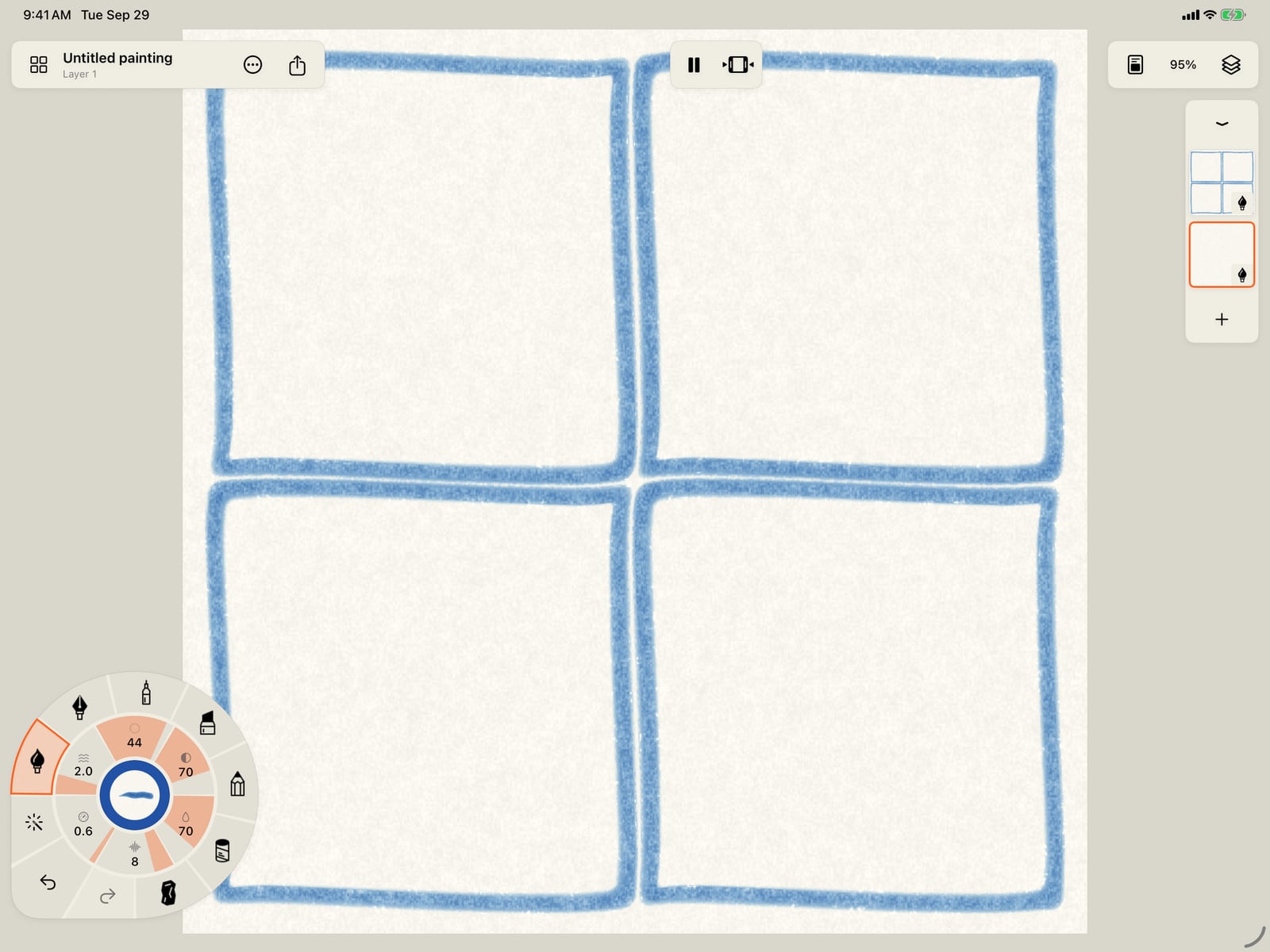
Tap Place. The borders are drawn with that brush on a new layer on top, and each panel becomes an area the paint stays inside.
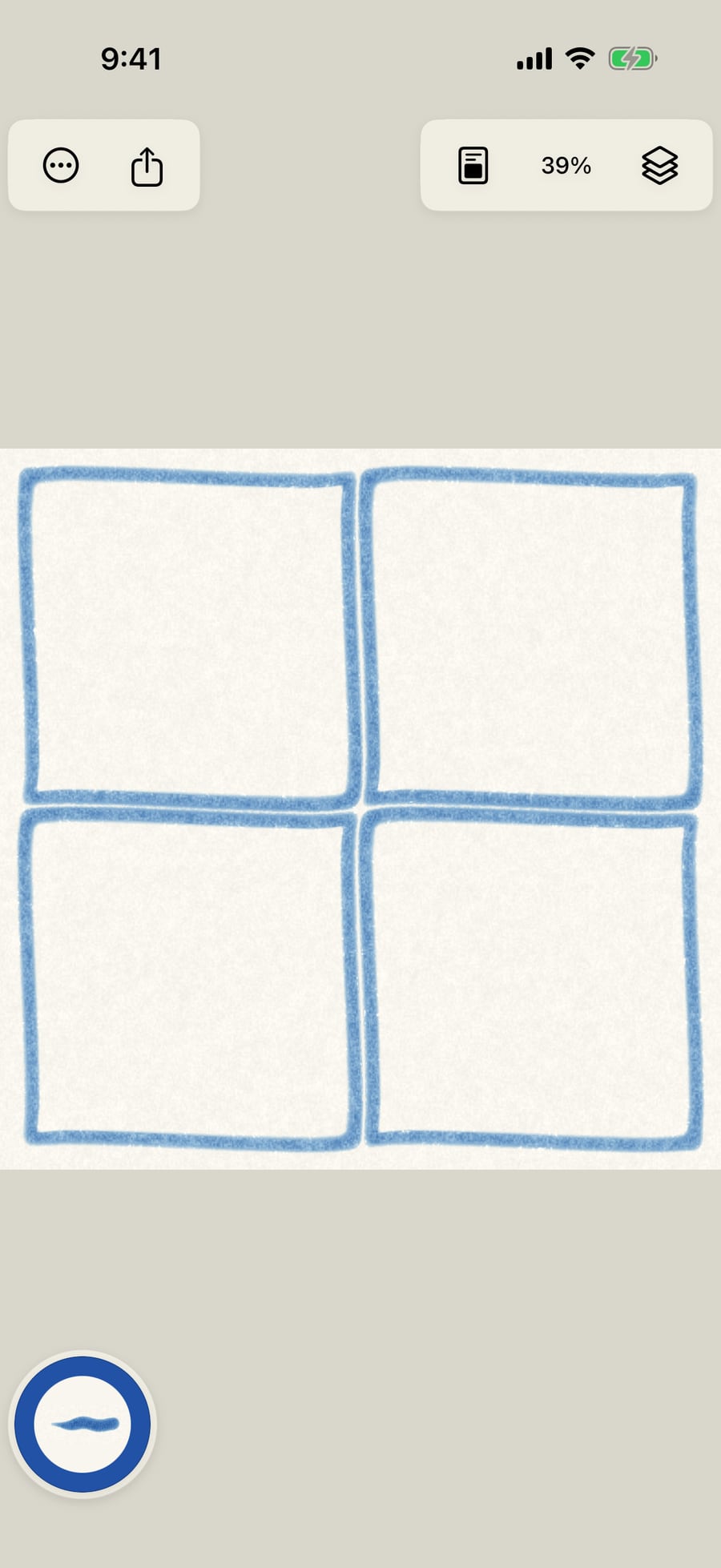
Click Place. The borders are drawn with that brush on a new layer on top, and each panel becomes an area the paint stays inside.
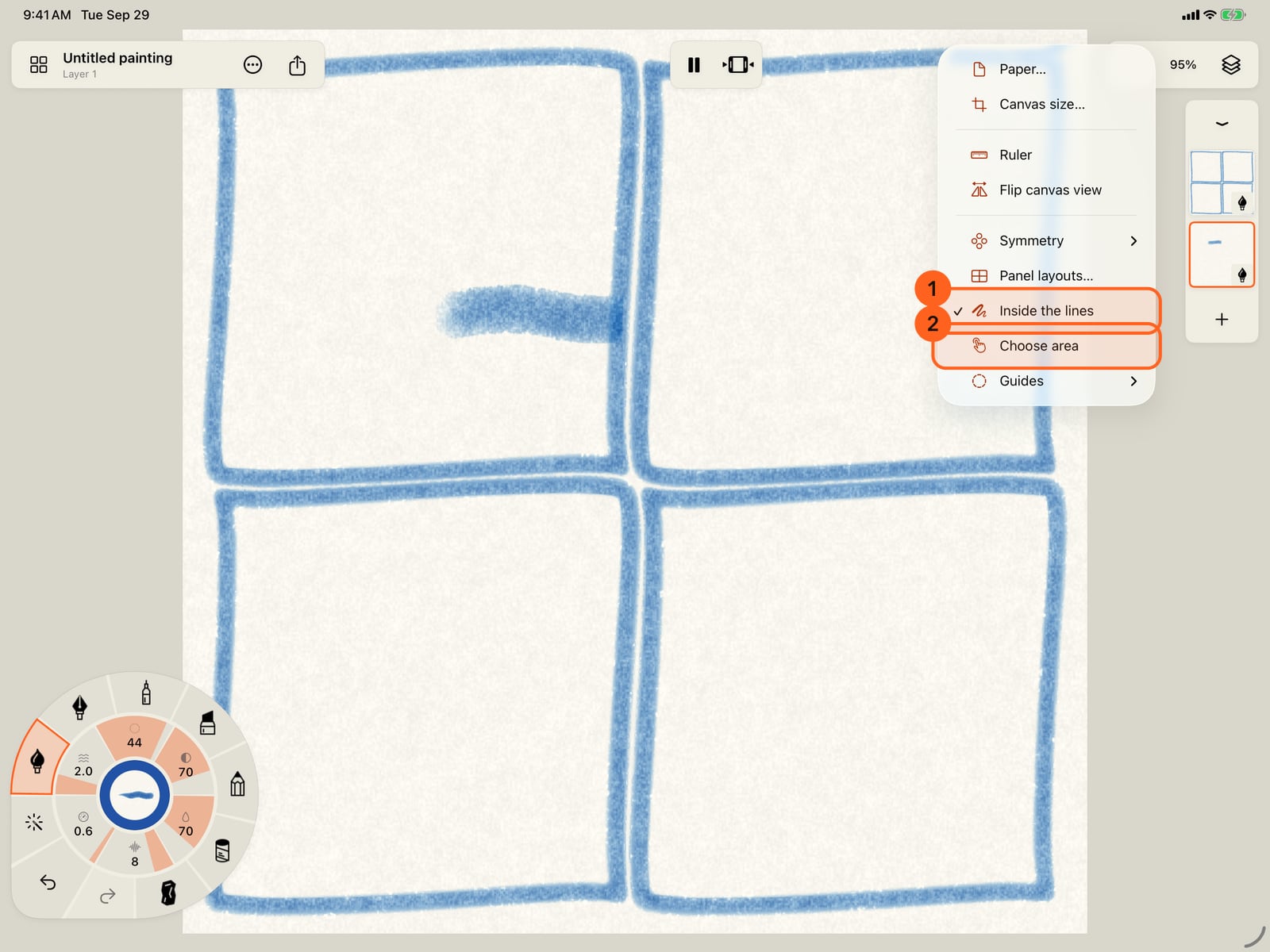
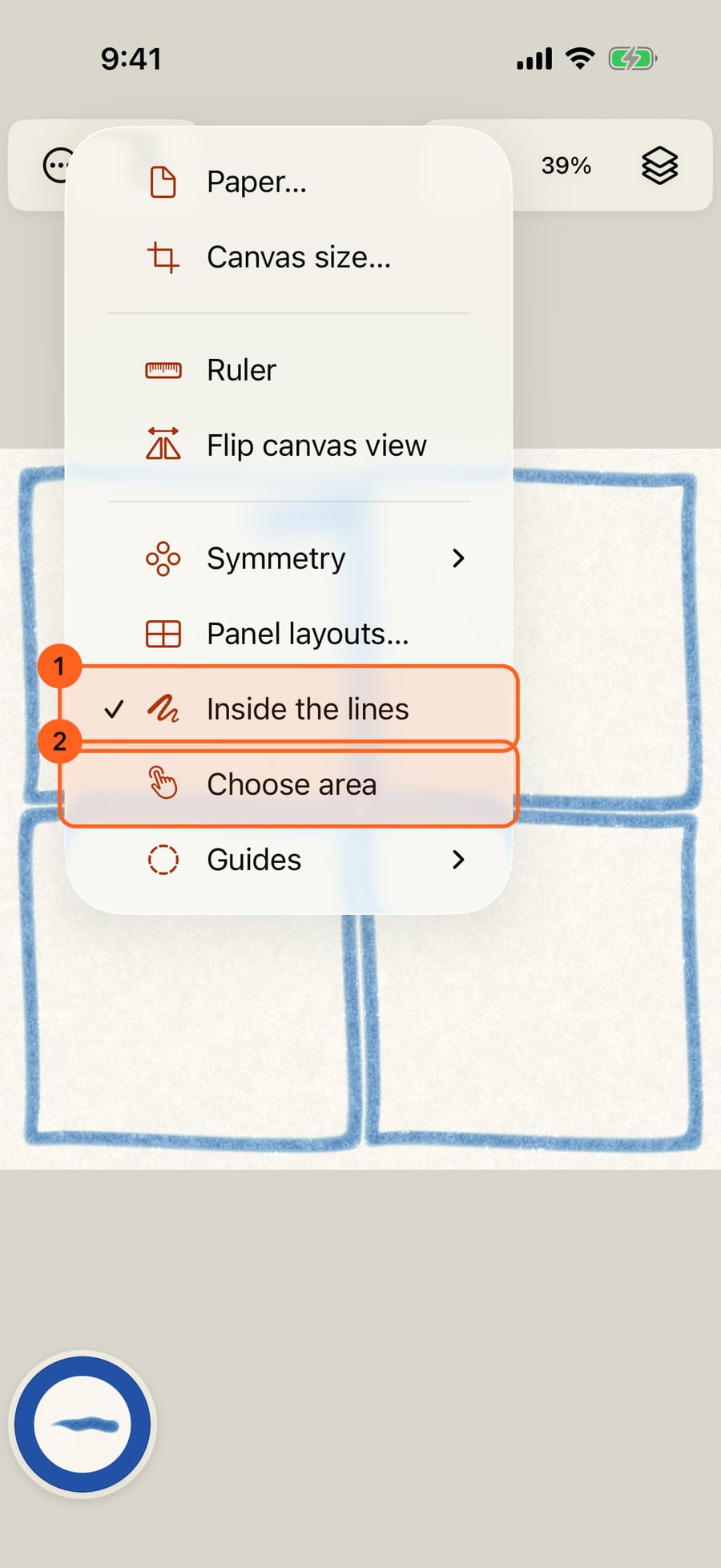
To work on one panel, choose Choose area from the same menu and tap the panel. The rest of the page dims.
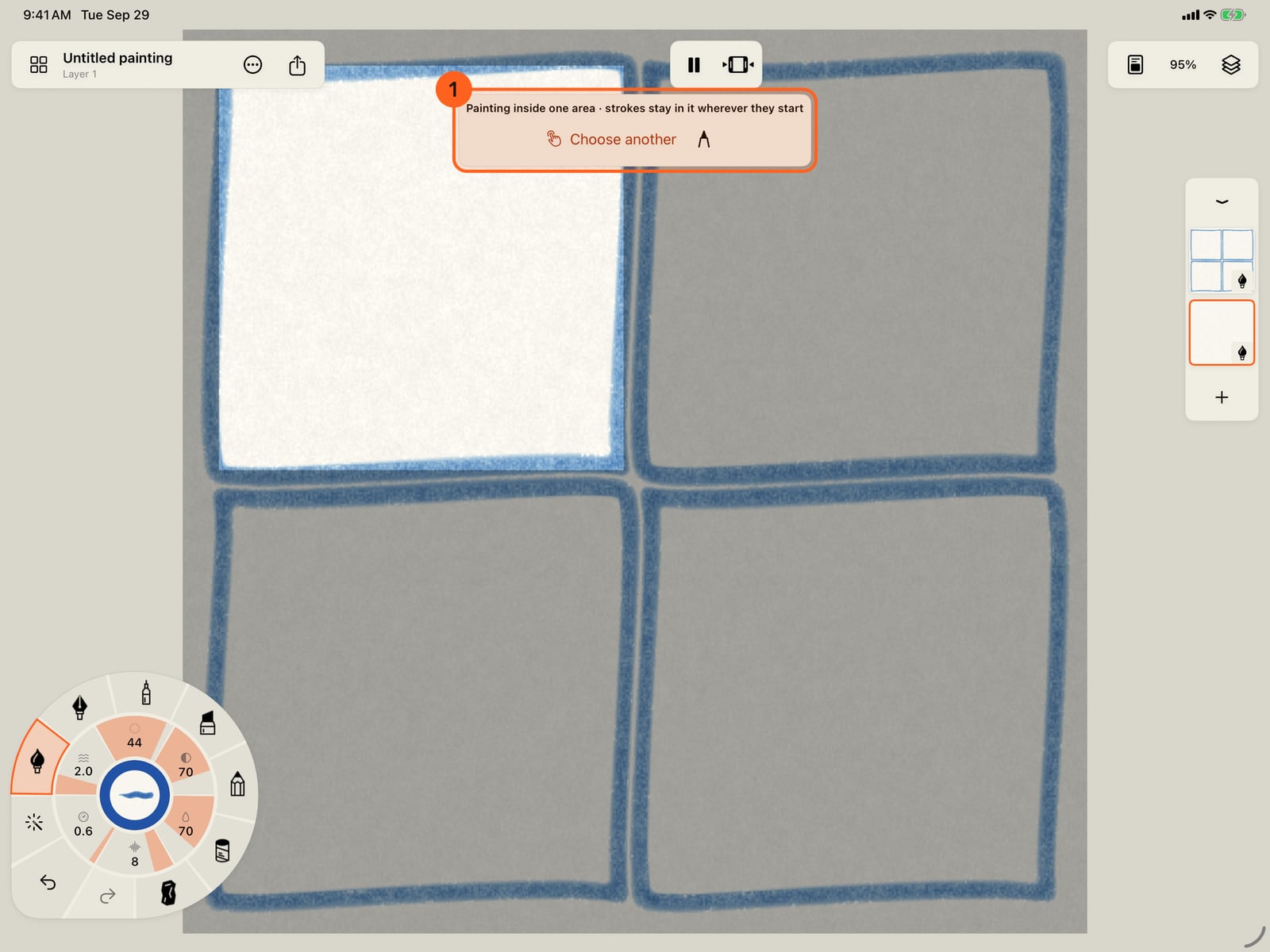
To work on one panel, choose Choose area from the same menu and tap the panel. The rest of the page dims.
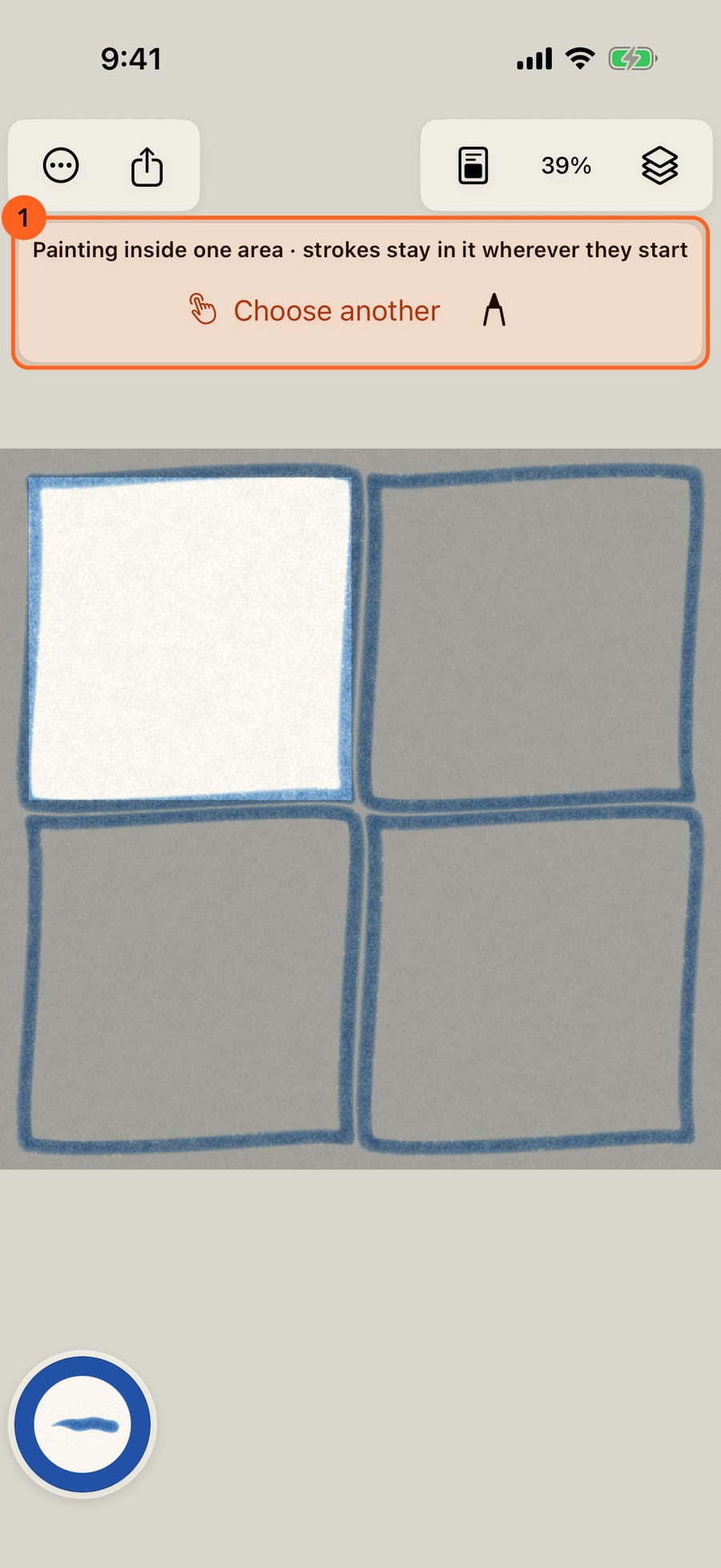
To work on one panel, choose Choose area from the same menu and click the panel. The rest of the page dims.
Now paint a stroke that starts in the next panel and runs back across the gutter. The paint lands only in the chosen panel.
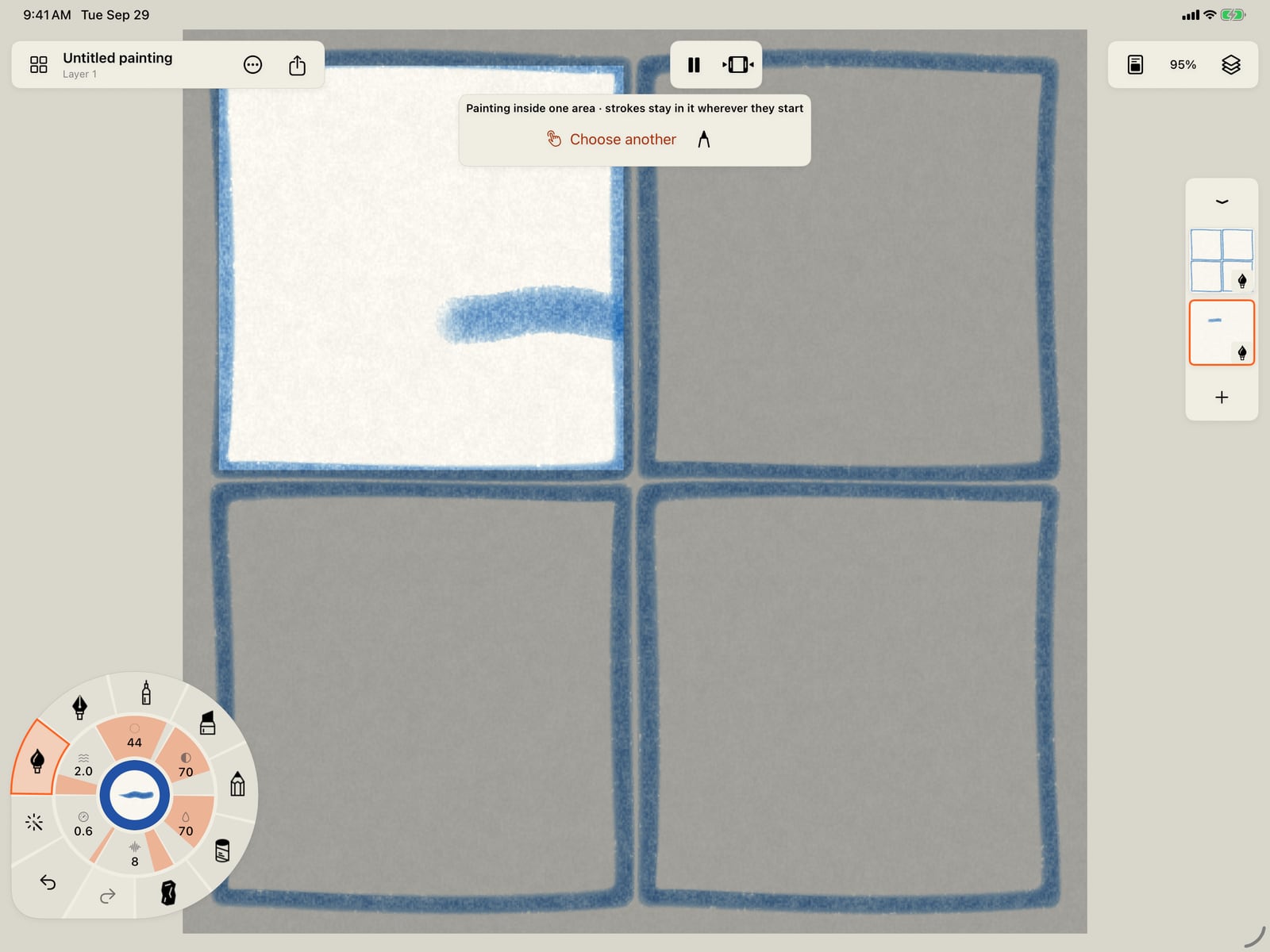
Now paint a stroke that starts in the next panel and runs back across the gutter. The paint lands only in the chosen panel.
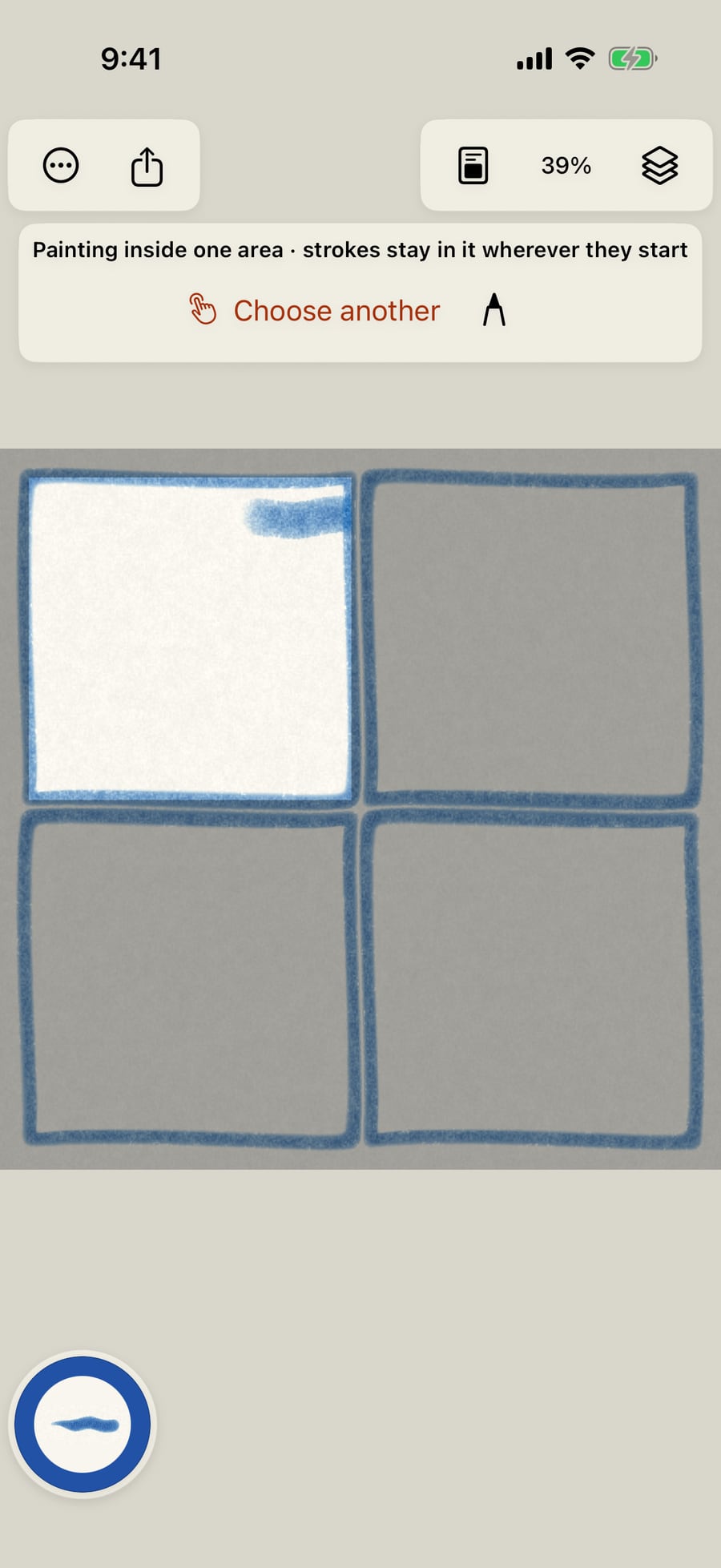
Tap the pencil to paint anywhere again. Inside the lines, in the same menu or in Settings, turns the keeping off altogether.
Tap the pencil to paint anywhere again. Inside the lines, in the same menu or in Settings, turns the keeping off altogether.
Click the pencil to paint anywhere again. Inside the lines, in the same menu or in Settings, turns the keeping off altogether.
Laying out a page
Open Canvas and paper (the page icon at the top) and choose Panel layouts… 1. The library has more than seventy layouts, in five kinds along the top of the sheet:
- Comics: splash pages, tiers, grids from four to twelve panels, big openings and finishes, tall columns, diagonal, slanted and zigzag tiers, a diamond, and splashes with square or round insets.
- Manga: slanted action panels, slanted columns, shards, reveals and tall panels on the right, where a right-to-left page begins.
- Strips: two, three and four panels in a row, a title panel, four down (yonkoma), Sunday pages and a scrolling episode.
- Storyboards: frames with room below each for notes, or with notes beside them.
- Studies: diptych, triptych, grids of thumbnails, round and oval vignettes, arched windows and a hexagon.
Pick one 2. Each thumbnail is drawn at your page's shape, with the margin and gutter below.
- Margin sets the space between the panels and the edge of the page.
- Gutter sets the space between neighbouring panels.
- Brush picks what draws the borders: the brush in hand, or any painting brush, by medium. A watercolour border blooms and dries like any watercolour stroke.
- Line width sets how thick the borders are.
Place draws the borders on a new layer at the top, named after the layout, and keeps each panel as an area. The layer you were painting on stays current, so your colour goes under the lines. Undo takes back the whole page, borders and areas together.
Painting inside a panel
With panels on the page, each stroke stays inside the panel where it starts, as on a colouring page. Paint that runs over a border stops at its middle, so it tucks under the line and leaves no gap.
To work on one panel, choose Choose area 2 in the Canvas and paper menu and tap the panel. A bar above the page 1 says you are painting inside one area. Now every stroke stays in that panel, even one that starts in the next panel or in a gutter, and the rest of the page dims so you can see where you are.
- Choose another picks a different panel.
- Paint anywhere (the pencil) lets strokes go back to the panel they start in.
- Tapping a gutter while choosing also lets strokes go free.
Watercolour and ink stay wet inside the panel as on paper with a border masked off: a wash runs up to the border and stops there, and watercolour pools a little darker against it as it dries.
The tools stay inside too: water, lift, smudge, blend and dry work only within the panel, and Wet layer and Dry layer wet or dry only the chosen panel, so you can go wet-on-wet in one panel while the next one dries.
Settings
Two switches in Settings → Interface & input control this:
- Inside the lines: on, strokes stay inside panels and colouring-page areas. Off, they land anywhere. The same switch is in the Canvas and paper menu.
- Show the area you're in: on, the rest of the page dims while an area is chosen.
Tip: Your own panels work too. Ink the borders on a paint layer, then open that layer's controls and turn on Areas from these lines.
Pro: Panel layouts are Free.
Something not behaving as expected?
Visit support or write to [email protected].