

Guides / Images and colouring pages
Colouring pages
Turn a line drawing into a colouring page, so paint stays inside the area where each stroke starts, and fill areas with one tap.
Start with a line drawing. Open Layers, tap Add image, then Image from Files, and find the drawing.
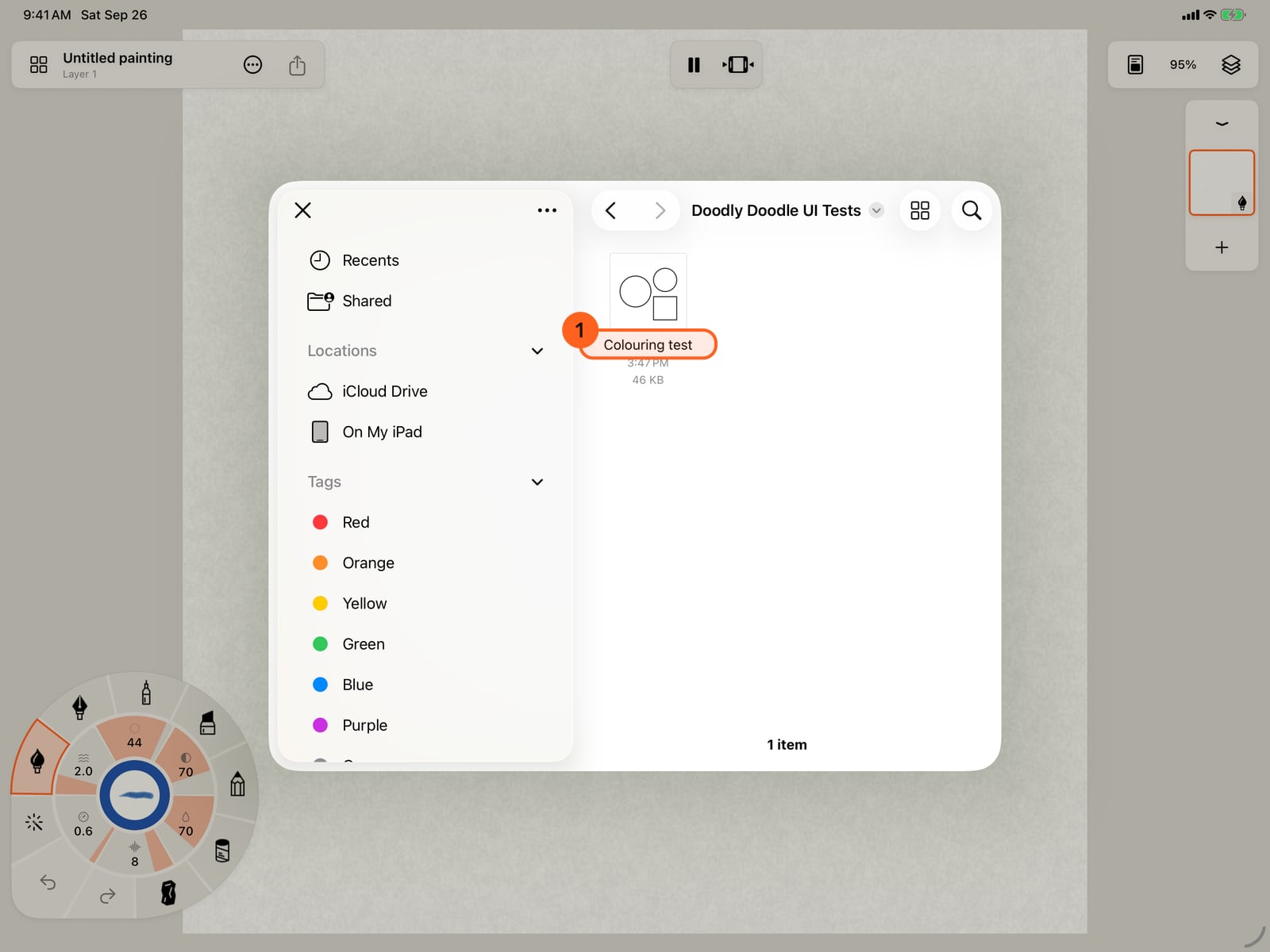
Start with a line drawing. Open Layers, tap Add image, then Image from Files, and find the drawing.
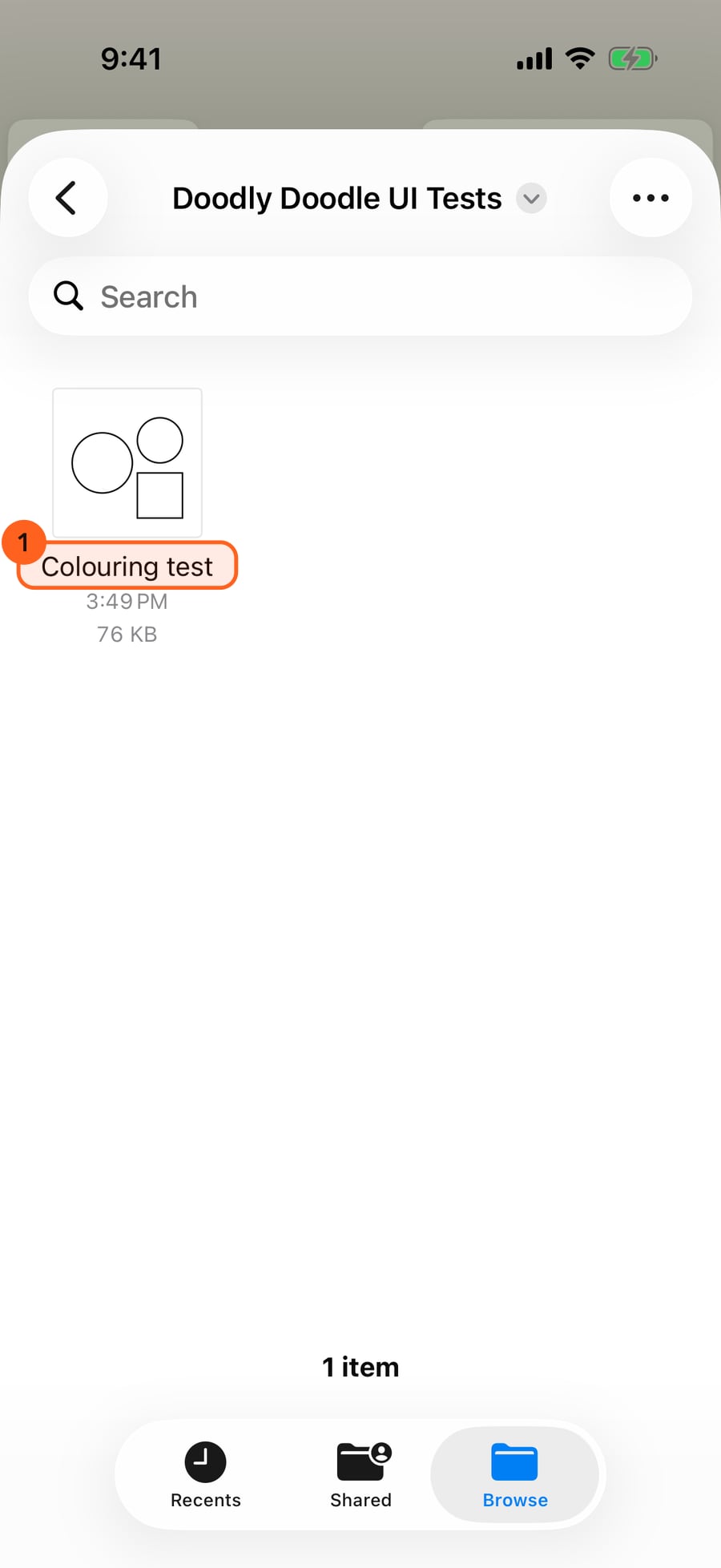
Start with a line drawing. Open Layers, click Add image, then Image from Files, and find the drawing.
Tap it. The drawing arrives as an image layer, fitted to the canvas, under your paint.
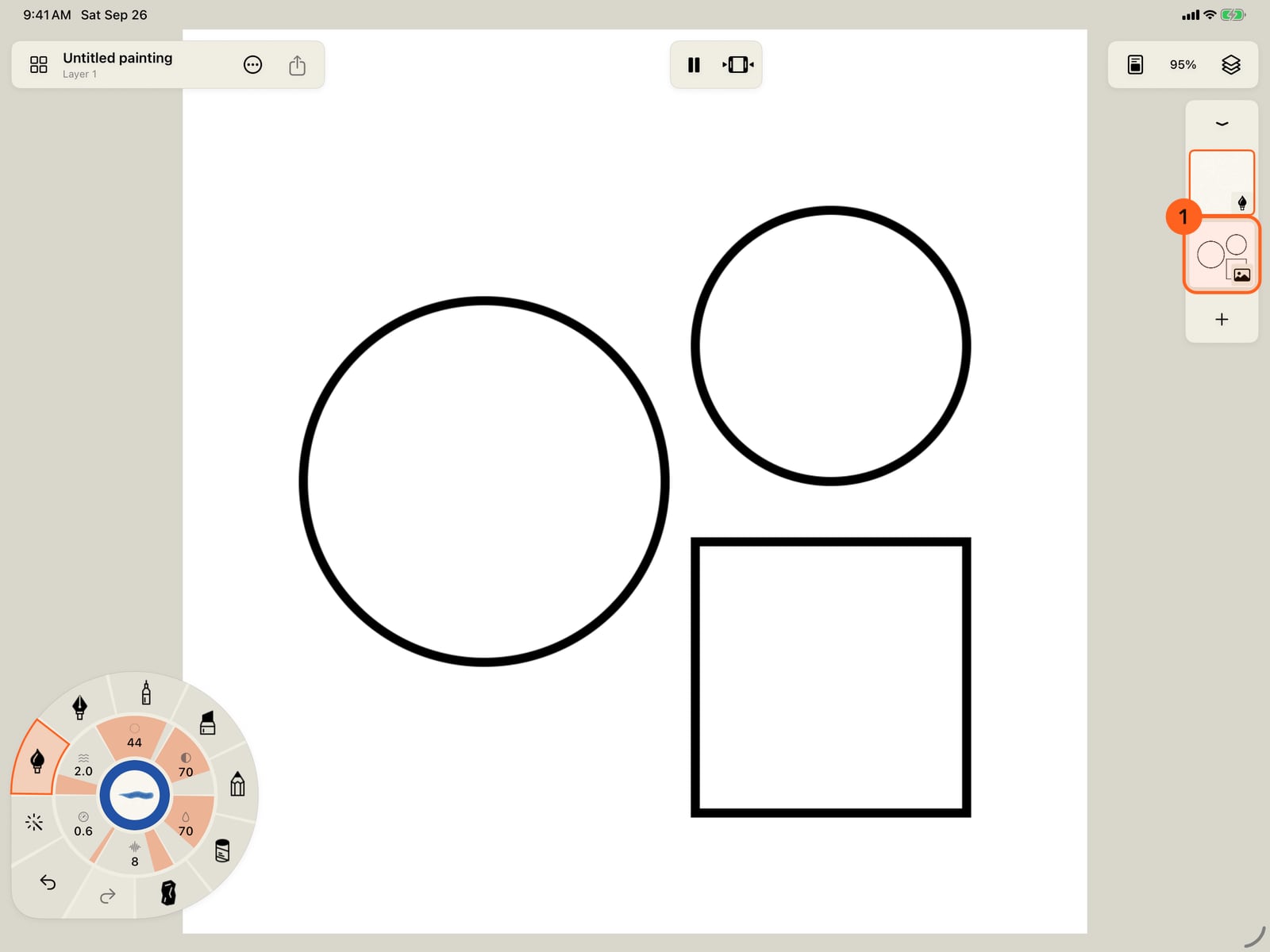
Tap it. The drawing arrives as an image layer, fitted to the canvas, under your paint.
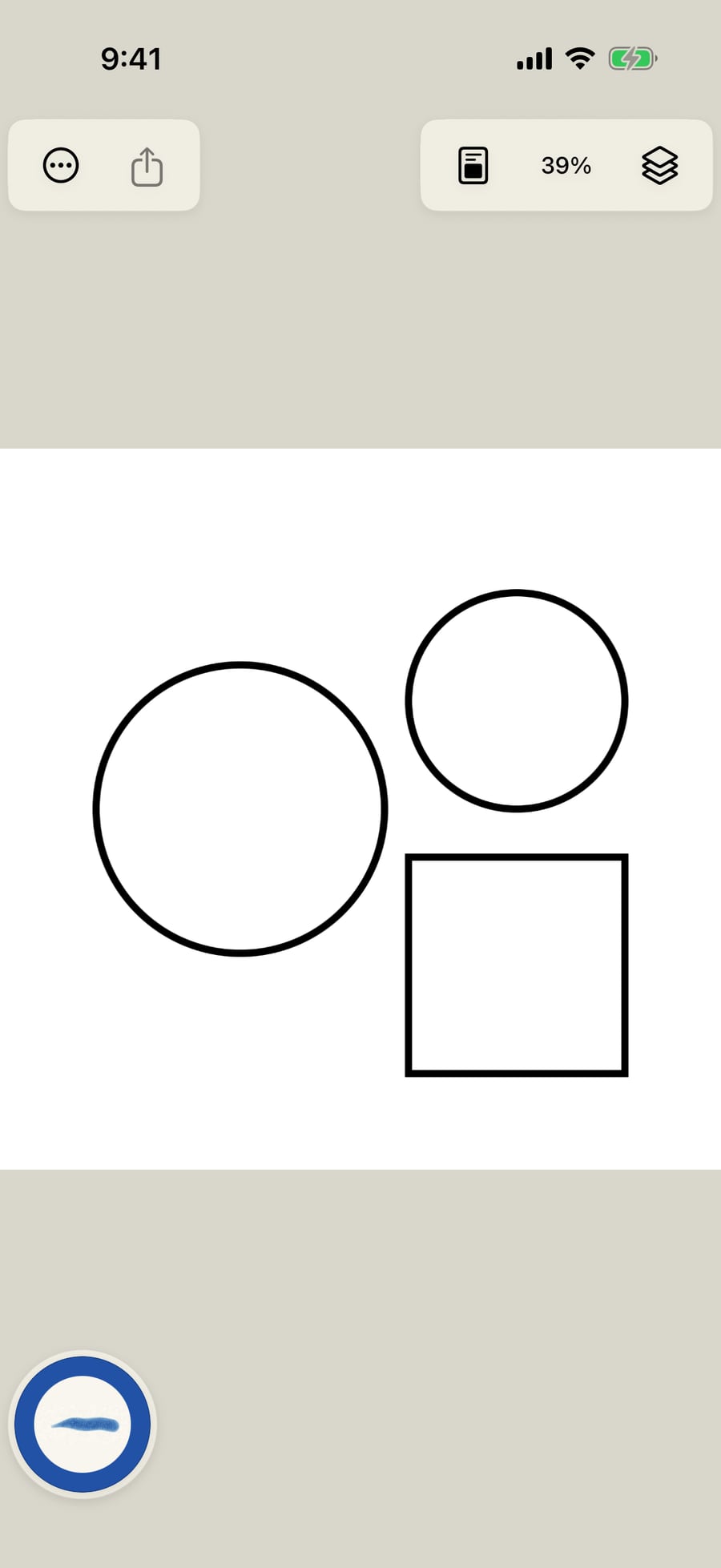
Click it. The drawing arrives as an image layer, fitted to the canvas, under your paint.
Tap its thumbnail to make it current, and again for its controls. At the top is Colouring page.
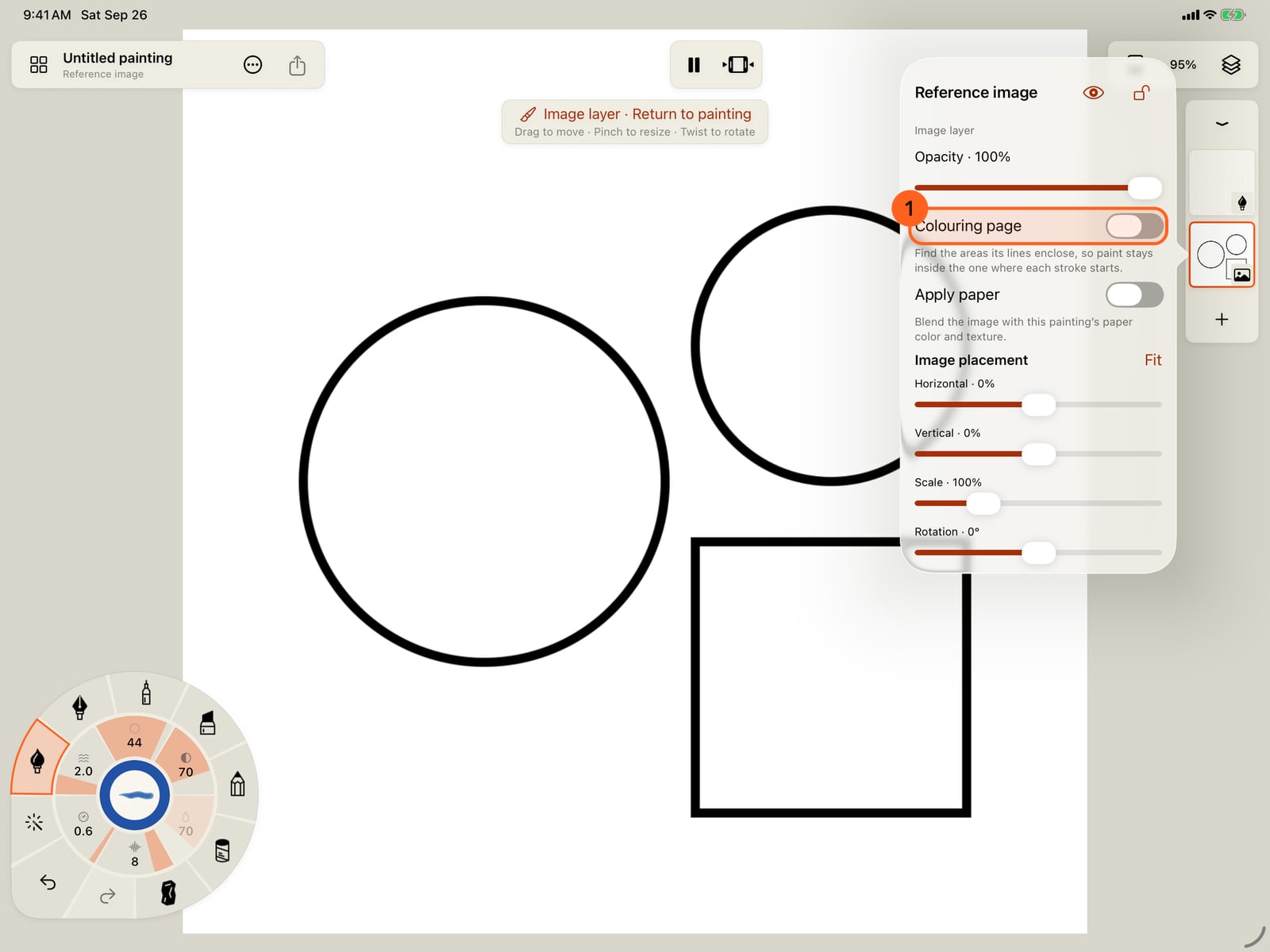
Open Layers and tap the image layer. At the top of its controls is Colouring page.
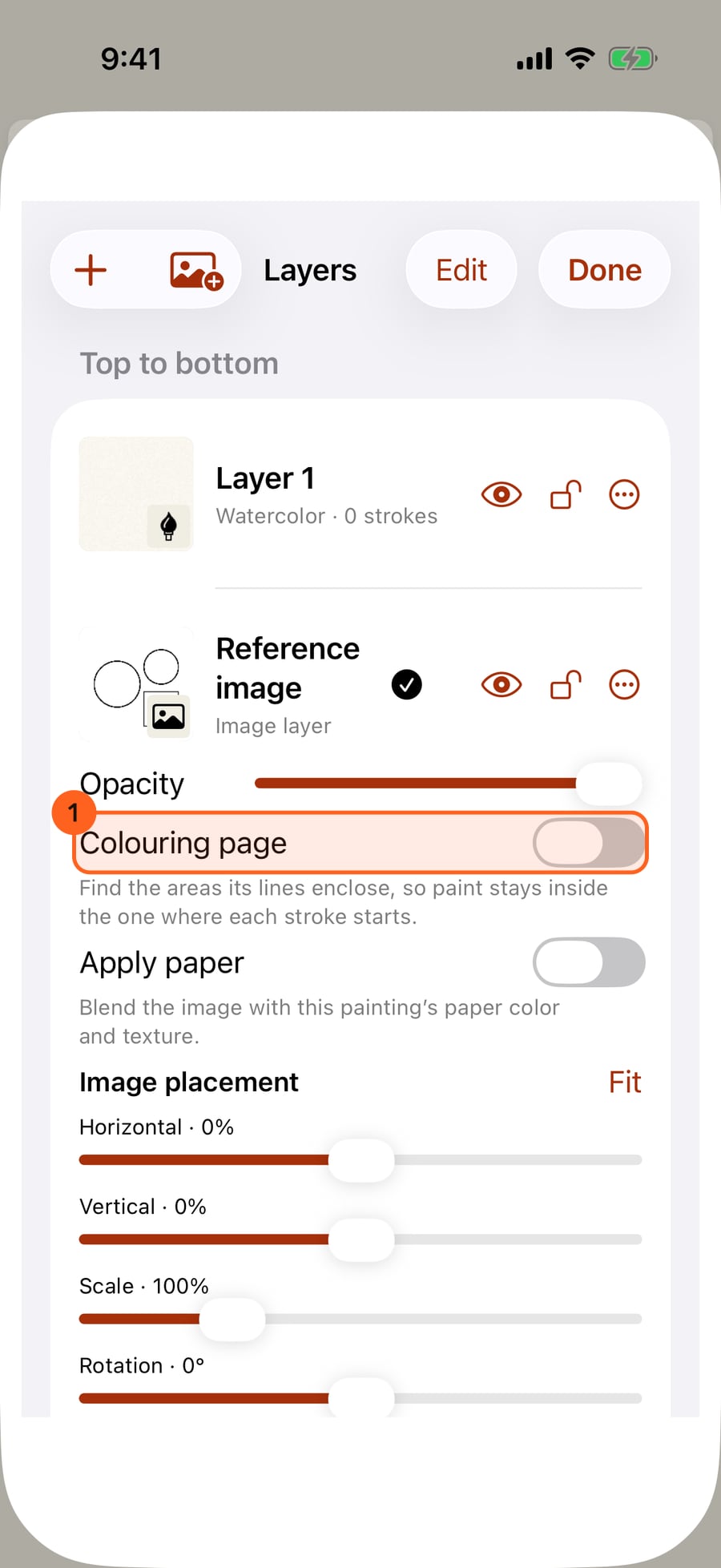
Click its thumbnail to make it current, and again for its controls. At the top is Colouring page.
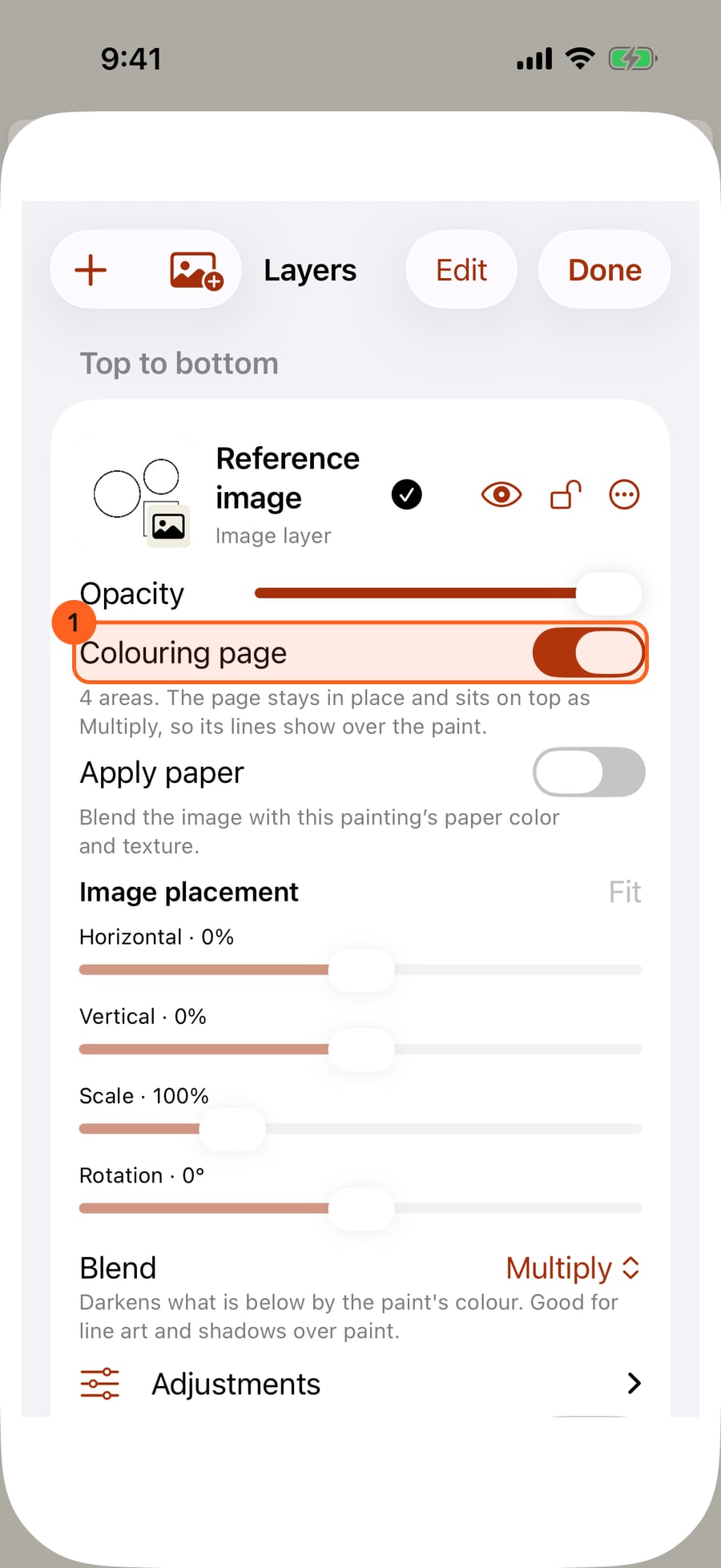
Turn it on, and Doodly Doodle finds the areas the lines enclose and says how many. The page then stays in place, on top as Multiply, so its lines show over your paint.
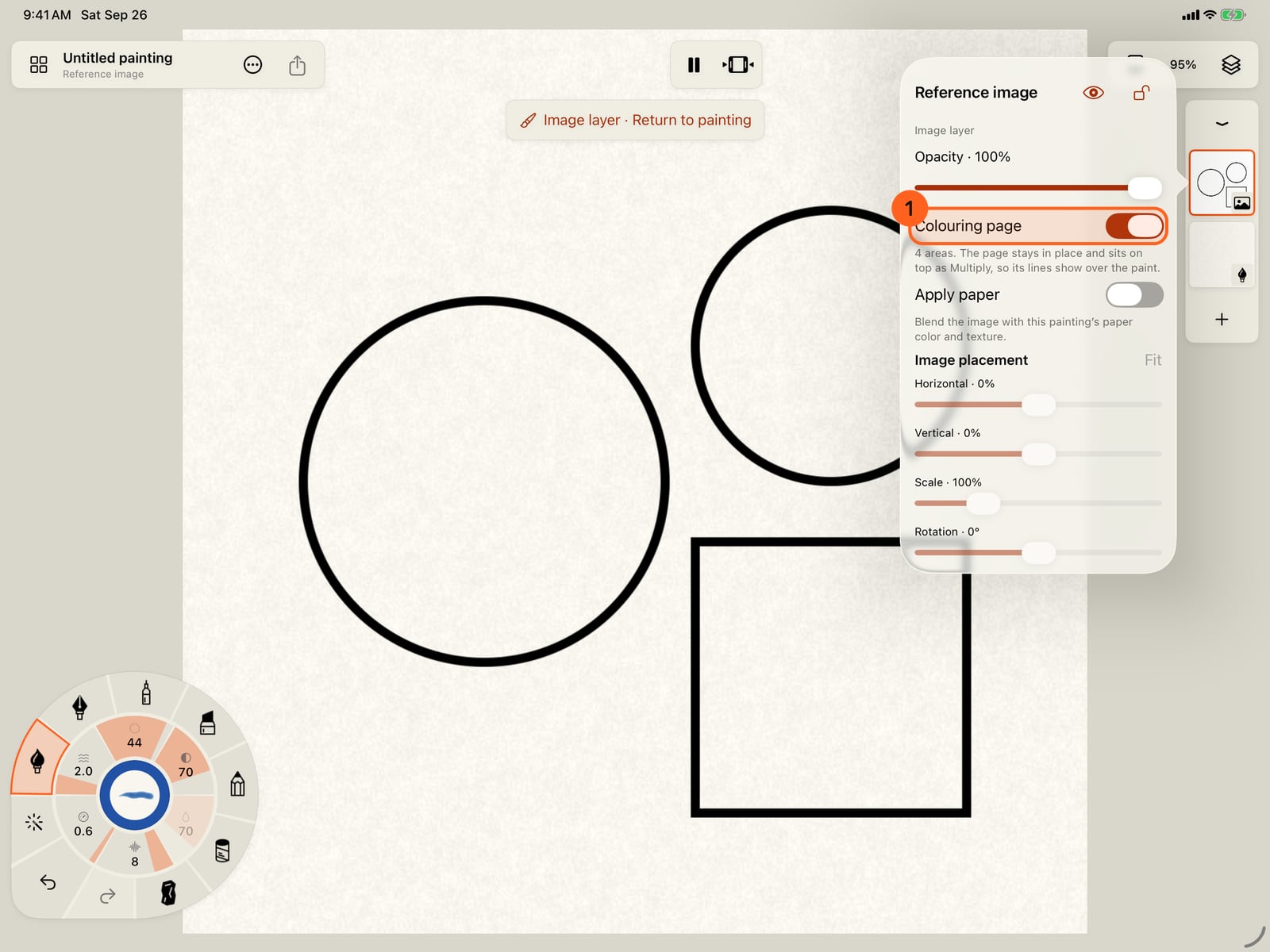
Turn it on, and Doodly Doodle finds the areas the lines enclose and says how many. The page then stays in place, on top as Multiply, so its lines show over your paint.
Tap the paint layer and paint a stroke that starts inside the big circle and runs out across the page. The paint stays inside the area where the stroke began.
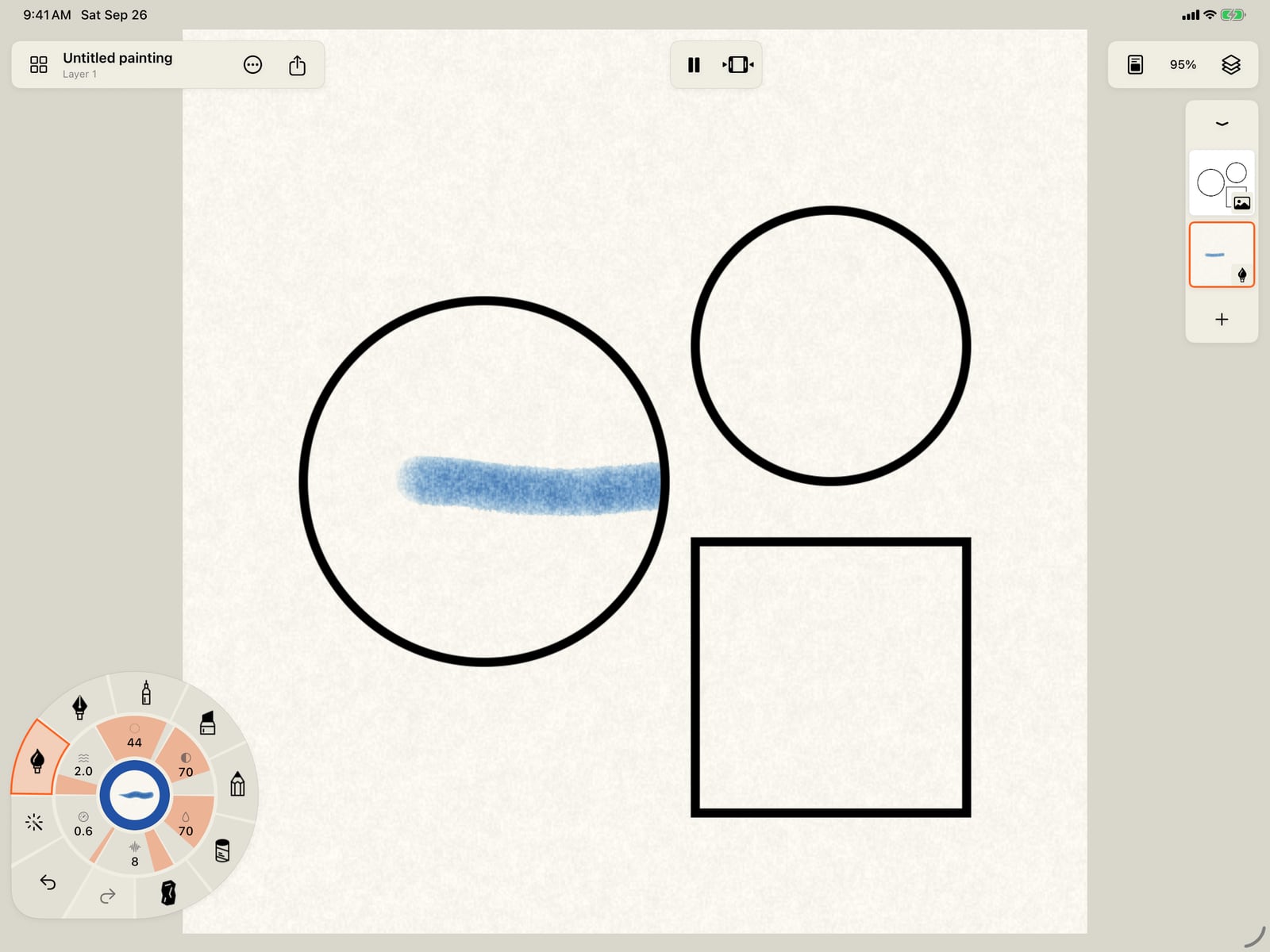
Tap the paint layer, then Done, and paint a stroke that starts inside the big circle and runs out across the page. The paint stays inside the area where the stroke began.
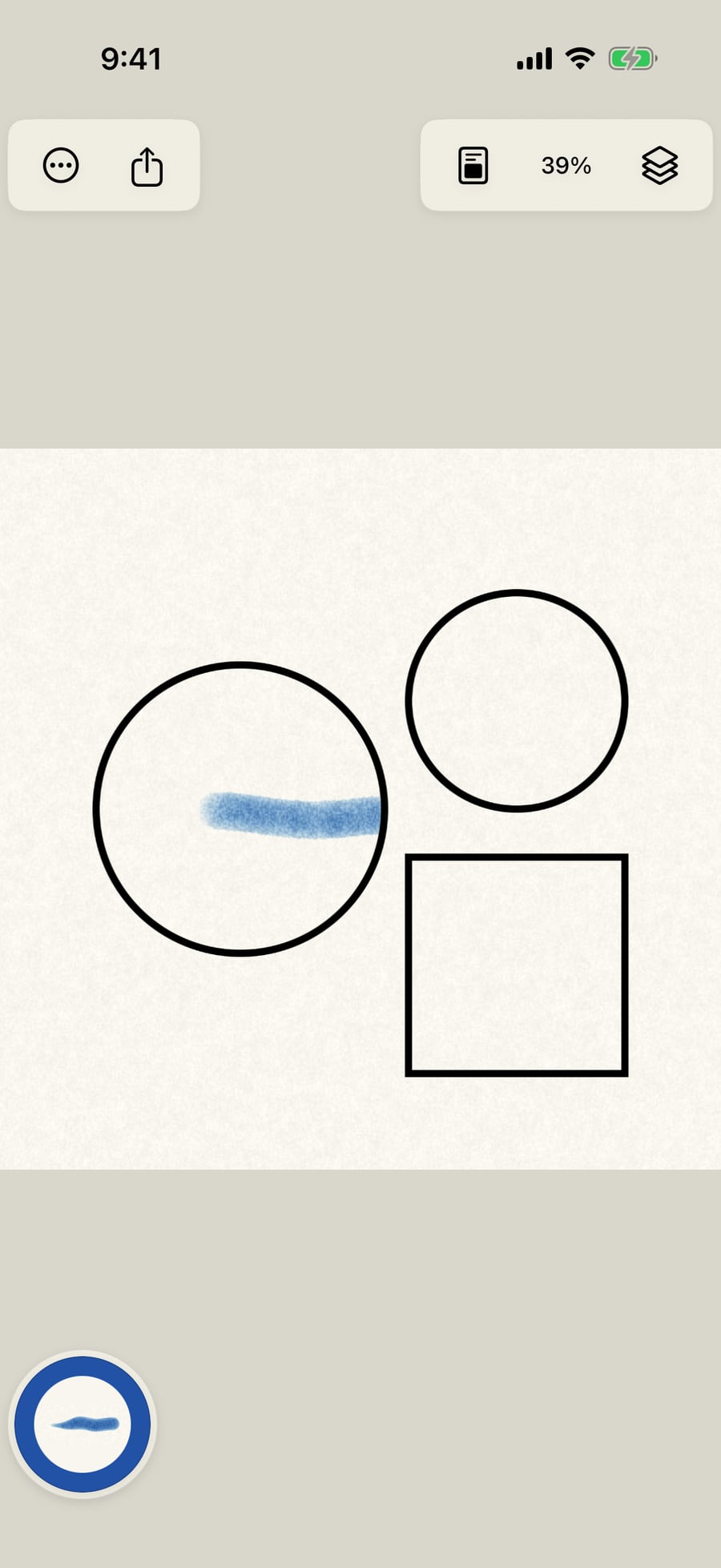
Click the paint layer and paint a stroke that starts inside the big circle and runs out across the page. The paint stays inside the area where the stroke began.
For a flat fill, choose Fill an area from Tools and tap inside the square. It fills in the colour in hand, as one stroke.
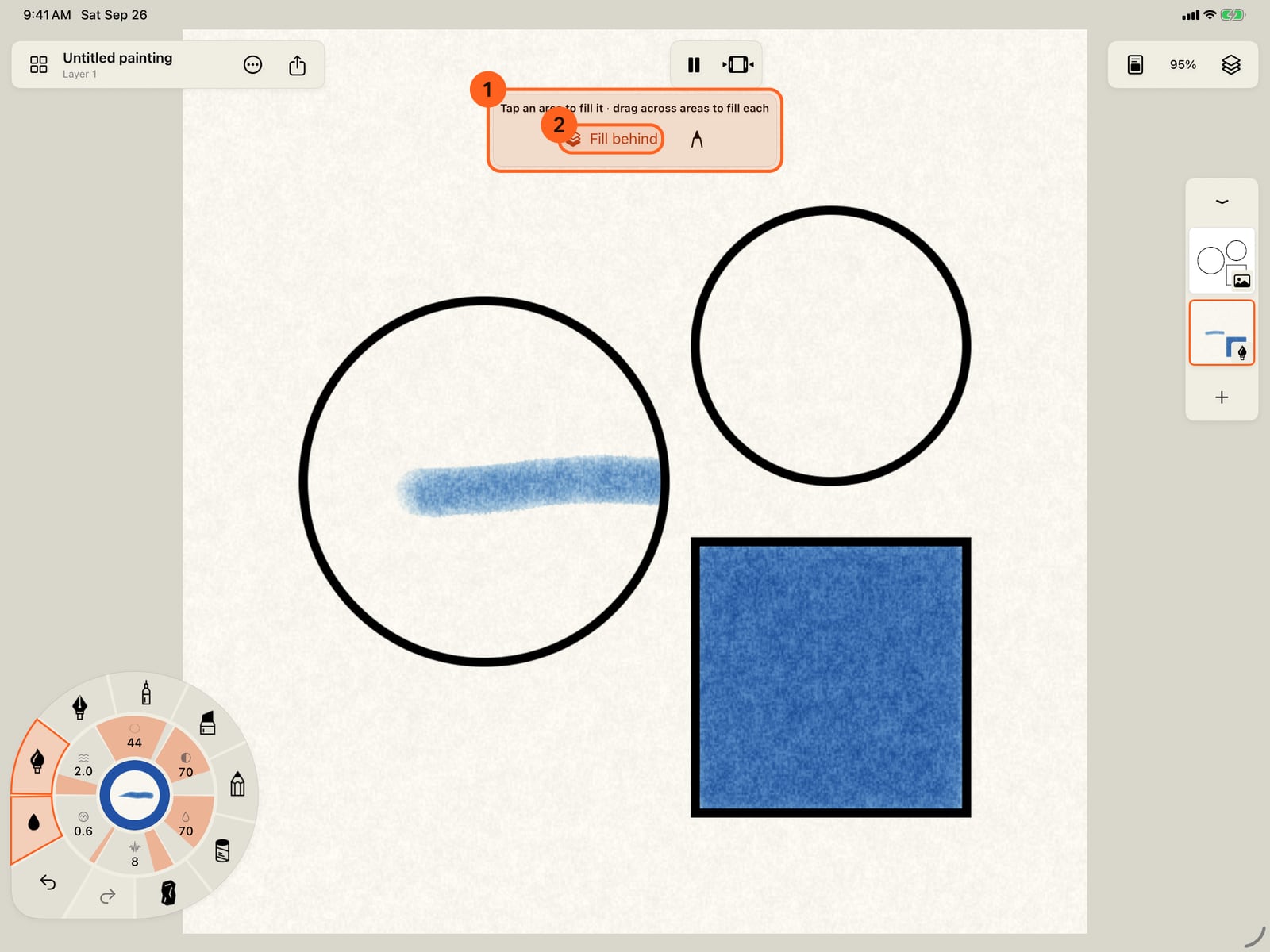
For a flat fill, unfold the wheel, choose Fill an area from Tools and tap inside the square. It fills in the colour in hand, as one stroke.
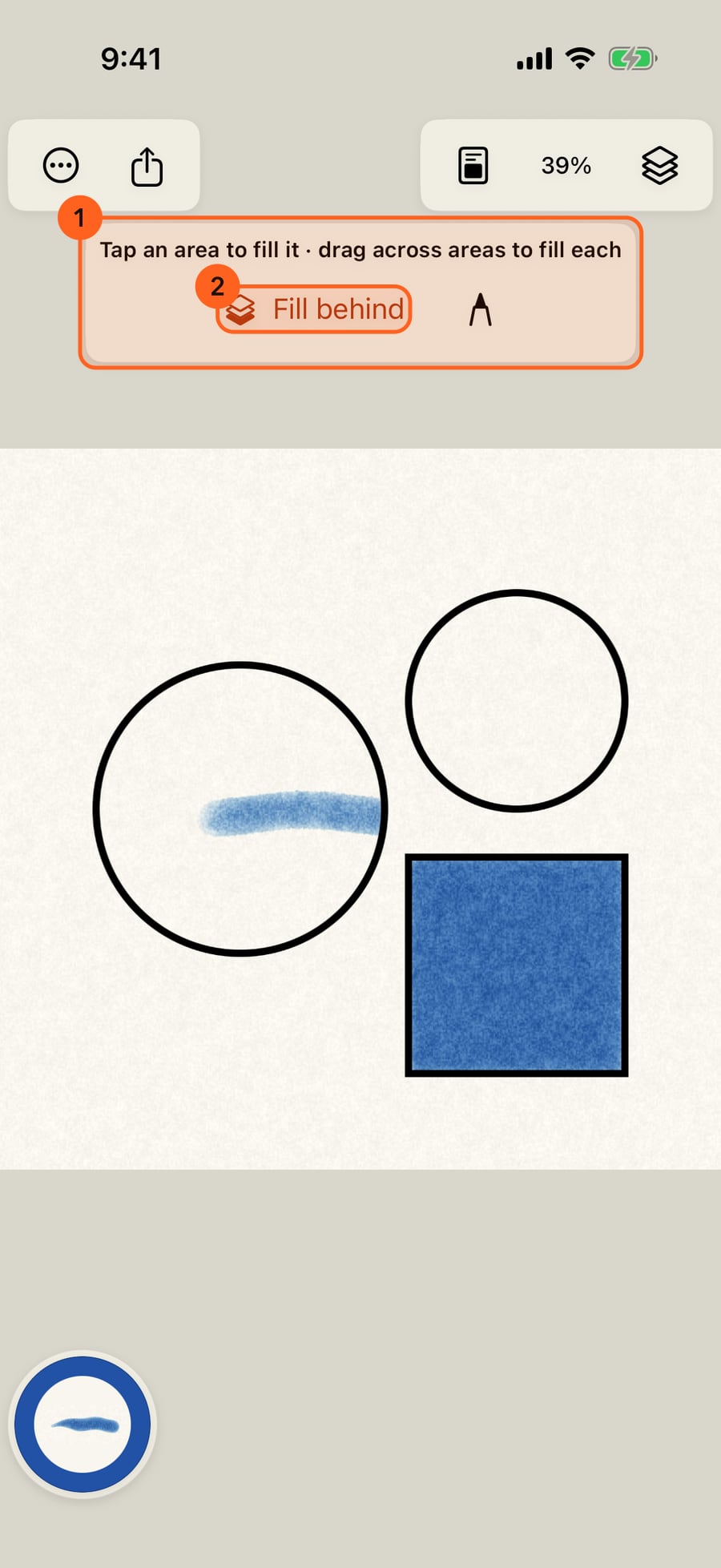
For a flat fill, choose Fill an area from Tools and click inside the square. It fills in the colour in hand, as one stroke.
Tap the pencil to return to drawing. Inside the lines, in the Canvas and paper menu, turns the keeping on and off.
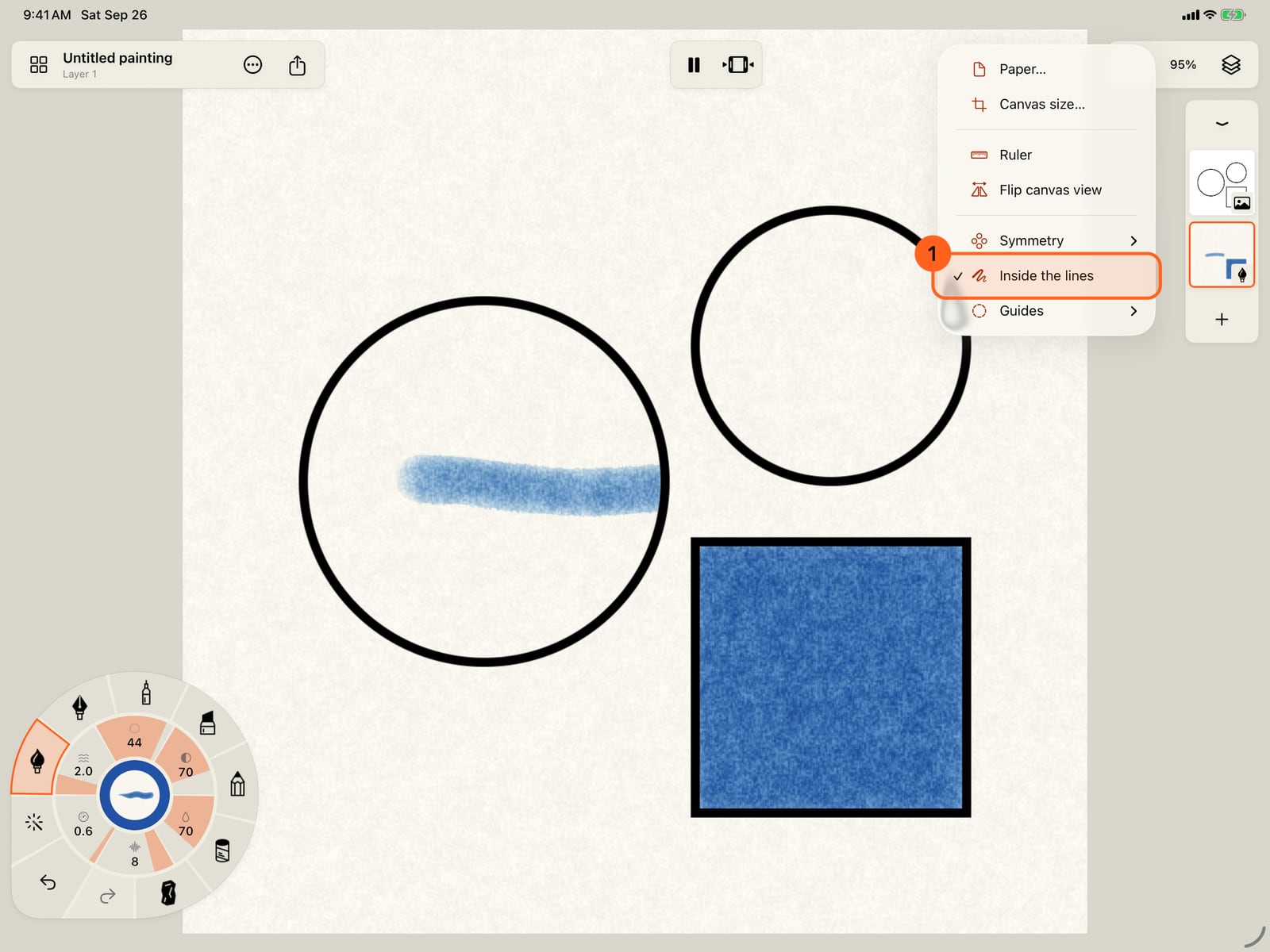
Tap the pencil to return to drawing. Inside the lines, in the Canvas and paper menu, turns the keeping on and off.
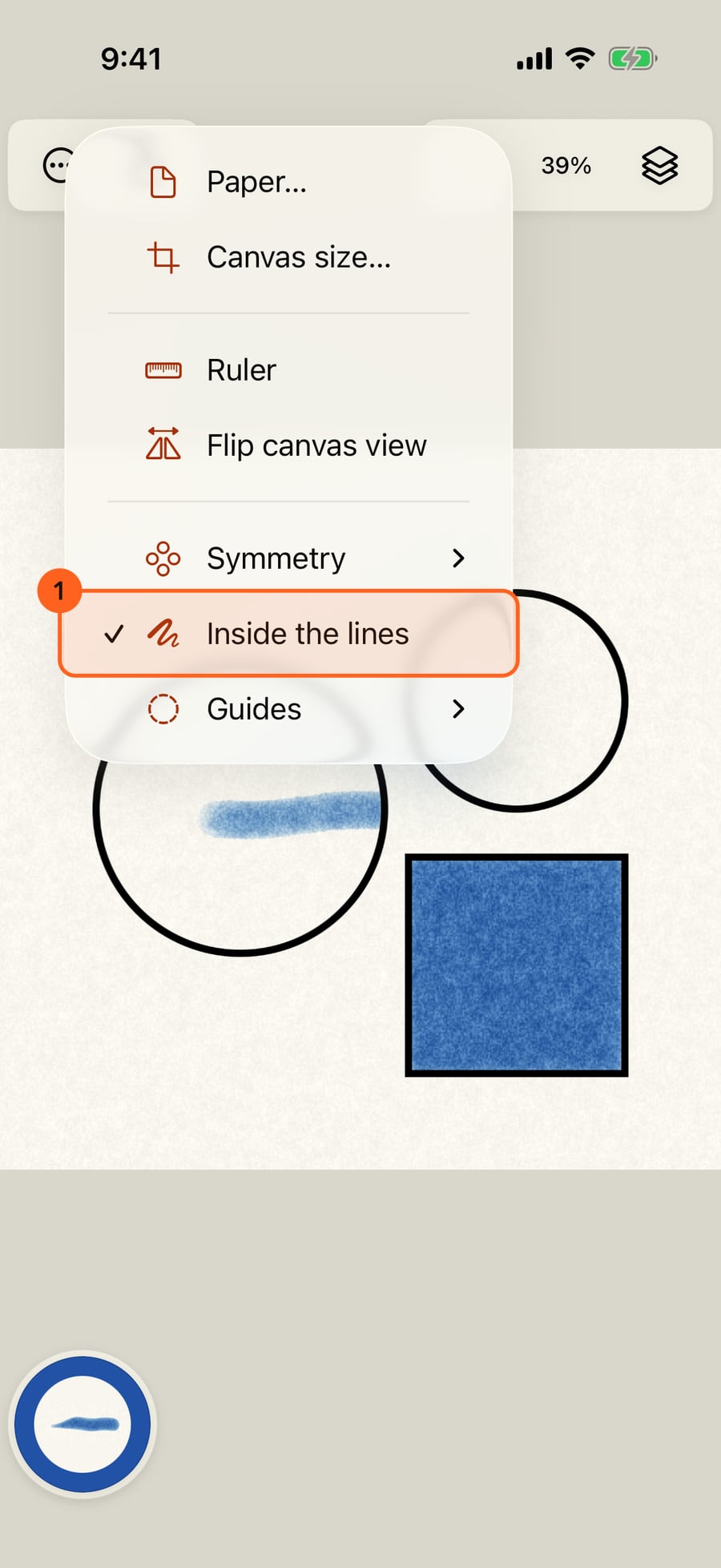
Click the pencil to return to drawing. Inside the lines, in the Canvas and paper menu, turns the keeping on and off.
Making a colouring page
Any image layer with clear, closed lines can become a colouring page: a line drawing you scanned or photographed, or one saved from a colouring book site.
- Add the drawing as an image layer: Layers → Add image → Image from Photos… or Image from Files… (see Image layers).
- Open the image layer's controls: tap its thumbnail twice in the strip, or tap it in the Layers sheet.
- Turn on Colouring page 1. Doodly Doodle finds every area the lines enclose, closing small gaps, and says how many it found.
Once it is a colouring page, the image stays where it is (its placement sliders lock, since the areas lie under its lines) and it sits on top of your paint as Multiply, so the lines always show over the colour. Turning Colouring page off lets it move again.
Painting inside the lines
With a colouring page in the painting, each stroke stays inside the area where it starts, however far your hand goes past the line. Paint on a paint layer, not on the image layer.
Inside the lines 1, in the Canvas and paper menu, turns this keeping on and off. It appears whenever the painting has a colouring page, and comes on by itself when you make one.
Filling areas
Choose Fill an area from Tools on the wheel's corner. A bar above the page reads Tap an area to fill it · drag across areas to fill each 1:
- Tap an area to fill it with the colour in hand, as one stroke that Undo removes.
- Drag across several areas to fill each of them, in one step.
- Fill behind 2 puts fills under the paint already there, so your strokes stay on top.
- Return to drawing (the pencil) goes back to painting.
Fill an area also works without a colouring page: a tap fills what your own strokes enclose.
On iPhone, the image layer's controls are in the Layers sheet, and Tools is on the wheel: tap the folded wheel to unfold it.
Pro: Colouring pages and fills are Free.
Something not behaving as expected?
Visit support or write to [email protected].