

Guides / Color: paint by number
Color lessons
Three hands-on lessons in Learn and practise, each on a real page, where each step ticks as you do it. Fill a page, Finish and share, and Paint with steps in the Studio.
- Free
- Everything in this guide works in Free.
Open Actions, then Learn and practise. Color comes first, with three lessons on real pages. The Studio's lessons follow.
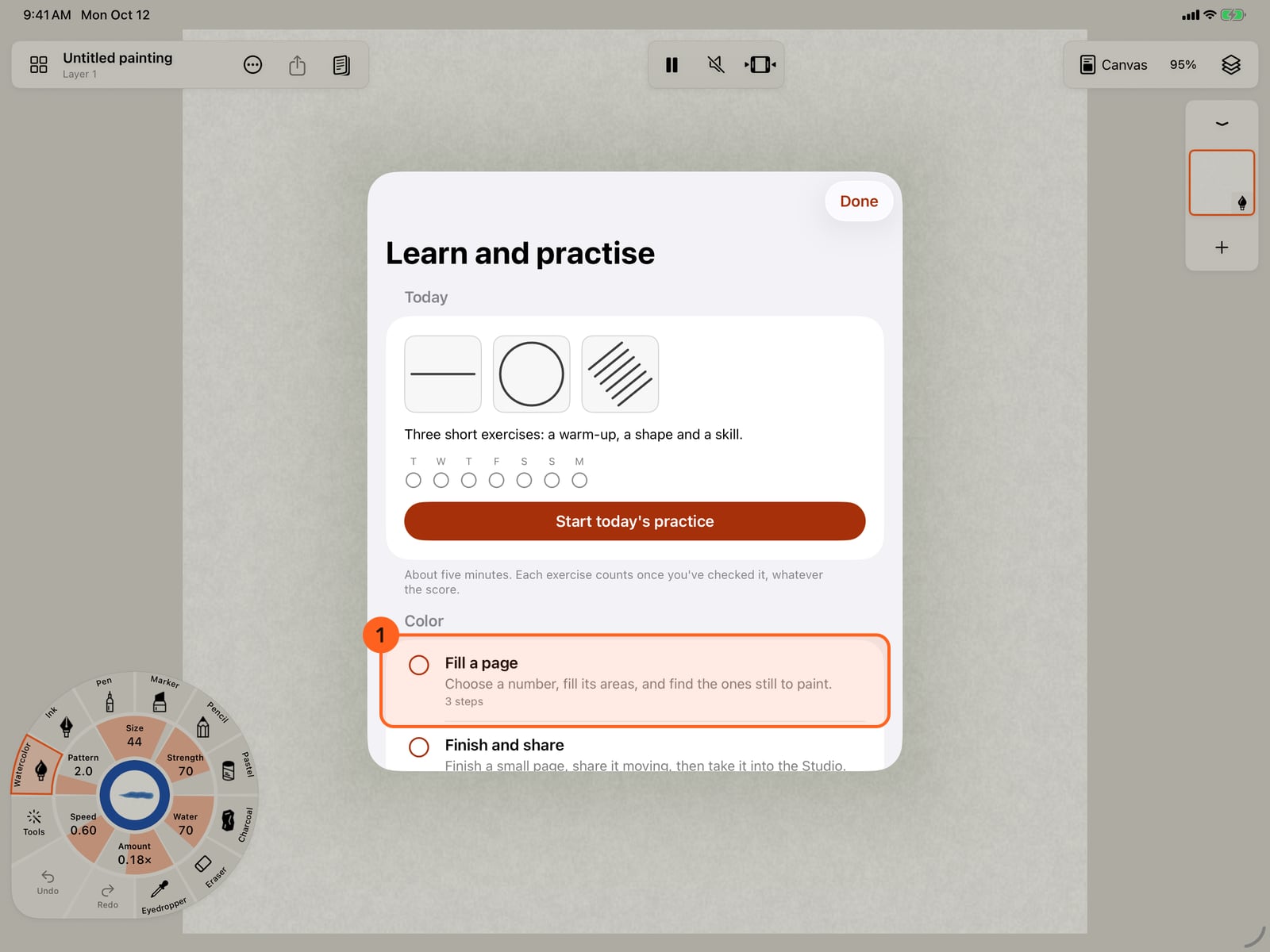
Open Actions, then Learn and practise. Color comes first, with three lessons on real pages. The Studio's lessons follow.
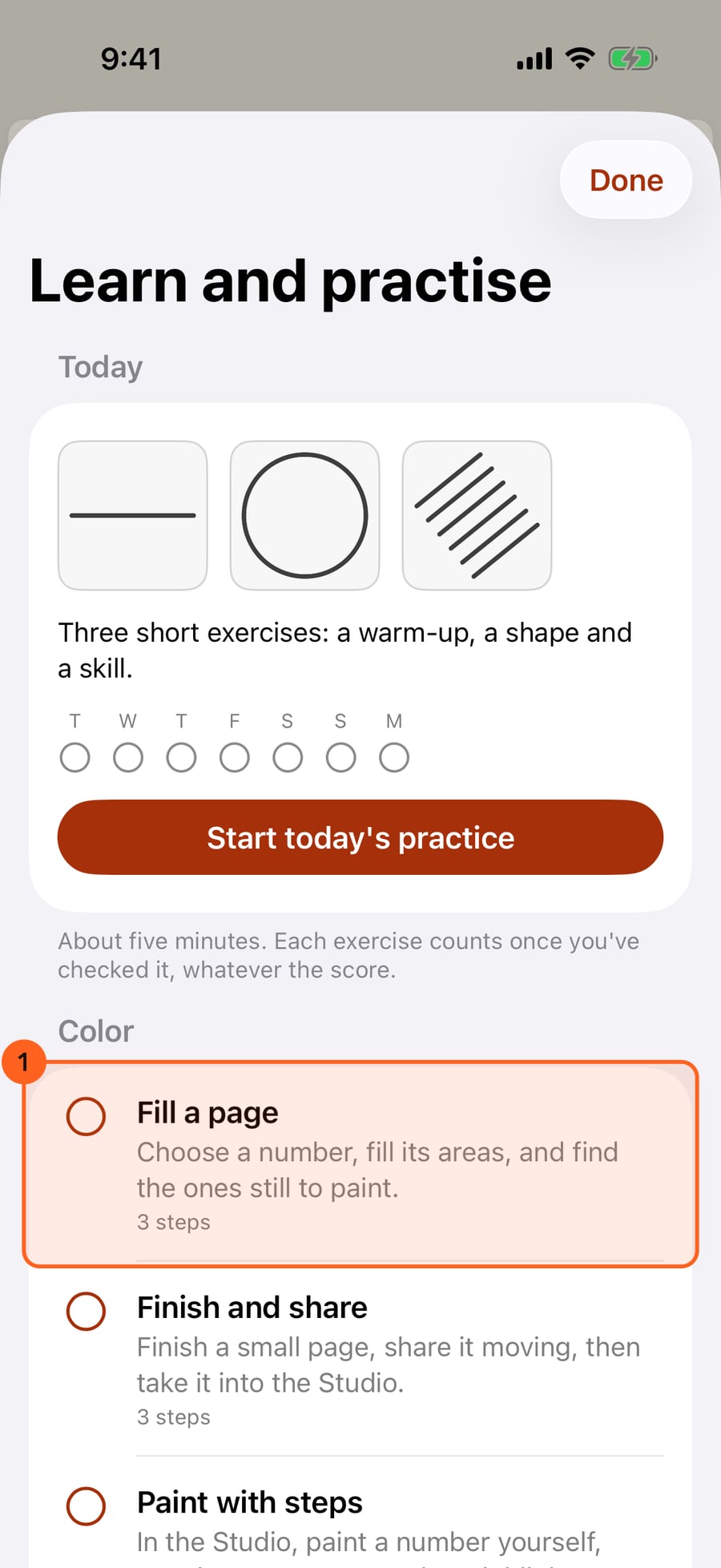
Tap Fill a page. Each lesson starts with what it's about, and a brush moving. Tap Start.
Tap Fill a page. Each lesson starts with what it's about, and a brush moving. Tap Start.
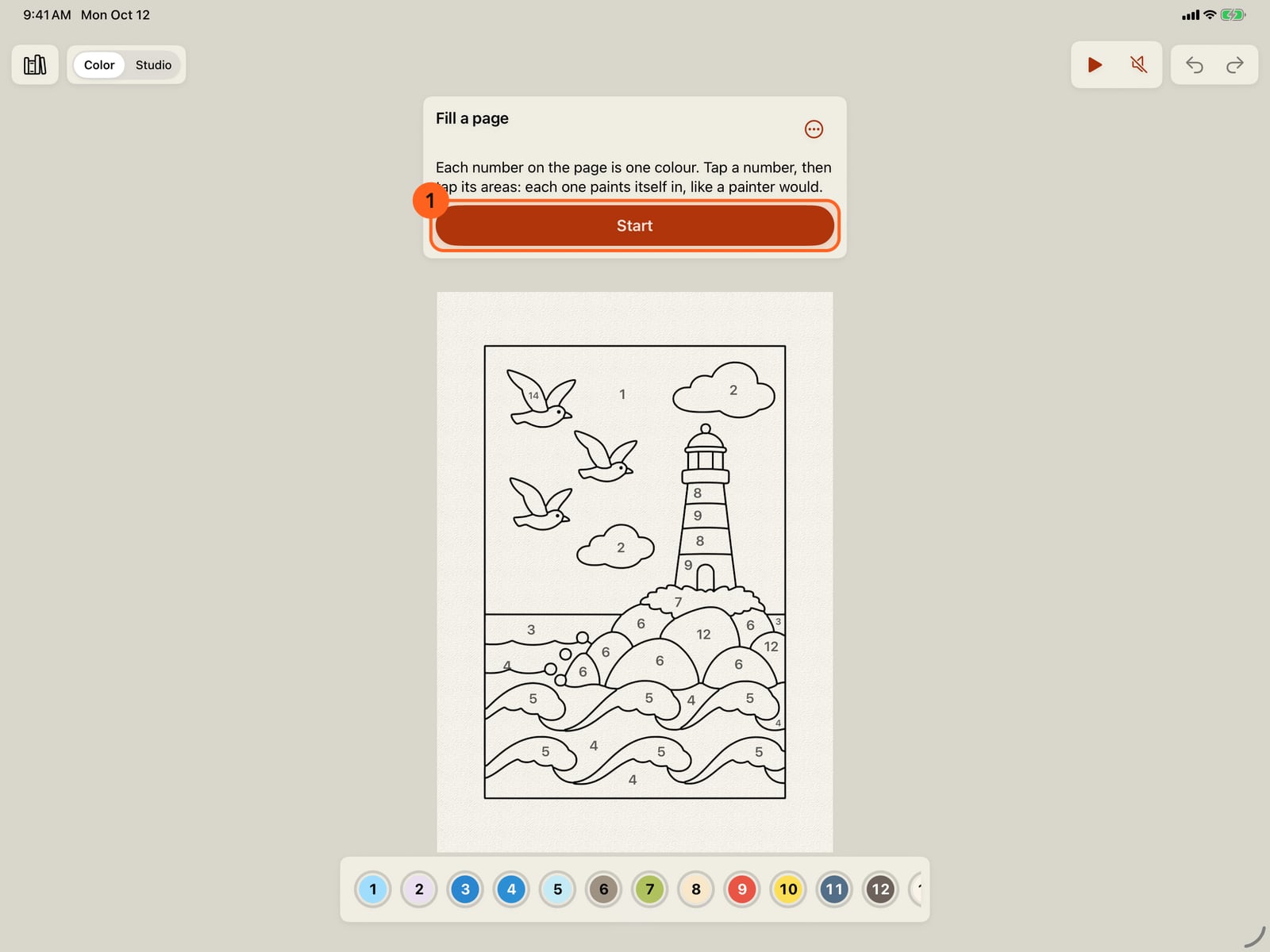
Click Fill a page. Each lesson starts with what it's about, and a brush moving. Click Start.
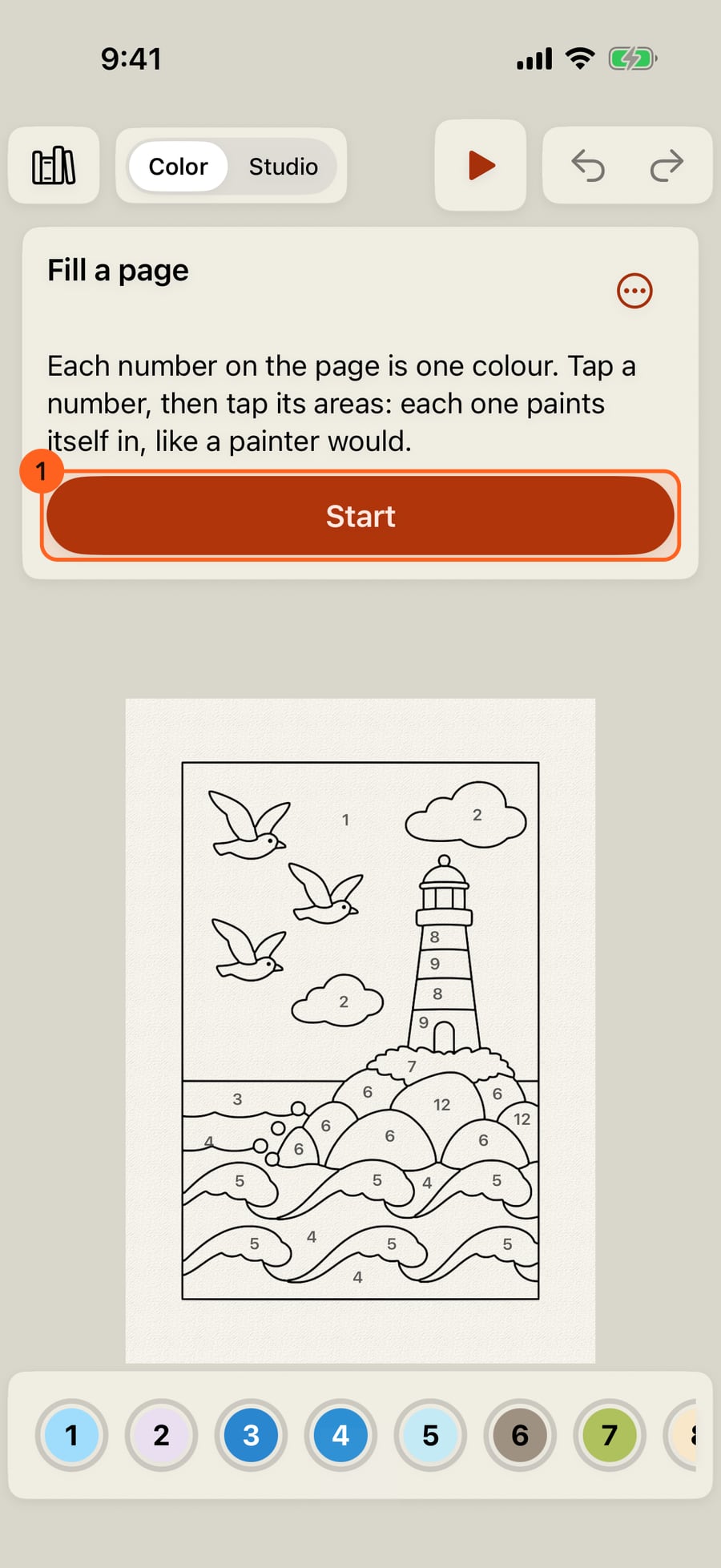
The lesson opens a book's page in Color, its own copy. The card says what to do, and a ring points at the control. Tap a number.
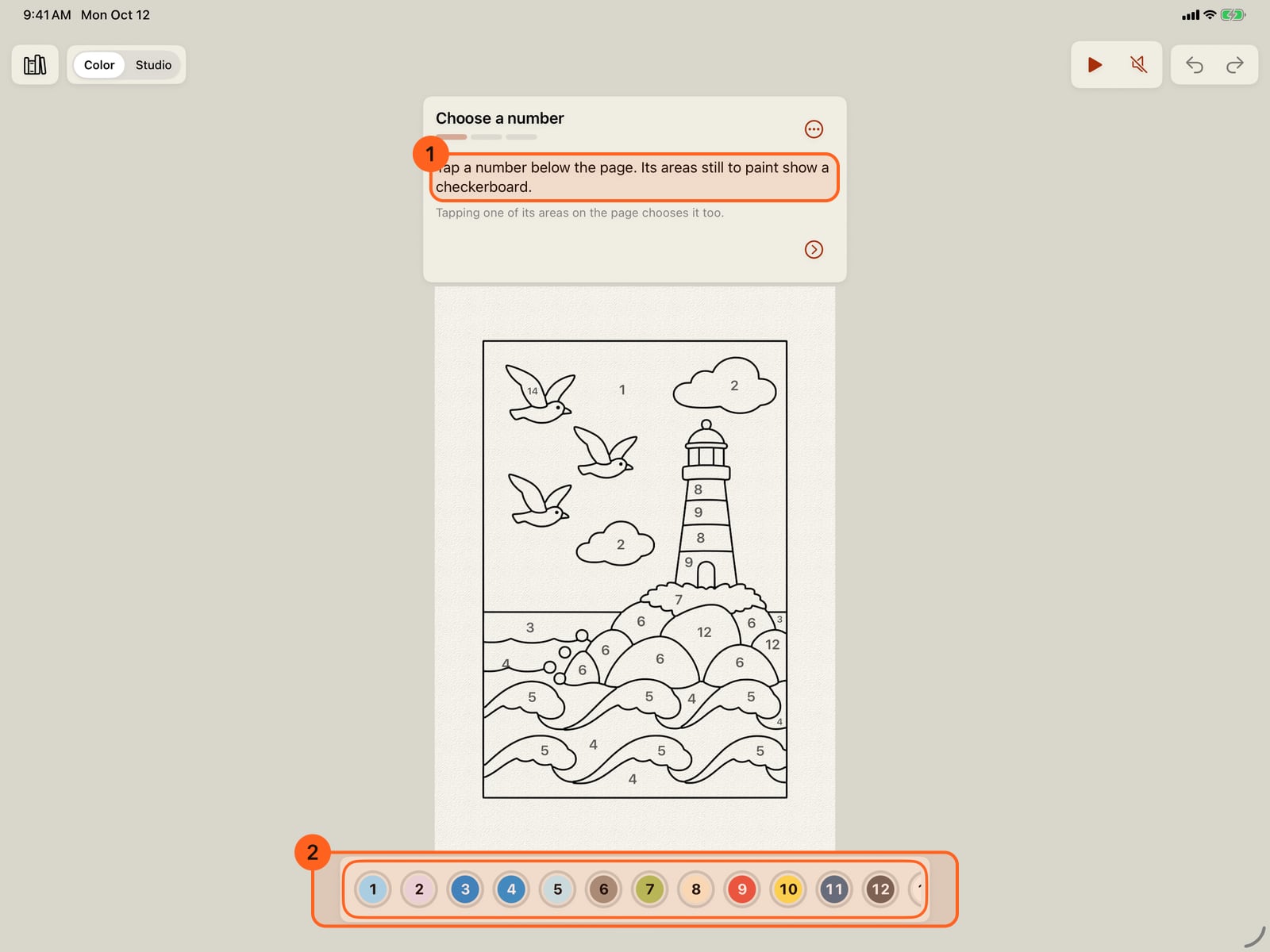
The lesson opens a book's page in Color, its own copy. The card says what to do, and a ring points at the control. Tap a number.
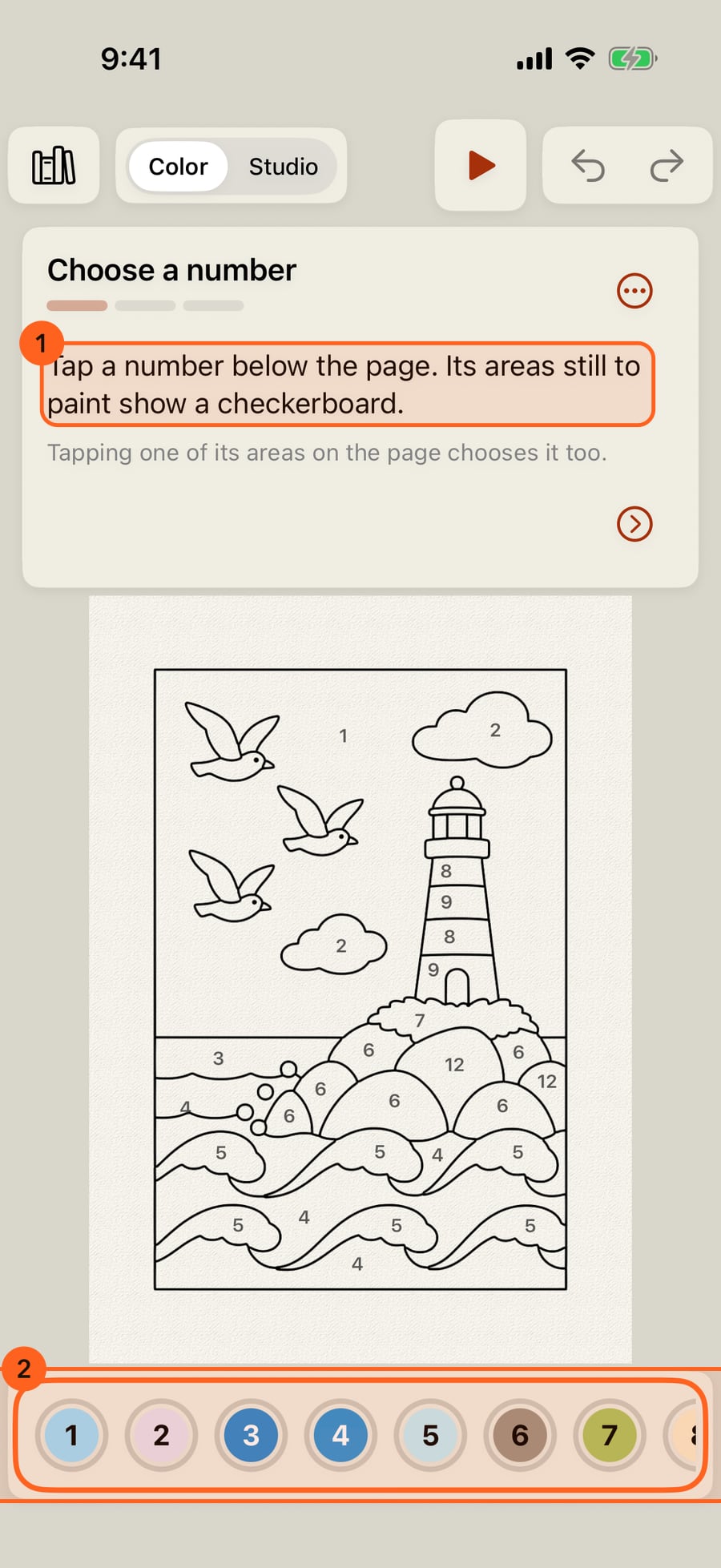
The lesson opens a book's page in Color, its own copy. The card says what to do, and a ring points at the control. Click a number.
The step ticks, and the next begins. Tap two of the number's areas, or drag across them. Here, Find shows one, and a tap paints it in.
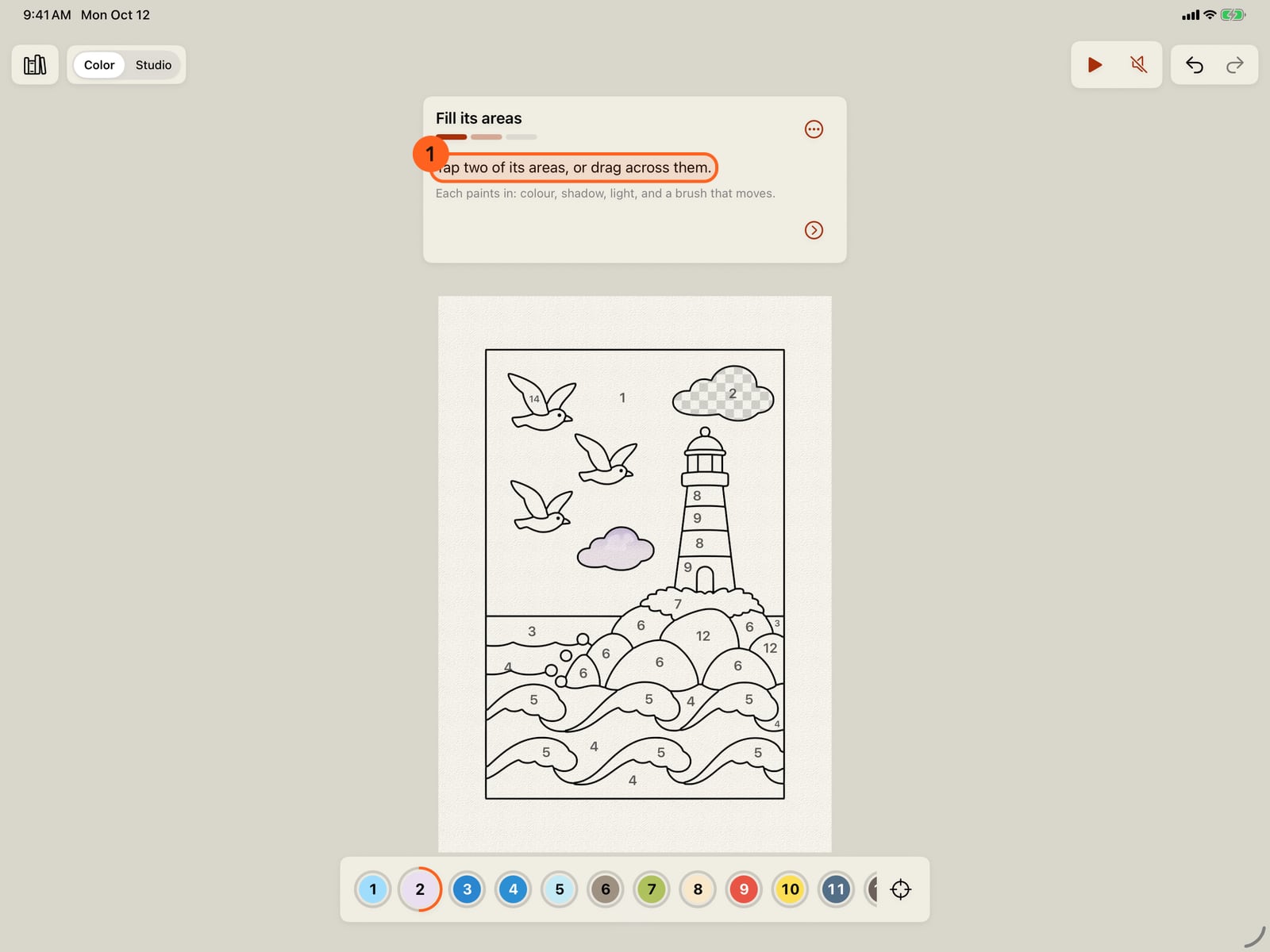
The step ticks, and the next begins. Tap two of the number's areas, or drag across them. Here, Find shows one, and a tap paints it in.
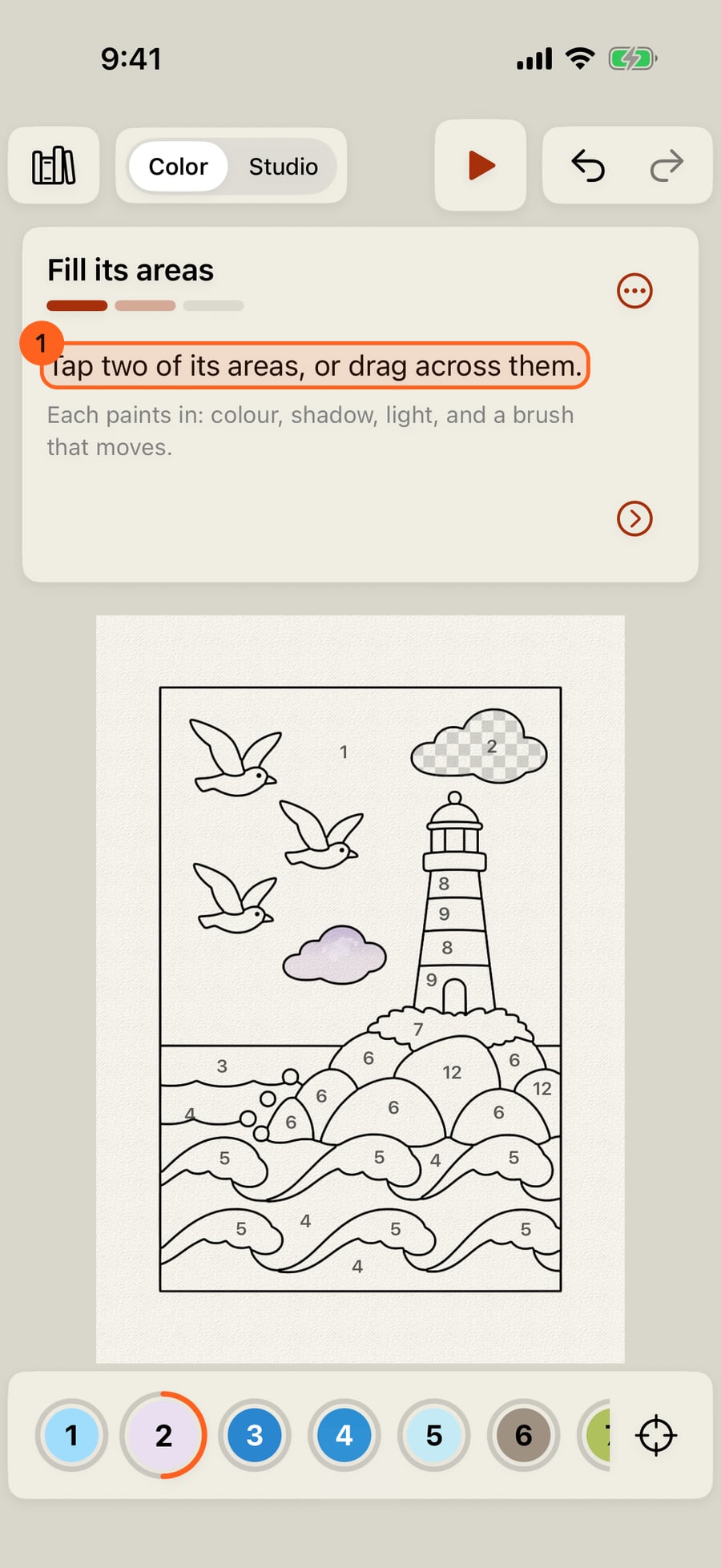
The step ticks, and the next begins. Click two of the number's areas, or drag across them. Here, Find shows one, and a click paints it in.
One more, and the step ticks. Last, Find takes you to an area still to paint, and the lesson is finished.
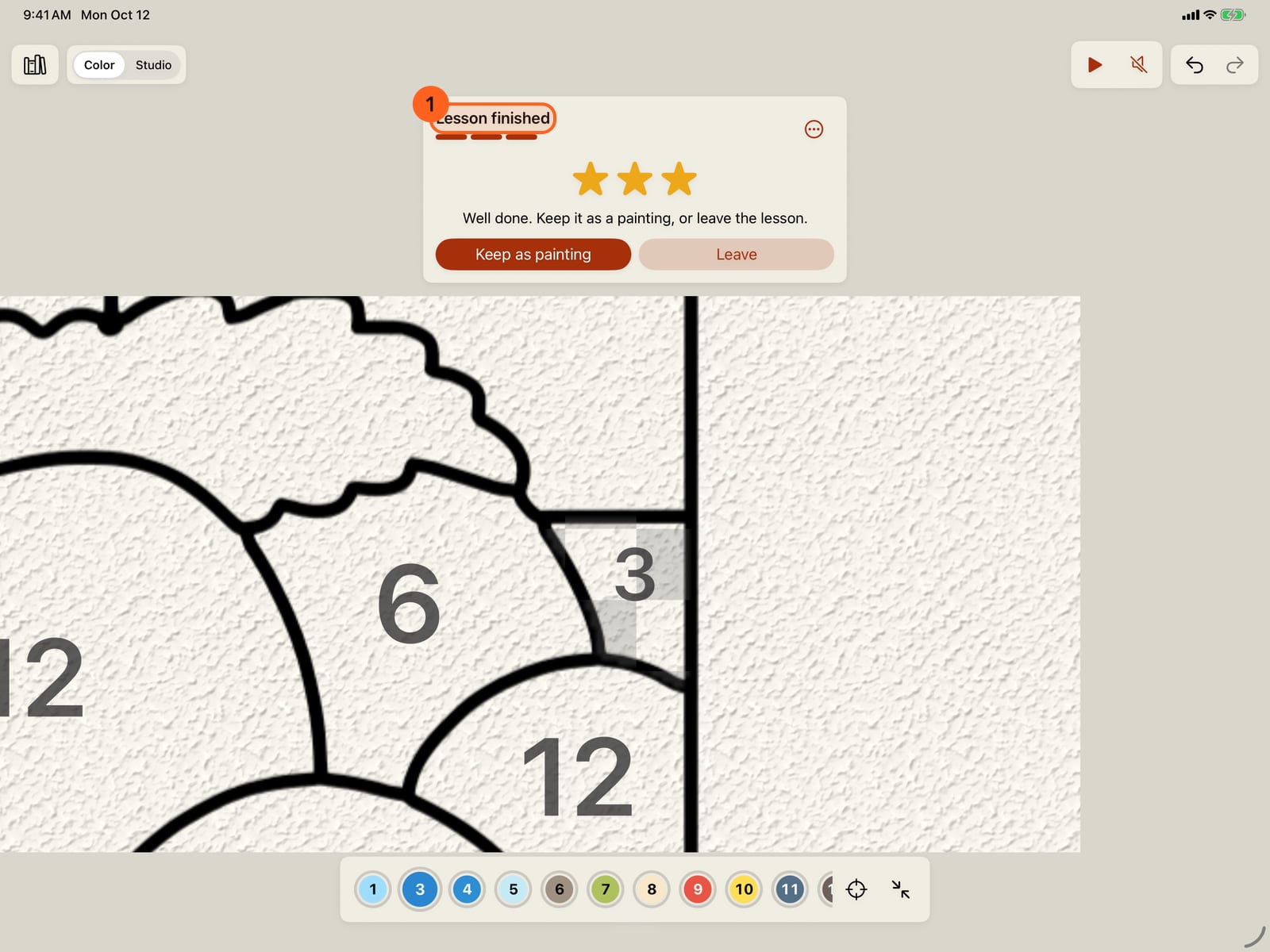
One more, and the step ticks. Last, Find takes you to an area still to paint, and the lesson is finished.
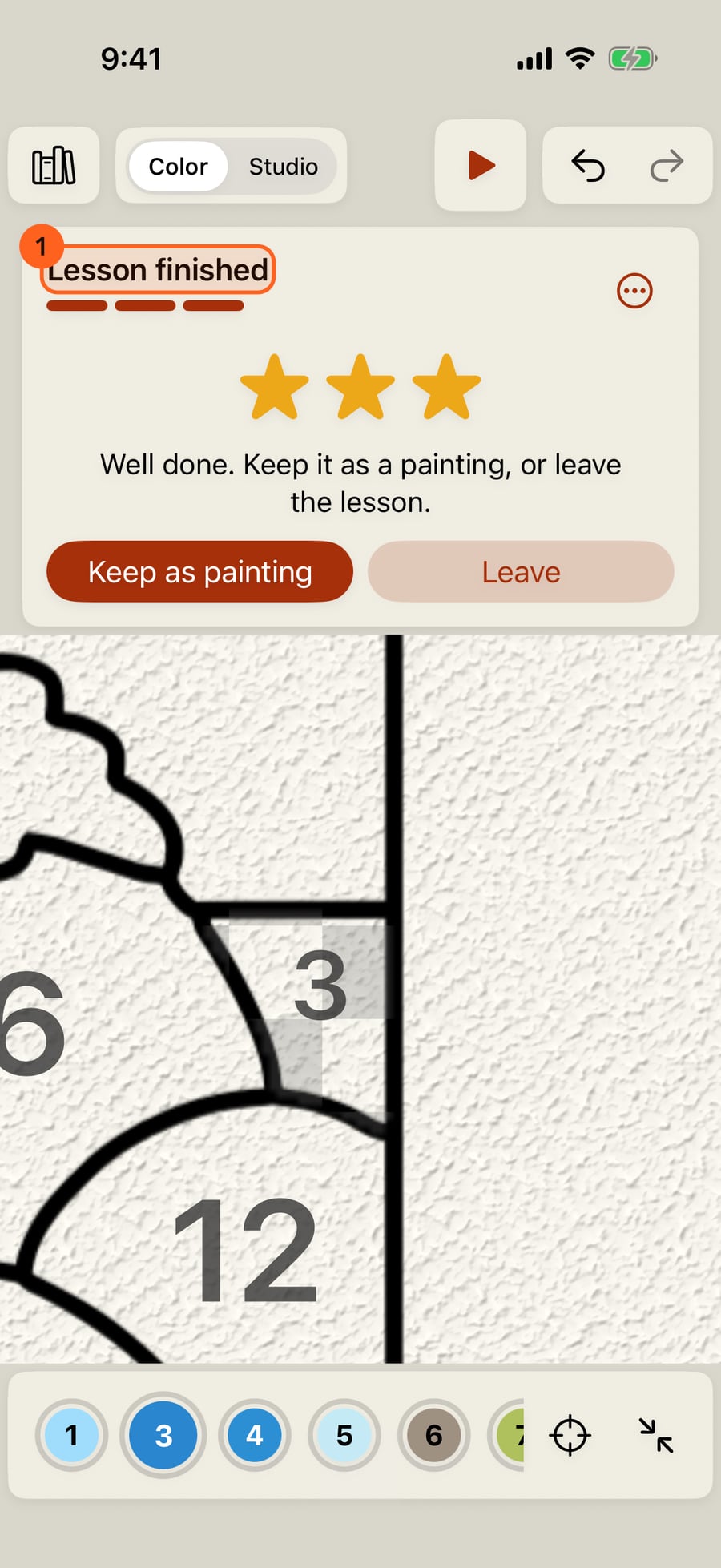
Color lessons
Actions → Learn and practise opens on today's practice, then Color and its three lessons 1. The Studio's units come after it (see Motion Brushes tour and lessons).
Each Color lesson opens a page from one of the app's books in Color, as the lesson's own copy: your books and paintings are never touched. The step card sits under the top row, and the page between it and the numbers. The card says what to do 1 and a pulsing ring points at the control 2; when the page itself is the control, as when you fill areas, there is no ring. There is nothing to trace: a step ticks as soon as you do what it asks, and the next starts a moment later.
| Lesson | Page | Steps |
|---|---|---|
| Fill a page | The Lighthouse | Choose a number · Fill two of its areas · Find an area still to paint |
| Finish and share | Sailing at Sunset | Fill every area, so the page plays and its card shows · Share it, moving · Switch to the Studio |
| Paint with steps | The Friendly Dragon | Switch to the Studio · Choose a number in its numbers bar · Paint with Base · Darks · Highlights (Clouds on a sky) · the moving step |
Fill counts the areas that take paint while the step is open. A step that asks for a number's step (Base, Darks and so on) ticks once you paint a stroke with that step in hand, in the Studio (see Paint with steps in the Studio). Share ticks as you tap it on the finished page's card, whether or not you send it.
The step options can skip a step. A finished Color lesson counts as a practice day, like any lesson; Keep as painting puts its page in the Gallery, and Leave goes back to what you had open.
Every Color lesson is Free.
Try it in the app.
Download on the App Store Free for iPad, iPhone and MacSomething not behaving as expected?
Visit support or write to [email protected].