

Guides / Paintings and files
Gallery
Open your paintings, start a new one from a template or a custom size, and rename, duplicate or delete paintings with a touch and hold.
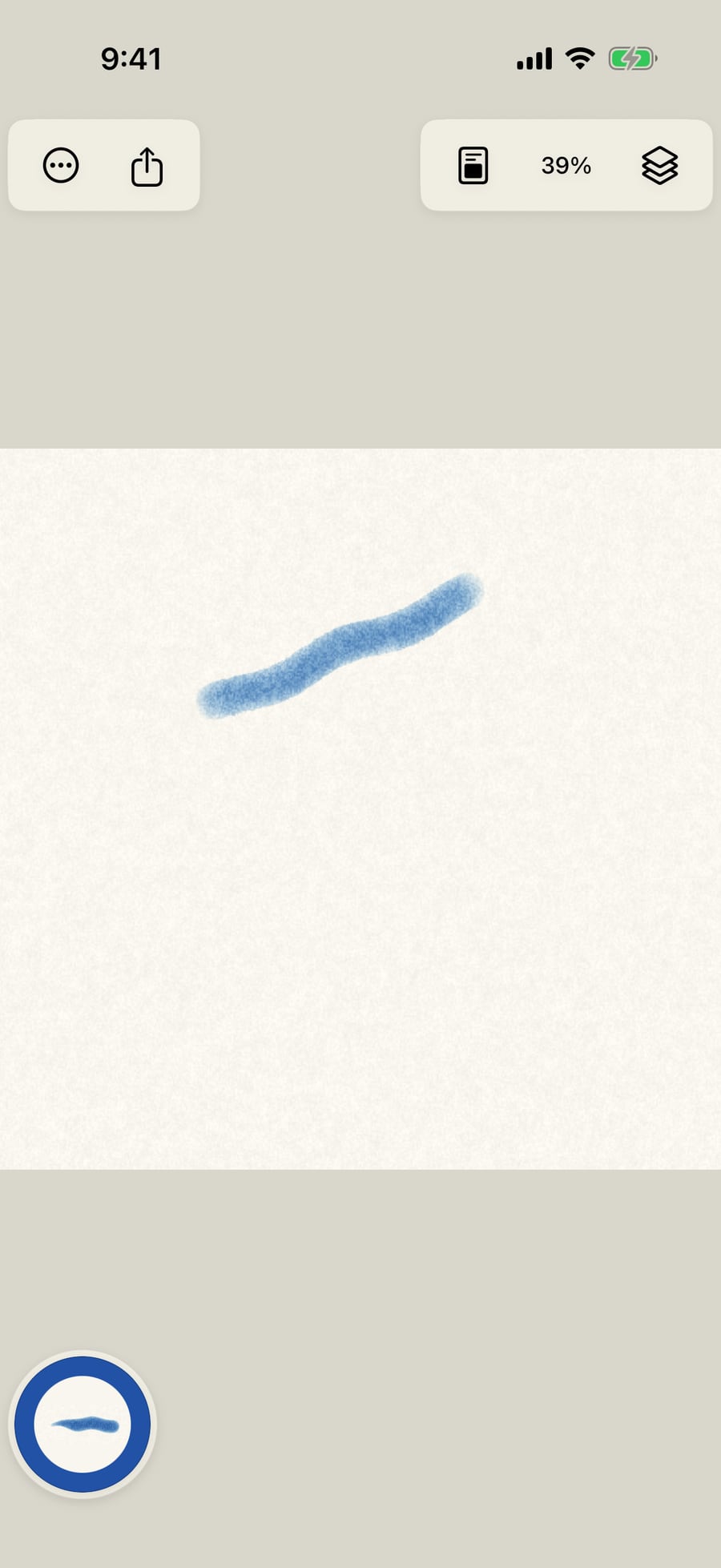
Every painting saves itself as you go. Paint a stroke, then open the Gallery to see it among your paintings.
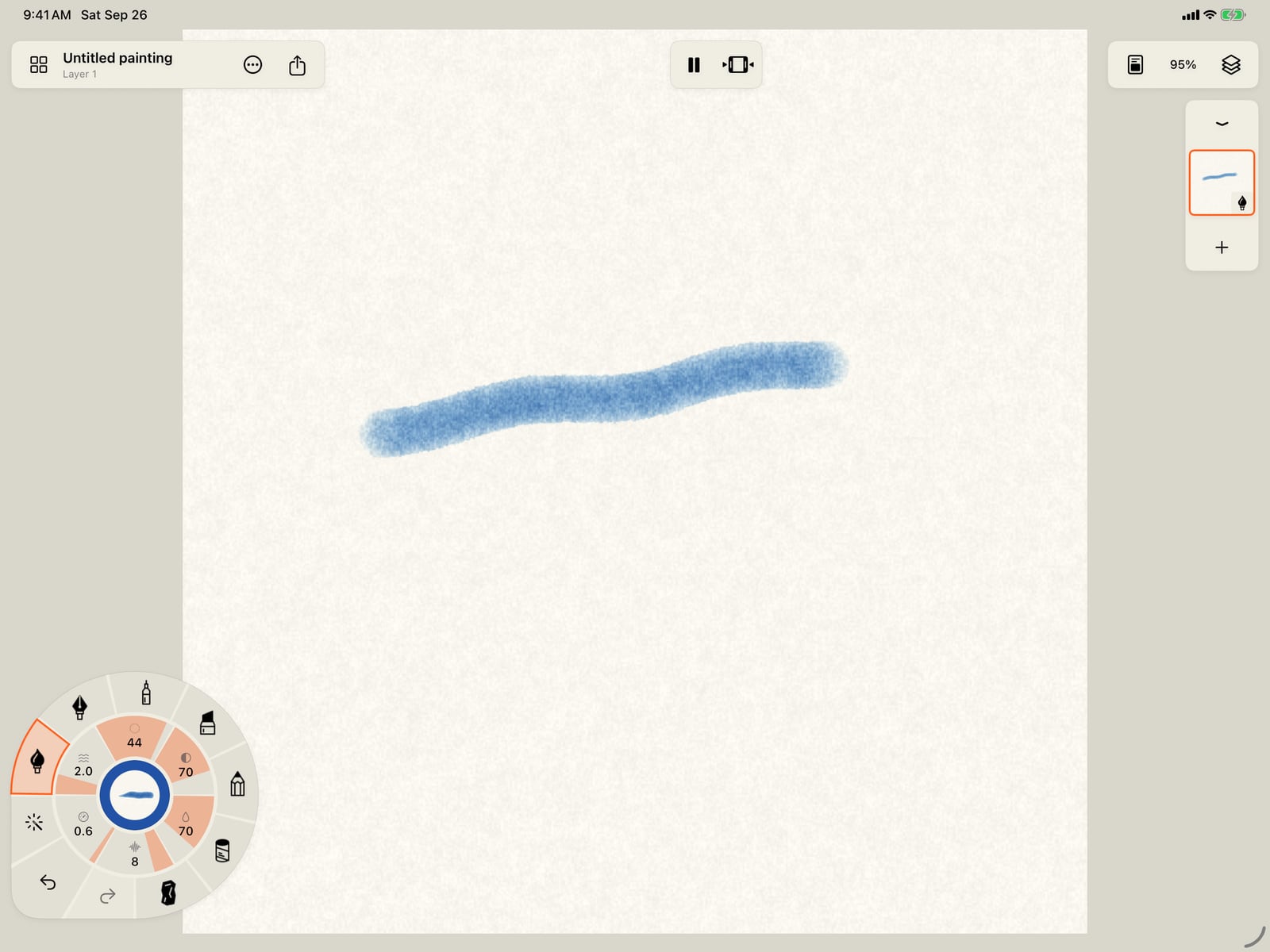
Every painting saves itself as you go. Paint a stroke, then open the Gallery to see it among your paintings.
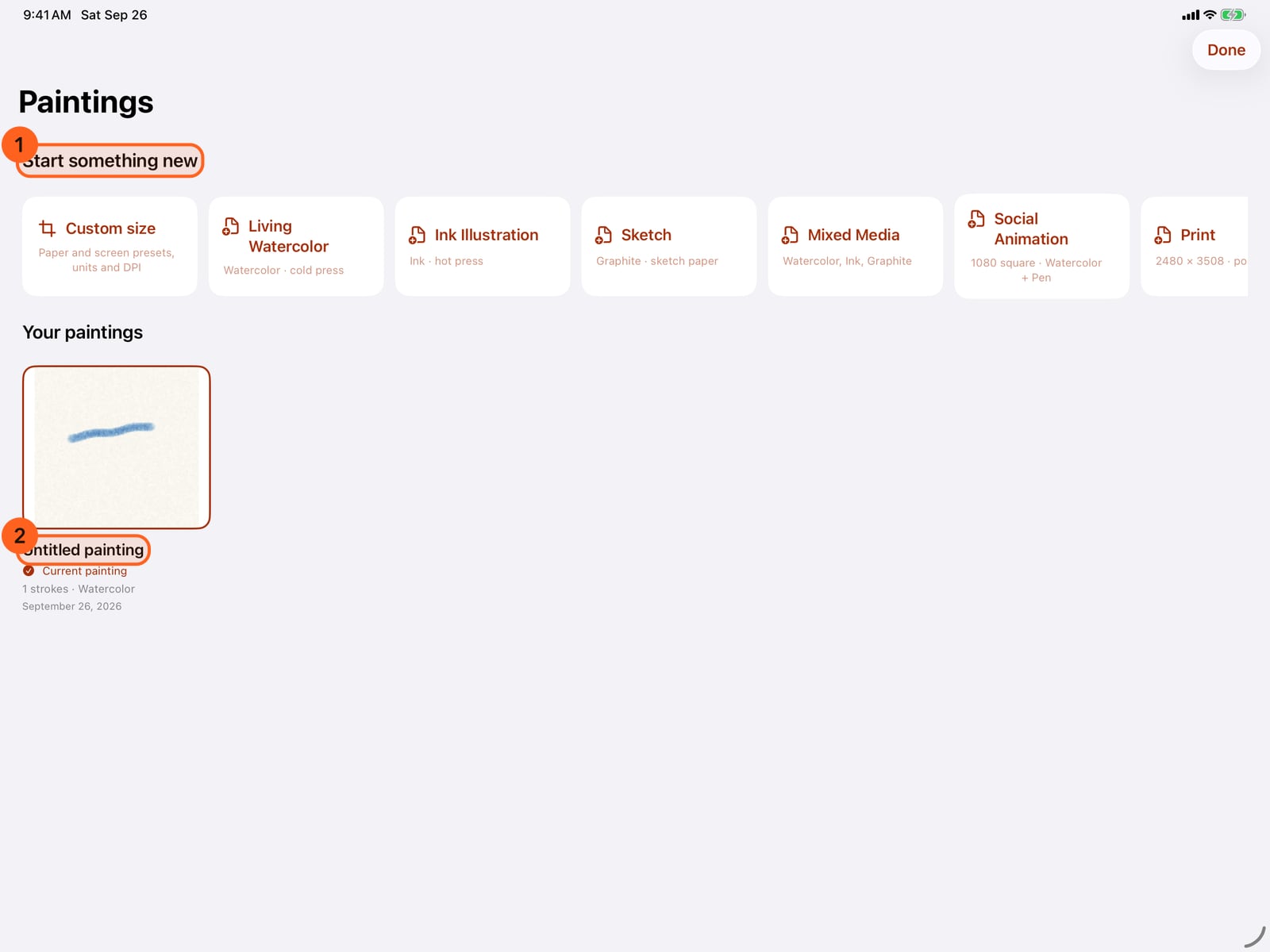
Tap Gallery in the top-left corner. Start something new offers templates at the top, and your paintings are below.
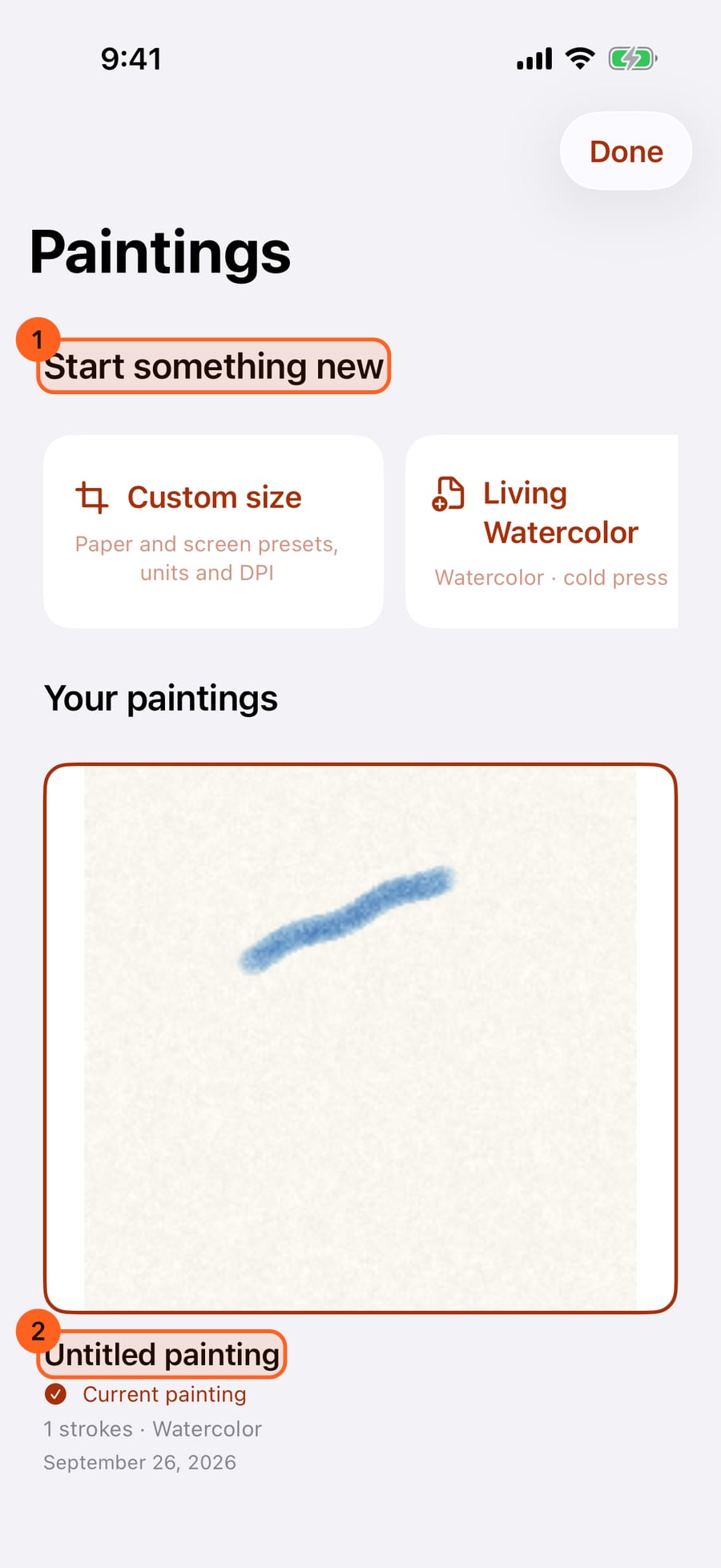
On iPhone, tap Actions, then Gallery. Start something new offers templates at the top, and your paintings are below.
Click Gallery in the top-left corner. Start something new offers templates at the top, and your paintings are below.
Tap a template to start a painting set up for it. Ink Illustration opens with an Ink layer on smooth hot press paper, and the India Ink brush in hand.
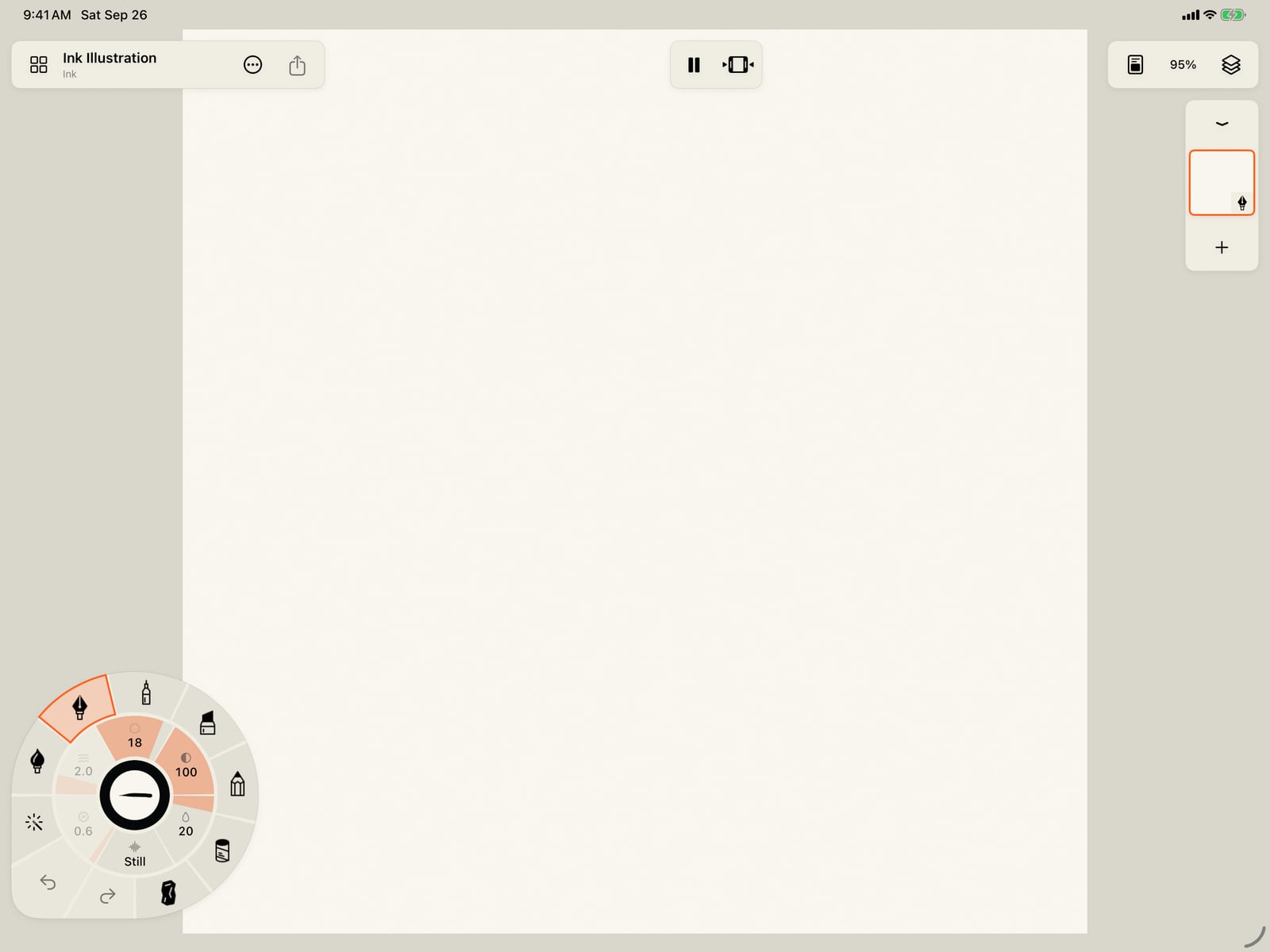
Tap a template to start a painting set up for it. Ink Illustration opens with an Ink layer on smooth hot press paper, and the India Ink brush in hand.
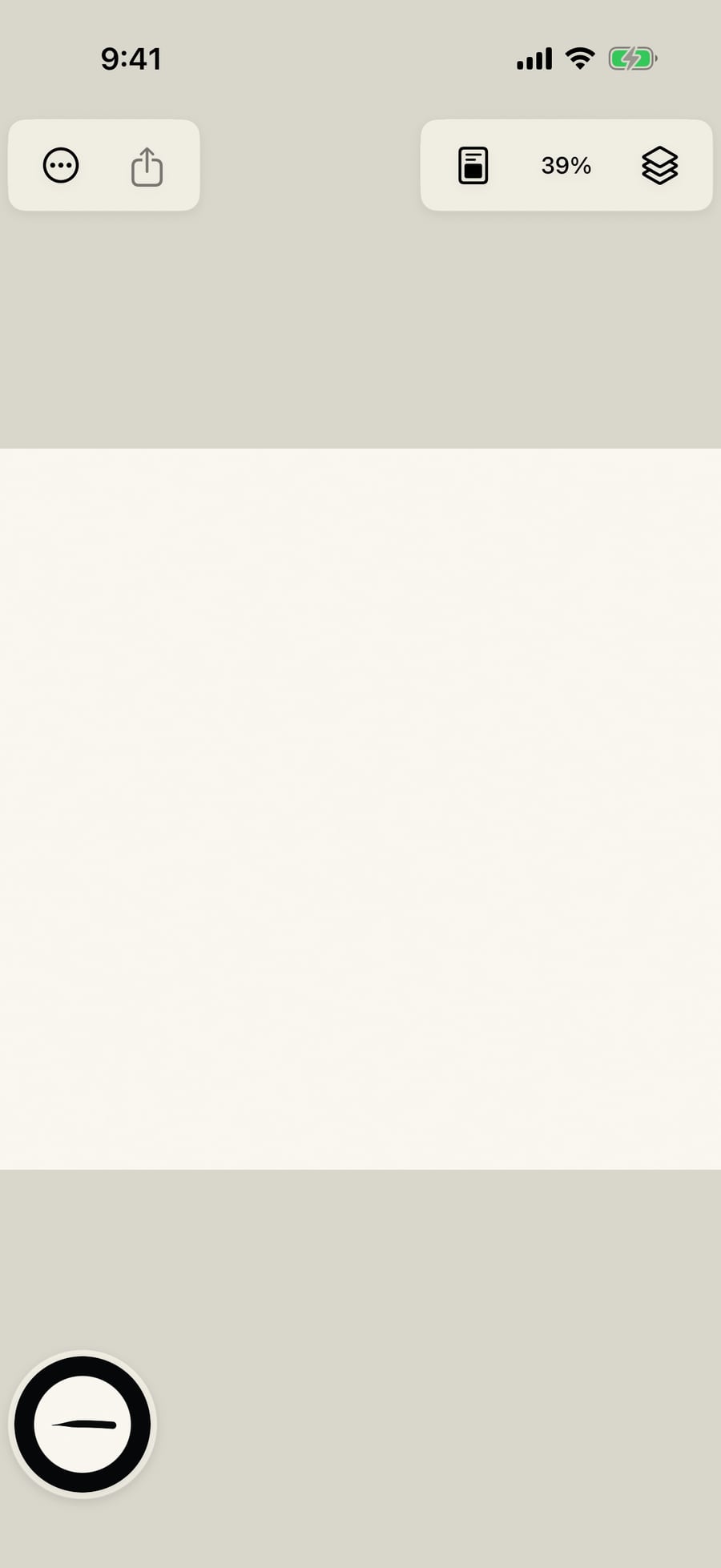
Click a template to start a painting set up for it. Ink Illustration opens with an Ink layer on smooth hot press paper, and the India Ink brush in hand.
Paint something, then open the Gallery again. Both paintings are here, and the open one is marked Current painting.
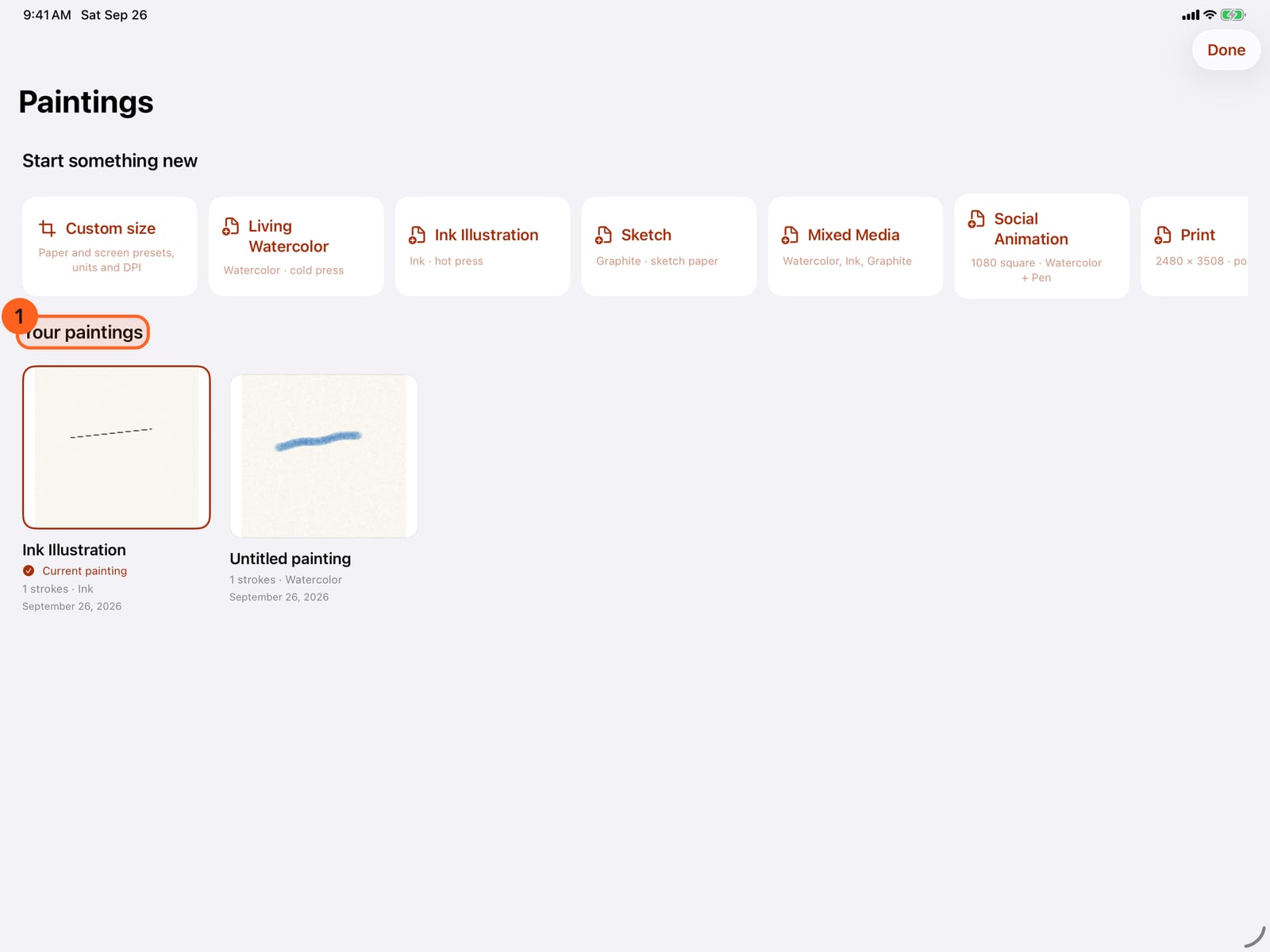
Paint something, then open the Gallery from Actions again. Both paintings are here, and the open one is marked Current painting.
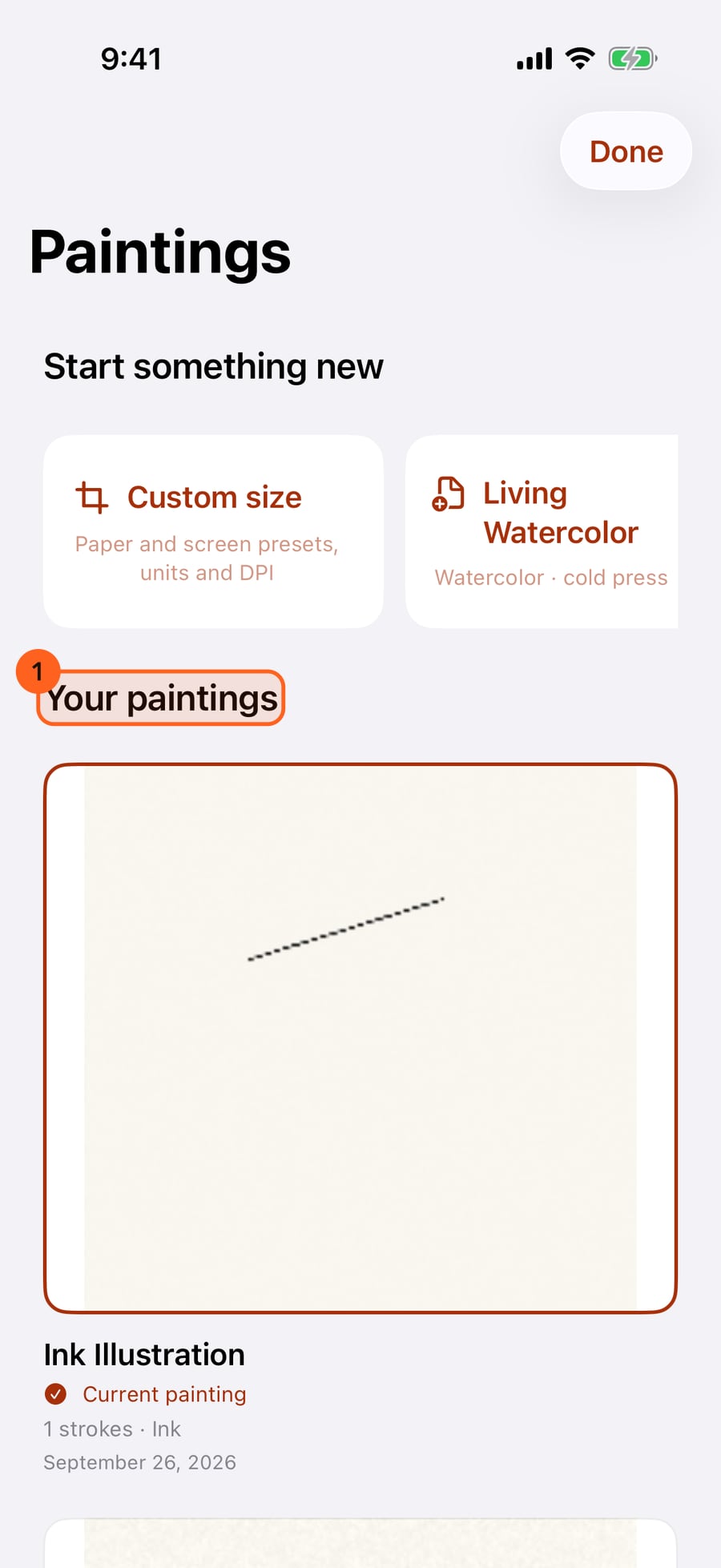
Touch and hold a painting for Rename, Duplicate and Delete. Tapping a painting opens it.
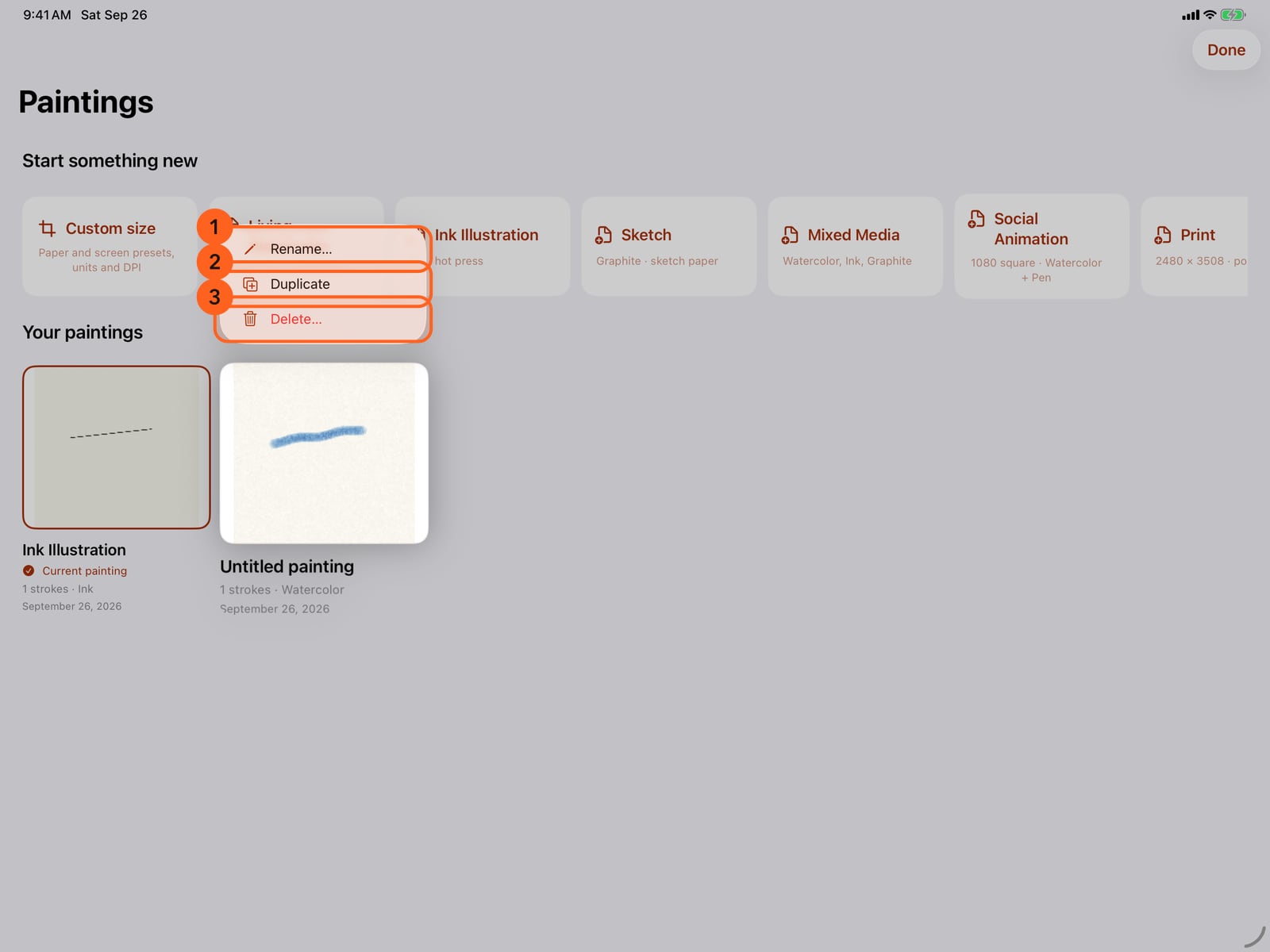
Touch and hold a painting for Rename, Duplicate and Delete. Tapping a painting opens it.
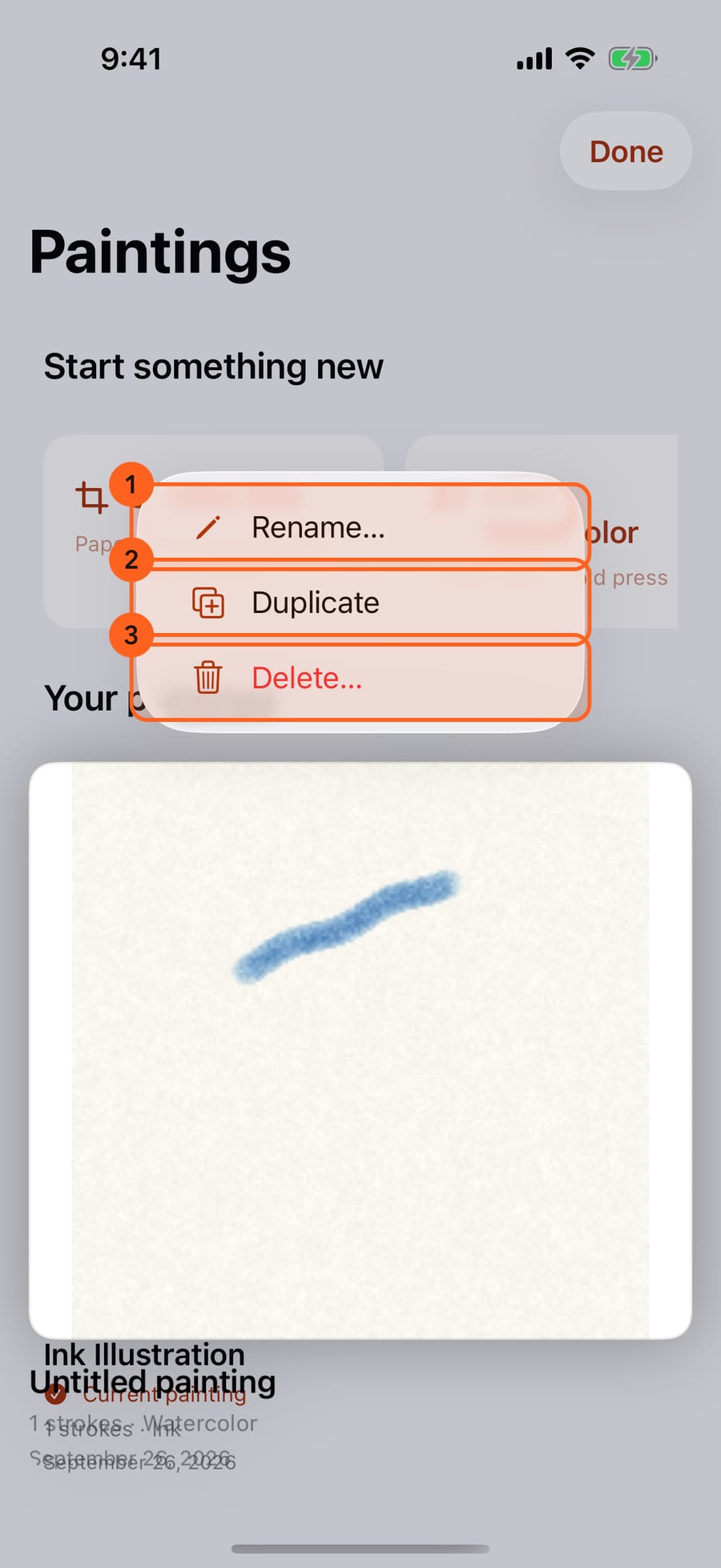
Click and hold a painting for Rename, Duplicate and Delete. Clicking a painting opens it.
Duplicate makes a copy to try something out on. Delete asks first, and removes only the painting, never its exported files.
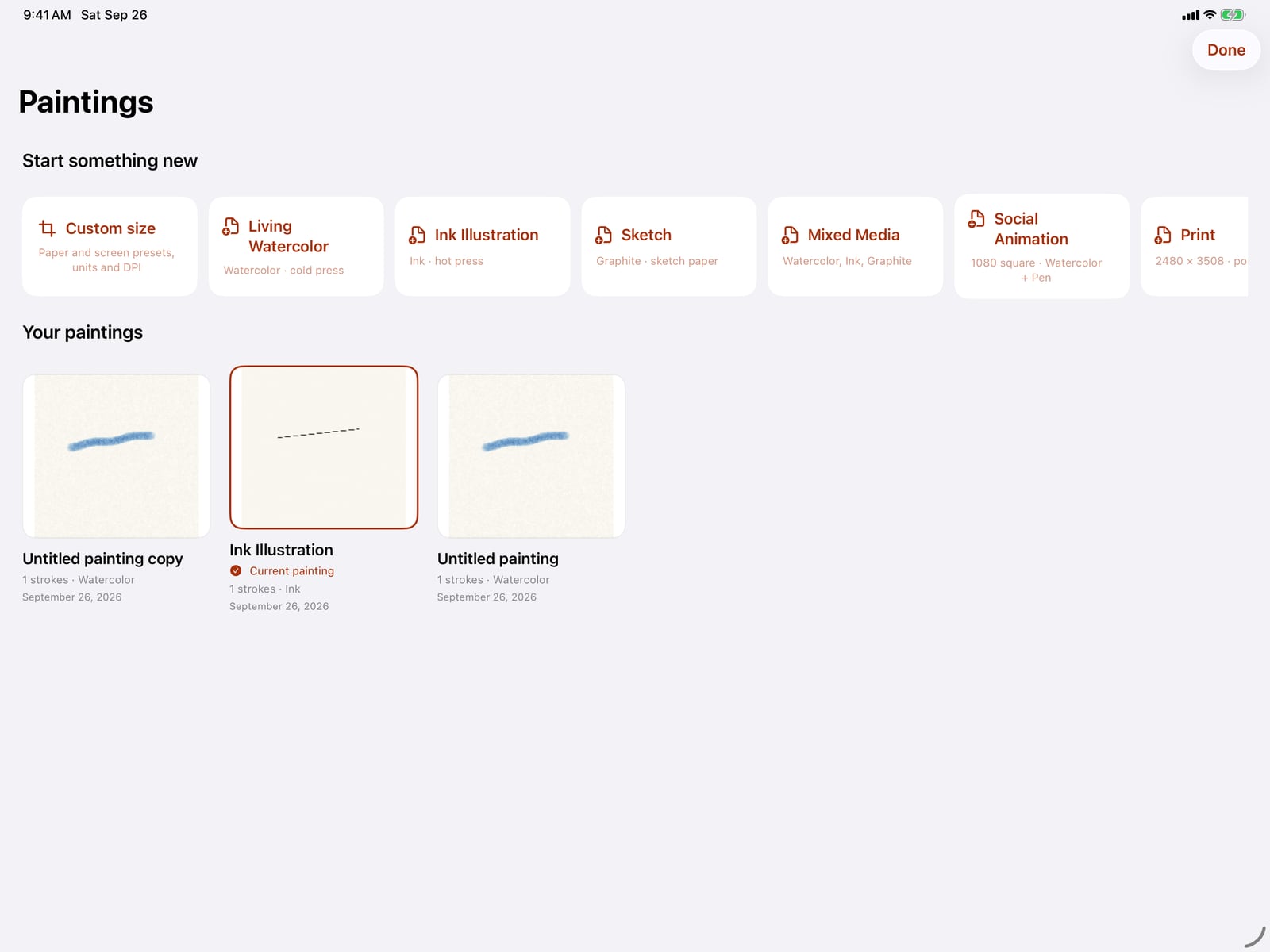
Duplicate makes a copy to try something out on. Delete asks first, and removes only the painting, never its exported files.
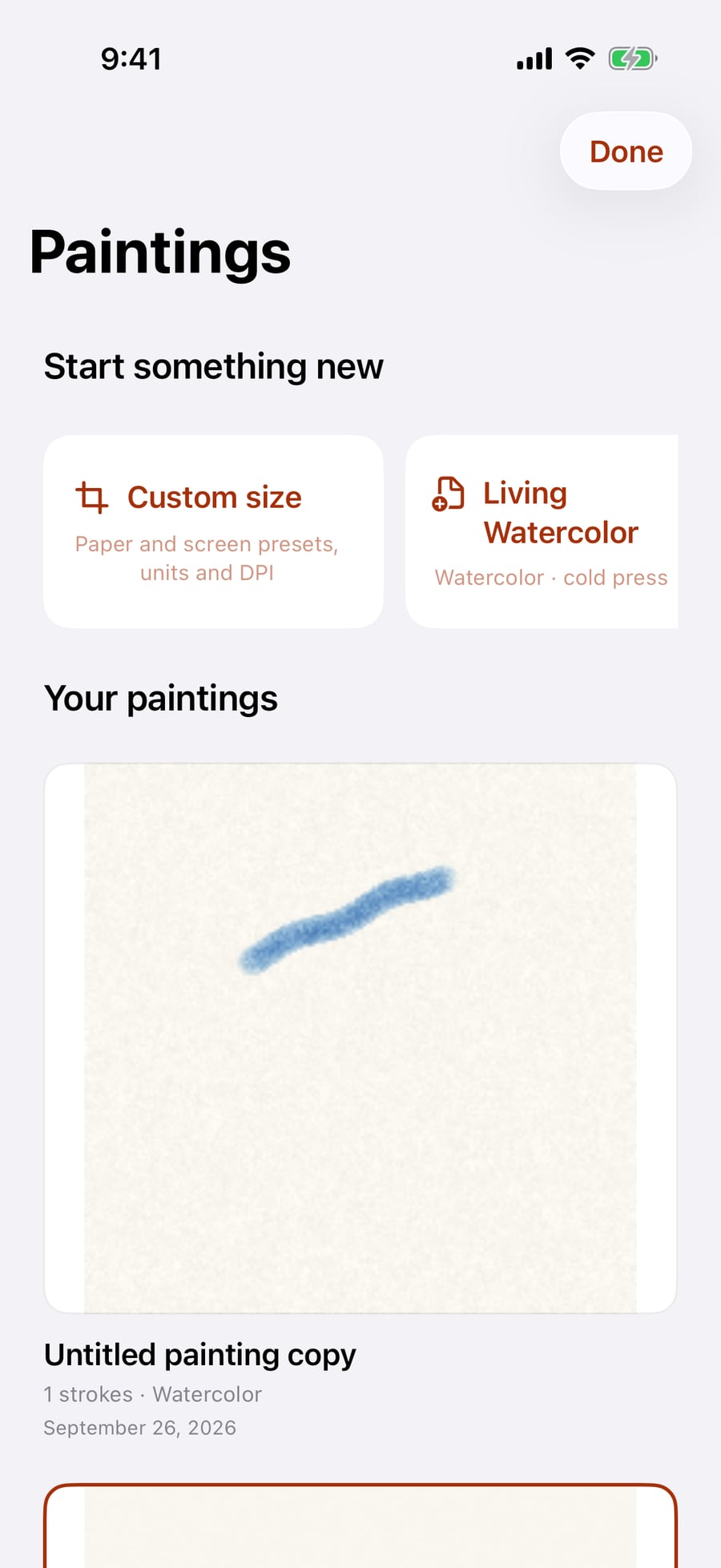
For any other size, tap Custom size. New painting offers paper and screen presets, or your own width and height, and Create opens it.
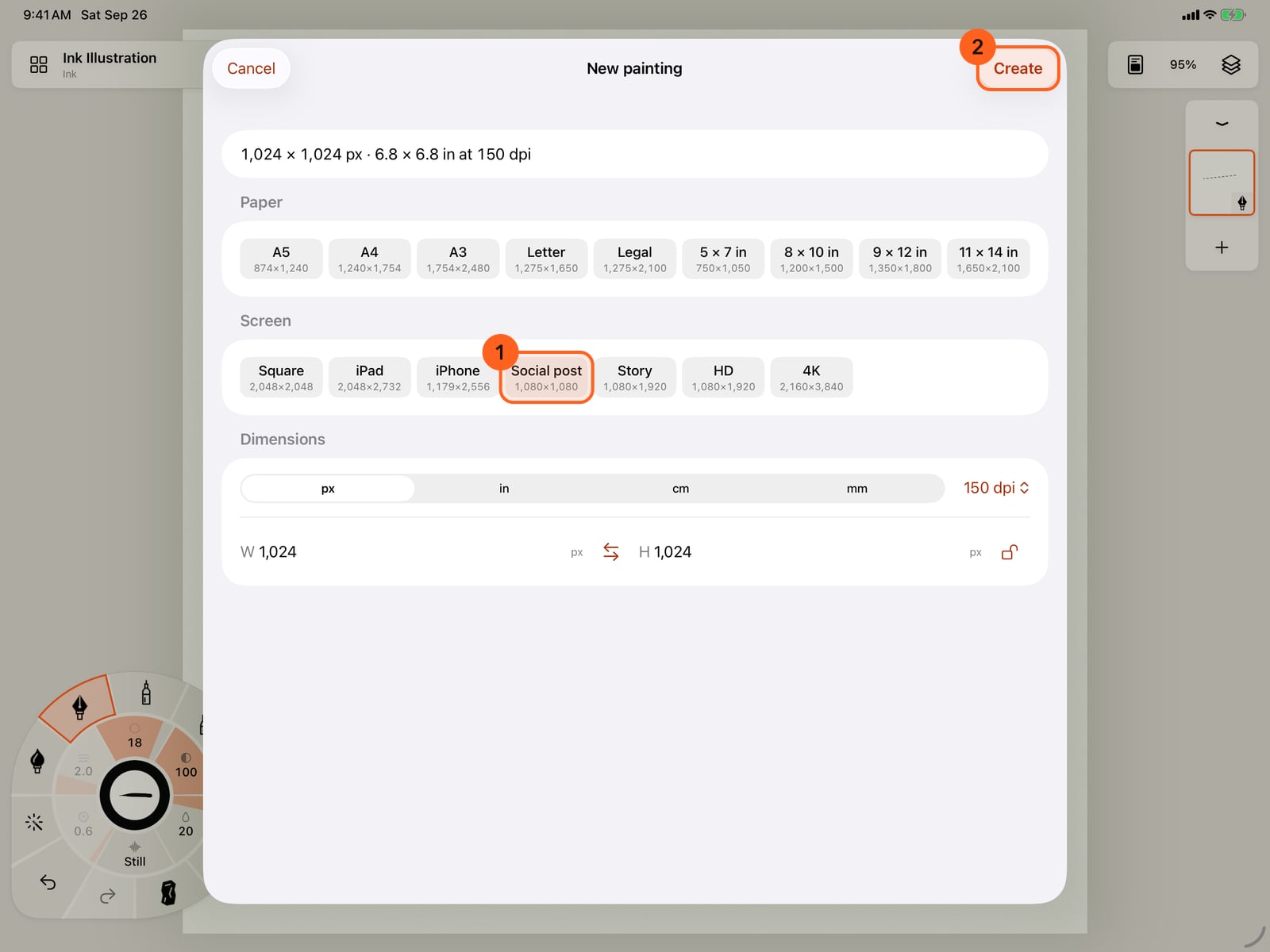
For any other size, tap Custom size. New painting offers paper and screen presets, or your own width and height, and Create opens it.
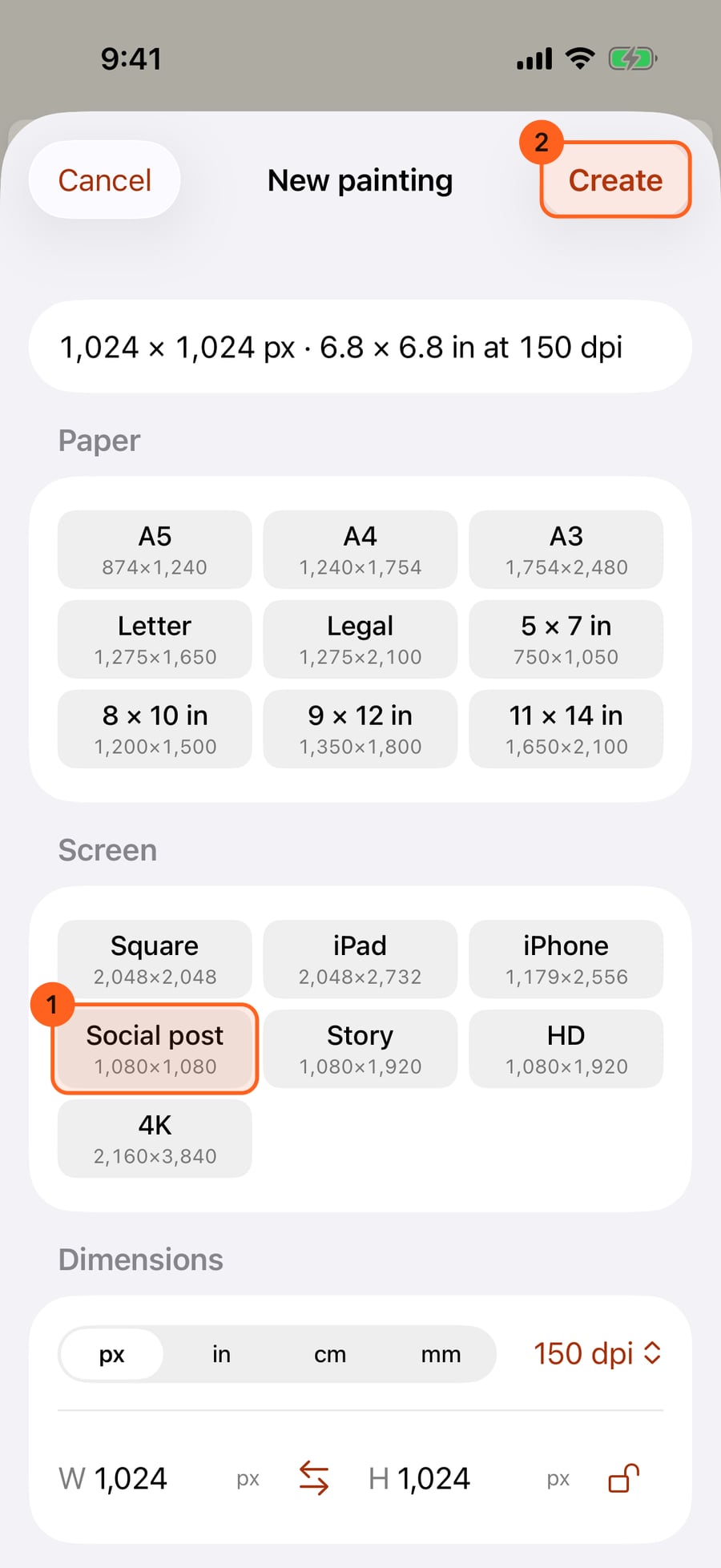
For any other size, click Custom size. New painting offers paper and screen presets, or your own width and height, and Create opens it.
The Gallery
Gallery is the first button in the top bar.
On iPhone, and in narrow windows, Gallery is the first item in the Actions menu.
Opening the Gallery pauses the painting and saves it first, so its card is up to date. It has two parts:
- Start something new 1: Custom size and the templates.
- Your paintings 2: every painting on this device, most recent first, each with a preview, its title, its stroke count and media, and the date it last changed. The one you have open is outlined and marked Current painting.
Tap a painting to open it; tap the current one, or Done, to go back to it.
Templates
| Template | What you get |
|---|---|
| Custom size | The New painting sheet: paper and screen presets, units and DPI (see Canvas size), then Create |
| Living Watercolor | Watercolor on cold press paper, 1024 × 1024, with the Round brush |
| Ink Illustration | Ink on hot press paper, with India Ink in hand |
| Sketch | Graphite on sketch paper, with Living Sketch in hand |
| Mixed Media | Three layers, Watercolor, Ink and Graphite, with Living Sketch in hand |
| Social Animation | 1080 square, with Watercolor and Pen layers and the Living Line pen, set up to loop |
| 2480 × 3508, portrait (A4 at 300 dpi) | |
| Lenticular | 2400 × 1600, landscape, set up to loop |
Actions → New painting… opens the same New painting sheet as Custom size, without going through the Gallery. A new painting keeps the paper you were using.
Touch and hold a painting
| Action | What it does |
|---|---|
| Rename… | Gives the painting a new title (up to 200 characters). The title also names its .doodly copy in Files. |
| Duplicate | Adds a copy of the painting, with copy after its title. |
| Delete… | After you confirm with Delete painting, removes the painting from this device. Exported files are kept. |
The painting you have open can be renamed and duplicated, but not deleted: open another painting first. Paintings that can't be read are shown with a warning and can still be deleted.
On the Mac, click and hold a painting, or secondary-click it, for the same menu.
Tip: A
.doodlyfile you put in Files → Doodly Doodle, from another device or a friend, appears in the Gallery on its own. See Files and iCloud.
Something not behaving as expected?
Visit support or write to [email protected].