

Guides / Paintings and files
Canvas size
Resize the page with paper and screen presets or your own dimensions, in pixels, inches, centimetres or millimetres at a chosen dpi.
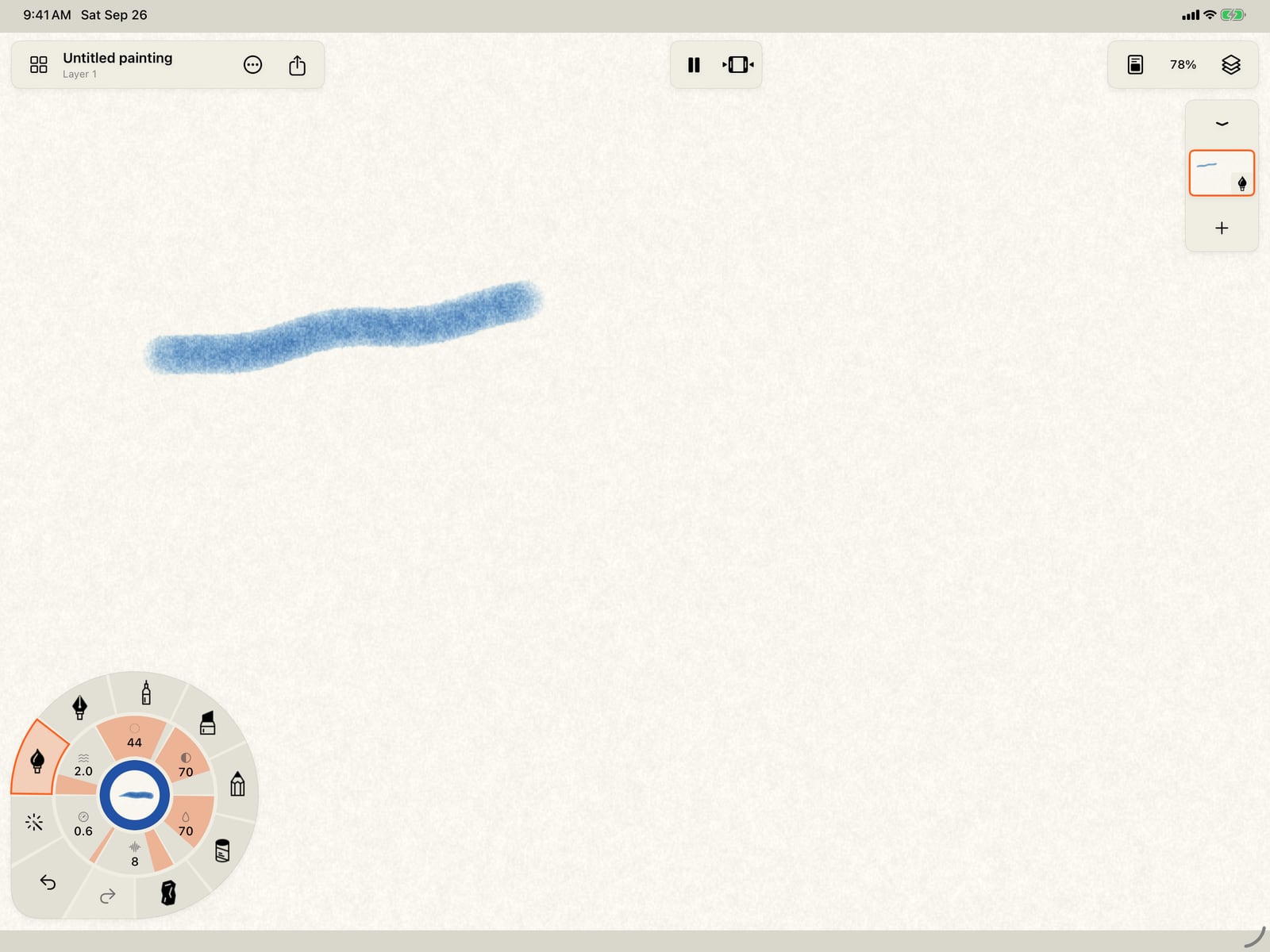
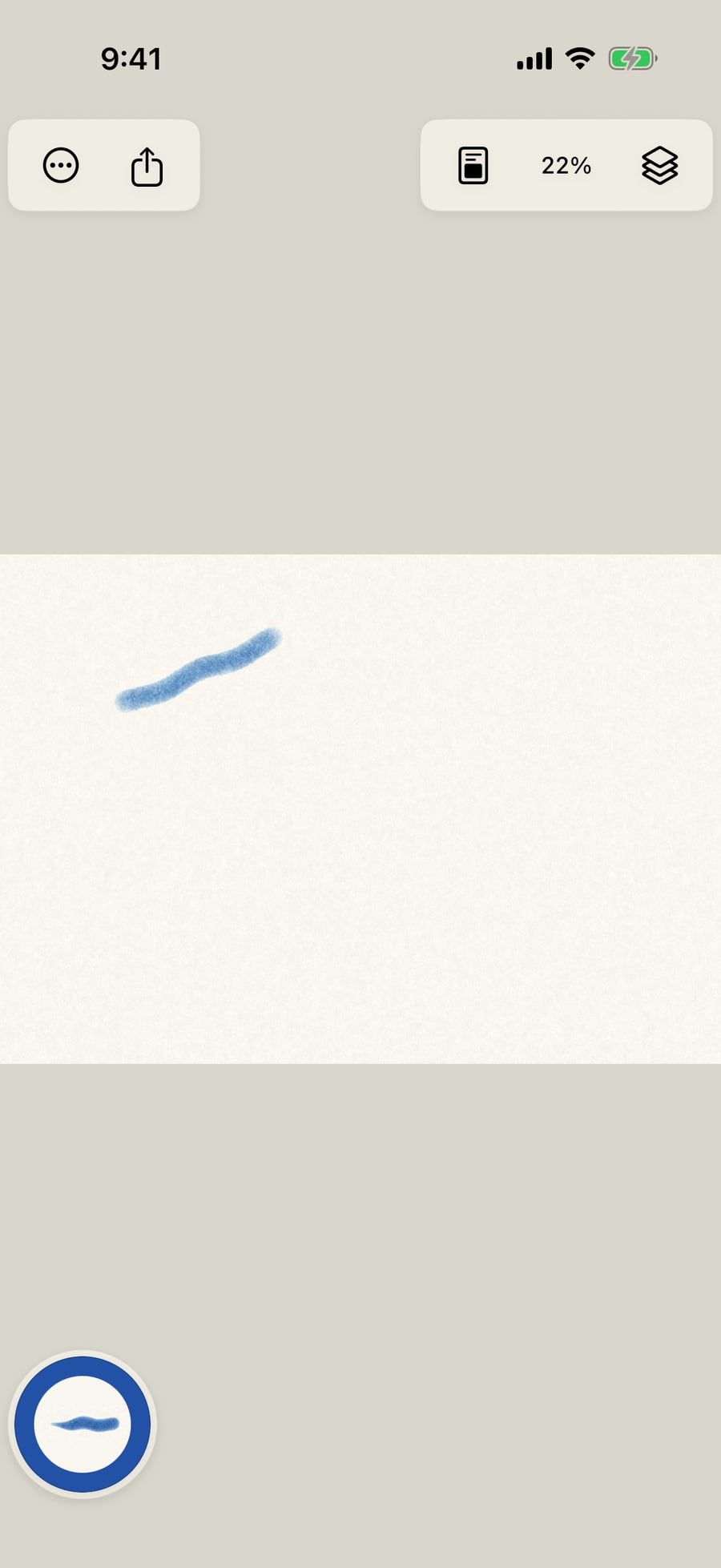
Paint a stroke, then tap the Canvas menu in the top bar. Canvas size is the second item.
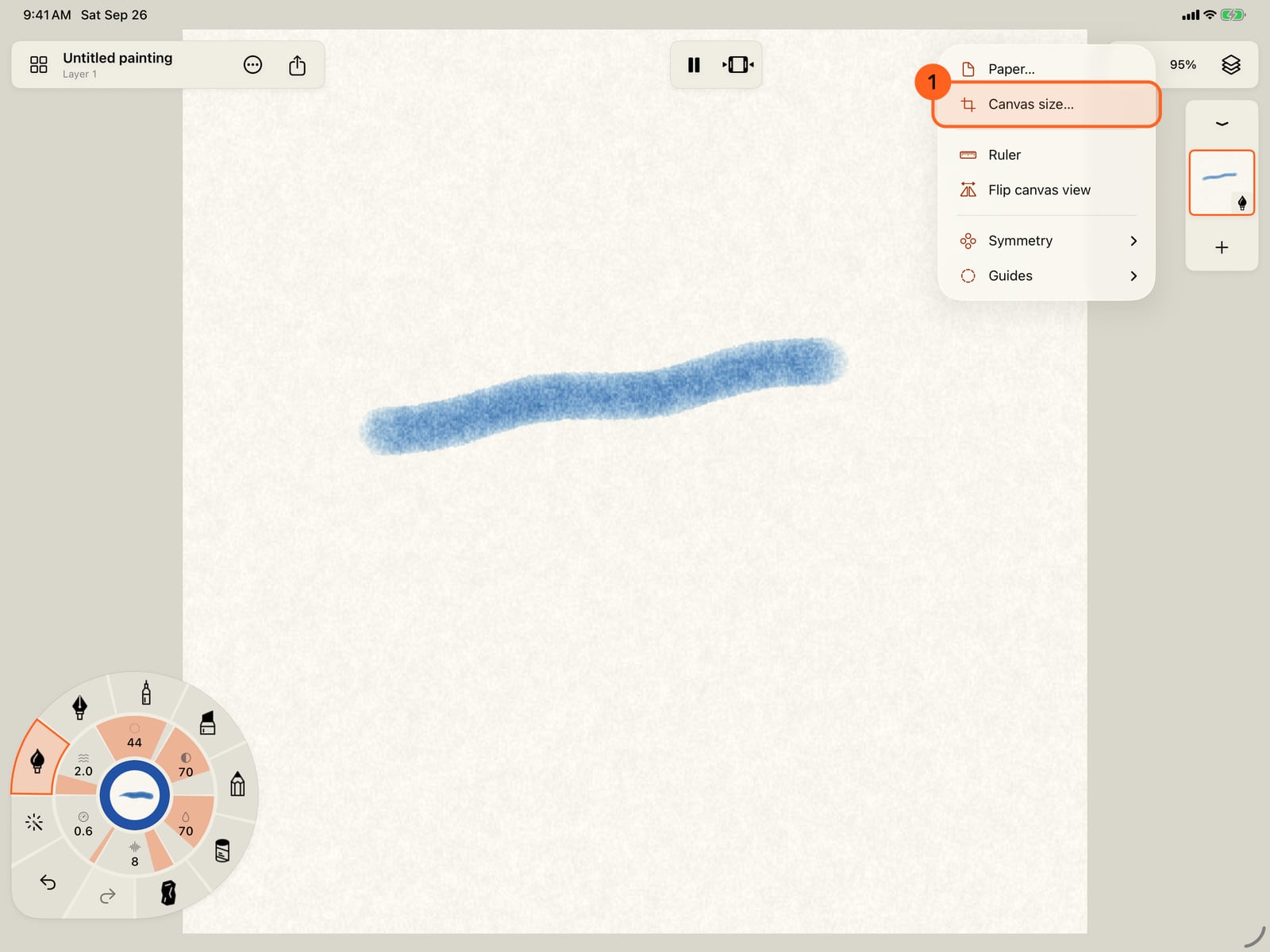
Paint a stroke, then tap the Canvas menu in the top bar. Canvas size is the second item.
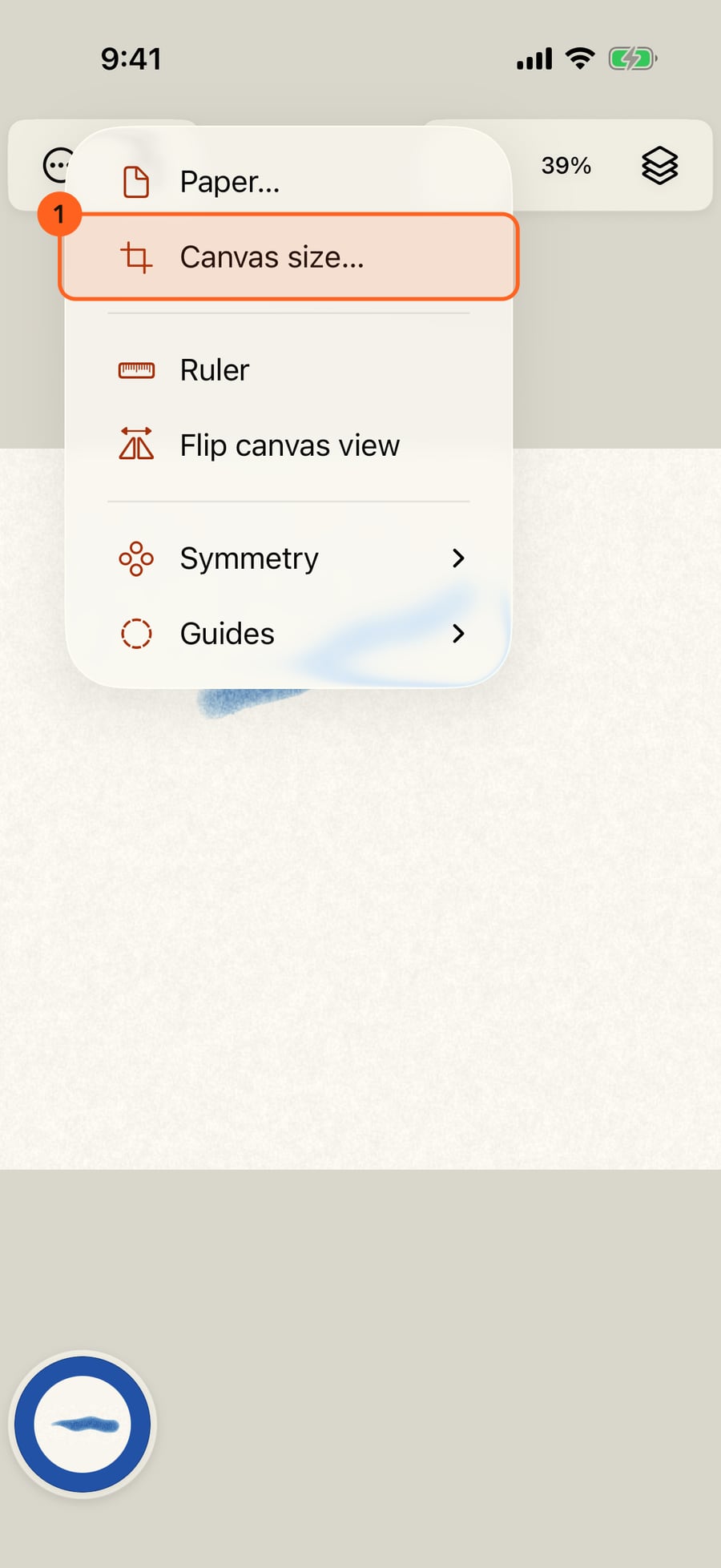
Paint a stroke, then click the Canvas menu in the top bar. Canvas size is the second item.
The top line shows the size in pixels and in inches at the chosen dpi. Below are paper sizes, screen sizes, and the dimensions themselves.
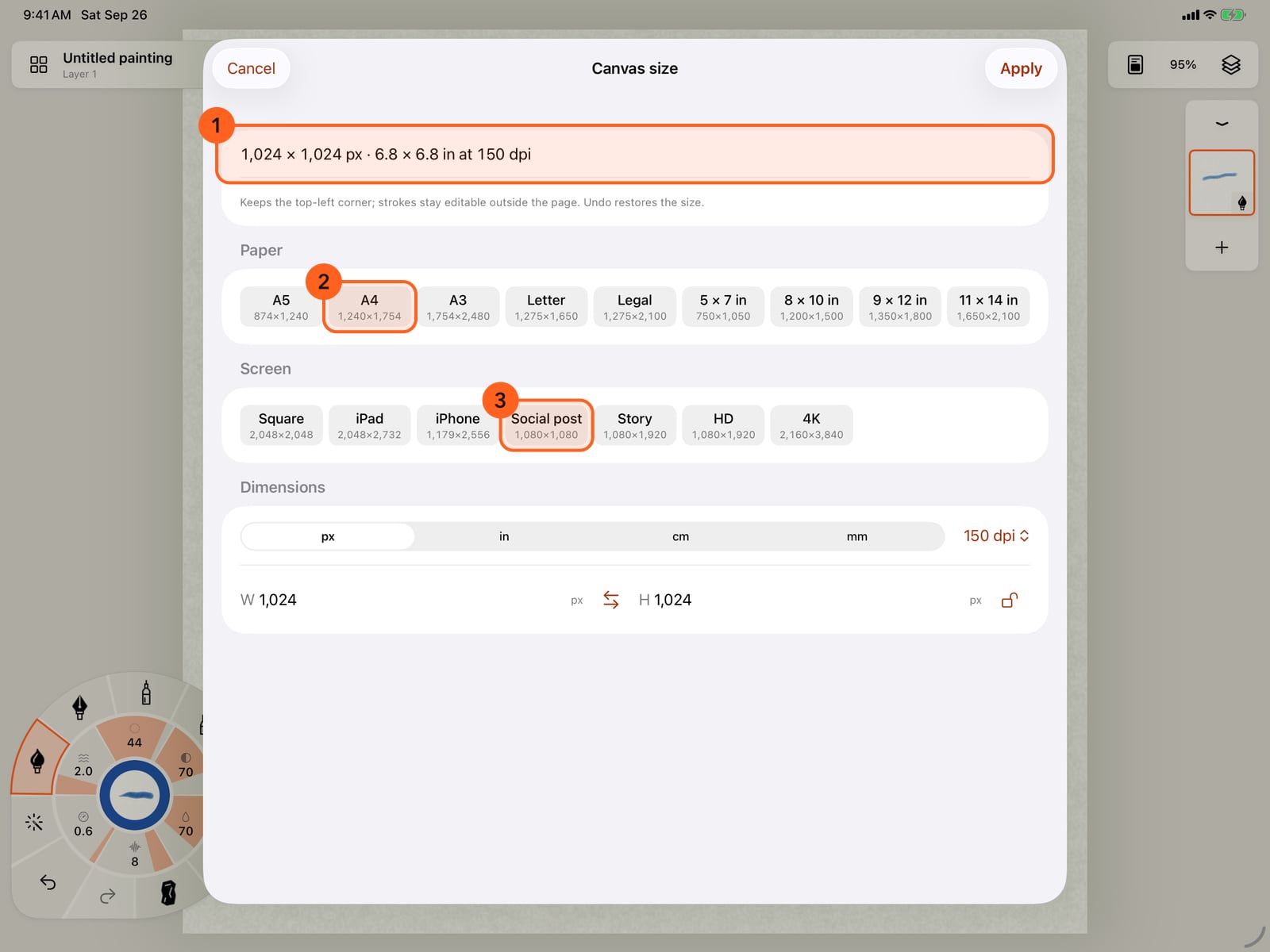
The top line shows the size in pixels and in inches at the chosen dpi. Below are paper sizes, screen sizes, and the dimensions themselves.
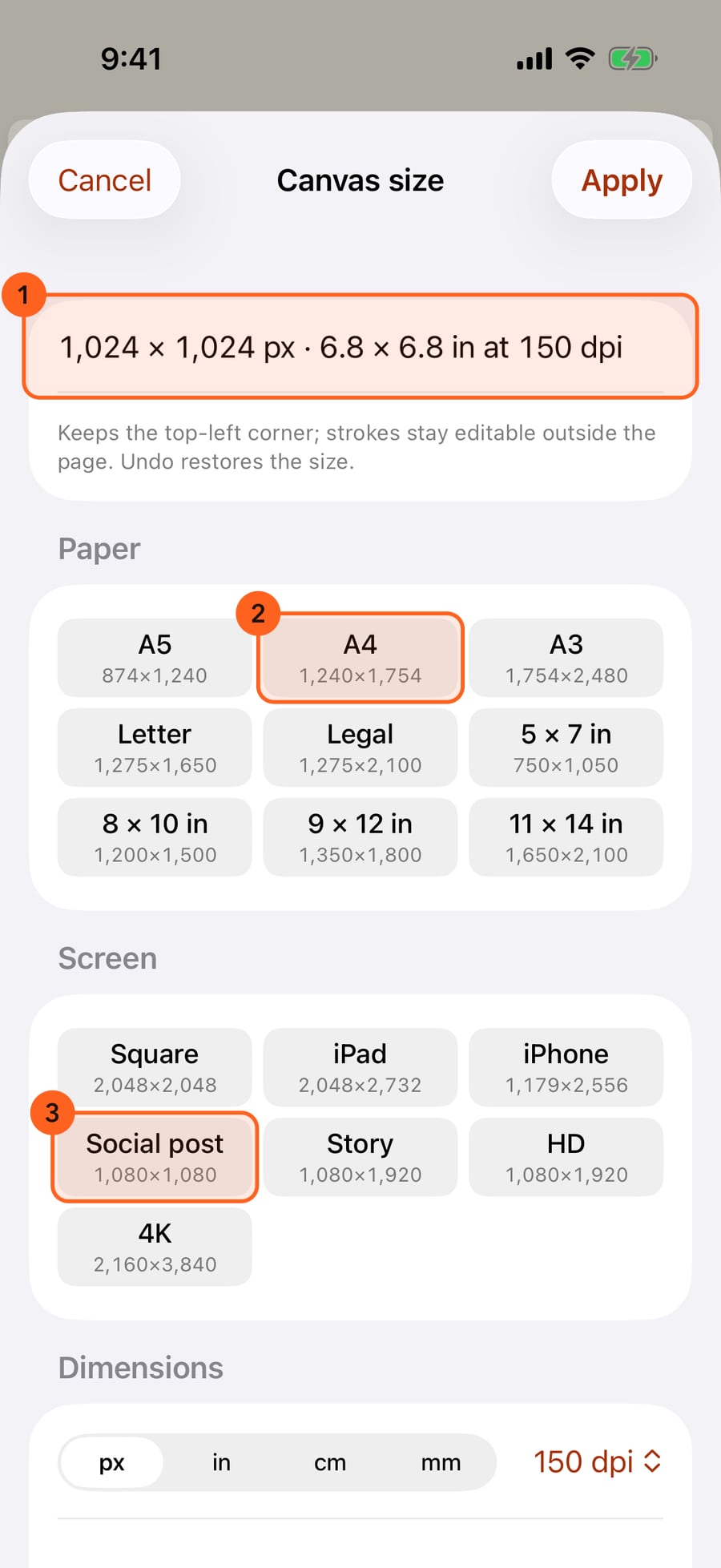
Tap A4. One tap sets both sides, at the dpi you've chosen, and the top line follows.
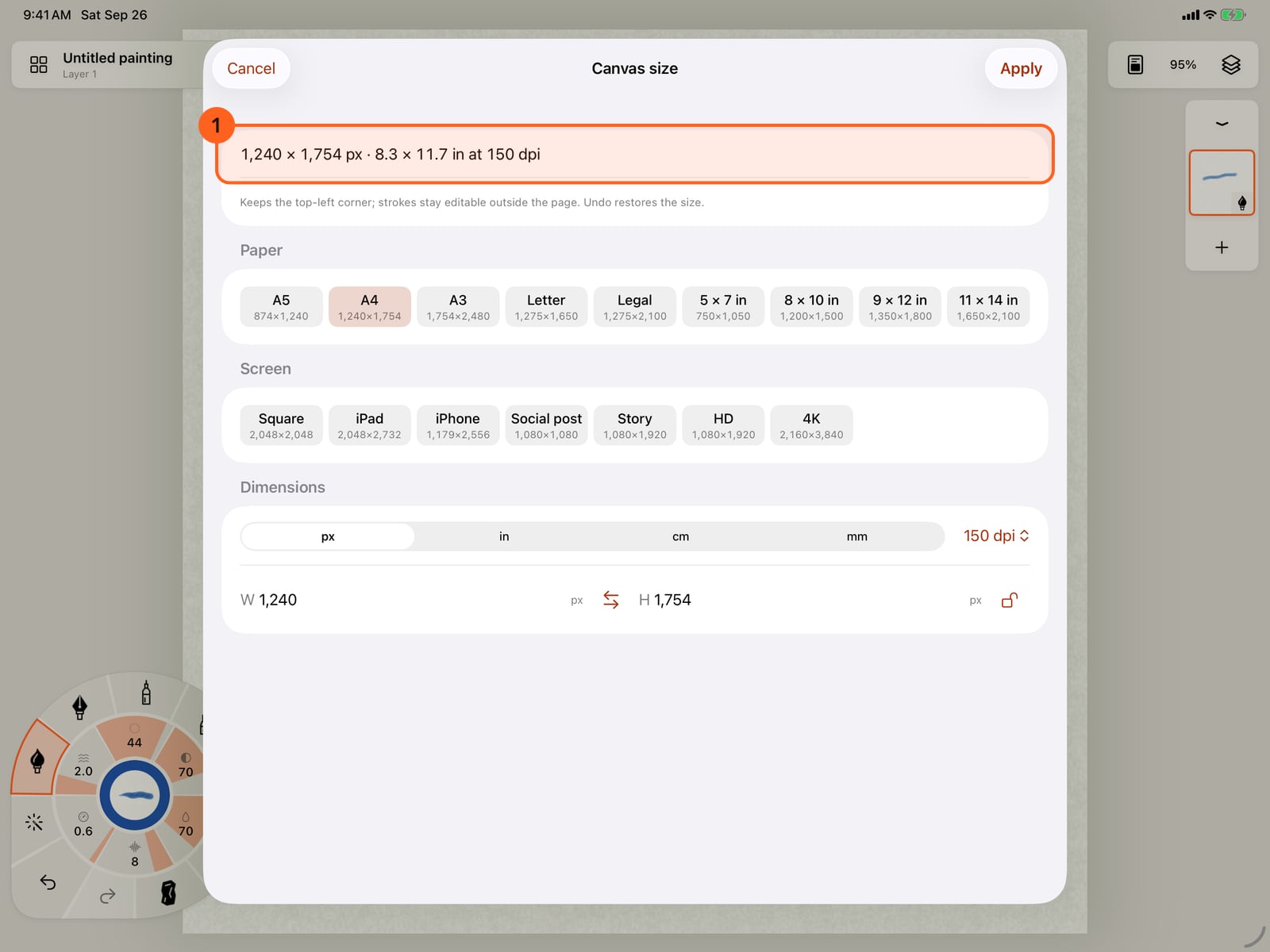
Tap A4. One tap sets both sides, at the dpi you've chosen, and the top line follows.
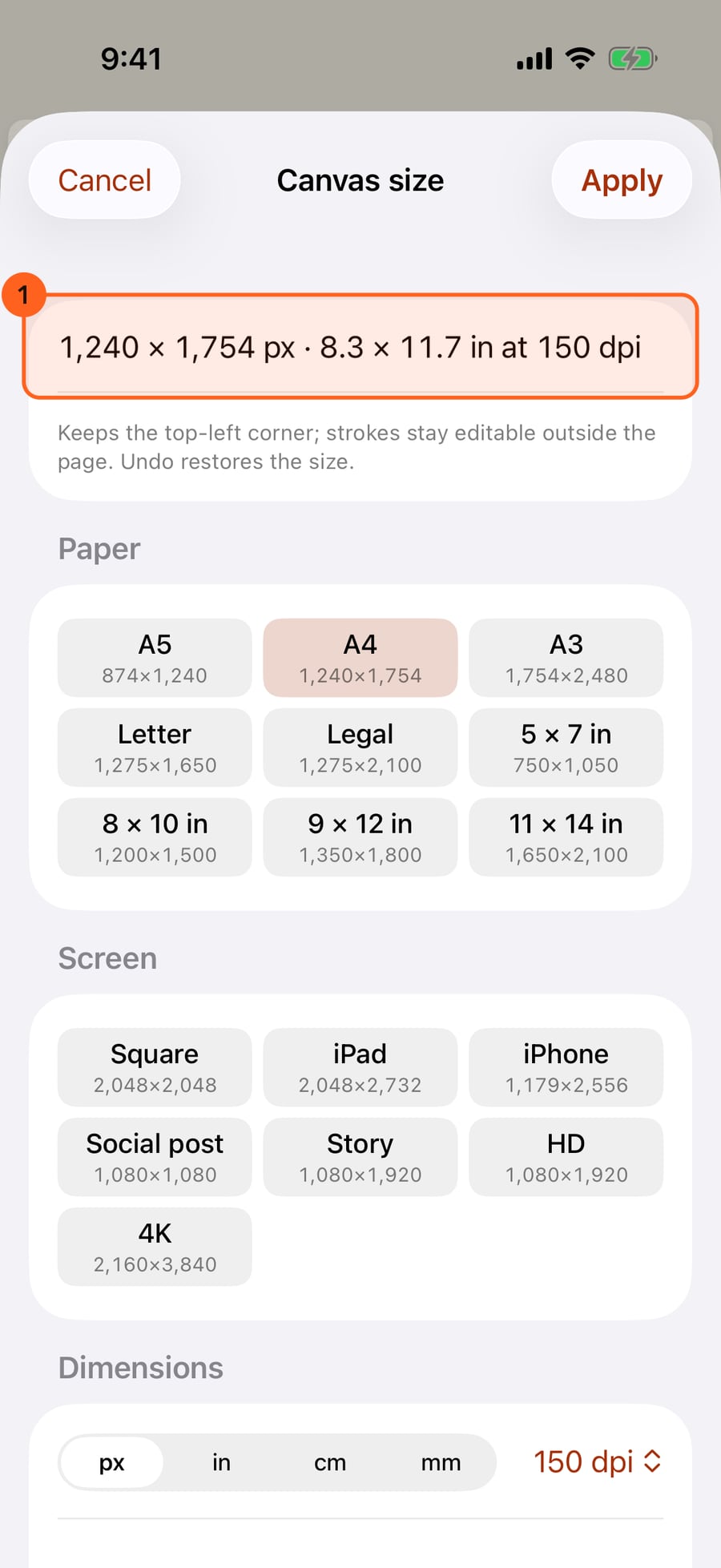
Click A4. One click sets both sides, at the dpi you've chosen, and the top line follows.
Swap orientation turns portrait into landscape. Presets then keep that orientation.
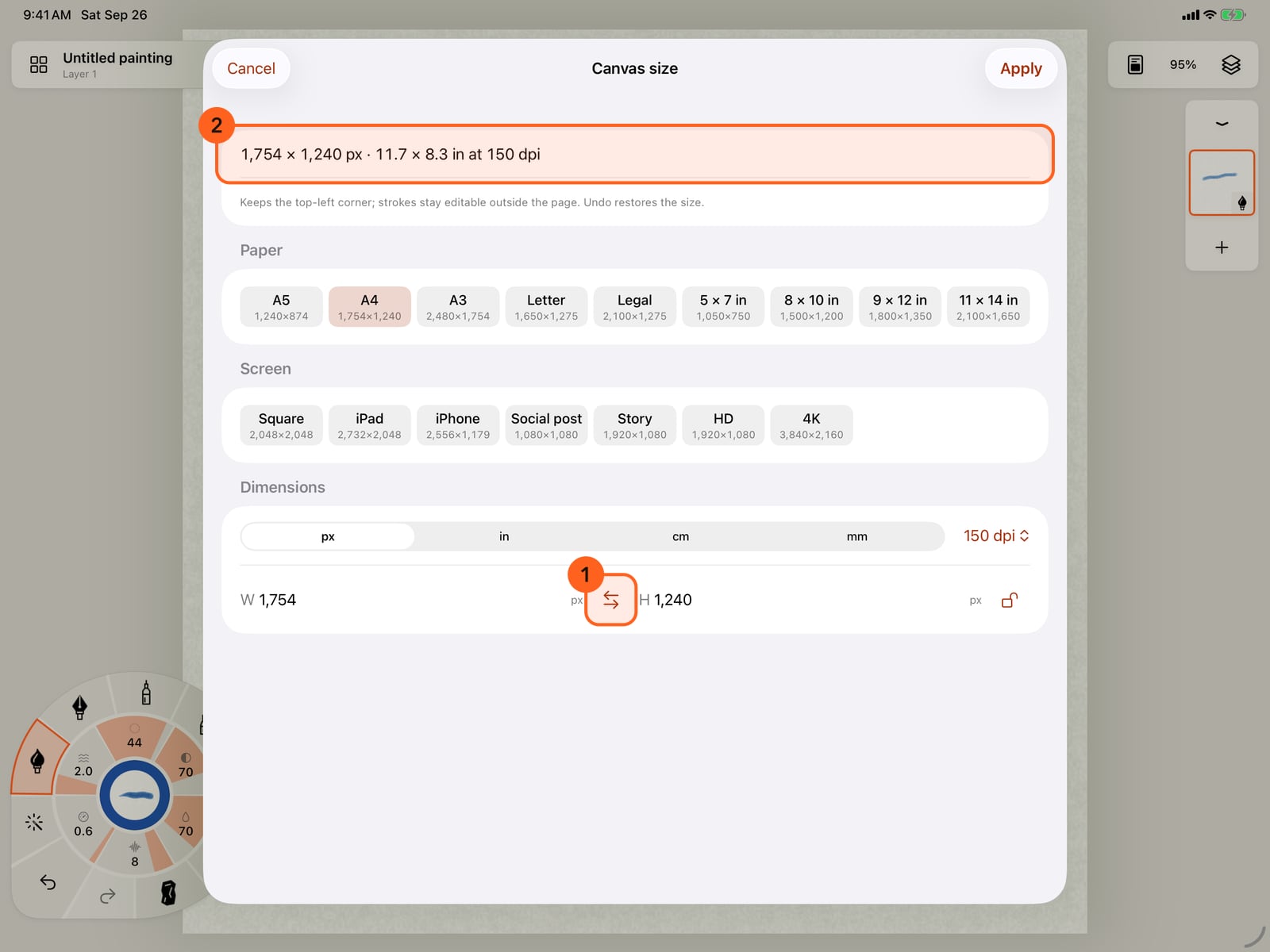
Swap orientation turns portrait into landscape. Presets then keep that orientation.
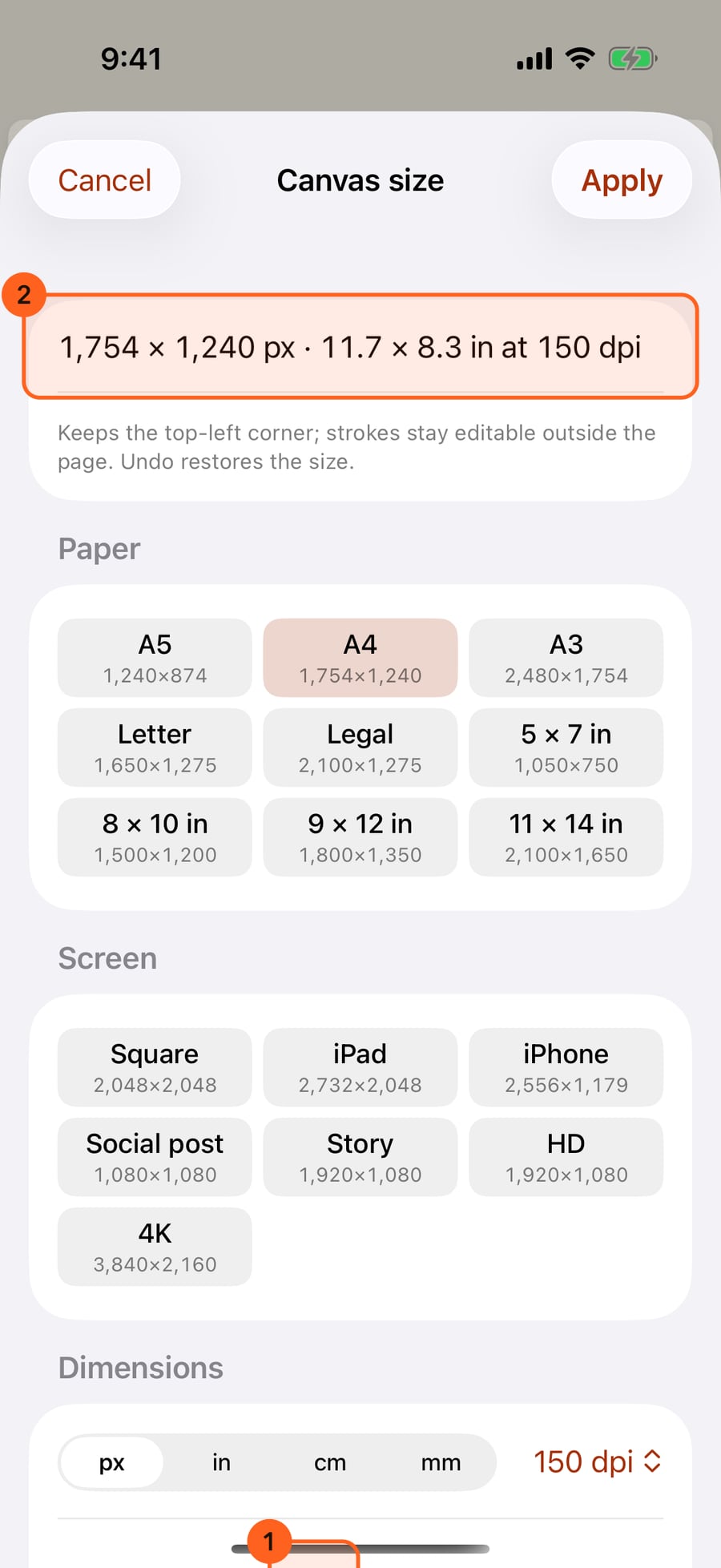
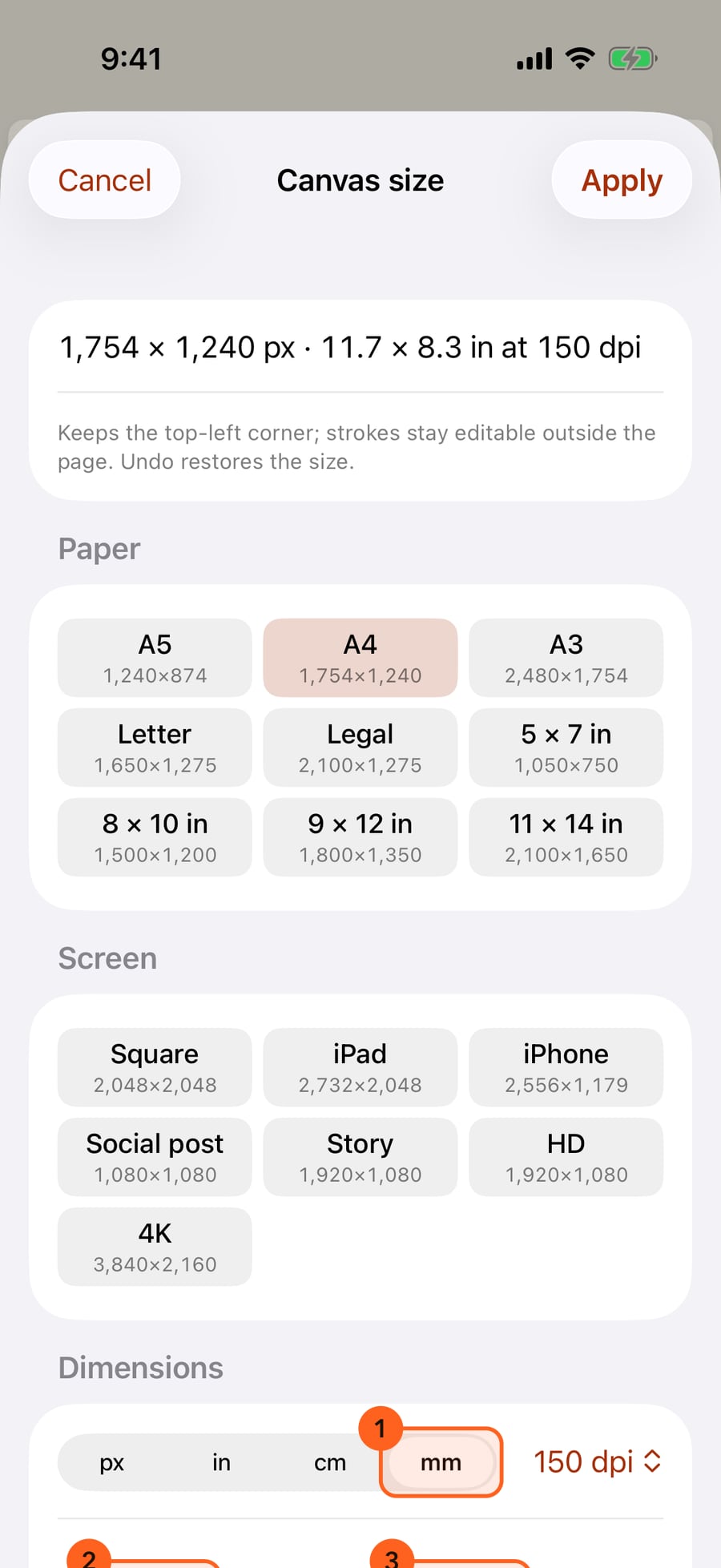
Choose millimetres, and the width and height read in millimetres. The dpi beside the units decides how many pixels each one is.
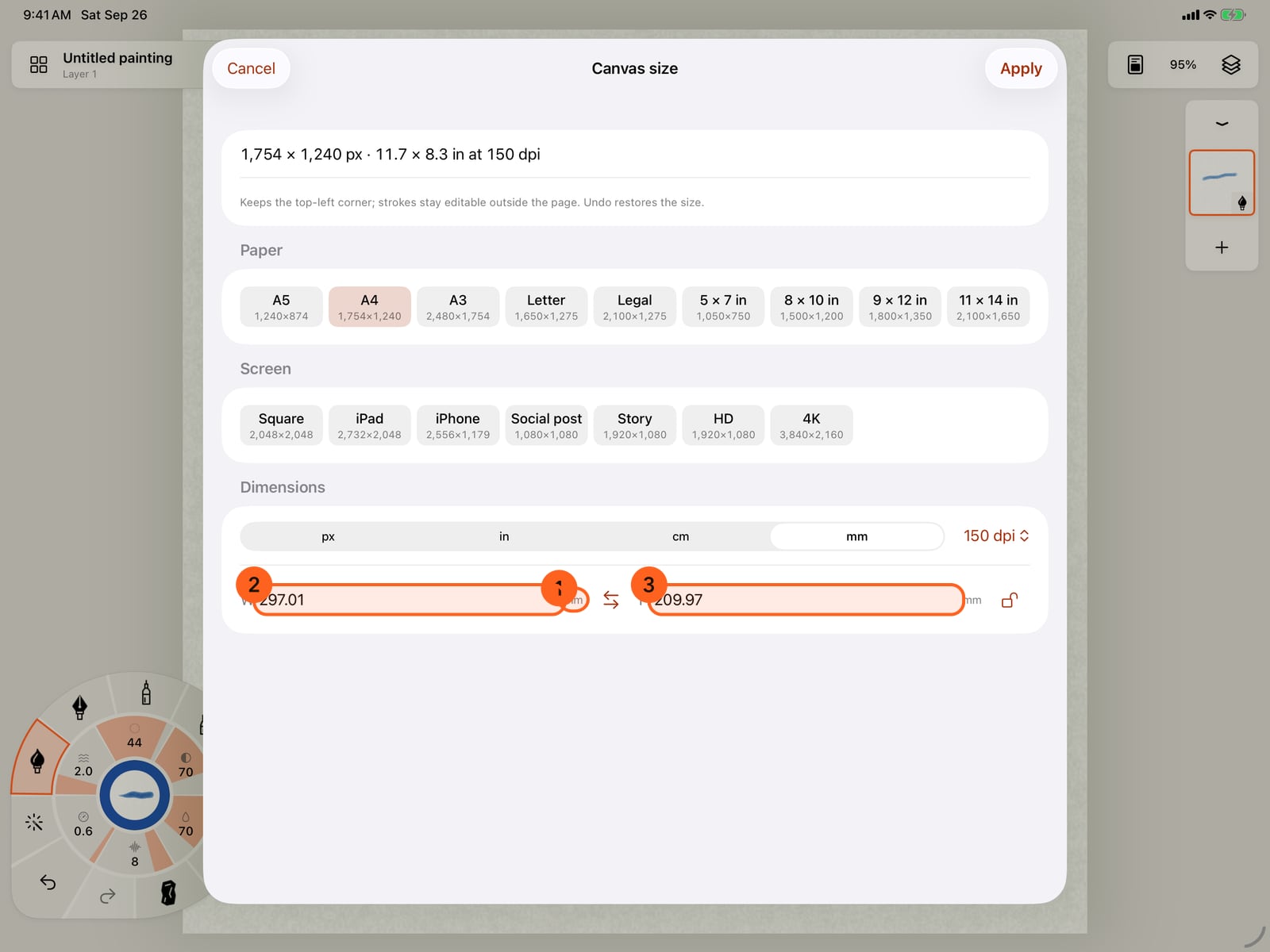
Choose millimetres, and the width and height read in millimetres. The dpi beside the units decides how many pixels each one is.
Tap the lock to keep proportions. Now changing one side changes the other to match.
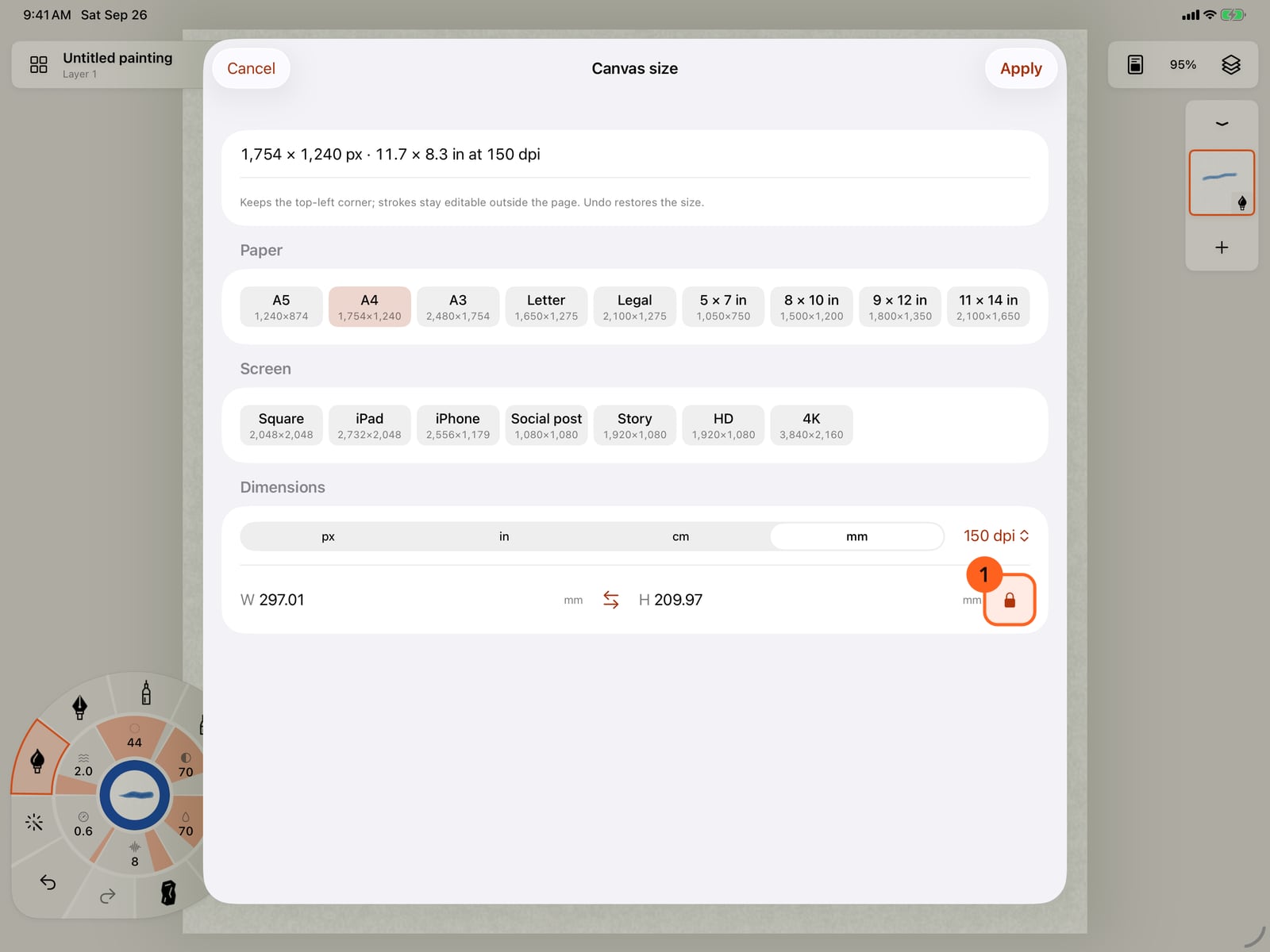
Tap the lock to keep proportions. Now changing one side changes the other to match.
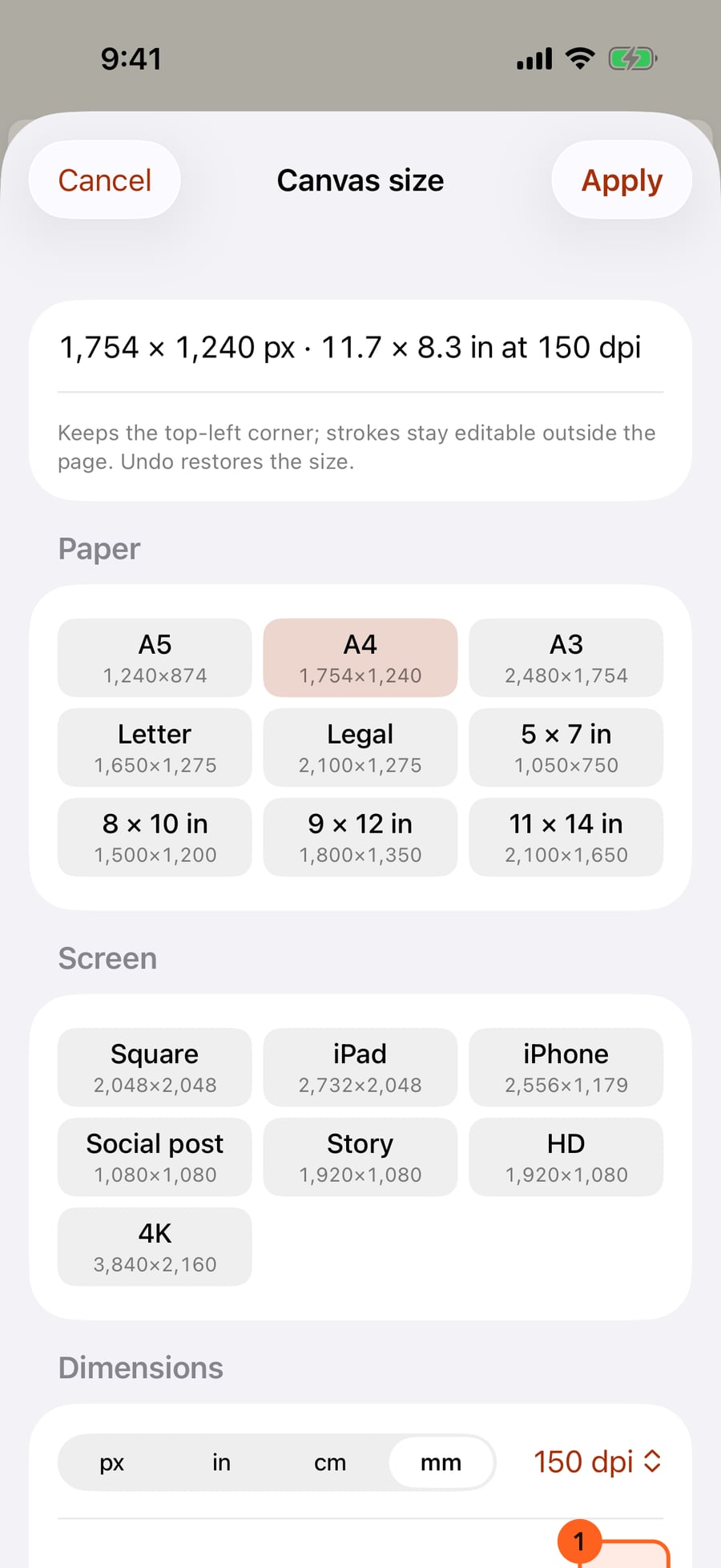
Click the lock to keep proportions. Now changing one side changes the other to match.
Tap Apply. The page keeps its top-left corner, strokes beyond the new edge stay editable, and Undo brings the old size back.
Tap Apply. The page keeps its top-left corner, strokes beyond the new edge stay editable, and Undo brings the old size back.
Click Apply. The page keeps its top-left corner, strokes beyond the new edge stay editable, and Undo brings the old size back.
Opening it
Canvas menu (the page-and-picture button in the top bar, Canvas and paper) → Canvas size… changes the open painting. New painting… in the Actions menu, and Custom size in the Gallery, open the same sheet for a new painting, with Create in place of Apply.
The size line
The first line 1 reads, for example, 1,754 × 1,240 px · 11.7 × 8.3 in at 150 dpi. Beneath it the sheet warns you when:
- the long side is over 2,048 pixels: layers paint at most 2,048 pixels on the long side, so a larger canvas paints at a lower detail, although Export can render more;
- this device can't hold sixteen layers of watercolor, the heaviest medium, at that size; it tells you how many fit (lighter media and smaller canvases hold more);
- a side is outside 16–16,384 pixels, which can't be applied.
Presets
| Group | Presets |
|---|---|
| Paper | A5, A4, A3, Letter, Legal, 5 × 7 in, 8 × 10 in, 9 × 12 in, 11 × 14 in |
| Screen | Square (2048 × 2048), iPad (2732 × 2048), iPhone (2556 × 1179), Social post (1080 × 1080), Story (1080 × 1920), HD (1920 × 1080), 4K (3840 × 2160) |
Each preset shows its size in pixels. Paper presets are physical sizes, so their pixels follow the dpi: A4 is 1,240 × 1,754 at 150 dpi and 2,480 × 3,508 at 300. Screen presets are fixed pixels. A preset keeps the orientation you have: tap A4 on a landscape canvas and you get A4 landscape. The preset that matches the current size is highlighted.
Dimensions
| Control | What it does |
|---|---|
| Units | px, in, cm or mm, for the Width and Height fields |
| Resolution | 72, 150, 300 or 600 dpi: how many pixels an inch is, for paper presets and physical units |
| Width, Height | Type a size in the chosen unit |
| Swap orientation | Exchanges width and height |
| Keep proportions | The lock: while it's closed, changing one side scales the other to match |
The units and dpi are remembered for next time.
Applying
Apply resizes the page around its top-left corner: growing adds paper on the right and bottom, and shrinking crops from there. Strokes beyond the new edge aren't deleted; they stay editable, and come back if the page grows again. Undo restores the previous size. Cancel leaves everything as it was.
Tip: For print, choose the dpi first, then the paper preset. For sharing online, a Screen preset is simplest.
Something not behaving as expected?
Visit support or write to [email protected].