

Guides / Paintings and files
Files and iCloud
Paintings save themselves; each keeps a self-contained .doodly copy in Files, in iCloud Drive or on this device, and Open project… and Save project as… move paintings in and out.
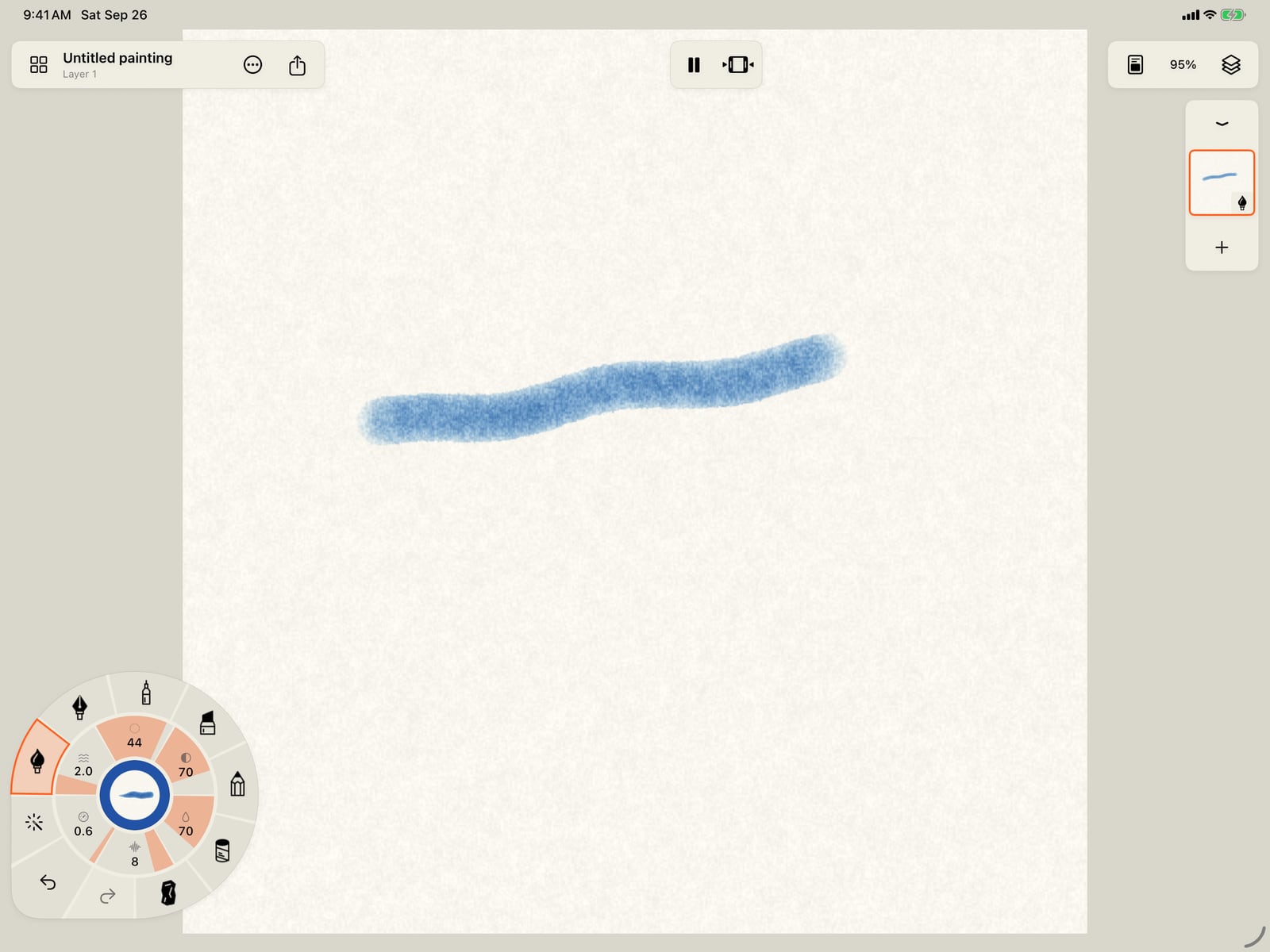
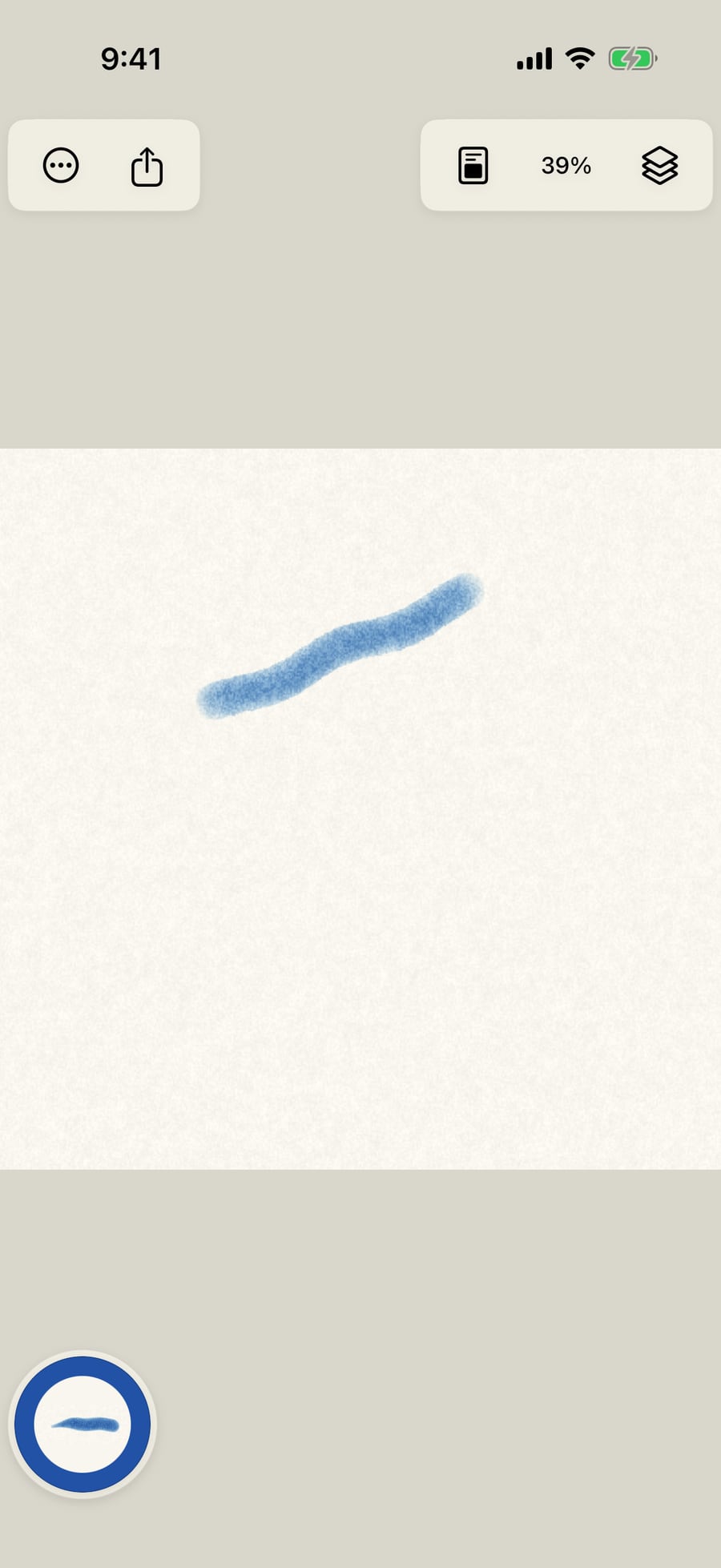
There's no Save button. Every stroke is saved as you paint, and the painting you had open is waiting when you come back.
There's no Save button. Every stroke is saved as you paint, and the painting you had open is waiting when you come back.
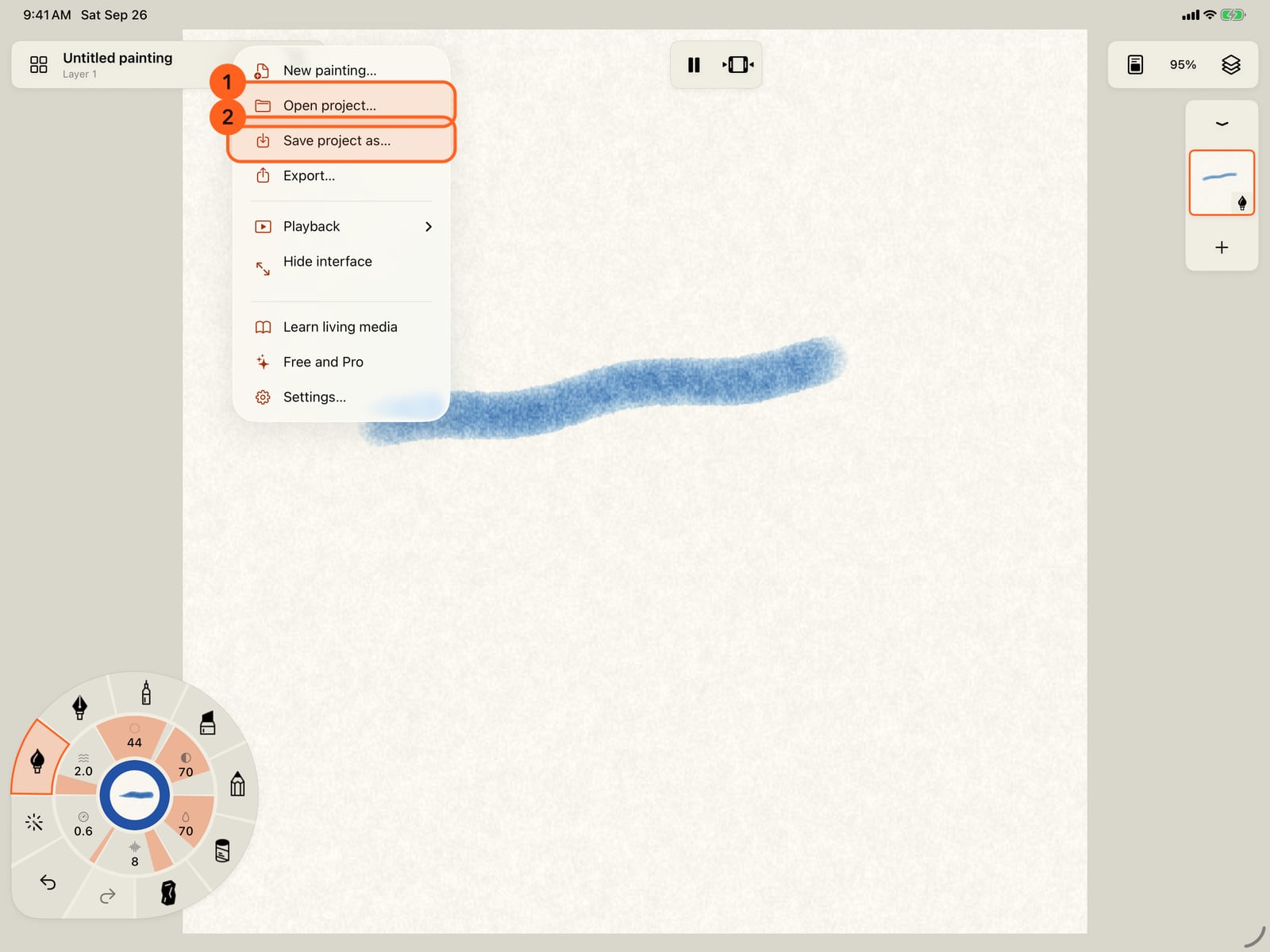
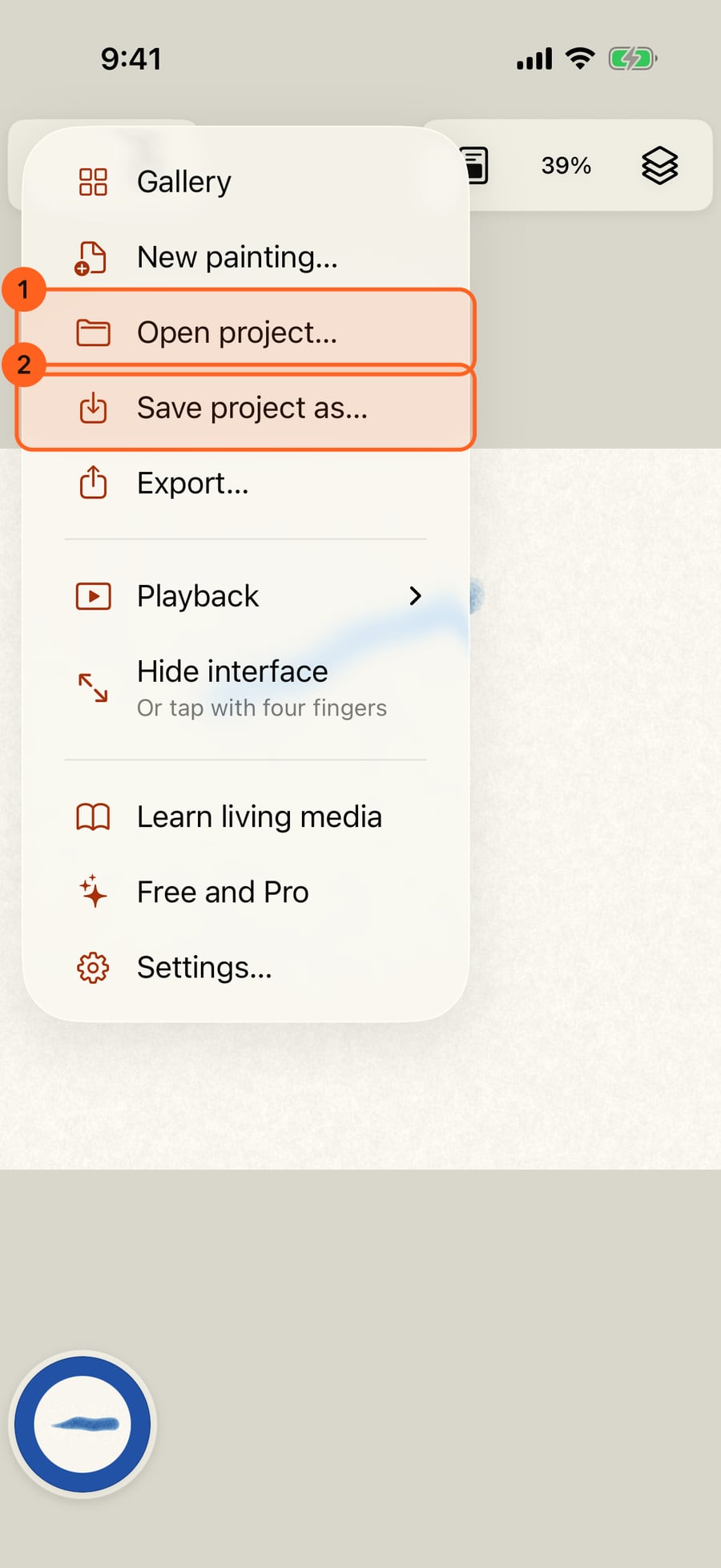
In Actions, Open project brings in a painting file from anywhere in Files, and Save project as writes a copy of this one wherever you choose.
In Actions, Open project brings in a painting file from anywhere in Files, and Save project as writes a copy of this one wherever you choose.
Each painting also keeps its own copy as a .doodly file in Files, in the Doodly Doodle folder. Settings, under Storage, decides where that folder is.
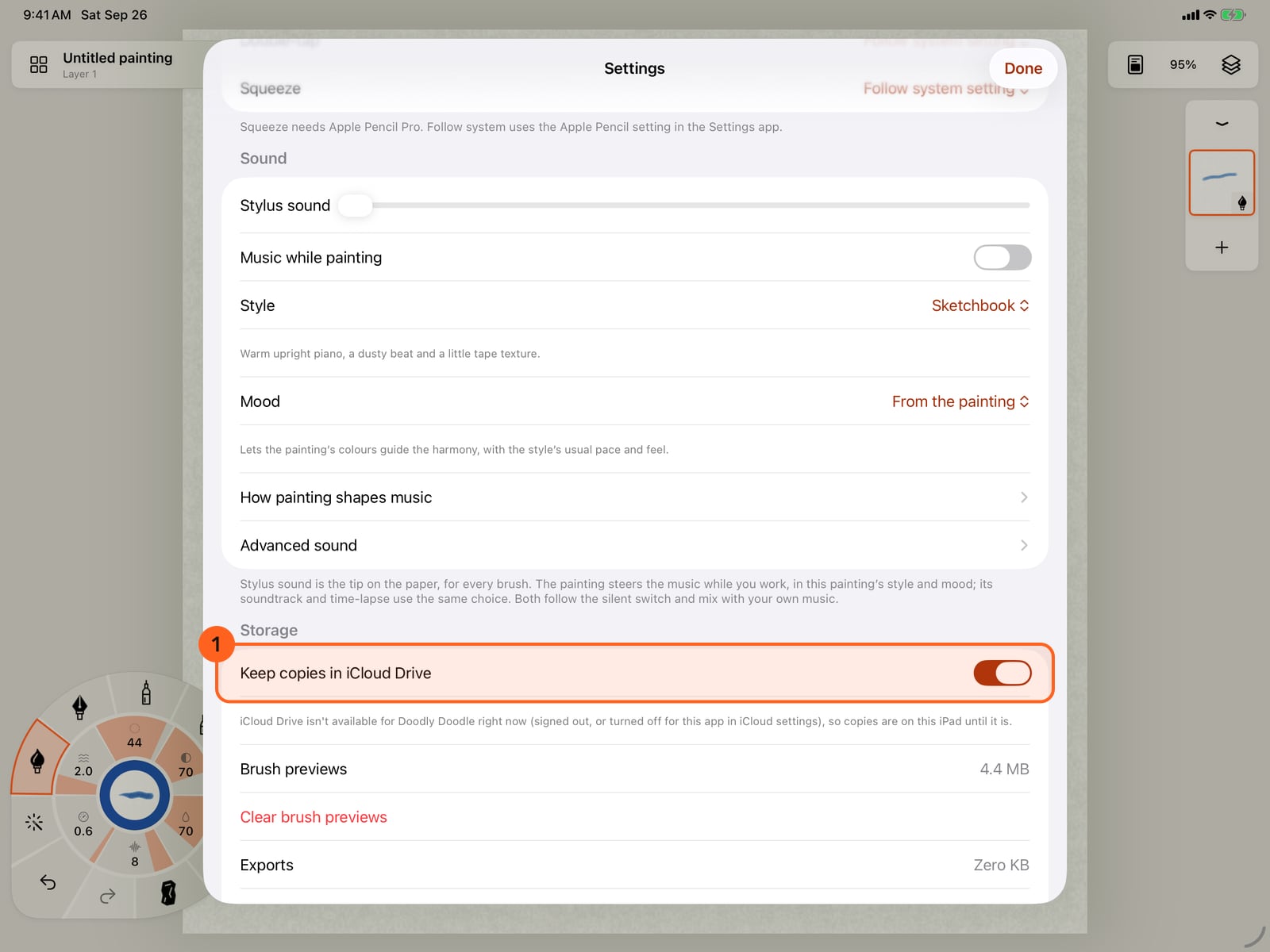
Each painting also keeps its own copy as a .doodly file in Files, in the Doodly Doodle folder. Settings, under Storage, decides where that folder is.
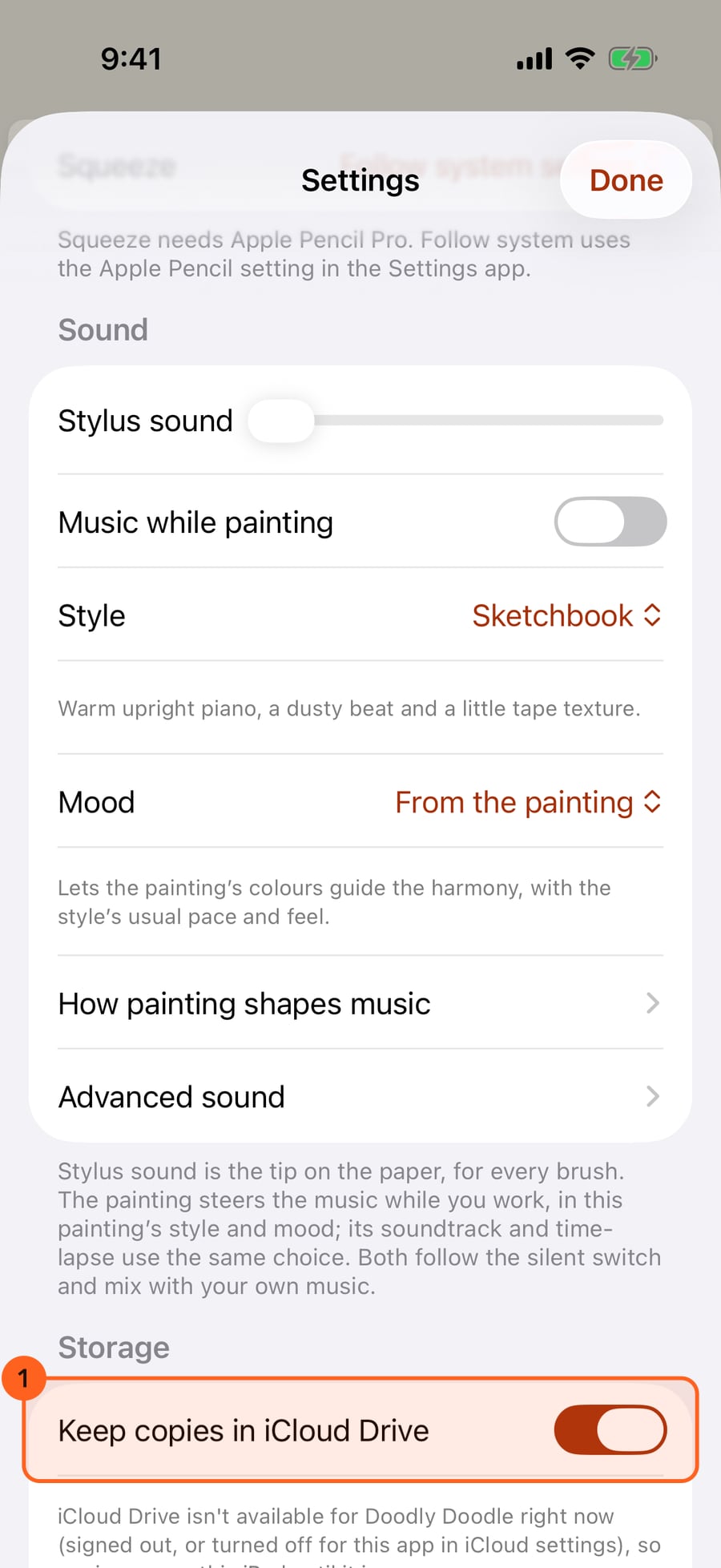
With Keep copies in iCloud Drive on, the copies reach your other devices; off, they stay on this one. Your paintings themselves never leave the app.
With Keep copies in iCloud Drive on, the copies reach your other devices; off, they stay on this one. Your paintings themselves never leave the app.
Autosave
Paintings save themselves a moment after every change, and again whenever you leave the app, switch paintings or open the Gallery. The next time you open Doodly Doodle, the painting you had open reopens where you left it, playing. If a save ever fails, the app says so and offers Retry saving.
Copies in Files
Each painting keeps a self-contained .doodly copy in Files → Doodly Doodle, named after the painting's title. A copy holds everything: every layer, stroke, paper, image and motion. It's refreshed when you leave the app, switch paintings or open the Gallery. The app never edits a copy in place: it writes a fresh one.
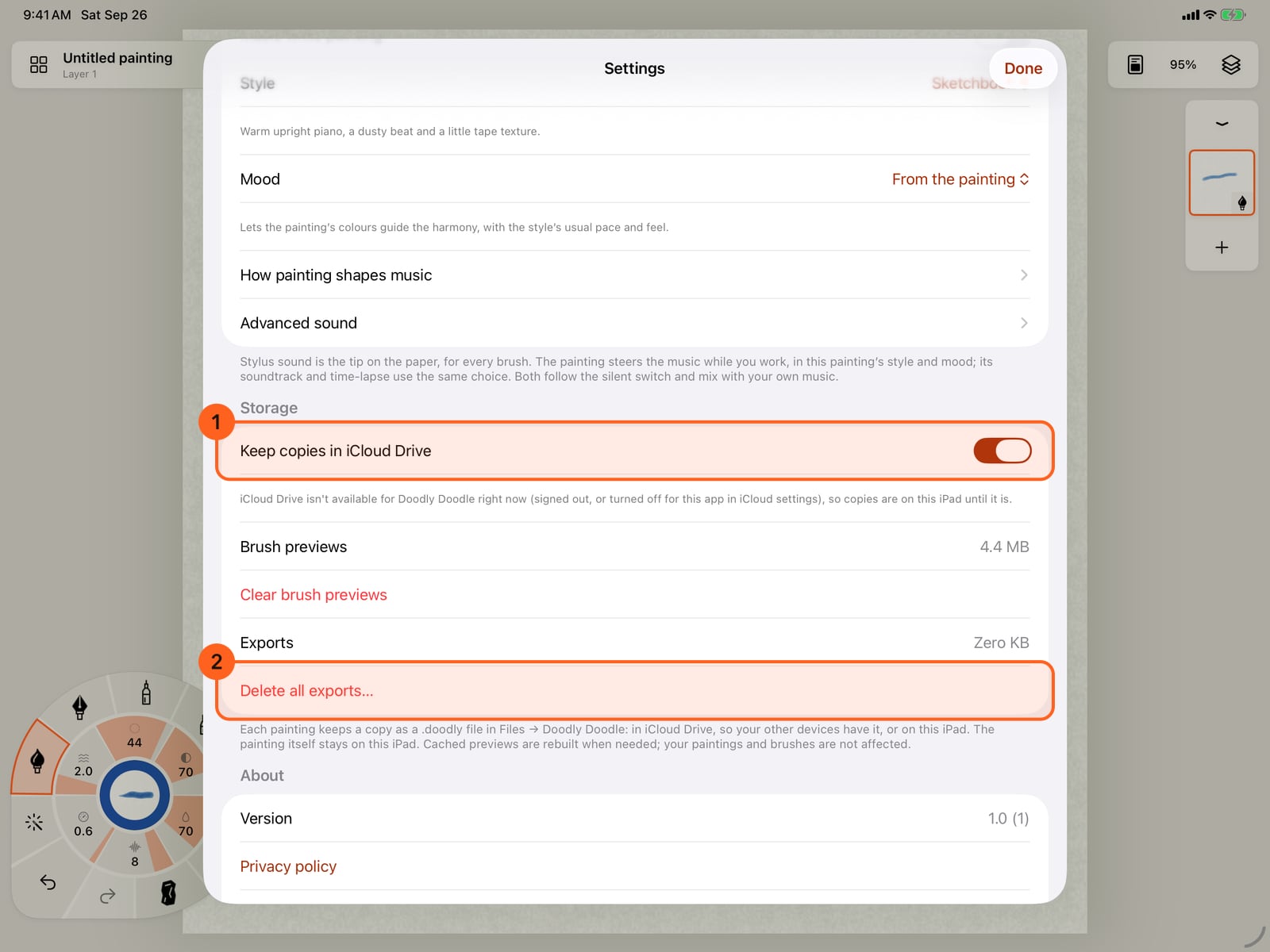
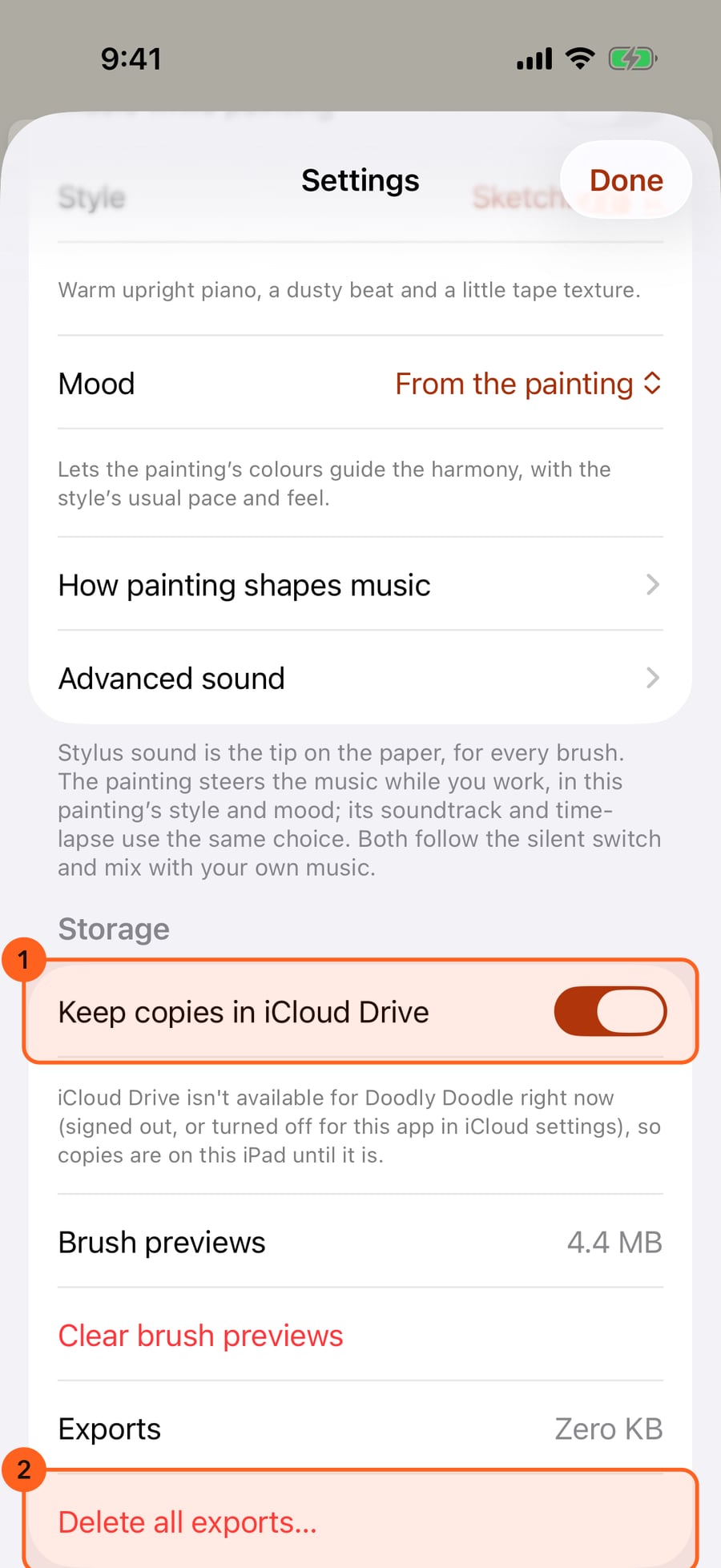
Settings → Storage → Keep copies in iCloud Drive 1 chooses where that folder is:
| Setting | Where the copies are |
|---|---|
| On (the default) | Files → iCloud Drive → Doodly Doodle, so your other devices have them |
| Off | Files → On My iPad (or On My iPhone) → Doodly Doodle |
Turning it over moves the copies. If iCloud Drive isn't available (you're signed out, or iCloud Drive is off for Doodly Doodle), the copies stay on this device until it is, and Settings says so beneath the switch. If any copy couldn't move, Settings names it; it stays where it was.
The painting itself, the one you paint on, lives inside the app and stays on this device. The copies are what travel.
Opening a copy
- Tap a
.doodlyfile in Files, or share one to Doodly Doodle, and it opens. If it's the copy of a painting that's already here, that painting opens, rather than a duplicate. - Put a
.doodlyfile in the Doodly Doodle folder, from another device, iCloud Drive or a friend, and it joins the Gallery on its own, named after the file. Copies that iCloud hasn't downloaded yet are fetched, and join once they arrive. - Actions → Open project… picks a
.doodlyfile (or an older project file) from anywhere in Files and adds it to the Gallery.
Save project as…
Actions → Save project as… saves the painting first, then writes a .doodly copy, named Doodly Doodle until you rename it, anywhere you choose in Files. It's the way to keep a snapshot before you try something bold, or to hand a painting to someone else. The copy opens in Doodly Doodle on any iPad, iPhone or Mac.
Tip: A
.doodlyfile is a painting, not a picture. To share something anyone can look at, use Share and export.
Storage settings
Settings → Storage also shows how much room brush previews and exports take:
- Clear brush previews deletes the cached pictures of brushes. They're rebuilt when needed; your brushes aren't affected.
- Delete all exports… 2 asks first, then deletes every file in Files → Doodly Doodle → Exports. Anything you've shared or saved elsewhere stays.
Nothing is ever cleaned up automatically.
On the Mac, with Keep copies in iCloud Drive on, the copies are in the Finder under iCloud Drive → Doodly Doodle.
Something not behaving as expected?
Visit support or write to [email protected].