

Guides / Sound
Advanced sound
Shape each tool's sound and how your painting steers the music, audition every change, and share your settings as a file.
Tap Actions, then Settings, and scroll to Sound. Advanced sound is at the end of the section.
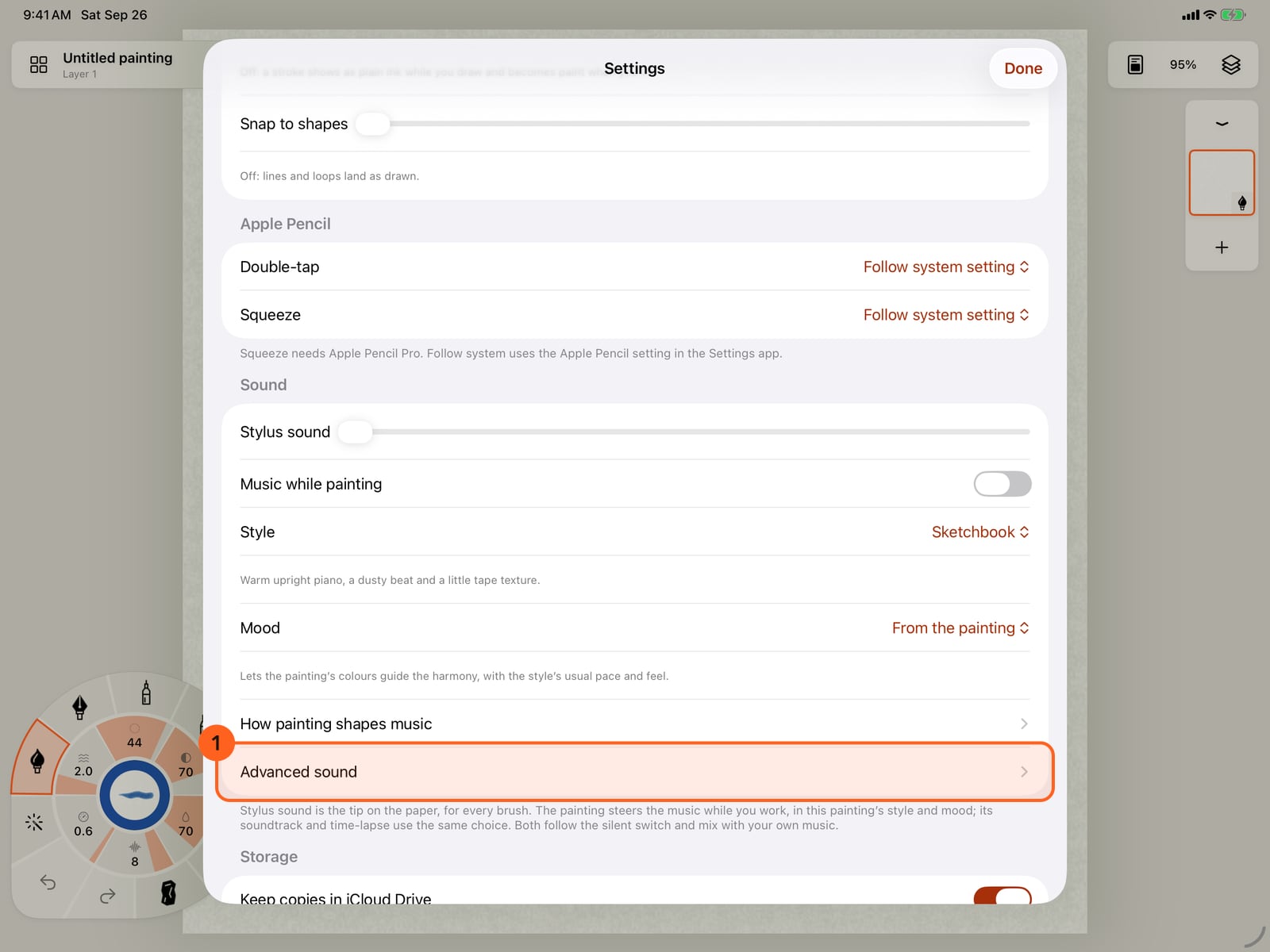
Tap Actions, then Settings, and scroll to Sound. Advanced sound is at the end of the section.
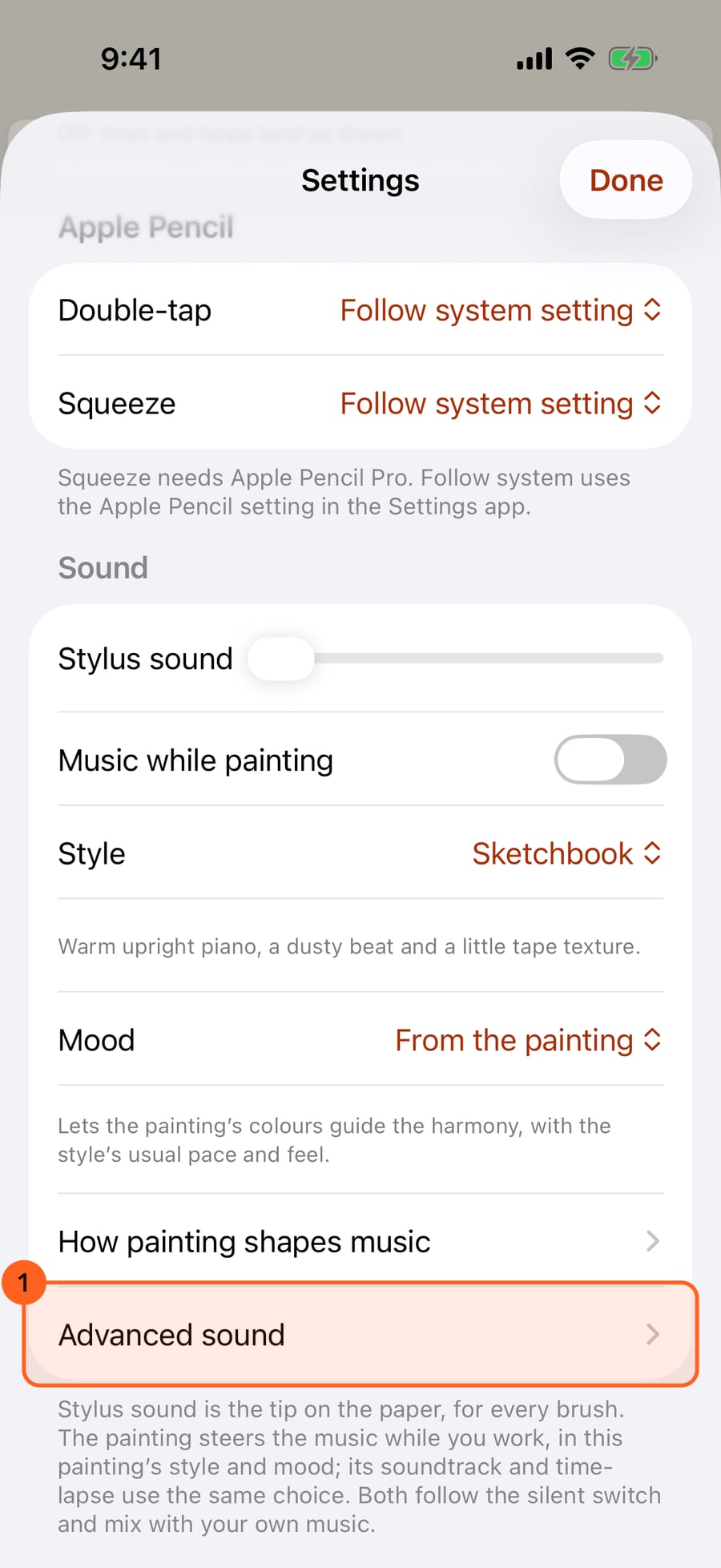
Click Actions, then Settings, and scroll to Sound. Advanced sound is at the end of the section.
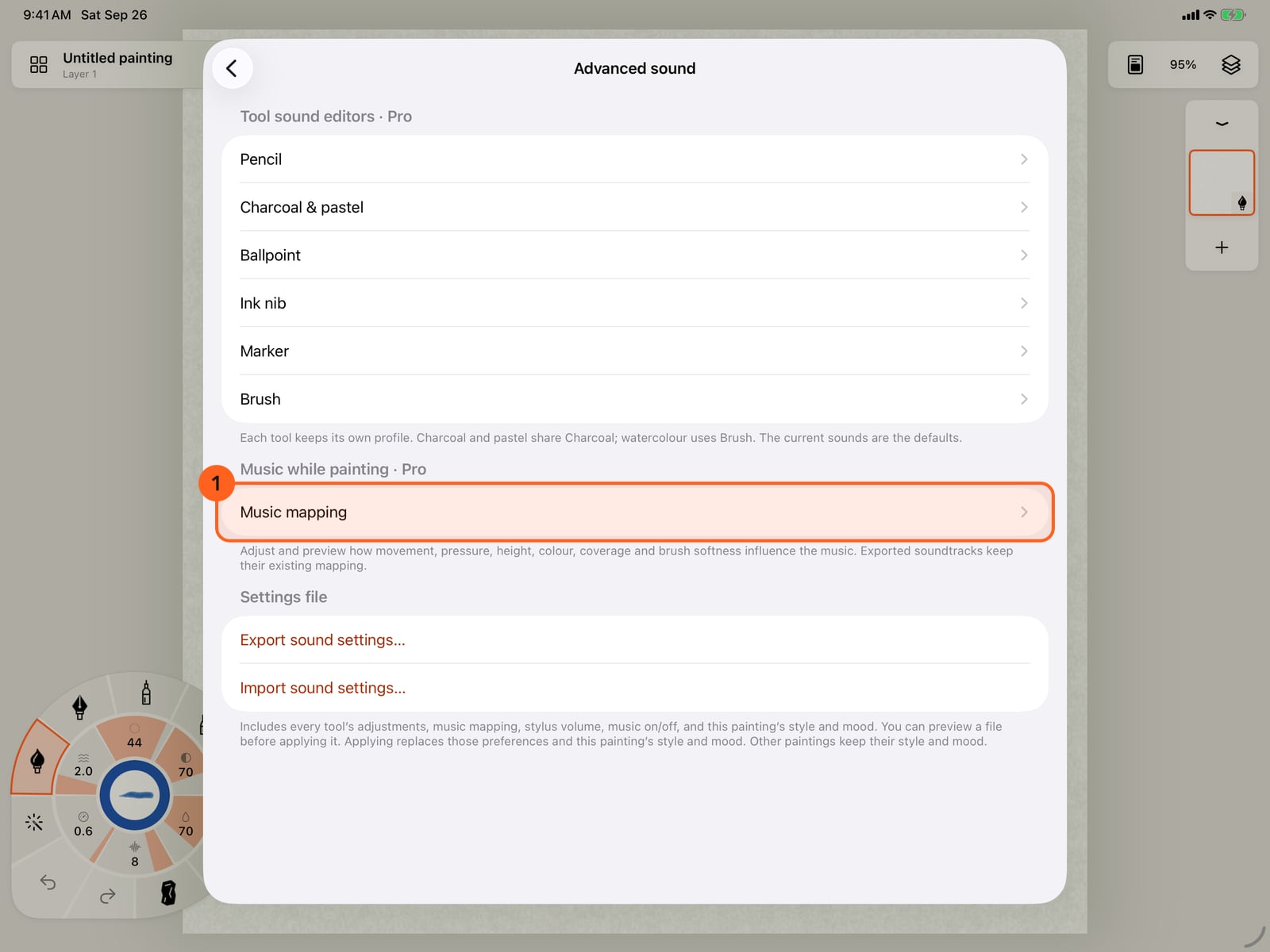
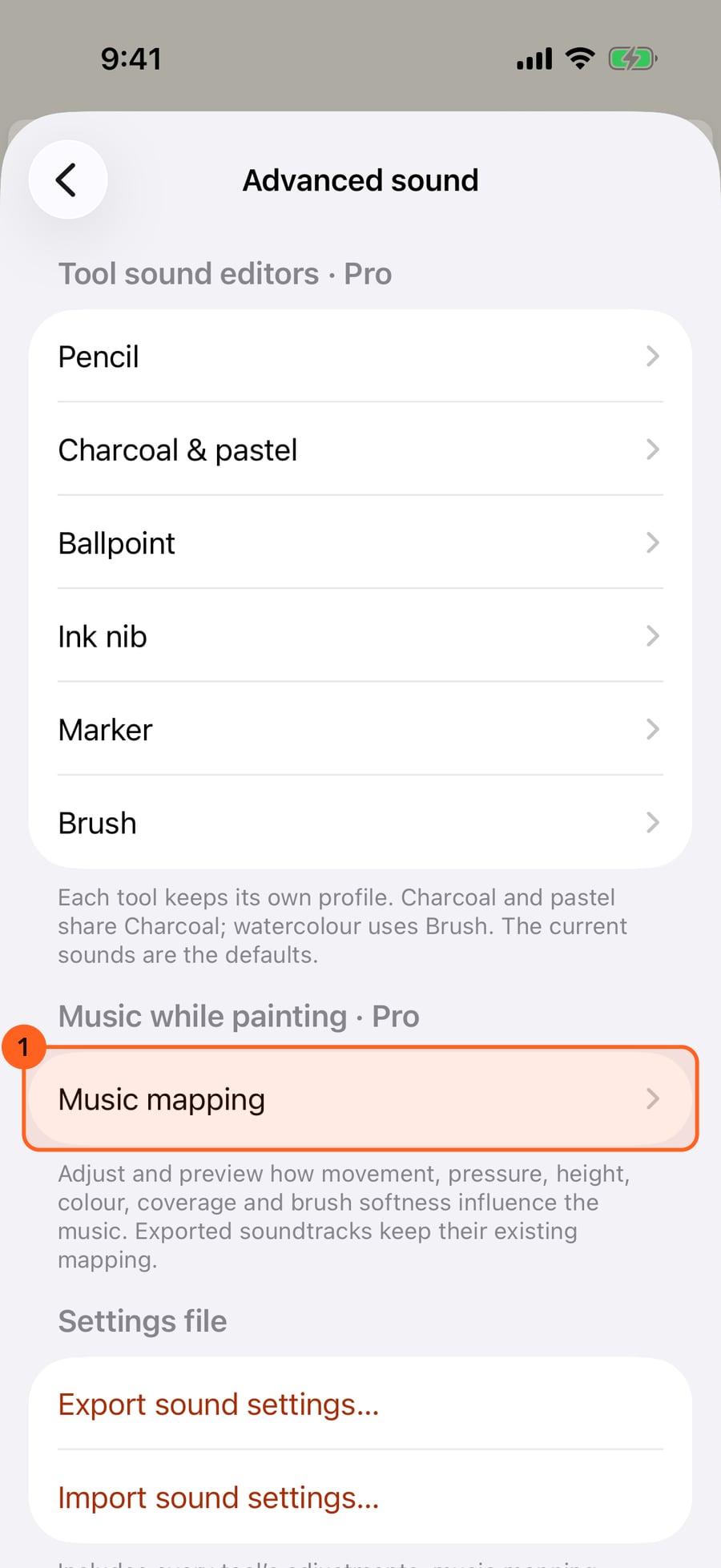
Tap Advanced sound. Each kind of tool has its own sound editor, and Music mapping sets how your painting steers the music.
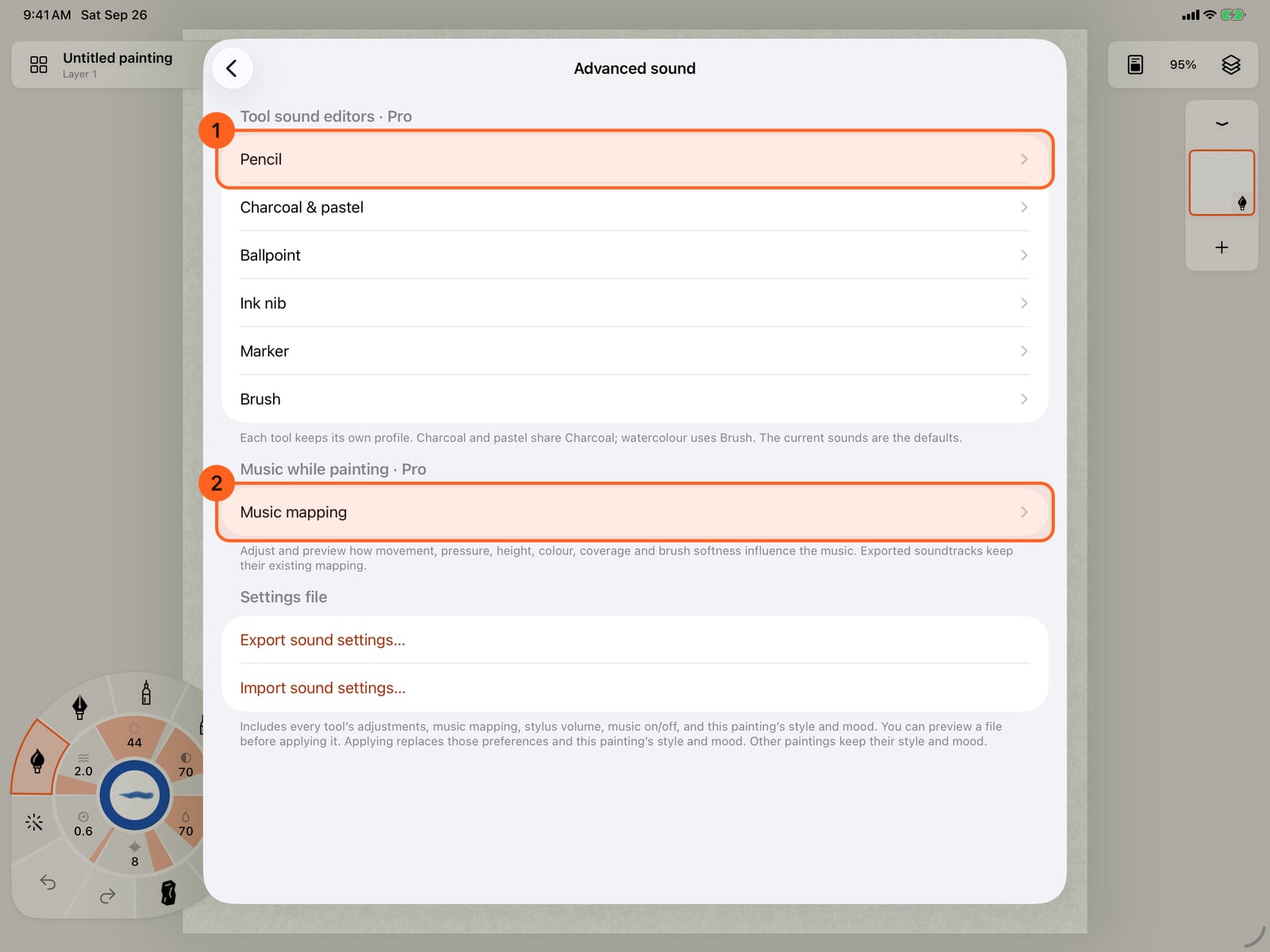
Tap Advanced sound. Each kind of tool has its own sound editor, and Music mapping sets how your painting steers the music.
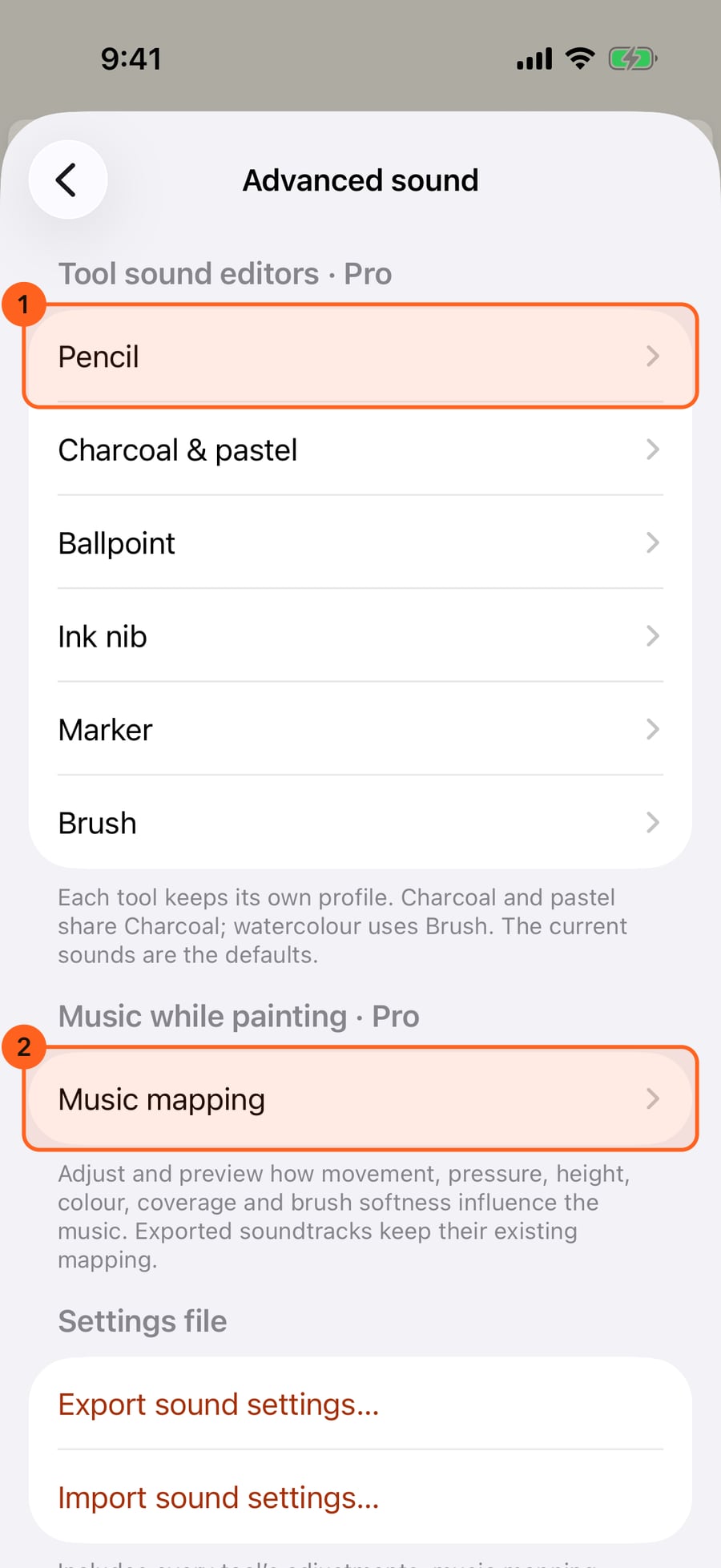
Click Advanced sound. Each kind of tool has its own sound editor, and Music mapping sets how your painting steers the music.
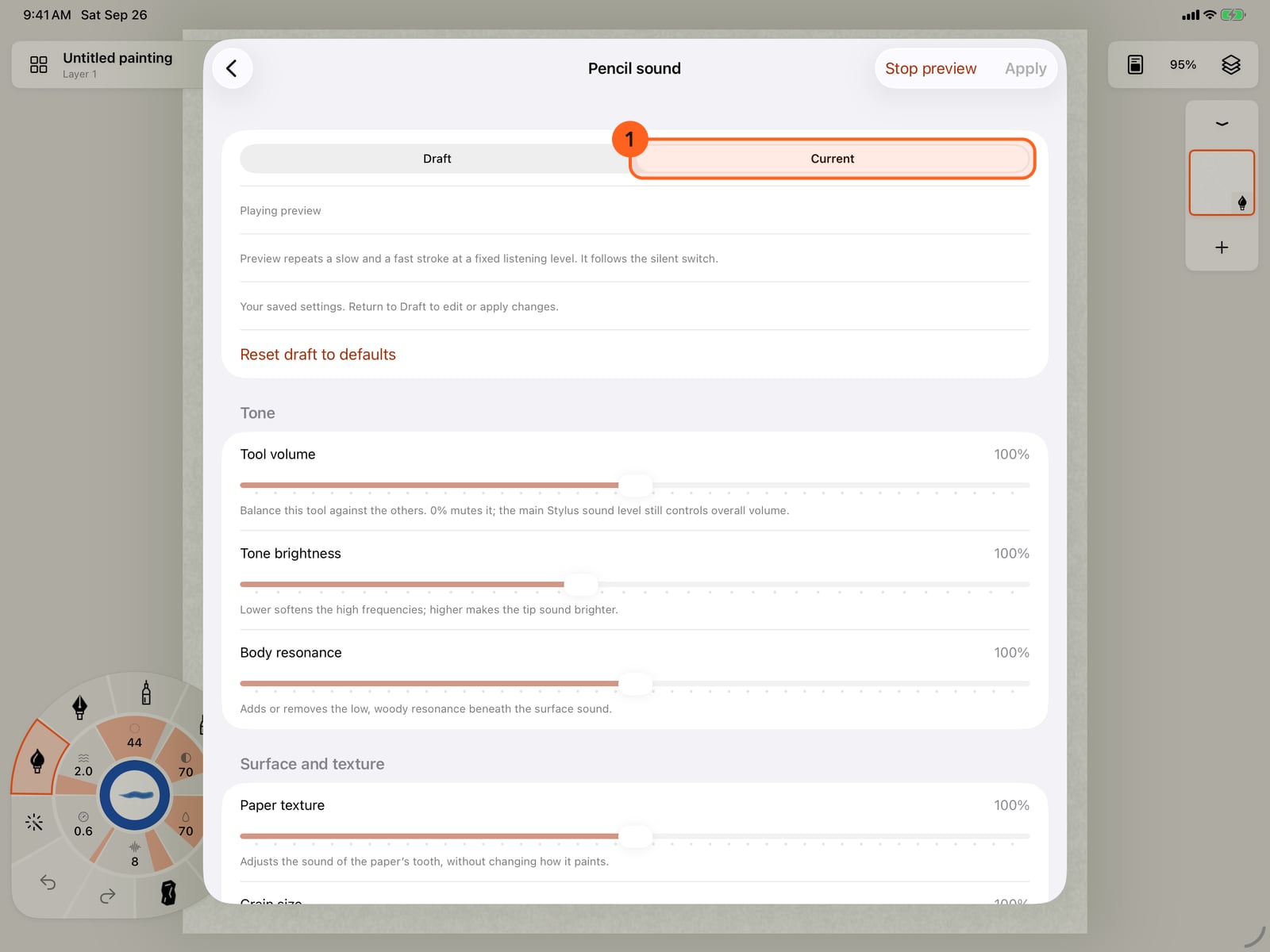
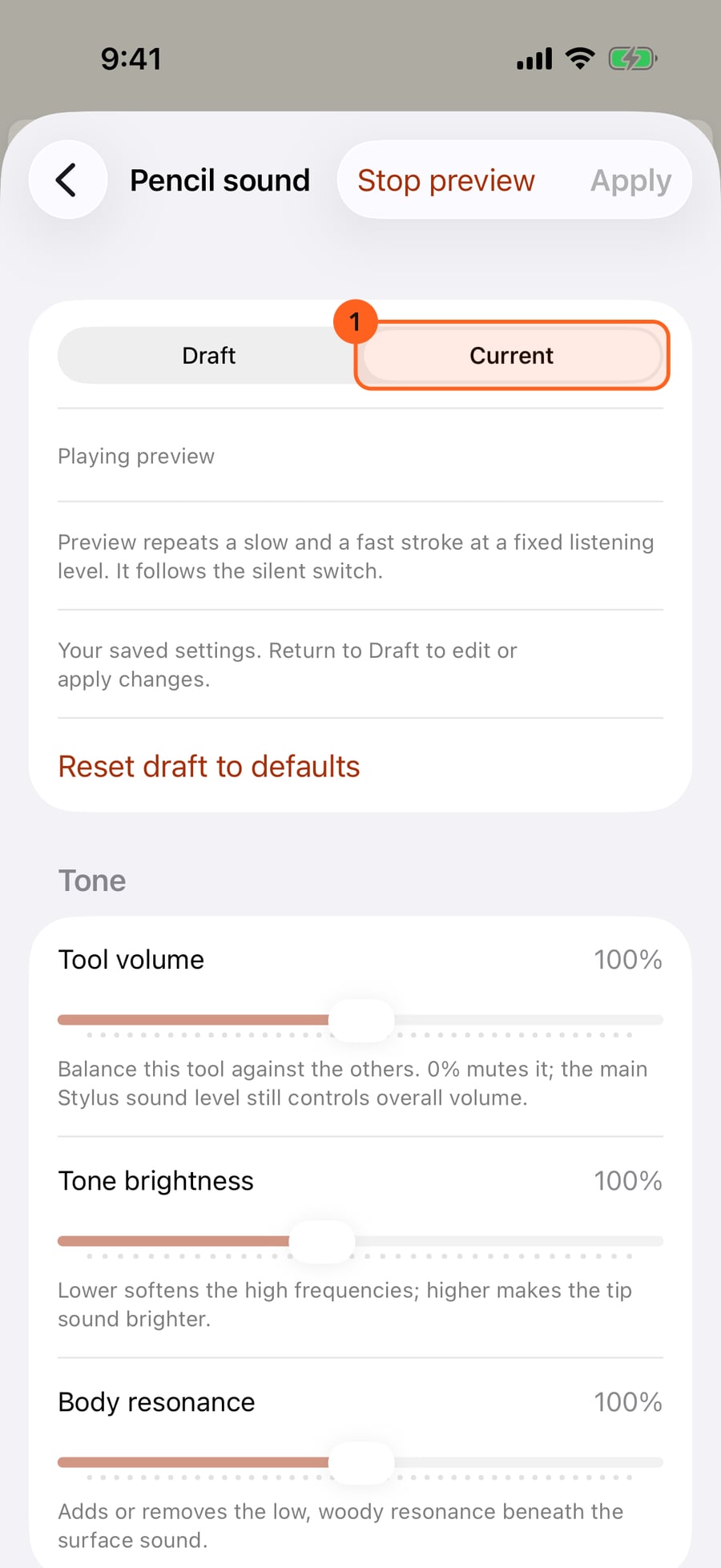
Tap Pencil. Changes stay in a draft until you apply them. Preview plays a slow and a fast stroke, and Current lets you compare with your saved sound.
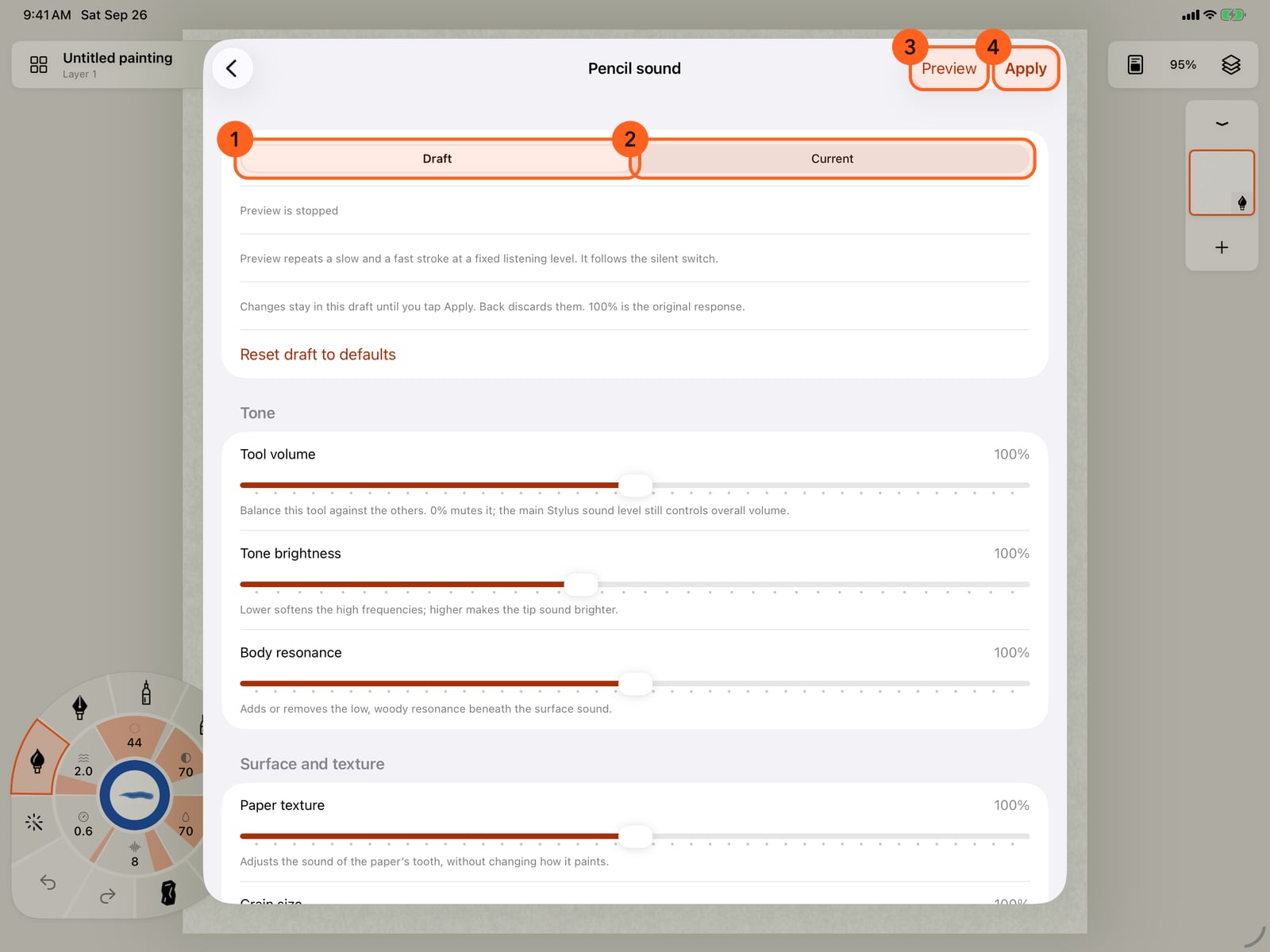
Tap Pencil. Changes stay in a draft until you apply them. Preview plays a slow and a fast stroke, and Current lets you compare with your saved sound.
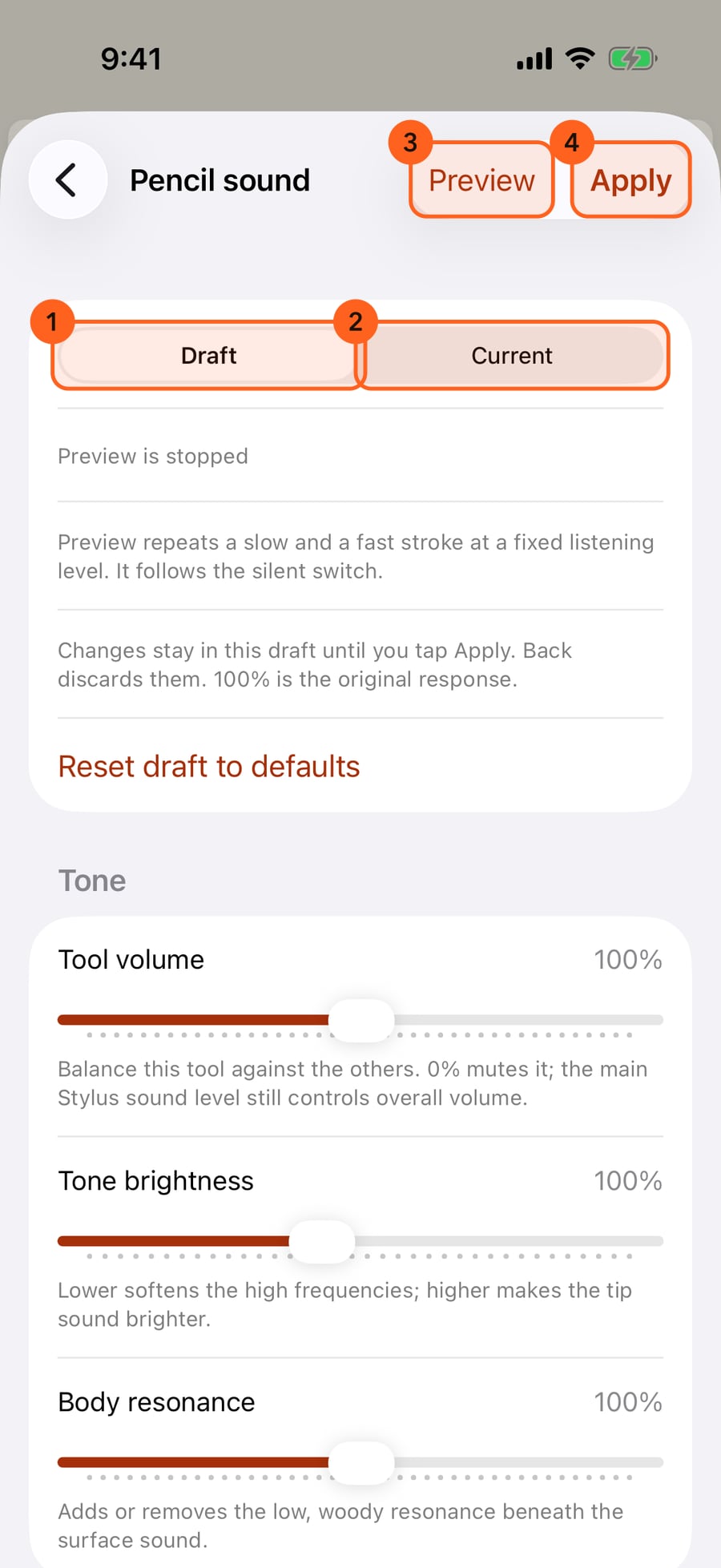
Click Pencil. Changes stay in a draft until you apply them. Preview plays a slow and a fast stroke, and Current lets you compare with your saved sound.
Raise Tone brightness for a brighter, crisper tip, and tap Preview to hear it. The preview keeps playing while you adjust.
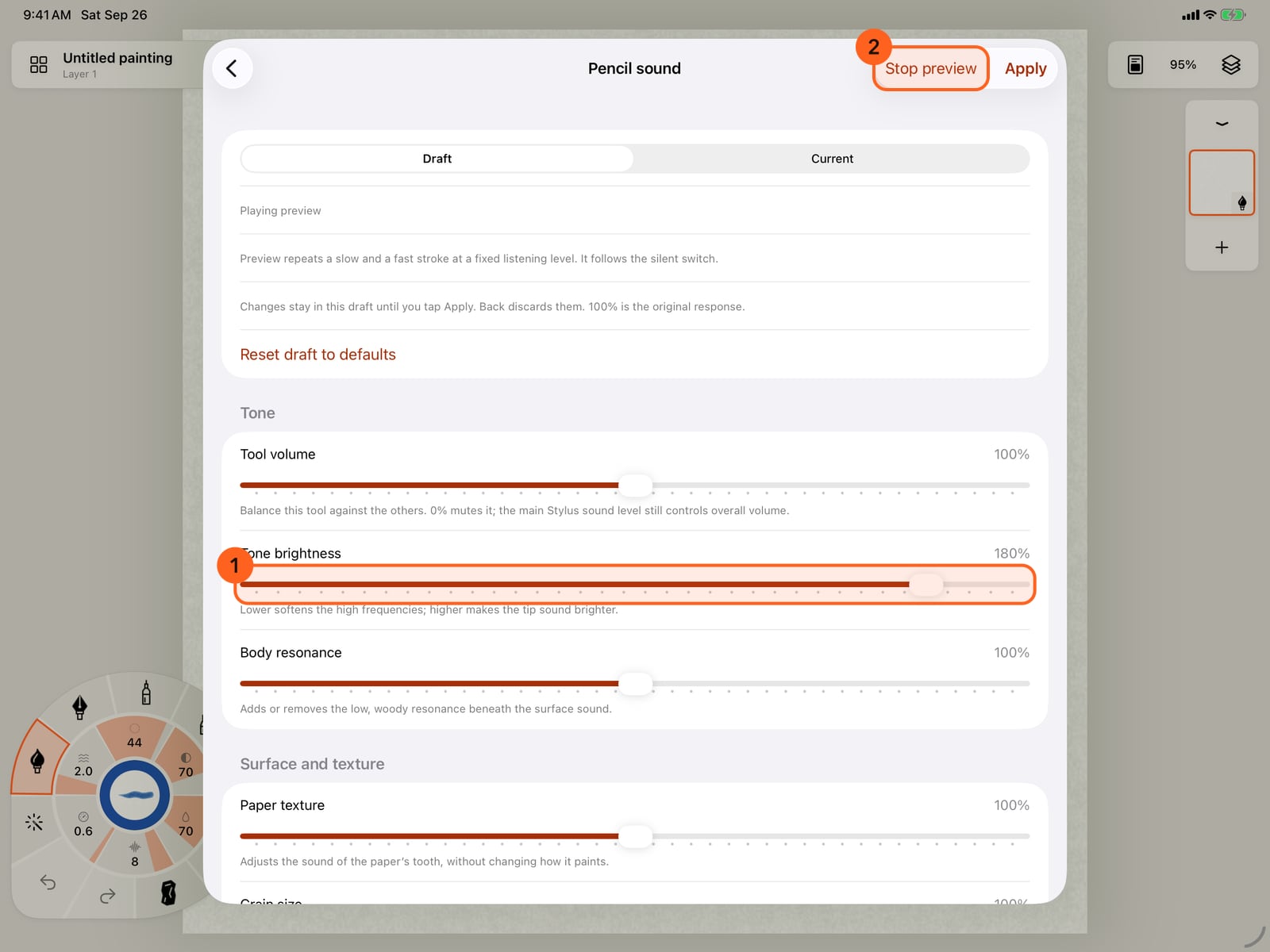
Raise Tone brightness for a brighter, crisper tip, and tap Preview to hear it. The preview keeps playing while you adjust.
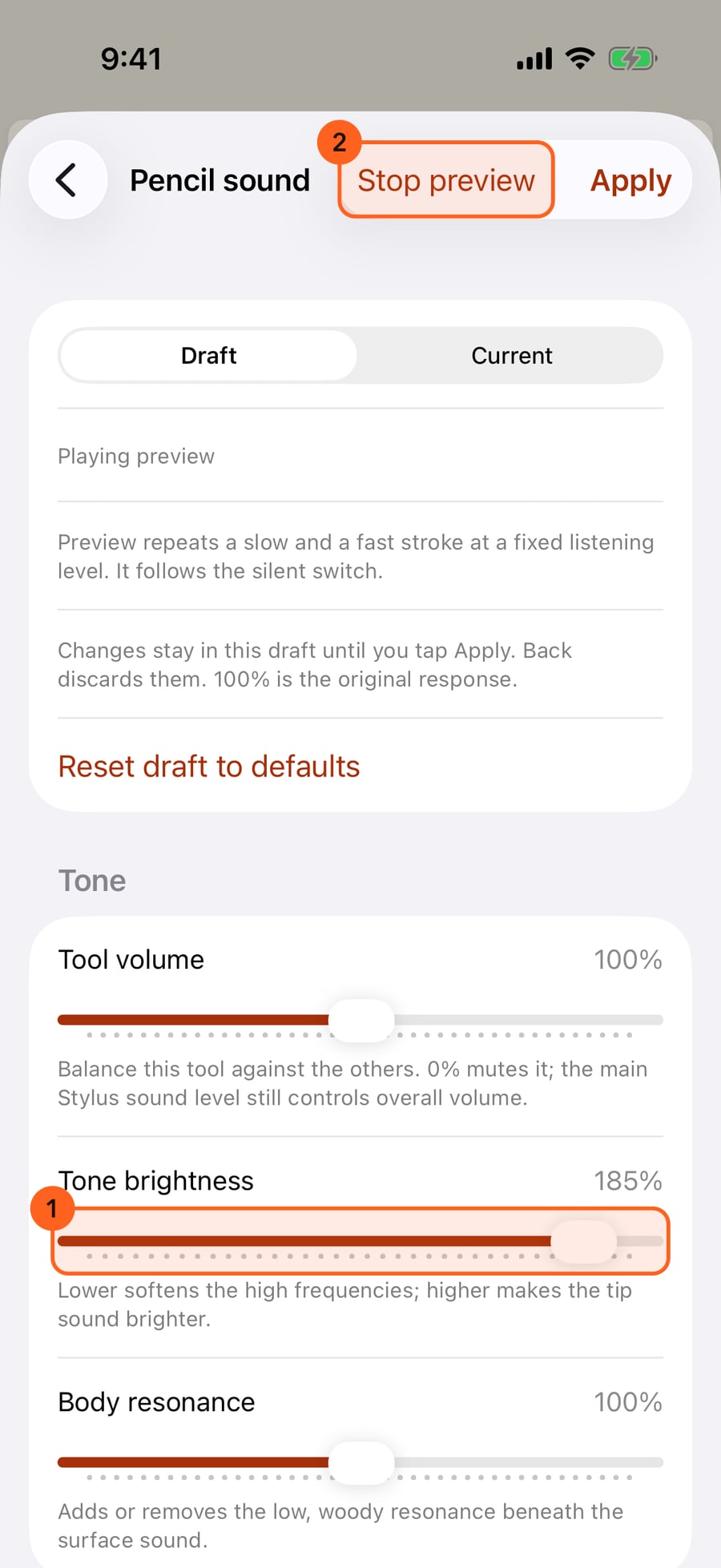
Raise Tone brightness for a brighter, crisper tip, and click Preview to hear it. The preview keeps playing while you adjust.
Tap Current to hear your saved sound instead. The sliders show it, and Draft brings your changes back.
Tap Current to hear your saved sound instead. The sliders show it, and Draft brings your changes back.
Click Current to hear your saved sound instead. The sliders show it, and Draft brings your changes back.
Tap Draft, stop the preview, and tap Apply to keep the new sound. Going back without Apply discards the draft.
Tap Draft, stop the preview, and tap Apply to keep the new sound. Going back without Apply discards the draft.
Click Draft, stop the preview, and click Apply to keep the new sound. Going back without Apply discards the draft.
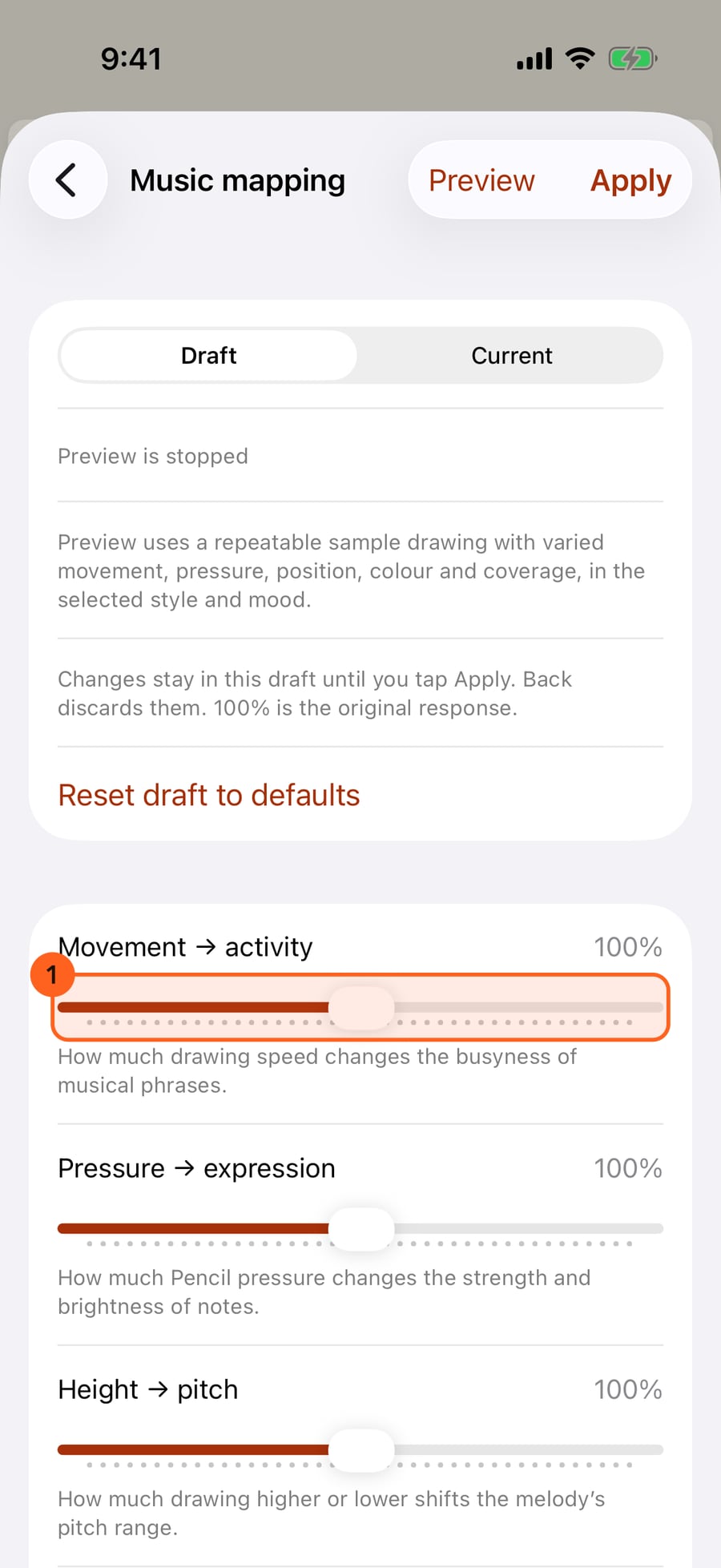
Music mapping has one slider for each part of your painting that steers the music. 100 percent is the original response.
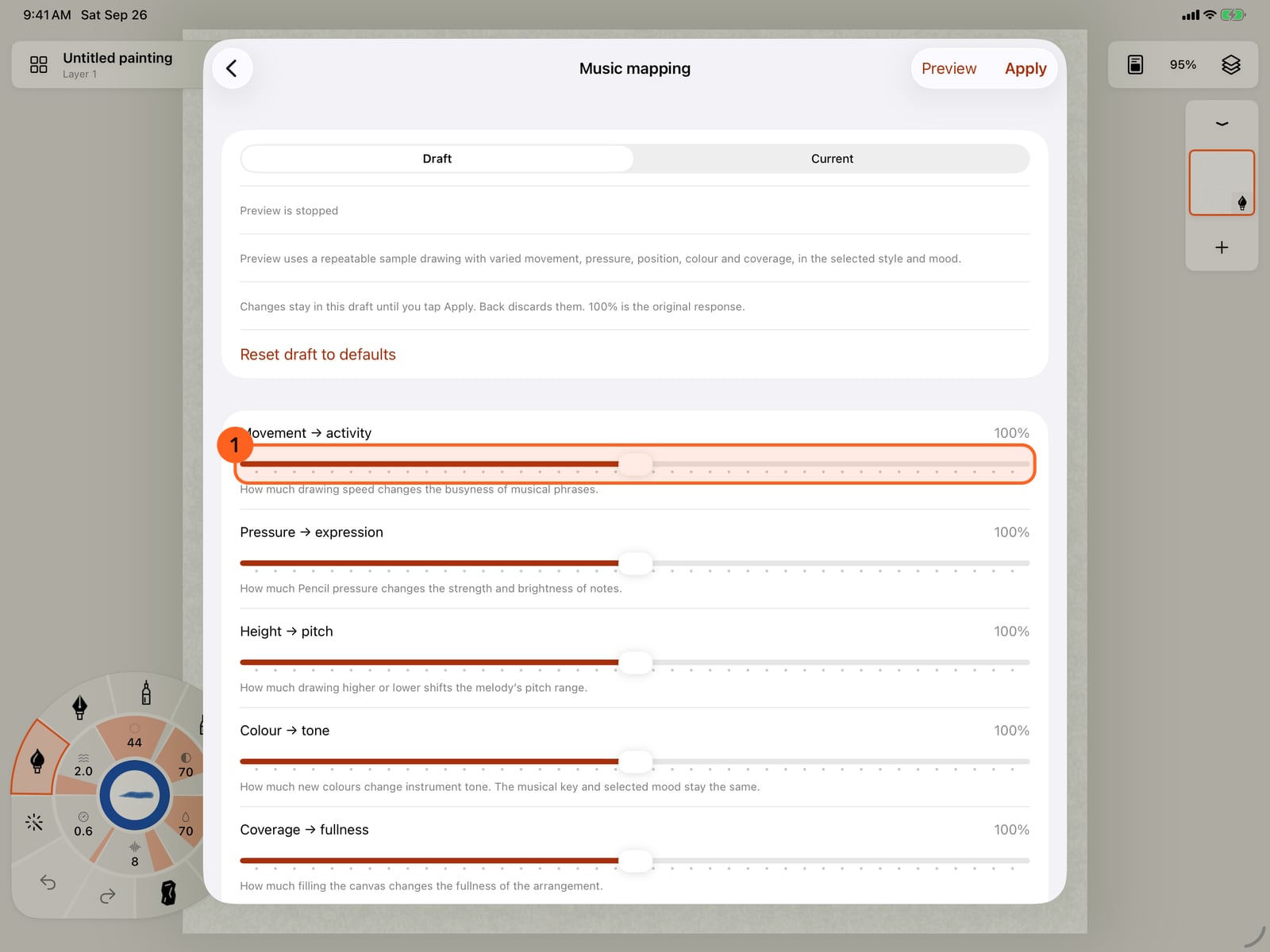
Music mapping has one slider for each part of your painting that steers the music. 100 percent is the original response.
Back on Advanced sound, Export sound settings saves everything as a file to share, and Import sound settings opens one to preview before you apply it.
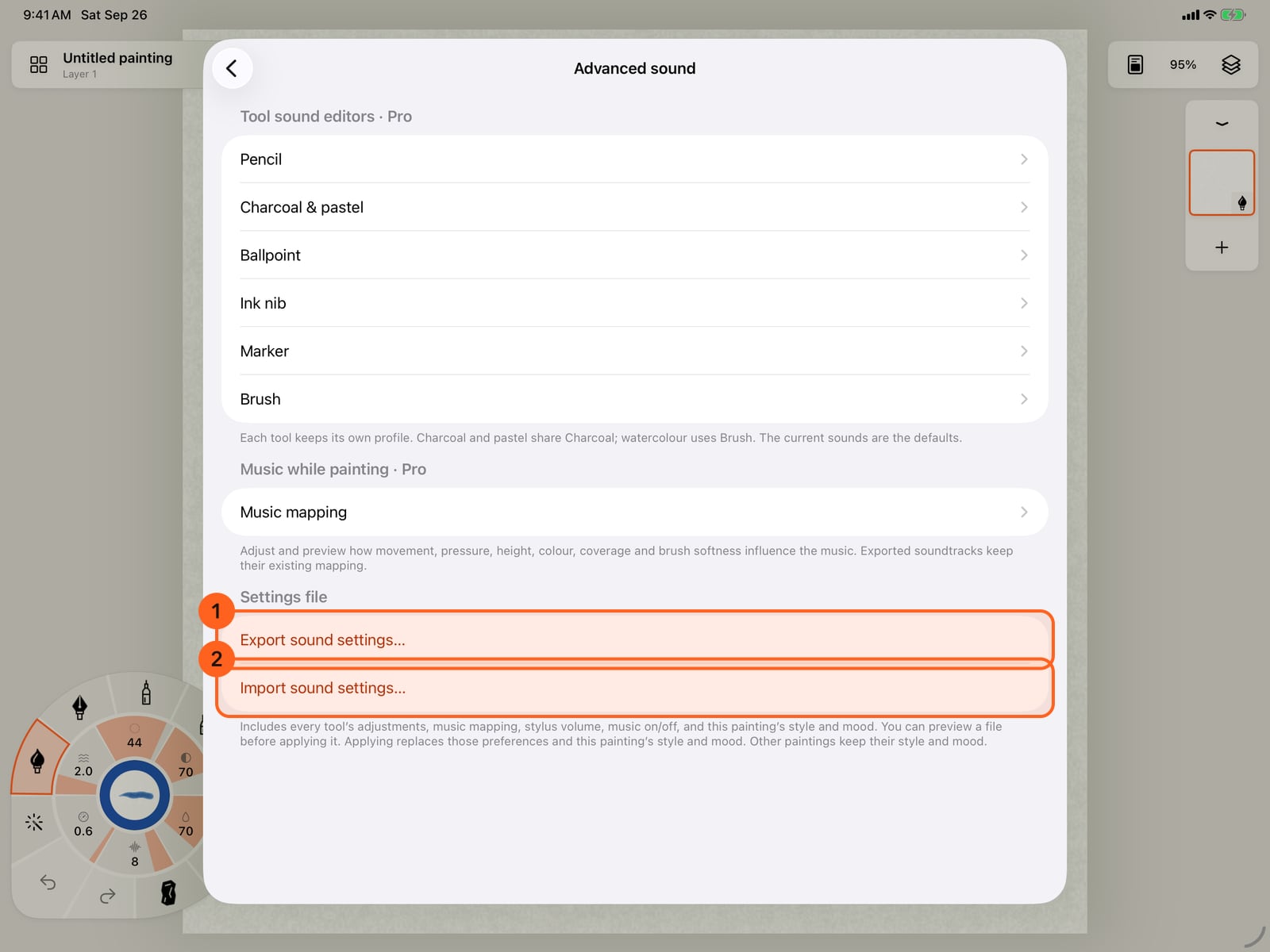
Back on Advanced sound, Export sound settings saves everything as a file to share, and Import sound settings opens one to preview before you apply it.
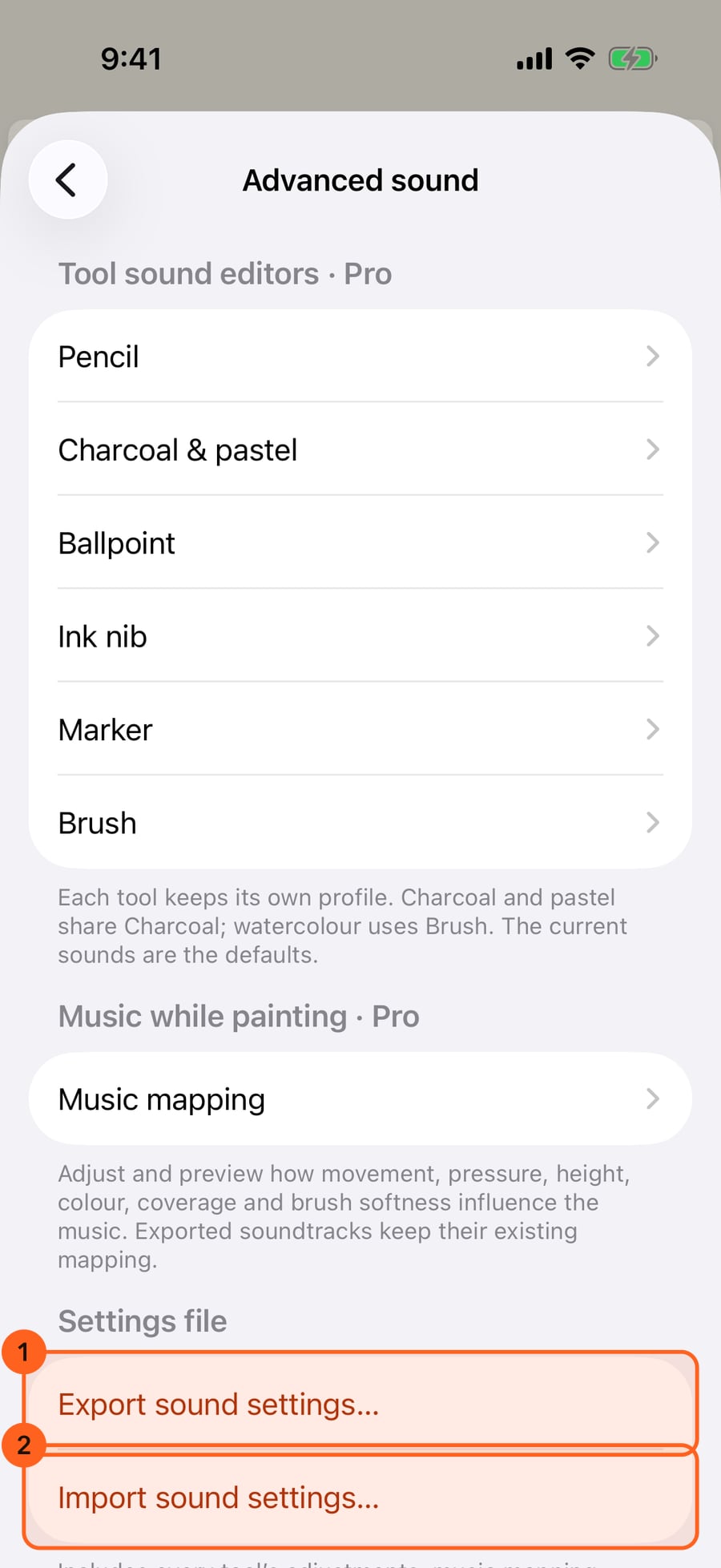
Advanced sound
Actions → Settings… → Sound → Advanced sound. These are personal listening preferences: they apply to every painting, and 100% is always the original sound.
Tool sound editors
One editor per kind of tool, each with its own profile. Charcoal and pastel share one; watercolour uses Brush.
| Editor | Heard with |
|---|---|
| Pencil | Graphite, and any brush with a pencil tip |
| Charcoal & pastel | Charcoal and Pastel |
| Ballpoint | Pens without a nib |
| Ink nib | Ink, and any brush with a pointed or broad nib |
| Marker | Marker |
| Brush | Watercolor and any brush with a brush tip, plus lifting, smudging and water tools |
Each editor has the same sliders:
| Section | Slider | What it does |
|---|---|---|
| Tone | Tool volume | Balances this tool against the others. 0% mutes it; Stylus sound still sets the overall level. |
| Tone brightness | Lower softens the high frequencies; higher makes the tip brighter. | |
| Body resonance | Adds or removes the low, woody resonance under the surface sound. | |
| Surface and texture | Paper texture | The sound of the paper's tooth, without changing how it paints. |
| Grain size | Small grain sounds finer and higher; large grain coarser and lower. | |
| Scratch intensity | The strength of individual catches and scratches. Zero removes them. | |
| Scratch density | Sparse catches at the low end, a denser rasp at the high end. | |
| Recorded texture | Brush and Ink nib only: blends the original tool recording into the generated sound. Zero uses only the generated texture. | |
| Response | Drawing pressure response | How much Pencil pressure changes the sound. At 0%, it sounds like a steady medium pressure. |
| Attack softness | How gently the sound comes in when the tip touches down. | |
| Release tail | How long the sound takes to fade after you lift. |
Music mapping
How much each part of your painting steers Music while painting. 0% keeps that input neutral, 100% is the original mapping, and higher values strengthen it.
| Slider | What it steers |
|---|---|
| Movement → activity | How much drawing speed changes the busyness of phrases. |
| Pressure → expression | How much pressure changes the strength and brightness of notes. |
| Height → pitch | How much drawing higher or lower shifts the melody's range. |
| Colour → tone | How much new colours change the instruments' tone. The key and mood stay the same. |
| Coverage → fullness | How much filling the canvas fills out the arrangement. |
| Brush softness → articulation | How much soft and wet brushes favour lingering notes over crisp ones. |
Exported soundtracks keep their own mapping; this applies to music while painting.
In every editor
| Control | What it does |
|---|---|
| Draft / Current | Draft is what you're editing. Current shows and plays your saved settings, read-only. |
| Preview | A tool editor repeats a slow and a fast stroke at a fixed level; Music mapping plays a sample drawing in this painting's style and mood. It follows the silent switch. Stop preview stops it. |
| Reset draft to defaults | Puts every slider back to 100%. Apply to keep it. |
| Apply | Saves the draft. Going back without Apply discards it. |
Settings file
| Control | What it does |
|---|---|
| Export sound settings… | Saves a Doodly Doodle Sound file wherever you choose in Files. |
| Import sound settings… | Opens a file for review. Review sound settings lets you preview each tool and the mapping, and lists the style, mood, stylus level and music switch it holds. Apply sound settings replaces yours; Cancel changes nothing. |
The file holds every tool's adjustments, the music mapping, the Stylus sound level, Music while painting on or off, and this painting's style and mood. Applying it changes those preferences and this painting's style and mood; other paintings keep theirs.
Pro: Advanced sound's editors, music mapping and importing are part of Pro. On Free, the page explains what Pro adds with Explore Pro, the editors are dimmed and Free uses the original sounds. Export sound settings… is Free, and your saved custom settings stay intact if access changes.
Something not behaving as expected?
Visit support or write to [email protected].