

Guides / Color: paint by number
A finished page and the Studio
A finished page plays and offers Share, the Studio and the next page; Color · Studio switches to the whole app with the same page and paint, and the numbers come too.
- Free
- The finished page, Share, the Studio, and Next page in a free book.
- Plus
- Next page in a Plus book: every page of every book.
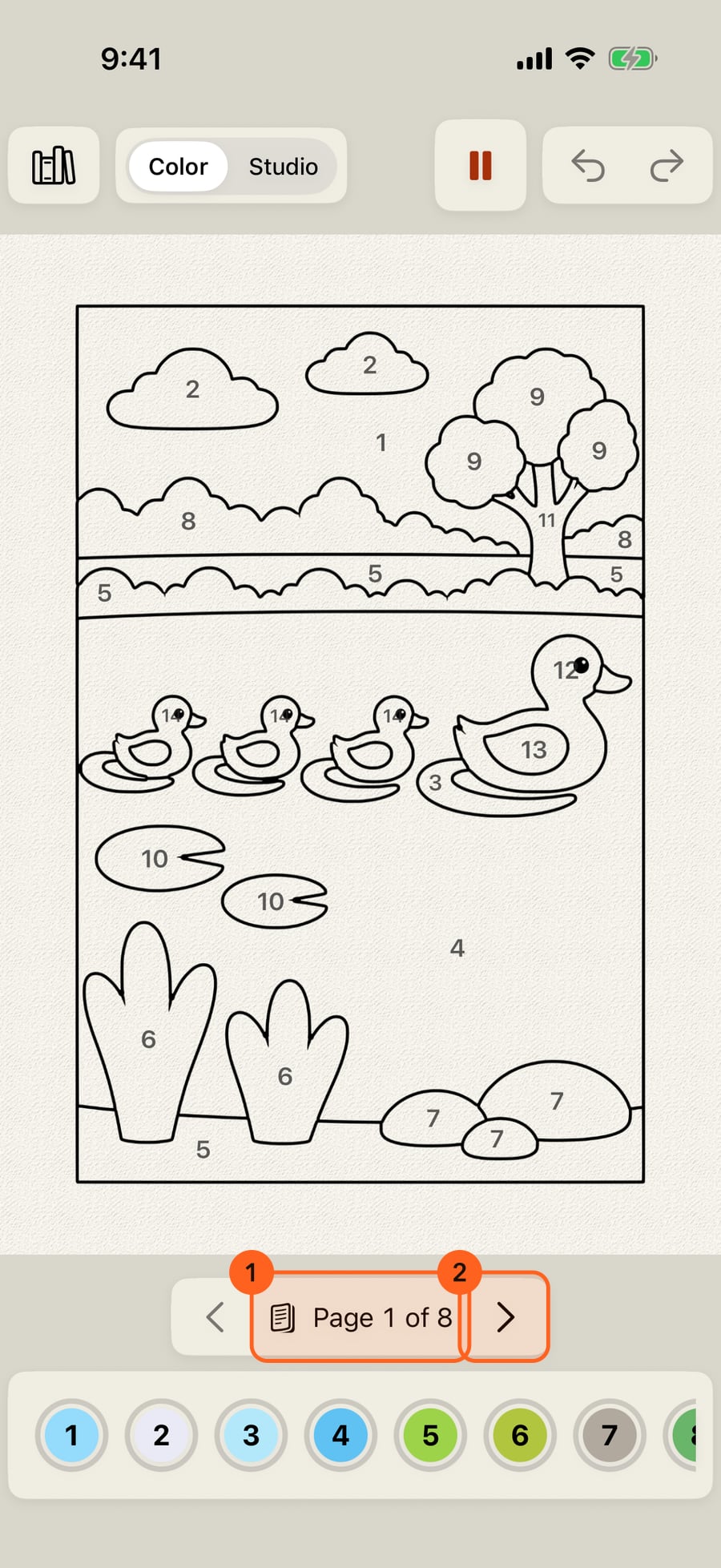
Open a book by number. Each page shows where it is in the book, and the arrows turn to the pages beside it.
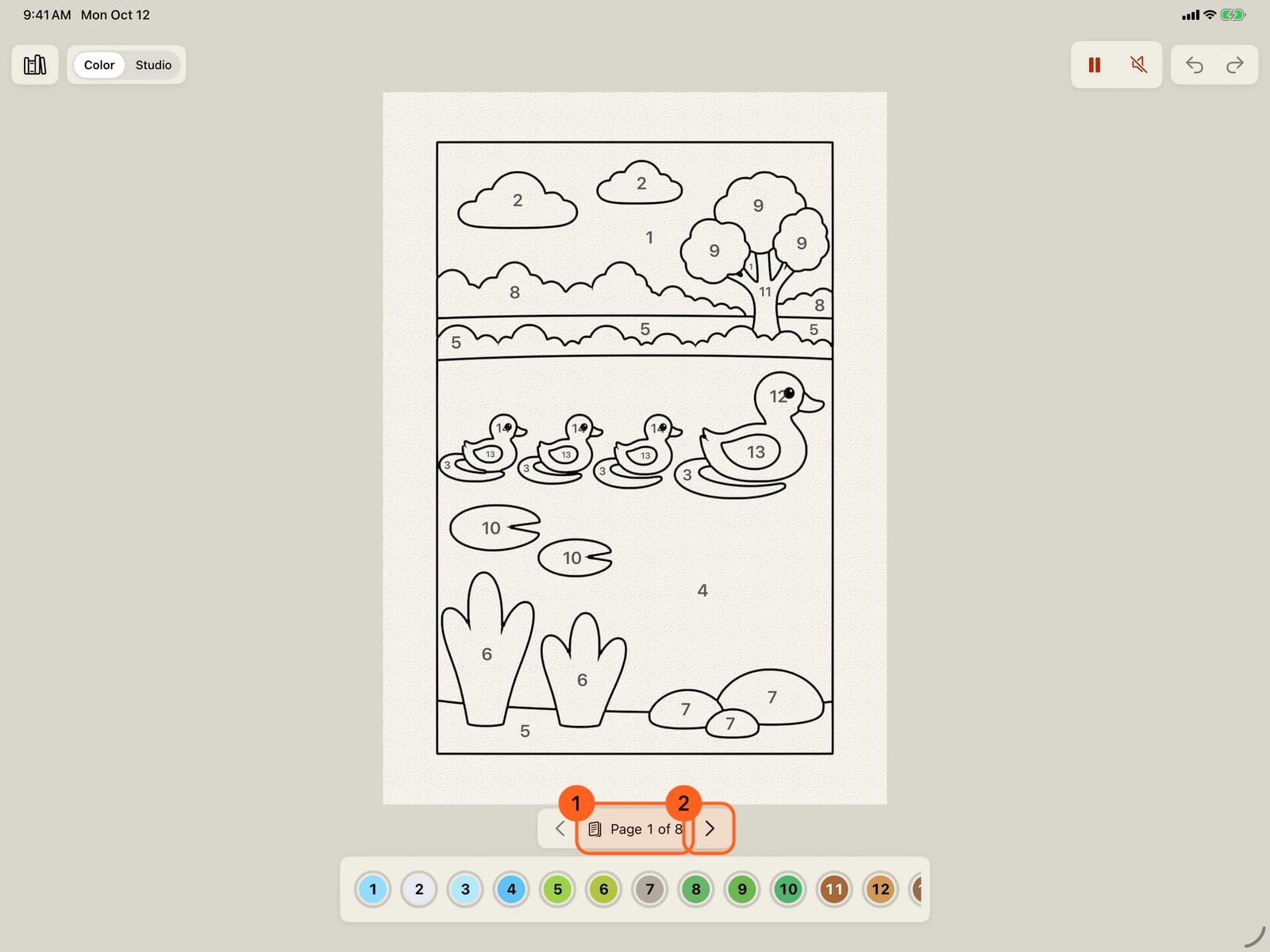
Open a book by number. Each page shows where it is in the book, and the arrows turn to the pages beside it.
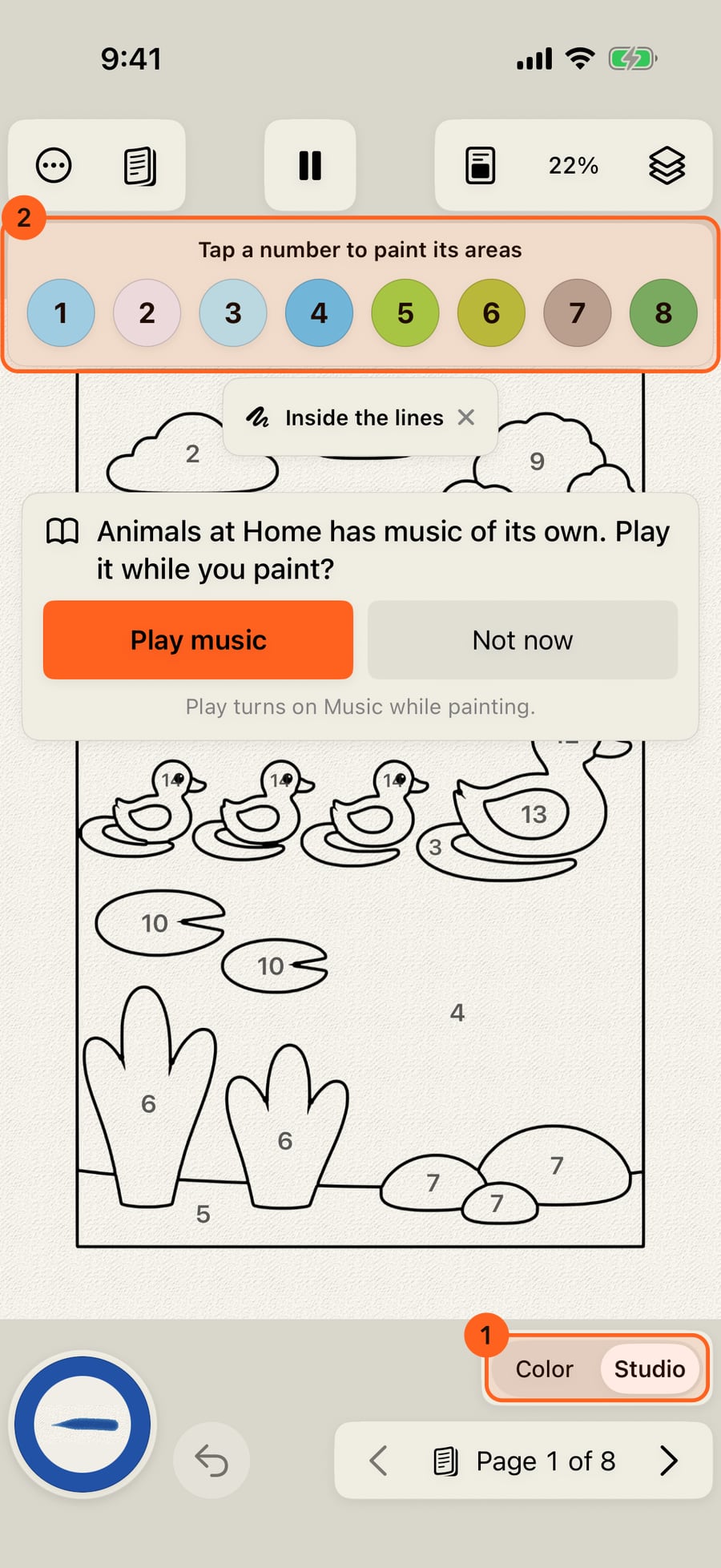
Color · Studio switches to the whole app, with the same page and the same paint. The numbers stay, above the page, and the switch waits beside the pages to take you back.
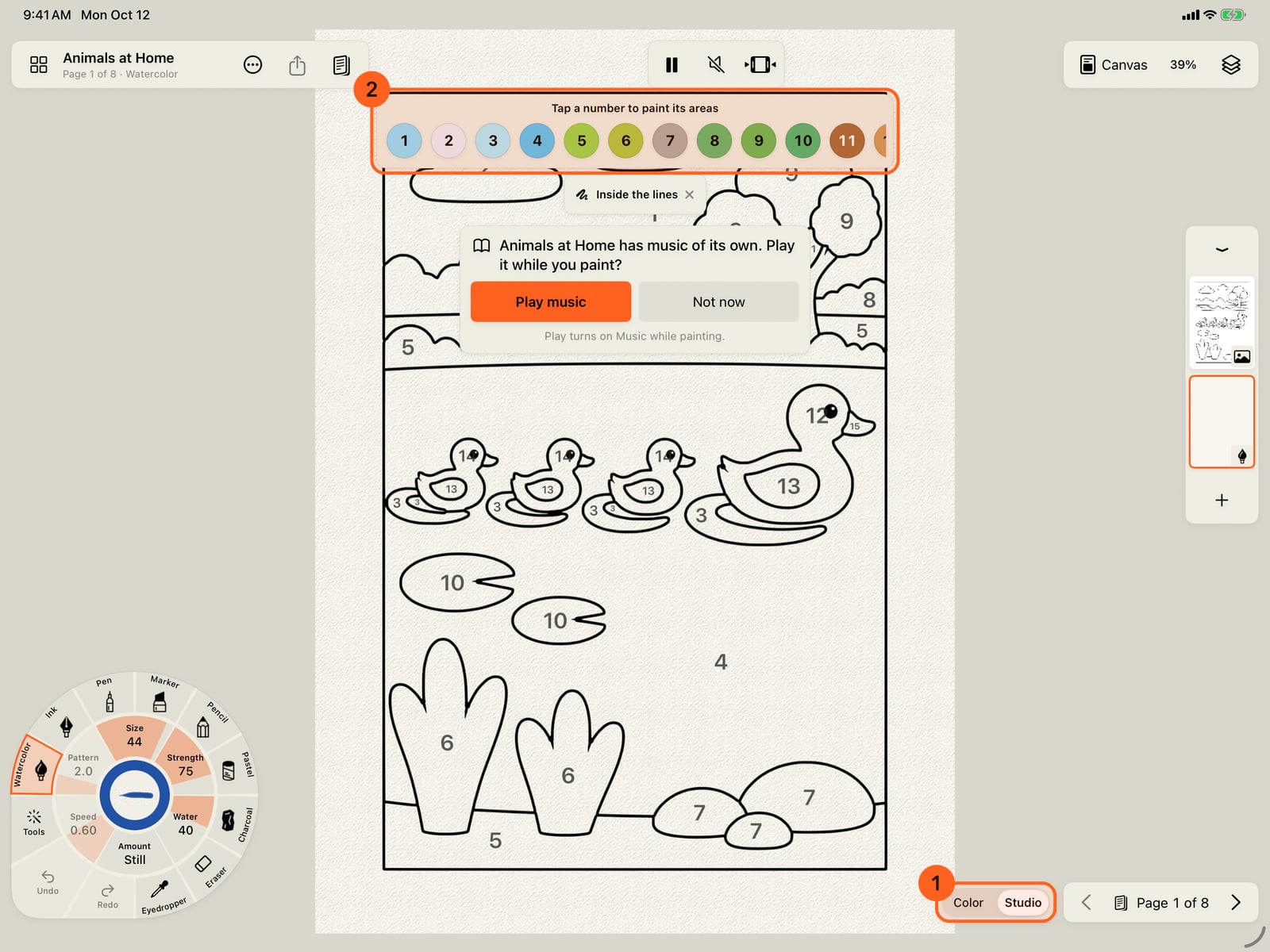
Color · Studio switches to the whole app, with the same page and the same paint. The numbers stay, above the page, and the switch waits beside the pages to take you back.
A finished page
When the last area has paint, an effect of the page's own comes over the whole picture: snow falling on a winter page, leaves on an autumn one, fireflies at night, gulls over the sea, butterflies or petals in a garden, rain rippling a pond, bubbles and fish under the sea. The page plays, everything that was painted moving as it was painted, with the book's music if it is on. The effect is a layer of its own, named for it, above the page's lines: the Studio shows it with the other layers, and one Undo takes it back with the last area.
The card says what you are looking at: These are Motion Brushes. Paint your own in the Studio. It offers:
- Share: shares the moving page as a short loop (see Export).
- Studio: keeps painting it with every brush and layer.
- Next page, in a book with more pages. On page 1 of a Plus book without Plus, Continue this book with Plus takes its place and opens the Free and Plus page (see Coloring books).
Close it to look at the page; the dock says the page is finished. In a book, the page bar under the page shows where you are 1; its arrows 2 turn to the pages beside it, and the page number opens every page.
Color and the Studio
Color · Studio 1 switches between the two at any time. It is one painting: the Studio shows the same page and the same paint, with every brush, layer and effect, and Undo reaches across both. Each page remembers which one it was in, and turning the page keeps you where you are.
In the Studio the numbers stay, in a bar above the page 2: tap a number for its areas and its steps, brushes to paint with, each shown as the mark it makes (see Paint with steps in the Studio), and Done to let it go. Fill, in the Tools ring, fills a tapped area with its number's colour. To colour the page freely, open the Canvas and paper menu and turn off Paint by number; turn it on again whenever you like. Nothing you painted changes. The switch back to Color waits beside the pages.
Tip: To paint a few areas of your own choosing rather than a whole number, use Choose area and Add areas in the Studio (see Panel layouts).
Everything here is Free, except the pages after page 1 of a Plus book, which come with Plus. The effects a finished page plays come from the whole effect library, Plus looks among them, and play and export in Free too.
Try it in the app.
Download on the App Store Free for iPad, iPhone and MacSomething not behaving as expected?
Visit support or write to [email protected].