

Guides / Getting started
Brush challenges
Small puzzles in Actions → Brush challenges. Draw inside a start area, then let a moving brush or effect carry the paint out to the lights. Each has five difficulties to earn, and Keep drawing takes your drawing into a painting of its own.
The challenges are in the Actions menu, beside the lessons. Tap Actions, then Brush challenges.
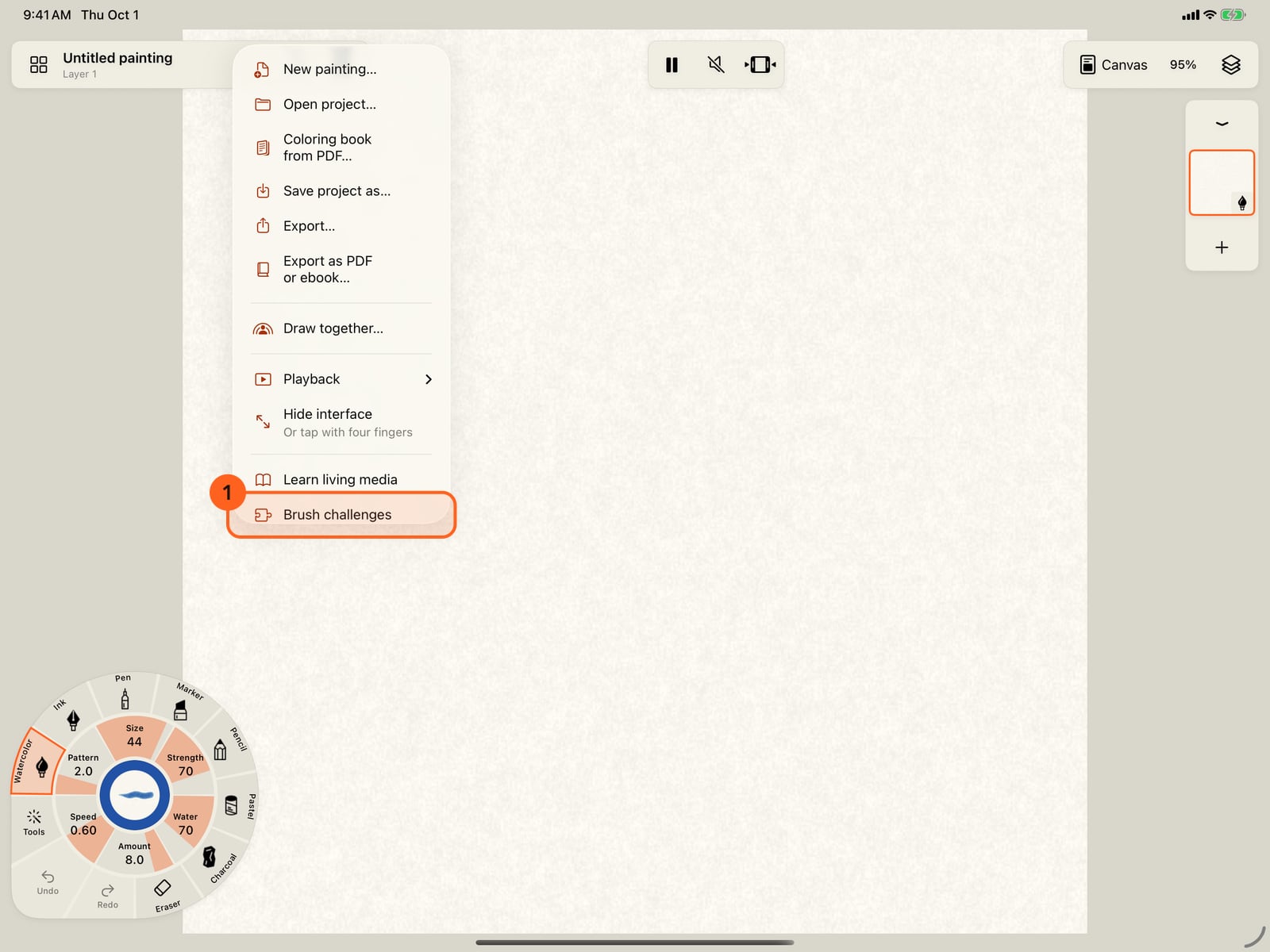
The challenges are in the Actions menu, beside the lessons. Tap Actions, then Brush challenges.
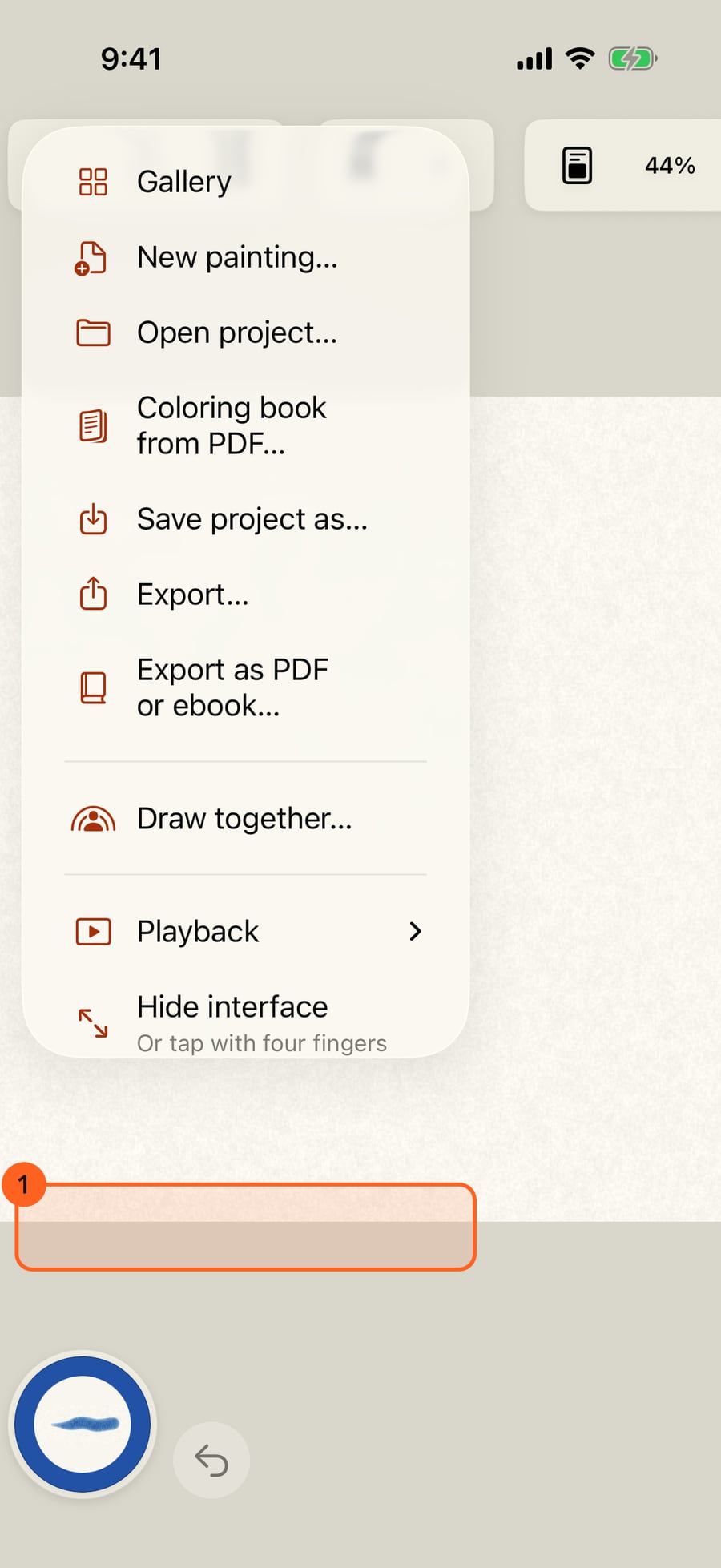
The challenges are in the Actions menu, beside the lessons. Click Actions, then Brush challenges.
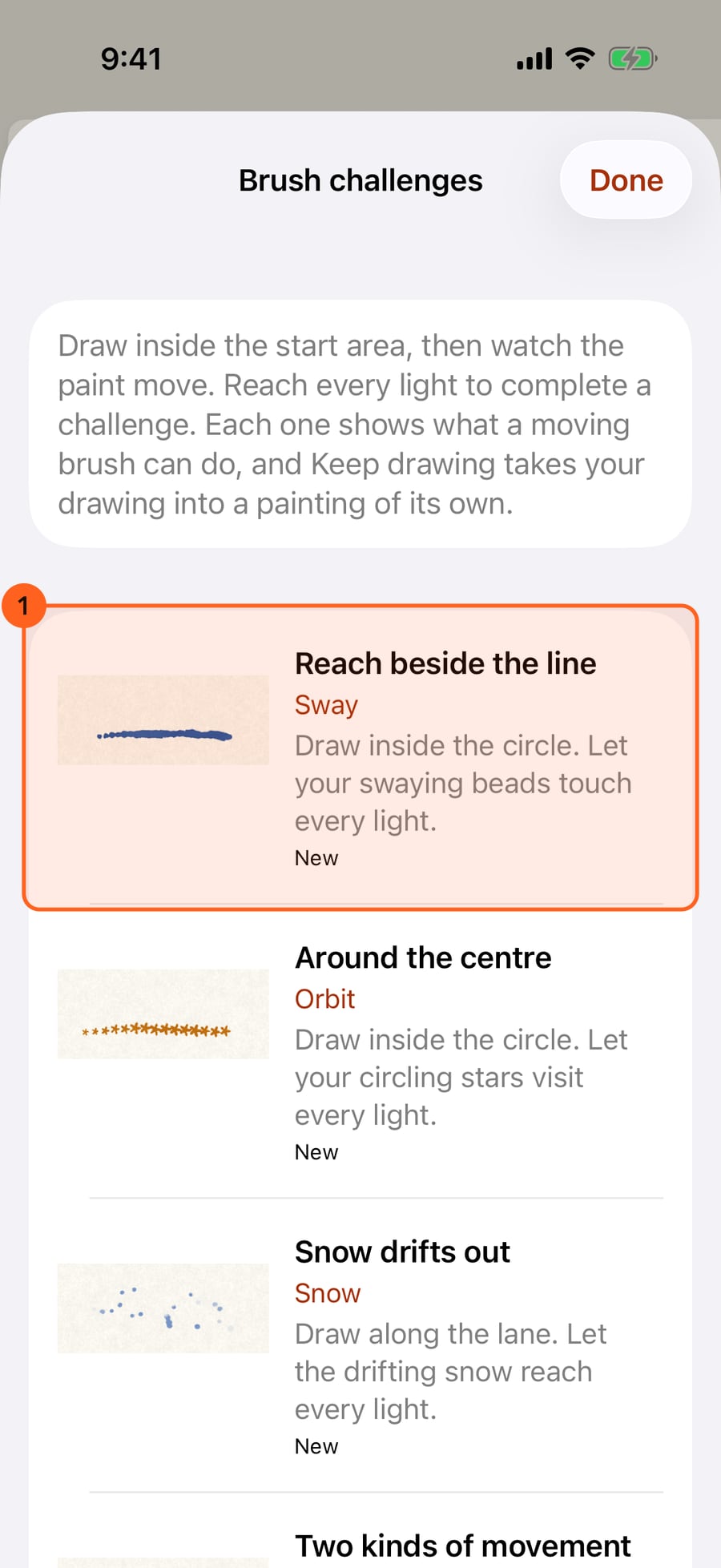
Each challenge shows off one moving brush or effect. Its card plays the brush, says what to do, and shows how far you have taken it.
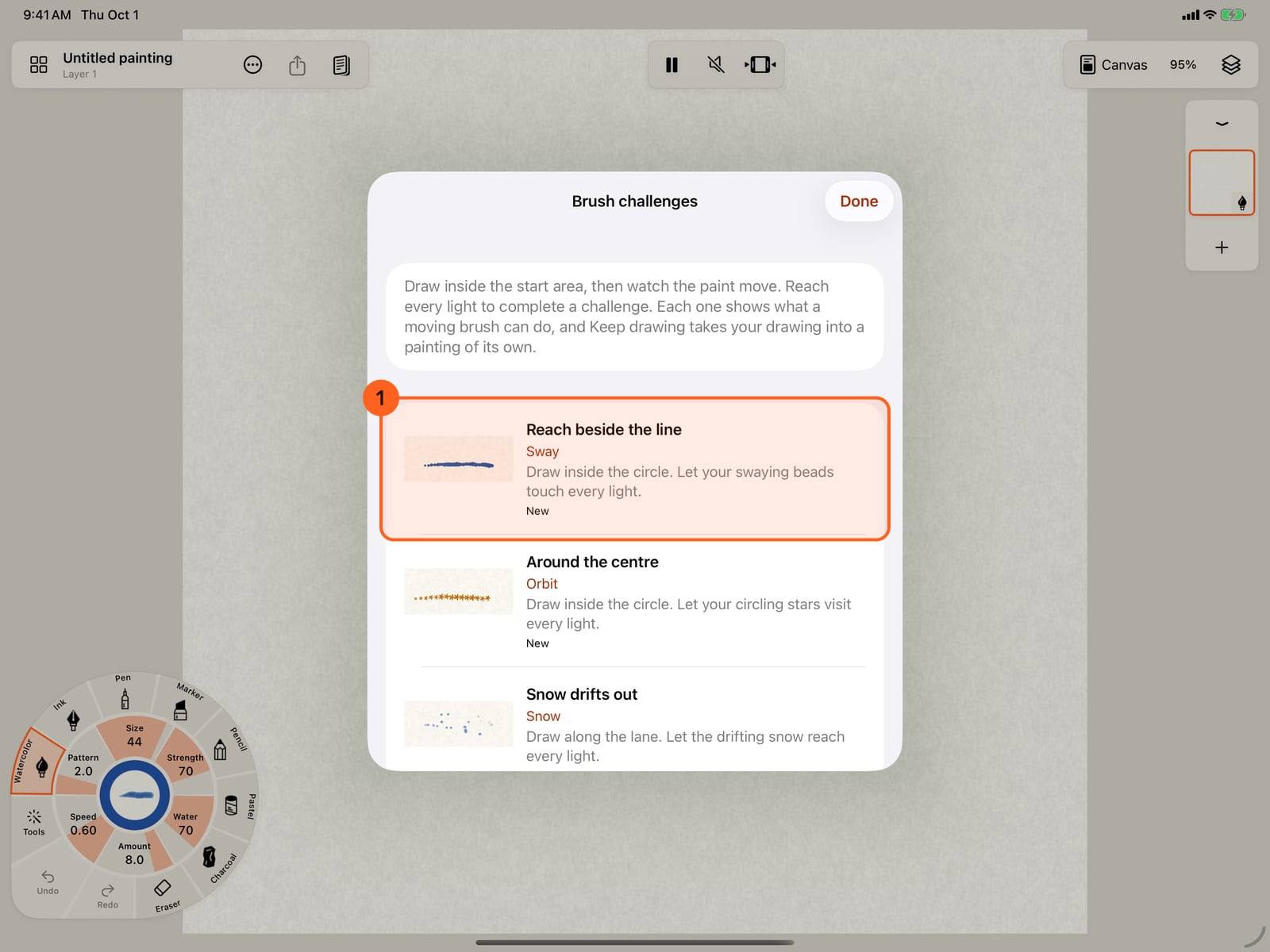
Each challenge shows off one moving brush or effect. Its card plays the brush, says what to do, and shows how far you have taken it.
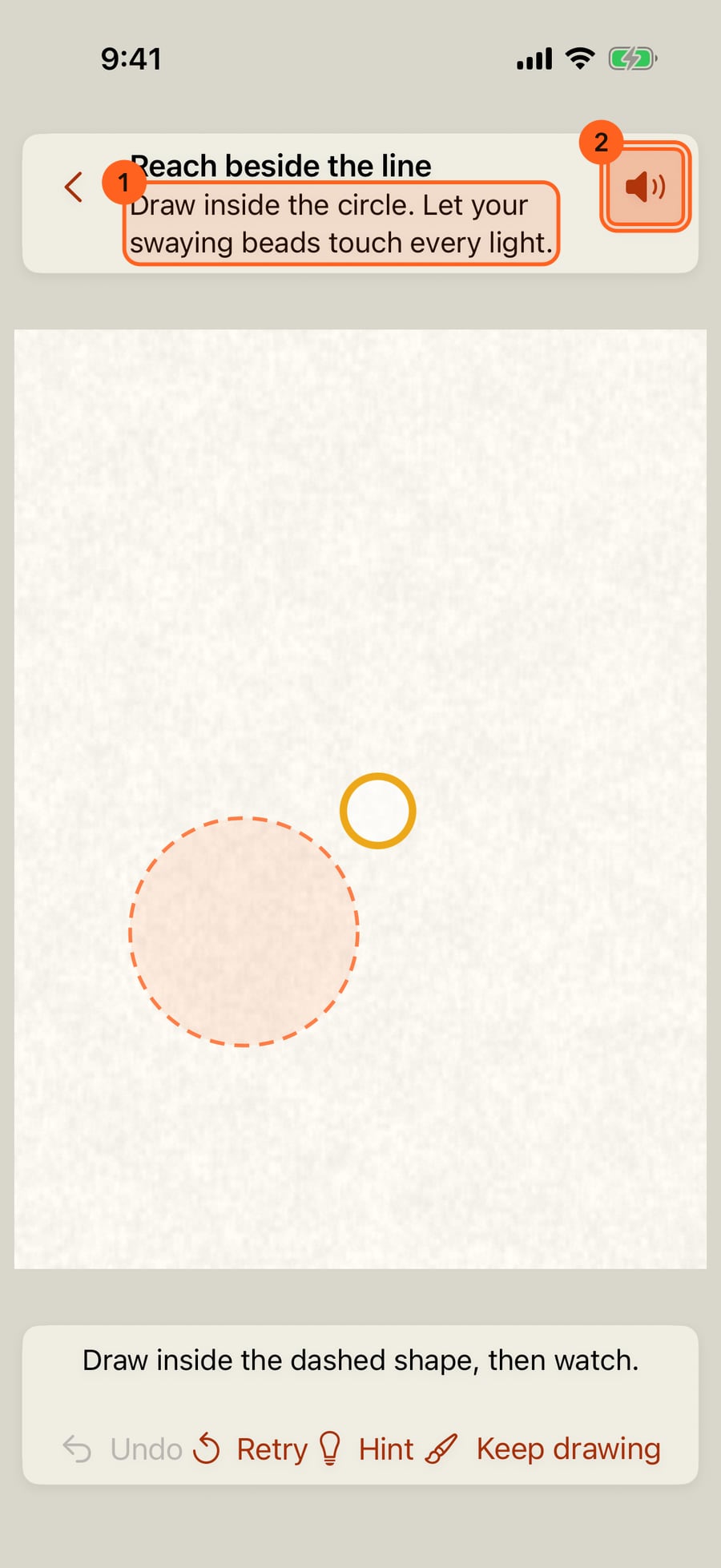
Draw inside the dashed start area. The lights are outside it, so only moving paint can reach them. Sound has its own switch here.
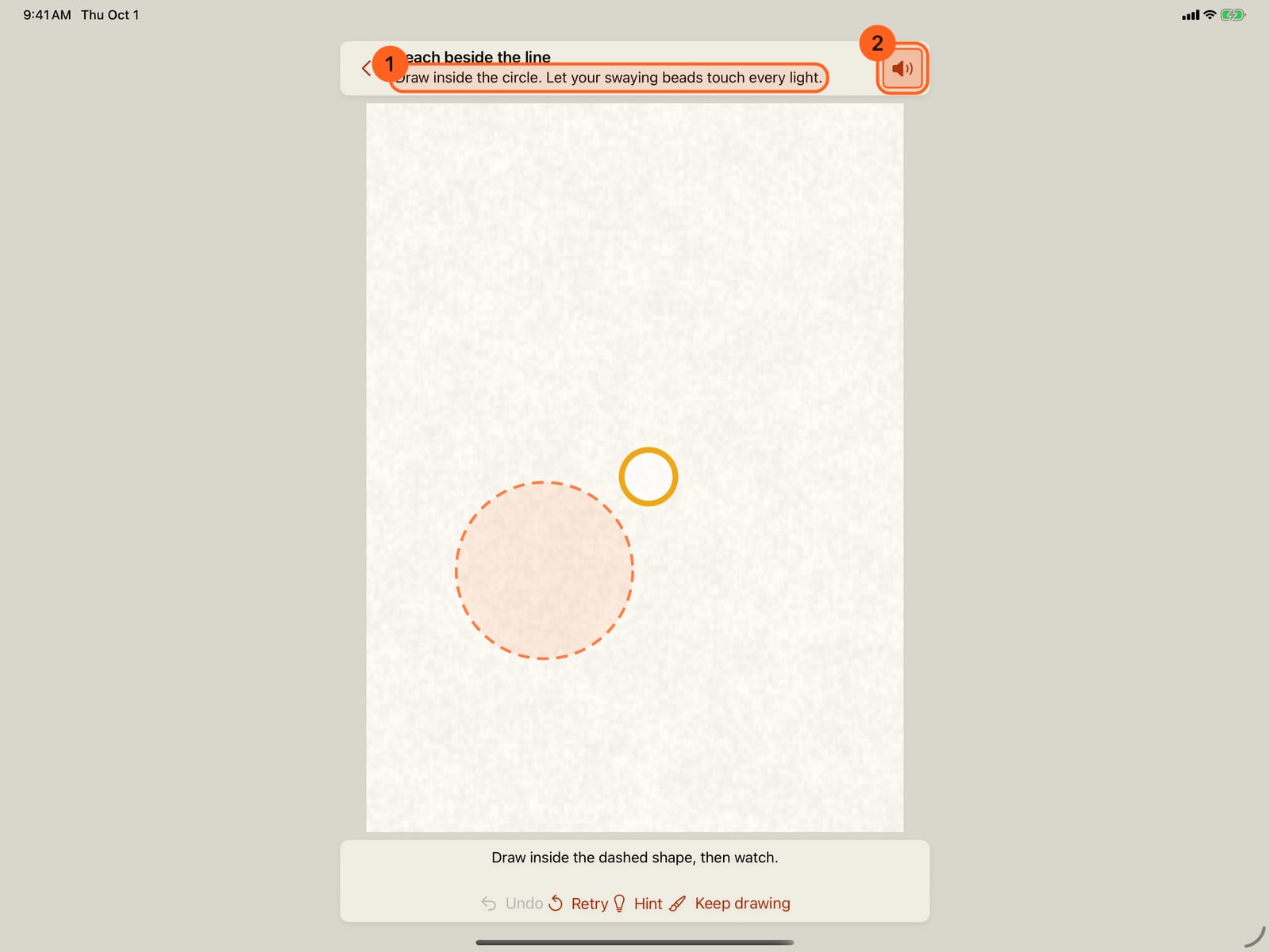
Draw inside the dashed start area. The lights are outside it, so only moving paint can reach them. Sound has its own switch here.
Hint says what the movement does, and can show an example stroke on the page. Hints are free, and never count against you.
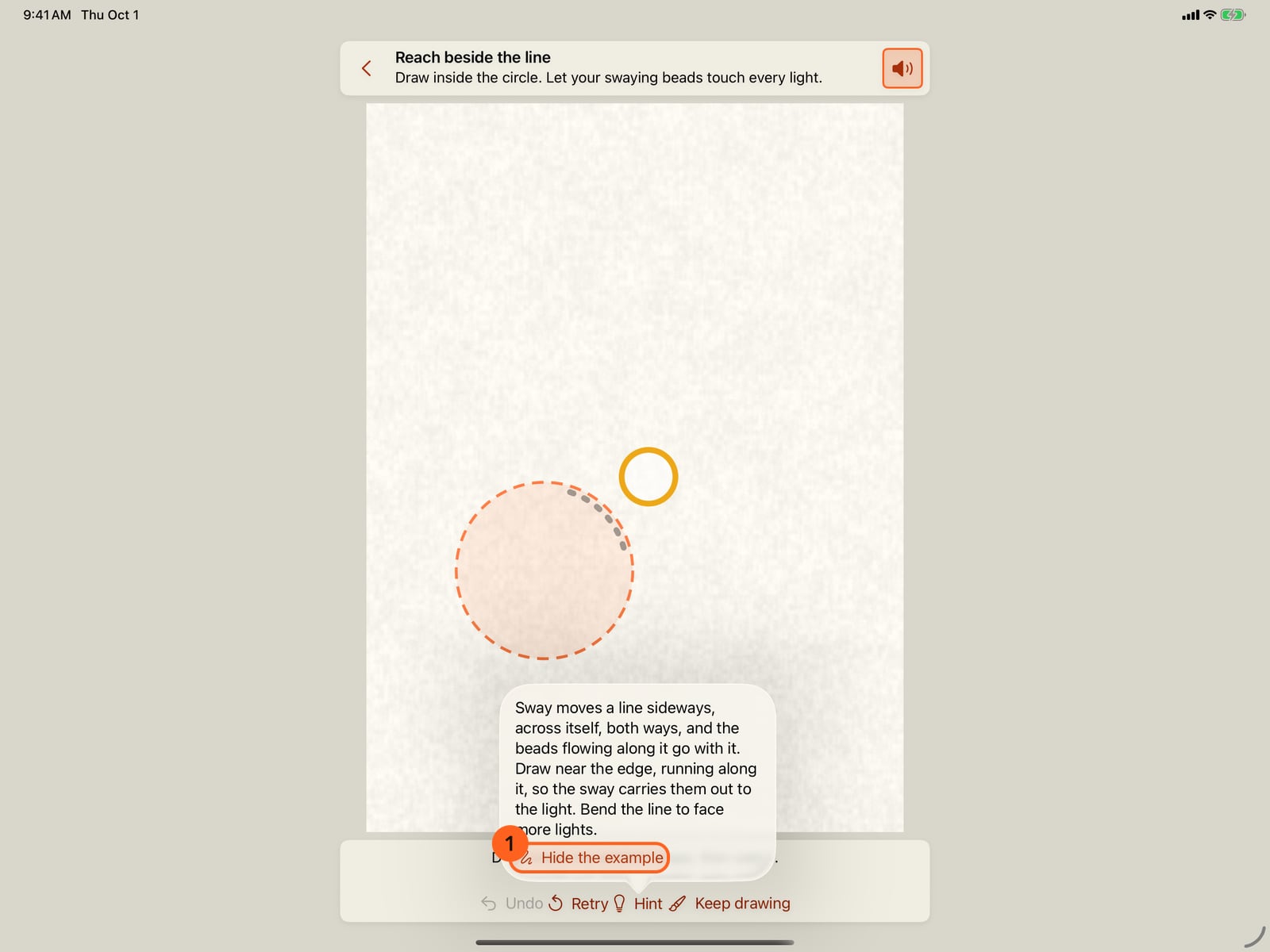
Hint says what the movement does, and can show an example stroke on the page. Hints are free, and never count against you.
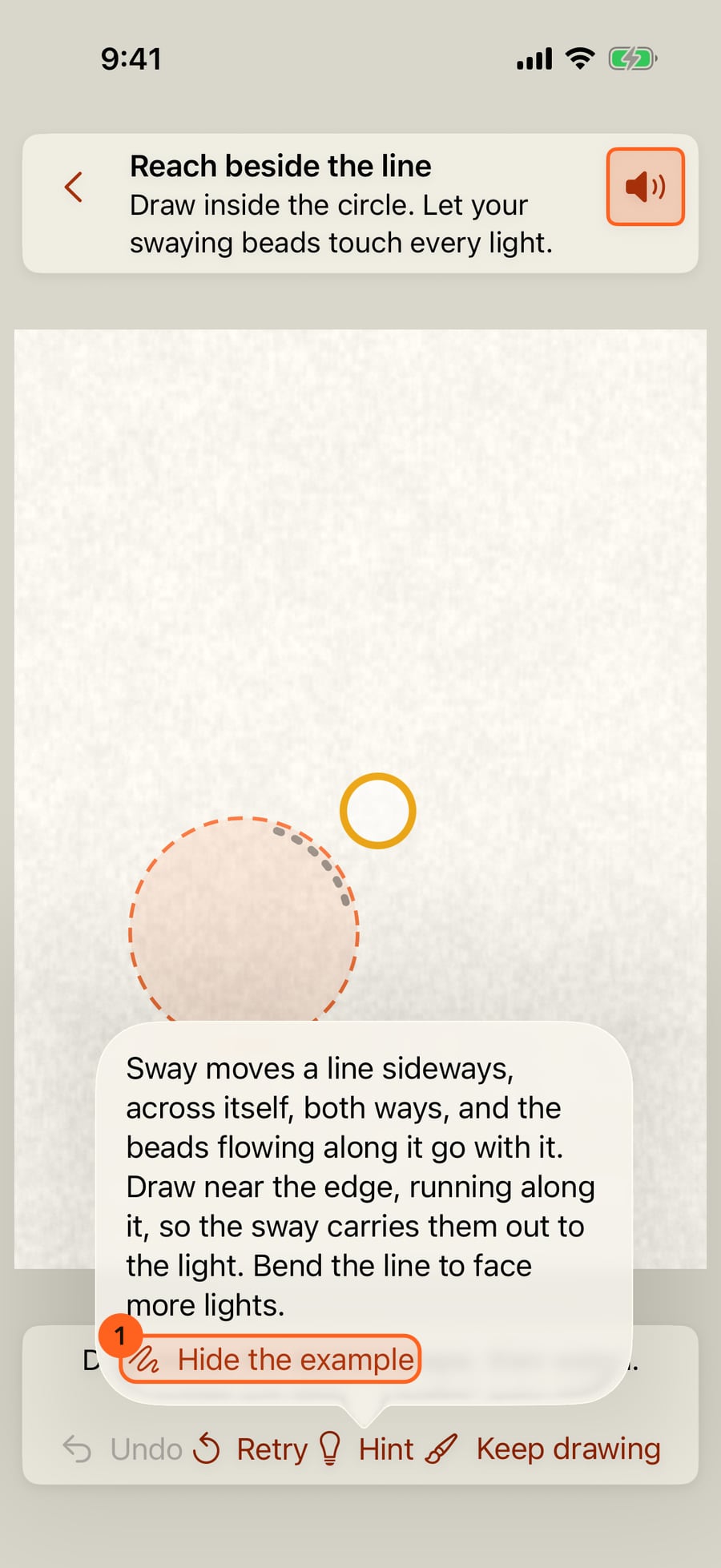
Draw with a finger, the Pencil or a pointer, then watch. A light fills and ticks when the moving paint reaches inside it. Complete a challenge to open its next difficulty.
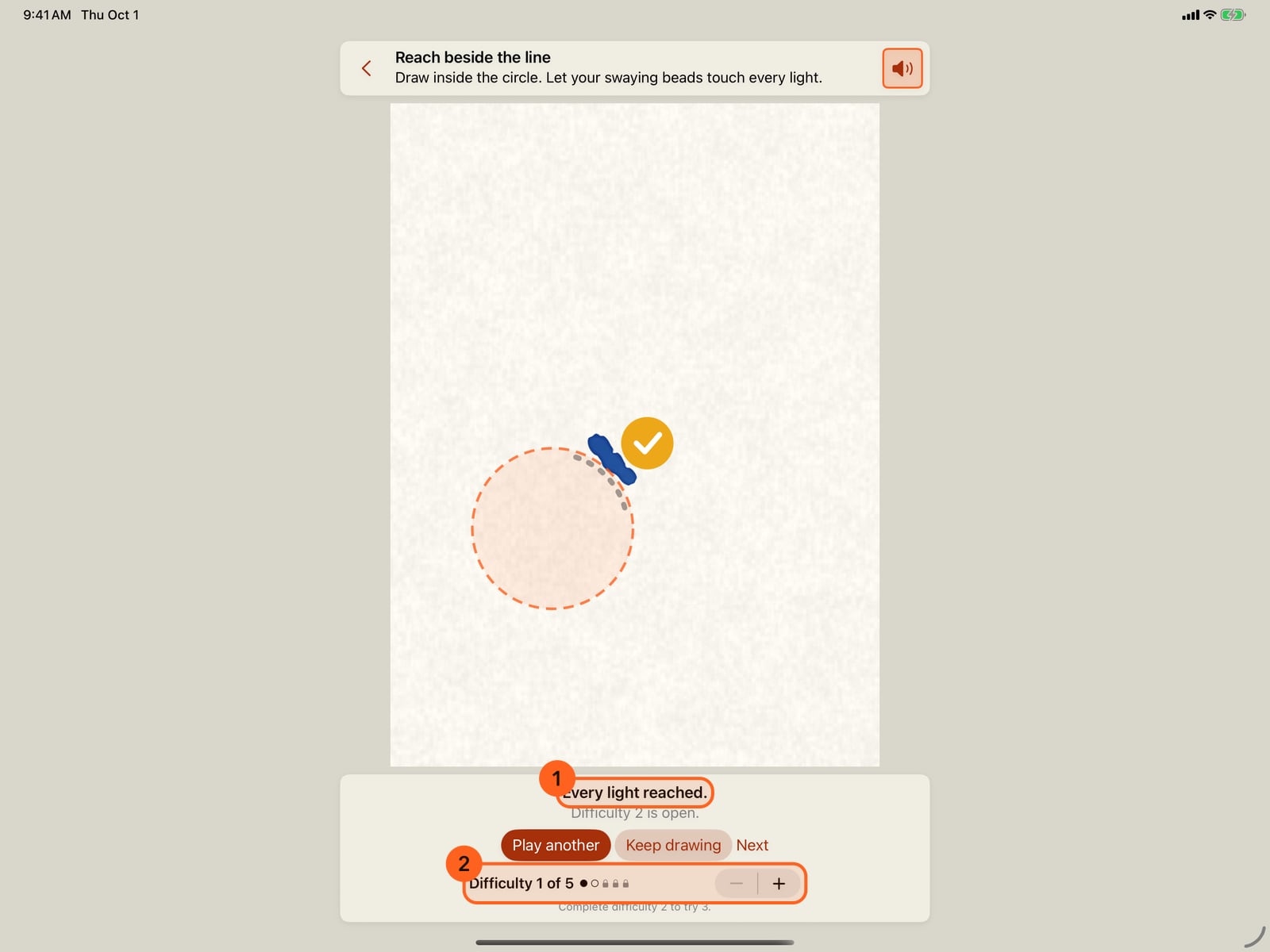
Draw with a finger, the Pencil or a pointer, then watch. A light fills and ticks when the moving paint reaches inside it. Complete a challenge to open its next difficulty.
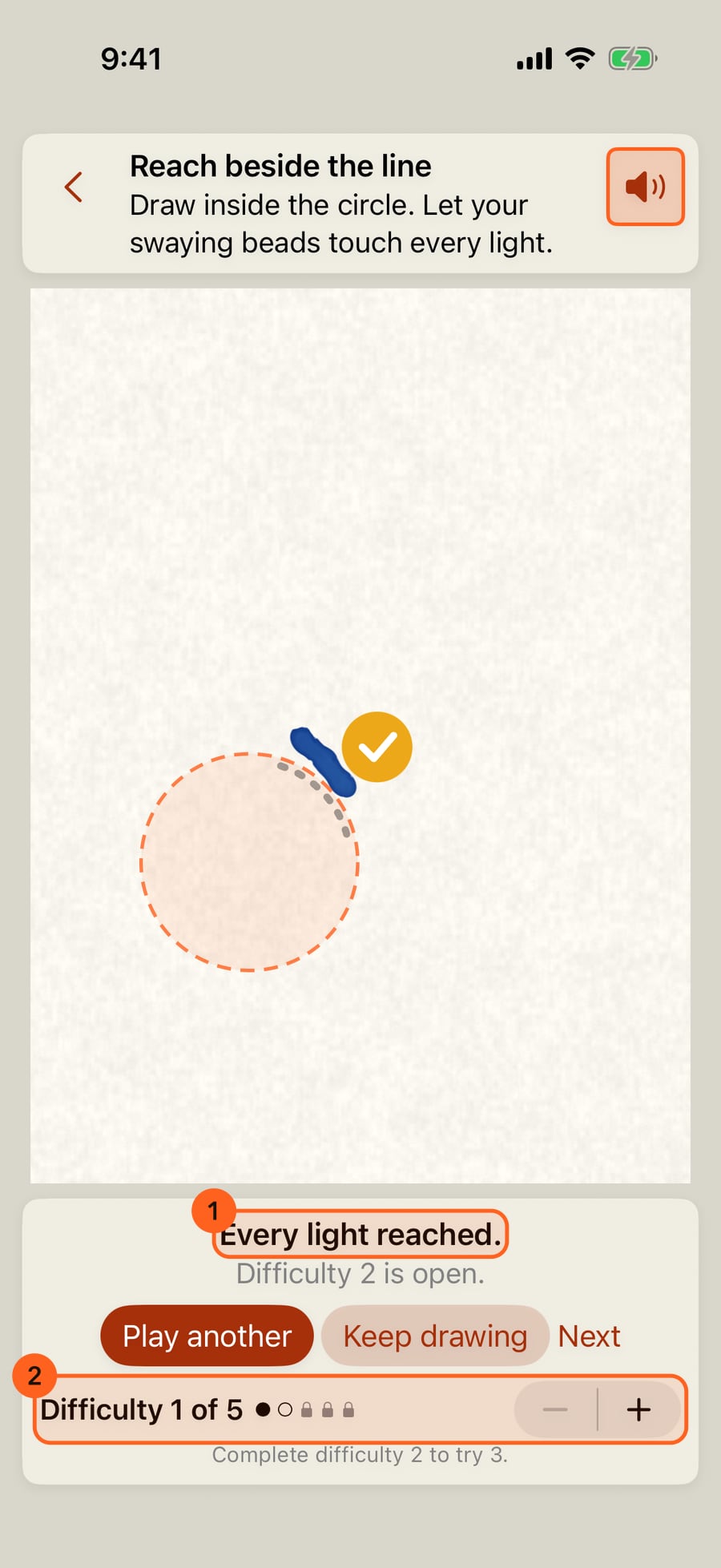
Play another deals a new board at the same difficulty. Retry clears your drawing and keeps the same board.
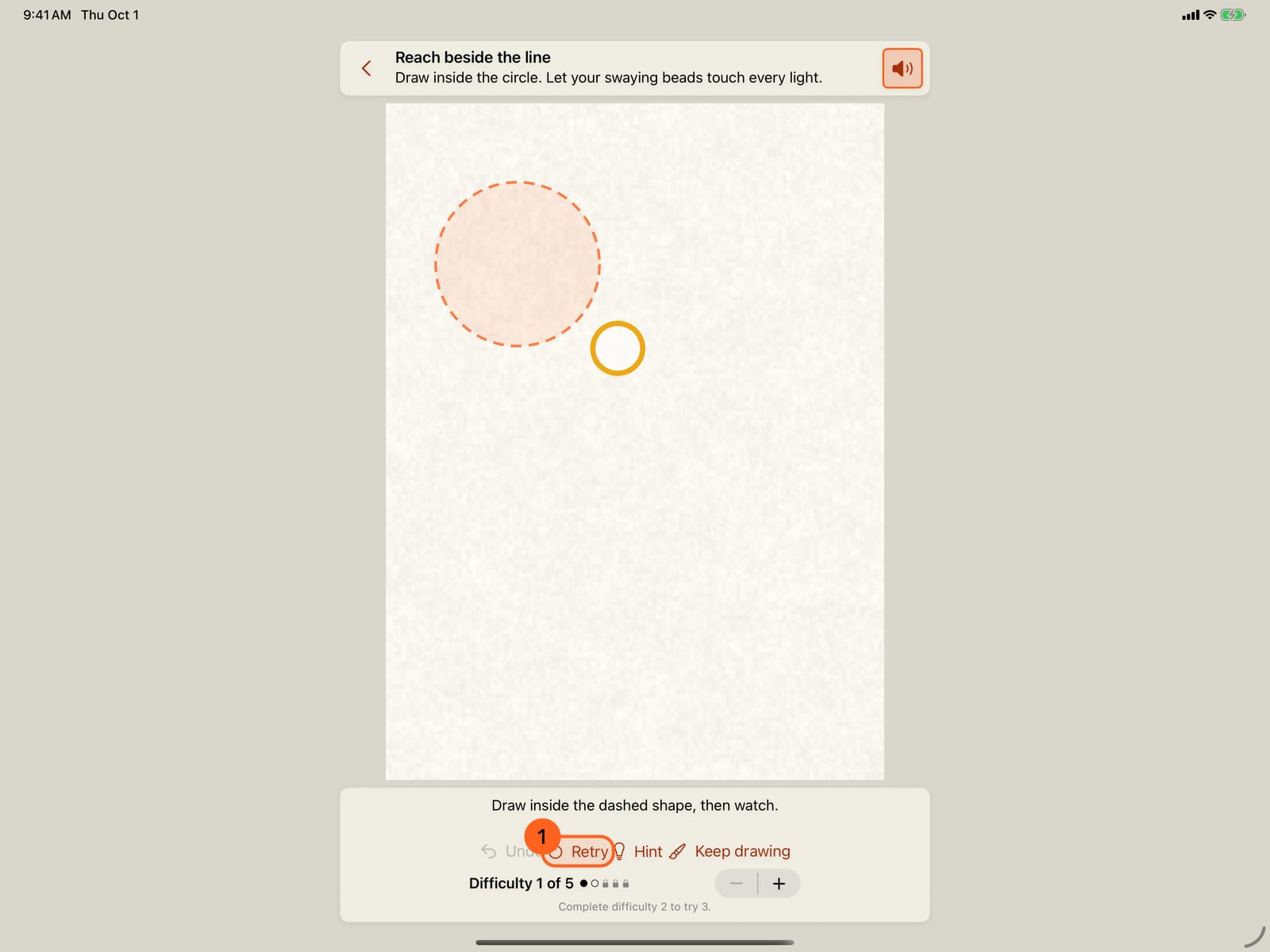
Play another deals a new board at the same difficulty. Retry clears your drawing and keeps the same board.
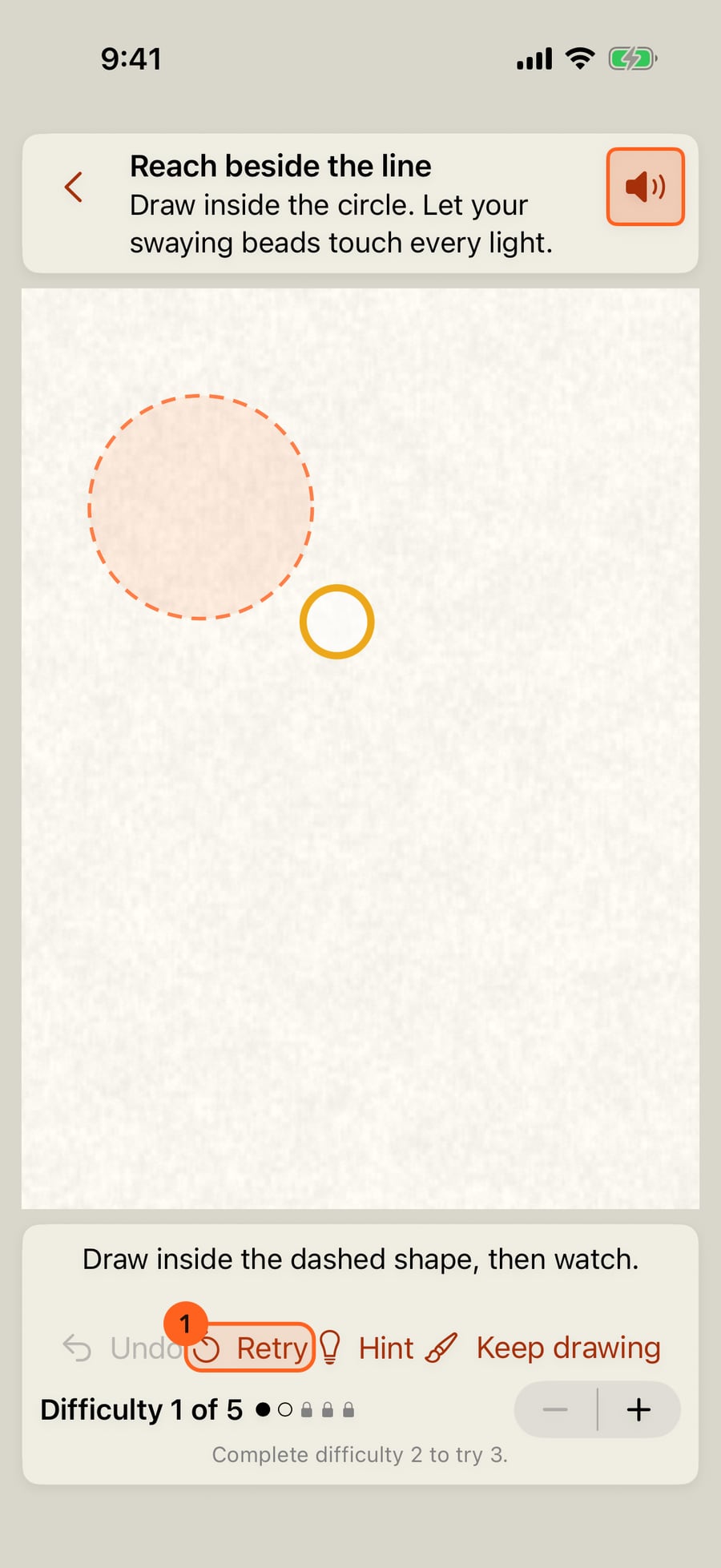
Turn Difficulty up to play a harder board you have opened. Harder boards ask for a different shape, not smaller lights.
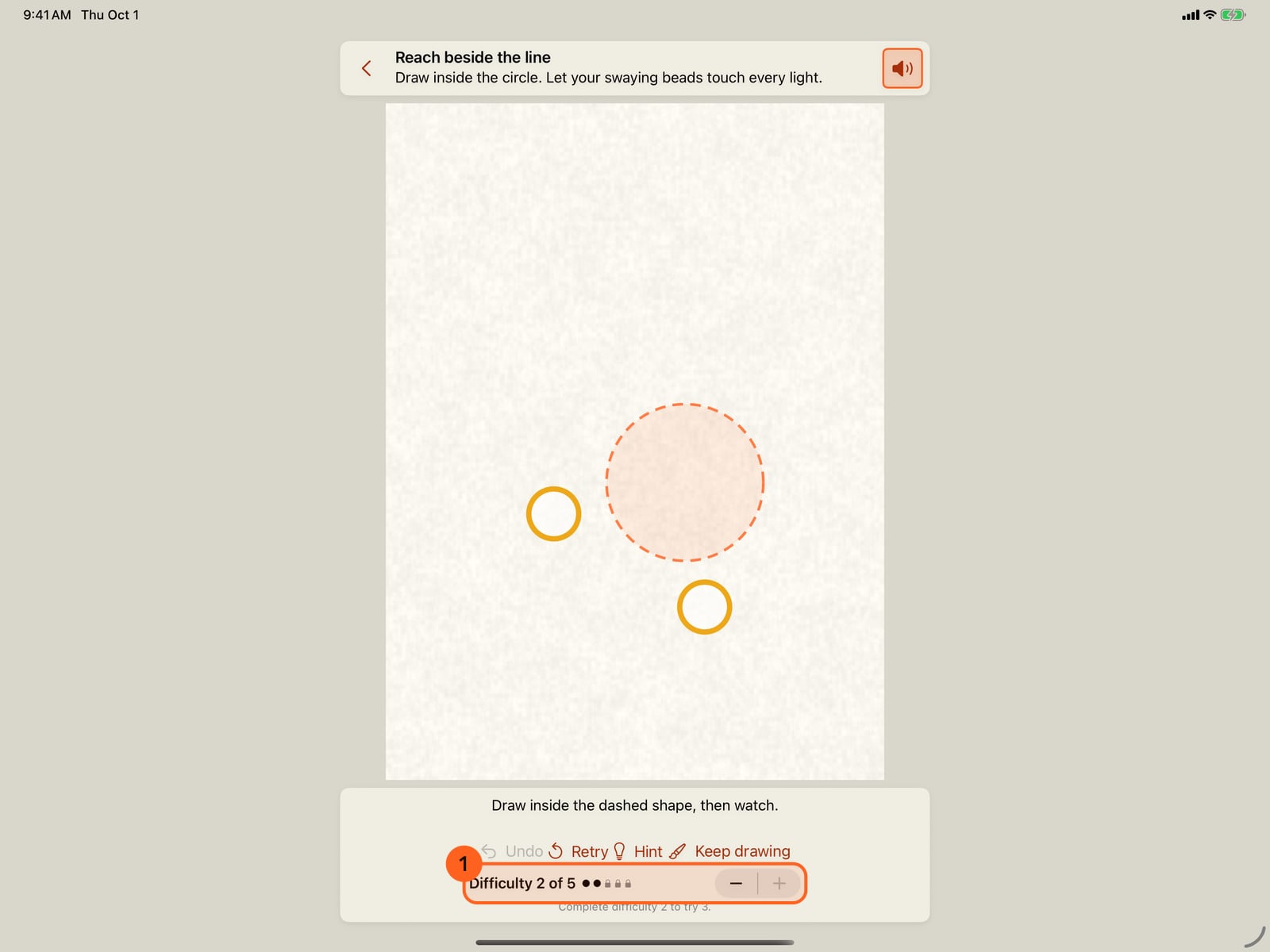
Turn Difficulty up to play a harder board you have opened. Harder boards ask for a different shape, not smaller lights.
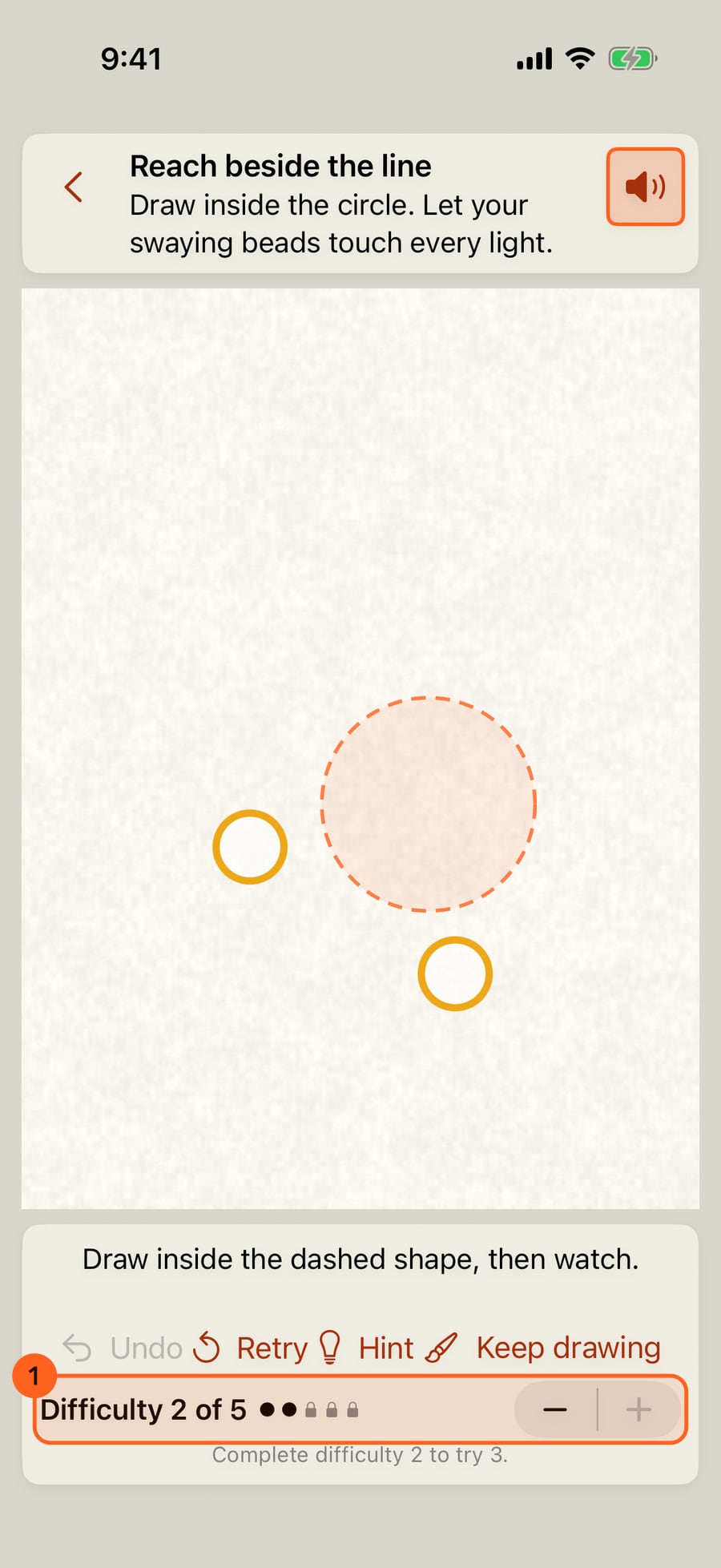
Keep drawing, solved or not, takes your drawing into a painting of its own, with the same brush in hand and nothing hidden.
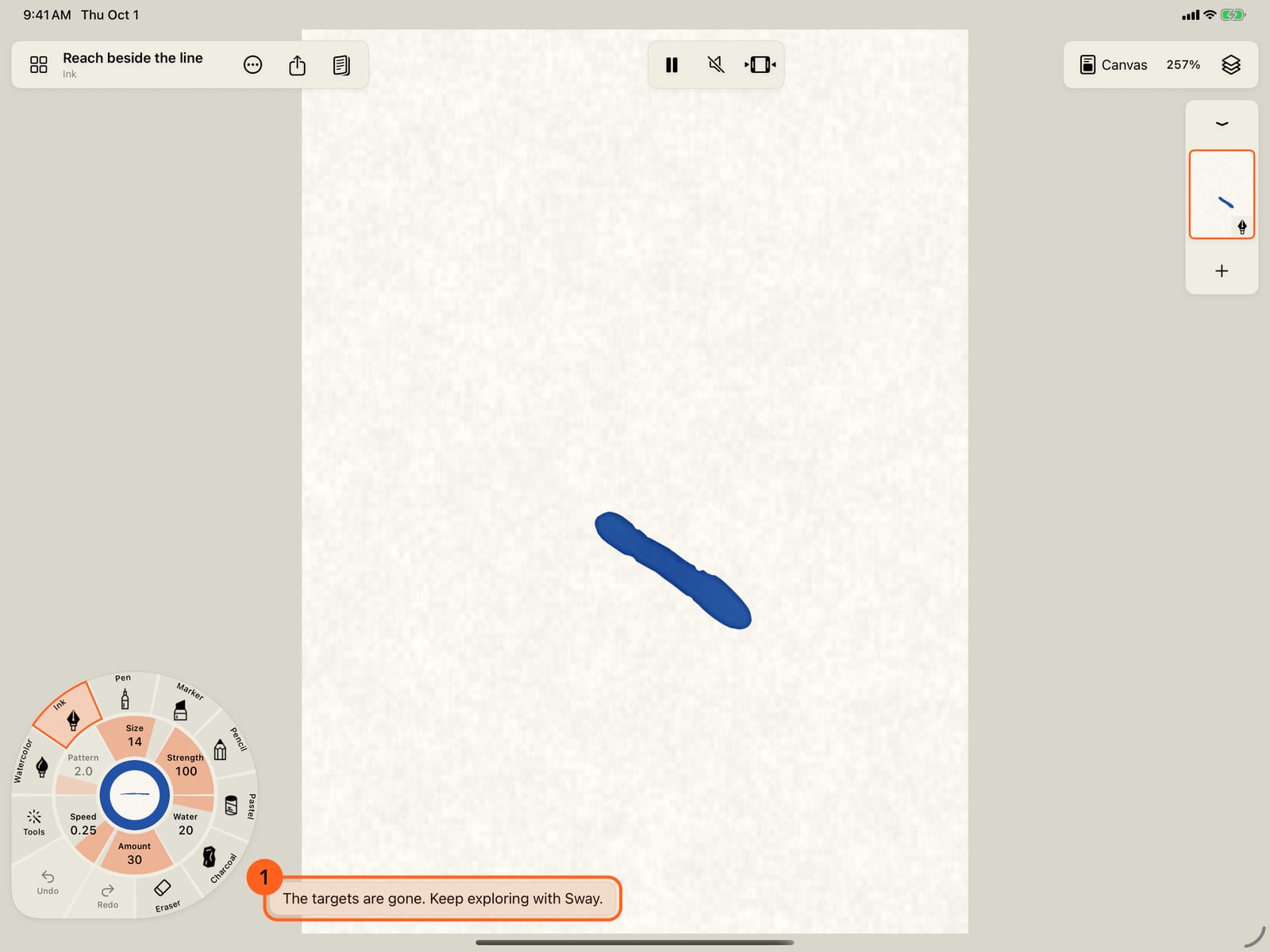
Keep drawing, solved or not, takes your drawing into a painting of its own, with the same brush in hand and nothing hidden.
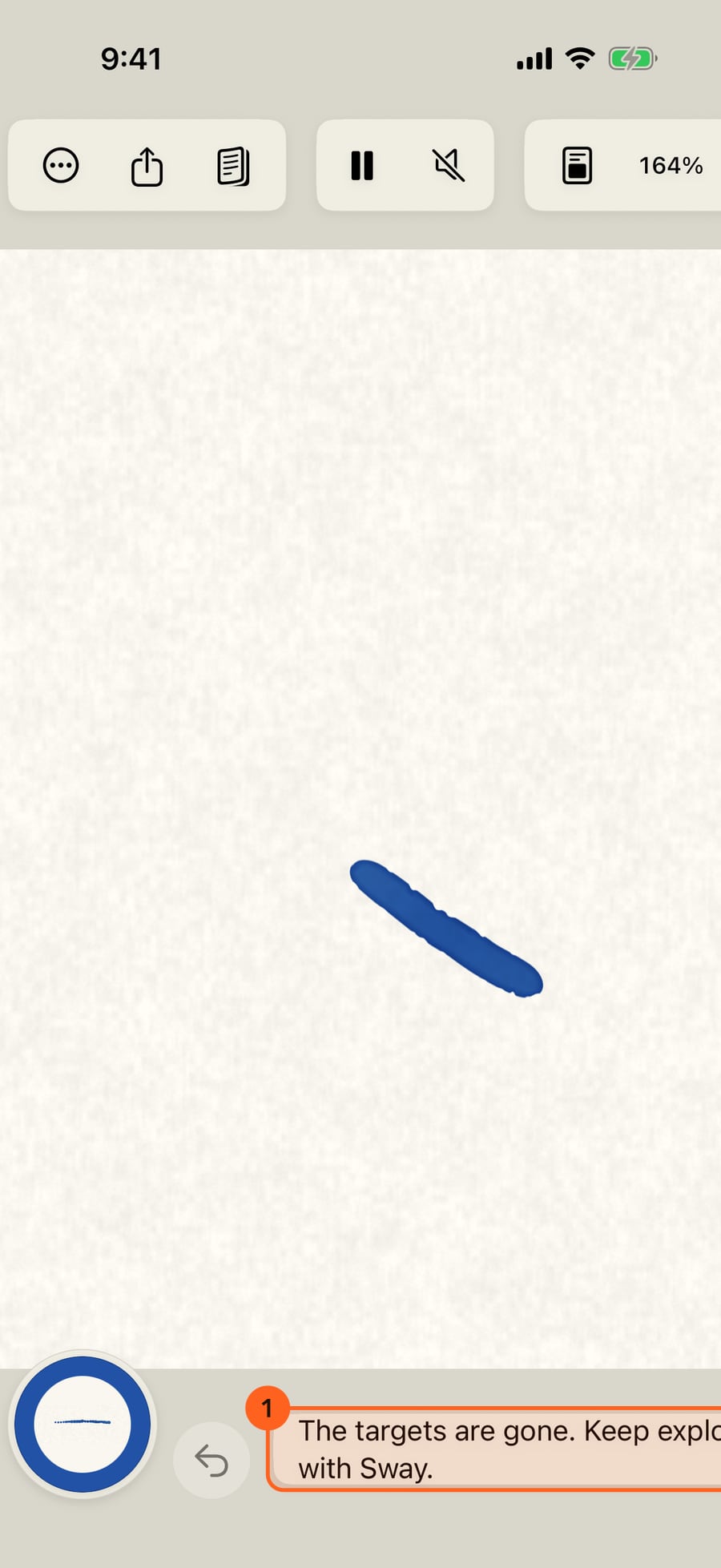
Playing a challenge
Actions → Brush challenges 1 opens the list. Each card plays its brush, says what to do, and shows the highest difficulty you have completed. Resume marks the challenge you left unfinished. From the list, Lessons opens Learn living media, and the lessons have a button back.
On the board, the dashed shape is the start area and the circles outside it are the lights. Draw inside the start area. A stroke may stray a few points past the dashes; further than that, the challenge asks you to undo it. Then watch the paint move for one slow loop, about four seconds. Each light fills and shows a tick when the moving paint reaches inside it. The words under the board say how many lights are reached, and what to try when some are not. Nothing is timed and nothing is scored.
| Control | What it does |
|---|---|
| Back | Returns to the painting you had open. Your challenge drawing is kept, to resume from the list. |
| Sound | Turns the challenge's brush sound and music on or off. |
| Undo | Takes back the last stroke. Two fingers tapped together undo too. |
| Retry | Clears your drawing and keeps the same board. |
| Hint | What the movement does, and Show an example: one stroke that works, dotted on the page. |
| Keep drawing | Takes your drawing into a painting of its own (below). |
A board allows a set number of strokes, from one on the first boards. Fingers draw in a challenge even when Finger draws is off in Settings; the setting itself doesn't change.
The five challenges
| Challenge | Brush | Access |
|---|---|---|
| Reach beside the line | Swaying Beads: Sway moves a line across itself, both ways | Free |
| Around the centre | Orbiting Stars: Orbit carries the whole mark round a small circle | Free |
| Snow drifts out | Snow: the flakes travel along the line and drift off both sides | Free |
| Two kinds of movement | Swaying Beads and Orbiting Stars: choose one for each group of lights | Free |
| Curl around | Curling Line: the end of the stroke bends to its right-hand side | Pro |
Snow's flakes fall differently every stroke. When a light next to your line is missed, undo and draw the stroke again.
Difficulty
Each challenge has five difficulties. The first is open from the start. Complete it and Difficulty 2 appears, with difficulty 2 open; each difficulty you complete opens the next, up to 5. Easier difficulties stay open, and a locked one says which to complete first. Harder boards ask for a different shape or direction, a bend, a U or a ring, and more lights; they never make the lights smaller.
Play another deals a new board at the same difficulty. Changing Difficulty starts a new board too. Both, like Retry, clear your drawing, so the challenge asks first, and offers Keep drawing instead.
Completed difficulties are kept on this device and, with Sync challenge progress with iCloud on (Settings → Brush challenges), reach your other devices signed in to the same Apple Account. It can take a little while. Only which difficulties you have completed travels; an unfinished drawing, the chosen difficulty and the sound switch stay on the device where they are. Turn syncing off to keep new progress on this device; nothing is erased, and turning it on again brings both sides together. Progress earned under one Apple Account never goes to another.
Keep drawing
Keep drawing works before or after you solve a board. Your drawing becomes a new painting in the Gallery, with every stroke as you drew it, the same brush in hand, and the challenge's paper and music. The start area and lights are gone; they were never paint. The whole workspace comes back. The painting you had open before the challenge is left as it was.
Sound
Challenges play with sound: each has its own score, all Free styles chosen to suit it, and the stylus sound of its brush. Sound, in the top corner, mutes them, and the challenges remember it until you turn it back on. It never changes your settings in Settings (see Stylus sound and music). With your iPhone or iPad on mute there is no sound either, whatever the switch says. Muted, the challenge plays exactly the same.
Pro: Curl around paints with Curl, a Pro motion, so it comes with Pro; its card says Included with Pro and opens Free and Pro. The other four challenges, and all five difficulties of each, are Free. Difficulty you earn is never needed to buy anything, and buying Pro never skips a difficulty.
Tip: With Reduce Motion on, a challenge opens paused. Tap Play to watch to see the paint move; nothing counts until you do.
Something not behaving as expected?
Visit support or write to [email protected].