

Guides / Paintings and files
Book View
Read a book full screen with its pages moving, and turn the pages with a swipe, a tap near the edge or the arrow keys.
Start with a book of two pages. This painting, A quiet breeze, gets a second, blank page from Pages, Add page.
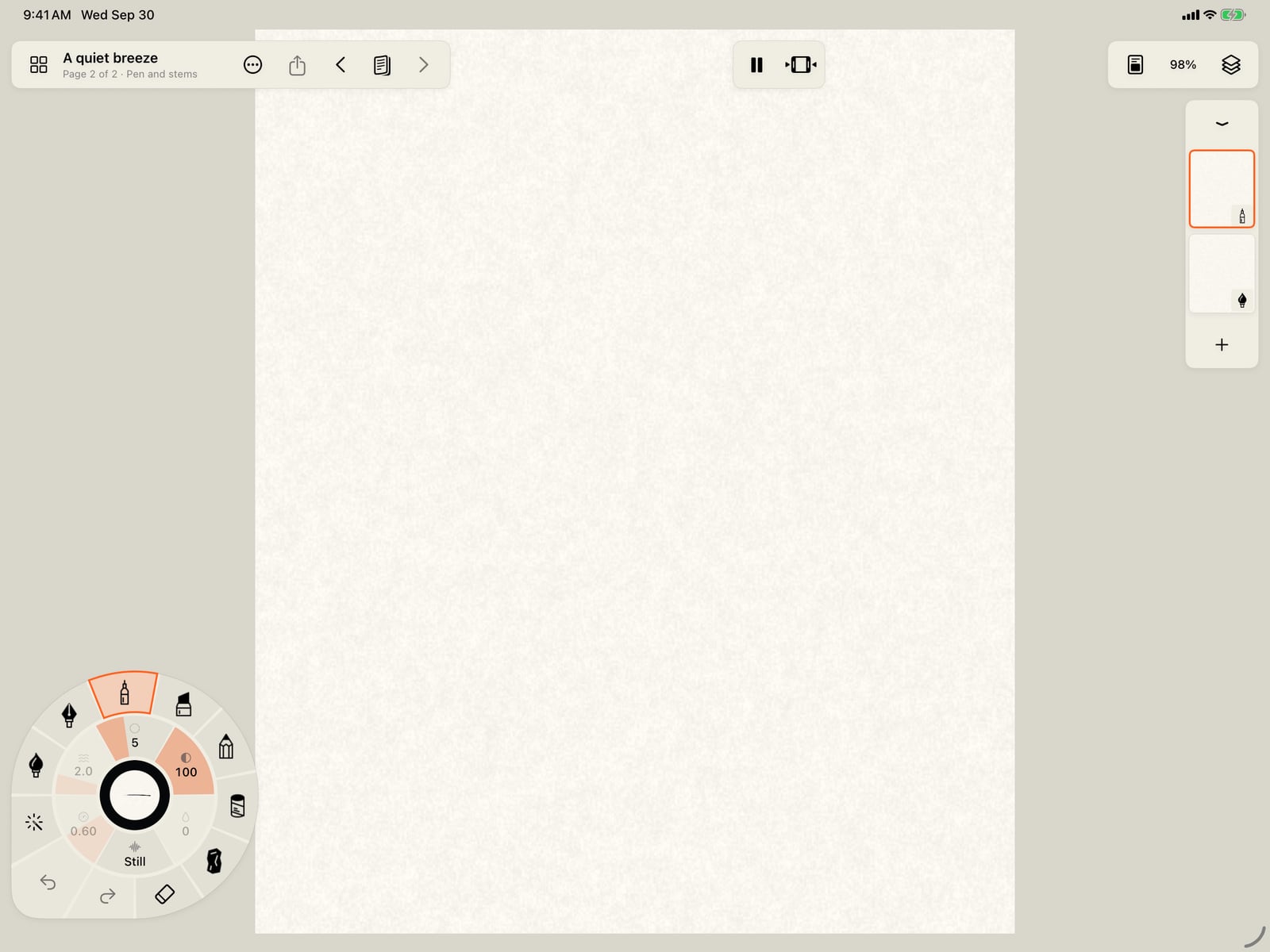
Start with a book of two pages. This painting, A quiet breeze, gets a second, blank page from Pages, Add page.
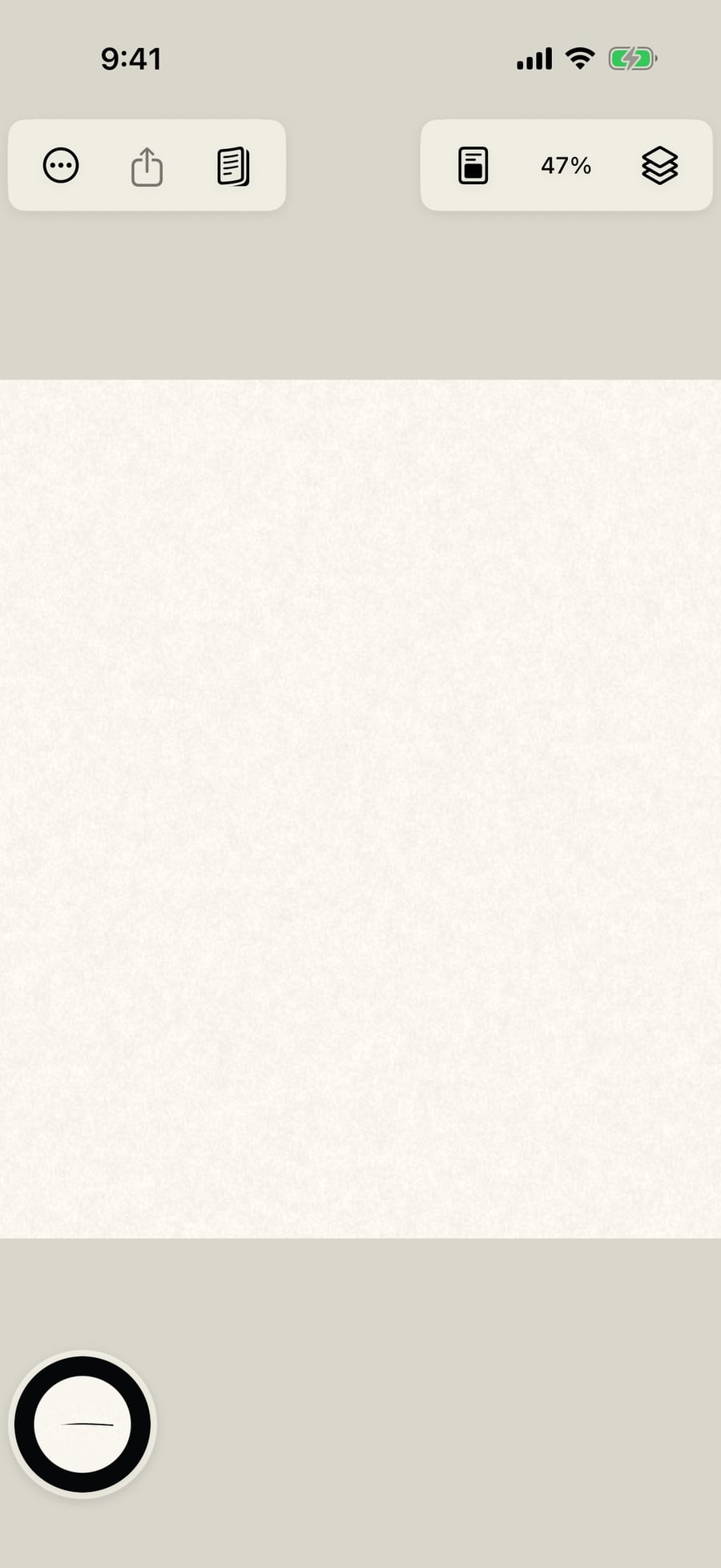
Paint something on the new page.
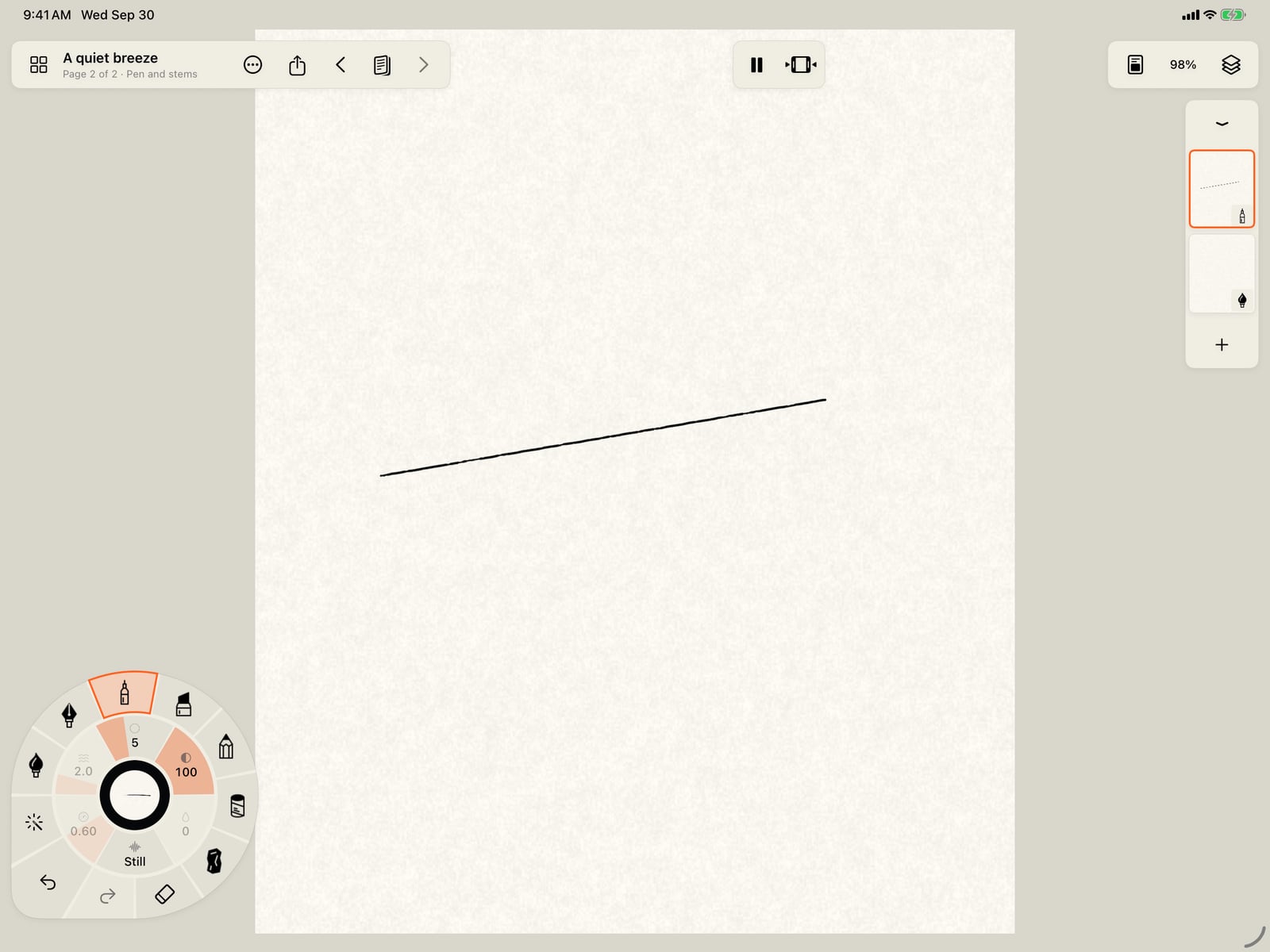
Paint something on the new page.
Open Pages and tap Read.
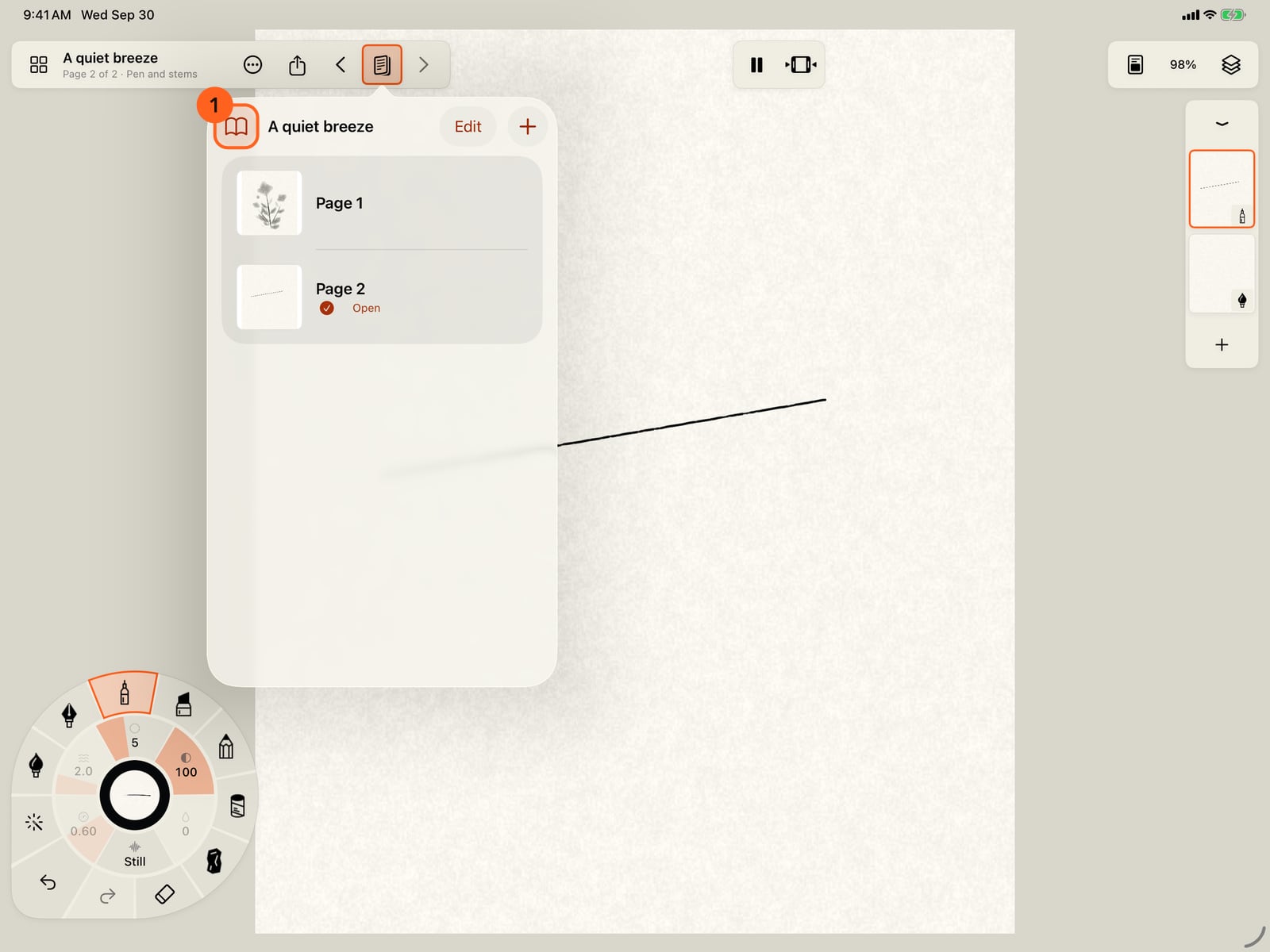
Open Pages and tap Read.
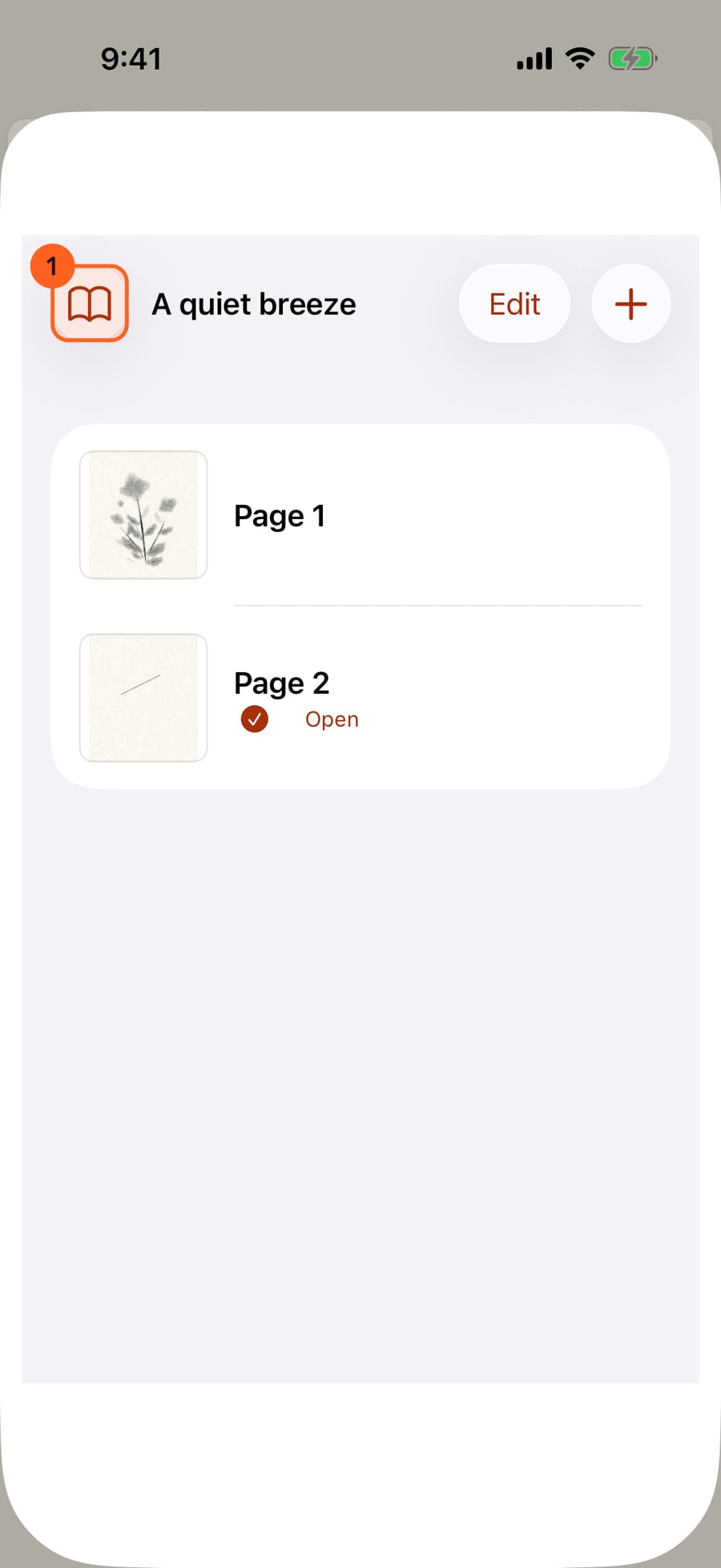
Open Pages and click Read.
Book View fills the screen with the page, playing. The tools are gone, and nothing you touch paints.
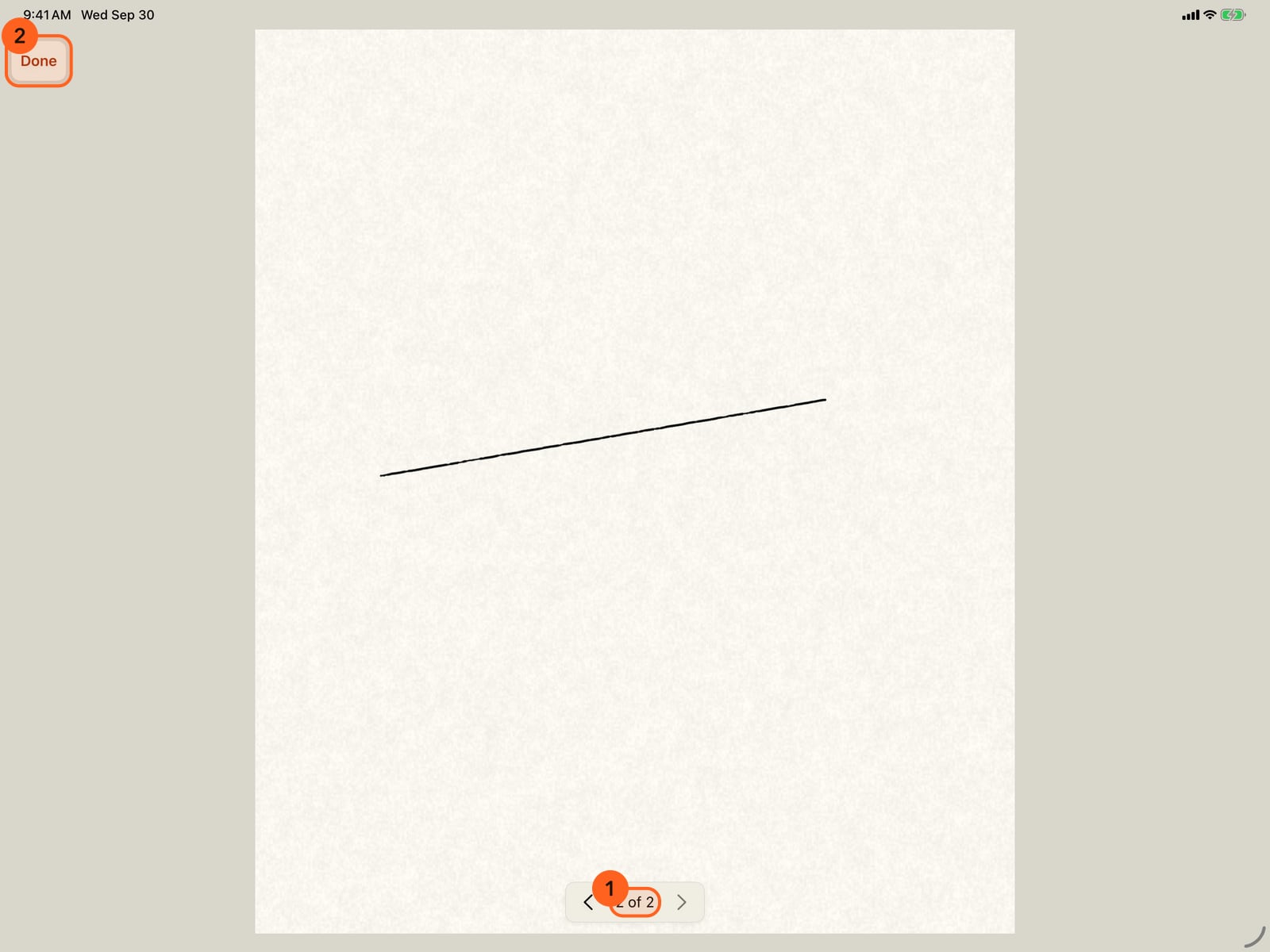
Book View fills the screen with the page, playing. The tools are gone, and nothing you touch paints.
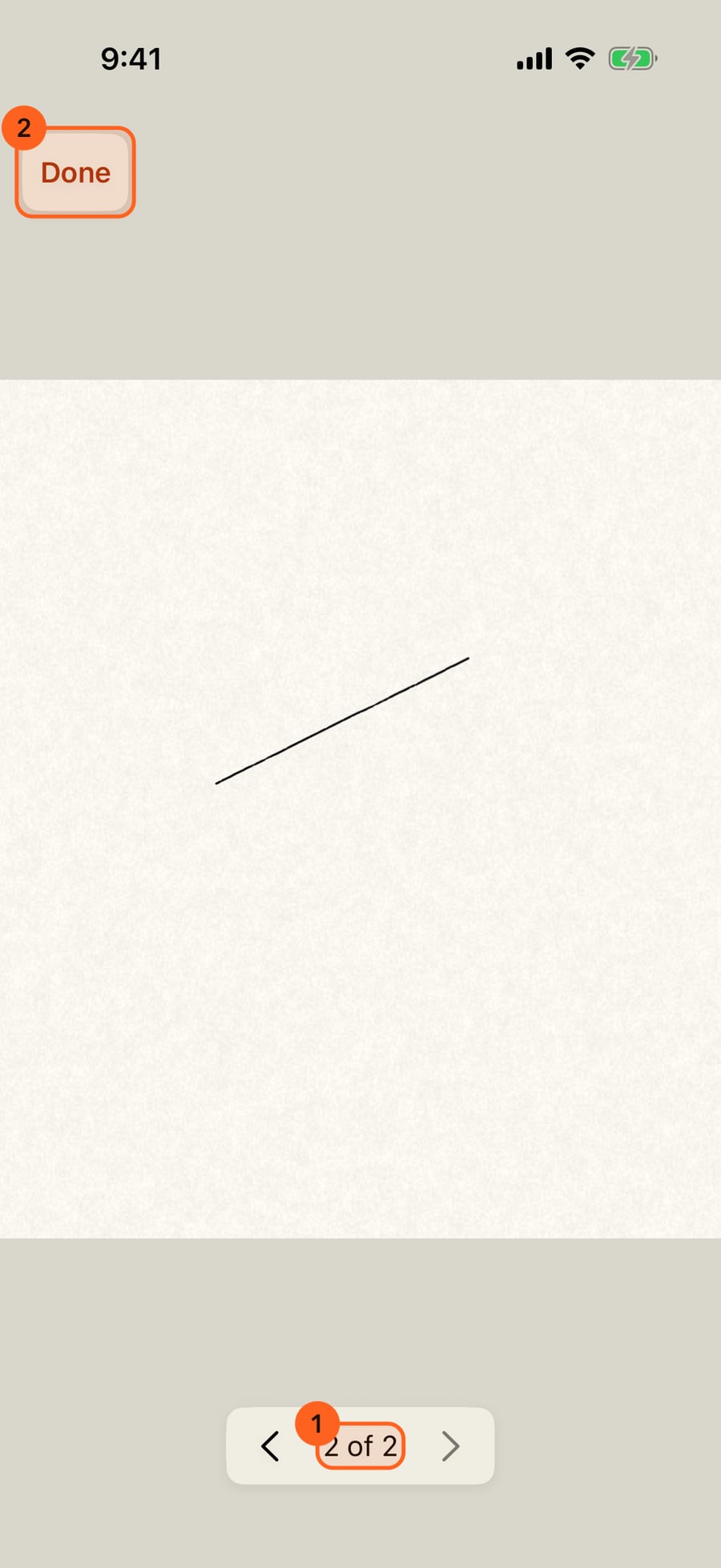
Swipe, or tap near the left or right edge, to turn the page. It curls over, and the page underneath comes to life.
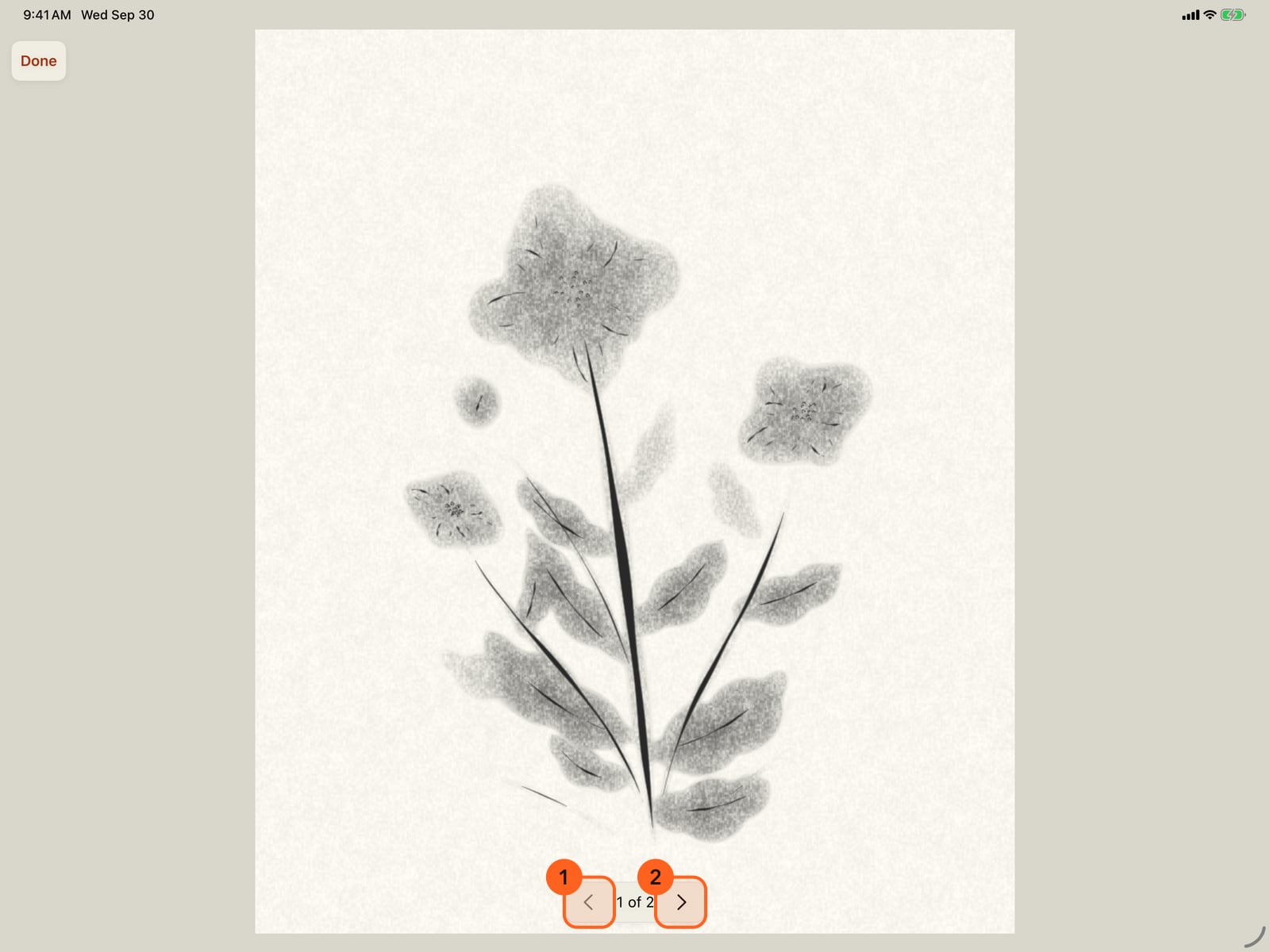
Swipe, or tap near the left or right edge, to turn the page. It curls over, and the page underneath comes to life.
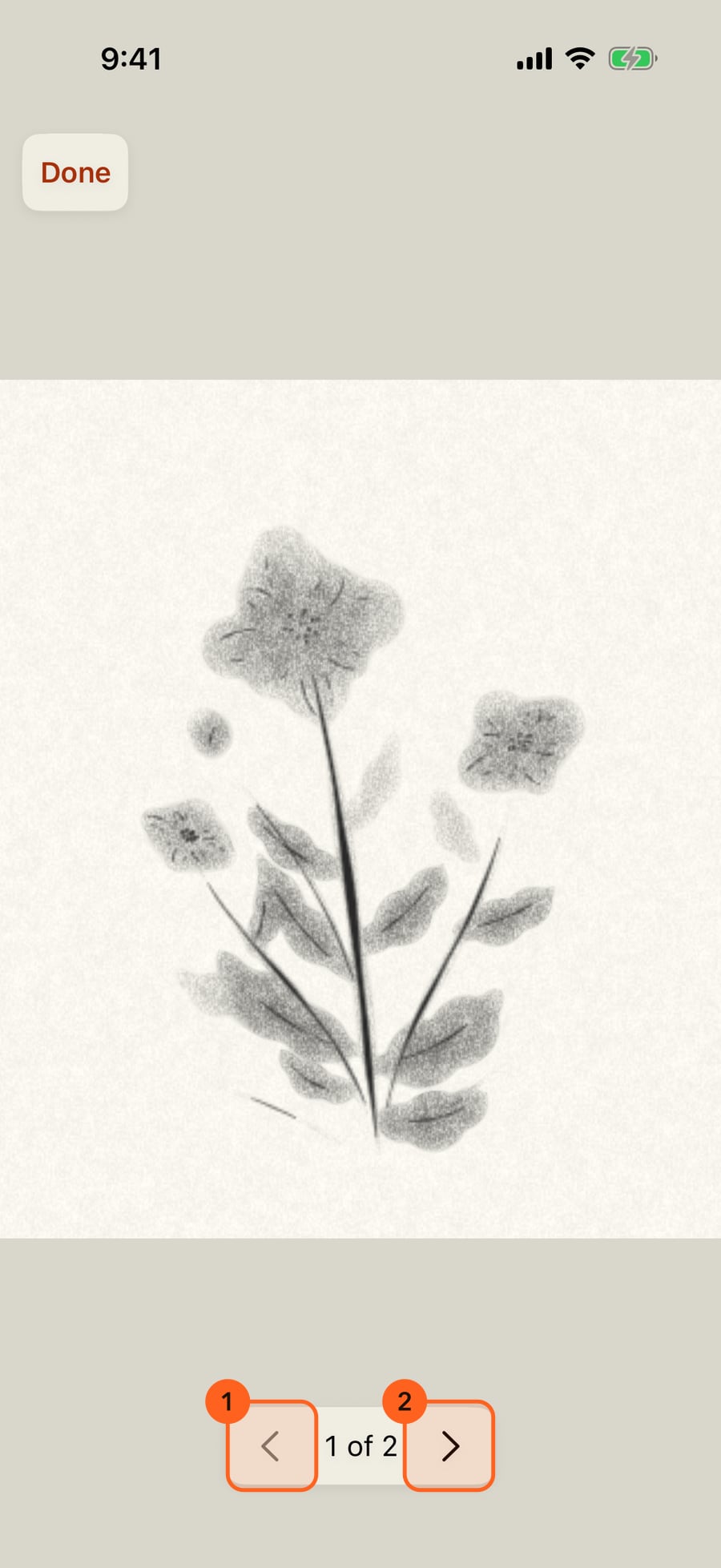
Swipe, or click near the left or right edge, to turn the page. It curls over, and the page underneath comes to life.
Tap Done to paint again, on the page you're reading.
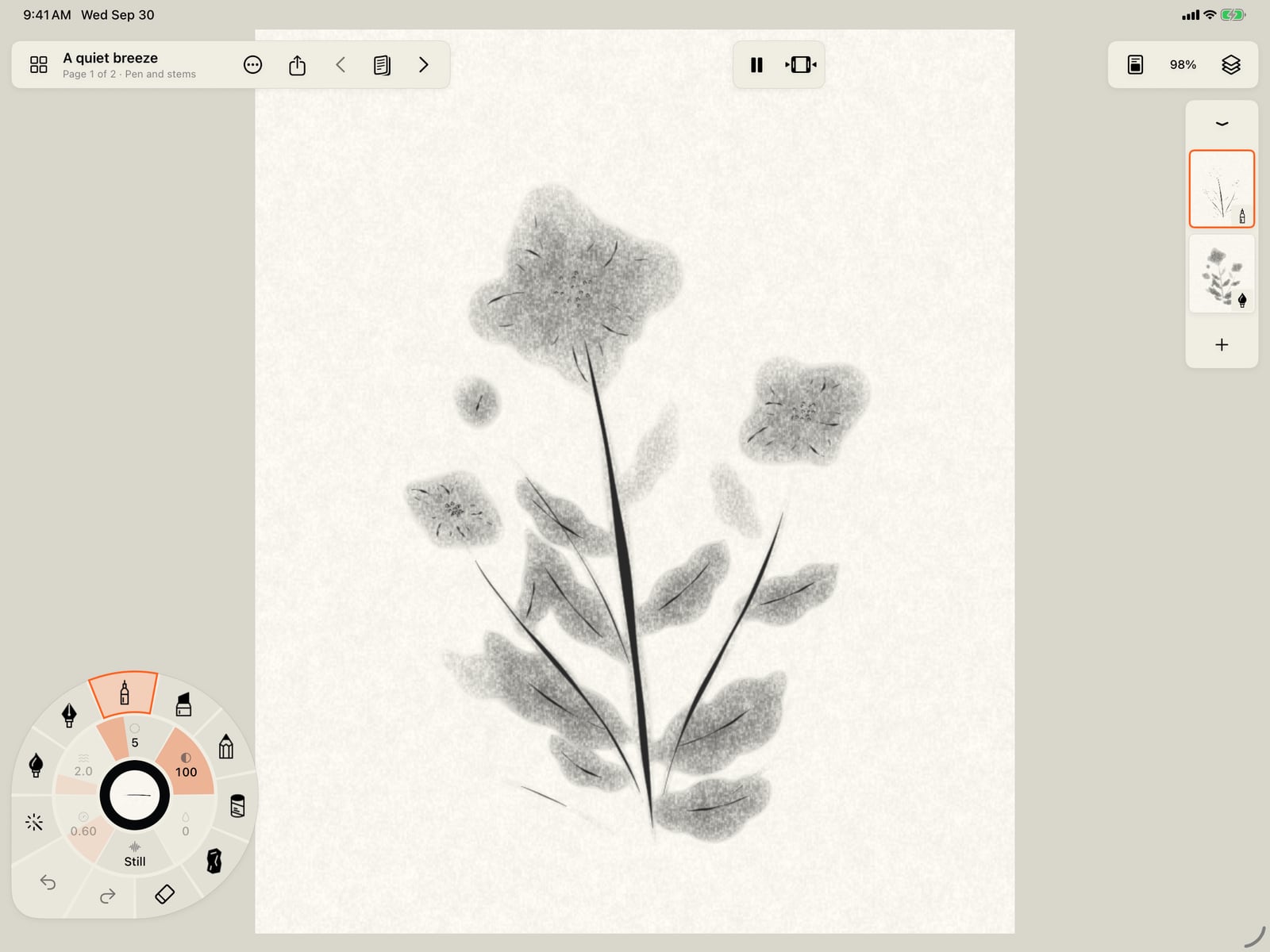
Tap Done to paint again, on the page you're reading.
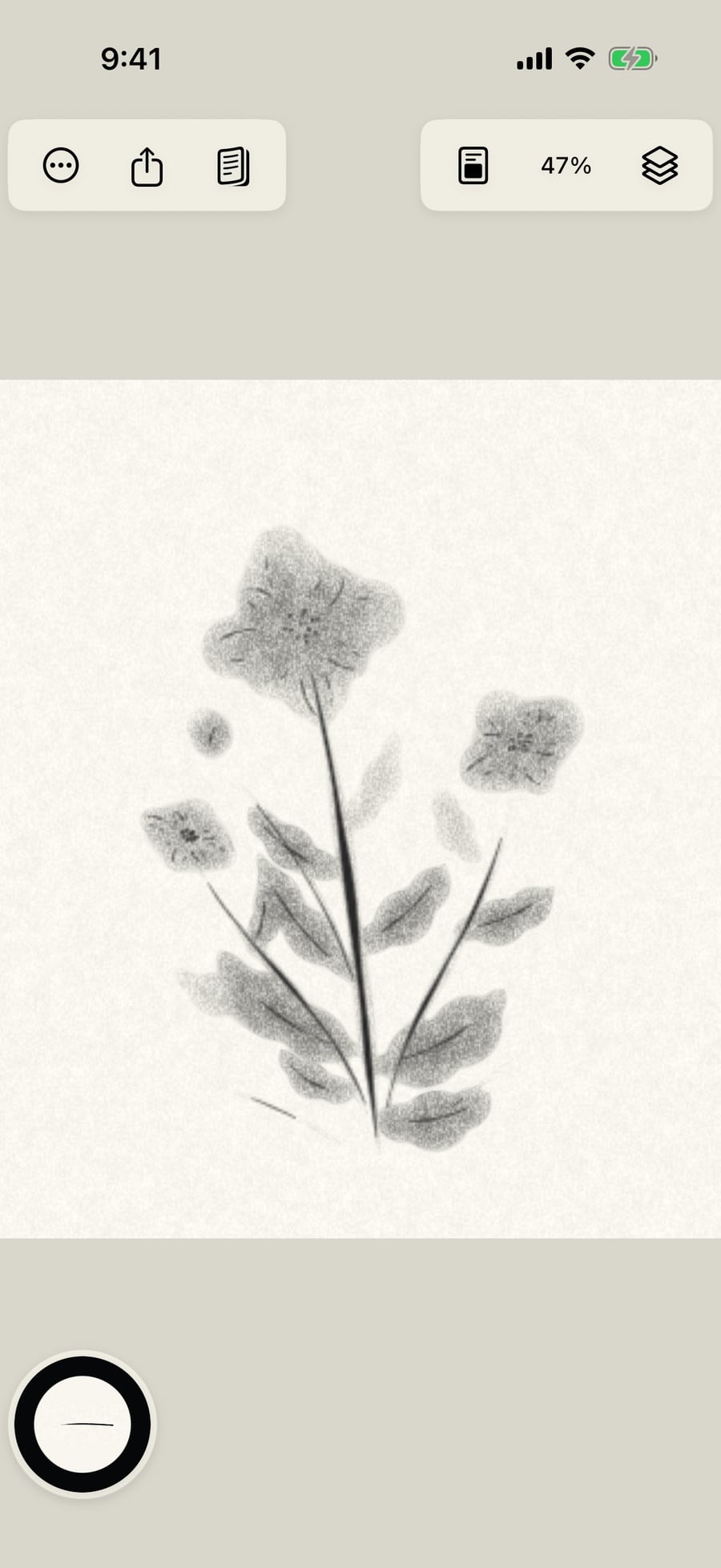
Click Done to paint again, on the page you're reading.
Reading a book
Open Pages and tap Read 1, or choose Read book in the Actions menu. Book View shows the page you are on, fitted to the screen and playing its animation. The top bar, the stroke wheel and the layers are gone, and drawing is off, so you can hand the iPad to someone to read.
- Swipe left for the next page, right for the previous one.
- Tap near an edge: the left third goes back, the right third goes on.
- The page buttons at the bottom, either side of the page number.
- Arrow keys on a keyboard, and Esc to leave.
The page curls over from a picture of the page you're leaving to the page arriving, and then the arriving page plays live. Done 2 goes back to painting, on the page you were reading.
On a Mac, the left and right arrow keys turn the pages, and Esc leaves Book View.
Tip: With Reduce Motion on, pages change without the curl.
Pro: Book View is Free.
Something not behaving as expected?
Visit support or write to [email protected].