

Guides / Marks and effects
Separate drops and rings
Paint effect parts separately, hold them as static marks, and change the perspective of impact rings.
Start with Rain on Water. It combines falling drops with rings at their destination. Open the brush library and search for it.
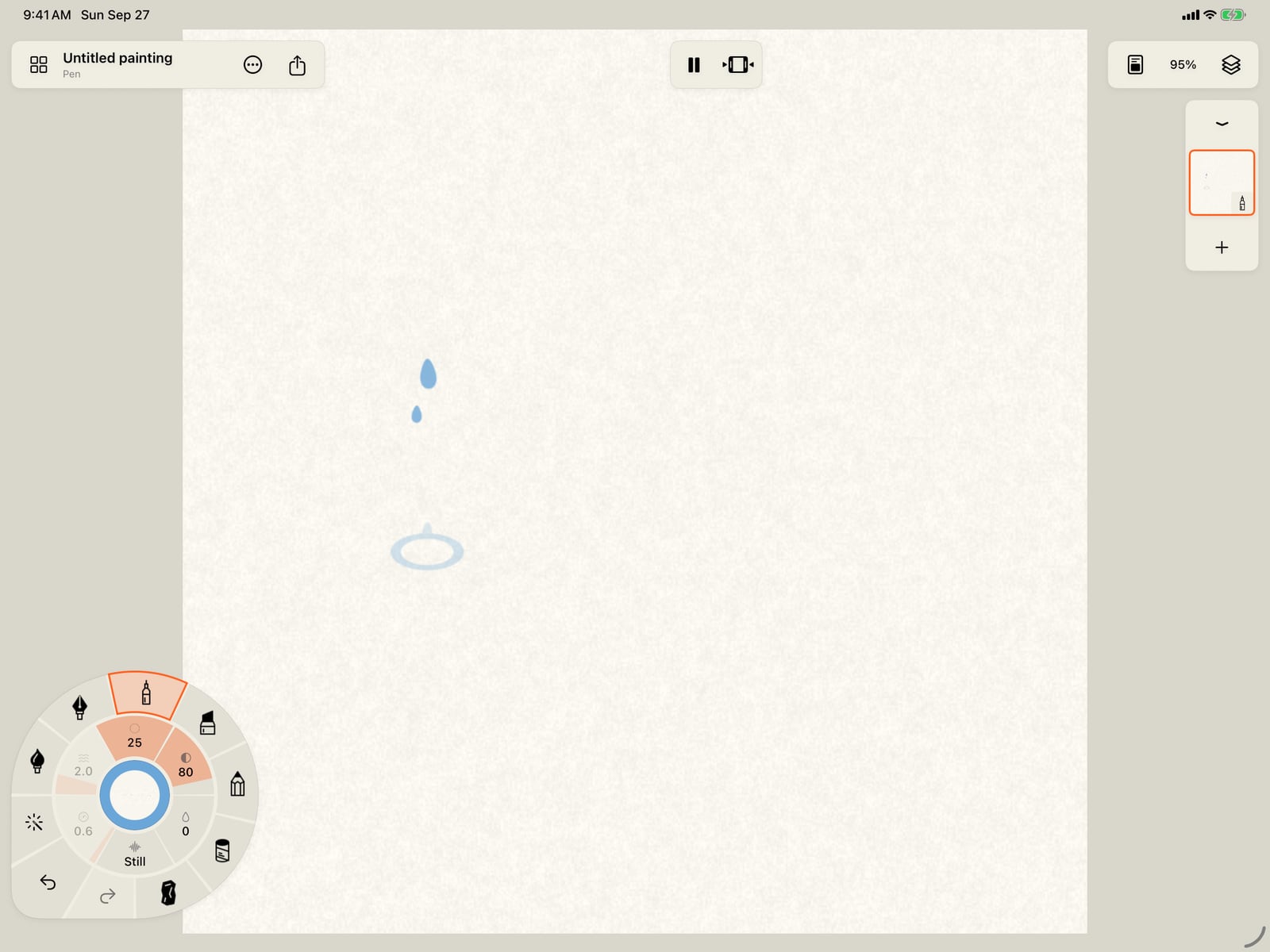
Start with Rain on Water. It combines falling drops with rings at their destination. Open the brush library and search for it.
Open Brush Studio and Marks. Effect parts lets you keep the complete effect, just the main drops, or only the rings. Hiding a part keeps its settings.
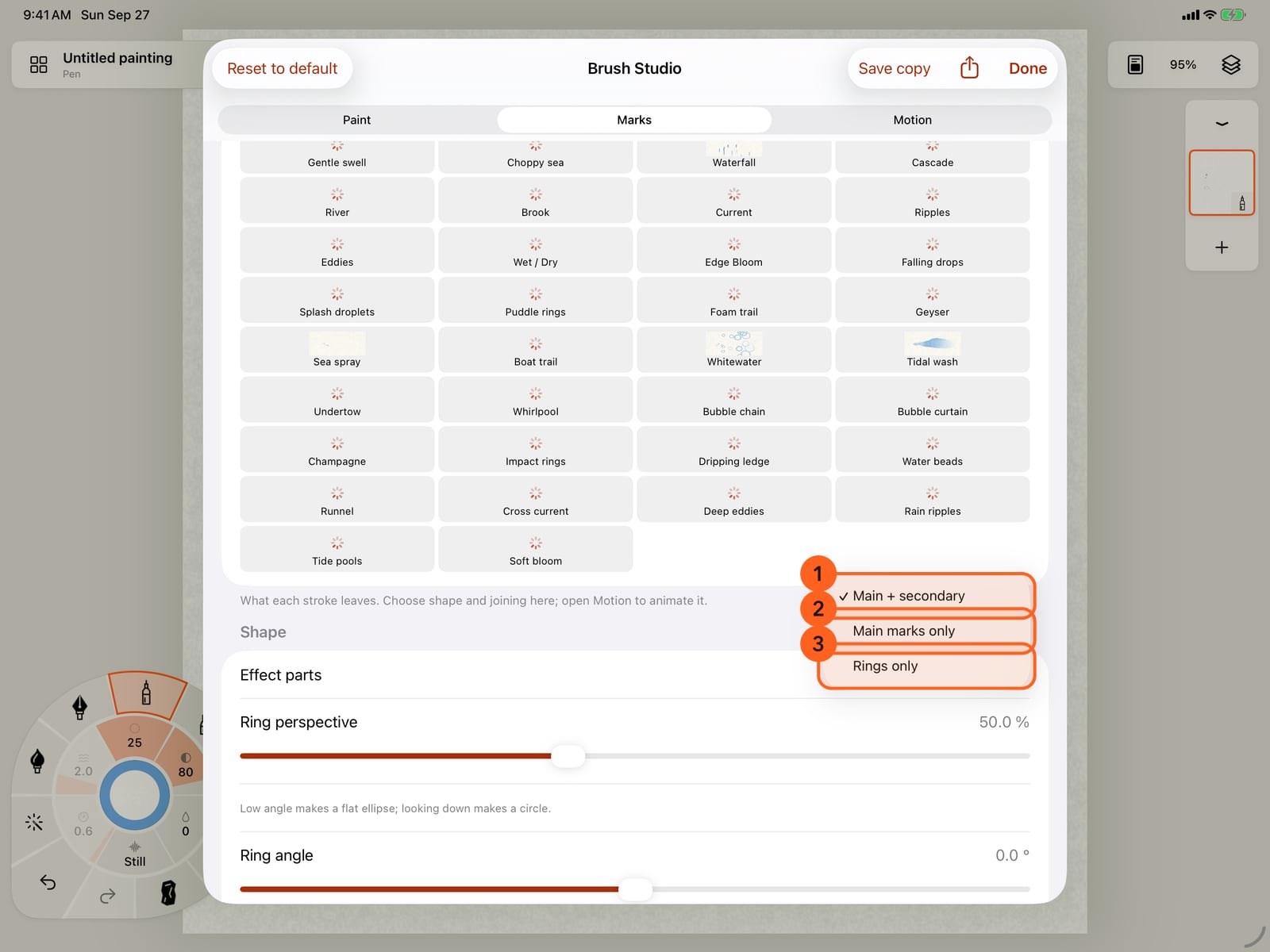
Open Brush Studio and Marks. Effect parts lets you keep the complete effect, just the main drops, or only the rings. Hiding a part keeps its settings.
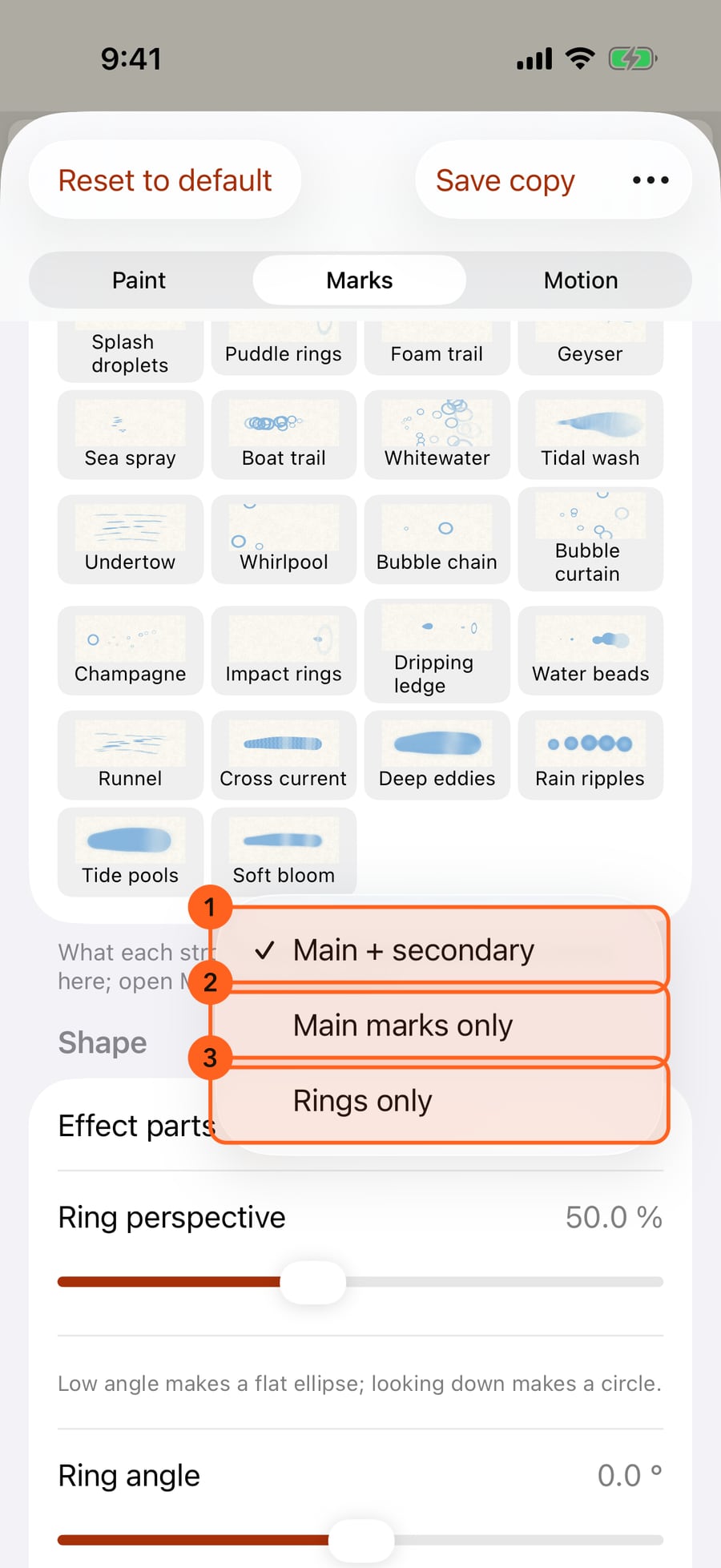
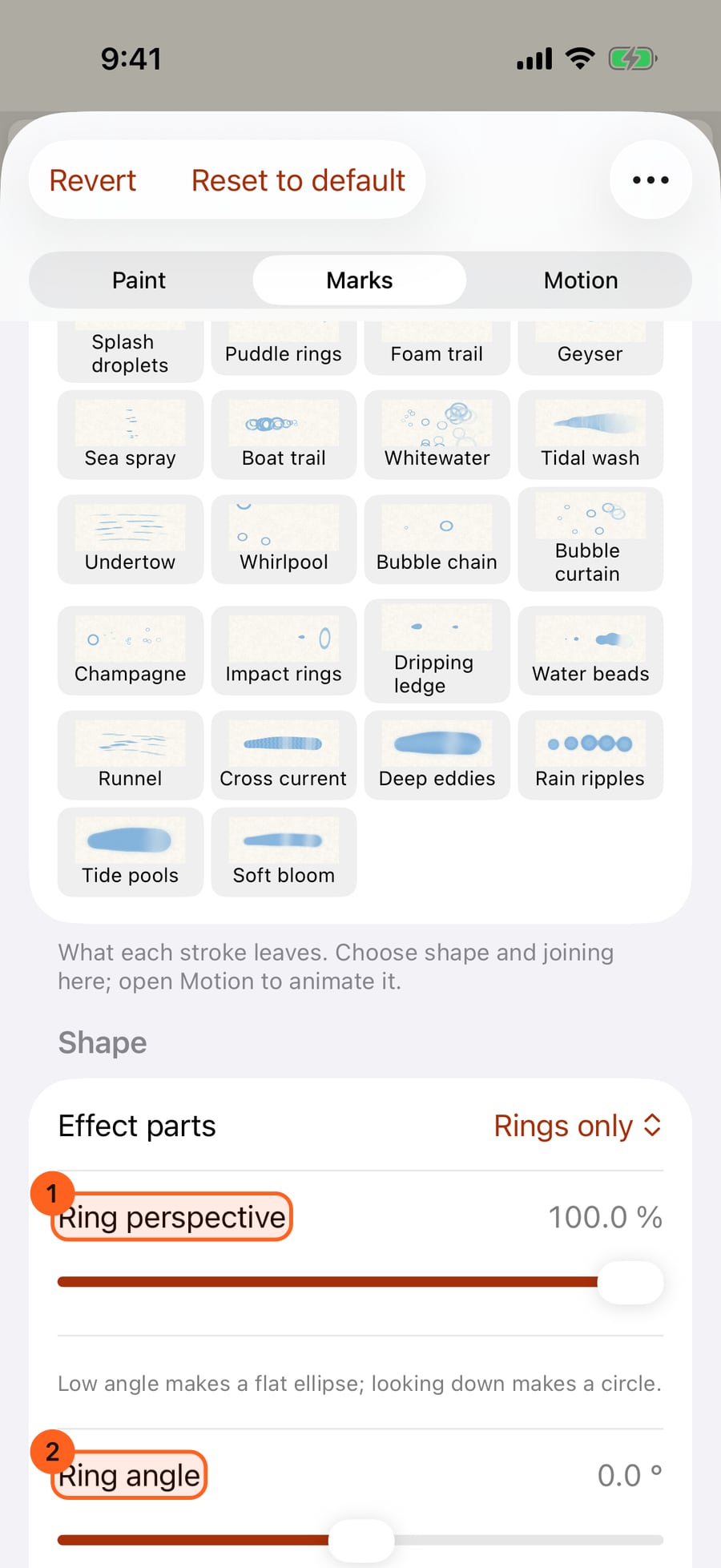
Choose Rings only. Set Ring perspective all the way up for circles seen from above. Ring angle rotates a flattened ring relative to the gesture.
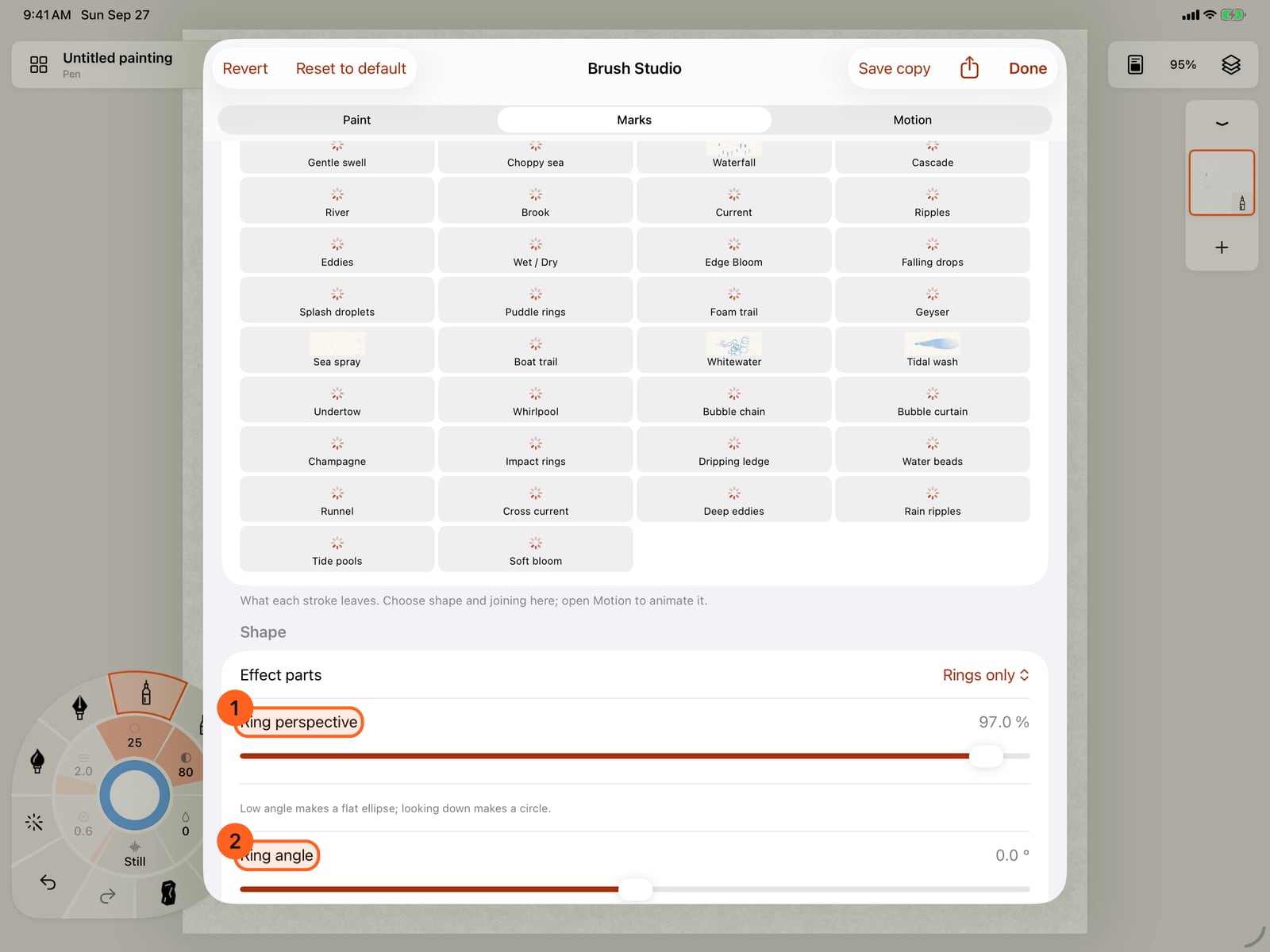
Choose Rings only. Set Ring perspective all the way up for circles seen from above. Ring angle rotates a flattened ring relative to the gesture.
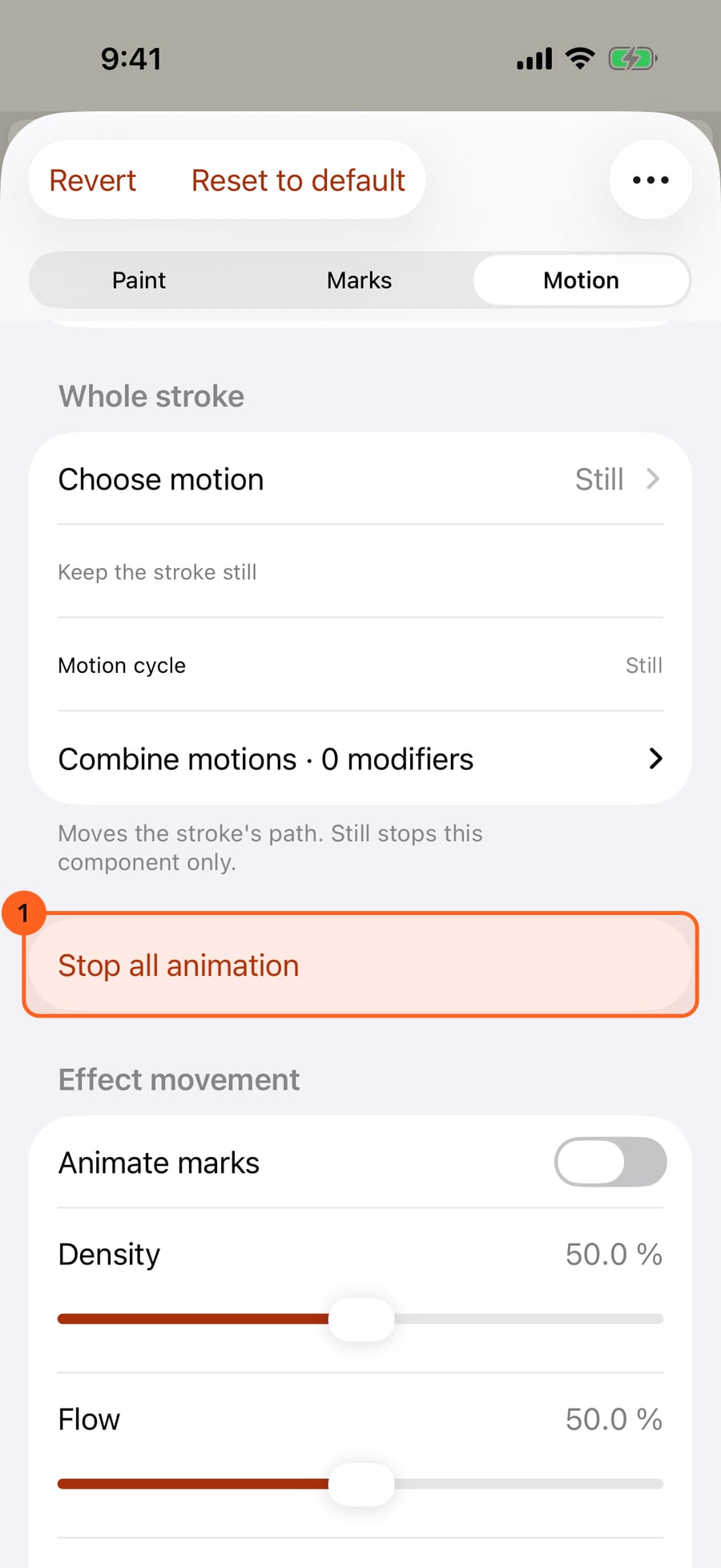
Motion holds the animation controls. Stop all animation keeps a useful static pose of these rings. It works with fire, rain, clouds and every other effect too.
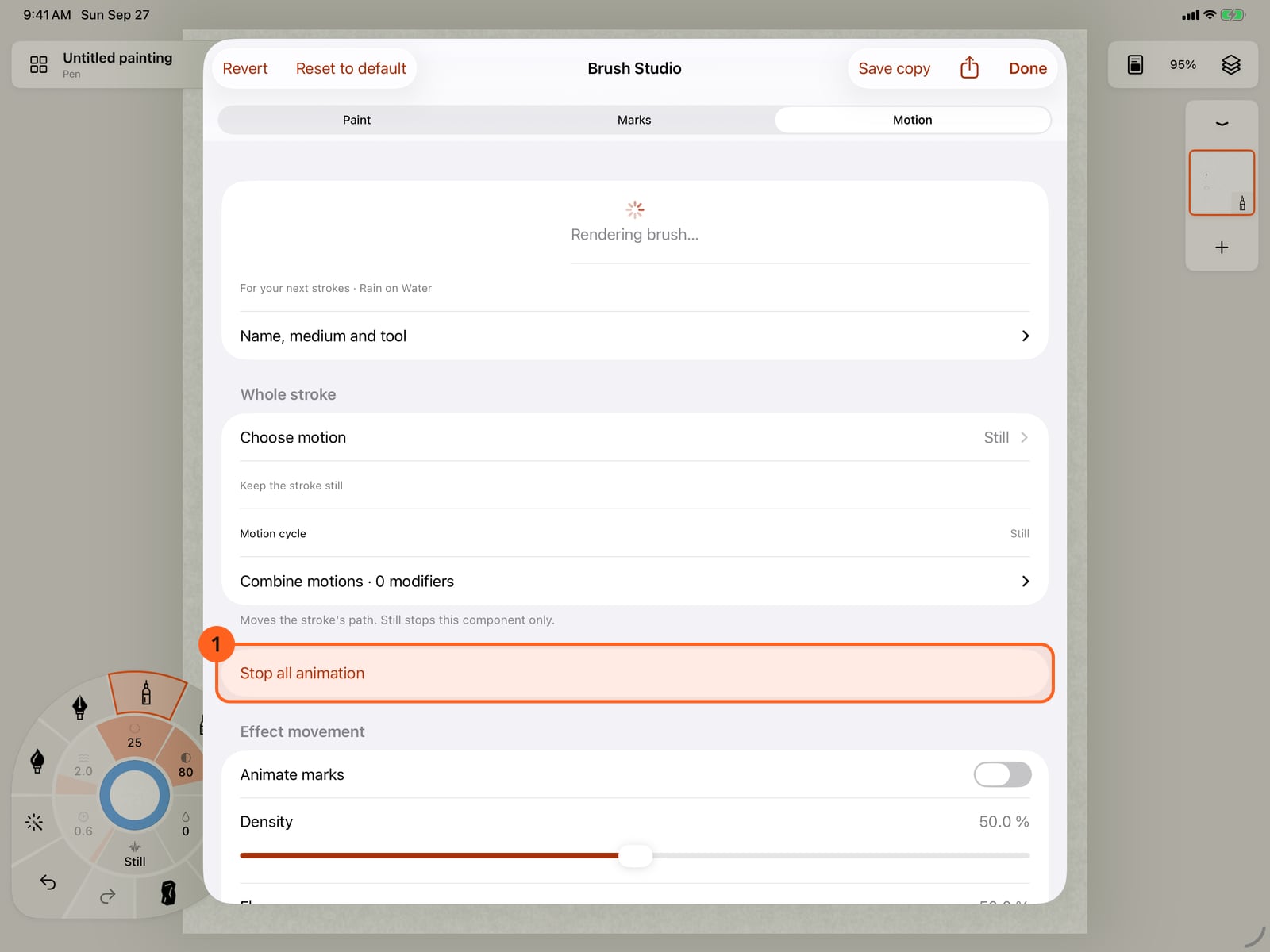
Motion holds the animation controls. Stop all animation keeps a useful static pose of these rings. It works with fire, rain, clouds and every other effect too.
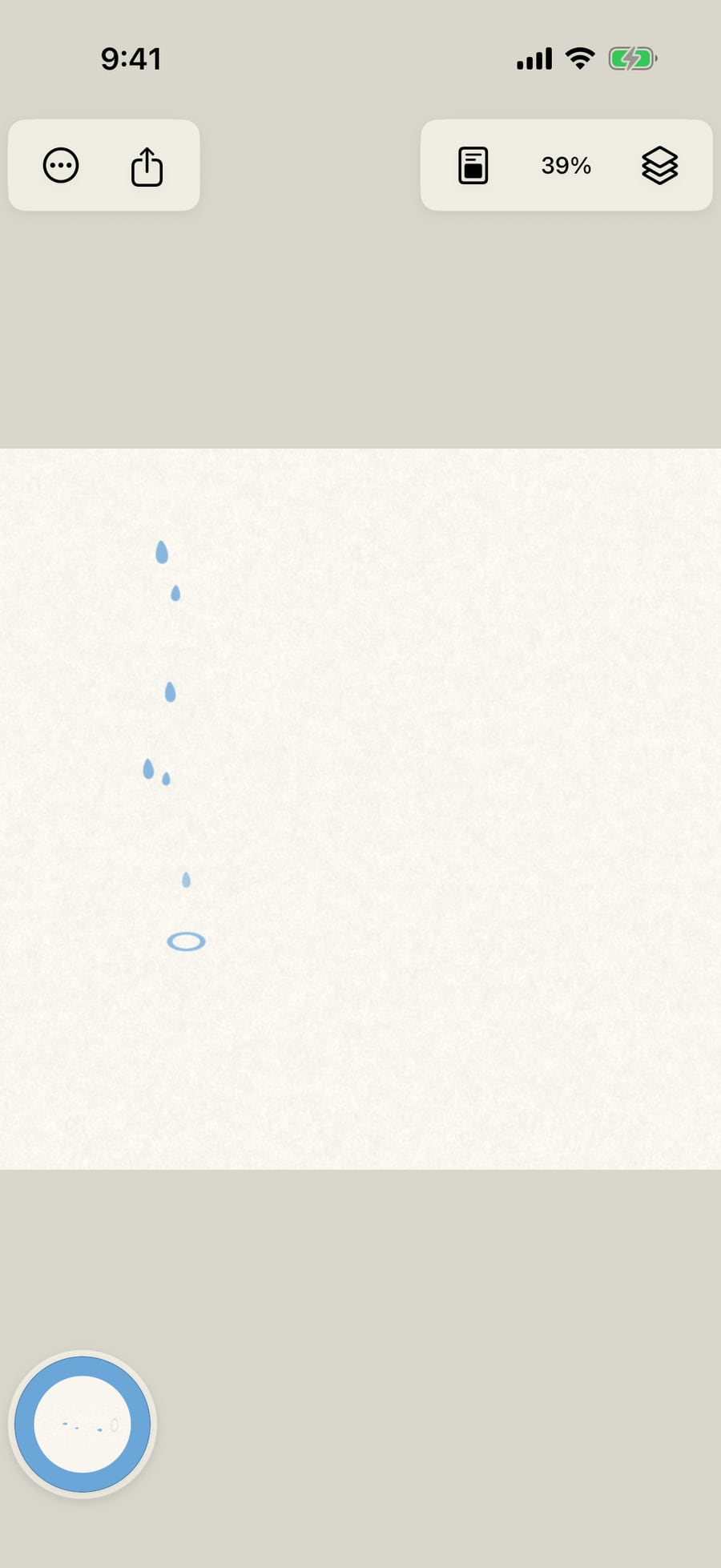
Close Brush Studio and paint beside the original rain. This stroke shows only static rings, viewed from above. Each ring sits at the end of your gesture.
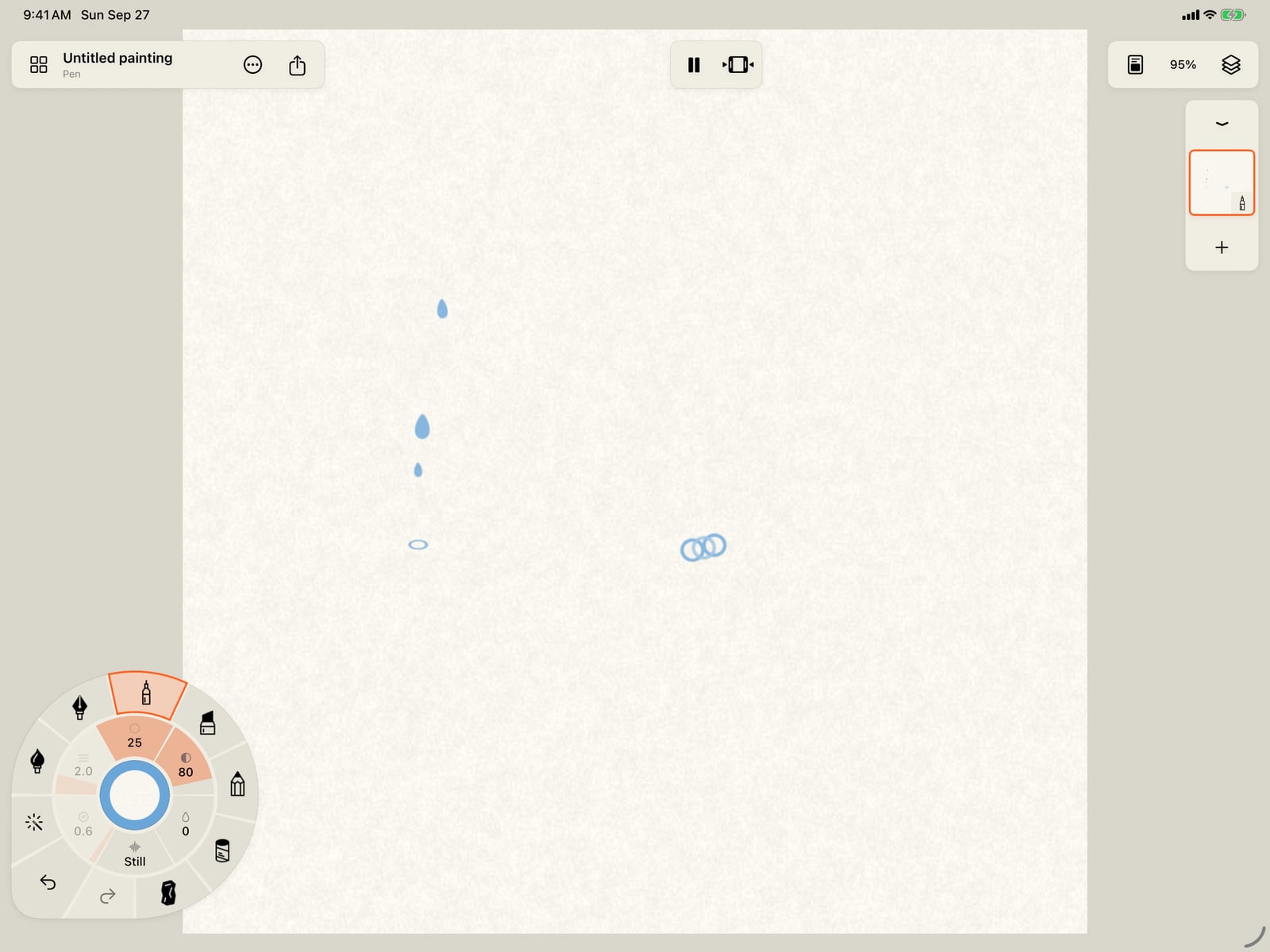
Close Brush Studio and paint beside the original rain. This stroke shows only static rings, viewed from above. Each ring sits at the end of your gesture.
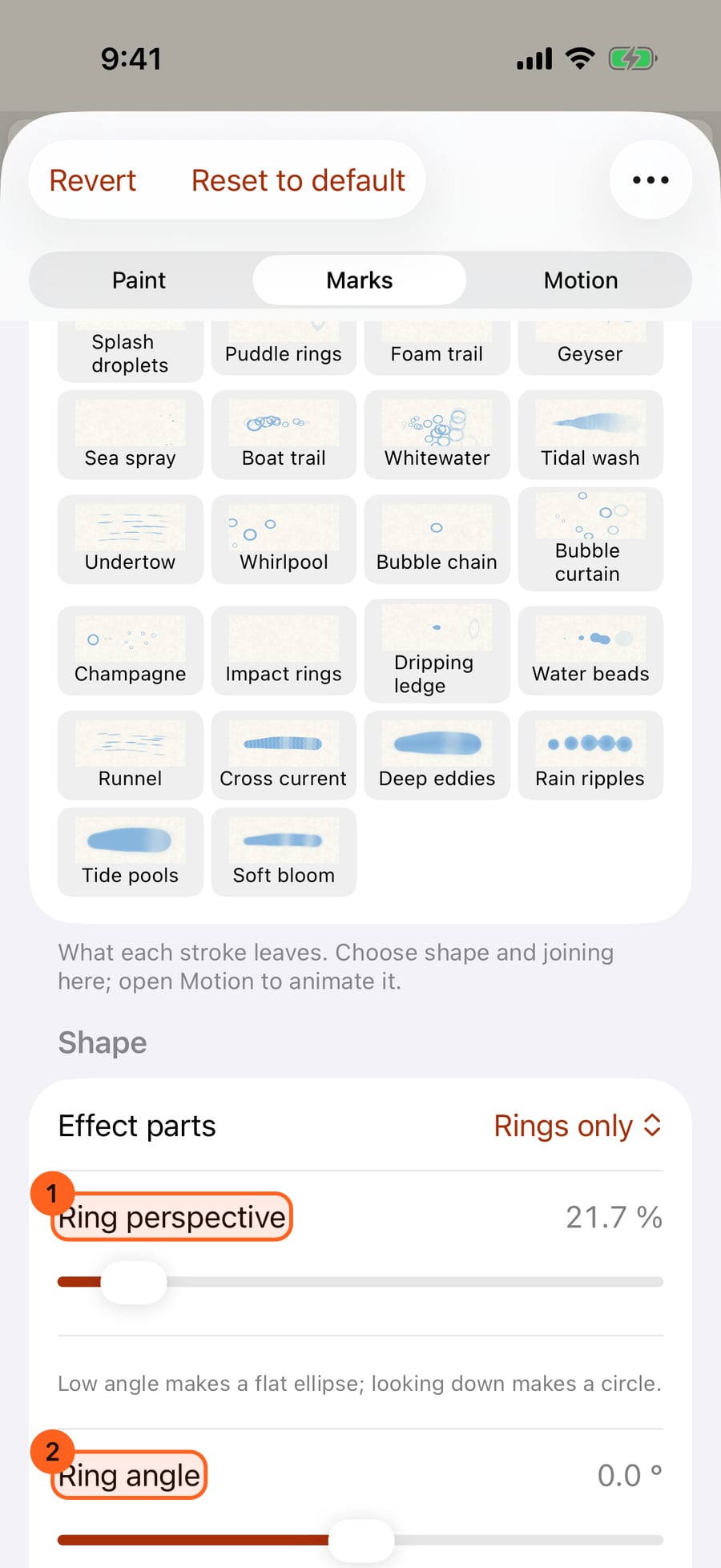
Return to Marks and lower Ring perspective. The rings flatten into ellipses for a low view across the water. Rotate Ring angle if the surface is tilted in your painting.
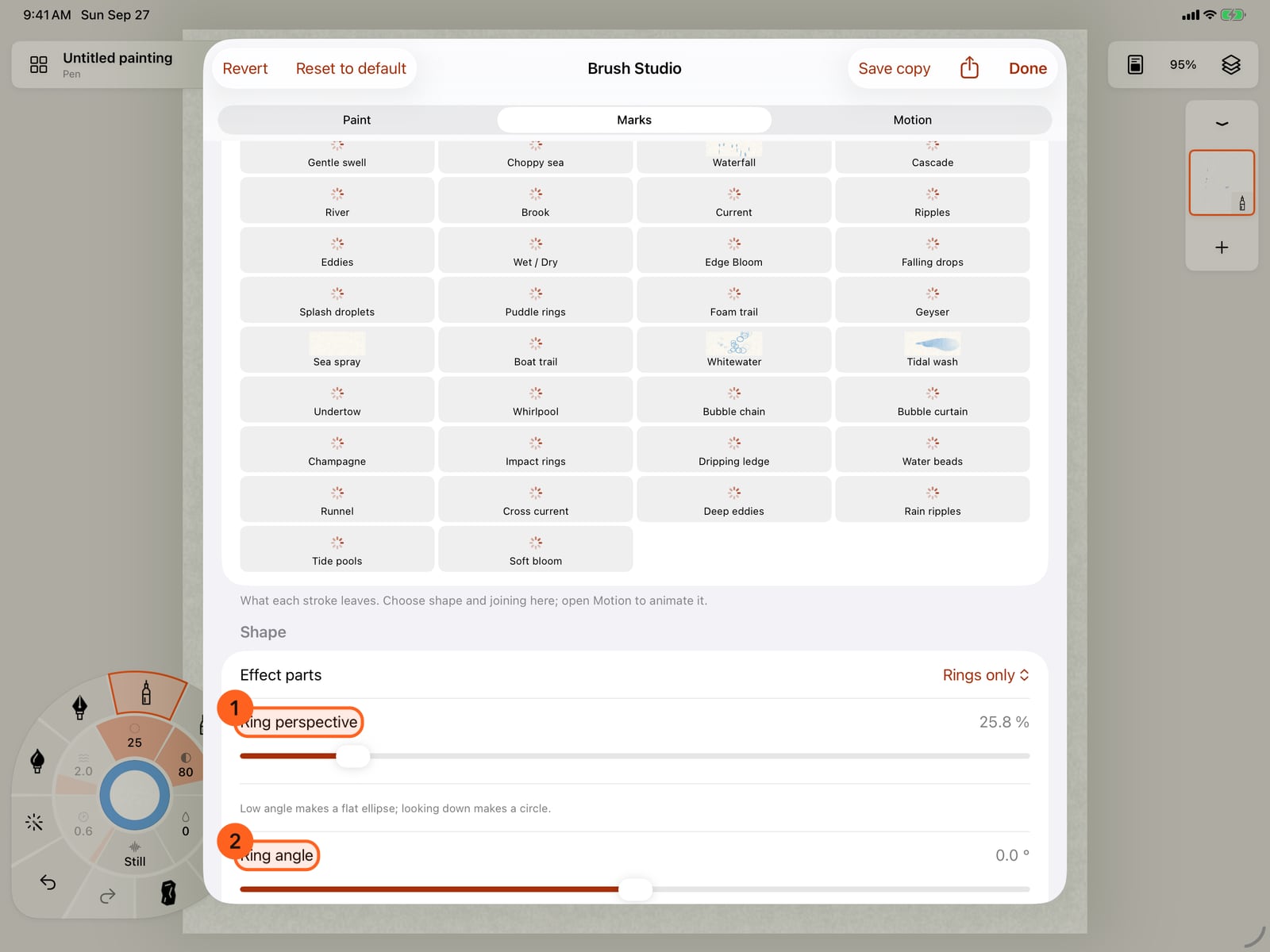
Return to Marks and lower Ring perspective. The rings flatten into ellipses for a low view across the water. Rotate Ring angle if the surface is tilted in your painting.
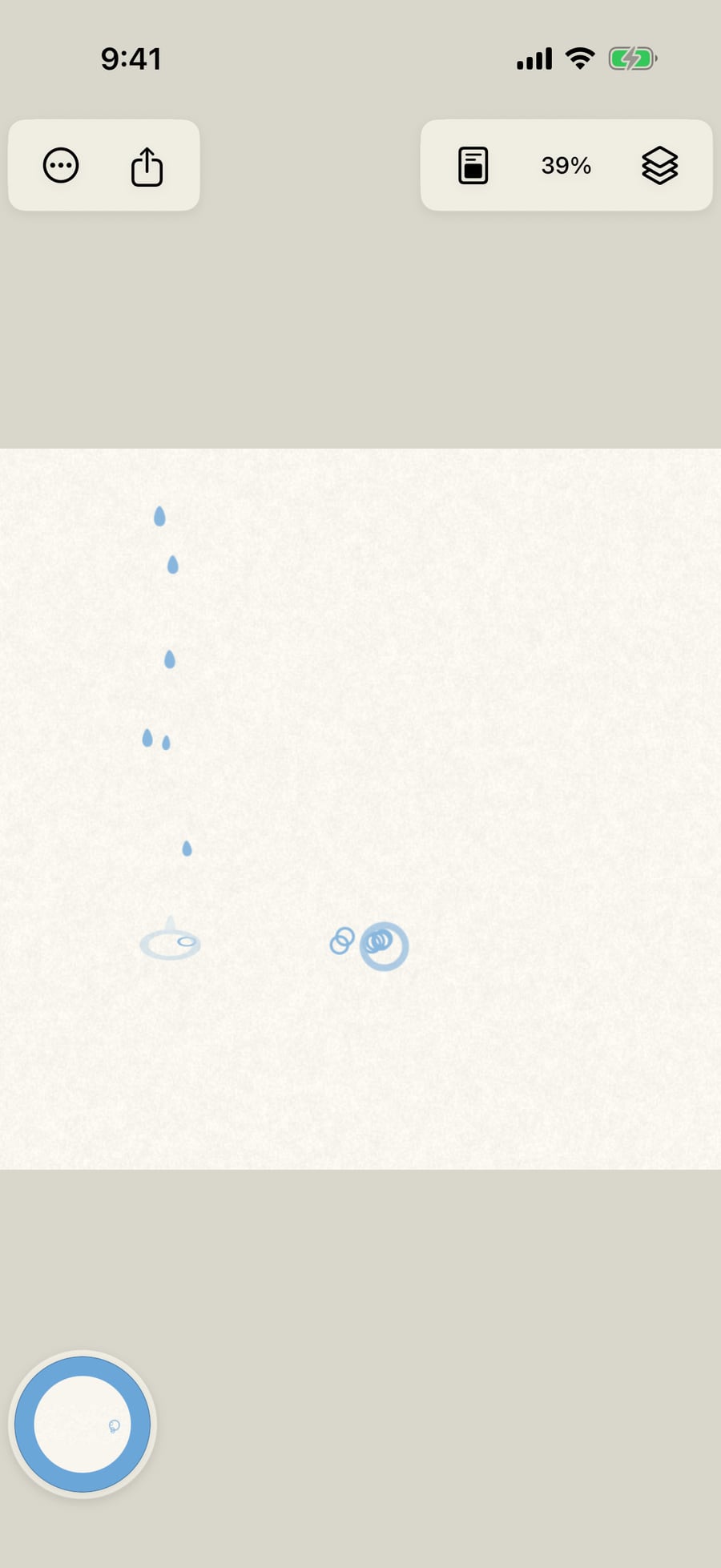
Paint a third stroke. Compare the original rain on the left, the circular rings in the middle, and the low-angle ellipses on the right. Use separate layers when you want to position or colour the parts independently.
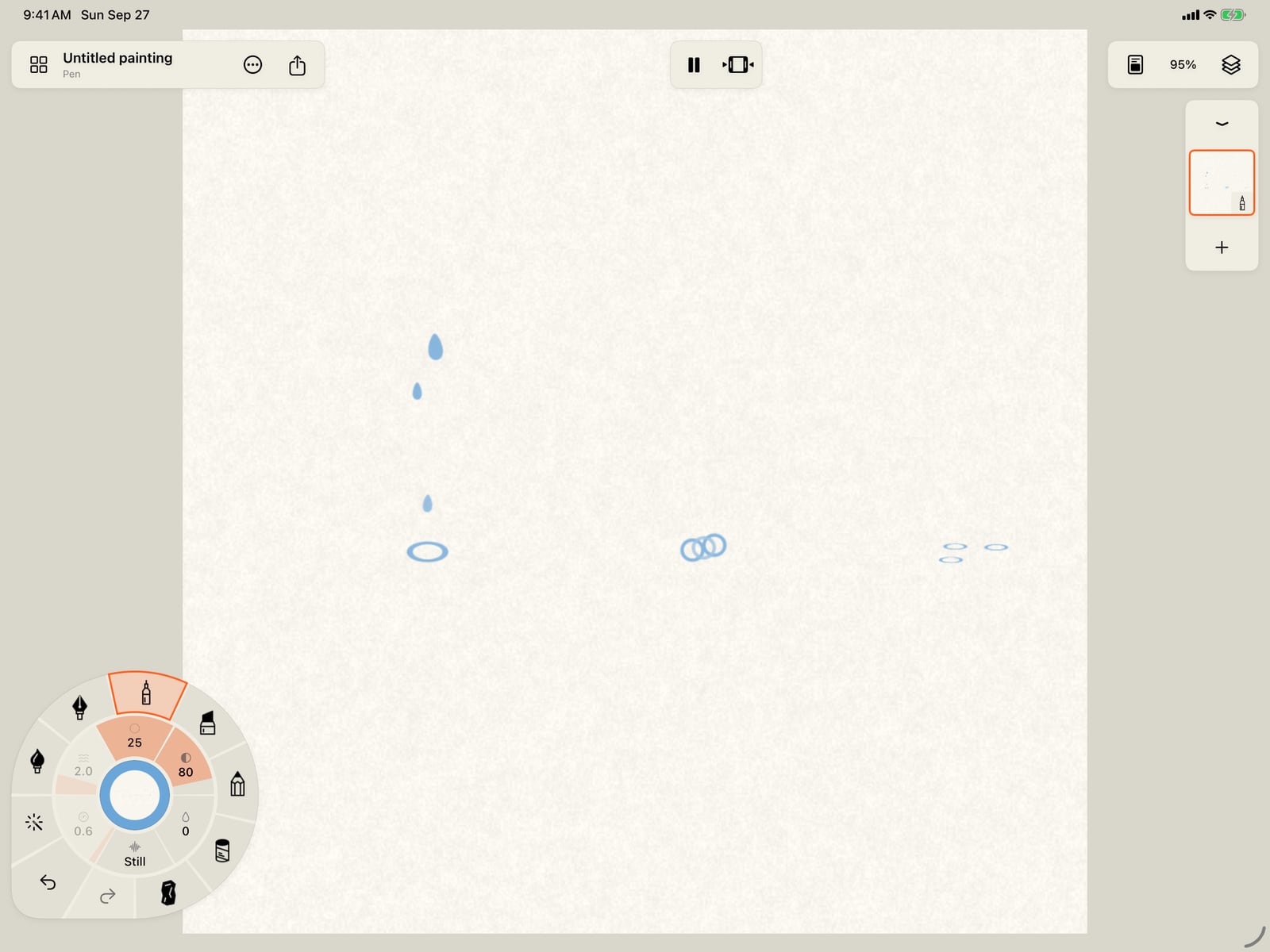
Paint a third stroke. Compare the original rain on the left, the circular rings in the middle, and the low-angle ellipses on the right. Use separate layers when you want to position or colour the parts independently.
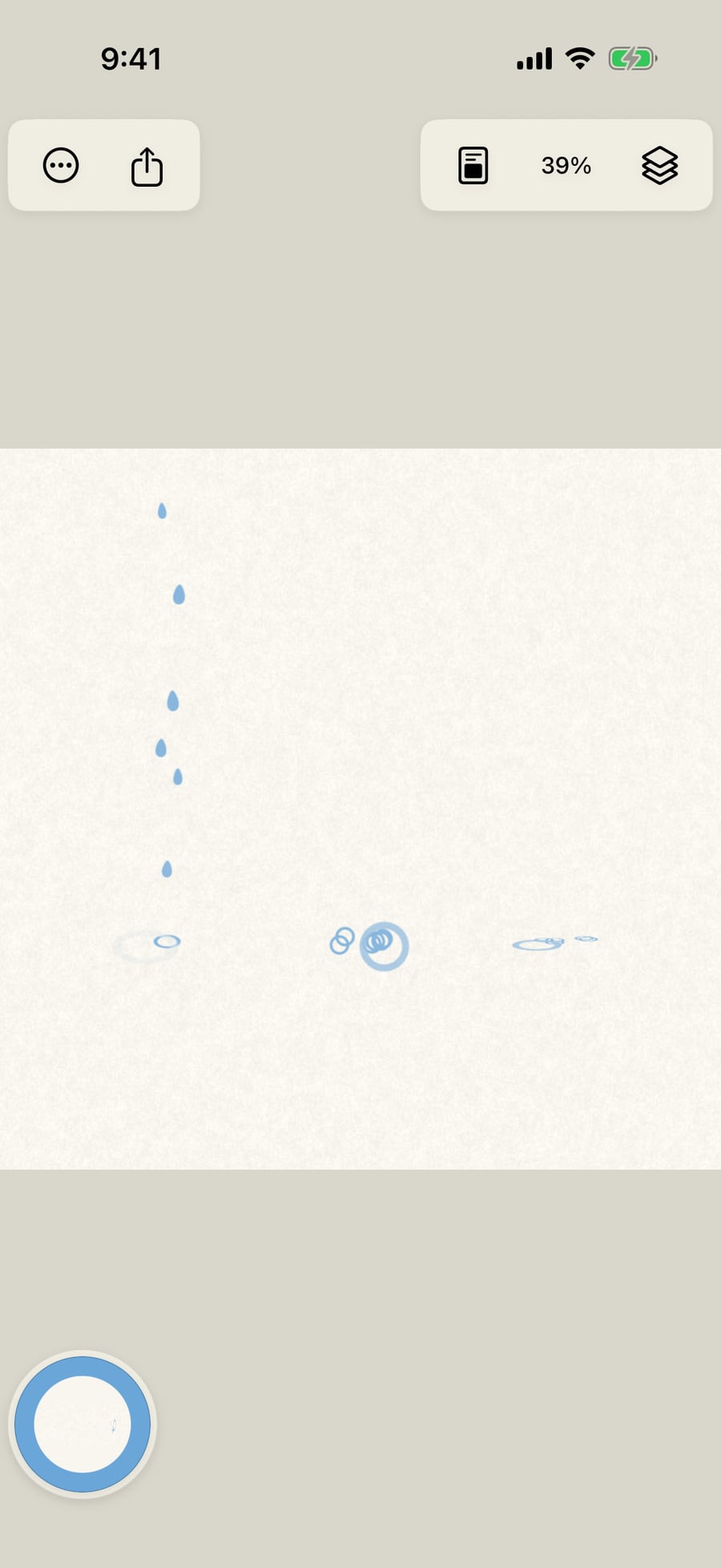
Choose Brush Studio → Marks → Shape → Effect parts on an effect with secondary marks. Main + secondary shows both, Main marks only hides the secondary part, and the third choice shows only the secondary shape. For rain and splash this can separate the falling marks from their impact rings; other effects have sparks, foam or droplets.
Ring perspective ranges from a low-angle ellipse to a circle seen from above. Ring angle rotates the ellipse relative to the gesture. These controls change the ring shape while preserving where it lands. In Motion → Shape over lifetime, Secondary delay, lifetime and size control when the secondary marks appear and how large they become.
Water also offers Falling drops, Splash droplets, Puddle rings and Foam trail as separate ready-made looks. Paint parts on separate strokes or layers to choose their colours, positions and timing independently.
For static effects, choose Motion → Stop all animation. It holds the effect without changing it to a Line. Animate marks resumes the local effect; whole-stroke and interior movement stay independently controlled.
Pro: Splitting and shaping an effect uses its ordinary controls. The Rain on Water look used here and the four ready-made Water parts are Pro looks. You can split a Free effect with secondary marks, such as Flame, without upgrading. Every effect supports a static pose.
Something not behaving as expected?
Visit support or write to [email protected].