

Guides / Settings and Pro
Accessibility
Doodly Doodle follows your text size, speaks every control to VoiceOver, keeps touch targets large, and opens paintings paused with Reduce Motion.
This is the largest text size. The top bar keeps its buttons at full size and drops the title and the time, so nothing crowds out.
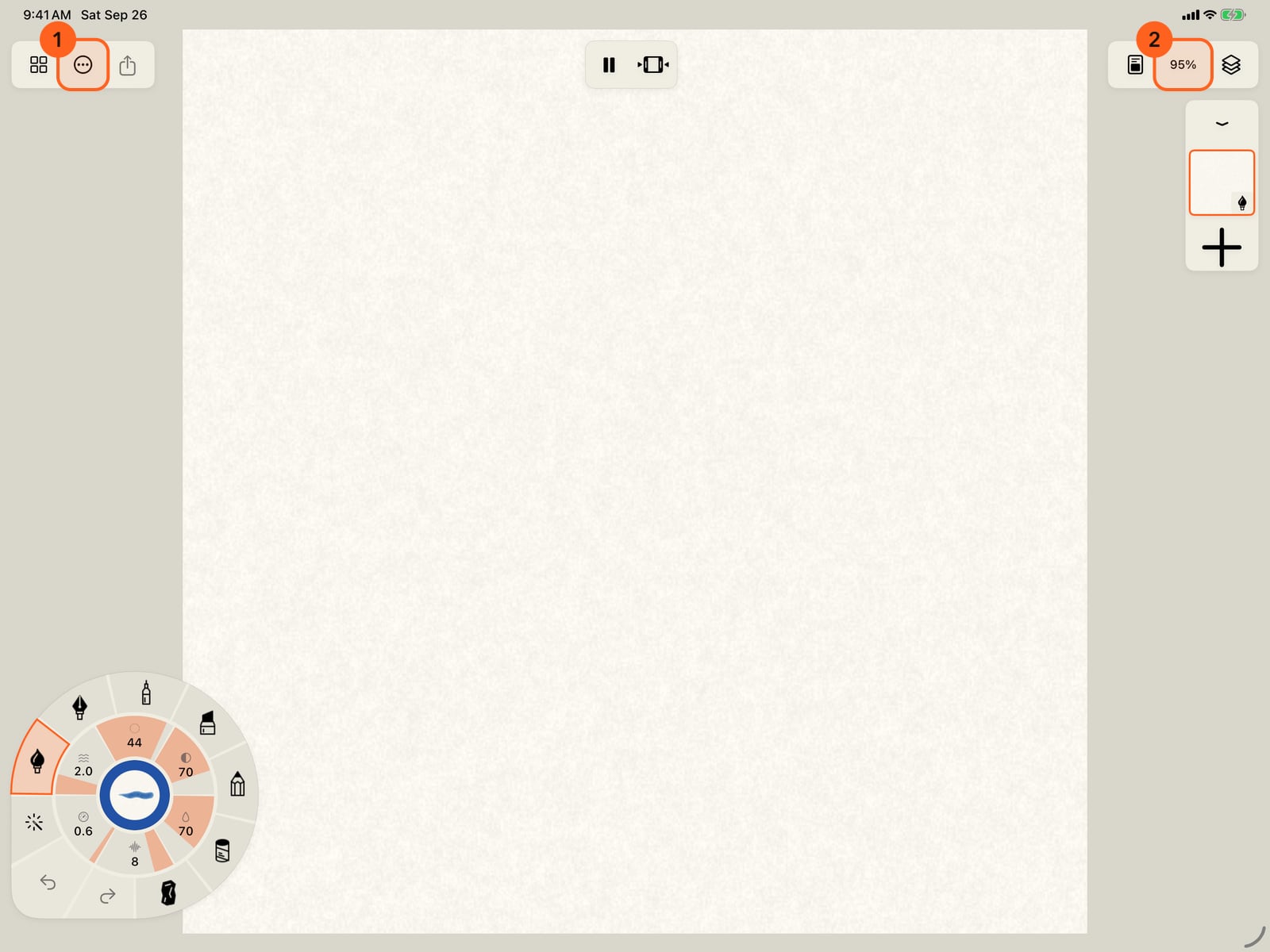
This is the largest text size. The top bar keeps its buttons at full size and drops the title and the time, so nothing crowds out.
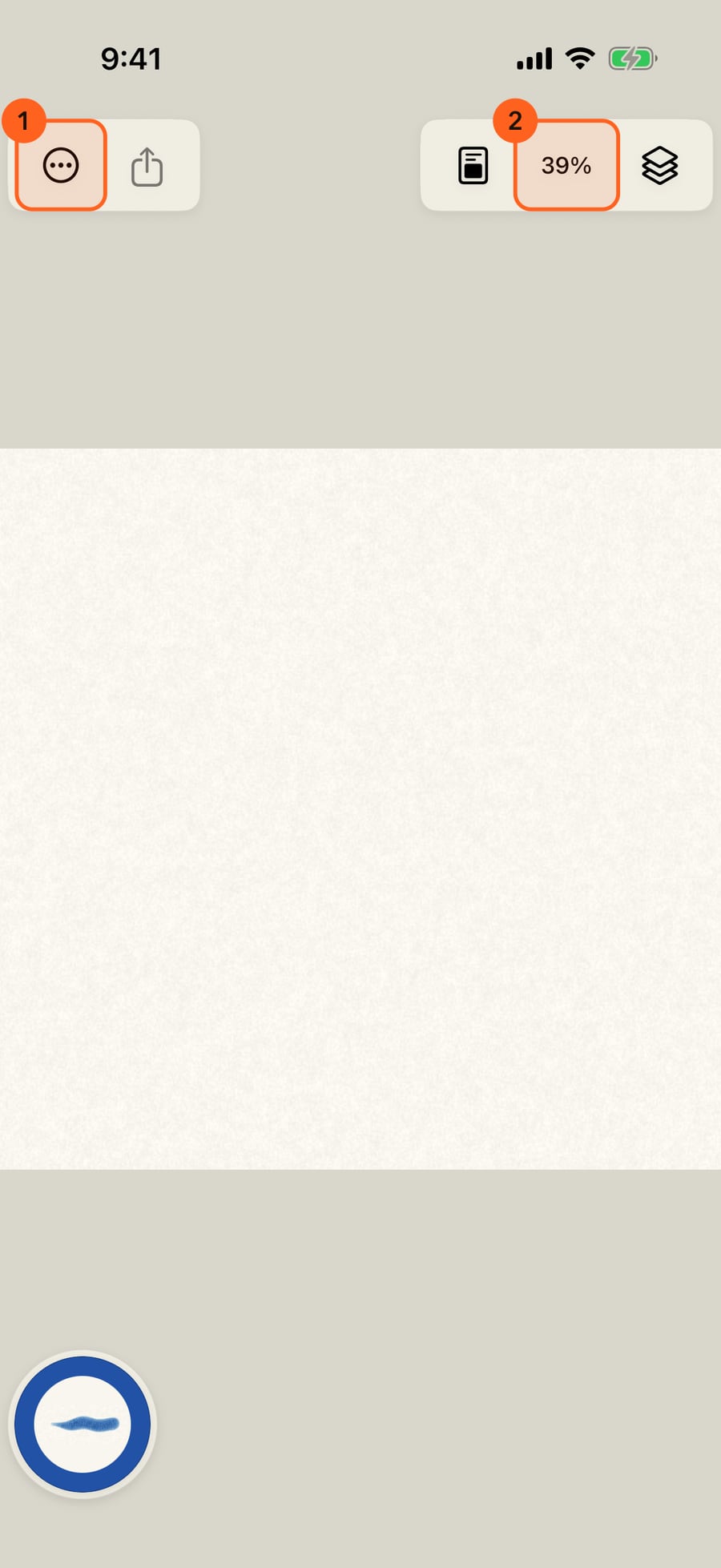
Sheets and menus grow with your text; long menus scroll. Here is Settings at the largest size.
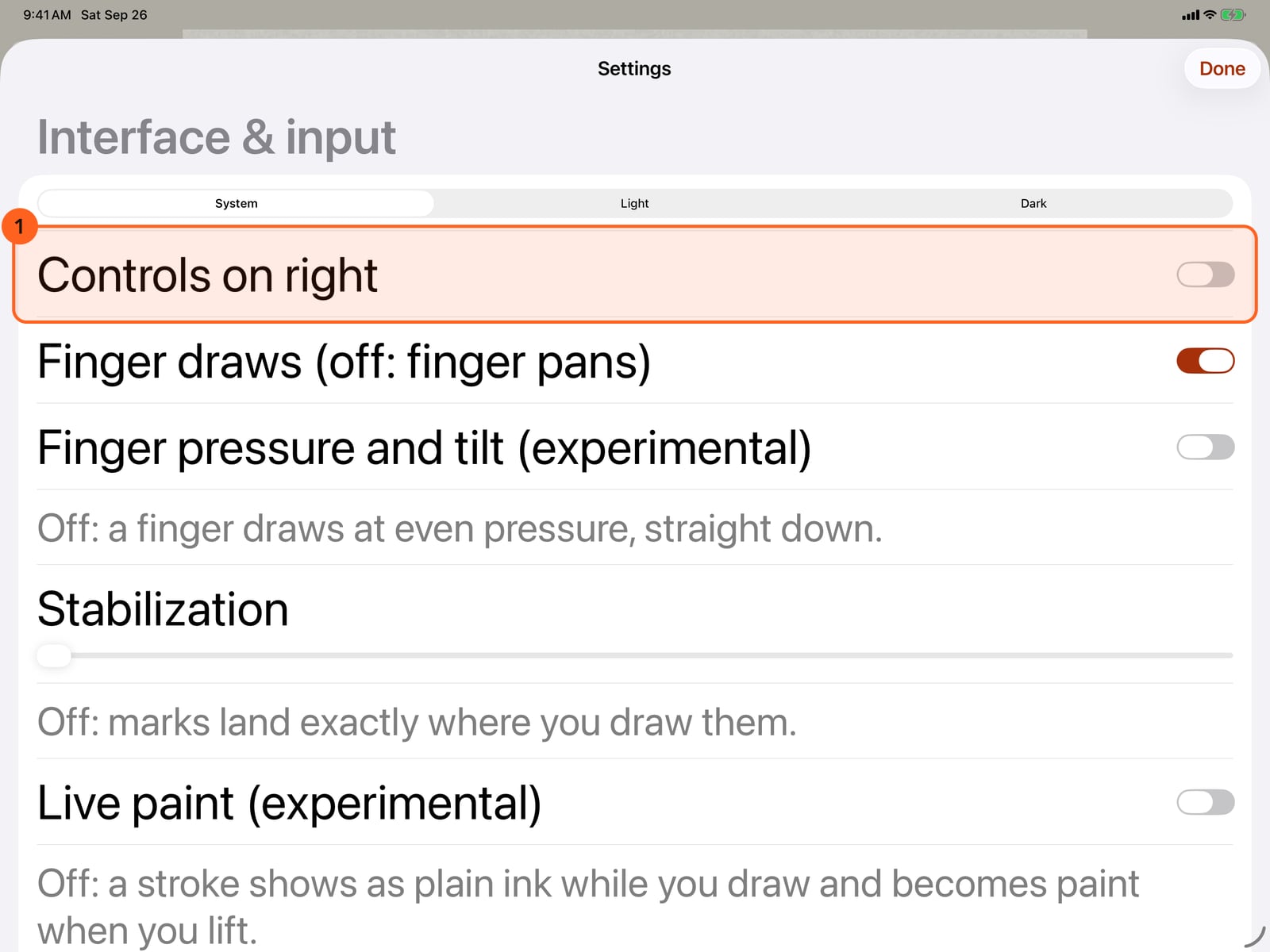
Sheets and menus grow with your text; long menus scroll. Here is Settings at the largest size.
Tap Done, then the wheel's centre. Every colour has a name, like Ultramarine, which VoiceOver reads aloud, and every target is at least 44 points.
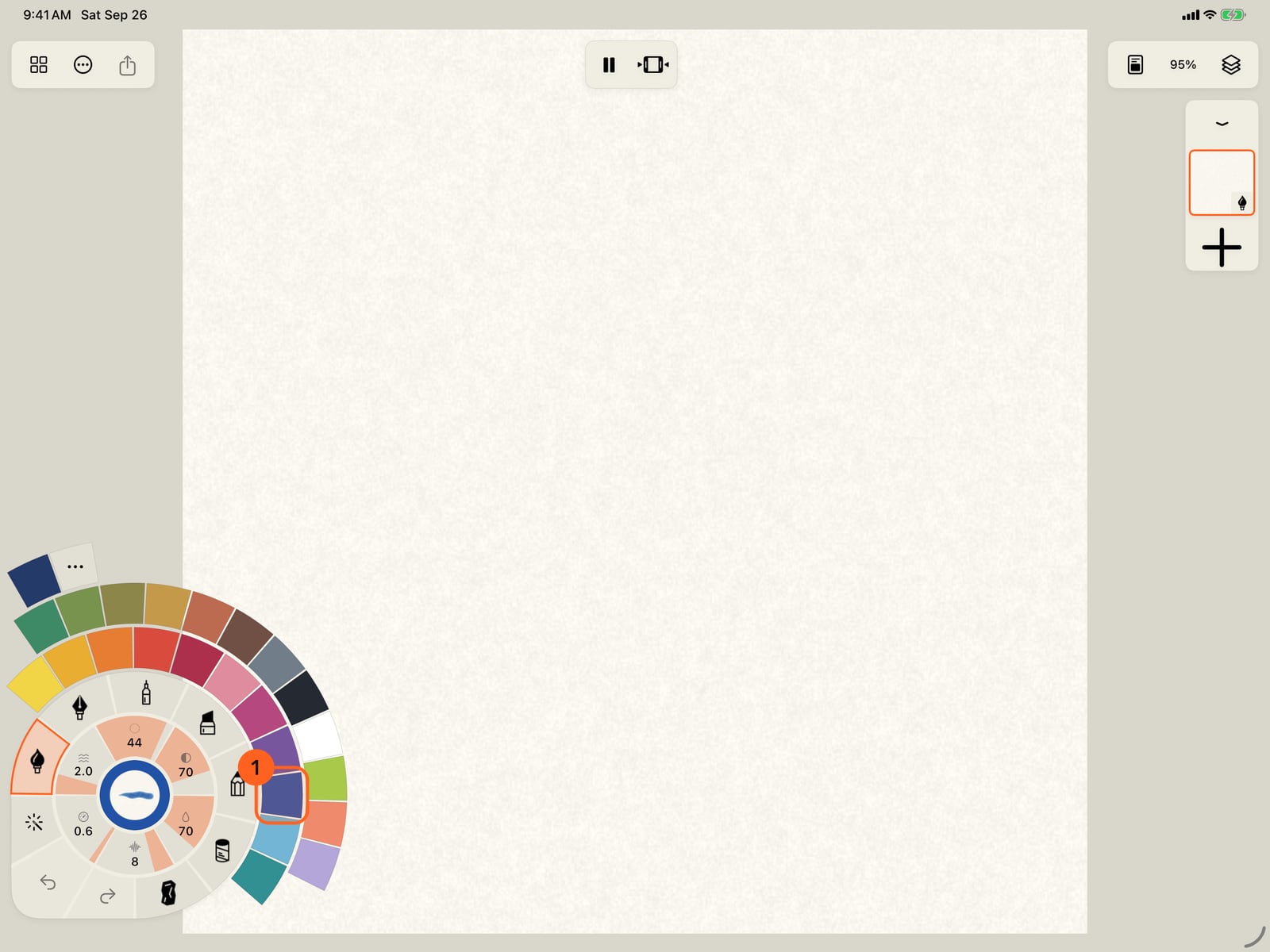
Tap Done, unfold the wheel, and tap its centre. Every colour has a name, like Ultramarine, which VoiceOver reads aloud, and every target is at least 44 points.
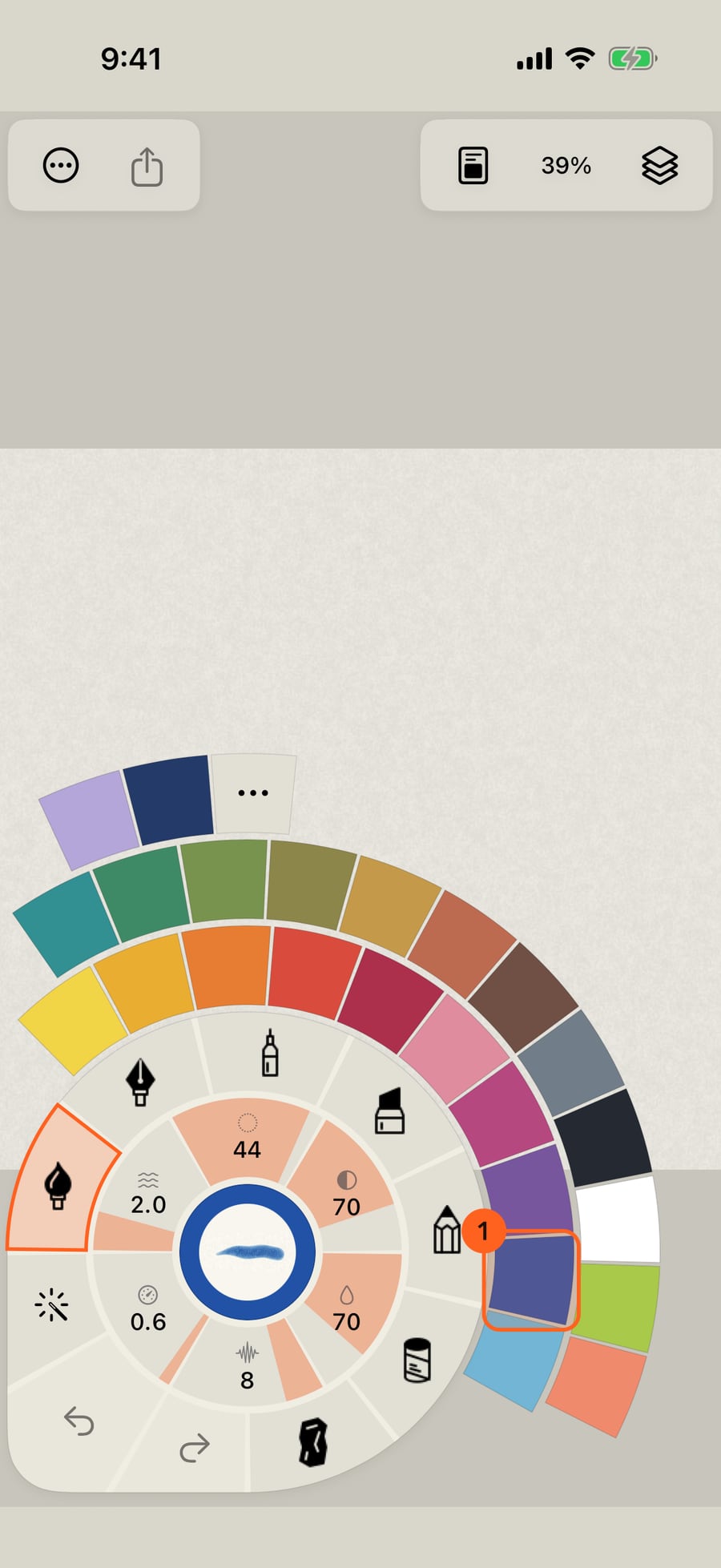
Click Done, then the wheel's centre. Every colour has a name, like Ultramarine, which VoiceOver reads aloud, and every target is at least 44 points.
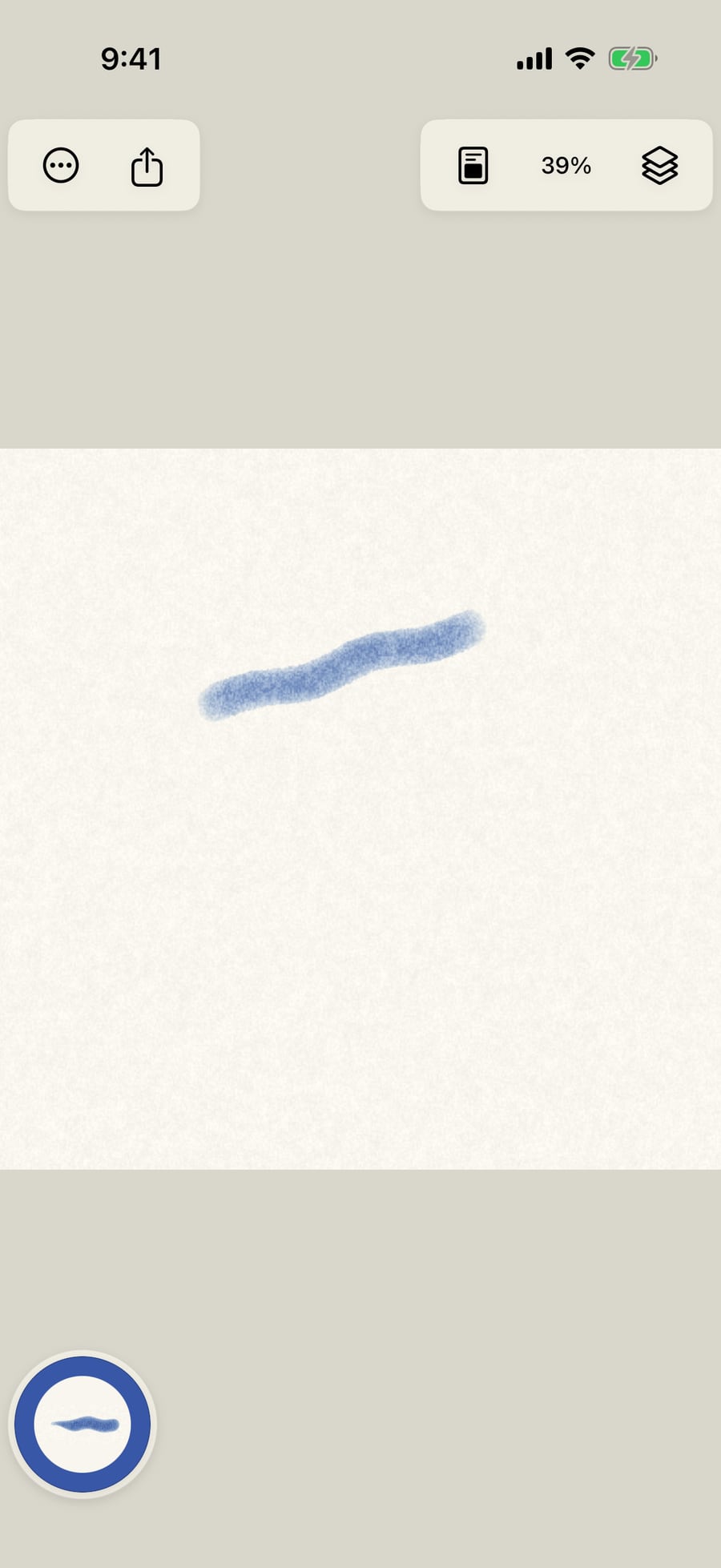
Choose Ultramarine and paint. VoiceOver describes the canvas by its number of strokes, its paper, the brush and the motion.
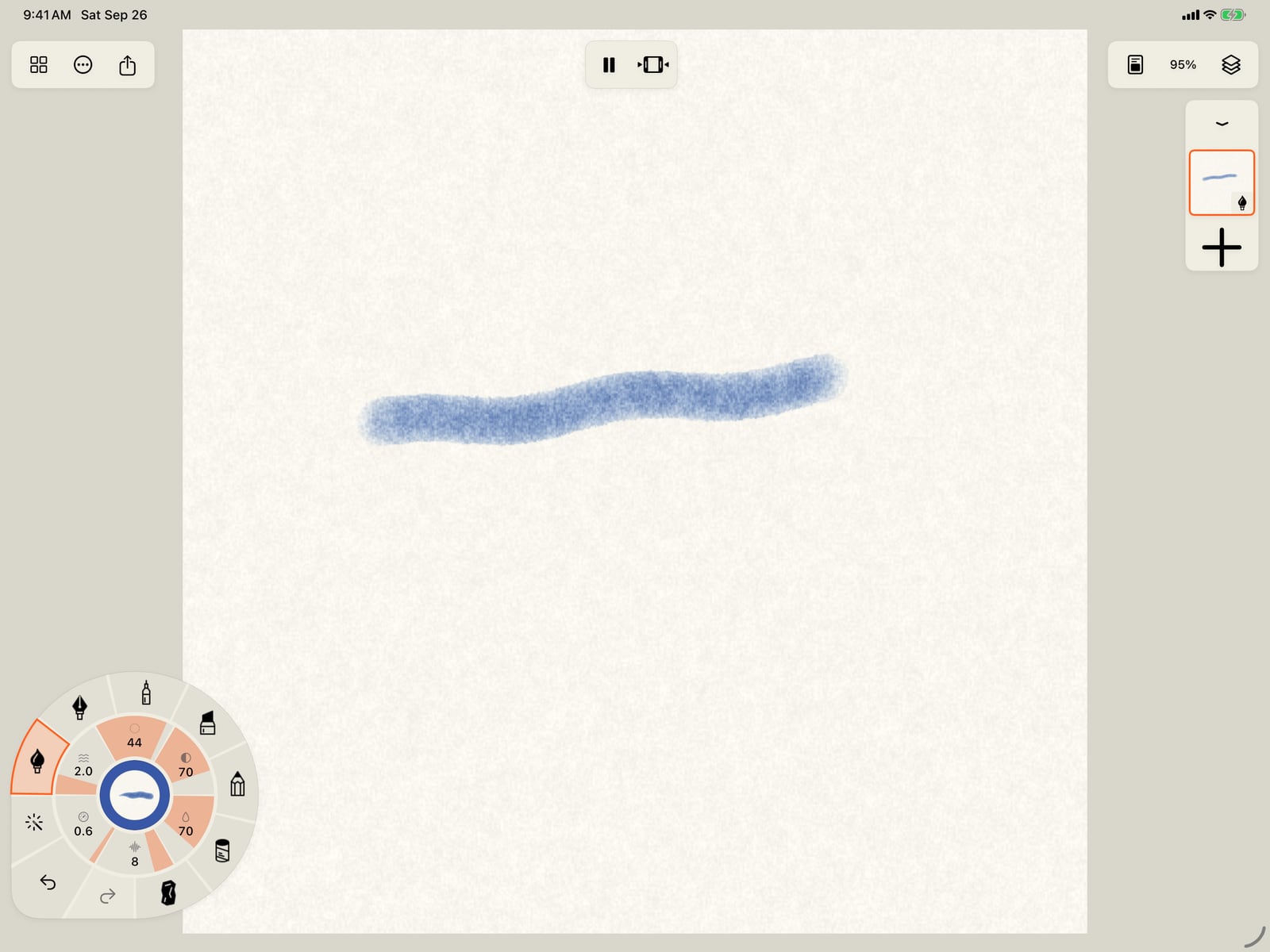
Choose Ultramarine, tap the page to fold the wheel, and paint. VoiceOver describes the canvas by its number of strokes, its paper, the brush and the motion.
Text size
Doodly Doodle follows the text size you choose in the Settings app (Display & Brightness, or Accessibility → Display & Text Size), up to the largest accessibility sizes.
- Sheets, menus and lists grow with your text: Settings, Export, Brush Studio, Layers and the rest.
- The top bar keeps its buttons at a fixed size, like the system's own bars, so they don't push each other off screen. At the accessibility sizes it drops the painting's title and the paused time to make room.
- The stroke wheel keeps its size, so every wedge stays within reach. At the accessibility sizes, touch and hold a wedge (Undo, Redo, Tools, Motion, the eraser, the eyedropper or Color) or a chip in its rings to see it large, with its name; lift over it to use it.
VoiceOver
Every control has a spoken name, and the ones that change say their state:
- The canvas is Drawing canvas. Its value reads the number of strokes, the paper, the brush and its motion, and whether the view is flipped or the ruler is on.
- The wheel: each medium by name; Size, Strength, Water, Amount, Speed and Pattern with their values (a motion gauge's tap opens the Motion ring); Undo, Redo, Canvas tools (whose ring holds Erase whole strokes, Eyedropper and the other tools, each saying when it's on); and Color, which also says the brush in hand. Folded on iPhone, the wheel is Brush and color.
- Colours are read by name, such as Ultramarine or Ink black; your recent colours as Recent color 1, 2 and so on.
- The top bar: Gallery, Actions, Share, Play animation or Pause animation, Show timeline, Canvas and paper, Canvas zoom with its percentage, and Layers.
- Notices, such as the layer a brush switched you to, are announced as they appear.
Touch targets
The app's controls are at least 44 by 44 points, including each colour in the palette and each chip in the wheel's rings. Status notes at the top of the page, such as Hand · Return to drawing, are buttons of the same height.
Reduce Motion
With Reduce Motion on in the Settings app (Accessibility → Motion):
- Paintings open paused, including the first painting, A quiet breeze. Tap Play when you want them to move; nothing about the painting changes.
- The wheel's rings, the wheel's move to the pencil, and the side controls dimming while you draw all happen without animating.
On the Mac, Reduce Motion follows System Settings → Accessibility → Display.
Seeing the page
- Appearance in Settings sets Light or Dark controls, whatever the system uses.
- Hide interface (Actions, or a four-finger tap) leaves only the painting.
- Controls on right in Settings moves the wheel to the bottom-right corner.
Something not behaving as expected?
Visit support or write to [email protected].